
Intelligent eyewear can extend your app's mobile experience in novel ways. Introduce and educate users on your app's capabilities in the right moment so that their glasses feel like a seamless extension of your mobile app. Follow these best practices while onboarding users, so they have proper permissions, know how to invoke glasses use, and know how to use app-related features. For more on general app onboarding and authentication, refer to mobile user onboarding.
Usage & placement
Glasses onboarding can include:
- Glasses detection
- Feature discovery on glasses and on mobile
- Permissions setup
- User education
Onboarding related flows can happen contextually, upfront, on glasses, or within the companion app.
Contextual onboarding
When introducing glasses related features, defer to just-in-time, in-app, education and permissions, meaning when a user encounters the feature.
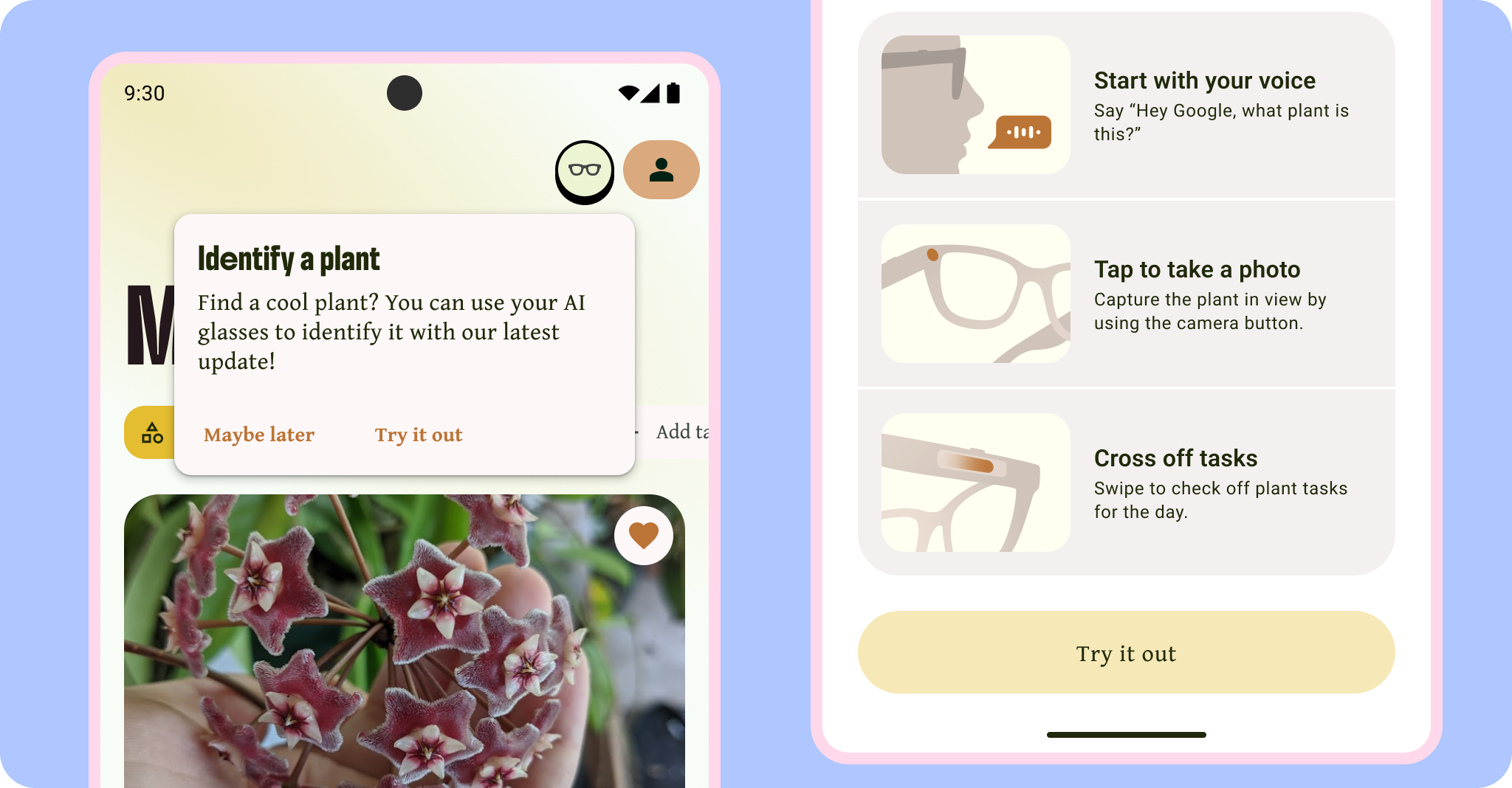
This allows users to learn about features when they are more relevant and usable to them and less likely to forget. This is also preferred for returning users, as the discovery process can trigger when the user returns the first time glasses are paired.
Upfront onboarding
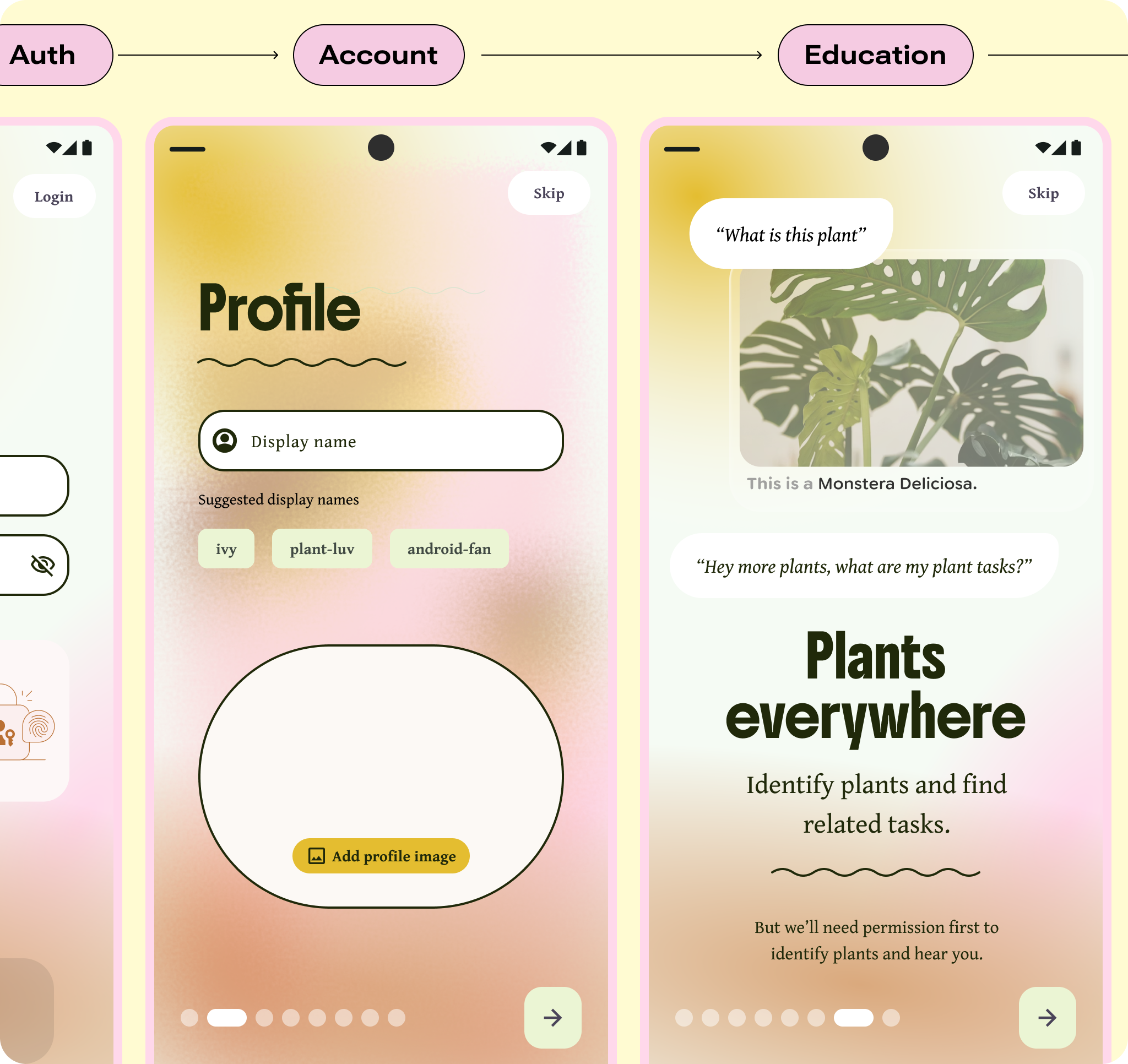
Education and permissions can also be a part of upfront app onboarding (or welcome placement). This approach might make sense if your app's onboarding falls into one of these categories:
- Glasses integration is essential to your app's core experience
- Your user will use the feature right away
- You plan to have a longer user education flow
During upfront onboarding, consider this a value proposition or informative moment, as they may forget after onboarding.
When included as part of a larger onboarding flow, you can decide whether to notify the user that glasses are available if they are detected.
Onboarding on intelligent eyewear
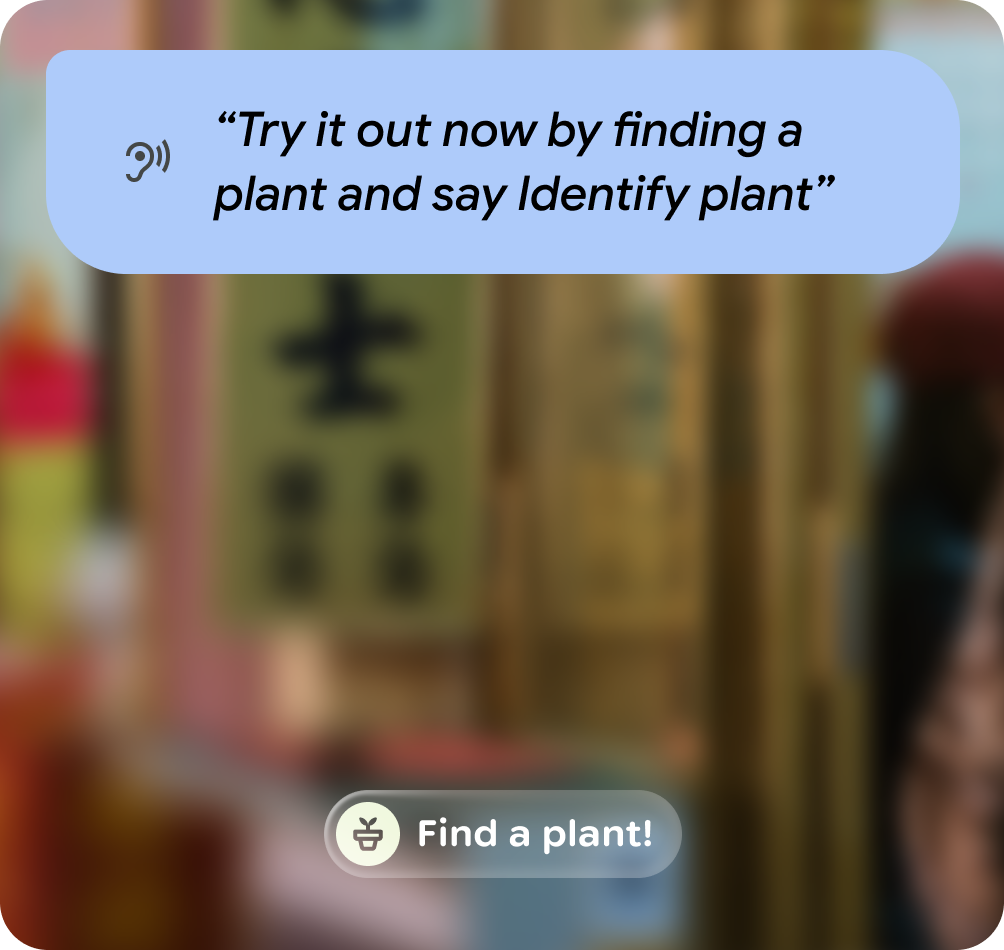
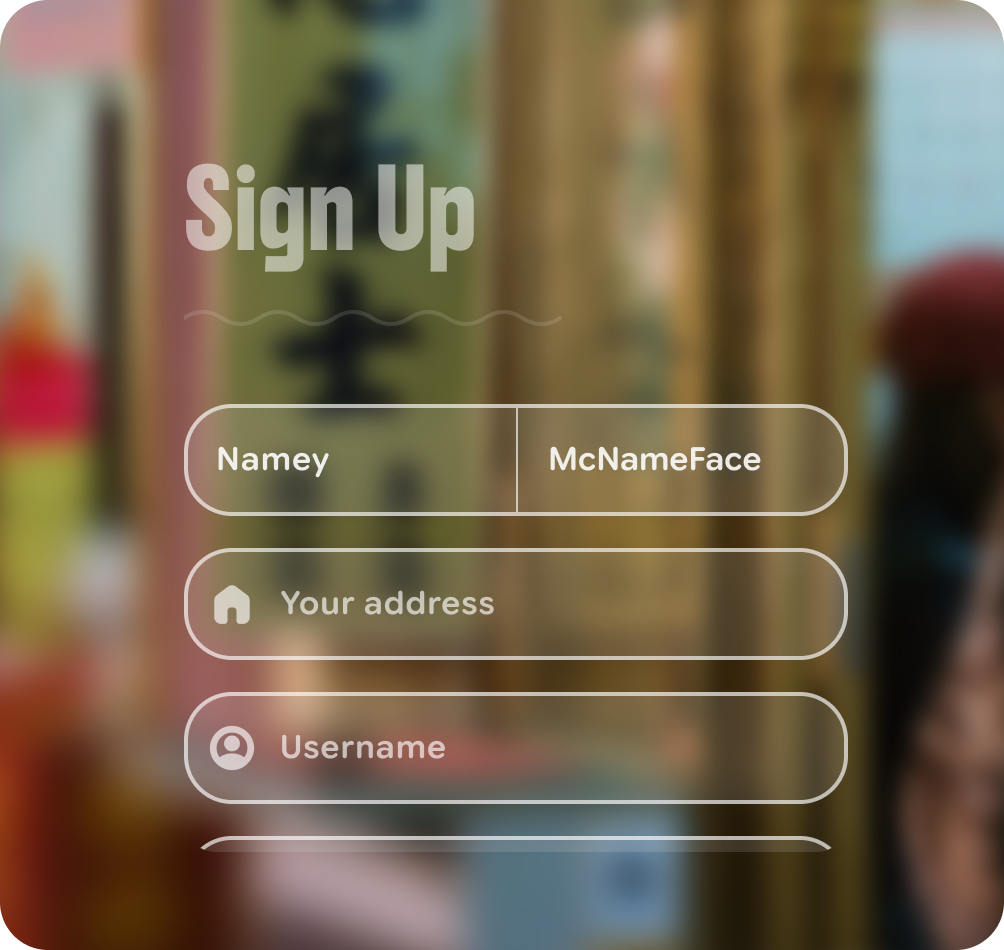
Users can invoke your app from their glasses. For first-time use, they need to be welcomed, grant appropriate permissions, and be taught how to use the AI glasses features.
Do
Don't
Onboarding through a companion app
A companion app serves as a setup, support, and preferences hub for a user's AI glasses. This is where they pair their glasses and learn basic usage. Since the companion app teaches users how to pair and use their glasses, along with Gemini, your app shouldn't include such fundamental concepts. Instead, focus on your own app's features. The companion app also provides app discovery with access to the Google Play Store.
First-time setup
Users can find and start using your app's glasses features through several routes, so it's important to account for multiple entry points. These methods should be first-time experiences whenever certain criteria is met. For example, a user might have previously completed onboarding before they paired their glasses and then return to the app with their glasses now paired. This case would be an ideal moment to trigger your glasses feature discovery.
Mobile app
Within the mobile app, if glasses are paired and detected, then prompt feature discovery, followed by education and permission priming. Once the user has granted permissions, hand off to glasses.
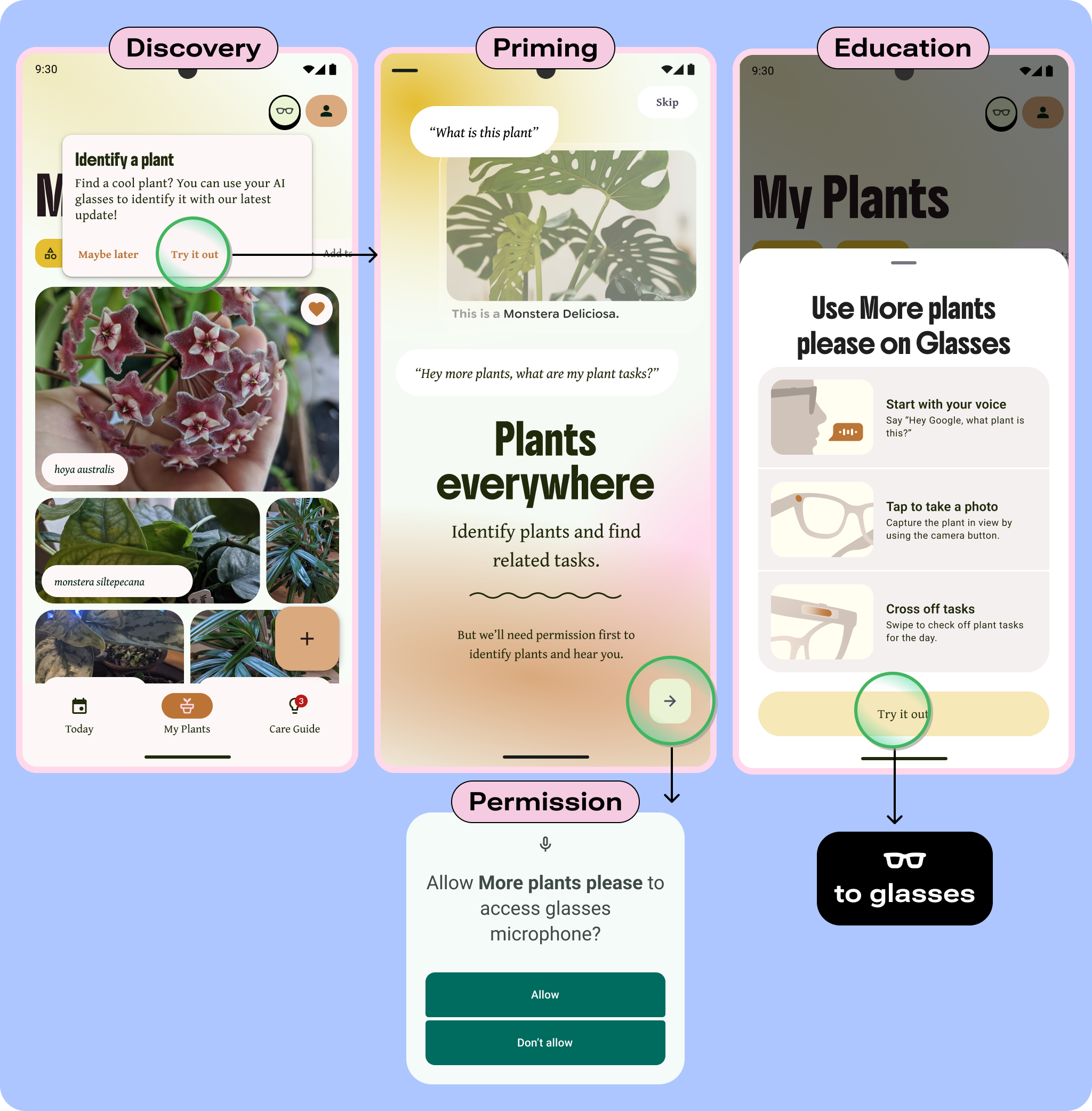
For more on permissions.
Get an onboarding example with the Android Onboarding Figma Kit.
Intelligent eyewear
If the user starts your app's Glasses activity for the first time from their Glasses, they should be prompted with permissions priming, then hand off to their phone to grant the required permissions. Once complete, you can provide education within your app (for more visual walkthrough), or within the Glasses activity.
If your app is Gemini connected, but the Gemini app isn't downloaded, the user is prompted to download the app on their mobile device first.
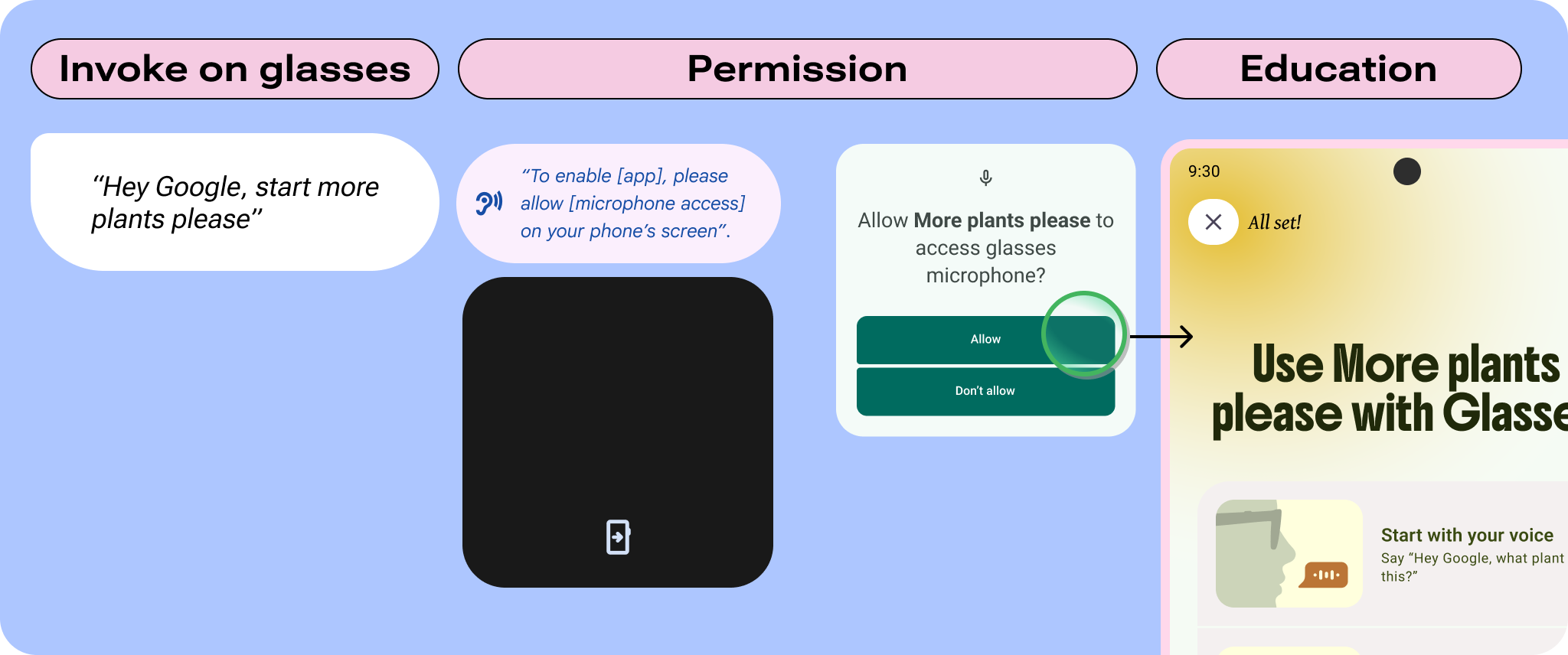
You can include user education within the Glasses activity by using audio queues, earcons, and gesture hints, but consider if one modal summary can better convey use.

Regardless of how you handle user education, use an audio queue to welcome your users into the Glasses activity the first time they use it.
Education
Inform users on how to use your Glasses activity, so they don't have to guess on where or how to use it.
Contextual, or just-in-time, education helps inform users where to access and what feature is associated with their glasses.
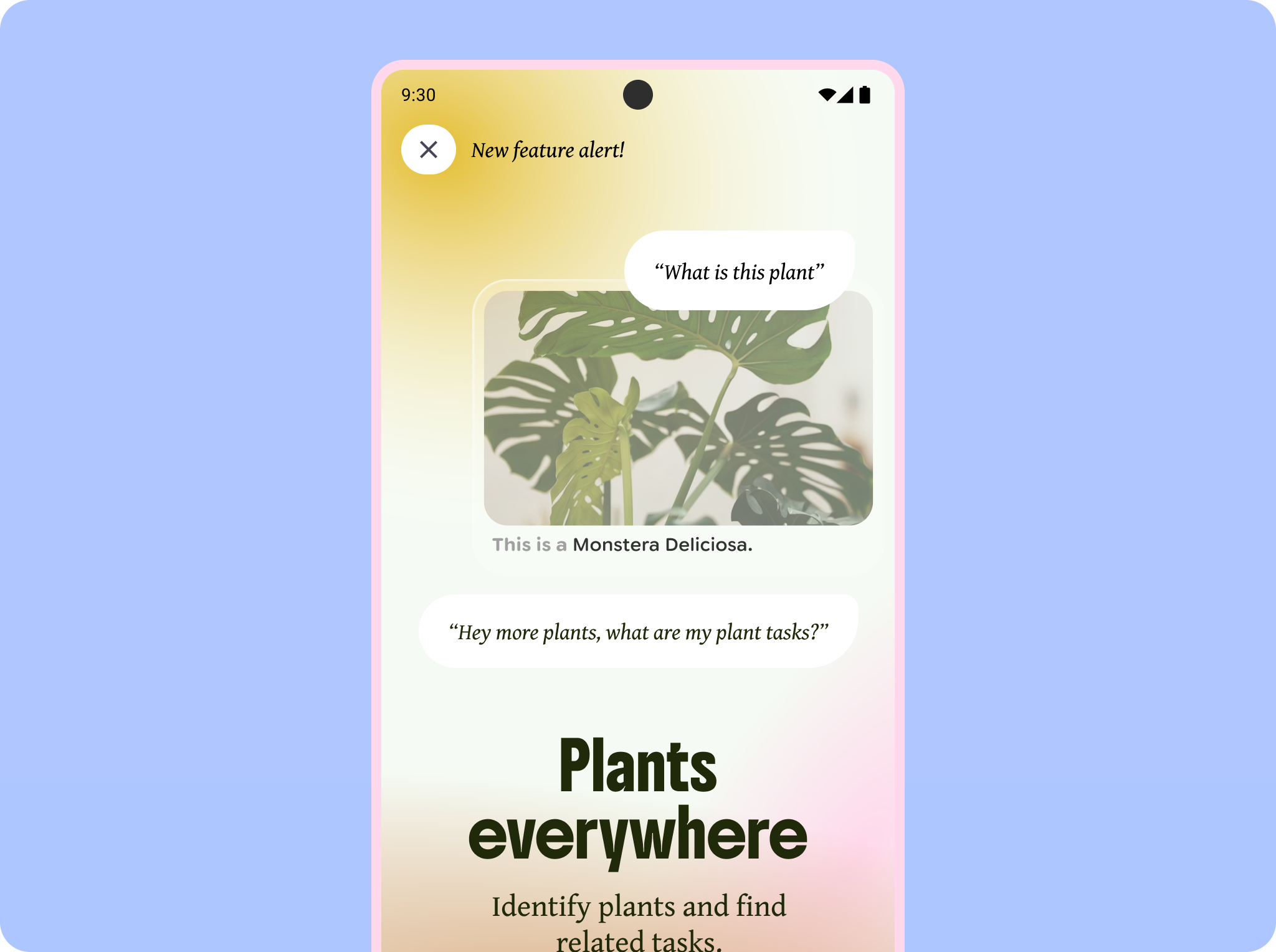
Within the educational flow, highlight:
- Specialized invocations or actions to try out.
- Unique input mappings or gestures.
- Specialized invocations or actions to try out.
- Unique input mappings or gestures.
If using the camera or microphone, remind users about this use, and explain why your app needs them.

Don't
Make users guess on available features. Give users suggestions or directions on what to do.
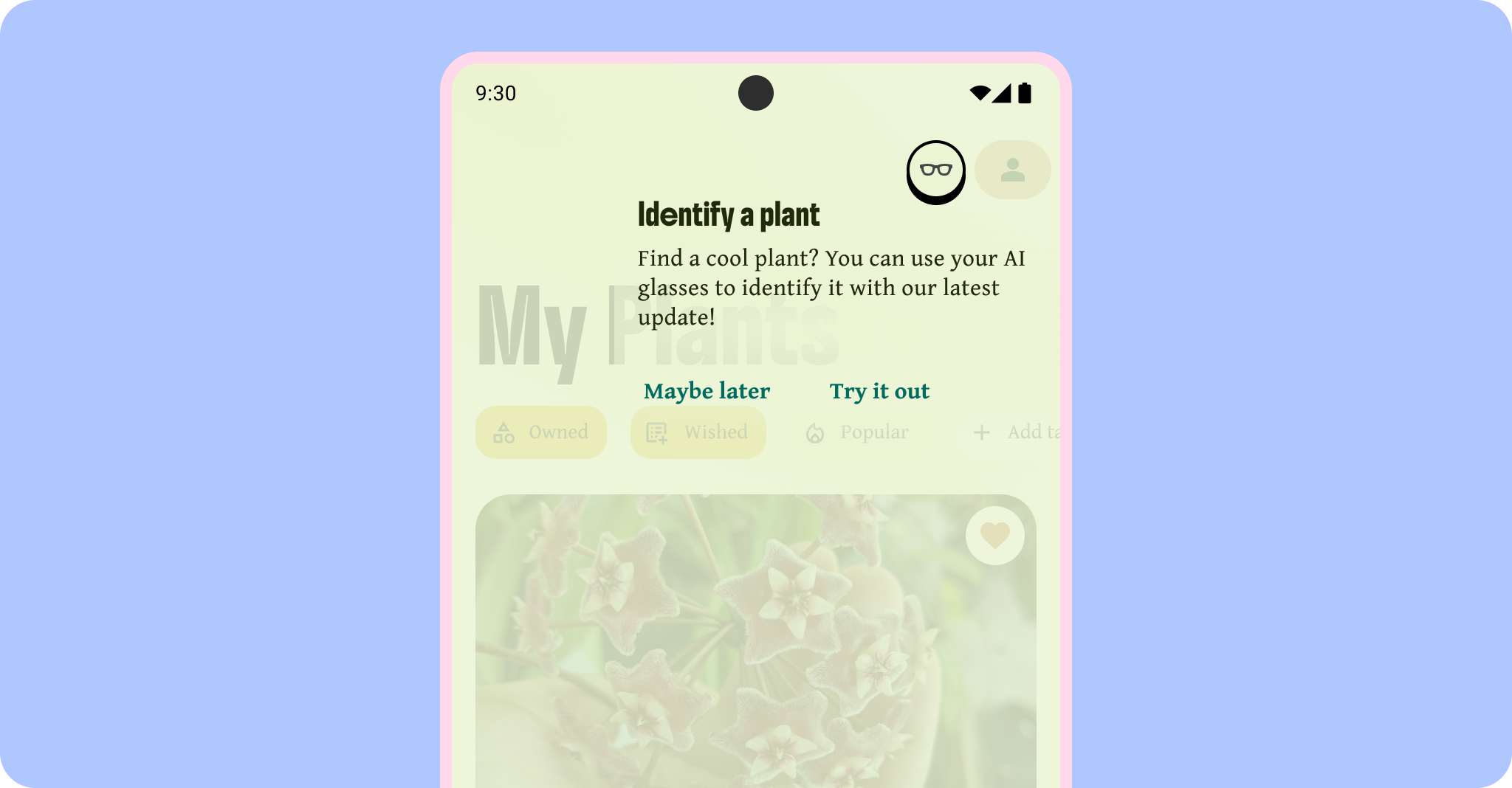
Feature discovery doesn't have to remain at one point. If they can access one or more features within the glasses activity at different times, point them out with a coachmark or tooltip.
Resources
Discover onboarding templates, user flows, and user education assets in the Android Onboarding Figma Kit or download the glasses user education motion assets After Effects file for customizing and implementing educational motion graphics within your app.
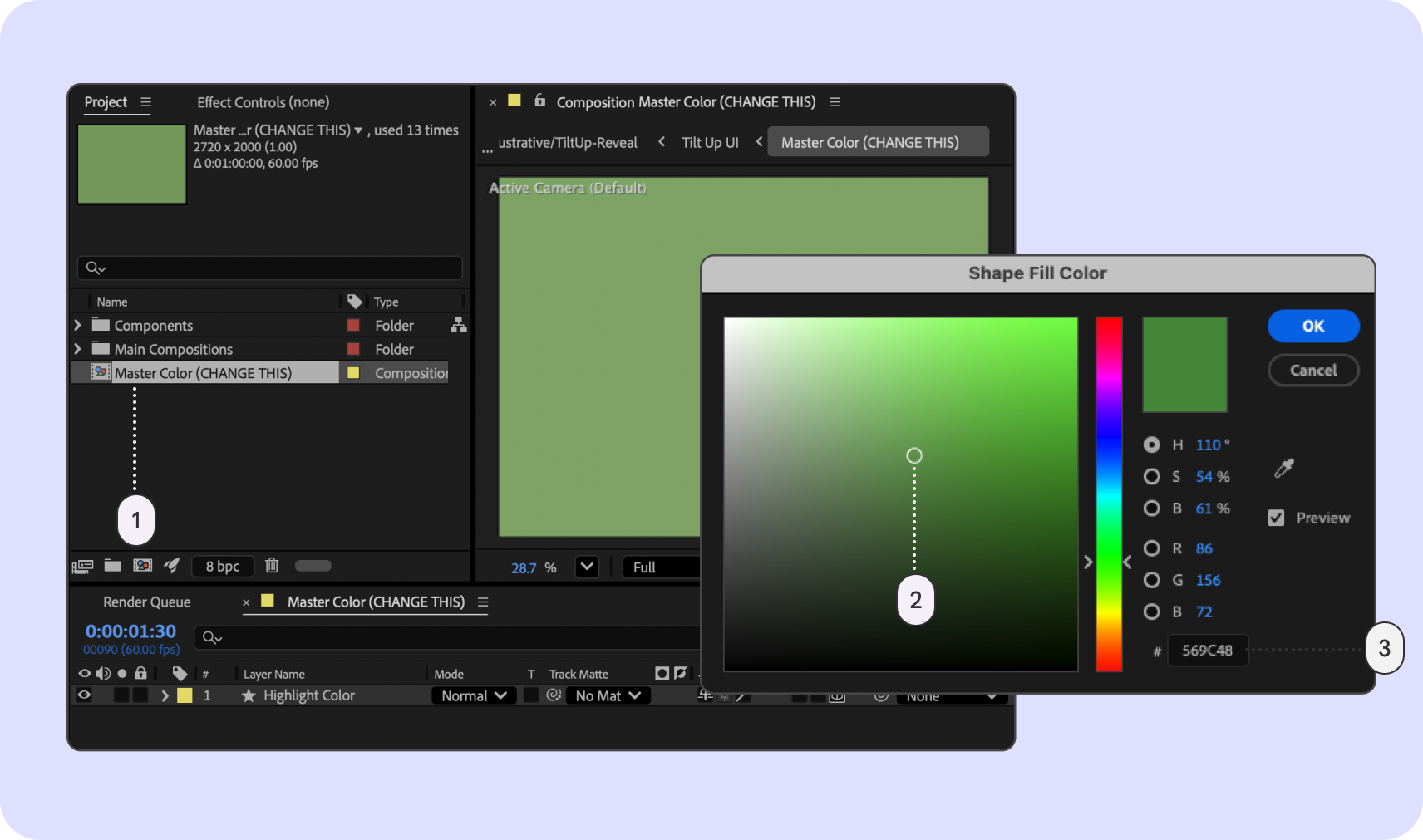
To customize the color tint of the motion assets, download the After Effects file, when open:
Open Master Color composition.
Use the color field reticle and color plane slider.
Enter a hex value.
Motion graphics can then be rendered or exported as lottie format.
The Android Onboarding Figma kit contains onboarding examples and static assets for use across Android form factors.
After duplicating the file, go to the Intelligent eyewear Welcome sequence page for a suggested UX flow on intelligent eyewear.
On the Intelligent eyewear Instructional illustrations page you can find user education assets to use within your mobile app.
Recovery
Account for error handling during the various onboarding phases:
- If their glasses become unpaired, alert the user.
- If a user hasn't granted permissions, or they were previously denied, alert the user and deep link to settings where they can request them.
- Consider including links to help & support to relearn or better understand using their glasses features.
Components & Patterns
Include user education within the Glasses activity using Jetpack Compose Glimmer components, earcons, and audio queues.
- Onboarding on glasses should follow audio focus states.
- For visual elements, consider using gesture hints, buttons, and cards.
- Read about common layouts and components for mobile onboarding.
- Onboarding on glasses should follow audio focus states.
- For visual elements, consider using gesture hints, buttons, and cards.
- Read about common layouts and components for mobile onboarding.