
This page explains how to set up the official emulator for testing, and how to upgrade your app to target Wear OS 7.
Set up an emulator
Use the Wear OS 7 emulator to test behavior changes, explore new features, and test your app on different screen sizes and watch hardware profiles.
Download and install the emulator
To set up a virtual device to run Wear OS 7, follow these steps:
- Download the latest release of Android Studio.
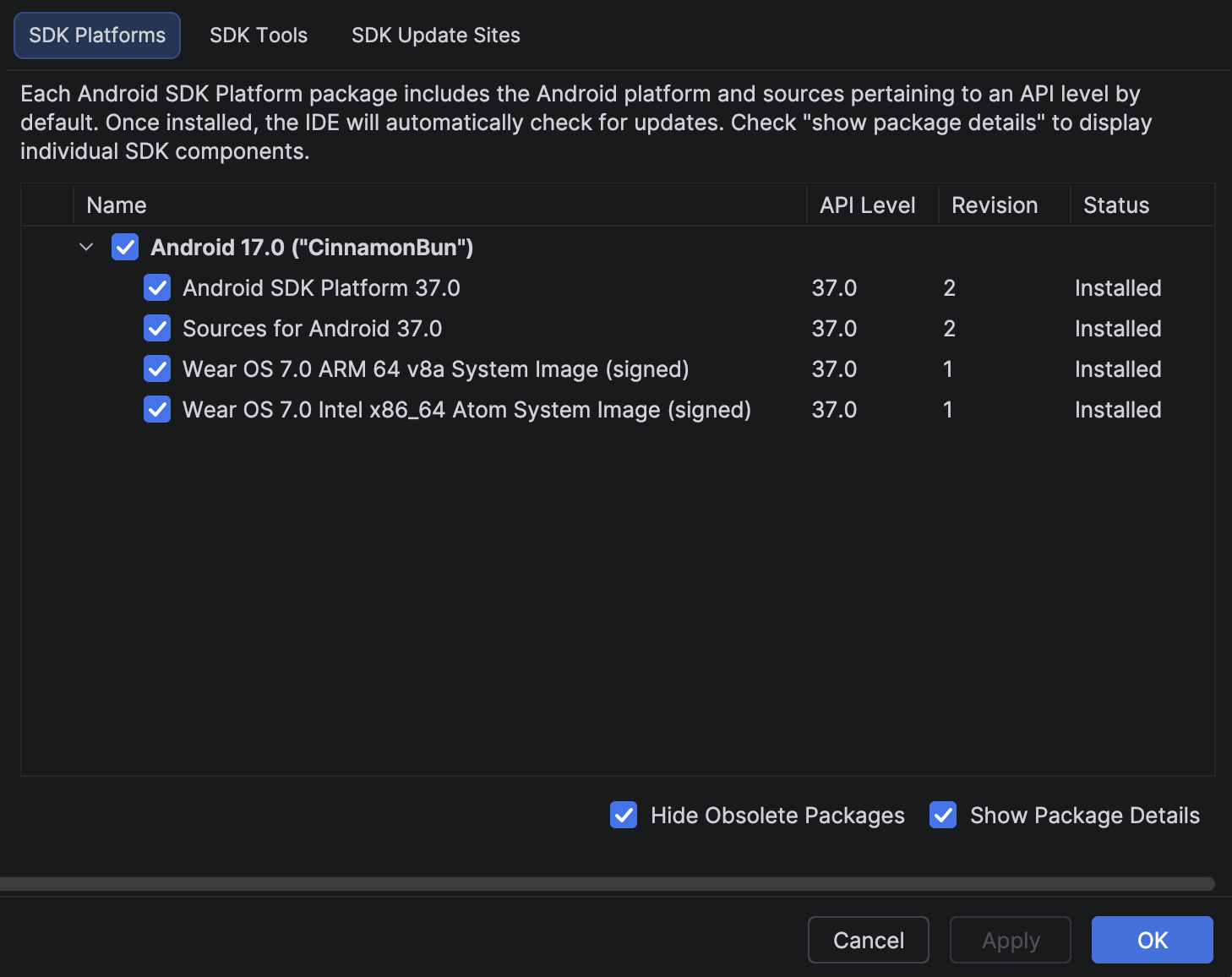
- In Android Studio, click Tools > SDK Manager.
- In the SDK Tools tab, select the latest version of Android Emulator and click OK to install the latest version if it isn't already installed.
- In Android Studio, open the Device Manager by selecting Tools > Device Manager. Click Create device.
- In the Category pane, select Wear OS.
- Select a hardware profile (for example, Wear OS Large Round or Wear OS Small Round) and click Next.
- Select a Wear OS 7 system image to download:
- In the SDK Platforms tab (or recommended tab), select the system image for Wear OS 7.0 (API Level 37).
- Ensure to specify the architecture (e.g.,
ARM 64 v8aorIntel x86_64depending on the developer's host machine). - If not installed, click Download next to the release name.
- Once downloaded, select the image, click Next, and then Finish.
Pre-installed experiences
The Wear OS 7 emulator includes a variety of pre-installed applications, watch faces, and widgets to help you test your app's integration with the system.
Applications
- Contacts
- Find Hub
- Find my phone
- Flashlight
- Media Controls
- Messages
- Phone
- Play Store
- Settings
Watch faces
- Offhand
- Perfunctory
- Superficial
Widgets
- Favorites
- Contact
Update your app to target Wear OS 7
After you update your app to prepare it for Wear OS 7, you can further improve your app's compatibility by targeting Wear OS 7 (API level 37), which is based on Android 17, or higher.
If you update your target SDK version, handle the system behavior changes that take effect for apps that target Android 17 or higher.
Update your build file
To update your target SDK version, open your module-level build.gradle or
build.gradle.kts file, and update them with the following values for Wear OS 7
(Android 17):
Groovy
android {
    compileSdk 37
    ...
    defaultConfig {
        targetSdk 37
    }
}
Kotlin
android {
    compileSdk = 37
    ...
    defaultConfig {
        targetSdk = 37
    }
}