

Espresso 提供機制,可捲動至特定項目或對其執行操作,適用於兩種清單:轉接器檢視畫面和回收器檢視畫面。
處理清單時,尤其是使用 RecyclerView 或 AdapterView 物件建立的清單,您感興趣的檢視畫面可能甚至不會顯示在螢幕上,因為系統只會顯示少數子項,並在您捲動時回收。在這種情況下,無法使用 scrollTo() 方法,因為該方法需要現有的檢視畫面。
與轉接程式檢視畫面清單項目互動
請改用 onData() 開始搜尋,並提供與支援您要比對的檢視畫面資料相符的比對器,而不是使用 onView() 方法。Espresso 會執行所有工作,在 Adapter 物件中尋找資料列,並在可視區域中顯示項目。
使用自訂檢視畫面比對器比對資料
以下活動包含 ListView,由 SimpleAdapter 支援,後者會保留 Map<String, Object> 物件中每個資料列的資料。
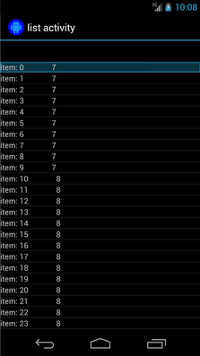
每個對應項都有兩個項目:包含字串 (例如 "item: x") 的鍵 "STR",以及包含 Integer (代表內容長度) 的鍵 "LEN"。例如:
{"STR" : "item: 0", "LEN": 7}
點選「item: 50」資料列的程式碼如下所示:
onData( allOf( `is`(instanceOf(Map::class.java)), hasEntry(equalTo("STR"), `is`("item: 50")) ) ).perform(click())
請注意,Espresso 會視需要自動捲動清單。
讓我們拆解 onData() 內的 Matcher<Object>。is(instanceOf(Map.class)) 方法會將搜尋範圍縮小至 AdapterView 的任何項目,該項目由 Map 物件支援。
在本例中,查詢的這個部分會比對清單檢視畫面的每一列,但我們想點選特定項目,因此使用以下指令進一步縮小搜尋範圍:
hasEntry(equalTo("STR"), `is`("item: 50"))
這個 Matcher<String, Object> 會比對任何包含鍵為 "STR"、值為 "item: 50" 的項目。由於隨手查此項目的程式碼很長,且我們想在其他位置重複使用,因此請為此編寫自訂 withItemContent 比對器:
return object : BoundedMatcher<Any, Map<*, *>>(Map::class.java) { override fun matchesSafely(map: Map<*, *>): Boolean { return hasEntry(equalTo("STR"), itemTextMatcher).matches(map) } override fun describeTo(description: Description) { description.appendText("with item content: ") itemTextMatcher.describeTo(description) } }
您可以使用 BoundedMatcher 做為基礎,因為只要比對 Map 類型的物件即可。覆寫 matchesSafely() 方法,放入先前找到的比對器,並與可做為引數傳遞的 Matcher<String> 進行比對。這樣一來,您就能呼叫 withItemContent(equalTo("foo"))。為求程式碼簡潔,您可以建立另一個比對器,該比對器已呼叫 equalTo() 並接受 String 物件:
fun withItemContent(expectedText: String): Matcher<Any> { checkNotNull(expectedText) return withItemContent(equalTo(expectedText)) }
現在,點選項目的程式碼很簡單:
onData(withItemContent("item: 50")).perform(click())
如要查看這項測試的完整程式碼,請參閱 AdapterViewTest 類別中的 testClickOnItem50() 方法,以及 GitHub 上的這個自訂 LongListMatchers 比對器。
比對特定孩童檢視模式
上述範例會在 ListView 的整列中間發出點擊。但如果想對資料列的特定子項執行操作,該怎麼做?舉例來說,我們想點選 LongListActivity 列的第二欄,其中顯示第一欄內容的 String.length:
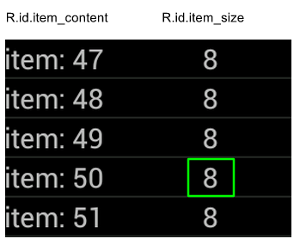
只要在 DataInteraction 的實作中加入 onChildView() 規格即可:
onData(withItemContent("item: 60")) .onChildView(withId(R.id.item_size)) .perform(click())
與 RecyclerView 清單項目互動
RecyclerView 物件的運作方式與 AdapterView 物件不同,因此無法使用 onData() 與其互動。
如要使用 Espresso 與 RecyclerView 互動,您可以使用 espresso-contrib 套件,其中包含 RecyclerViewActions 集合,可用於捲動至特定位置或對項目執行動作:
scrollTo():捲動至相符的 View (如有)。scrollToHolder():捲動至相符的 View Holder (如有)。scrollToPosition():捲動至特定位置。actionOnHolderItem():對相符的 View Holder 執行 View Action。actionOnItem():對相符的檢視畫面執行檢視畫面動作。actionOnItemAtPosition():對特定位置的檢視畫面執行 ViewAction。
以下程式碼片段提供 RecyclerViewSample 範例中的一些範例:
@Test(expected = PerformException::class) fun itemWithText_doesNotExist() { // Attempt to scroll to an item that contains the special text. onView(ViewMatchers.withId(R.id.recyclerView)) .perform( // scrollTo will fail the test if no item matches. RecyclerViewActions.scrollTo<RecyclerView.ViewHolder>( hasDescendant(withText("not in the list")) ) ) }
@Test fun scrollToItemBelowFold_checkItsText() {
    // First, scroll to the position that needs to be matched and click on it.
    onView(ViewMatchers.withId(R.id.recyclerView))
        .perform(
            RecyclerViewActions.actionOnItemAtPosition(
                ITEM_BELOW_THE_FOLD,
                click()
            )
        )

    // Match the text in an item below the fold and check that it's displayed.
    val itemElementText = "${activityRule.activity.resources
        .getString(R.string.item_element_text)} ${ITEM_BELOW_THE_FOLD.toString()}"
    onView(withText(itemElementText)).check(matches(isDisplayed()))
}
@Test fun itemInMiddleOfList_hasSpecialText() {
    // First, scroll to the view holder using the isInTheMiddle() matcher.
    onView(ViewMatchers.withId(R.id.recyclerView))
        .perform(RecyclerViewActions.scrollToHolder(isInTheMiddle()))

    // Check that the item has the special text.
    val middleElementText = activityRule.activity.resources
            .getString(R.string.middle)
    onView(withText(middleElementText)).check(matches(isDisplayed()))
}
其他資源
如要進一步瞭解如何在 Android 測試中使用 Espresso 清單,請參閱下列資源。
範例
- DataAdapterSample:展示 Espresso 的
onData()進入點,適用於清單和AdapterView物件。