

Android 的媒體控制選項位於「快速設定」附近。多個應用程式的工作階段會排列在可滑動的輪轉介面中。輪轉介面會依下列順序列出課程:
- 手機上播放的串流內容
- 遠端串流,例如在外部裝置或投放工作階段中偵測到的串流
- 先前可繼續播放的工作階段,依上次播放順序排列
從 Android 13 (API 級別 33) 開始,為確保使用者能存取應用程式播放媒體時的豐富媒體控制項,媒體控制項的動作按鈕會衍生自 Player 狀態。
這樣一來,您就能在不同裝置上提供一致的媒體控制項組合,以及更完善的媒體控制項體驗。
圖 1 分別顯示在手機和平板電腦上的範例。
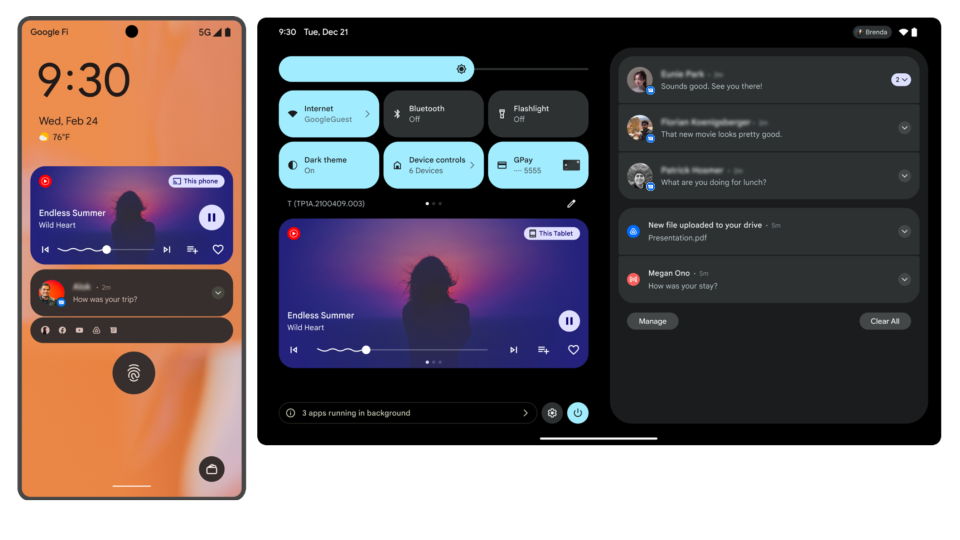
系統會根據 Player 狀態顯示最多五個動作按鈕,如下表所述。在精簡模式下,只會顯示前三個動作插槽。這與其他 Android 平台 (例如 Android Auto、Google 助理和 Android Wear OS) 的媒體控制項顯示方式一致。
| 運算單元 | 條件 | 動作 |
|---|---|---|
| 1 |
playWhenReady 為 false,或目前的
播放狀態為 STATE_ENDED。
|
播放 |
playWhenReady 為 true,且目前的
播放狀態為 STATE_BUFFERING。
|
載入旋轉圖示 | |
playWhenReady 為 true,且目前的
播放狀態為 STATE_READY。
|
暫停 | |
| 2 |
媒體按鈕偏好設定包含 CommandButton.SLOT_BACK 的自訂按鈕 |
自訂 |
可使用播放器指令
COMMAND_SEEK_TO_PREVIOUS 或
COMMAND_SEEK_TO_PREVIOUS_MEDIA_ITEM。 |
先前賽事 | |
| 沒有可用的自訂按鈕或列出的指令。 | 空白 | |
| 3 |
媒體按鈕偏好設定包含 CommandButton.SLOT_FORWARD 的自訂按鈕。 |
自訂 |
可使用播放器指令
COMMAND_SEEK_TO_NEXT 或
COMMAND_SEEK_TO_NEXT_MEDIA_ITEM。 |
繼續 | |
| 沒有可用的自訂按鈕或列出的指令。 | 空白 | |
| 4 |
「媒體按鈕偏好設定」包含尚未放置的 CommandButton.SLOT_OVERFLOW 自訂按鈕。 |
自訂 |
| 5 |
「媒體按鈕偏好設定」包含尚未放置的 CommandButton.SLOT_OVERFLOW 自訂按鈕。 |
自訂 |
自訂溢位按鈕會依加入媒體按鈕偏好的順序排列。
自訂指令按鈕
如要使用 Jetpack Media3 自訂系統媒體控制項,可以相應設定工作階段的媒體按鈕偏好設定,以及控制器的可用指令:
為自訂指令按鈕建構
MediaSession,並定義媒體按鈕偏好設定。在
MediaSession.Callback.onConnect()中,於ConnectionResult內定義可用的指令 (包括自訂指令),授權給控制器。在
MediaSession.Callback.onCustomCommand()中,回應使用者選取的自訂指令。
Kotlin
class PlaybackService : MediaSessionService() { private val customCommandFavorites = SessionCommand(ACTION_FAVORITES, Bundle.EMPTY) private var mediaSession: MediaSession? = null override fun onCreate() { super.onCreate() val favoriteButton = CommandButton.Builder(CommandButton.ICON_HEART_UNFILLED) .setDisplayName("Save to favorites") .setSessionCommand(customCommandFavorites) .build() val player = ExoPlayer.Builder(this).build() // Build the session with a custom layout. mediaSession = MediaSession.Builder(this, player) .setCallback(MyCallback()) .setMediaButtonPreferences(ImmutableList.of(favoriteButton)) .build() } private inner class MyCallback : MediaSession.Callback { override fun onConnect( session: MediaSession, controller: MediaSession.ControllerInfo ): ConnectionResult { // Set available player and session commands. return AcceptedResultBuilder(session) .setAvailableSessionCommands( ConnectionResult.DEFAULT_SESSION_COMMANDS.buildUpon() .add(customCommandFavorites) .build() ) .build() } override fun onCustomCommand( session: MediaSession, controller: MediaSession.ControllerInfo, customCommand: SessionCommand, args: Bundle ): ListenableFuture{ if (customCommand.customAction == ACTION_FAVORITES) { // Do custom logic here saveToFavorites(session.player.currentMediaItem) return Futures.immediateFuture(SessionResult(SessionResult.RESULT_SUCCESS)) } return super.onCustomCommand(session, controller, customCommand, args) } } }
Java
public class PlaybackService extends MediaSessionService { private static final SessionCommand CUSTOM_COMMAND_FAVORITES = new SessionCommand("ACTION_FAVORITES", Bundle.EMPTY); @Nullable private MediaSession mediaSession; public void onCreate() { super.onCreate(); CommandButton favoriteButton = new CommandButton.Builder(CommandButton.ICON_HEART_UNFILLED) .setDisplayName("Save to favorites") .setSessionCommand(CUSTOM_COMMAND_FAVORITES) .build(); Player player = new ExoPlayer.Builder(this).build(); // Build the session with a custom layout. mediaSession = new MediaSession.Builder(this, player) .setCallback(new MyCallback()) .setMediaButtonPreferences(ImmutableList.of(favoriteButton)) .build(); } private static class MyCallback implements MediaSession.Callback { @Override public ConnectionResult onConnect( MediaSession session, MediaSession.ControllerInfo controller) { // Set available player and session commands. return new AcceptedResultBuilder(session) .setAvailableSessionCommands( ConnectionResult.DEFAULT_SESSION_COMMANDS.buildUpon() .add(CUSTOM_COMMAND_FAVORITES) .build()) .build(); } public ListenableFutureonCustomCommand( MediaSession session, MediaSession.ControllerInfo controller, SessionCommand customCommand, Bundle args) { if (customCommand.customAction.equals(CUSTOM_COMMAND_FAVORITES.customAction)) { // Do custom logic here saveToFavorites(session.getPlayer().getCurrentMediaItem()); return Futures.immediateFuture(new SessionResult(SessionResult.RESULT_SUCCESS)); } return MediaSession.Callback.super.onCustomCommand( session, controller, customCommand, args); } } }
如要進一步瞭解如何設定 MediaSession,讓系統等用戶端連線至媒體應用程式,請參閱「授予其他用戶端控制權」。
使用 Jetpack Media3 實作 MediaSession 時,PlaybackState 會自動與媒體播放器保持同步。同樣地,當您實作 MediaSessionService 時,程式庫會自動為您發布 MediaStyle 通知,並保持最新狀態。
回應動作按鈕
使用者輕觸系統媒體控制項中的動作按鈕時,系統的 MediaController 會將播放指令傳送至 MediaSession。MediaSession接著會將這些指令委派給播放器。媒體工作階段會自動處理 Media3 Player 介面中定義的指令。
如要瞭解如何回應自訂指令,請參閱「新增自訂指令」。
支援繼續播放媒體內容
使用者可以透過媒體續播功能,從輪轉介面重新啟動先前的工作階段,不必啟動應用程式。播放開始後,使用者就能以一般方式操作媒體控制項。
如要開啟或關閉續播功能,請使用「設定」應用程式,依序前往「音效」>「媒體」。使用者也可以在展開輪播內容後,輕觸齒輪圖示存取「設定」。
Media3 提供 API,可讓您更輕鬆地支援媒體續播功能。如要瞭解如何實作這項功能,請參閱「使用 Media3 恢復播放」說明文件。
使用舊版媒體 API
本節說明如何使用舊版 MediaCompat API,與系統媒體控制項整合。
系統會從 MediaSession 的 MediaMetadata 擷取下列資訊,並在可用時顯示:
METADATA_KEY_ALBUM_ART_URIMETADATA_KEY_TITLEMETADATA_KEY_DISPLAY_TITLEMETADATA_KEY_ARTISTMETADATA_KEY_DURATION(如果未設定時間長度,跳轉滑桿就不會顯示進度)
如要確保媒體控制通知有效且準確,請將 METADATA_KEY_TITLE 或 METADATA_KEY_DISPLAY_TITLE 中繼資料的值設為目前播放的媒體標題。
媒體播放器會顯示目前播放媒體的經過時間,以及對應至 MediaSession
PlaybackState 的跳轉滑桿。
媒體播放器會顯示目前播放媒體的進度,以及對應至 MediaSession PlaybackState 的跳轉滑桿。跳轉滑桿可讓使用者變更位置,並顯示媒體項目經過的時間。如要啟用跳轉滑桿,請實作 PlaybackState.Builder#setActions 並加入 ACTION_SEEK_TO。
| 運算單元 | 動作 | 條件 |
|---|---|---|
| 1 | 播放 |
PlaybackState 的目前狀態為下列其中一種:
|
| 載入旋轉圖示 |
PlaybackState 的目前狀態為下列其中一種:
|
|
| 暫停 | PlaybackState 的目前狀態並非上述任一狀態。 |
|
| 2 | 先前賽事 | PlaybackState 動作包括 ACTION_SKIP_TO_PREVIOUS。 |
| 自訂 | PlaybackState 動作不包含 ACTION_SKIP_TO_PREVIOUS,且 PlaybackState 自訂動作包含尚未放置的自訂動作。 |
|
| 空白 | PlaybackState extras 包含鍵 SESSION_EXTRAS_KEY_SLOT_RESERVATION_SKIP_TO_PREV 的 true 布林值。 |
|
| 3 | 繼續 | PlaybackState 動作包括 ACTION_SKIP_TO_NEXT。 |
| 自訂 | PlaybackState 動作不包含 ACTION_SKIP_TO_NEXT,且 PlaybackState 自訂動作包含尚未放置的自訂動作。 |
|
| 空白 | PlaybackState extras 包含鍵 SESSION_EXTRAS_KEY_SLOT_RESERVATION_SKIP_TO_NEXT 的 true 布林值。 |
|
| 4 | 自訂 | PlaybackState 自訂動作包含尚未放置的自訂動作。 |
| 5 | 自訂 | PlaybackState 自訂動作包含尚未放置的自訂動作。 |
新增標準動作
下列程式碼範例說明如何新增 PlaybackState 標準和自訂動作。
如要播放、暫停、上一個和下一個,請在媒體工作階段中設定這些動作。PlaybackState
Kotlin
val session = MediaSessionCompat(context, TAG)
val playbackStateBuilder = PlaybackStateCompat.Builder()
val style = NotificationCompat.MediaStyle()

// For this example, the media is currently paused:
val state = PlaybackStateCompat.STATE_PAUSED
val position = 0L
val playbackSpeed = 1f
playbackStateBuilder.setState(state, position, playbackSpeed)

// And the user can play, skip to next or previous, and seek
val stateActions = PlaybackStateCompat.ACTION_PLAY
    or PlaybackStateCompat.ACTION_PLAY_PAUSE
    or PlaybackStateCompat.ACTION_SKIP_TO_PREVIOUS
    or PlaybackStateCompat.ACTION_SKIP_TO_NEXT
    or PlaybackStateCompat.ACTION_SEEK_TO // adding the seek action enables seeking with the seekbar
playbackStateBuilder.setActions(stateActions)

// ... do more setup here ...

session.setPlaybackState(playbackStateBuilder.build())
style.setMediaSession(session.sessionToken)
notificationBuilder.setStyle(style)
Java
MediaSessionCompat session = new MediaSessionCompat(context, TAG);
PlaybackStateCompat.Builder playbackStateBuilder = new PlaybackStateCompat.Builder();
NotificationCompat.MediaStyle style = new NotificationCompat.MediaStyle();

// For this example, the media is currently paused:
int state = PlaybackStateCompat.STATE_PAUSED;
long position = 0L;
float playbackSpeed = 1f;
playbackStateBuilder.setState(state, position, playbackSpeed);

// And the user can play, skip to next or previous, and seek
long stateActions = PlaybackStateCompat.ACTION_PLAY
    | PlaybackStateCompat.ACTION_PLAY_PAUSE
    | PlaybackStateCompat.ACTION_SKIP_TO_PREVIOUS
    | PlaybackStateCompat.ACTION_SKIP_TO_NEXT
    | PlaybackStateCompat.ACTION_SEEK_TO; // adding this enables the seekbar thumb
playbackStateBuilder.setActions(stateActions);

// ... do more setup here ...

session.setPlaybackState(playbackStateBuilder.build());
style.setMediaSession(session.getSessionToken());
notificationBuilder.setStyle(style);
如果不想在先前或後續的時段中顯示任何按鈕,請勿新增 ACTION_SKIP_TO_PREVIOUS 或 ACTION_SKIP_TO_NEXT,而是將額外資訊新增至工作階段:
Kotlin
session.setExtras(Bundle().apply {
    putBoolean(SESSION_EXTRAS_KEY_SLOT_RESERVATION_SKIP_TO_PREV, true)
    putBoolean(SESSION_EXTRAS_KEY_SLOT_RESERVATION_SKIP_TO_NEXT, true)
})
Java
Bundle extras = new Bundle();
extras.putBoolean(SESSION_EXTRAS_KEY_SLOT_RESERVATION_SKIP_TO_PREV, true);
extras.putBoolean(SESSION_EXTRAS_KEY_SLOT_RESERVATION_SKIP_TO_NEXT, true);
session.setExtras(extras);
新增自訂動作
如要在媒體控制項中顯示其他動作,可以建立 PlaybackStateCompat.CustomAction,然後新增至 PlaybackState。這些動作會按照新增順序顯示。
Kotlin
val customAction = PlaybackStateCompat.CustomAction.Builder(
    "com.example.MY_CUSTOM_ACTION", // action ID
    "Custom Action", // title - used as content description for the button
    R.drawable.ic_custom_action
).build()

playbackStateBuilder.addCustomAction(customAction)
Java
PlaybackStateCompat.CustomAction customAction = new PlaybackStateCompat.CustomAction.Builder(
        "com.example.MY_CUSTOM_ACTION", // action ID
        "Custom Action", // title - used as content description for the button
        R.drawable.ic_custom_action
).build();

playbackStateBuilder.addCustomAction(customAction);
回應 PlaybackState 動作
使用者輕觸按鈕時,SystemUI 會使用 MediaController.TransportControls 將指令傳回 MediaSession。您需要註冊回呼,才能正確回應這些事件。
Kotlin
val callback = object: MediaSession.Callback() {
    override fun onPlay() {
        // start playback
    }

    override fun onPause() {
        // pause playback
    }

    override fun onSkipToPrevious() {
        // skip to previous
    }

    override fun onSkipToNext() {
        // skip to next
    }

    override fun onSeekTo(pos: Long) {
        // jump to position in track
    }

    override fun onCustomAction(action: String, extras: Bundle?) {
        when (action) {
            CUSTOM_ACTION_1 -> doCustomAction1(extras)
            CUSTOM_ACTION_2 -> doCustomAction2(extras)
            else -> {
                Log.w(TAG, "Unknown custom action $action")
            }
        }
    }

}

session.setCallback(callback)
Java
MediaSession.Callback callback = new MediaSession.Callback() {
    @Override
    public void onPlay() {
        // start playback
    }

    @Override
    public void onPause() {
        // pause playback
    }

    @Override
    public void onSkipToPrevious() {
        // skip to previous
    }

    @Override
    public void onSkipToNext() {
        // skip to next
    }

    @Override
    public void onSeekTo(long pos) {
        // jump to position in track
    }

    @Override
    public void onCustomAction(String action, Bundle extras) {
        if (action.equals(CUSTOM_ACTION_1)) {
            doCustomAction1(extras);
        } else if (action.equals(CUSTOM_ACTION_2)) {
            doCustomAction2(extras);
        } else {
            Log.w(TAG, "Unknown custom action " + action);
        }
    }
};
繼續播放媒體內容
如要讓播放器應用程式顯示在快速設定設定區域中,您必須建立含有有效 MediaSession 權杖的 MediaStyle 通知。
如要顯示 MediaStyle 通知的標題,請使用 NotificationBuilder.setContentTitle()。
如要顯示媒體播放器的品牌圖示,請使用 NotificationBuilder.setSmallIcon()。
如要支援繼續播放功能,應用程式必須實作 MediaBrowserService 和 MediaSession。您的 MediaSession 必須實作 onPlay() 回呼。
MediaBrowserService 實作
裝置啟動後,系統會尋找最近使用的五個媒體應用程式,並提供控制項,方便你從每個應用程式重新開始播放。
系統會嘗試透過 SystemUI 的連線與 MediaBrowserService 聯絡。應用程式必須允許這類連線,否則無法支援續播功能。
您可以使用套件名稱 com.android.systemui 和簽名,識別及驗證 SystemUI 的連線。SystemUI 是以平台簽章簽署,如要查看如何根據平台簽章進行檢查,請參閱 UAMP 應用程式。
如要支援續播功能,MediaBrowserService 必須實作下列行為:
onGetRoot()必須快速傳回非空值的根。其他複雜邏輯應在onLoadChildren()中處理在根媒體 ID 上呼叫
onLoadChildren()時,結果必須包含 FLAG_PLAYABLE 子項。MediaBrowserService應在收到 EXTRA_RECENT 查詢時,傳回最近播放的媒體項目。傳回的值應為實際媒體項目,而非一般函式。MediaBrowserService必須提供適當的 MediaDescription,其中包含非空白的 title 和 subtitle。 此外,也應設定圖示 URI 或圖示點陣圖。
下列程式碼範例說明如何實作 onGetRoot()。
Kotlin
override fun onGetRoot(
    clientPackageName: String,
    clientUid: Int,
    rootHints: Bundle?
): BrowserRoot? {
    ...
    // Verify that the specified package is SystemUI. You'll need to write your
    // own logic to do this.
    if (isSystem(clientPackageName, clientUid)) {
        rootHints?.let {
            if (it.getBoolean(BrowserRoot.EXTRA_RECENT)) {
                // Return a tree with a single playable media item for resumption.
                val extras = Bundle().apply {
                    putBoolean(BrowserRoot.EXTRA_RECENT, true)
                }
                return BrowserRoot(MY_RECENTS_ROOT_ID, extras)
            }
        }
        // You can return your normal tree if the EXTRA_RECENT flag is not present.
        return BrowserRoot(MY_MEDIA_ROOT_ID, null)
    }
    // Return an empty tree to disallow browsing.
    return BrowserRoot(MY_EMPTY_ROOT_ID, null)
Java
@Override
public BrowserRoot onGetRoot(String clientPackageName, int clientUid,
    Bundle rootHints) {
    ...
    // Verify that the specified package is SystemUI. You'll need to write your
    // own logic to do this.
    if (isSystem(clientPackageName, clientUid)) {
        if (rootHints != null) {
            if (rootHints.getBoolean(BrowserRoot.EXTRA_RECENT)) {
                // Return a tree with a single playable media item for resumption.
                Bundle extras = new Bundle();
                extras.putBoolean(BrowserRoot.EXTRA_RECENT, true);
                return new BrowserRoot(MY_RECENTS_ROOT_ID, extras);
            }
        }
        // You can return your normal tree if the EXTRA_RECENT flag is not present.
        return new BrowserRoot(MY_MEDIA_ROOT_ID, null);
    }
    // Return an empty tree to disallow browsing.
    return new BrowserRoot(MY_EMPTY_ROOT_ID, null);
}
Android 13 之前的行為
為確保回溯相容性,如果應用程式未更新以指定 Android 13,或未納入 PlaybackState 資訊,系統 UI 會繼續為這類應用程式提供使用通知動作的替代版面配置。動作按鈕會從附加至 MediaStyle 通知的 Notification.Action 清單衍生而來。系統最多會顯示五個動作,並按照新增順序排列。在精簡模式中,系統最多會顯示三個按鈕,具體取決於傳遞至 setShowActionsInCompactView() 的值。
自訂動作會按照新增至 PlaybackState 的順序顯示。
以下程式碼範例說明如何在 MediaStyle 通知中新增動作:
Kotlin
import androidx.core.app.NotificationCompat
import androidx.media3.session.MediaStyleNotificationHelper

var notification = NotificationCompat.Builder(context, CHANNEL_ID)
// Show controls on lock screen even when user hides sensitive content.
.setVisibility(NotificationCompat.VISIBILITY_PUBLIC)
.setSmallIcon(R.drawable.ic_stat_player)
// Add media control buttons that invoke intents in your media service
.addAction(R.drawable.ic_prev, "Previous", prevPendingIntent) // #0
.addAction(R.drawable.ic_pause, "Pause", pausePendingIntent) // #1
.addAction(R.drawable.ic_next, "Next", nextPendingIntent) // #2
// Apply the media style template
.setStyle(MediaStyleNotificationHelper.MediaStyle(mediaSession)
.setShowActionsInCompactView(1 /* #1: pause button */))
.setContentTitle("Wonderful music")
.setContentText("My Awesome Band")
.setLargeIcon(albumArtBitmap)
.build()
Java
import androidx.core.app.NotificationCompat;
import androidx.media3.session.MediaStyleNotificationHelper;

NotificationCompat.Builder notification = new NotificationCompat.Builder(context, CHANNEL_ID)
// Show controls on lock screen even when user hides sensitive content.
.setVisibility(NotificationCompat.VISIBILITY_PUBLIC)
.setSmallIcon(R.drawable.ic_stat_player)
// Add media control buttons that invoke intents in your media service
.addAction(R.drawable.ic_prev, "Previous", prevPendingIntent) // #0
.addAction(R.drawable.ic_pause, "Pause", pausePendingIntent) // #1
.addAction(R.drawable.ic_next, "Next", nextPendingIntent) // #2
// Apply the media style template
.setStyle(new MediaStyleNotificationHelper.MediaStyle(mediaSession)
.setShowActionsInCompactView(1 /* #1: pause button */))
.setContentTitle("Wonderful music")
.setContentText("My Awesome Band")
.setLargeIcon(albumArtBitmap)
.build();