

Android 8.0 (एपीआई लेवल 26) और इसके बाद के वर्शन वाले डिवाइसों पर, कंपैनियन डिवाइस को जोड़ने की सुविधा, आपके ऐप्लिकेशन की ओर से आस-पास मौजूद डिवाइसों को ब्लूटूथ या वाई-फ़ाई से स्कैन करती है. इसके लिए,
ACCESS_FINE_LOCATION
की अनुमति की ज़रूरत नहीं होती. इससे उपयोगकर्ता की निजता को ज़्यादा से ज़्यादा सुरक्षित रखने में मदद मिलती है. इस तरीके का इस्तेमाल करके, कंपैनियन डिवाइस का शुरुआती कॉन्फ़िगरेशन करें. जैसे, बीएलई की सुविधा वाली स्मार्टवॉच. इसके अलावा, कंपैनियन डिवाइस को जोड़ने के लिए, जगह की जानकारी की सेटिंग चालू होनी चाहिए.
कंपैनियन डिवाइस को जोड़ने की सुविधा, अपने-आप कनेक्शन नहीं बनाती है. साथ ही, यह लगातार स्कैन करने की सुविधा को चालू नहीं करती है. ऐप्लिकेशन, कनेक्शन सेट अप करने के लिए ब्लूटूथ या वाई-फ़ाई कनेक्टिविटी एपीआई का इस्तेमाल कर सकते हैं.
डिवाइस को जोड़ने के बाद, वह बैकग्राउंड में ऐप्लिकेशन को चालू करने के लिए,
REQUEST_COMPANION_RUN_IN_BACKGROUND
और
REQUEST_COMPANION_USE_DATA_IN_BACKGROUND
अनुमतियों का इस्तेमाल कर सकता है. ऐप्लिकेशन, बैकग्राउंड में फ़ोरग्राउंड सेवा शुरू करने के लिए,
REQUEST_COMPANION_START_FOREGROUND_SERVICES_FROM_BACKGROUND
अनुमति का भी इस्तेमाल कर सकते हैं.
उपयोगकर्ता, सूची में से कोई डिवाइस चुन सकता है और ऐप्लिकेशन को उस डिवाइस को ऐक्सेस करने की अनुमतियां दे सकता है. अगर ऐप्लिकेशन को अनइंस्टॉल कर दिया जाता है या disassociate() पर कॉल किया जाता है, तो ये अनुमतियां वापस ले ली जाती हैं.
अगर उपयोगकर्ता को अब असोसिएशन की ज़रूरत नहीं है, तो उन्हें हटाने की ज़िम्मेदारी कंपैनियन ऐप्लिकेशन की होती है. जैसे, जब उपयोगकर्ता लॉग आउट करता है या जोड़े गए डिवाइसों को हटाता है.
कंपैनियन डिवाइस को जोड़ने की सुविधा लागू करना
इस सेक्शन में, ब्लूटूथ, बीएलई, और वाई-फ़ाई की मदद से, अपने ऐप्लिकेशन को कंपैनियन डिवाइसों से जोड़ने के लिए, CompanionDeviceManager का इस्तेमाल करने का तरीका बताया गया है.
कंपैनियन डिवाइसों की जानकारी देना
यहां दिए गए कोड सैंपल में, मेनिफ़ेस्ट फ़ाइल में <uses-feature> फ़्लैग जोड़ने का तरीका बताया गया है. इससे सिस्टम को पता चलता है कि आपके ऐप्लिकेशन को कंपैनियन डिवाइस सेट अप करने हैं.
<uses-feature android:name="android.software.companion_device_setup"/>
DeviceFilter के हिसाब से डिवाइसों की सूची
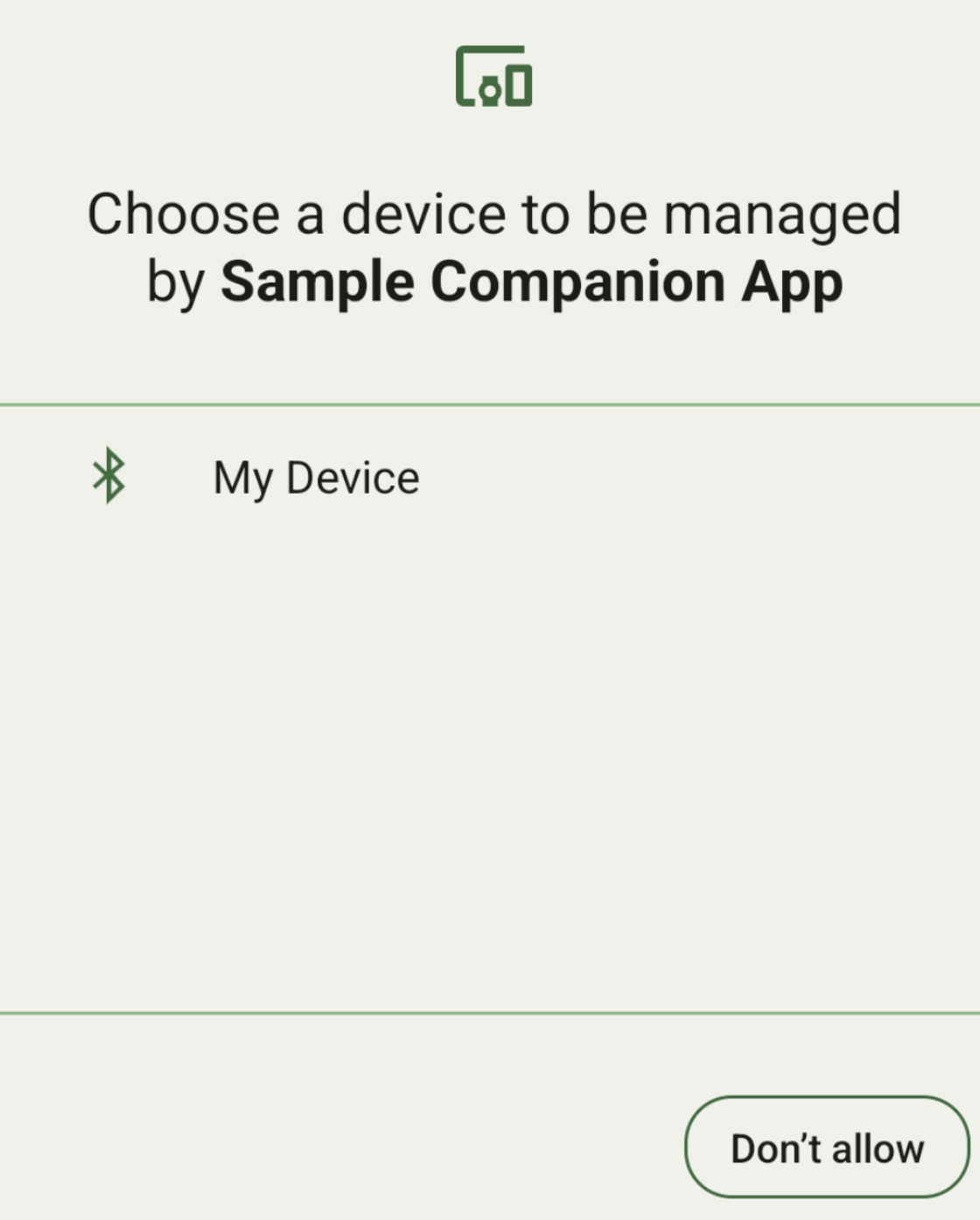
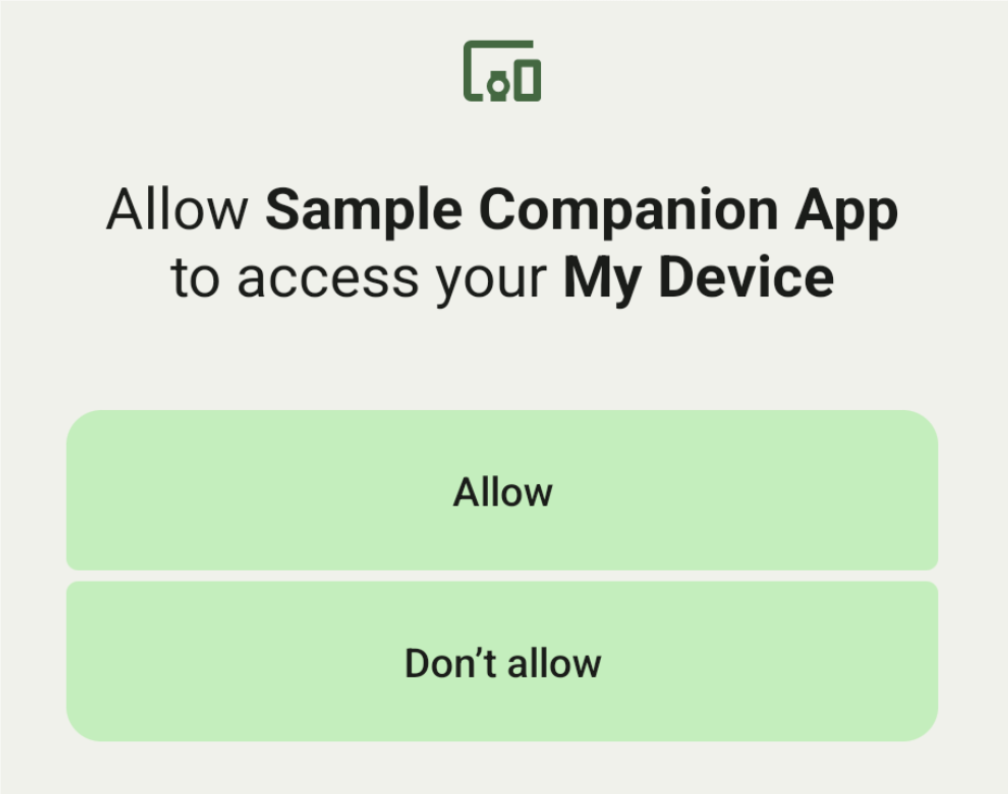
आपके पास रेंज में मौजूद उन सभी कंपैनियन डिवाइसों को दिखाने का विकल्प होता है जो आपके दिए गए DeviceFilter से मैच करते हैं. इसे इमेज 1 में दिखाया गया है. अगर आपको सिर्फ़ एक डिवाइस पर स्कैनिंग की सुविधा चालू रखनी है, तो setSingleDevice() को true पर सेट करें (इमेज 2 में दिखाया गया है).
DeviceFilter के सबक्लास यहां दिए गए हैं. इन्हें AssociationRequest में बताया जा सकता है:
तीनों सबक्लास में बिल्डर होते हैं. ये फ़िल्टर के कॉन्फ़िगरेशन को आसान बनाते हैं.
यहां दिए गए उदाहरण में, कोई डिवाइस BluetoothDeviceFilter वाले ब्लूटूथ डिवाइस को स्कैन करता है.
Kotlin
val deviceFilter: BluetoothDeviceFilter = BluetoothDeviceFilter.Builder()
        // Match only Bluetooth devices whose name matches the pattern.
        .setNamePattern(Pattern.compile("My device"))
        // Match only Bluetooth devices whose service UUID matches this pattern.
        .addServiceUuid(ParcelUuid(UUID(0x123abcL, -1L)), null)
        .build()
Java
BluetoothDeviceFilter deviceFilter = new BluetoothDeviceFilter.Builder()
        // Match only Bluetooth devices whose name matches the pattern.
        .setNamePattern(Pattern.compile("My device"))
        // Match only Bluetooth devices whose service UUID matches this pattern.
        .addServiceUuid(new ParcelUuid(new UUID(0x123abcL, -1L)), null)
        .build();
AssociationRequest के लिए DeviceFilter सेट करें, ताकि CompanionDeviceManager यह तय कर सके कि किस तरह के डिवाइसों को खोजना है.
Kotlin
val pairingRequest: AssociationRequest = AssociationRequest.Builder()
        // Find only devices that match this request filter.
        .addDeviceFilter(deviceFilter)
        // Stop scanning as soon as one device matching the filter is found.
        .setSingleDevice(true)
        .build()
Java
AssociationRequest pairingRequest = new AssociationRequest.Builder()
        // Find only devices that match this request filter.
        .addDeviceFilter(deviceFilter)
        // Stop scanning as soon as one device matching the filter is found.
        .setSingleDevice(true)
        .build();
ऐप्लिकेशन के AssociationRequest को शुरू करने के बाद, CompanionDeviceManager पर associate() फ़ंक्शन को चलाएं. associate() फ़ंक्शन, AssociationRequest और Callback को इनपुट के तौर पर लेता है.
जब CompanionDeviceManager को कोई डिवाइस मिलता है और वह उपयोगकर्ता की सहमति वाला डायलॉग बॉक्स लॉन्च करने के लिए तैयार होता है, तब Callback, onAssociationPending में IntentSender दिखाता है.
जब उपयोगकर्ता डिवाइस की पुष्टि कर देता है, तब डिवाइस का AssociationInfo, onAssociationCreated में वापस कर दिया जाता है.
अगर आपके ऐप्लिकेशन को कोई डिवाइस नहीं मिलता है, तो कॉलबैक गड़बड़ी के मैसेज के साथ onFailure दिखाता है.
Android 13 (एपीआई लेवल 33) और इसके बाद के वर्शन वाले डिवाइसों पर:
Kotlin
val deviceManager =
  requireContext().getSystemService(Context.COMPANION_DEVICE_SERVICE)

val executor: Executor =  Executor { it.run() }

deviceManager.associate(pairingRequest,
    executor,
    object : CompanionDeviceManager.Callback() {
    // Called when a device is found. Launch the IntentSender so the user
    // can select the device they want to pair with.
    override fun onAssociationPending(intentSender: IntentSender) {
        intentSender?.let {
             startIntentSenderForResult(it, SELECT_DEVICE_REQUEST_CODE, null, 0, 0, 0)
        }
    }

    override fun onAssociationCreated(associationInfo: AssociationInfo) {
        // An association is created.
    }

    override fun onFailure(errorMessage: CharSequence?) {
        // To handle the failure.
     }
})
Java
CompanionDeviceManager deviceManager =
        (CompanionDeviceManager) getSystemService(Context.COMPANION_DEVICE_SERVICE);

Executor executor = new Executor() {
            @Override
            public void execute(Runnable runnable) {
                runnable.run();
            }
        };
deviceManager.associate(pairingRequest, new CompanionDeviceManager.Callback() {
    executor,
    // Called when a device is found. Launch the IntentSender so the user can
    // select the device they want to pair with.
    @Override
    public void onDeviceFound(IntentSender chooserLauncher) {
        try {
            startIntentSenderForResult(
                    chooserLauncher, SELECT_DEVICE_REQUEST_CODE, null, 0, 0, 0
            );
        } catch (IntentSender.SendIntentException e) {
            Log.e("MainActivity", "Failed to send intent");
        }
    }

    @Override
    public void onAssociationCreated(AssociationInfo associationInfo) {
        // An association is created.
    }

    @Override
    public void onFailure(CharSequence errorMessage) {
        // To handle the failure.
    });
Android 12L (एपीआई लेवल 32) या इससे पहले के वर्शन (अब काम नहीं करता) वाले डिवाइसों के लिए:
Kotlin
val deviceManager =
      requireContext().getSystemService(Context.COMPANION_DEVICE_SERVICE)

deviceManager.associate(pairingRequest,
    object : CompanionDeviceManager.Callback() {
        // Called when a device is found. Launch the IntentSender so the user
        // can select the device they want to pair with.
        override fun onDeviceFound(chooserLauncher: IntentSender) {
            startIntentSenderForResult(chooserLauncher,
                SELECT_DEVICE_REQUEST_CODE, null, 0, 0, 0)
        }

        override fun onFailure(error: CharSequence?) {
            // To handle the failure.
        }
    }, null)
Java
CompanionDeviceManager deviceManager =
        (CompanionDeviceManager) getSystemService(Context.COMPANION_DEVICE_SERVICE);
deviceManager.associate(pairingRequest, new CompanionDeviceManager.Callback() {
    // Called when a device is found. Launch the IntentSender so the user can
    // select the device they want to pair with.
    @Override
    public void onDeviceFound(IntentSender chooserLauncher) {
        try {
            startIntentSenderForResult(
                    chooserLauncher, SELECT_DEVICE_REQUEST_CODE, null, 0, 0, 0
            );
        } catch (IntentSender.SendIntentException e) {
            Log.e("MainActivity", "Failed to send intent");
        }
    }

    @Override
    public void onFailure(CharSequence error) {
        // To handle the failure.
    }
}, null);
उपयोगकर्ता के चुने गए विकल्प का नतीजा, आपकी गतिविधि के onActivityResult() में फ़्रैगमेंट को वापस भेज दिया जाता है. इसके बाद, चुने गए डिवाइस को ऐक्सेस किया जा सकता है.
जब उपयोगकर्ता कोई ब्लूटूथ डिवाइस चुनता है, तो BluetoothDevice की उम्मीद करें.
जब उपयोगकर्ता ब्लूटूथ स्मार्ट डिवाइस चुनता है, तो android.bluetooth.le.ScanResult की उम्मीद करें.
जब उपयोगकर्ता कोई वाई-फ़ाई डिवाइस चुनता है, तो android.net.wifi.ScanResult की उम्मीद करें.
Kotlin
override fun onActivityResult(requestCode: Int, resultCode: Int, data: Intent?) {
    when (requestCode) {
        SELECT_DEVICE_REQUEST_CODE -> when(resultCode) {
            Activity.RESULT_OK -> {
                // The user chose to pair the app with a Bluetooth device.
                val deviceToPair: BluetoothDevice? =
data?.getParcelableExtra(CompanionDeviceManager.EXTRA_DEVICE)
                deviceToPair?.let { device ->
                    device.createBond()
                    // Continue to interact with the paired device.
                }
            }
        }
        else -> super.onActivityResult(requestCode, resultCode, data)
    }
}
Java
@Override
protected void onActivityResult(int requestCode, int resultCode, @Nullable Intent data) {
    if (resultCode != Activity.RESULT_OK) {
        return;
    }
    if (requestCode == SELECT_DEVICE_REQUEST_CODE && data != null) {
        BluetoothDevice deviceToPair =
data.getParcelableExtra(CompanionDeviceManager.EXTRA_DEVICE);
        if (deviceToPair != null) {
            deviceToPair.createBond();
            // Continue to interact with the paired device.
        }
    } else {
        super.onActivityResult(requestCode, resultCode, data);
    }
}
पूरा उदाहरण देखें:
Android 13 (एपीआई लेवल 33) और इसके बाद के वर्शन वाले डिवाइसों पर:
Kotlin
private const val SELECT_DEVICE_REQUEST_CODE = 0

class MainActivity : AppCompatActivity() {

    private val deviceManager: CompanionDeviceManager by lazy {
        getSystemService(Context.COMPANION_DEVICE_SERVICE) as CompanionDeviceManager
    }
    val mBluetoothAdapter: BluetoothAdapter by lazy {
        val java = BluetoothManager::class.java
        getSystemService(java)!!.adapter }
    val executor: Executor =  Executor { it.run() }

    override fun onCreate(savedInstanceState: Bundle?) {
        super.onCreate(savedInstanceState)
        setContentView(R.layout.activity_main)

        // To skip filters based on names and supported feature flags (UUIDs),
        // omit calls to setNamePattern() and addServiceUuid()
        // respectively, as shown in the following  Bluetooth example.
        val deviceFilter: BluetoothDeviceFilter = BluetoothDeviceFilter.Builder()
            .setNamePattern(Pattern.compile("My device"))
            .addServiceUuid(ParcelUuid(UUID(0x123abcL, -1L)), null)
            .build()

        // The argument provided in setSingleDevice() determines whether a single
        // device name or a list of them appears.
        val pairingRequest: AssociationRequest = AssociationRequest.Builder()
            .addDeviceFilter(deviceFilter)
            .setSingleDevice(true)
            .build()

        // When the app tries to pair with a Bluetooth device, show the
        // corresponding dialog to the user.
        deviceManager.associate(pairingRequest,
            executor,
            object : CompanionDeviceManager.Callback() {
                // Called when a device is found. Launch the IntentSender so the user
                // can select the device they want to pair with.
                override fun onAssociationPending(intentSender: IntentSender) {
                intentSender?.let {
                    startIntentSenderForResult(it, SELECT_DEVICE_REQUEST_CODE, null, 0, 0, 0)
              }
            }

             override fun onAssociationCreated(associationInfo: AssociationInfo) {
                 // An AssociationInfo object is created; get the association ID
                 // and the MAC address, or retrieve the associated Bluetooth device
                 // directly on Android 14 (API level 34) and higher.
                 val associationId: Int = associationInfo.id
                 val macAddress: MacAddress? = associationInfo.deviceMacAddress
                 if (Build.VERSION.SDK_INT >= Build.VERSION_CODES.UPSIDE_DOWN_CAKE) {
                     val bluetoothDevice: BluetoothDevice? =
                         associationInfo.associatedDevice?.bluetoothDevice
                 }
             }
             override fun onFailure(errorMessage: CharSequence?) {
                 // Handle the failure.
             }
            }
        )
    }

    override fun onActivityResult(requestCode: Int, resultCode: Int, data: Intent?) {
        when (requestCode) {
            SELECT_DEVICE_REQUEST_CODE -> when(resultCode) {
                Activity.RESULT_OK -> {
                    // The user chose to pair the app with a Bluetooth device.
                    val deviceToPair: BluetoothDevice? =
                        data?.getParcelableExtra(CompanionDeviceManager.EXTRA_DEVICE)
                    deviceToPair?.let { device ->
                        device.createBond()
                        // Maintain continuous interaction with a paired device.
                    }
                }
            }
            else -> super.onActivityResult(requestCode, resultCode, data)
        }
    }
}
Java
class MainActivityJava extends AppCompatActivity {

    private static final int SELECT_DEVICE_REQUEST_CODE = 0;
    Executor executor = new Executor() {
        @Override
        public void execute(Runnable runnable) {
            runnable.run();
        }
    };

    @Override
    protected void onCreate(@Nullable Bundle savedInstanceState) {
        super.onCreate(savedInstanceState);
        setContentView(R.layout.activity_main);

        CompanionDeviceManager deviceManager =
            (CompanionDeviceManager) getSystemService(
                Context.COMPANION_DEVICE_SERVICE
            );

        // To skip filtering based on name and supported feature flags,
        // do not include calls to setNamePattern() and addServiceUuid(),
        // respectively. This example uses Bluetooth.
        BluetoothDeviceFilter deviceFilter =
            new BluetoothDeviceFilter.Builder()
                .setNamePattern(Pattern.compile("My device"))
                .addServiceUuid(
                    new ParcelUuid(new UUID(0x123abcL, -1L)), null
                )
                .build();

        // The argument provided in setSingleDevice() determines whether a single
        // device name or a list of device names is presented to the user as
        // pairing options.
        AssociationRequest pairingRequest = new AssociationRequest.Builder()
            .addDeviceFilter(deviceFilter)
            .setSingleDevice(true)
            .build();

        // When the app tries to pair with the Bluetooth device, show the
        // appropriate pairing request dialog to the user.
        deviceManager.associate(pairingRequest, executor, new CompanionDeviceManager.Callback() {
            // Called when a device is found. Launch the IntentSender so the user can
            // select the device they want to pair with.
            @Override
            public void onAssociationPending(IntentSender intentSender) {
                try {
                    startIntentSenderForResult(
                        intentSender, SELECT_DEVICE_REQUEST_CODE, null, 0, 0, 0
                    );
                } catch (IntentSender.SendIntentException e) {
                    Log.e("MainActivity", "Failed to send intent");
                }
            }

          @Override
          public void onAssociationCreated(AssociationInfo associationInfo) {
              // An AssociationInfo object is created; get the association ID
              // and the MAC address, or retrieve the associated Bluetooth device
              // directly on Android 14 (API level 34) and higher.
              int associationId = associationInfo.getId();
              MacAddress macAddress = associationInfo.getDeviceMacAddress();
              if (Build.VERSION.SDK_INT >= Build.VERSION_CODES.UPSIDE_DOWN_CAKE) {
                  AssociatedDevice associatedDevice = associationInfo.getAssociatedDevice();
                  if (associatedDevice != null && associatedDevice.getBluetoothDevice() != null) {
                      BluetoothDevice bluetoothDevice = associatedDevice.getBluetoothDevice();
                  }
              }
          }

          @Override
          public void onFailure(CharSequence errorMessage) {
              // Handle the failure.
          }
        });
    }

    @Override
    protected void onActivityResult(int requestCode, int resultCode, @Nullable Intent data) {
        if (resultCode != Activity.RESULT_OK) {
            return;
        }
        if (requestCode == SELECT_DEVICE_REQUEST_CODE) {
            if (resultCode == Activity.RESULT_OK && data != null) {
                BluetoothDevice deviceToPair = data.getParcelableExtra(
                    CompanionDeviceManager.EXTRA_DEVICE
                );

                if (deviceToPair != null) {
                    deviceToPair.createBond();
                    // ... Continue interacting with the paired device.
                }
            }
        } else {
            super.onActivityResult(requestCode, resultCode, data);
        }
    }
}
Android 12L (एपीआई लेवल 32) या इससे पहले के वर्शन (अब काम नहीं करता) वाले डिवाइसों के लिए:
Kotlin
private const val SELECT_DEVICE_REQUEST_CODE = 0

class MainActivity : AppCompatActivity() {

    private val deviceManager: CompanionDeviceManager by lazy {
        getSystemService(Context.COMPANION_DEVICE_SERVICE) as CompanionDeviceManager
    }

    override fun onCreate(savedInstanceState: Bundle?) {
        super.onCreate(savedInstanceState)
        setContentView(R.layout.activity_main)

        // To skip filters based on names and supported feature flags (UUIDs),
        // omit calls to setNamePattern() and addServiceUuid()
        // respectively, as shown in the following  Bluetooth example.
        val deviceFilter: BluetoothDeviceFilter = BluetoothDeviceFilter.Builder()
            .setNamePattern(Pattern.compile("My device"))
            .addServiceUuid(ParcelUuid(UUID(0x123abcL, -1L)), null)
            .build()

        // The argument provided in setSingleDevice() determines whether a single
        // device name or a list of them appears.
        val pairingRequest: AssociationRequest = AssociationRequest.Builder()
            .addDeviceFilter(deviceFilter)
            .setSingleDevice(true)
            .build()

        // When the app tries to pair with a Bluetooth device, show the
        // corresponding dialog box to the user.
        deviceManager.associate(pairingRequest,
            object : CompanionDeviceManager.Callback() {

                override fun onDeviceFound(chooserLauncher: IntentSender) {
                    startIntentSenderForResult(chooserLauncher,
                        SELECT_DEVICE_REQUEST_CODE, null, 0, 0, 0)
                }

                override fun onFailure(error: CharSequence?) {
                    // Handle the failure.
                }
            }, null)
    }

    override fun onActivityResult(requestCode: Int, resultCode: Int, data: Intent?) {
        when (requestCode) {
            SELECT_DEVICE_REQUEST_CODE -> when(resultCode) {
                Activity.RESULT_OK -> {
                    // The user chose to pair the app with a Bluetooth device.
                    val deviceToPair: BluetoothDevice? =
                        data?.getParcelableExtra(CompanionDeviceManager.EXTRA_DEVICE)
                    deviceToPair?.let { device ->
                        device.createBond()
                        // Maintain continuous interaction with a paired device.
                    }
                }
            }
            else -> super.onActivityResult(requestCode, resultCode, data)
        }
    }
}
Java
class MainActivityJava extends AppCompatActivity {

    private static final int SELECT_DEVICE_REQUEST_CODE = 0;

    @Override
    protected void onCreate(@Nullable Bundle savedInstanceState) {
        super.onCreate(savedInstanceState);
        setContentView(R.layout.activity_main);

        CompanionDeviceManager deviceManager =
            (CompanionDeviceManager) getSystemService(
                Context.COMPANION_DEVICE_SERVICE
            );

        // To skip filtering based on name and supported feature flags,
        // don't include calls to setNamePattern() and addServiceUuid(),
        // respectively. This example uses Bluetooth.
        BluetoothDeviceFilter deviceFilter =
            new BluetoothDeviceFilter.Builder()
                .setNamePattern(Pattern.compile("My device"))
                .addServiceUuid(
                    new ParcelUuid(new UUID(0x123abcL, -1L)), null
                )
                .build();

        // The argument provided in setSingleDevice() determines whether a single
        // device name or a list of device names is presented to the user as
        // pairing options.
        AssociationRequest pairingRequest = new AssociationRequest.Builder()
            .addDeviceFilter(deviceFilter)
            .setSingleDevice(true)
            .build();

        // When the app tries to pair with the Bluetooth device, show the
        // appropriate pairing request dialog to the user.
        deviceManager.associate(pairingRequest,
            new CompanionDeviceManager.Callback() {
                @Override
                public void onDeviceFound(IntentSender chooserLauncher) {
                    try {
                        startIntentSenderForResult(chooserLauncher,
                            SELECT_DEVICE_REQUEST_CODE, null, 0, 0, 0);
                    } catch (IntentSender.SendIntentException e) {
                        // failed to send the intent
                    }
                }

                @Override
                public void onFailure(CharSequence error) {
                    // handle failure to find the companion device
                }
            }, null);
    }

    @Override
    protected void onActivityResult(int requestCode, int resultCode, @Nullable Intent data) {
        if (requestCode == SELECT_DEVICE_REQUEST_CODE) {
            if (resultCode == Activity.RESULT_OK && data != null) {
                BluetoothDevice deviceToPair = data.getParcelableExtra(
                    CompanionDeviceManager.EXTRA_DEVICE
                );

                if (deviceToPair != null) {
                    deviceToPair.createBond();
                    // ... Continue interacting with the paired device.
                }
            }
        } else {
            super.onActivityResult(requestCode, resultCode, data);
        }
    }
}
कंपैनियन डिवाइस की प्रोफ़ाइलें
Android 12 (एपीआई लेवल 31) और इसके बाद के वर्शन पर, स्मार्टवॉच जैसे डिवाइसों को मैनेज करने वाले कंपैनियन ऐप्लिकेशन, कंपैनियन डिवाइस प्रोफ़ाइल का इस्तेमाल कर सकते हैं. इससे सेटअप की प्रोसेस को आसान बनाया जा सकता है. इसके लिए, डिवाइसों को जोड़ते समय ज़रूरी अनुमतियां देनी होंगी. ज़्यादा जानकारी के लिए, कंपैनियन डिवाइस प्रोफ़ाइलें देखें.
कंपैनियन ऐप्लिकेशन चालू रखना
Android 16 (एपीआई लेवल 36) से,
CompanionDeviceManager.startObservingDevicePresence(String)
और
CompanionDeviceService.onDeviceAppeared()
के इस्तेमाल पर रोक लगा दी गई है.
लागू किए गए
CompanionDeviceServiceकी बाइंडिंग को अपने-आप मैनेज करने के लिए, आपकोCompanionDeviceManager.startObservingDevicePresence (ObservingDevicePresenceRequest)का इस्तेमाल करना चाहिए.- आपके
CompanionDeviceServiceकी बाइंडिंग स्टेट, उससे जुड़े कंपैनियन डिवाइस की मौजूदगी की स्थिति के आधार पर अपने-आप मैनेज होती है:- यह सेवा तब बाउंड होती है, जब कंपैनियन डिवाइस, बीएलई रेंज में हो या ब्लूटूथ का इस्तेमाल करके कनेक्ट किया गया हो.
- जब कंपैनियन डिवाइस, बीएलई रेंज से बाहर चला जाता है या उसका ब्लूटूथ कनेक्शन बंद हो जाता है, तो सेवा अनबाउंड हो जाती है.
- आपके
आपके ऐप्लिकेशन को
DevicePresenceEventअपडेट के लिए कॉलबैक मिलते हैं. ज़्यादा जानकारी के लिए,CompanionDeviceService.onDevicePresenceEvent()लेख पढ़ें.