
Foldable device users look for visual proof that an app takes full advantage of their large inner screen. A store listing with only phone screenshots can give the impression that your app will be stretched or boxed with black bars, which can lower your conversion rate.
In Google Play Console, you can upload three to eight foldable screenshots covering the common inner screen aspect ratios of 1:1 and 4:3, along with at least one portrait screenshot for the outer screen aspect ratio of 10:16.
To help you get started, you can use the Android CLI and Android Emulator to capture screenshots across phone, foldable, tablet, and desktop form factors at the dimensions and aspect ratios that Play Console requires.
Follow this guide to complete these tasks:
- Create emulator profiles that match the form factors required by Google Play.
- Create output directories for the screenshots.
- Capture phone, foldable, tablet, and desktop screenshots.
- Verify screenshot dimensions and troubleshoot common issues.
Ask your agent
Follow https://d.android.com/google/play/requirements/screenshots-android-cli to build my app and use the Android CLI to capture all required Google Play Store screenshots across phone, foldable (1:1 and 4:3), tablet, and desktop into ./play_screenshotsCreate emulator profiles
The following table maps each Google Play Console screenshot section to the corresponding android emulator profile, posture, orientation, and output resolution:
| Play Console section | Required screenshots | Allowed aspect ratios and bounds | Android CLI profile (create, start, and stop) |
Posture and orientation | Output resolution (px) |
|---|---|---|---|---|---|
| Phone | 2 to 8 (4+ at 1080p+ for promotion; 3+ in 16:9 or 9:16 for games) | Up to 2.3:1 (9:16, 16:9, 20:9), 320 to 3,840 px | medium_phone |
Portrait or landscape | 1080 x 2400 (20:9) or 2400 x 1080 |
| Phone (exact 9:16 or 16:9) | Optional (or 3+ for games promotion) | 9:16 or 16:9, 320 to 3,840 px | foldable_1_1 |
Folded (adb emu fold), portrait or landscape | 1053 x 1872 (9:16) or 1872 x 1053 (16:9) |
| Foldable (1:1 unfolded) | At least 1 (when uploading 3 to 8 foldable screenshots) | Exact 1:1 (320 to 3,840 px) | foldable_1_1 |
Unfolded (adb emu unfold) | 2106 x 2106 (1:1) |
| Foldable (4:3 unfolded) | At least 1 (when uploading 3 to 8 foldable screenshots) | Exact 4:3 (427 to 3,840 px width) | foldable_4_3 |
Unfolded (adb emu unfold), landscape | 2688 x 2016 (4:3) |
| Foldable (4:3 folded portrait) | At least 1 (when uploading 3 to 8 foldable screenshots) | Exact 10:16 (320 to 2,400 px width) | foldable_4_3 |
Folded (adb emu fold), portrait | 1260 x 2016 (10:16) |
| Foldable (4:3 folded landscape) | Optional (up to 5 additional foldable screenshots) | Exact 16:10 (512 to 3,840 px width) | foldable_4_3 |
Folded (adb emu fold), landscape | 2016 x 1260 (16:10) |
| Tablet (7-inch and 10-inch) | Up to 8 each | Up to 2.3:1 (16:10, 10:16, 16:9, 9:16), 1,080 to 3,840 px | medium_tablet |
Landscape or portrait | 2560 x 1600 (16:10) or 1600 x 2560 |
| Laptop and desktop (Chromebook and desktop) | 4 to 8 | Exact 16:9 (1,920 to 7,680 px width) or 9:16 (1,080 to 4,320 px width) | create: large_desktop or medium_desktop; start and stop: desktop_large or desktop_medium |
Landscape | 1920 x 1080 (16:9) or 3840 x 2160 (16:9) |
Keep the following options in mind when running capture commands:
- Omit
--annotateon clean captures: Don't pass--annotateor-atoandroid screen capturebecause it draws bounding boxes and numeric labels onto the PNG file. - Disambiguate concurrent emulators: When running multiple emulators
concurrently, supply the device serial using
--device=serialwithandroidor-s serialwithadbto disambiguate them.
Set up virtual devices
Ensure the Android emulator and Android CLI are up to date. Create the output directories and create the AVDs for your target form factors:
Ensure that the Android Emulator is at version 37.3.10 or above:
android sdk update emulatorCheck that
androidis up to date:android updateCreate the output directories:
mkdir -p play_screenshots/phone play_screenshots/foldable play_screenshots/tablet play_screenshots/desktopCreate the virtual devices. This automatically installs any missing SDK
emulator,platform-tools, and system image packages:android emulator create medium_phone android emulator create foldable_1_1 android emulator create foldable_4_3 android emulator create medium_tablet android emulator create large_desktop
Capture phone screenshots
Start medium_phone, deploy your app, and capture portrait (1080 x 2400 px)
and landscape (2400 x 1080 px) screenshots:
android emulator start medium_phone
android run ./app/build/outputs/apk/debug/app-debug.apk

# Portrait
adb shell wm user-rotation lock 0
android screen capture --output=play_screenshots/phone/phone_portrait_1.png

# Landscape
adb shell wm user-rotation lock 1
sleep 2
android screen capture --output=play_screenshots/phone/phone_landscape_1.png

android emulator stop medium_phone
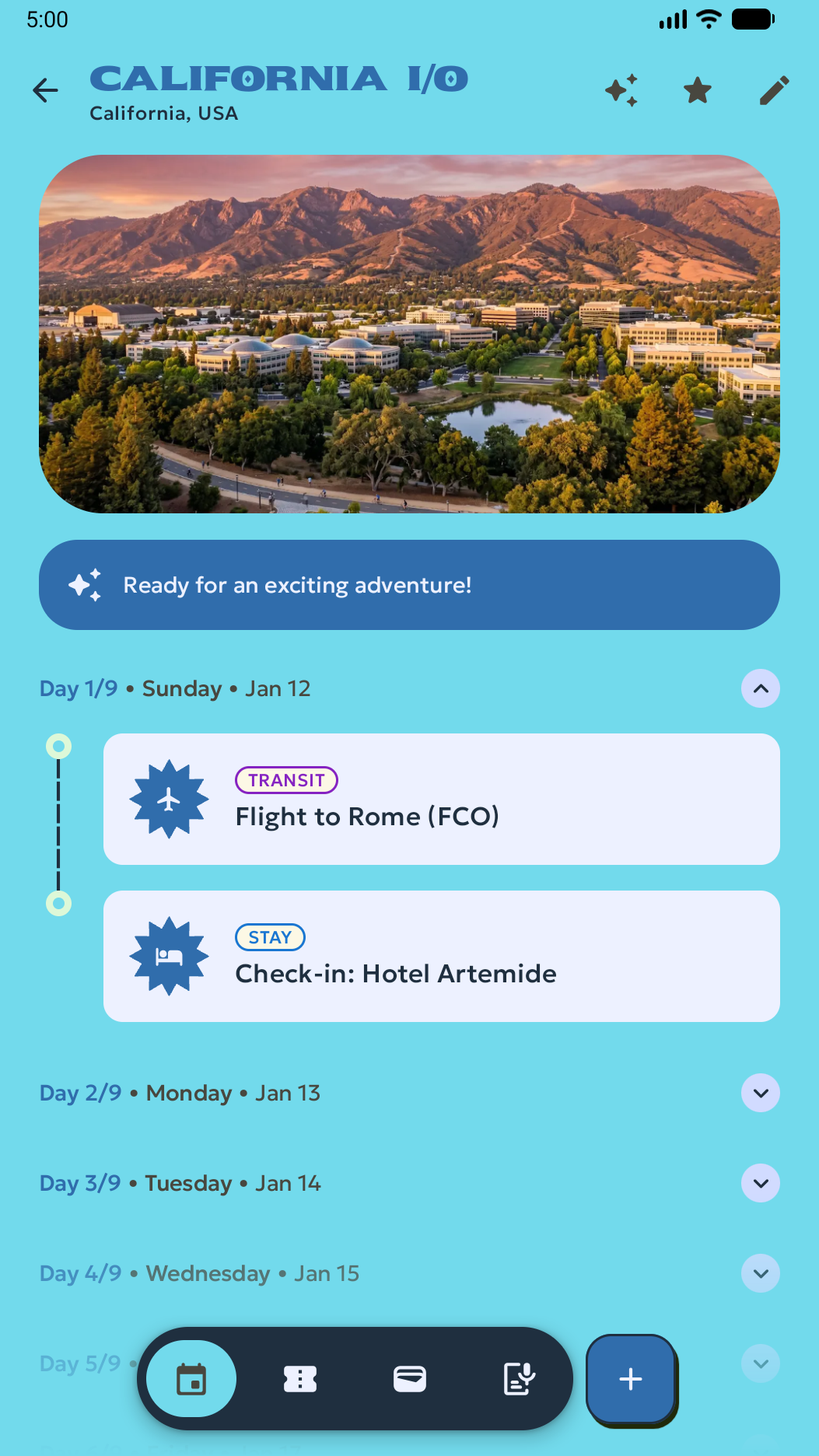
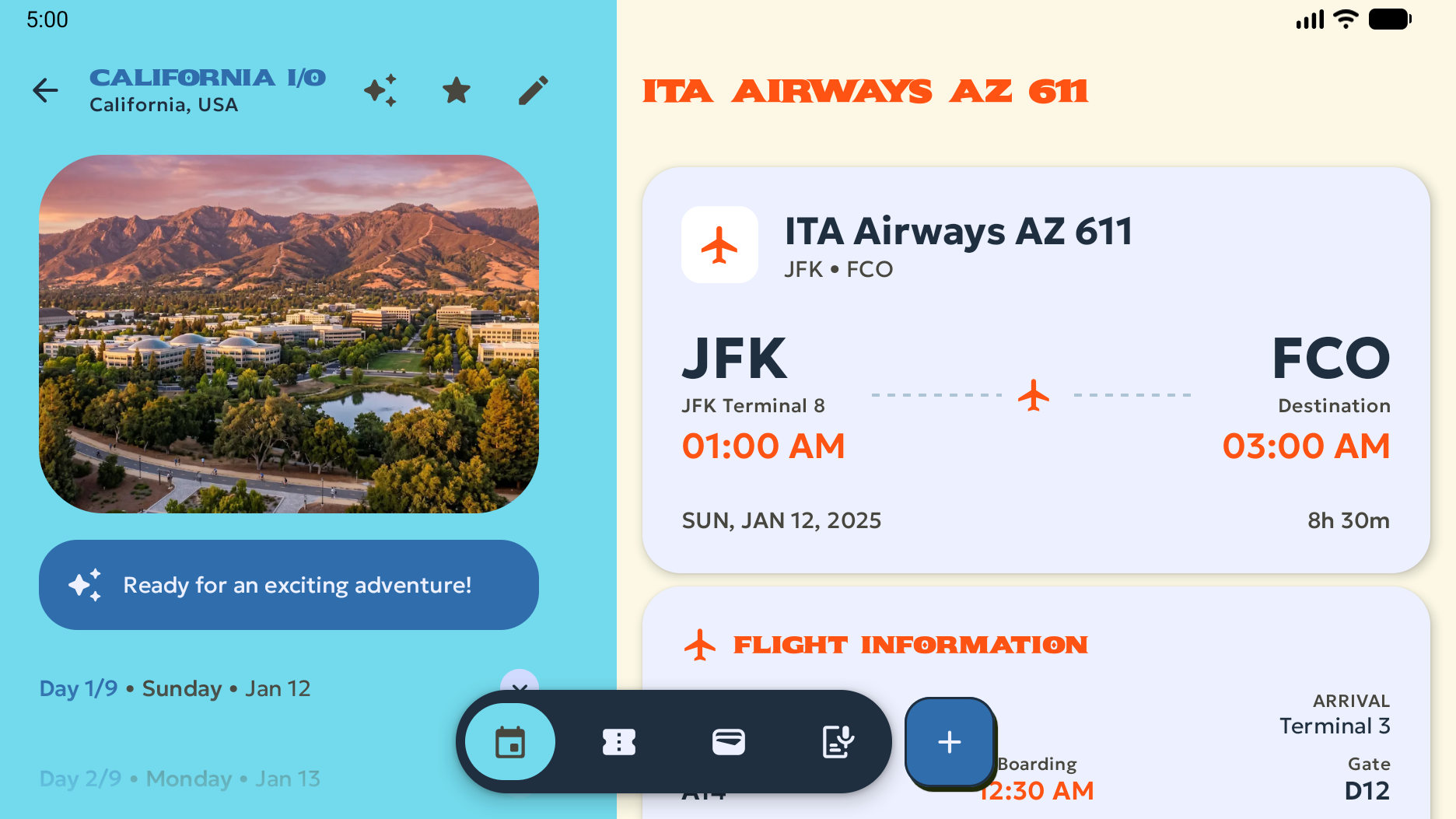
The following images show examples of raw portrait and landscape phone screenshots captured from the emulator:
Capture foldable screenshots
Use the foldable_1_1 and foldable_4_3 profiles to capture raw UI
screenshots across inner and outer screens. Use adb shell screencap with
adb shell dumpsys SurfaceFlinger --display-id to specify the inner or outer
screen.
Capture 1:1 unfolded and 9:16 folded screenshots
Start foldable_1_1 to capture a 1:1 unfolded screenshot (2106 x 2106 px)
for the foldable section and an optional 9:16 folded screenshot
(1053 x 1872 px) for the phone section.
The output directories match the Play Console section that accepts each
screenshot, not the emulator profile that captured it. The Foldable section
accepts only 1:1, 4:3, 10:16, and 16:10 screenshots, so the 9:16 screenshot of
the folded foldable_1_1 outer screen is saved in phone/ for upload to the
Phone section. The folded foldable_4_3 outer screen is 10:16, which the
Foldable section accepts, so those screenshots are saved in foldable/.
Run the following commands:
android emulator start foldable_1_1
android run ./app/build/outputs/apk/debug/app-debug.apk

# Keep the screen on when the emulator is folded
adb shell settings put system fold_lock_behavior_setting stay_awake_on_fold_key

# 1:1 unfolded inner display
adb emu unfold
sleep 2
adb shell screencap -d "$(adb shell dumpsys SurfaceFlinger --display-id | awk 'NR==1 {print $2}')" -p > play_screenshots/foldable/foldable_1_1_unfolded.png

# Optional: 9:16 folded outer display - this is suitable for uploading to the
# Play Console's Phone section so is saved in the phone/ directory.
adb emu fold

# Turn the screen on and dismiss the lock screen
adb shell input keyevent KEYCODE_WAKEUP
adb shell wm dismiss-keyguard

sleep 2
adb shell screencap -d "$(adb shell dumpsys SurfaceFlinger --display-id | awk 'NR==2 {print $2}')" -p > play_screenshots/phone/phone_9_16_folded_portrait.png

android emulator stop foldable_1_1
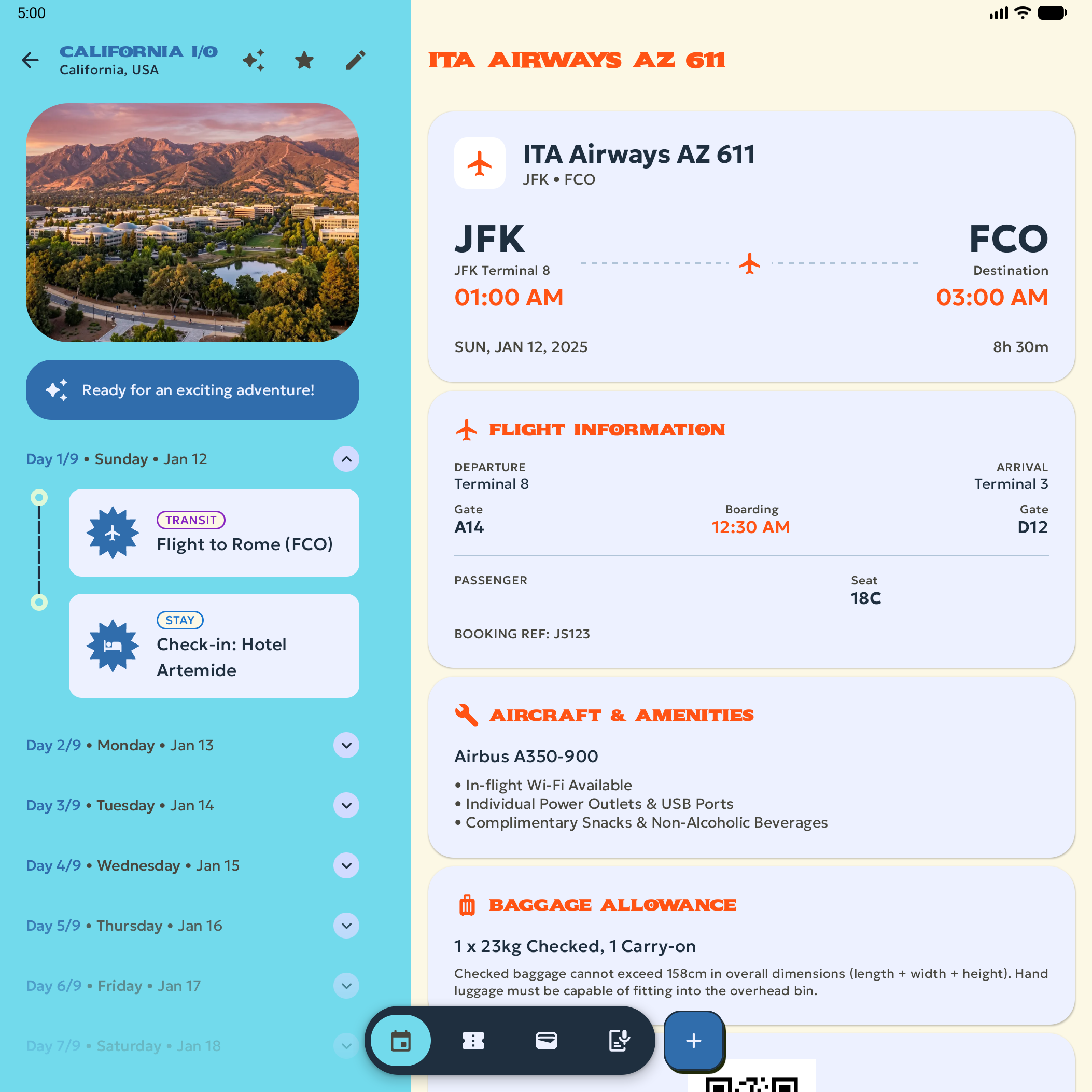
The following image shows an example of a raw 1:1 unfolded inner display
screenshot:
Capture 4:3 unfolded and folded screenshots
Start foldable_4_3 to capture a 4:3 unfolded landscape screenshot
(2688 x 2016 px), a 10:16 folded portrait screenshot (1260 x 2016 px),
and an optional 16:10 folded landscape screenshot (2016 x 1260 px):
android emulator start foldable_4_3
android run ./app/build/outputs/apk/debug/app-debug.apk

# Keep the screen on when the emulator is folded
adb shell settings put system fold_lock_behavior_setting stay_awake_on_fold_key

# 4:3 unfolded landscape inner display
adb emu unfold
adb shell wm user-rotation lock 0
sleep 2
adb shell screencap -d "$(adb shell dumpsys SurfaceFlinger --display-id | awk 'NR==1 {print $2}')" -p > play_screenshots/foldable/foldable_4_3_unfolded_landscape.png

# 10:16 folded portrait outer display
adb emu fold

# Turn the screen on and dismiss the lock screen
adb shell input keyevent KEYCODE_WAKEUP
adb shell wm dismiss-keyguard
sleep 2
adb shell screencap -d "$(adb shell dumpsys SurfaceFlinger --display-id | awk 'NR==2 {print $2}')" -p > play_screenshots/foldable/foldable_4_3_folded_portrait.png

# Optional: 16:10 folded landscape outer display
adb shell wm user-rotation lock 1
sleep 2
adb shell screencap -d "$(adb shell dumpsys SurfaceFlinger --display-id | awk 'NR==2 {print $2}')" -p > play_screenshots/foldable/foldable_4_3_folded_landscape.png

android emulator stop foldable_4_3
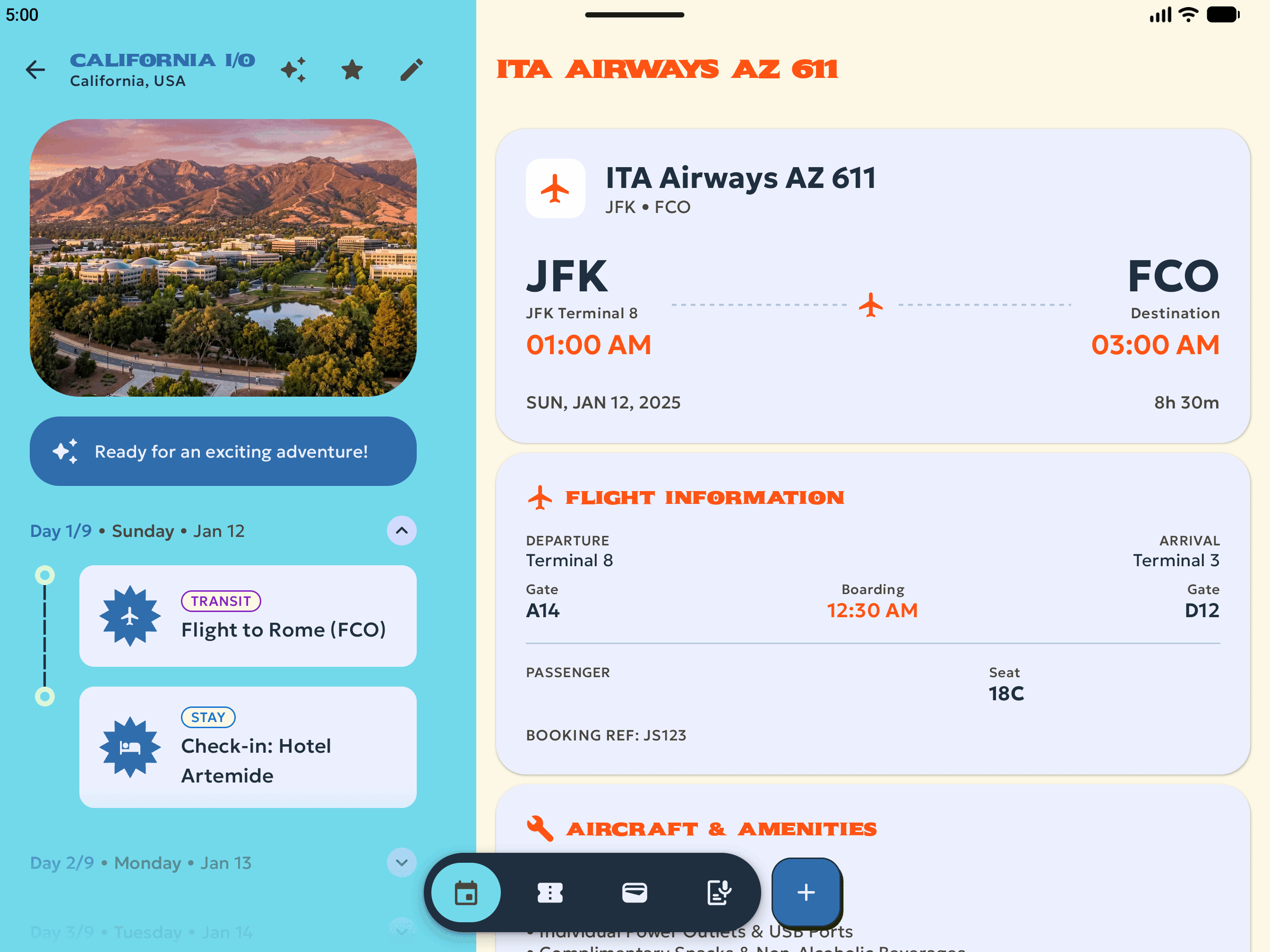
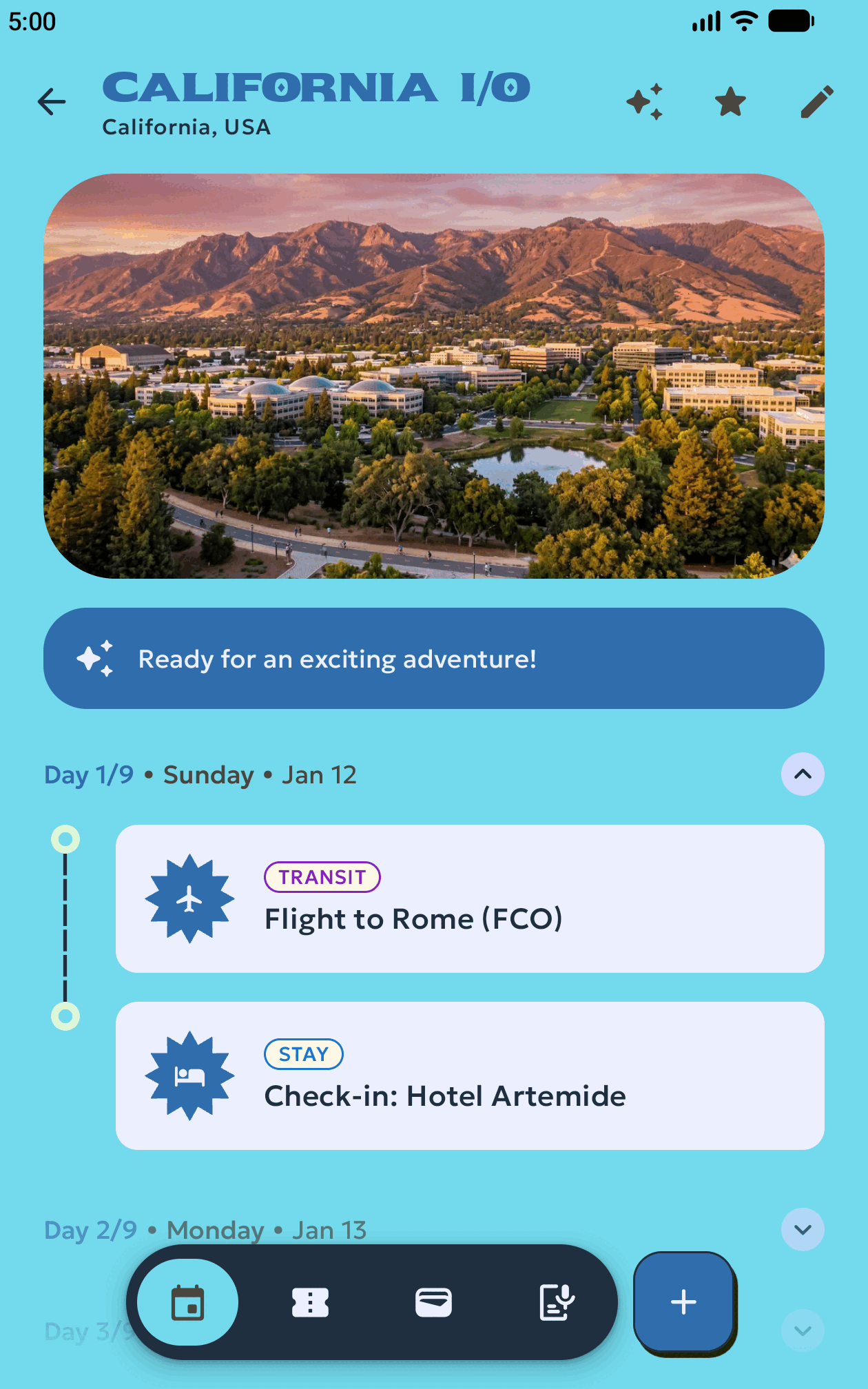
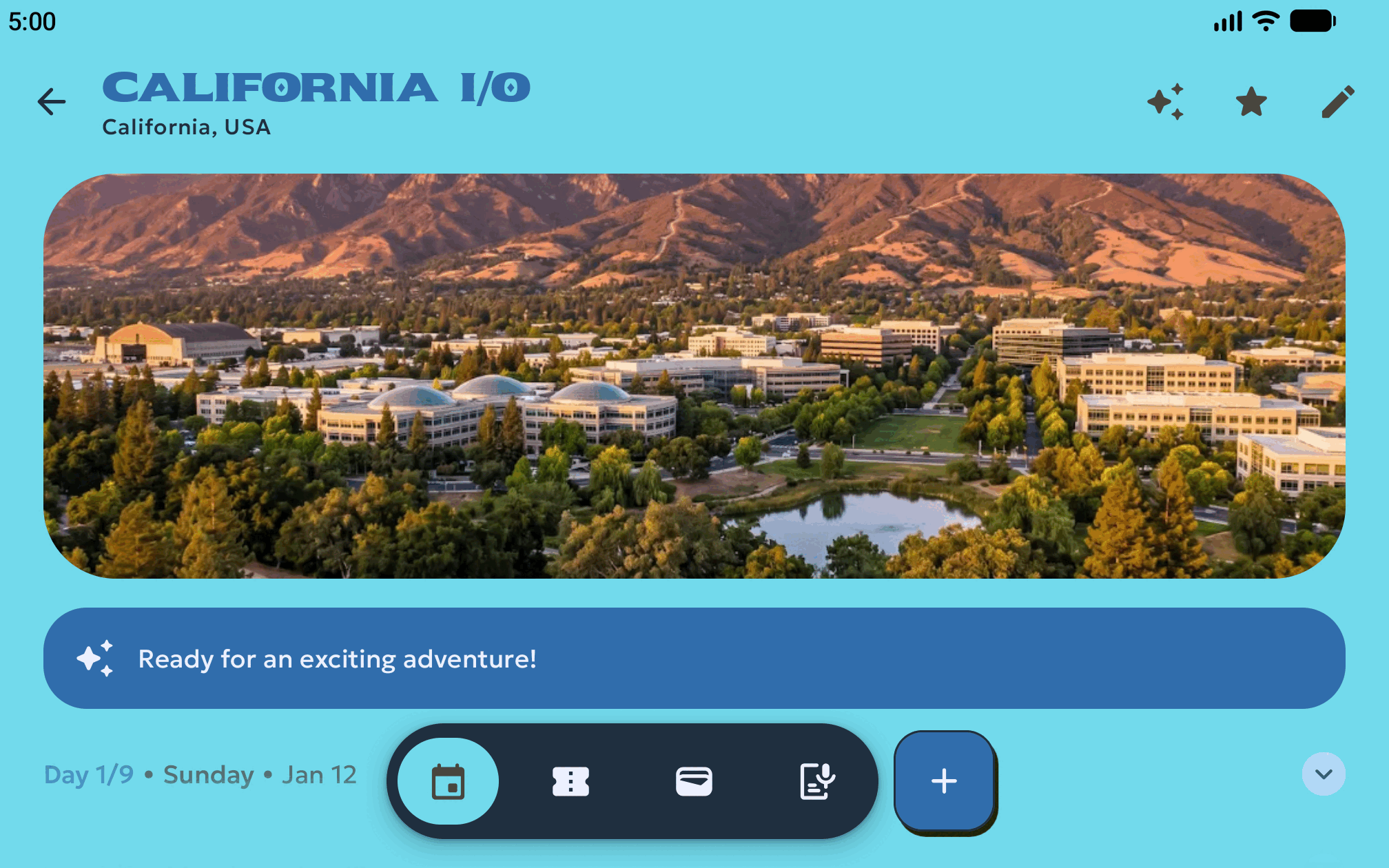
The following images show examples of raw screenshots captured across the
foldable_4_3 postures:
Capture tablet and desktop screenshots
Use medium_tablet and desktop_large to capture large screen and desktop
screenshots:
Capture 16:10 tablet screenshots on
medium_tablet(2560 x 1600 px), which fit both the 7-inch and 10-inch tablet sections in Play Console:android emulator start medium_tablet android run ./app/build/outputs/apk/debug/app-debug.apk sleep 2 android screen capture --output=play_screenshots/tablet/tablet_landscape_1.png android emulator stop medium_tabletCapture 16:9 Chromebook and desktop screenshots on
desktop_large(1920 x 1080 px), created from thelarge_desktopprofile):android emulator start desktop_large android run ./app/build/outputs/apk/debug/app-debug.apk android screen capture --output=play_screenshots/desktop/desktop_1.png android emulator stop desktop_large
Verify screenshots and troubleshoot
After capturing your screenshots, verify that each file meets Google Play Console's dimension and 8 MB file size limits:
file play_screenshots/*/*.png
Confirm that each image shows a fully loaded UI without system dialogs, and then pass the raw captures to your design team or upload compliant assets in Google Play Console under Grow > Store presence > Store listings.
The following table describes how to resolve common capture and upload issues:
| Symptom | Cause | Fix |
|---|---|---|
"Device large_desktop doesn't exist" when running android emulator start |
android emulator create large_desktop sets the AVD ID to desktop_large. |
Run android emulator start desktop_large (or desktop_medium for medium_desktop). |
| Play Console rejects a foldable screenshot with an invalid dimension error | A foldable_1_1 folded screenshot (1053 x 1872 px, 9:16) was uploaded to the foldable section. | Move foldable_1_1 folded (9:16 or 16:9) screenshots to the Phone section; keep 1:1, 4:3, 10:16, and 16:10 screenshots in the Foldable section. |
| Play Console reports "Upload at least 1 screenshot in each of the 1:1, 4:3, and 10:16 aspect ratios" | One of the three required foldable aspect ratios is missing. | Confirm that play_screenshots/foldable/ contains at least one 2106 x 2106 (1:1), one 2688 x 2016 (4:3), and one 1260 x 2016 (10:16) PNG file. |
| Play Console rejects desktop screenshot dimensions | Screenshots were captured on small_desktop (1366 x 768 px). | Recreate the AVD and capture screenshots on large_desktop (1920 x 1080 px) or medium_desktop (3840 x 2160 px). |
Multiple connected emulators cause android screen capture or adb to fail |
--device was omitted while more than one AVD was running. |
Pass --device=serial to android commands and -s serial to adb commands, or stop unused AVDs with android emulator stop. |