
When the UI thread of an Android app is blocked for too long, an "Application Not Responding" (ANR) error is triggered. If the app is in the foreground, the system displays a dialog to the user, as shown in figure 1. The ANR dialog gives the user the opportunity to force quit the app.
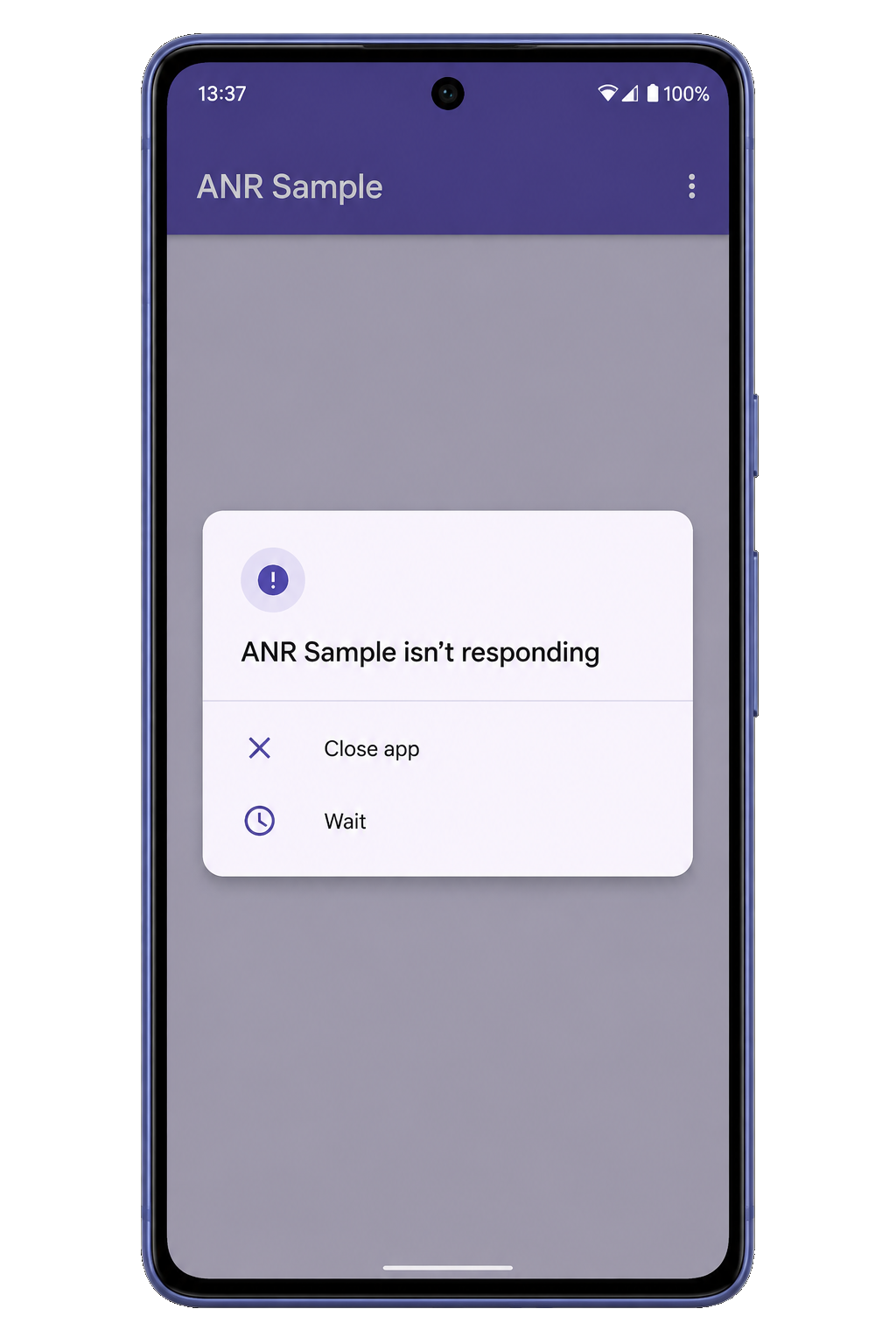
ANRs are a problem because the app's main thread, which is responsible for updating the UI, can't process user input events or draw, causing frustration to the user. For more information on the app's main thread, see Processes and threads overview.
An ANR is triggered for your app when one of the following conditions occur:
- Input dispatching timed out: If your app has not responded to an input event (such as a key press or screen touch) within 5 seconds.
- Executing service: If a service declared by your app cannot finish
executing
Service.onCreateandService.onStartCommand/Service.onBindwithin a few seconds. Service.startForegroundnot called: If your app usesContext.startForegroundServiceto start a new service in the foreground but the service doesn't callstartForegroundwithin 5 seconds.- Broadcast of intent: If a
BroadcastReceiverhasn't finished executing within a set amount of time. If the app has any activity in the foreground, this timeout is 5 seconds. JobSchedulerinteractions: If aJobServicedoes not return fromJobService.onStartJoborJobService.onStopJobwithin a few seconds, or if a user-initiated job starts and your app doesn't callJobService.setNotificationwithin a few seconds afterJobService.onStartJobwas called. For apps targeting Android 13 and lower, the ANRs are silent and not reported to the app. For apps targeting Android 14 and higher, the ANRs are explicit and are reported to the app.
If your app is experiencing ANRs, you can use the guidance in this document to diagnose and fix the problem.
Detect the problem
If you have already published your app, you can use Android vitals to see information on ANRs for your app. You can use other tools to detect ANRs in the field but note that 3P tools cannot report ANRs on Android 10 and lower, unlike Android vitals.
Android vitals
Android vitals can help you monitor and improve your app's ANR rate. Android vitals measures several ANR rates:
- ANR rate: The percentage of your daily active users who experienced any type of ANR.
- User-perceived ANR rate: The percentage of your daily active users who
experienced at least one user-perceived ANR. Currently only ANRs of type
Input dispatching timed outare considered user-perceived. - Multiple ANR rate: The percentage of your daily active users who experienced at least two ANRs.
A daily active user is a unique user who uses your app on a single day on a single device, potentially over multiple sessions. If a user uses your app on more than one device in a single day, each device will contribute to the number of active users for that day.
User-perceived ANR rate is a core vital, meaning that it affects the discoverability of your app on Google Play. It is important because the ANRs it counts always occur when the user is engaged with the app, causing the most disruption.
Play has defined two bad behavior thresholds on this metric:
- Overall bad behavior threshold: At least 0.47% of daily active users experience a user-perceived ANR, across all device models.
- Per-device bad behavior threshold: At least 8% of daily users experience a user-perceived ANR, for a single device model.
If your app exceeds the overall bad behavior threshold, it is likely to be less discoverable on all devices. If your app exceeds the per-device bad behavior threshold on some devices, it is likely to be less discoverable on those devices, and a warning may be shown on your store listing.
Android vitals can alert you through the Play Console when your app is exhibiting excessive ANRs.
For information on how Google Play collects Android vitals data, see the Play Console documentation.
Diagnose ANRs
There are some common patterns to look for when diagnosing ANRs:
- The app is doing slow operations involving I/O on the main thread.
- The app is doing a long calculation on the main thread.
- The main thread is doing a synchronous binder call to another process, and that other process is taking a long time to return.
- The main thread is blocked waiting for a synchronized block for a long operation that is happening on another thread.
- The main thread is in a deadlock with another thread, either in your process or through a binder call. The main thread is not just waiting for a long operation to finish, but is in a deadlock situation.
The following techniques can help you determine the cause of your ANRs.
HealthStats
HealthStats provides metrics about the health of an application by
capturing total user and system time, CPU time, network, radio stats, screen
on/off time, and wake up alarms. This can help you measure overall CPU usage and
battery drainage.
Debug
Debug helps you inspect Android applications during development,
including tracing and allocation counts to identify jank and lag in the apps.
You can also use Debug to get runtime and native memory counters, and memory
metrics that can help you identify the memory footprint of a particular process.
ApplicationExitInfo
ApplicationExitInfo is available on Android 11 (API level 30) or
higher, and provides information about the reason for application exit. This
includes ANRs, low memory, app crashes, excessive CPU usage, user interruptions,
system interruptions, and runtime permission changes.
Strict mode
Using StrictMode helps you find accidental I/O operations on the main
thread while you're developing your app. You can use StrictMode at the
application or activity level.
Enable background ANR dialogs
Android shows ANR dialogs for apps that take too long to process the broadcast message only if Show all ANRs is enabled in the device's Developer options. For this reason, background ANR dialogs are not always displayed to the user, even when the app is experiencing performance issues.
Recomposition bottlenecks
Use the Android Studio Profiler and the Layout Inspector to track down recomposition bottlenecks. For more information, see Jetpack Compose Performance.
Pull a traces file
Android stores trace information when it experiences an ANR. On older OS
releases, there's a single /data/anr/traces.txt file on the device. On newer
OS releases, there are multiple /data/anr/anr_* files. You can access ANR
traces from a device or emulator by using Android Debug Bridge (adb) as
root:
adb root
adb shell ls /data/anr
adb pull /data/anr/<filename>
You can capture a bug report from a physical device by using either the Take bug
report developer option on the device or the adb bugreport command on your
development machine. For more information, see
Capture and read bug reports.
Fix the problems
After you have identified the problem, you can use the tips in this section to fix commonly found problems.
Slow code on the main thread
Identify the places in your code where the app's main thread is busy for more than 5 seconds. Look for the suspicious use cases in your app and try to reproduce the ANR.
A common issue is a long-running task directly in a composable:
@Composable
fun BadList(rawStrings: List<String>) {
    // Math or sorting inside the composable runs on EVERY recomposition pass!
    val heavilyProcessedList = rawStrings
        .filter { it.isNotBlank() }
        .map { it.uppercase().reversed() }
        .map { it.computationallyHeavyFunction() }
.sortedBy { it.length }
    LazyColumn { items(sortedList) { Text(it) } }
}

// Modern Compose-first fix
@Composable
fun GoodList(viewModel: MyViewModel = viewModel()) {
    val uiState by viewModel.uiState.collectAsStateWithLifecycle()

    // UI simply renders state; no heavy processing allowed here
    LazyColumn { items(uiState.sortedData) { Text(it) } }
}
I/O on the main thread
Executing I/O operations on the main thread is a common cause of slow operations
on the main thread, which can cause ANRs. In Compose, developers often
accidentally trigger disk reads (like SharedPreferences or database calls)
while trying to derive the initial state.
Execute long-running I/O operations away from the UI layer. Use
withContext(Dispatchers.IO) in a ViewModel or, even better, use a
Repository on the data layer.
Deadlocks
A deadlock occurs when a thread enters a waiting state because a required resource is held by another thread, which is also waiting for a resource held by the first thread. If the app's main thread is in this situation, ANRs are likely to happen.
Deadlocks are a well-studied phenomenon in computer science, and there are deadlock prevention algorithms that you can use to avoid deadlocks.
For more information, see Deadlock and Deadlock prevention algorithms on Wikipedia.
When using Kotlin and Compose, you can substitute primitive locks with
non-blocking coroutine Mutexes (Mutex.withLock) to prevent thread
blocking by suspending the execution context instead of freezing the UI
thread. For example:
import kotlinx.coroutines.sync.Mutex
import kotlinx.coroutines.sync.withLock

// Modern non-blocking concurrency state architecture
class SecureDataRepository {
    private val mutex = Mutex()

    suspend fun safeUIAccess() {
        // If locked, the main thread suspends seamlessly, preventing an ANR
        mutex.withLock {
            performSafeOperation()
        }
    }
}
Slow broadcast receivers
Apps can respond to broadcast messages, such as enabling or disabling airplane mode or a change in connectivity status, by means of broadcast receivers. An ANR occurs when an app takes too long to process the broadcast message.
An ANR occurs in the following cases:
- A broadcast receiver hasn't finished executing its
onReceivemethod within a considerable amount of time. - A broadcast receiver calls
goAsyncand fails to callfinishon thePendingResultobject.
Your app should only perform short operations in the onReceive method
of a BroadcastReceiver. However, if your app requires more complex
processing as a result of a broadcast message you should defer the task to a
ViewModel (leveraging the power of Kotlin coroutines, scopes, and dispatchers)
if the task is expected to take a few seconds at most, any type of state holder,
or to WorkManager for tasks expected to take longer than a few seconds.
GameActivity
The GameActivity library has reduced ANRs in case studies of
games and apps that are written in C or C++. If you replace your existing native
activity with GameActivity, you can reduce UI thread blocking and prevent some
ANRs from happening.
For more information about ANRs, see Keep your app responsive. For more information about threads, see Better performance through threading.
Additional resources
Views content
Recommended for you
- Note: link text is displayed when JavaScript is off
- Excessive wakeups