
This page lists the new features introduced in Android Studio preview releases. The preview builds provide early access to the latest features and improvements in Android Studio. You can download these preview versions. If you encounter any problems using a preview version of Android Studio, let us know. Your bug reports help to make Android Studio better.
Canary releases contain leading edge features under active development, and are lightly tested. While you can use Canary builds for development, be aware that features might be added or changed. Release Candidates (RC) are the next version of Android Studio, and are almost ready for stable release. The feature set for the next version has been stabilized. See Android Studio release names to understand Android Studio version naming.
For the latest news on Android Studio preview releases, including a list of notable fixes in each preview release, see the Release Updates in the Android Studio blog.
Current versions of Android Studio
The following table lists the current versions of Android Studio and their respective channels.
| Version | Channel |
|---|---|
| Android Studio Rabbit 1 | Stable |
| Android Gradle plugin 9.4.0 | Stable |
| Android Studio Rabbit 2 | RC |
| Android Studio Rabbit 3 | Canary |
Compatibility with Android Gradle plugin previews
Each preview version of Android Studio is published alongside a corresponding version of the Android Gradle plugin (AGP). Preview versions of Studio should work with any compatible stable version of AGP. However, if you're using a preview version of AGP, you must use the corresponding preview version of Studio (for example, Android Studio Chipmunk Canary 7 with AGP 7.2.0-alpha07). Attempts to use divergent versions (for example, Android Studio Chipmunk Beta 1 with AGP 7.2.0-alpha07) will cause a Sync failure, which results in a prompt to update to the corresponding version of AGP.
For a detailed log of Android Gradle plugin API deprecations and removals, see the Android Gradle plugin API updates.
Studio Labs
Studio Labs lets you try out the latest AI experimental features in a stable version of Android Studio, so you can more quickly integrate our AI assistance offerings in your development workflow. For more information, see Studio Labs.
The following are features currently available in Studio Labs.
| Feature | Description | Docs |
|---|---|---|
| Journeys for Android Studio | Use natural language to describe steps and assertions for end-to-end tests. | Journeys for Android Studio |
Android Studio Rabbit 2
The following are new features in Android Studio Rabbit 2.
To see what's been fixed in this version of Android Studio, see the closed issues.
Bring Your Own Agent (BYOA): Integrate your preferred coding agents
Building on Android Studio's support for custom AI models, Android Studio Rabbit 2 Canary 2 introduces Bring Your Own Agent (BYOA). Using BYOA, you can connect your preferred AI coding agents—including Claude Agent, OpenAI Codex, and Google Antigravity—directly into Android Studio using the open Agent Client Protocol (ACP).
BYOA pairs your chosen agent with IDE-native intelligence, passing the full project graph, build diagnostics, and emulator controls directly into your agent for faster execution and lower token consumption. You can authenticate with your personal or enterprise subscriptions, while Android Studio's built-in agent remains available at no extra charge.
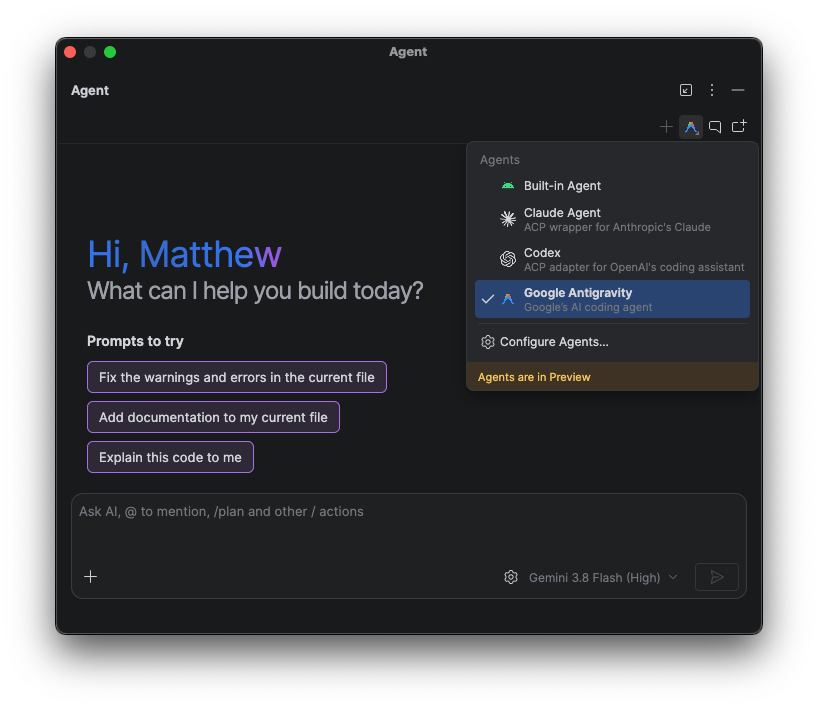
BYOA offers the following benefits:
- Support for any ACP-compliant agent.
- Direct IDE access to build diagnostics, Android SDK tools, terminal and shell execution, and emulator management.
- Flexible sign-in options supporting personal API keys and consumer subscriptions.
Get started
To get started with BYOA, follow these steps:
- Update Android Studio to the latest canary release.
- Connect your agents: In the agent window, select one of the default agents (Claude Agent, Codex, or Antigravity) and sign in or provide an API key. Additional agents can be found in the registry at File (Android Studio on macOS) > Settings > Tools > AI > Agents.
Agentic fixes with LeakCanary
Starting in Rabbit 2, Android Studio directly integrates LeakCanary with the AI agent to help you diagnose and resolve memory leaks without leaving the IDE. This integration lets LeakCanary provide more meaningful narrative explanations of the underlying causes of memory leaks and suggest specific code changes to correct them. Try this feature out in the LeakCanary task in Profiler.
Discover, install, and manage Android skills in Android Studio
In Android Studio Rabbit 2, it's easier to discover, install, and manage Android skills directly in the IDE, giving you granular control over the specialized workflows and procedural guidance available to the agent.
Resize Running Devices tool window by double-clicking empty space
You can eliminate unused space around your virtual or mirrored physical devices in the Running Devices tool window. Double-click anywhere in the empty background area outside the device screen (and frame, if visible) to automatically resize the tool window or adjust split pane proportions to snugly fit the device display.
- Docked tool windows: Adjusts the tool window's width (when docked to the left or right) or height (when docked to the top or bottom) to remove excess margin around the device.
- Floating and windowed modes: Resizes both width and height of the window to wrap tightly around the device display.
- Split views: Automatically adjusts internal splitters when viewing multiple displays or devices side by side.
Android Studio Rabbit 3
The following are new features in Android Studio Rabbit 3.
To see what's been fixed in this version of Android Studio, see the closed issues.
Compose Preview Screenshot Testing tool
Use the Compose Preview Screenshot Testing tool to test your Compose UIs and prevent regressions. The new tool helps you generate HTML reports that let you visually detect any changes to your app's UI. Learn more at Compose Preview Screenshot Testing.
Model Assignment
The Model Assignment feature lets you pick different AI models for different types of tasks in Android Studio. For example, you can assign a large, pro-tier model for complex reasoning tasks in Agent Mode, and a faster, lightweight model for simpler, latency-sensitive tasks like commit message generation or next edit prediction. This lets you balance quality, speed, and quota usage across features.
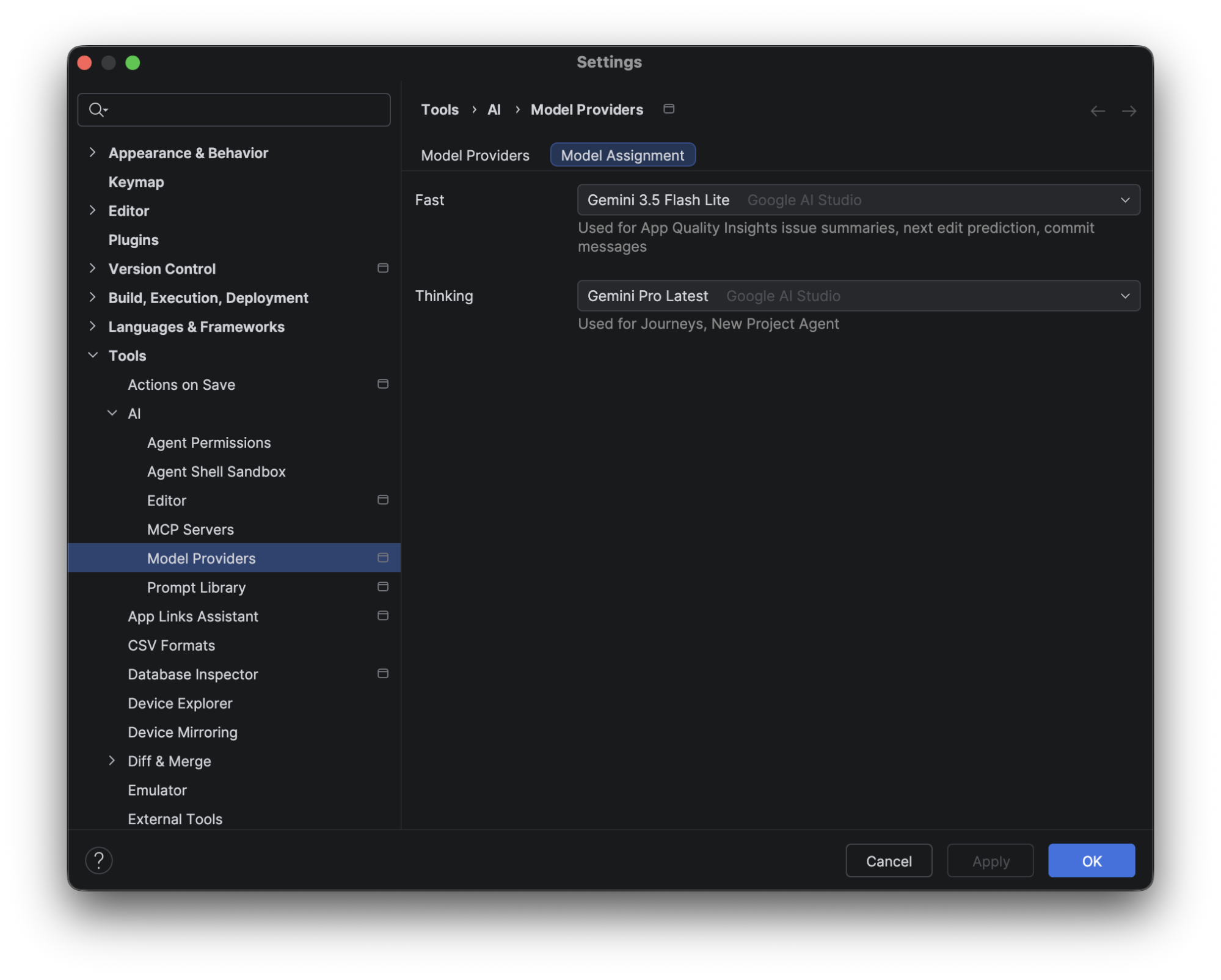
To configure this, go to File (Android Studio on macOS) > Settings > Tools > AI > Model Providers, select the Model Assignment tab, and use the dropdowns to assign a model to each feature category. You can also change the model directly from the model selector dropdown in the Agent Mode panel—the Model Assignment settings for Thinking features will automatically update to reflect your selection.
Migrate iOS, Flutter, and React Native apps to Android
You can now migrate existing iOS, Flutter, and React Native projects to native Android using automated migration tooling in Android Studio. From the New Project Wizard, you can call the assistant to convert the selected project to a Kotlin and Jetpack Compose-based Android app. The integrated progress UI provides end-to-end visibility across task planning, code transformation, and compilation checks, producing a functional project that's ready for testing and verification.
To learn more, see Perform cross-platform app migrations.
Publish to Google Play for testing
Android Studio now gives you the ability to upload new releases of your app directly to Google Play Console test tracks. You can do this by selecting a new option to continue to 'Publish for Testing' at the end of the Generate Signed App Bundle flow. This integration supports uploading an initial release of a brand-new app to a Play Console internal test track. You can also use this feature to upload releases of existing apps to other types of test tracks. You need to be registered on Google Play Console to take advantage of this functionality.