
Android Studio is included in the Gemini Enterprise subscription bundle, which enables enterprise development teams to deploy Android Studio using models hosted directly in your organization's Google Cloud infrastructure. Every session runs under Google Cloud's enterprise security controls, data residency guarantees, and the Google Cloud Terms of Service. Android Studio comes with the Gemini Enterprise Standard or Gemini Enterprise Plus subscription plans.
By connecting Android Studio to your Google Cloud project, your organization gains the following benefits:
- Enterprise governance: Operate under your project's existing Google Cloud Terms of Service with centralized administrative controls.
- Data residency and security: Keep code and data inside your secure network. Your prompts, AI responses, code, and telemetry remain in your private network (through VPC Service Controls) and chosen data region.
- Consolidated billing: Pay-as-you-go directly with your existing Google Cloud Billing account with unified invoicing.
For more details about Google Enterprise support for AI developer tools, see AI developer tools overview in the Google Cloud documentation.
Sign in to Android Studio with a Gemini Enterprise subscription
To sign in to Android Studio with a Gemini Enterprise subscription, follow these steps:
- Start Android Studio.
- To open the agent tool window, click Agent
 or click
View > Tool Windows > Agent.
or click
View > Tool Windows > Agent. - Click Sign in to Google to sign in using the browser.
- Click Business account.
- Click Continue with Google Cloud to sign in using the browser.
- If a license (subscription type) is found, it'll be displayed in Android Studio. Select the license that corresponds to the project that you want to open.
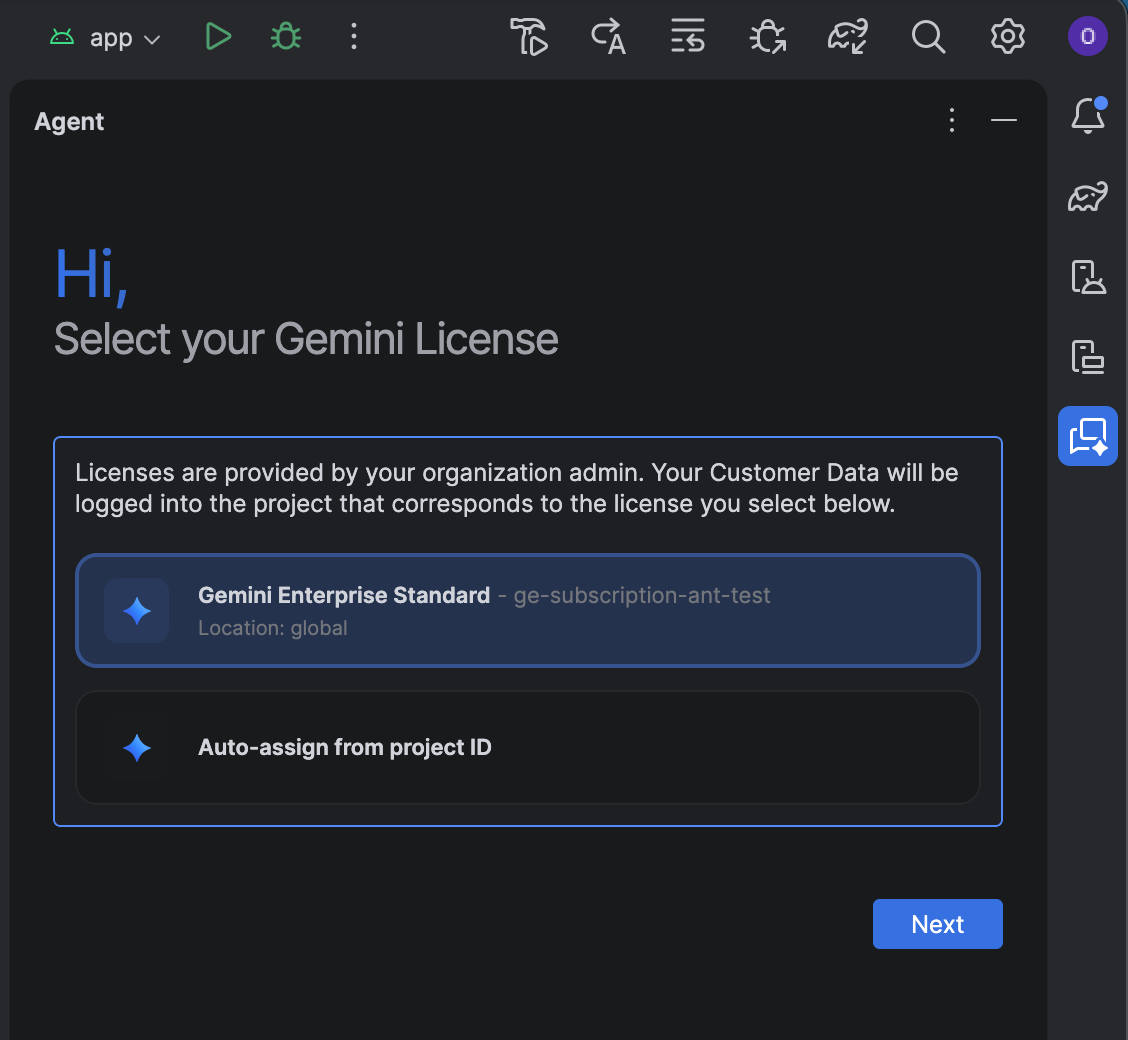
Instead of picking one of the listed licenses, you can self-assign a license:
- Click Auto-assign from project ID.
- Click Next.
- Enter your project ID.
- Enter your location: Global, Europe (EU), or United States (US).
- Confirm the license to save your selection.
If you need to change your license selection or update your project ID later on, go to File (Android Studio on macOS) > Settings > AI > Model Providers and change the selection under Change License.
Troubleshoot issues
If you encounter issues using Android Studio with a Gemini Enterprise subscription, first check that you're using Android Studio Rabbit 1 or higher. If the issue persists, you need to contact your admin to make configuration changes:
- If no licenses appear during setup, contact your admin to request access. We recommend setting up auto-assignment of licenses.
- If you can't access the latest Gemini models in Android Studio, contact your admin to enable preview models.