
Credential Manager's Sign in with Google implementation lets you configure sign-up and sign-in experiences. Credential Manager abstracts authentication complexity, while ensuring secure profile sharing and a consistent sign-up flow across the entire Android ecosystem. Sign in with Google lets your users use their Google Account to sign in and give consent to securely share their profile information with your app.
The cross-platform nature of Sign in with Google helps you provide sign-in access for your app on any device across Android, iOS, and the web.
This guide explains the following areas:
- Benefits of Sign in with Google
- User interface guidelines
- Prerequisites for implementation
This guide assumes you're familiar with the following concepts:
Benefits of Sign in with Google
Using Sign in with Google as the authentication mechanism for your app has the following benefits:
- Sign in with Google ensures that a user has signed in to their Google Account recently. Additionally, a user's Google ID Token can include information about the last time they authenticated with their Google Account on the device. Account management systems can use this information as an indicator to make decisions about account security.
- The bottom sheet implementation supports Automatic Sign-In, which removes manual steps for returning users who have already authorized the app.
- Sign in with Google supports cross-platform authentication.
Version compatibility
Credential Manager's Sign in with Google implementation works on devices running Android 4.4 (API level 19) and higher.
User interface guidelines
When incorporating Sign in with Google, we recommend that you implement both of the following user interfaces:
- The bottom sheet UI, which can also include other sign-in options such as passkeys and passwords.
- A distinct "Sign in with Google" button.
We recommend that you implement both the interfaces for the following reasons:
- The bottom sheet is a user-dismissible UI, while the button is a persistent UX element. The button allows users to restart the authentication flow without needing to restart the app if they dismiss the bottom sheet.
- The bottom sheet excludes accounts that require re-authentication; however, the button flow lets users access these accounts.
- If no Google Accounts exist on the device, the bottom sheet UI does not appear. However, the button allows users to add a new account to the device.
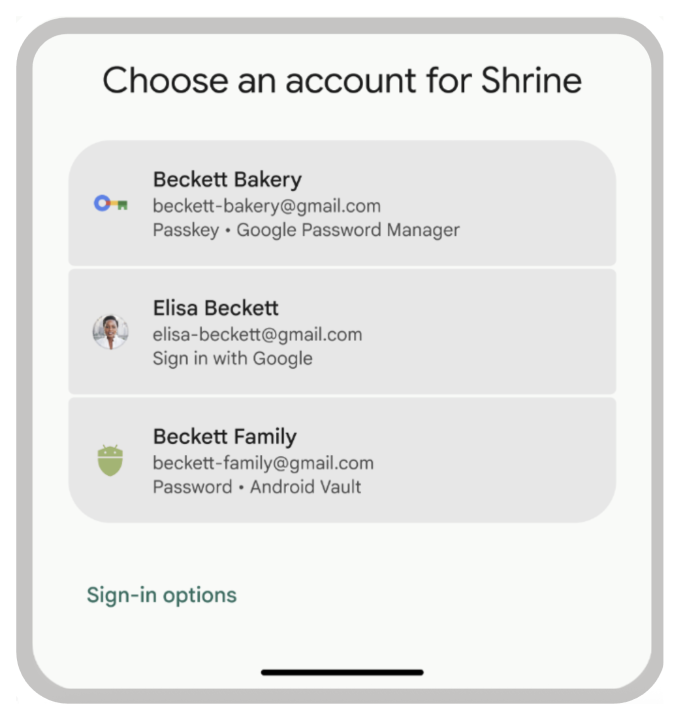
Use the bottom sheet UI
Credential Manager's bottom sheet UI is integrated within the Credential Manager API. You don't need to create your own user interface to use the bottom sheet UI.
Using the bottom sheet UI gives users a consistent authentication experience across Sign in with Google, passkeys, and passwords.
Use a Sign in with Google button
The Sign in with Google button presents users with a distinct option to use their Google Account to sign up for and sign in to your app.

Prerequisites to implement Sign in with Google
To implement Sign in with Google, complete the following setup:
Configure the Google Auth Platform: For more information about configuring your Google Cloud project, see Get started with the Google Auth Platform.
Complete brand verification: Your brand must be verified for your app name to be visible to users on the Sign in with Google consent screen. For more information about brand verification, see OAuth App Verification Help Center and Submit app for brand verification
See also
Case studies: