

Bu sayfada, üçüncü taraf SDK'ların, Google Play'in yeni bir test özelliği olan satır içi yükleme'yi nasıl entegre edebileceği açıklanmaktadır. Satır içi yükleme, Google Play uygulama ürünü ayrıntılarını yarım sayfa arayüzünde gösterir. Satır içi yükleme, kullanıcıların uygulamanın bağlamından ayrılmadan sorunsuz bir uygulama yükleme akışı deneyimlemesini sağlar.
Üçüncü taraf SDK geliştiricileri, satır içi yükleme özelliğini SDK'larına entegre ederek bu SDK'ları kullanan uygulama geliştiricilerin uygulamaları için satır içi yüklemelere erişmesini sağlayabilir.
Şartlar
Uygulamada satır içi yükleme yarım sayfa arayüzünün görünmesi için:
- Minimum Google Play sürümü 40.4 olmalıdır.
- Android API düzeyi 24 veya daha yüksek olmalıdır.
Süreç mimarisi
Satır içi yükleme işlemi mimarisi aşağıdaki şekilde gösterilmektedir:
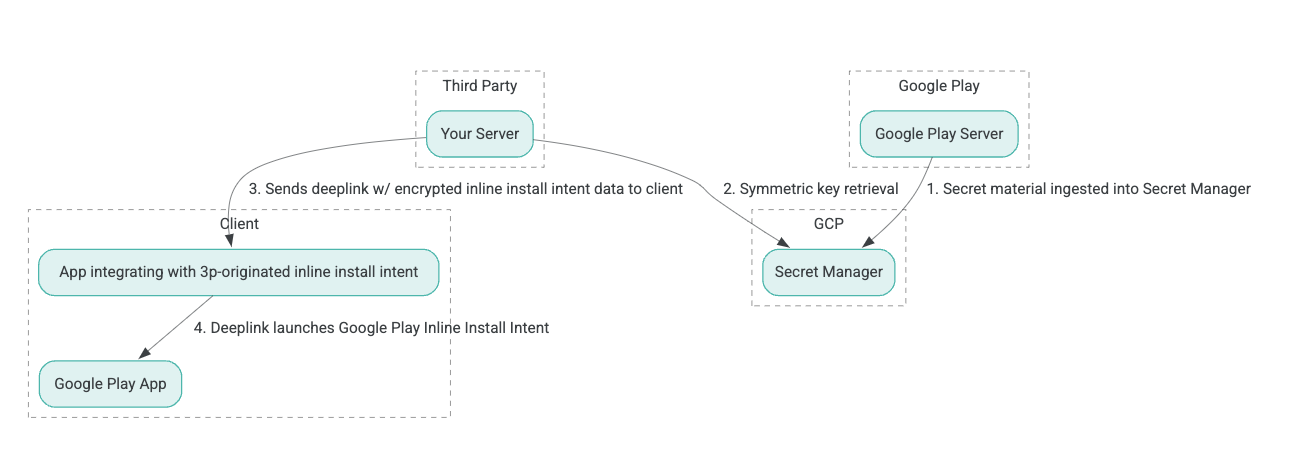
- Google Play sunucuları, ilişkili verilerle kimliği doğrulanmış şifreleme (AEAD) şifreleme anahtarları oluşturur ve anahtarları bir Google Cloud Platform (GCP) Secret Manager örneğine aktarır.
- Üçüncü taraf entegratör, AEAD anahtarını GCP Secret Manager'dan alır.
- Üçüncü taraf entegratör, satır içi yükleme
Intentverilerini şifreler, satır içi yükleme intent'ini çağırmak için kullanılan derin bağlantıda iletilen şifreli metni oluşturur ve yanıtlarda derin bağlantıları istemciye gönderir. - Derin bağlantı izlendiğinde Google Play uygulaması amaç isteğini işler.
Üçüncü taraf bir SDK'yı satır içi yükleme sürecini kullanacak şekilde yapılandırmak için aşağıdaki adımları tamamlayın.
Google Cloud projesinde hizmet hesapları oluşturma
Bu adımda, Google Cloud Console'u kullanarak bir hizmet hesabı oluşturacaksınız.
- Google Cloud projesi oluşturun:
- Google Cloud kuruluşu oluşturun. Google Workspace veya Cloud Identity hesabı oluşturup alan adınızla ilişkilendirdiğinizde kuruluş kaynağı otomatik olarak oluşturulur. Ayrıntılı bilgi için Kuruluş kaynakları oluşturma ve yönetme başlıklı makaleyi inceleyin.
- Önceki adımda oluşturulan Google Cloud hesabını kullanarak GCP Console'a giriş yapın, ardından bir Google Cloud projesi oluşturun. Ayrıntılar için Google Cloud projesi oluşturma başlıklı makaleyi inceleyin.
- Oluşturulan Google Cloud projesinde bir hizmet hesabı oluşturun. Hizmet hesabı, sunucularınız adına simetrik anahtara erişmek için Google Cloud Identity olarak kullanılır. Ayrıntılar için Hizmet hesabı oluşturma başlıklı makaleyi inceleyin.
- İlgi alanları formuna girilen Google Workspace müşteri kimliğini (GWCID) veya Dasher kimliğini kullanın.
- İlgili hizmet hesabının özel anahtarını oluşturun ve indirin.
- Bu hizmet hesabı için bir anahtar oluşturun. Ayrıntılar için Hizmet hesabı anahtarı oluşturma başlıklı makaleye bakın.
- Hizmet hesabı anahtarını indirin ve sunucunuzda erişilebilir durumda tutun. Bu anahtar, simetrik anahtarlar için Google Cloud kaynaklarına erişim kimliğini doğrulamak amacıyla kullanılır. Ayrıntılar için Hizmet hesabı anahtarı alma başlıklı makaleyi inceleyin.
Kimlik bilgilerini alma
Bu adımda, simetrik anahtarı Secret Manager'dan alıp kendi sunucu depolama alanınızda güvenli bir şekilde (örneğin, JSON dosyasında) saklarsınız. Bu anahtar, satır içi yükleme verilerinin şifreli metnini oluşturmak için kullanılır.
secret_id/secretId değerleri, Secret Manager'daki gizli ad anlamına gelir. Bu ad, Play tarafından sağlanan sdk_id değerinin önüne hsdp-3p-key- eklenerek oluşturulur. Örneğin, sdk_id abc ise gizli ad hsdp-3p-key-abc olur.
Gizli sürümler her hafta salı günleri saat 14:00'te (UTC) güncellenir. En yeni ikinci anahtarlar, bir sonraki rotasyona kadar çalışmaya devam eder ve anahtar materyali haftalık olarak yeniden getirilip saklanmalıdır.
Python örneği
Aşağıdaki kod örneğinde, GCP Secret Manager'daki anahtar materyaline erişmek ve bunu konsola yazdırmak için JSON dosyasında depolanan bir erişim jetonu kullanılır.
#!/usr/bin/env python3
# Import the Secret Manager client library.
from google.cloud import secretmanager
from google.oauth2 import service_account
import google_crc32c

# Create a service account key file.
service_account_key_file = "<json key file of the service account>"
credentials = service_account.Credentials.from_service_account_file(service_account_key_file)

# Create the Secret Manager client.
client = secretmanager.SecretManagerServiceClient(
  credentials=credentials
)

# Build the resource name of the secret version.
name = f"projects/prod-play-hsdp-3p-caller-auth/secrets/<secret_id>/versions/latest"

# Access the secret version.
response = client.access_secret_version(request={"name": name})

# Verify payload checksum.
crc32c = google_crc32c.Checksum()
crc32c.update(response.payload.data)
if response.payload.data_crc32c != int(crc32c.hexdigest(), 16):
    print("Data corruption detected.")

# A keyset created with "tinkey create-keyset --key-template=AES256_GCM". Note
# that this keyset has the secret key information in cleartext.
keyset = response.payload.data.decode("UTF-8")

# WARNING: Do not print the secret in a production environment. Please store it
# in a secure storage.
with open('<key file name>', 'w') as f:
    f.write(keyset)
Java örneği
Aşağıdaki kod örneğinde, GCP Secret Manager'daki anahtar materyaline erişmek ve bunu bir JSON dosyasına yazmak için JSON dosyasında depolanan bir erişim jetonu kullanılır.
import static java.nio.charset.StandardCharsets.UTF_8;
import com.google.api.gax.core.CredentialsProvider;
import com.google.api.gax.core.FixedCredentialsProvider;
import com.google.auth.oauth2.ServiceAccountCredentials;
import com.google.cloud.secretmanager.v1.AccessSecretVersionResponse;
import com.google.cloud.secretmanager.v1.SecretManagerServiceClient;
import com.google.cloud.secretmanager.v1.SecretManagerServiceSettings;
import com.google.cloud.secretmanager.v1.SecretVersionName;
import java.io.FileInputStream;
import java.io.IOException;
import java.io.PrintWriter;
import java.nio.file.Files;
import java.nio.file.Paths;
import java.util.zip.CRC32C;
import java.util.zip.Checksum;

/** */
final class ThirdPartySecretAccessGuide {

  private ThirdPartySecretAccessGuide() {}

  public static void main(String[] args) throws IOException {
    accessSecretVersion();
  }

  public static void accessSecretVersion() throws IOException {
    // TODO(developer): Replace these variables before running the sample.
    String projectId = "projectId";
    String secretId = "secretId";
    String versionId = "versionId";
    String accessTokenPrivateKeyPath = "path/to/credentials.json";
    String secretMaterialOutputPath = "path/to/secret.json";
    accessSecretVersion(
        projectId, secretId, versionId, accessTokenPrivateKeyPath, secretMaterialOutputPath);
  }

  // Access the payload for the given secret version if one exists. The version
  // can be a version number as a string (e.g. "5") or an alias (e.g. "latest").
  public static void accessSecretVersion(
      String projectId,
      String secretId,
      String versionId,
      String accessTokenPrivateKeyPath,
      String secretMaterialOutputPath)
      throws IOException {

    // We can explicitly instantiate the SecretManagerServiceClient (below) from a json file if we:
    // 1. Create a CredentialsProvider from a FileInputStream of the JSON file,
    CredentialsProvider credentialsProvider =
        FixedCredentialsProvider.create(
            ServiceAccountCredentials.fromStream(new FileInputStream(accessTokenPrivateKeyPath)));

    // 2. Build a SecretManagerService Settings object from that credentials provider, and
    SecretManagerServiceSettings secretManagerServiceSettings =
        SecretManagerServiceSettings.newBuilder()
            .setCredentialsProvider(credentialsProvider)
            .build();

    // 3. Initialize client that will be used to send requests by passing the settings object to
    // create(). This client only needs to be created once, and can be reused for multiple requests.
    // After completing all of your requests, call the "close" method on the client to safely clean
    // up any remaining background resources.
    try (SecretManagerServiceClient client =
        SecretManagerServiceClient.create(secretManagerServiceSettings)) {
      SecretVersionName secretVersionName = SecretVersionName.of(projectId, secretId, versionId);

      // Access the secret version.
      AccessSecretVersionResponse response = client.accessSecretVersion(secretVersionName);

      // Verify checksum. The used library is available in Java 9+.
      // If using Java 8, you may use the following:
      // https://github.com/google/guava/blob/e62d6a0456420d295089a9c319b7593a3eae4a83/guava/src/com/google/common/hash/Hashing.java#L395
      byte[] data = response.getPayload().getData().toByteArray();
      Checksum checksum = new CRC32C();
      checksum.update(data, 0, data.length);
      if (response.getPayload().getDataCrc32C() != checksum.getValue()) {
        System.out.printf("Data corruption detected.");
        return;
      }

      String payload = response.getPayload().getData().toStringUtf8();
      // Print the secret payload.
      //
      // WARNING: Do not print the secret in a production environment - this
      // snippet is showing how to access the secret material.
      System.out.printf("Plaintext: %s\n", payload);

      // Write the JSON secret material payload to a json file
      try (PrintWriter out =
          new PrintWriter(Files.newBufferedWriter(Paths.get(secretMaterialOutputPath), UTF_8))) {
        out.write(payload);
      } catch (Exception e) {
        e.printStackTrace();
      }
    }
  }
}
Uygulama Varsayılan Kimlik Bilgileri'ni ayarlama
Java uygulamasında özel anahtarı bir JSON dosyasına iletmek için CredentialsProvider kullanmak istemiyorsanız Uygulama Varsayılan Kimlik Bilgileri'ni (ADC) ayarlayarak uygulamayı değiştirebilirsiniz:
- İstemci kitaplıklarına hizmet hesabı anahtarının nerede bulunacağını söyleyin.
- Java projesine Maven bağımlılıkları ekleyin.
- Call
SecretManagerServiceClient.create()(1. adım nedeniyle kimlik doğrulama otomatik olarak yapılır).
Bu adımlar, Java uygulamasını aşağıdaki şekilde değiştirir:
CredentialsProviderveSecretManagerServiceSettingsnesnelerini oluşturma ihtiyacını ortadan kaldırır.- Aramayı
SecretManagerServiceClient.create()olarak değiştirerek herhangi bir argüman içermemesini sağlayın.
Şifreli metin oluşturma ve derin bağlantı oluşturma
Bu adımda, InlineInstallData protobuf nesnesinden enifd (InlineInstallData şifreli metin) oluşturmak için Tink kriptografi kitaplığını kullanacaksınız.
InlineInstallData proto'su aşağıdaki gibi tanımlanır:
syntax = "proto2";
package hsdpexperiments;
option java_package = "com.google.hsdpexperiments";
option java_multiple_files = true;

// InlineInstallData is used by 3p auth callers to generate "encrypted inline
// flow data" (enifd) which is decrypted in PGS to verify authenticity and
// freshness.
message InlineInstallData {
  // The timestamp which indicates the time encrypted data is generated.
  // Used to validate freshness (i.e. generation time in past 4 hours).
  // Required.
  optional int64 timestamp_ms = 1;

  // The docid of the app that we want to open inline install page for.
  // This is the package name.
  // Required.
  optional string target_package_name = 2;

  // This is the name of the app requesting the ad from Google Ad Serving
  // system.
  // Required.
  optional string caller_package_name = 3;

  // This is the advertising id that will be collected by 3P Ad SDKs.
  // Optional.
  optional string advertising_id = 4;

  // This is used to indicate the network from where the inline install was
  // requested.
  // Required.
  optional string ad_network_id = 5;
}
Bu adımda, aşağıdaki parametreleri kullanarak derin bağlantı URL'sini de oluşturursunuz:
| Alanlar | Açıklama | Zorunlu |
|---|---|---|
| id | Yüklenecek uygulamanın paket adı. | Evet |
| satır içi | Satır içi yükleme alt sayfası isteniyorsa true olarak ayarlanır. false ise amaç, Google Play'e derin bağlantı oluşturur. |
Evet |
| enifd | Üçüncü taraf SDK'larının şifrelenmiş tanımlayıcısı. | Evet |
| lft | Dahili bir tanımlayıcı. | Evet |
| 3pAuthCallerId | SDK tanımlayıcısı. | Evet |
| giriş | Özel mağaza girişi için hedefi belirtmek üzere kullanılan isteğe bağlı bir parametre. | Hayır |
| yönlendiren : referans olan kişi | İsteğe bağlı bir yönlendiren izleme dizesi. | Hayır |
Python örneği
Aşağıdaki komut, InlineInstallData.proto kaynağından Python kodu oluşturur:
protoc InlineInstallData.proto --python_out=.
Aşağıdaki Python örnek kodu, InlineInstallData oluşturur ve şifre metnini oluşturmak için simetrik anahtarla şifreler:
#!/usr/bin/env python3

# Import the Secret Manager client library.
import base64
import time
import inline_install_data_pb2 as InlineInstallData
import tink
from tink import aead
from tink import cleartext_keyset_handle

# Read the stored symmetric key.
with open("example3psecret.json", "r") as f:
  keyset = f.read()

"""Encrypt and decrypt using AEAD."""
# Register the AEAD key managers. This is needed to create an Aead primitive later.
aead.register()

# Create a keyset handle from the cleartext keyset in the previous
# step. The keyset handle provides abstract access to the underlying keyset to
# limit access of the raw key material. WARNING: In practice, it is unlikely
# you will want to use a cleartext_keyset_handle, as it implies that your key
# material is passed in cleartext, which is a security risk.
keyset_handle = cleartext_keyset_handle.read(tink.JsonKeysetReader(keyset))

# Retrieve the Aead primitive we want to use from the keyset handle.
primitive = keyset_handle.primitive(aead.Aead)

inlineInstallData = InlineInstallData.InlineInstallData()
inlineInstallData.timestamp_ms = int(time.time() * 1000)
inlineInstallData.target_package_name = "x.y.z"
inlineInstallData.caller_package_name = "a.b.c"
inlineInstallData.ad_network_id = "<sdk_id>"

# Use the primitive to encrypt a message. In this case the primary key of the
# keyset will be used (which is also the only key in this example).
ciphertext = primitive.encrypt(inlineInstallData.SerializeToString(), b'<sdk_id>')
print(f"InlineInstallData Ciphertext: {ciphertext}")

# Base64 Encoded InlineInstallData Ciphertext
enifd = base64.urlsafe_b64encode(ciphertext).decode('utf-8')
print(enifd)

# Deeplink
print(f"https://play.google.com/d?id={inlineInstallData.target_package_name}\&inline=true\&enifd={enifd}\&lft=1\&3pAuthCallerId={inlineInstallData.ad_network_id}")
Aşağıdaki komutu çalıştırarak Python komut dosyasını yürütün:
python <file_name>.py
Java örneği
Aşağıdaki komut, InlineInstallData.proto dosyasından Java kodu oluşturur:
protoc InlineInstallData.proto --java_out=.
Aşağıdaki Java örnek kodu, InlineInstallData oluşturur ve şifre metnini oluşturmak için simetrik anahtarla şifreler:
package com.google.hsdpexperiments;

import static com.google.common.io.BaseEncoding.base64Url;
import static java.nio.charset.StandardCharsets.UTF_8;

import com.google.common.flags.Flag;
import com.google.common.flags.FlagSpec;
import com.google.common.flags.Flags;
import com.google.crypto.tink.Aead;
import com.google.crypto.tink.InsecureSecretKeyAccess;
import com.google.crypto.tink.KeysetHandle;
import com.google.crypto.tink.TinkJsonProtoKeysetFormat;
import com.google.crypto.tink.aead.AeadConfig;
import java.nio.file.Files;
import java.nio.file.Path;
import java.nio.file.Paths;
import java.security.Security;
import java.time.Duration;
import org.conscrypt.Conscrypt;

/** info on encryption in https://github.com/google/tink#learn-more */
final class ThirdPartyEnifdGuide {

  @FlagSpec(
      name = "third_party_id",
      help = "the identifier associated with the 3p for which to generate the enifd")
  private static final Flag<String> thirdPartyAuthCallerId = Flag.value("");

  @FlagSpec(name = "package_name", help = "the package name of the target app")
  private static final Flag<String> packageName = Flag.value("");


  @FlagSpec(name = "caller_package_name", help = "the package name of the caller app")
  private static final Flag<String> callerPackageName = Flag.value("");

  @FlagSpec(name = "secret_filename", help = "the path to the json file with the secret material")
  private static final Flag<String> secretFilename = Flag.value("");

  private ThirdPartyEnifdGuide() {}

  public static void main(String[] args) throws Exception {
    // parse flags
    Flags.parse(args);

    // File keyFile = new File(args[0]);
    Path keyFile = Paths.get(secretFilename.get());

    // Create structured inline flow data
    InlineInstallData idrp =
        InlineInstallData.newBuilder()
            .setTargetPackageName(packageName.get())
            .setCallerPackageName(callerPackageName.get())
            .setTimestampMs(System.currentTimeMillis())
            .setAdNetworkId(thirdPartyAuthCallerId.get())
            .build();

    // we can print this out here to make sure it's well formatted, this will help debug
    System.out.println(idrp.toString());

    // Register all AEAD key types with the Tink runtime.
    Conscrypt.checkAvailability();
    Security.addProvider(Conscrypt.newProvider());
    AeadConfig.register();

    // Read AEAD key downloaded from secretmanager into keysethandle
    KeysetHandle handle =
        TinkJsonProtoKeysetFormat.parseKeyset(
            new String(Files.readAllBytes(keyFile), UTF_8), InsecureSecretKeyAccess.get());

    // Generate enifd using tink library
    Aead aead = handle.getPrimitive(Aead.class);
    byte[] plaintext = idrp.toByteArray();
    byte[] ciphertext = aead.encrypt(plaintext, thirdPartyAuthCallerId.get().getBytes(UTF_8));
    String enifd = base64Url().omitPadding().encode(ciphertext);

    // Build deeplink, escaping ampersands (TODO: verify this is necessary while testing e2e)
    String deeplink =
        "https://play.google.com/d?id="
            + packageName.get()
            + "\\&inline=true\\&enifd="
            + enifd
            + "\\&lft=1\\&3pAuthCallerId="
            + thirdPartyAuthCallerId.get();

    System.out.println(deeplink);
  }
}
Son olarak, Java programını ikili programa dönüştürün ve aşağıdaki kodu kullanarak çağırın:
path/to/binary/ThirdPartyEnifdGuide --secret_filename=path/to/jsonfile/example3psecret.json --package_name=<package_name_of_target_app> --third_party_id=<3p_caller_auth_id>
secret_filenameişareti, gizli materyali içeren JSON dosyasının yolunu belirtir.package_nameişareti, hedef uygulamanın doküman kimliğidir.third_party_idişareti, üçüncü taraf arayan kimlik doğrulama kimliğini (yani<sdk_id>) belirtmek için kullanılır.
Satır içi yükleme intent'ini başlatma
Önceki adımda oluşturulan derin bağlantıyı test etmek için bir Android cihazı (USB üzerinden hata ayıklamanın etkinleştirildiğinden emin olun) ADB'nin yüklü olduğu bir iş istasyonuna bağlayın ve aşağıdaki komutu çalıştırın:
adb shell am start "<output_from_the_previous_python_or_java_code>"
İstemci kodunda, aşağıdaki yöntemlerden birini (Kotlin veya Java) kullanarak amacı gönderin.
Kotlin
val intent = Intent(Intent.ACTION_VIEW)
val deepLinkUrl = "<output_from_the_previous_python_or_java_code>"
intent.setPackage("com.android.vending")
intent.data = Uri.parse(deepLinkUrl)
val packageManager = context.getPackageManager()
if (intent.resolveActivity(packageManager) != null) {
  startActivityForResult(intent, 0)
} else {
  // Fallback to deep linking to full Play Store.
}
Java
Intent intent = new Intent(Intent.ACTION_VIEW);
String id = "exampleAppToBeInstalledId";
String deepLinkUrl = "<output_from_the_previous_python_or_java_code>";
intent.setPackage("com.android.vending");
intent.setData(Uri.parse(deepLinkUrl));
PackageManager packageManager = context.getPackageManager();
if (intent.resolveActivity(packageManager) != null) {
  startActivityForResult(intent, 0);
} else {
  // Fallback to deep linking to full Play Store.
}
Ek
Aşağıdaki bölümlerde belirli kullanım alanları hakkında ek bilgiler verilmektedir.
Python ortamını hazırlama
Python örnek kodunu çalıştırmak için iş istasyonunuzda Python ortamını ayarlayın ve gerekli bağımlılıkları yükleyin.
Python ortamını ayarlayın:
python3.11'i yükleyin (zaten yüklüyse bu adımı atlayın):
sudo apt install python3.11pip'i yükleyin:
sudo apt-get install pipvirtualenvuygulamasını yükleme:sudo apt install python3-virtualenvSanal ortam oluşturun (Tink bağımlılığı için gereklidir):
virtualenv inlineinstall --python=/usr/bin/python3.11
Sanal ortama girin:
source inlineinstall/bin/activatepip'i güncelleyin:
python -m pip install --upgrade pipGerekli bağımlılıkları yükleyin:
Tink'i yükleyin:
pip install tinkGoogle crc32c'yi yükleyin:
pip install google-crc32cSecret Manager'ı yükleyin:
pip install google-cloud-secret-managerprotobuf derleyicisini yükleyin:
sudo apt install protobuf-compiler
C++ enifd generation
Aşağıda, enifd oluşturmak için şirket içinde yazdığımız ve doğruladığımız bir C++ örneği verilmiştir.
enifd oluşturma işlemi, C++ kodu kullanılarak aşağıdaki şekilde gerçekleştirilebilir:
// A command-line example for using Tink AEAD w/ key template aes128gcmsiv to
// encrypt an InlineInstallData proto.
#include <chrono>
#include <iostream>
#include <memory>
#include <string>

#include "<path_to_protoc_output>/inline_install_data.proto.h"
#include "absl/flags/flag.h"
#include "absl/flags/parse.h"
#include "absl/strings/escaping.h"
#include "absl/strings/string_view.h"
#include "tink/cc/aead.h"
#include "tink/cc/aead_config.h"
#include "tink/cc/aead_key_templates.h"
#include "tink/cc/config/global_registry.h"
#include "tink/cc/examples/util/util.h"
#include "tink/cc/keyset_handle.h"
#include "tink/cc/util/status.h"
#include "tink/cc/util/statusor.h"

ABSL_FLAG(std::string, keyset_filename, "",
          "Keyset file (downloaded from secretmanager) in JSON format");
ABSL_FLAG(std::string, associated_data, "",
          "Associated data for AEAD (default: empty");

namespace {

using ::crypto::tink::Aead;
using ::crypto::tink::AeadConfig;
using ::crypto::tink::KeysetHandle;
using ::crypto::tink::util::Status;
using ::crypto::tink::util::StatusOr;

}  // namespace

namespace tink_cc_examples {

// AEAD example CLI implementation.
void AeadCli(const std::string& keyset_filename,
             absl::string_view associated_data) {
  Status result = AeadConfig::Register();
  if (!result.ok()) {
    std::clog << "Failed to register AeadConfig";
    return;
  }

  // Read the keyset from file.
  StatusOr<std::unique_ptr<KeysetHandle>> keyset_handle =
      ReadJsonCleartextKeyset(keyset_filename);
  if (!keyset_handle.ok()) {
    std::clog << "Failed to read json keyset";
    return;
  }

  // Get the primitive.
  StatusOr<std::unique_ptr<Aead>> aead =
      (*keyset_handle)
          ->GetPrimitive<crypto::tink::Aead>(
              crypto::tink::ConfigGlobalRegistry());
  if (!aead.ok()) {
    std::clog << "Failed to get primitive";
    return;
  }

  // Instantiate the enifd.
  hsdpexperiments::InlineInstallData iid;

  iid.set_timestamp_ms(std::chrono::duration_cast<std::chrono::milliseconds>(
                           std::chrono::system_clock::now().time_since_epoch())
                           .count());
  iid.set_target_package_name("<TARGET_PACKAGE_NAME>");
  iid.set_caller_package_name("<CALLER_PACKAGE_NAME>");
  iid.set_ad_network_id("<SDK_ID>");

  // Compute the output.
  StatusOr<std::string> encrypt_result =
      (*aead)->Encrypt(iid.SerializeAsString(), associated_data);
  if (!encrypt_result.ok()) {
    std::clog << "Failed to encrypt Inline Install Data";
    return;
  }
  const std::string& output = encrypt_result.value();

  std::string enifd;
  absl::WebSafeBase64Escape(output, &enifd);

  std::clog << "enifd: " << enifd << '\n';
}

}  // namespace tink_cc_examples

int main(int argc, char** argv) {
  absl::ParseCommandLine(argc, argv);

  std::string keyset_filename = absl::GetFlag(FLAGS_keyset_filename);
  std::string associated_data = absl::GetFlag(FLAGS_associated_data);

  std::clog << "Using keyset from file " << keyset_filename
            << " to AEAD-encrypt inline install data with associated data '"
            << associated_data << "'." << '\n';

  tink_cc_examples::AeadCli(keyset_filename, associated_data);
  return 0;
}
Bu kod, Tink belgelerinde bulunan bir örnekten uyarlanmıştır.