

As you test your app, use the Android XR Emulator to extend your testing capacity beyond your physical test devices. You can use the emulator controls to help you test how your app behaves in common scenarios with AI glasses. See the following sections for details about running your virtual Android XR devices in the emulator and the emulator controls you can use.

Run your app on the emulator
To run your app on the emulator, follow these steps:
In the Android Studio Device Manger, find the phone AVD that you created to act as a host device for the AI glasses emulator, and click Start .

In the Android Studio Device Manger, find the AI glasses AVD that you created and click Start.

To launch your app in the emulator, select the phone AVD from the target device drop-down menu in the Android Studio main toolbar, and then click Run.

Use emulator controls for AI glasses
Use the emulator controls to help you test how your app behaves in common scenarios with AI glasses. See the following sections for details on each of the controls you can use.
Provide touchpad input
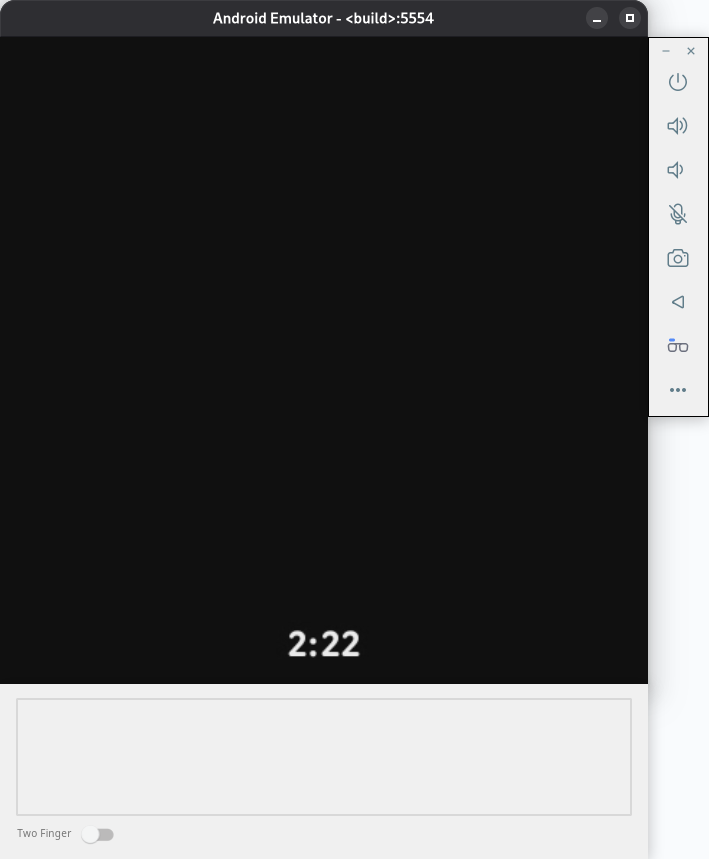
Because AI Glasses don't have a touchscreen, interactions use a touchpad on the physical device. For the Android XR Emulator, you can find the touchpad just below the display area.
Use your computer's mouse within the touchpad area to simulate touch, and enable Two Finger mode to perform two-finger gestures.
The right side of the emulator touchpad area represents the area on a real device that is towards the front of the glasses (where the lenses are), while the left side represents the area on a real device that is towards the back of the glasses (where the glasses rest on your ears). Knowing this orientation is important when simulating gestures such as swiping forward or backward.
Provide voice input
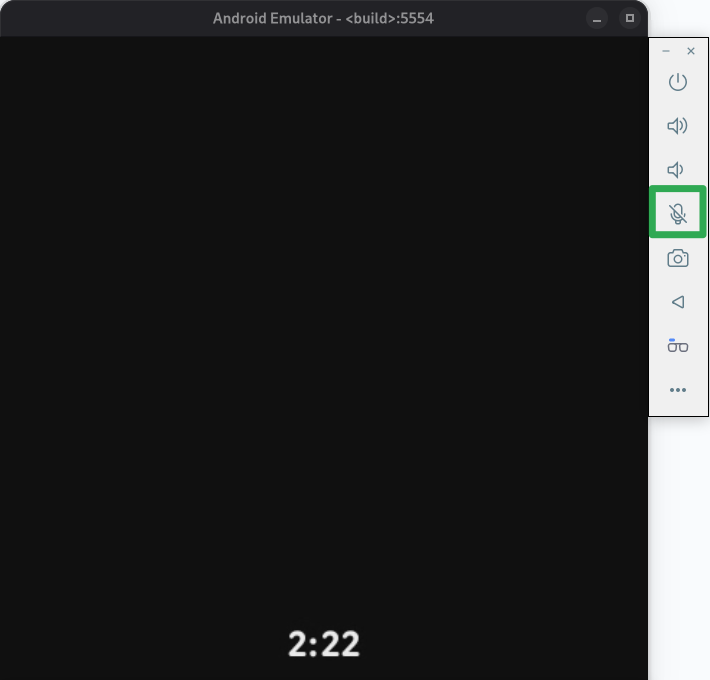
To toggle the microphone, select Microphone from the emulator controls. This connects and sends input to the emulator using the default microphone input device from your computer. This has the same effect as using the Virtual microphone uses host audio input option in the emulator extended controls.
While the microphone is on, speak to use hotwords and issue commands.
Simulate displayless AI glasses
While you test your app for AI glasses, you'll need to simulate a pair of displayless AI glasses so that your app can support different types of AI glasses.
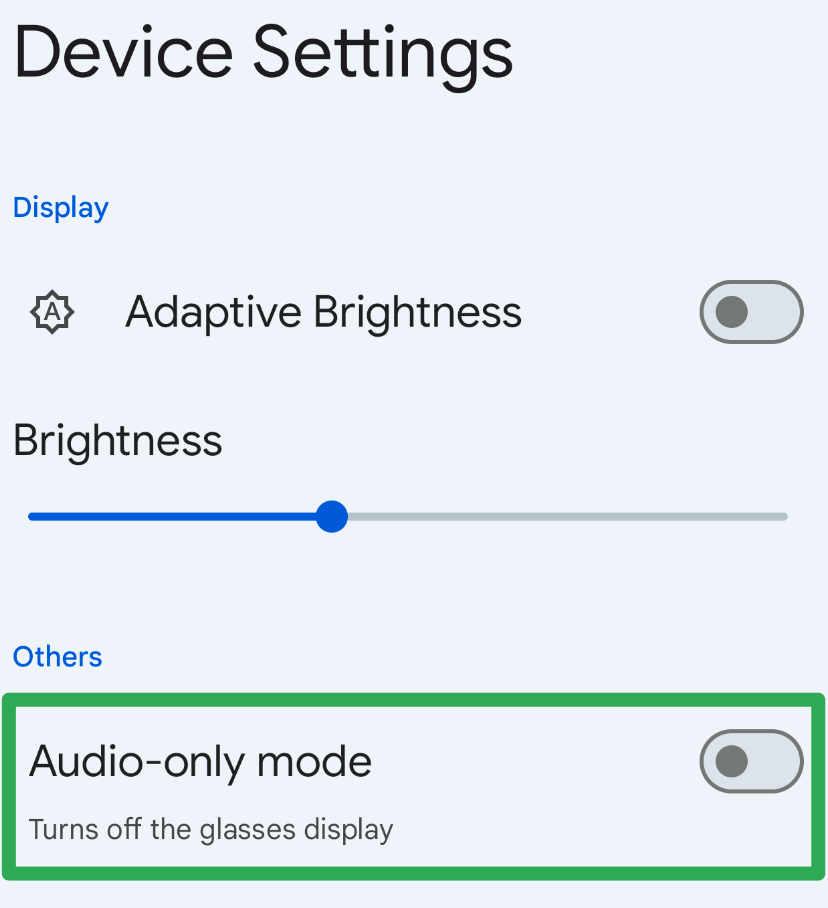
To help you test for these use cases, the Glasses app lets you enable Audio-only mode:
In the phone emulator, open the Glasses app.

Tap Device Settings, and then toggle Audio-only mode.
Stop the phone emulator and the AI glasses emulator.
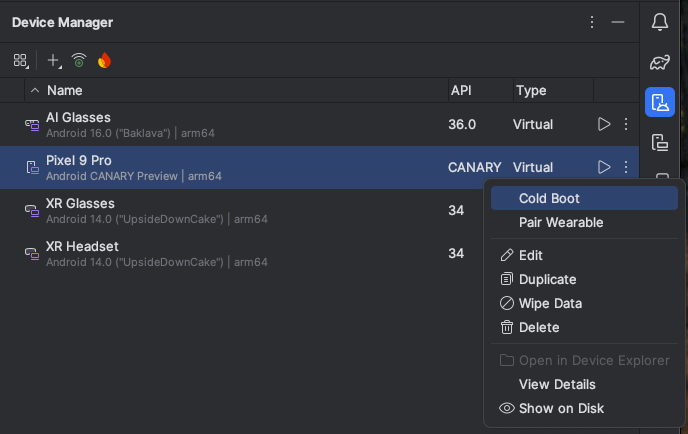
In the Android Studio Device Manger, find the phone AVD and click Cold Boot in the overflow menu.
Follow the other steps to relaunch the AI glasses emulator and run your app.
Disable the display snooze timeout
Display timeout behavior is an important consideration when developing your app's experiences for AI glasses. For this reason, we recommend leaving the default behavior while performing your usual app testing. However, for cases where the display timeout interferes with your testing, you can disable the default behavior using the following ADB command:
adb shell dumpsys activity service com.google.android.glasses.core/com.google.android.projection.core.app.service.AndroidProjectionCoreService preferences_set pref_automatic_snooze_timeout false
To restore the default display timeout behavior, run the following ADB command:
adb shell dumpsys activity service com.google.android.glasses.core/com.google.android.projection.core.app.service.AndroidProjectionCoreService preferences_set pref_automatic_snooze_timeout true
Use Gemini Live
Follow these steps to trigger Gemini Live in the AI glasses emulator:
Before you try and use Gemini Live, update the Google app to the latest version (minimum required version is 16.46.63) on the phone emulator:
- On the phone emulator, open the Google Play Store app.
Search for "Google" and select the Google app.
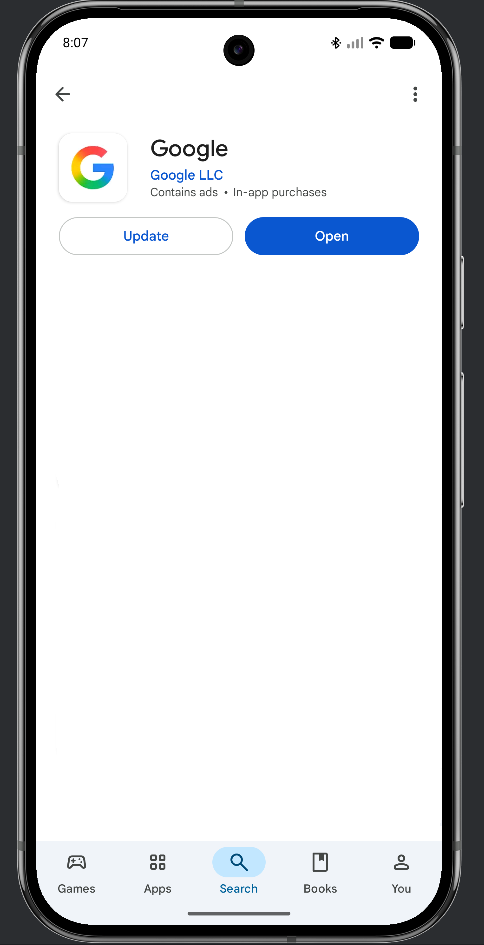
Select Update.
Trigger Gemini Live from the AI glasses emulator, by touching & holding the touchpad for about 2 seconds.
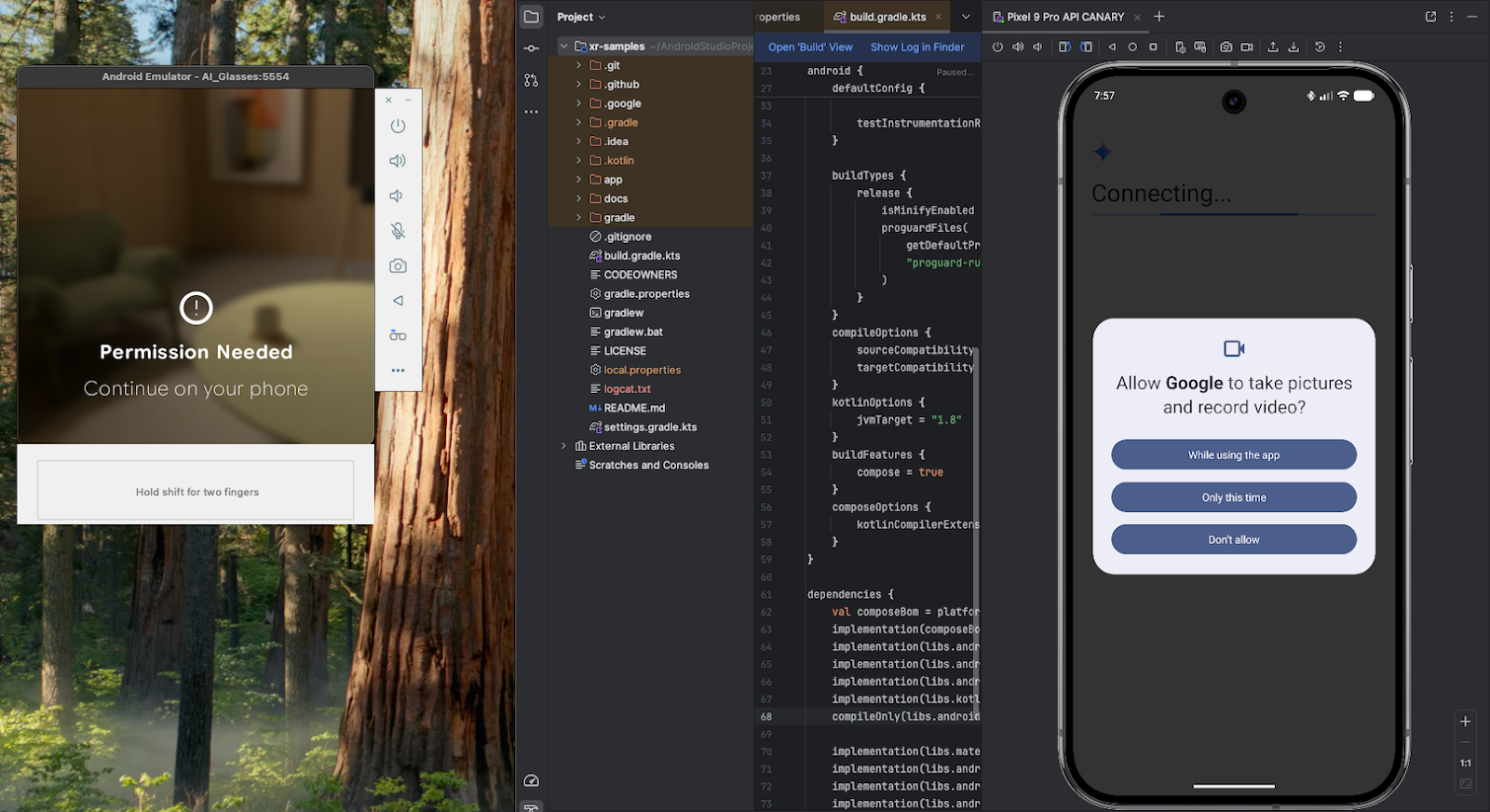
The first time, this will trigger a set of permission requests on your phone emulator. Grant all the required permissions, and then touch & hold the touchpad on the glasses emulator for about 2 seconds again.
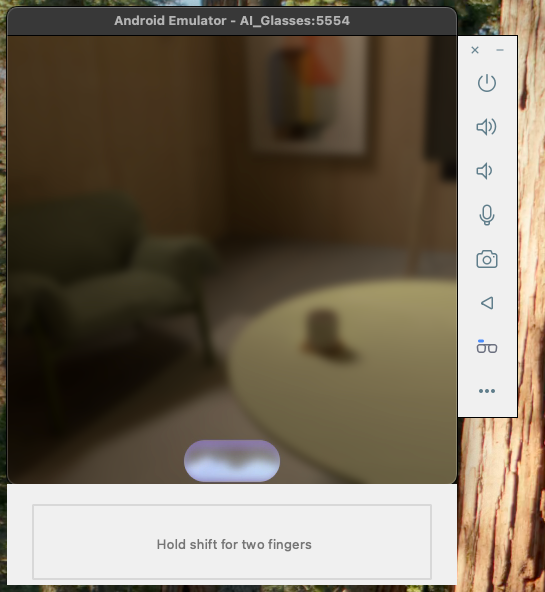
When Gemini live is active and listening, you'll see this on the AI glasses emulator:
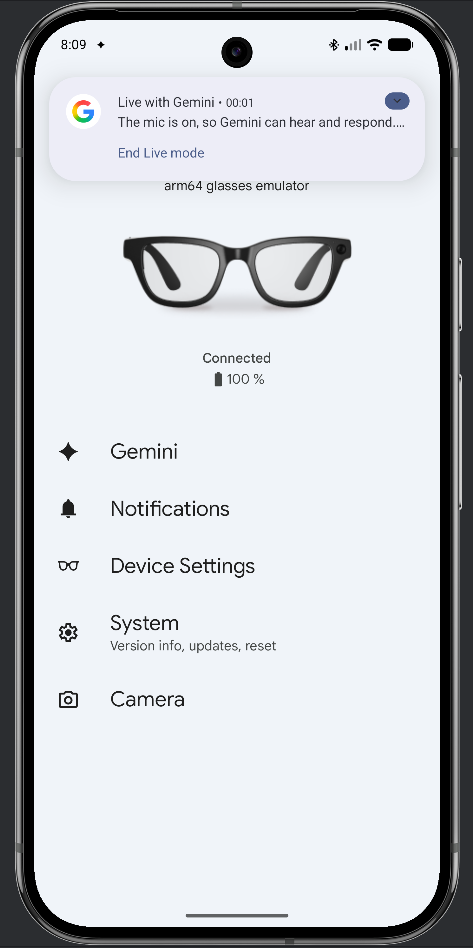
Check that the host microphone input is active on the AI glasses emulator by looking at the phone emulator. You should see a notification like the following one:
Capture photos or videos
Camera capture features in the Android XR Emulator aren't available yet.