Debug your app layout for immersive experiences with Layout Inspector
Stay organized with collections
Save and categorize content based on your preferences.
Applicable XR devices
This guidance helps you build experiences for these types of XR devices.
While you're building immersive experiences for XR headsets and XR glasses with
spatial panels and orbiters, you can inspect and debug your layout with the
Layout Inspector in Android Studio.
After app deployment has completed, select Tools > Layout Inspector from
the menu bar.
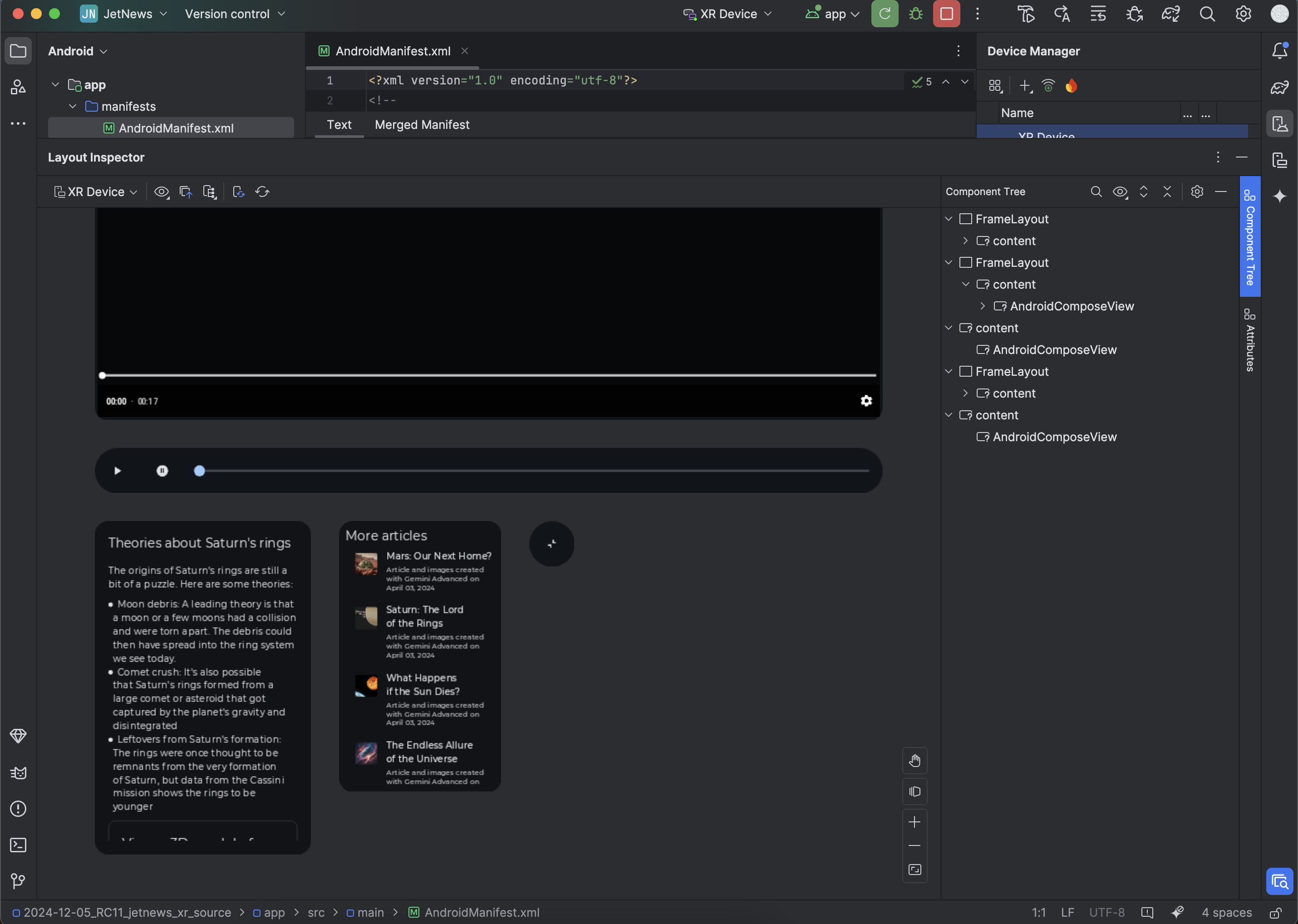
The Layout Inspector opens, with the Layout Display on the left and the
Component Tree panel on the right.
Spatial UI elements such as orbiters and panels appear as separate objects
beneath the main content.
Inspect layout attributes
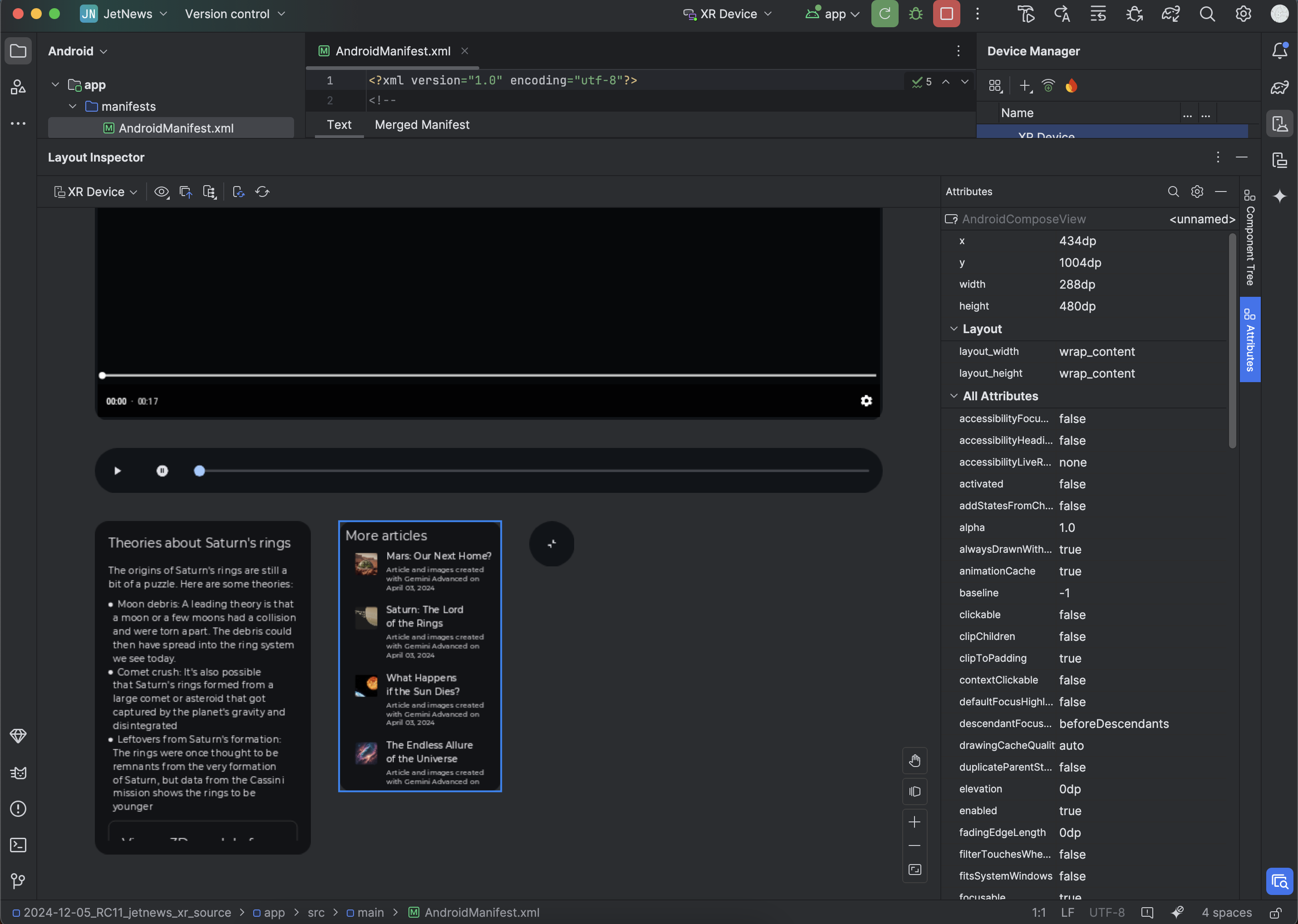
As you interact with your app, inspect a view by clicking it in the Layout
Display or in the Component Tree. All of the layout attributes for that
view appear in the Attributes panel. For example in the following image, the
attributes are shown for the AndroidComposeView spatial panel that is labeled
"More articles":
Figure 1. See a view's layout attributes by clicking it.
Content and code samples on this page are subject to the licenses described in the Content License. Java and OpenJDK are trademarks or registered trademarks of Oracle and/or its affiliates.
Last updated 2026-05-19 UTC.
[[["Easy to understand","easyToUnderstand","thumb-up"],["Solved my problem","solvedMyProblem","thumb-up"],["Other","otherUp","thumb-up"]],[["Missing the information I need","missingTheInformationINeed","thumb-down"],["Too complicated / too many steps","tooComplicatedTooManySteps","thumb-down"],["Out of date","outOfDate","thumb-down"],["Samples / code issue","samplesCodeIssue","thumb-down"],["Other","otherDown","thumb-down"]],["Last updated 2026-05-19 UTC."],[],[]]