

على الأجهزة التي تعمل بالإصدار 8.0 من نظام التشغيل Android (مستوى واجهة برمجة التطبيقات 26) والإصدارات الأحدث، يتم إجراء عملية إقران الجهاز المصاحب بحثًا عن الأجهزة المجاورة عبر البلوتوث أو Wi-Fi نيابةً عن تطبيقك بدون الحاجة إلى إذن ACCESS_FINE_LOCATION. يساعد ذلك في تعزيز حماية خصوصية المستخدمين إلى أقصى حدّ. استخدِم هذه الطريقة
لإجراء الإعداد الأولي للجهاز المرفق، مثل ساعة ذكية
تتضمّن تكنولوجيا BLE. بالإضافة إلى ذلك، يتطلب إقران الجهاز المصاحب تفعيل "خدمات الموقع الجغرافي".
لا يؤدي إقران الجهاز المرافِق إلى إنشاء اتصالات من تلقاء نفسه أو تفعيل المسح الضوئي المستمر. يمكن للتطبيقات استخدام واجهات برمجة تطبيقات الاتصال عبر البلوتوث أو Wi-Fi لإنشاء الاتصالات.
بعد إقران الجهاز، يمكنه استخدام إذنَي
REQUEST_COMPANION_RUN_IN_BACKGROUND
وREQUEST_COMPANION_USE_DATA_IN_BACKGROUND
لبدء تشغيل التطبيق من الخلفية. يمكن للتطبيقات أيضًا استخدام إذن
REQUEST_COMPANION_START_FOREGROUND_SERVICES_FROM_BACKGROUND
لبدء خدمة تعمل في المقدّمة من الخلفية.
يمكن للمستخدم اختيار جهاز من قائمة ومنح التطبيق أذونات التطبيق للوصول إلى الجهاز. ويتم إبطال هذه الأذونات في حال إلغاء تثبيت التطبيق أو استدعاء
disassociate().
يكون التطبيق المصاحب مسؤولاً عن محو عمليات الربط الخاصة به إذا لم يعُد المستخدم بحاجة إليها، مثلاً عند تسجيل الخروج أو إزالة الأجهزة المرتبطة.
تنفيذ إقران الجهاز المصاحب
يوضّح هذا القسم كيفية استخدام CompanionDeviceManager لإقران
تطبيقك بالأجهزة المرافقة عبر البلوتوث وBLE وWi-Fi.
تحديد الأجهزة المصاحبة
يوضّح نموذج الرمز البرمجي التالي كيفية إضافة العلامة
<uses-feature> إلى
ملف البيان. يُعلم ذلك النظام بأنّ تطبيقك يهدف إلى إعداد
الأجهزة المرافقة.
<uses-feature android:name="android.software.companion_device_setup"/>
عرض الأجهزة حسب DeviceFilter
يمكنك عرض جميع الأجهزة المرافقة ضمن النطاق التي تتطابق مع
DeviceFilter
الذي تقدّمه (كما هو موضّح في الشكل 1). إذا أردت حصر عملية الفحص بجهاز واحد فقط، يمكنك ضبط
setSingleDevice()
على true (كما هو موضّح في الشكل 2).
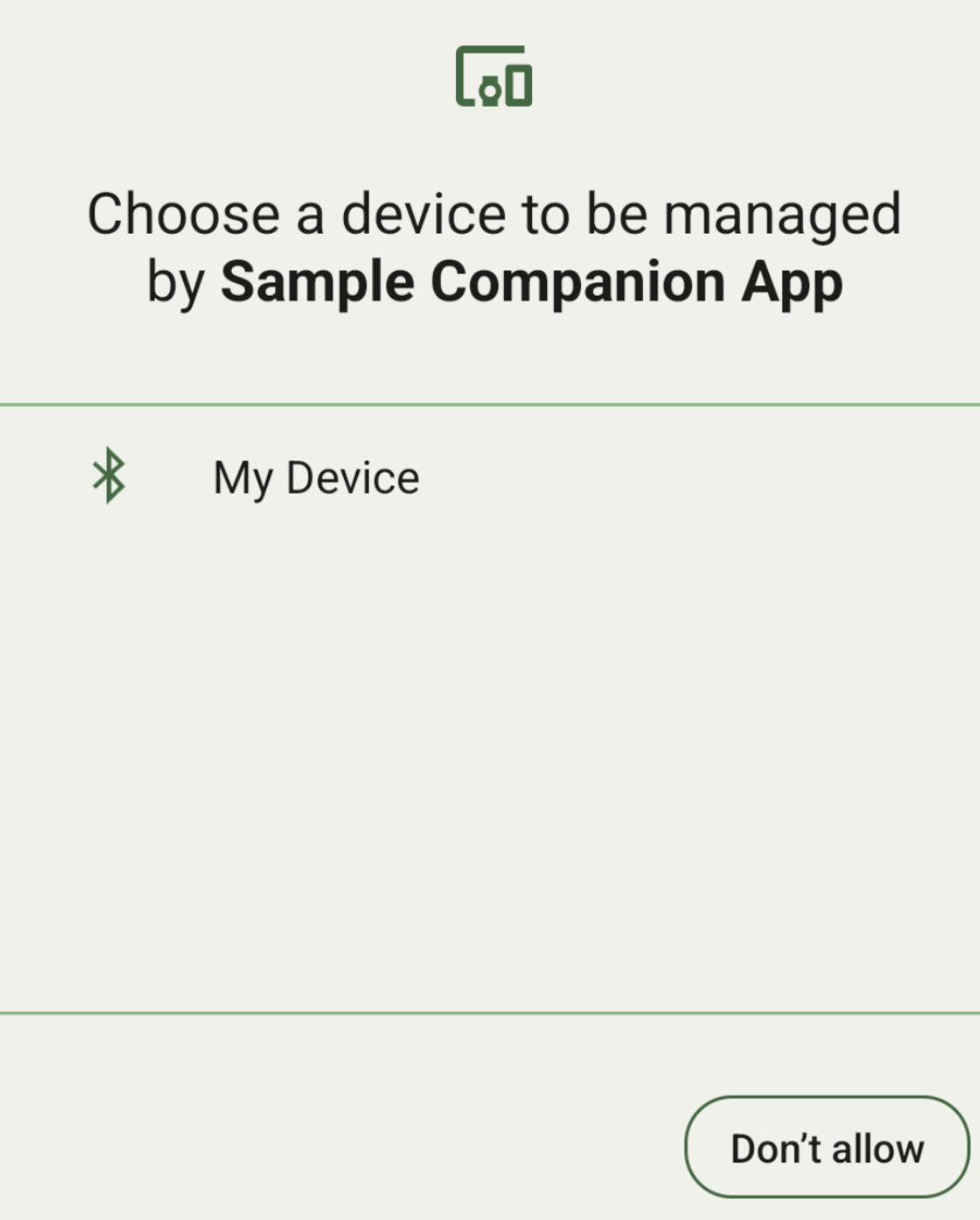
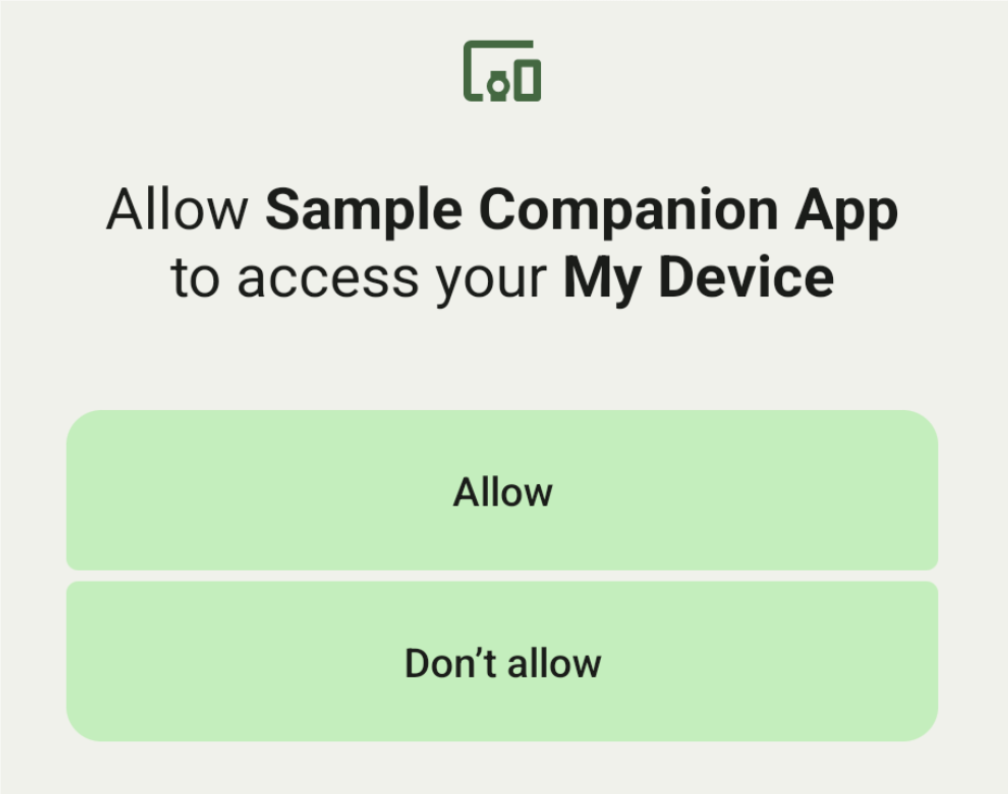
في ما يلي الفئات الفرعية من DeviceFilter التي يمكن تحديدها في AssociationRequest:
تحتوي جميع الفئات الفرعية الثلاث على أدوات إنشاء تعمل على تبسيط عملية ضبط الفلاتر.
في المثال التالي، يبحث جهاز عن جهاز يتضمّن بلوتوث باستخدام
BluetoothDeviceFilter.
Kotlin
val deviceFilter: BluetoothDeviceFilter = BluetoothDeviceFilter.Builder()
        // Match only Bluetooth devices whose name matches the pattern.
        .setNamePattern(Pattern.compile("My device"))
        // Match only Bluetooth devices whose service UUID matches this pattern.
        .addServiceUuid(ParcelUuid(UUID(0x123abcL, -1L)), null)
        .build()
Java
BluetoothDeviceFilter deviceFilter = new BluetoothDeviceFilter.Builder()
        // Match only Bluetooth devices whose name matches the pattern.
        .setNamePattern(Pattern.compile("My device"))
        // Match only Bluetooth devices whose service UUID matches this pattern.
        .addServiceUuid(new ParcelUuid(new UUID(0x123abcL, -1L)), null)
        .build();
اضبط DeviceFilter على AssociationRequest لكي يتمكّن
CompanionDeviceManager من تحديد نوع الأجهزة التي يجب البحث عنها.
Kotlin
val pairingRequest: AssociationRequest = AssociationRequest.Builder()
        // Find only devices that match this request filter.
        .addDeviceFilter(deviceFilter)
        // Stop scanning as soon as one device matching the filter is found.
        .setSingleDevice(true)
        .build()
Java
AssociationRequest pairingRequest = new AssociationRequest.Builder()
        // Find only devices that match this request filter.
        .addDeviceFilter(deviceFilter)
        // Stop scanning as soon as one device matching the filter is found.
        .setSingleDevice(true)
        .build();
بعد أن يبدأ تطبيقك في تهيئة AssociationRequest، شغِّل الدالة
associate()
على CompanionDeviceManager. تأخذ الدالة associate() AssociationRequest وCallback.
تعرض الدالة Callback
IntentSender في
onAssociationPending عندما تحدّد واجهة برمجة التطبيقات CompanionDeviceManager موقع جهاز
وتكون جاهزة لعرض مربّع إفادة موافقة المستخدم.
بعد أن يؤكّد المستخدم الجهاز، يتم عرض AssociationInfo
للجهاز في onAssociationCreated.
إذا لم يعثر تطبيقك على أي أجهزة، ستعرض دالة الاستدعاء onFailure مع رسالة خطأ.
على الأجهزة التي تعمل بالإصدار 13 من نظام التشغيل Android (المستوى 33 لواجهة برمجة التطبيقات) والإصدارات الأحدث:
Kotlin
val deviceManager =
  requireContext().getSystemService(Context.COMPANION_DEVICE_SERVICE)

val executor: Executor =  Executor { it.run() }

deviceManager.associate(pairingRequest,
    executor,
    object : CompanionDeviceManager.Callback() {
    // Called when a device is found. Launch the IntentSender so the user
    // can select the device they want to pair with.
    override fun onAssociationPending(intentSender: IntentSender) {
        intentSender?.let {
             startIntentSenderForResult(it, SELECT_DEVICE_REQUEST_CODE, null, 0, 0, 0)
        }
    }

    override fun onAssociationCreated(associationInfo: AssociationInfo) {
        // An association is created.
    }

    override fun onFailure(errorMessage: CharSequence?) {
        // To handle the failure.
     }
})
Java
CompanionDeviceManager deviceManager =
        (CompanionDeviceManager) getSystemService(Context.COMPANION_DEVICE_SERVICE);

Executor executor = new Executor() {
            @Override
            public void execute(Runnable runnable) {
                runnable.run();
            }
        };
deviceManager.associate(pairingRequest, new CompanionDeviceManager.Callback() {
    executor,
    // Called when a device is found. Launch the IntentSender so the user can
    // select the device they want to pair with.
    @Override
    public void onDeviceFound(IntentSender chooserLauncher) {
        try {
            startIntentSenderForResult(
                    chooserLauncher, SELECT_DEVICE_REQUEST_CODE, null, 0, 0, 0
            );
        } catch (IntentSender.SendIntentException e) {
            Log.e("MainActivity", "Failed to send intent");
        }
    }

    @Override
    public void onAssociationCreated(AssociationInfo associationInfo) {
        // An association is created.
    }

    @Override
    public void onFailure(CharSequence errorMessage) {
        // To handle the failure.
    });
على الأجهزة التي تعمل بالإصدار Android 12L (المستوى 32 لواجهة برمجة التطبيقات) أو الإصدارات الأقدم (متوقّفة نهائيًا):
Kotlin
val deviceManager =
      requireContext().getSystemService(Context.COMPANION_DEVICE_SERVICE)

deviceManager.associate(pairingRequest,
    object : CompanionDeviceManager.Callback() {
        // Called when a device is found. Launch the IntentSender so the user
        // can select the device they want to pair with.
        override fun onDeviceFound(chooserLauncher: IntentSender) {
            startIntentSenderForResult(chooserLauncher,
                SELECT_DEVICE_REQUEST_CODE, null, 0, 0, 0)
        }

        override fun onFailure(error: CharSequence?) {
            // To handle the failure.
        }
    }, null)
Java
CompanionDeviceManager deviceManager =
        (CompanionDeviceManager) getSystemService(Context.COMPANION_DEVICE_SERVICE);
deviceManager.associate(pairingRequest, new CompanionDeviceManager.Callback() {
    // Called when a device is found. Launch the IntentSender so the user can
    // select the device they want to pair with.
    @Override
    public void onDeviceFound(IntentSender chooserLauncher) {
        try {
            startIntentSenderForResult(
                    chooserLauncher, SELECT_DEVICE_REQUEST_CODE, null, 0, 0, 0
            );
        } catch (IntentSender.SendIntentException e) {
            Log.e("MainActivity", "Failed to send intent");
        }
    }

    @Override
    public void onFailure(CharSequence error) {
        // To handle the failure.
    }
}, null);
يتم إرسال نتيجة اختيار المستخدم مرة أخرى إلى الجزء في
onActivityResult()
الخاص بنشاطك. يمكنك بعد ذلك الوصول إلى الجهاز المحدّد.
عندما يختار المستخدم جهازًا يتضمّن بلوتوث، من المتوقّع أن يظهر
BluetoothDevice.
عندما يختار المستخدم جهاز Bluetooth LE، من المتوقّع أن يظهر لك
android.bluetooth.le.ScanResult.
عندما يختار المستخدم جهاز Wi-Fi، من المتوقّع أن يتلقّى
android.net.wifi.ScanResult.
Kotlin
override fun onActivityResult(requestCode: Int, resultCode: Int, data: Intent?) {
    when (requestCode) {
        SELECT_DEVICE_REQUEST_CODE -> when(resultCode) {
            Activity.RESULT_OK -> {
                // The user chose to pair the app with a Bluetooth device.
                val deviceToPair: BluetoothDevice? =
data?.getParcelableExtra(CompanionDeviceManager.EXTRA_DEVICE)
                deviceToPair?.let { device ->
                    device.createBond()
                    // Continue to interact with the paired device.
                }
            }
        }
        else -> super.onActivityResult(requestCode, resultCode, data)
    }
}
Java
@Override
protected void onActivityResult(int requestCode, int resultCode, @Nullable Intent data) {
    if (resultCode != Activity.RESULT_OK) {
        return;
    }
    if (requestCode == SELECT_DEVICE_REQUEST_CODE && data != null) {
        BluetoothDevice deviceToPair =
data.getParcelableExtra(CompanionDeviceManager.EXTRA_DEVICE);
        if (deviceToPair != null) {
            deviceToPair.createBond();
            // Continue to interact with the paired device.
        }
    } else {
        super.onActivityResult(requestCode, resultCode, data);
    }
}
اطّلِع على المثال الكامل:
على الأجهزة التي تعمل بالإصدار 13 من نظام التشغيل Android (مستوى واجهة برمجة التطبيقات 33) والإصدارات الأحدث:
Kotlin
private const val SELECT_DEVICE_REQUEST_CODE = 0

class MainActivity : AppCompatActivity() {

    private val deviceManager: CompanionDeviceManager by lazy {
        getSystemService(Context.COMPANION_DEVICE_SERVICE) as CompanionDeviceManager
    }
    val mBluetoothAdapter: BluetoothAdapter by lazy {
        val java = BluetoothManager::class.java
        getSystemService(java)!!.adapter }
    val executor: Executor =  Executor { it.run() }

    override fun onCreate(savedInstanceState: Bundle?) {
        super.onCreate(savedInstanceState)
        setContentView(R.layout.activity_main)

        // To skip filters based on names and supported feature flags (UUIDs),
        // omit calls to setNamePattern() and addServiceUuid()
        // respectively, as shown in the following  Bluetooth example.
        val deviceFilter: BluetoothDeviceFilter = BluetoothDeviceFilter.Builder()
            .setNamePattern(Pattern.compile("My device"))
            .addServiceUuid(ParcelUuid(UUID(0x123abcL, -1L)), null)
            .build()

        // The argument provided in setSingleDevice() determines whether a single
        // device name or a list of them appears.
        val pairingRequest: AssociationRequest = AssociationRequest.Builder()
            .addDeviceFilter(deviceFilter)
            .setSingleDevice(true)
            .build()

        // When the app tries to pair with a Bluetooth device, show the
        // corresponding dialog to the user.
        deviceManager.associate(pairingRequest,
            executor,
            object : CompanionDeviceManager.Callback() {
                // Called when a device is found. Launch the IntentSender so the user
                // can select the device they want to pair with.
                override fun onAssociationPending(intentSender: IntentSender) {
                intentSender?.let {
                    startIntentSenderForResult(it, SELECT_DEVICE_REQUEST_CODE, null, 0, 0, 0)
              }
            }

             override fun onAssociationCreated(associationInfo: AssociationInfo) {
                 // An AssociationInfo object is created; get the association ID
                 // and the MAC address, or retrieve the associated Bluetooth device
                 // directly on Android 14 (API level 34) and higher.
                 val associationId: Int = associationInfo.id
                 val macAddress: MacAddress? = associationInfo.deviceMacAddress
                 if (Build.VERSION.SDK_INT >= Build.VERSION_CODES.UPSIDE_DOWN_CAKE) {
                     val bluetoothDevice: BluetoothDevice? =
                         associationInfo.associatedDevice?.bluetoothDevice
                 }
             }
             override fun onFailure(errorMessage: CharSequence?) {
                 // Handle the failure.
             }
            }
        )
    }

    override fun onActivityResult(requestCode: Int, resultCode: Int, data: Intent?) {
        when (requestCode) {
            SELECT_DEVICE_REQUEST_CODE -> when(resultCode) {
                Activity.RESULT_OK -> {
                    // The user chose to pair the app with a Bluetooth device.
                    val deviceToPair: BluetoothDevice? =
                        data?.getParcelableExtra(CompanionDeviceManager.EXTRA_DEVICE)
                    deviceToPair?.let { device ->
                        device.createBond()
                        // Maintain continuous interaction with a paired device.
                    }
                }
            }
            else -> super.onActivityResult(requestCode, resultCode, data)
        }
    }
}
Java
class MainActivityJava extends AppCompatActivity {

    private static final int SELECT_DEVICE_REQUEST_CODE = 0;
    Executor executor = new Executor() {
        @Override
        public void execute(Runnable runnable) {
            runnable.run();
        }
    };

    @Override
    protected void onCreate(@Nullable Bundle savedInstanceState) {
        super.onCreate(savedInstanceState);
        setContentView(R.layout.activity_main);

        CompanionDeviceManager deviceManager =
            (CompanionDeviceManager) getSystemService(
                Context.COMPANION_DEVICE_SERVICE
            );

        // To skip filtering based on name and supported feature flags,
        // do not include calls to setNamePattern() and addServiceUuid(),
        // respectively. This example uses Bluetooth.
        BluetoothDeviceFilter deviceFilter =
            new BluetoothDeviceFilter.Builder()
                .setNamePattern(Pattern.compile("My device"))
                .addServiceUuid(
                    new ParcelUuid(new UUID(0x123abcL, -1L)), null
                )
                .build();

        // The argument provided in setSingleDevice() determines whether a single
        // device name or a list of device names is presented to the user as
        // pairing options.
        AssociationRequest pairingRequest = new AssociationRequest.Builder()
            .addDeviceFilter(deviceFilter)
            .setSingleDevice(true)
            .build();

        // When the app tries to pair with the Bluetooth device, show the
        // appropriate pairing request dialog to the user.
        deviceManager.associate(pairingRequest, executor, new CompanionDeviceManager.Callback() {
            // Called when a device is found. Launch the IntentSender so the user can
            // select the device they want to pair with.
            @Override
            public void onAssociationPending(IntentSender intentSender) {
                try {
                    startIntentSenderForResult(
                        intentSender, SELECT_DEVICE_REQUEST_CODE, null, 0, 0, 0
                    );
                } catch (IntentSender.SendIntentException e) {
                    Log.e("MainActivity", "Failed to send intent");
                }
            }

          @Override
          public void onAssociationCreated(AssociationInfo associationInfo) {
              // An AssociationInfo object is created; get the association ID
              // and the MAC address, or retrieve the associated Bluetooth device
              // directly on Android 14 (API level 34) and higher.
              int associationId = associationInfo.getId();
              MacAddress macAddress = associationInfo.getDeviceMacAddress();
              if (Build.VERSION.SDK_INT >= Build.VERSION_CODES.UPSIDE_DOWN_CAKE) {
                  AssociatedDevice associatedDevice = associationInfo.getAssociatedDevice();
                  if (associatedDevice != null && associatedDevice.getBluetoothDevice() != null) {
                      BluetoothDevice bluetoothDevice = associatedDevice.getBluetoothDevice();
                  }
              }
          }

          @Override
          public void onFailure(CharSequence errorMessage) {
              // Handle the failure.
          }
        });
    }

    @Override
    protected void onActivityResult(int requestCode, int resultCode, @Nullable Intent data) {
        if (resultCode != Activity.RESULT_OK) {
            return;
        }
        if (requestCode == SELECT_DEVICE_REQUEST_CODE) {
            if (resultCode == Activity.RESULT_OK && data != null) {
                BluetoothDevice deviceToPair = data.getParcelableExtra(
                    CompanionDeviceManager.EXTRA_DEVICE
                );

                if (deviceToPair != null) {
                    deviceToPair.createBond();
                    // ... Continue interacting with the paired device.
                }
            }
        } else {
            super.onActivityResult(requestCode, resultCode, data);
        }
    }
}
على الأجهزة التي تعمل بالإصدار Android 12L (المستوى 32 لواجهة برمجة التطبيقات) أو الإصدارات الأقدم (متوقّفة نهائيًا):
Kotlin
private const val SELECT_DEVICE_REQUEST_CODE = 0

class MainActivity : AppCompatActivity() {

    private val deviceManager: CompanionDeviceManager by lazy {
        getSystemService(Context.COMPANION_DEVICE_SERVICE) as CompanionDeviceManager
    }

    override fun onCreate(savedInstanceState: Bundle?) {
        super.onCreate(savedInstanceState)
        setContentView(R.layout.activity_main)

        // To skip filters based on names and supported feature flags (UUIDs),
        // omit calls to setNamePattern() and addServiceUuid()
        // respectively, as shown in the following  Bluetooth example.
        val deviceFilter: BluetoothDeviceFilter = BluetoothDeviceFilter.Builder()
            .setNamePattern(Pattern.compile("My device"))
            .addServiceUuid(ParcelUuid(UUID(0x123abcL, -1L)), null)
            .build()

        // The argument provided in setSingleDevice() determines whether a single
        // device name or a list of them appears.
        val pairingRequest: AssociationRequest = AssociationRequest.Builder()
            .addDeviceFilter(deviceFilter)
            .setSingleDevice(true)
            .build()

        // When the app tries to pair with a Bluetooth device, show the
        // corresponding dialog box to the user.
        deviceManager.associate(pairingRequest,
            object : CompanionDeviceManager.Callback() {

                override fun onDeviceFound(chooserLauncher: IntentSender) {
                    startIntentSenderForResult(chooserLauncher,
                        SELECT_DEVICE_REQUEST_CODE, null, 0, 0, 0)
                }

                override fun onFailure(error: CharSequence?) {
                    // Handle the failure.
                }
            }, null)
    }

    override fun onActivityResult(requestCode: Int, resultCode: Int, data: Intent?) {
        when (requestCode) {
            SELECT_DEVICE_REQUEST_CODE -> when(resultCode) {
                Activity.RESULT_OK -> {
                    // The user chose to pair the app with a Bluetooth device.
                    val deviceToPair: BluetoothDevice? =
                        data?.getParcelableExtra(CompanionDeviceManager.EXTRA_DEVICE)
                    deviceToPair?.let { device ->
                        device.createBond()
                        // Maintain continuous interaction with a paired device.
                    }
                }
            }
            else -> super.onActivityResult(requestCode, resultCode, data)
        }
    }
}
Java
class MainActivityJava extends AppCompatActivity {

    private static final int SELECT_DEVICE_REQUEST_CODE = 0;

    @Override
    protected void onCreate(@Nullable Bundle savedInstanceState) {
        super.onCreate(savedInstanceState);
        setContentView(R.layout.activity_main);

        CompanionDeviceManager deviceManager =
            (CompanionDeviceManager) getSystemService(
                Context.COMPANION_DEVICE_SERVICE
            );

        // To skip filtering based on name and supported feature flags,
        // don't include calls to setNamePattern() and addServiceUuid(),
        // respectively. This example uses Bluetooth.
        BluetoothDeviceFilter deviceFilter =
            new BluetoothDeviceFilter.Builder()
                .setNamePattern(Pattern.compile("My device"))
                .addServiceUuid(
                    new ParcelUuid(new UUID(0x123abcL, -1L)), null
                )
                .build();

        // The argument provided in setSingleDevice() determines whether a single
        // device name or a list of device names is presented to the user as
        // pairing options.
        AssociationRequest pairingRequest = new AssociationRequest.Builder()
            .addDeviceFilter(deviceFilter)
            .setSingleDevice(true)
            .build();

        // When the app tries to pair with the Bluetooth device, show the
        // appropriate pairing request dialog to the user.
        deviceManager.associate(pairingRequest,
            new CompanionDeviceManager.Callback() {
                @Override
                public void onDeviceFound(IntentSender chooserLauncher) {
                    try {
                        startIntentSenderForResult(chooserLauncher,
                            SELECT_DEVICE_REQUEST_CODE, null, 0, 0, 0);
                    } catch (IntentSender.SendIntentException e) {
                        // failed to send the intent
                    }
                }

                @Override
                public void onFailure(CharSequence error) {
                    // handle failure to find the companion device
                }
            }, null);
    }

    @Override
    protected void onActivityResult(int requestCode, int resultCode, @Nullable Intent data) {
        if (requestCode == SELECT_DEVICE_REQUEST_CODE) {
            if (resultCode == Activity.RESULT_OK && data != null) {
                BluetoothDevice deviceToPair = data.getParcelableExtra(
                    CompanionDeviceManager.EXTRA_DEVICE
                );

                if (deviceToPair != null) {
                    deviceToPair.createBond();
                    // ... Continue interacting with the paired device.
                }
            }
        } else {
            super.onActivityResult(requestCode, resultCode, data);
        }
    }
}
الملفات الشخصية للأجهزة المصاحبة
في الإصدار 12 من نظام التشغيل Android (المستوى 31 لواجهة برمجة التطبيقات) والإصدارات الأحدث، يمكن للتطبيقات المصاحبة التي تدير الأجهزة مثل الساعات استخدام الملفات الشخصية للأجهزة المصاحبة لتبسيط عملية الإعداد من خلال منح الأذونات اللازمة عند الإقران. لمزيد من المعلومات، يُرجى الاطّلاع على الملفات الشخصية للأجهزة المصاحبة.
إبقاء التطبيقات المصاحبة نشطة
بدءًا من الإصدار 16 من نظام التشغيل Android (المستوى 36 من واجهة برمجة التطبيقات)،
تم إيقاف CompanionDeviceManager.startObservingDevicePresence(String) وCompanionDeviceService.onDeviceAppeared() نهائيًا.
يجب استخدام
CompanionDeviceManager.startObservingDevicePresence
(ObservingDevicePresenceRequest)
لإدارة عملية ربطCompanionDeviceServiceالتي تم تنفيذها تلقائيًا.- تتم إدارة حالة الربط في
CompanionDeviceServiceتلقائيًا استنادًا إلى حالة توفّر الجهاز المصاحب المرتبط به:- يتم ربط الخدمة عندما يكون الجهاز الملحق ضمن نطاق البلوتوث منخفض الطاقة (BLE) أو عند الاتصال باستخدام البلوتوث.
- يتم إلغاء ربط الخدمة عندما يخرج الجهاز المرفق من نطاق البلوتوث المنخفض الطاقة (BLE) أو عند إنهاء اتصال البلوتوث.
- تتم إدارة حالة الربط في
يتلقّى تطبيقك عمليات استدعاء لتحديثات
DevicePresenceEvent. لمزيد من التفاصيل، يُرجى الاطّلاع علىCompanionDeviceService.onDevicePresenceEvent().