

ऐसेट डिलीवरी को इंटिग्रेट करने पर, Unity इंजन वाले गेम, Addressables या AssetBundles का इस्तेमाल करके ऐसेट पैक ऐक्सेस कर सकते हैं. Addressables, Unity 2019.4 या इसके बाद के वर्शन का इस्तेमाल करके बनाए गए गेम के लिए, ऐसेट डिलीवरी का नया और सुझाया गया समाधान है. वहीं, AssetBundles, Unity 2017.4 और 2018.4 में ऐसेट पैक के साथ काम करते हैं.
Unity Addressables
Unity 2019.4 या इसके बाद के वर्शन का इस्तेमाल करके बनाए गए गेम को Android पर ऐसेट डिलीवरी के लिए, Addressables का इस्तेमाल करना चाहिए. Unity, Addressables का इस्तेमाल करके Android ऐसेट पैक को मैनेज करने के लिए, Play ऐसेट डिलीवरी (PAD) एपीआई उपलब्ध कराता है. Addressables का इस्तेमाल करने के बारे में जानकारी के लिए, यहां जाएं:
- Android पैकेज के लिए पता लगाने योग्य ऑब्जेक्ट
- Unity के लिए PAD गाइड
- Unity के लिए PAD API के बारे में जानकारी देने वाला दस्तावेज़
AssetBundle फ़ाइलों का इस्तेमाल करना
Unity 2017.4 और 2018.4 का इस्तेमाल करके बनाए गए गेम, Android पर ऐसेट डिलीवरी के लिए AssetBundle फ़ाइलों का इस्तेमाल कर सकते हैं. Unity AssetBundle फ़ाइलों में, क्रम से लगाई गई ऐसेट होती हैं. इन्हें ऐप्लिकेशन के चालू होने पर, Unity इंजन लोड कर सकता है. ये फ़ाइलें, प्लैटफ़ॉर्म के हिसाब से होती हैं. उदाहरण के लिए, Android के लिए बनाई गई फ़ाइलें. इनका इस्तेमाल, ऐसेट पैक के साथ किया जा सकता है. आम तौर पर, एक AssetBundle फ़ाइल को एक ही ऐसेट पैक में पैकेज किया जाता है. साथ ही, पैक का नाम AssetBundle के नाम जैसा ही होता है. अगर आपको ऐसेट पैक बनाने में ज़्यादा आसानी चाहिए, तो एपीआई का इस्तेमाल करके ऐसेट पैक को कॉन्फ़िगर करें.
रनटाइम के दौरान, ऐसेट पैक में पैकेज किए गए AssetBundle को वापस पाने के लिए, Play Asset Delivery for Unity क्लास का इस्तेमाल करें.
ज़रूरी शर्तें
- अपना डेवलपमेंट एनवायरमेंट सेट अप करें:
OpenUPM-CLI
अगर आपने OpenUPM CLI इंस्टॉल किया है, तो इस कमांड का इस्तेमाल करके OpenUPM रजिस्ट्री इंस्टॉल की जा सकती है:
openupm add com.google.play.assetdeliveryOpenUPM
पैकेज मैनेजर की सेटिंग खोलें. इसके लिए, Unity मेन्यू का विकल्प चुनें बदलाव करें > प्रोजेक्ट सेटिंग > पैकेज मैनेजर.
पैकेज मैनेजर विंडो में, OpenUPM को ऐसी रजिस्ट्री के तौर पर जोड़ें जो उसके स्कोप में हो:
Name: package.openupm.com
URL: https://package.openupm.com
Scopes: com.google.external-dependency-manager
  com.google.play.common
  com.google.play.core
  com.google.play.assetdelivery
  com.google.android.appbundle
Unity मेन्यू के विकल्प Window > Package Manager को चुनकर, पैकेज मैनेजर मेन्यू खोलें.
मैनेजर स्कोप ड्रॉप-डाउन को सेट करके, मेरी रजिस्ट्री चुनें.
पैकेज की सूची से, Unity के लिए Google Play Integrity प्लगिन पैकेज चुनें और इंस्टॉल करें दबाएं.
GitHub से इंपोर्ट करना
GitHub से
.unitypackageका सबसे नया वर्शन डाउनलोड करें..unitypackageफ़ाइल को इंपोर्ट करने के लिए, Unity मेन्यू का विकल्प चुनें ऐसेट > पैकेज इंपोर्ट करें > कस्टम पैकेज और सभी आइटम इंपोर्ट करें.
यूज़र इंटरफ़ेस (यूआई) का इस्तेमाल करके AssetBundle कॉन्फ़िगर करना
ऐसेट पैक में मौजूद हर AssetBundle को कॉन्फ़िगर करें:
- Google > Android ऐप्लिकेशन बंडल > ऐसेट डिलीवरी की सेटिंग को चुनें.
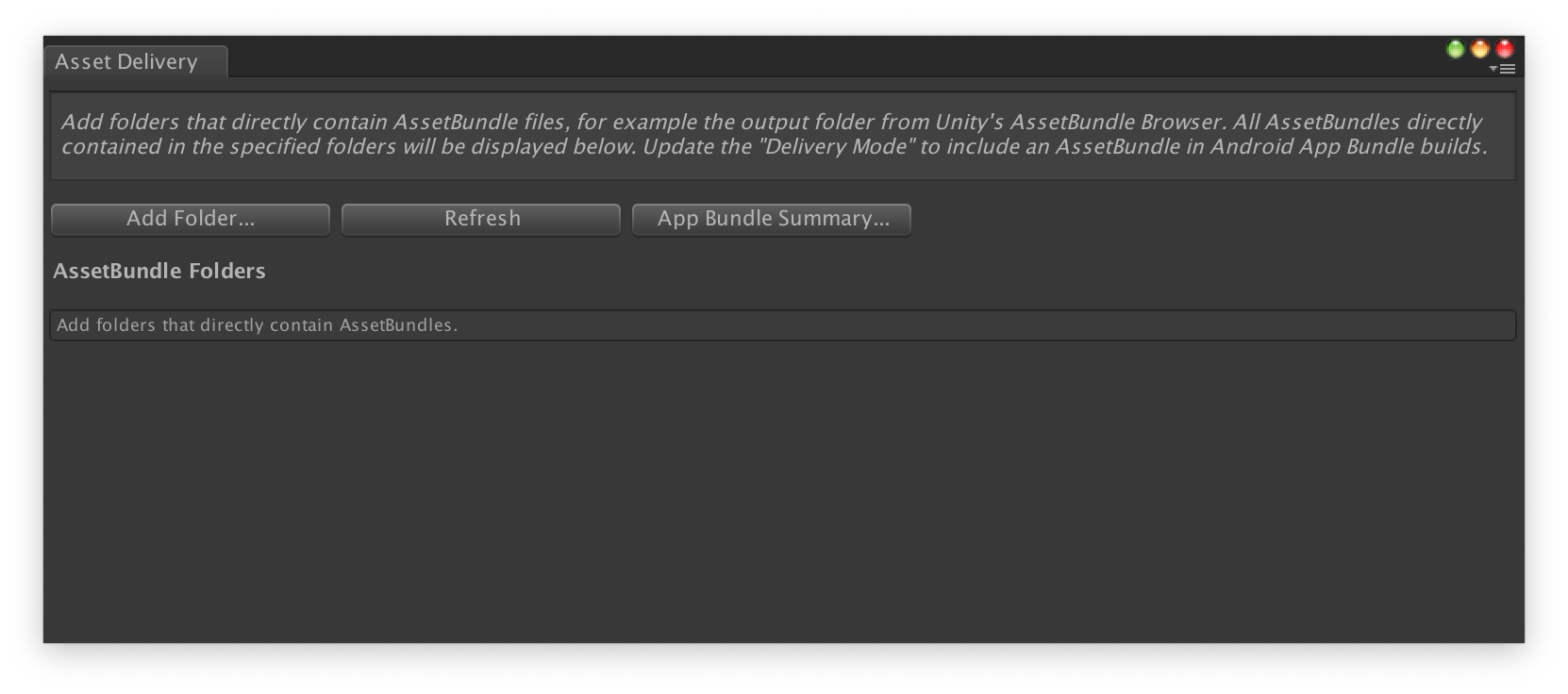
- ऐसे फ़ोल्डर चुनने के लिए जिनमें सीधे तौर पर AssetBundle फ़ाइलें मौजूद हैं, फ़ोल्डर जोड़ें पर क्लिक करें.
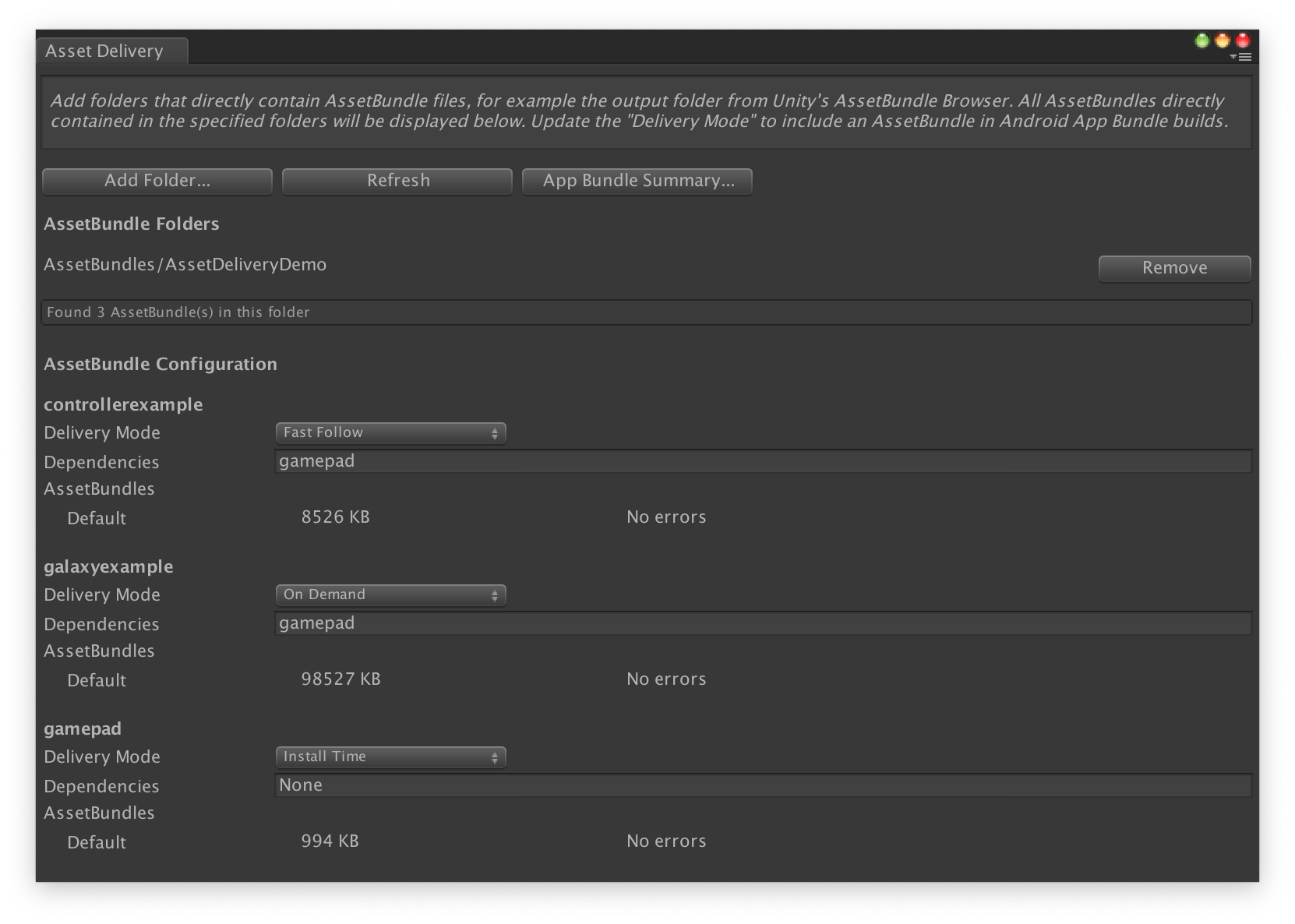
हर बंडल के लिए, डिलीवरी मोड को इंस्टॉल करने का समय, फ़ास्ट फ़ॉलो या मांग पर पर सेट करें. सभी गड़बड़ियां ठीक करें या डिपेंडेंसी को हल करें. इसके बाद, विंडो बंद करें.
ऐप्लिकेशन बंडल बनाने के लिए, Google > Build Android App Bundle को चुनें.
(ज़रूरी नहीं) अलग-अलग टेक्सचर कंप्रेस करने के फ़ॉर्मैट के साथ काम करने के लिए, अपने ऐप्लिकेशन बंडल को कॉन्फ़िगर करें.
एपीआई का इस्तेमाल करके ऐसेट पैक कॉन्फ़िगर करना
ऐसेट डिलीवरी को एडिटर स्क्रिप्ट के ज़रिए कॉन्फ़िगर किया जा सकता है. इन्हें अपने-आप काम करने वाले बिल्ड सिस्टम के हिस्से के तौर पर चलाया जा सकता है.
AssetPackConfig क्लास का इस्तेमाल करके यह तय करें कि Android ऐप्लिकेशन बंडल की बिल्ड में कौनसी ऐसेट शामिल करनी हैं. साथ ही, यह भी तय करें कि ऐसेट को किस डिलीवरी मोड में डिलीवर करना है. इन ऐसेट पैक में AssetBundle होना ज़रूरी नहीं है.
public void ConfigureAssetPacks {
   // Creates an AssetPackConfig with a single asset pack, named
   // examplePackName, containing all the files in path/to/exampleFolder.
   var assetPackConfig = new AssetPackConfig();
   assetPackConfig.AddAssetsFolder("examplePackName",
                                   "path/to/exampleFolder",
                                   AssetPackDeliveryMode.OnDemand);

   // Configures the build system to use the newly created assetPackConfig when
   // calling Google > Build and Run or Google > Build Android App Bundle.
   AssetPackConfigSerializer.SaveConfig(assetPackConfig);

   // Alternatively, use BundleTool.BuildBundle to build an App Bundle from script.
   BuildBundle(new buildPlayerOptions(), assetPackConfig);
}
ऐसेट पैक के साथ Android ऐप्लिकेशन बंडल जनरेट करने के लिए, Bundletool क्लास में मौजूद static BuildBundle तरीके का इस्तेमाल किया जा सकता है. इसके लिए, BuildPlayerOptions और AssetPackConfig दिए गए हैं.
निर्देशों के साथ ट्यूटोरियल देखने के लिए, Unity इंजन वाले गेम में Play ऐसेट डिलीवरी का इस्तेमाल करने से जुड़ा कोडलैब देखें.
Play ऐसेट डिलीवरी Unity API के साथ इंटिग्रेट करना
Play ऐसेट डिलीवरी Unity API, ऐसेट पैक का अनुरोध करने, डाउनलोड मैनेज करने, और ऐसेट ऐक्सेस करने की सुविधा देता है. पक्का करें कि आपने अपने प्रोजेक्ट में Unity प्लगिन जोड़ा हो.
एपीआई में इस्तेमाल किए जाने वाले फ़ंक्शन, इस बात पर निर्भर करते हैं कि आपने ऐसेट पैक कैसे बनाए हैं.
अगर आपने प्लगिन के यूज़र इंटरफ़ेस (यूआई) का इस्तेमाल करके ऐसेट पैक बनाए हैं, तो प्लगिन से कॉन्फ़िगर किए गए ऐसेट पैक चुनें.
अगर आपने एपीआई (या प्लगिन यूज़र इंटरफ़ेस) का इस्तेमाल करके ऐसेट पैक बनाए हैं, तो एपीआई से कॉन्फ़िगर किए गए ऐसेट पैक चुनें.
आपको एपीआई को उस ऐसेट पैक के डिलीवरी टाइप के हिसाब से लागू करना होगा जिसे आपको ऐक्सेस करना है. इन चरणों को यहां दिए गए फ़्लोचार्ट में दिखाया गया है.
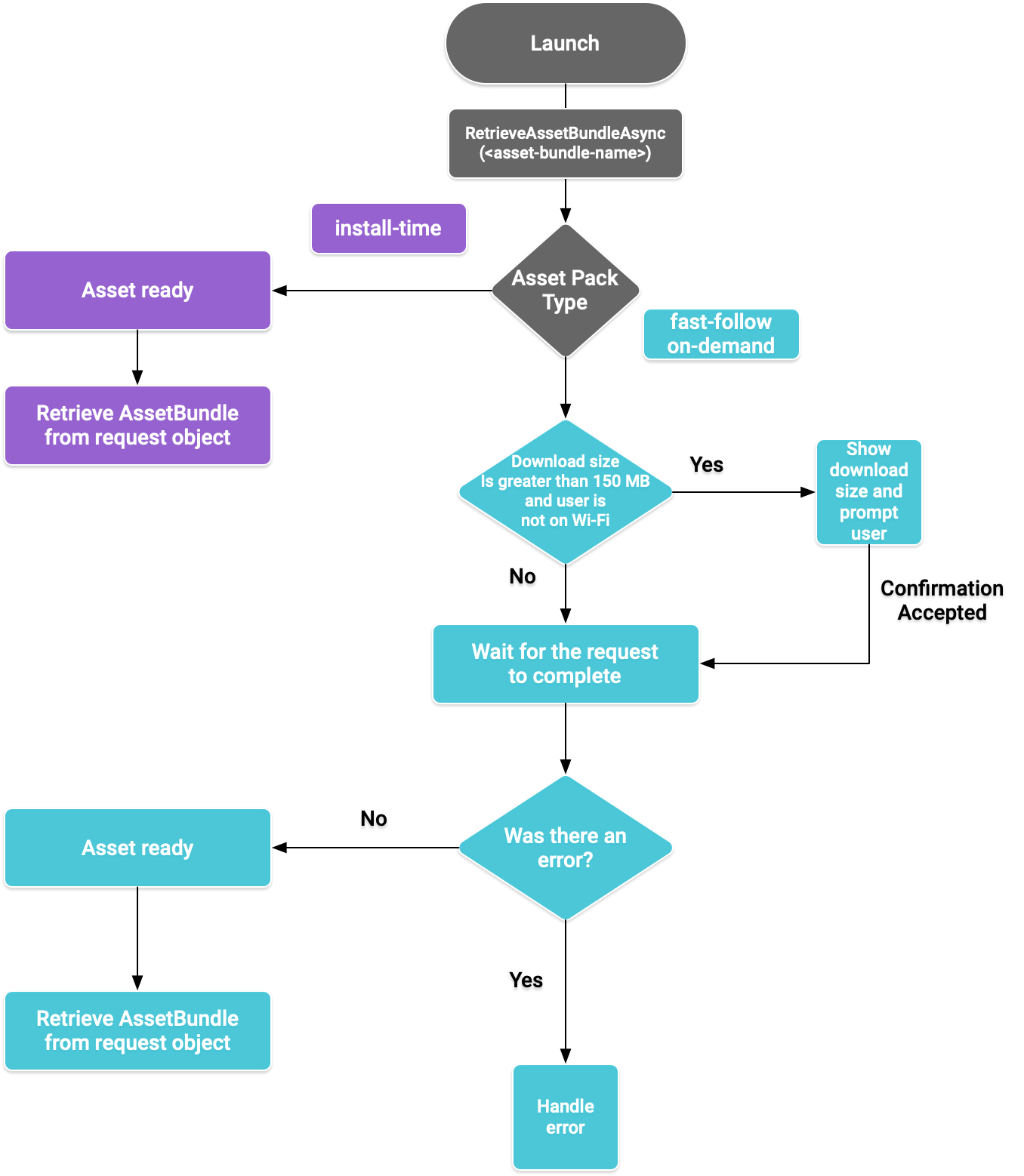
पहली इमेज. ऐसेट पैक ऐक्सेस करने के लिए फ़्लो डायग्राम
AssetBundle वापस पाएं
Play Asset Delivery लाइब्रेरी इंपोर्ट करें और AssetBundle को वापस पाने के लिए, RetrieveAssetBundleAsync() तरीके को कॉल करें.
using Google.Play.AssetDelivery;

// Loads the AssetBundle from disk, downloading the asset pack containing it if necessary.
PlayAssetBundleRequest bundleRequest = PlayAssetDelivery.RetrieveAssetBundleAsync(asset-bundle-name);
ऐप्लिकेशन इंस्टॉल करते समय डिलीवरी
install-time के तौर पर कॉन्फ़िगर किए गए ऐसेट पैक, ऐप्लिकेशन लॉन्च होने पर तुरंत उपलब्ध हो जाते हैं. AssetBundle से सीन लोड करने के लिए, इनका इस्तेमाल किया जा सकता है:
AssetBundle assetBundle = bundleRequest.AssetBundle;

// You may choose to load scenes from the AssetBundle. For example:
string[] scenePaths = assetBundle.GetAllScenePaths();
SceneManager.LoadScene(scenePaths[path-index]);
फ़ास्ट-फ़ॉलो और मांग पर उपलब्ध डिलीवरी
ये सेक्शन, fast-follow और on-demand ऐसेट पैक पर लागू होते हैं.
स्टेटस देखें
हर ऐसेट पैक को ऐप्लिकेशन के इंटरनल स्टोरेज में मौजूद अलग फ़ोल्डर में सेव किया जाता है.
यह पता लगाने के लिए कि कोई ऐसेट पैक पहले ही डाउनलोड किया जा चुका है या नहीं, isDownloaded()
मेथड का इस्तेमाल करें.
डाउनलोड पर नज़र रखना
अनुरोध की स्थिति को मॉनिटर करने के लिए, PlayAssetBundleRequest ऑब्जेक्ट से क्वेरी करें:
// Download progress of request, between 0.0f and 1.0f. The value will always be
// 1.0 for assets delivered as install-time.
// NOTE: A value of 1.0 will only signify the download is complete. It will still need to be loaded.
float progress = bundleRequest.DownloadProgress;

// Returns true if:
//   * it had either completed the download, installing, and loading of the AssetBundle,
//   * OR if it has encountered an error.
bool done = bundleRequest.IsDone;

// Returns status of retrieval request.
AssetDeliveryStatus status = bundleRequest.Status;
switch(status) {
    case AssetDeliveryStatus.Pending:
        // Asset pack download is pending - N/A for install-time assets.
    case AssetDeliveryStatus.Retrieving:
        // Asset pack is being downloaded and transferred to app storage.
        // N/A for install-time assets.
    case AssetDeliveryStatus.Available:
        // Asset pack is downloaded on disk but NOT loaded into memory.
        // For PlayAssetPackRequest(), this indicates that the request is complete.
    case AssetDeliveryStatus.Loading:
        // Asset pack is being loaded.
    case AssetDeliveryStatus.Loaded:
        // Asset pack has finished loading, assets can now be loaded.
        // For PlayAssetBundleRequest(), this indicates that the request is complete.
    case AssetDeliveryStatus.Failed:
        // Asset pack retrieval has failed.
    case AssetDeliveryStatus.WaitingForWifi:
        // Asset pack retrieval paused until either the device connects via Wi-Fi,
        // or the user accepts the PlayAssetDelivery.ShowConfirmationDialog dialog.
    case AssetDeliveryStatus.RequiresUserConfirmation:
        // Asset pack retrieval paused until the user accepts the
        // PlayAssetDelivery.ShowConfirmationDialog dialog.
    default:
        break;
}
बड़ी फ़ाइलें डाउनलोड करना
200 एमबी से बड़े ऐसेट पैक, वाई-फ़ाई से कनेक्ट होने पर अपने-आप डाउनलोड हो सकते हैं. अगर उपयोगकर्ता वाई-फ़ाई से कनेक्ट नहीं है, तो PlayAssetBundleRequest की स्थिति AssetDeliveryStatus.WaitingForWifi पर सेट हो जाती है और डाउनलोड रुक जाता है. ऐसे में, डिवाइस के वाई-फ़ाई से कनेक्ट होने का इंतज़ार करें, ताकि डाउनलोड फिर से शुरू हो सके. इसके अलावा, उपयोगकर्ता से मोबाइल नेटवर्क पर पैक डाउनलोड करने की अनुमति मांगें.
उपयोगकर्ता की पुष्टि ज़रूरी है
अगर किसी पैक का स्टेटस AssetDeliveryStatus.RequiresUserConfirmation है, तो उसे तब तक डाउनलोड नहीं किया जा सकता, जब तक उपयोगकर्ता PlayAssetDelivery.ShowConfirmationDialog() के साथ दिखने वाले डायलॉग को स्वीकार नहीं कर लेता. यह स्थिति तब दिख सकती है, जब Play ने ऐप्लिकेशन को नहीं पहचाना हो. ध्यान दें कि इस मामले में, कॉल करने पर ऐप्लिकेशन अपडेट हो जाता है.PlayAssetDelivery.ShowConfirmationDialog() अपडेट के बाद, ऐसेट का अनुरोध फिर से करें.
if(request.Status == AssetDeliveryStatus.RequiresUserConfirmation
   || request.Status == AssetDeliveryStatus.WaitingForWifi) {
    var userConfirmationOperation = PlayAssetDelivery.ShowConfirmationDialog();
    yield return userConfirmationOperation;

    switch(userConfirmationOperation.GetResult()) {
        case ConfirmationDialogResult.Unknown:
            // userConfirmationOperation finished with an error. Something went
            // wrong when displaying the prompt to the user, and they weren't
            // able to interact with the dialog.
        case ConfirmationDialogResult.Accepted:
            // User accepted the confirmation dialog--an update will start.
        case ConfirmationDialogResult.Declined:
            // User canceled or declined the dialog. It can be shown again.
        default:
            break;
    }
}
अनुरोध रद्द करना (सिर्फ़ मांग पर उपलब्ध)
अगर आपको AssetBundle को मेमोरी में लोड होने से पहले अनुरोध रद्द करना है, तो PlayAssetBundleRequest ऑब्जेक्ट पर AttemptCancel() तरीके को कॉल करें:
// Will only attempt if the status is Pending, Retrieving, or Available - otherwise
// it will be a no-op.
bundleRequest.AttemptCancel();

// Check to see if the request was successful by checking if the error code is Canceled.
if(bundleRequest.Error == AssetDeliveryErrorCode.Canceled) {
    // Request was successfully canceled.
}
ऐसेट पैक के लिए एसिंक्रोनस तरीके से अनुरोध करना
ज़्यादातर मामलों में, आपको कोरूटीन का इस्तेमाल करना चाहिए. इससे, एसिंक्रोनस तरीके से ऐसेट पैक का अनुरोध किया जा सकता है और उनकी प्रोग्रेस को मॉनिटर किया जा सकता है. इसके बारे में यहां बताया गया है:
private IEnumerator LoadAssetBundleCoroutine(string assetBundleName) {

    PlayAssetBundleRequest bundleRequest =
        PlayAssetDelivery.RetrieveAssetBundleAsync(assetBundleName);

    while (!bundleRequest.IsDone) {
        if(bundleRequest.Status == AssetDeliveryStatus.WaitingForWifi) {
            var userConfirmationOperation = PlayAssetDelivery.ShowCellularDataConfirmation();

            // Wait for confirmation dialog action.
            yield return userConfirmationOperation;

            if((userConfirmationOperation.Error != AssetDeliveryErrorCode.NoError) ||
               (userConfirmationOperation.GetResult() != ConfirmationDialogResult.Accepted)) {
                // The user did not accept the confirmation. Handle as needed.
            }

            // Wait for Wi-Fi connection OR confirmation dialog acceptance before moving on.
            yield return new WaitUntil(() => bundleRequest.Status != AssetDeliveryStatus.WaitingForWifi);
        }

        // Use bundleRequest.DownloadProgress to track download progress.
        // Use bundleRequest.Status to track the status of request.

        yield return null;
    }

    if (bundleRequest.Error != AssetDeliveryErrorCode.NoError) {
        // There was an error retrieving the bundle. For error codes NetworkError
        // and InsufficientStorage, you may prompt the user to check their
        // connection settings or check their storage space, respectively, then
        // try again.
        yield return null;
    }

    // Request was successful. Retrieve AssetBundle from request.AssetBundle.
    AssetBundle assetBundle = bundleRequest.AssetBundle;
गड़बड़ियों को ठीक करने के बारे में ज़्यादा जानकारी के लिए, AssetDeliveryErrorCodes की सूची देखें.
Play Core API के अन्य तरीके
यहां कुछ अन्य एपीआई तरीके दिए गए हैं, जिनका इस्तेमाल अपने ऐप्लिकेशन में किया जा सकता है.
डाउनलोड साइज़ देखना
Google Play को एसिंक्रोनस कॉल करके, AssetBundle का साइज़ देखें. साथ ही, ऑपरेशन पूरा होने पर कॉलबैक मैथड सेट करें:
public IEnumerator GetDownloadSize() {
   PlayAsyncOperation<long> getSizeOperation =
   PlayAssetDelivery.GetDownloadSize(assetPackName);

   yield return getSizeOperation;
   if(operation.Error != AssetDeliveryErrorCode.NoError) {
       // Error while retrieving download size.
    } else {
        // Download size is given in bytes.
        long downloadSize = operation.GetResult();
    }
}
AssetBundle हटाना
फ़िलहाल, मेमोरी में लोड नहीं किए गए फ़ास्ट-फ़ॉलो और ऑन-डिमांड ऐसेटबंडल हटाए जा सकते हैं. नीचे दिए गए एसिंक्रोनस कॉल को करें और इसके पूरा होने पर, कॉलबैक का तरीका सेट करें:
PlayAsyncOperation<string> removeOperation = PlayAssetDelivery.RemoveAssetPack(assetBundleName);

removeOperation.Completed += (operation) =>
            {
                if(operation.Error != AssetDeliveryErrorCode.NoError) {
                    // Error while attempting to remove AssetBundles.
                } else {
                    // Files were deleted OR files did not exist to begin with.
                }
            };
अगले चरण
स्थानीय तौर पर और Google Play से, ऐसेट डिलीवरी की जांच करें.