

คู่มือนี้มีวิธีการสำหรับนักพัฒนาแอปในการแชร์ข้อมูลการสมัครใช้บริการแอปและสิทธิ์กับ Google TV โดยใช้ Engage SDK ผู้ใช้จะค้นหาเนื้อหาที่ตนมีสิทธิ์และเปิดใช้ Google TV เพื่อแสดงคำแนะนำเนื้อหาที่เกี่ยวข้องสูงแก่ผู้ใช้ได้โดยตรงภายในประสบการณ์การใช้งาน Google TV บนทีวี อุปกรณ์เคลื่อนที่ และแท็บเล็ต
สิ่งที่ต้องมีก่อน
คุณต้องเริ่มต้นใช้งานฟีดการดำเนินการกับสื่อก่อนจึงจะใช้ API การให้สิทธิ์ของอุปกรณ์ได้ หากยังไม่ได้ดำเนินการ ให้ทําตามกระบวนการเริ่มต้นใช้งานฟีดการกระทําเกี่ยวกับสื่อให้เสร็จสมบูรณ์
สิ่งที่ต้องเตรียมก่อนดำเนินการ
ทำตามวิธีการงานเบื้องต้นในคู่มือเริ่มต้นใช้งาน
- เผยแพร่ข้อมูลการสมัครใช้บริการในเหตุการณ์ต่อไปนี้
- ผู้ใช้ลงชื่อเข้าใช้แอปของคุณ
- ผู้ใช้สลับระหว่างโปรไฟล์ (หากระบบรองรับโปรไฟล์)
- ผู้ใช้ซื้อการสมัครใช้บริการใหม่
- ผู้ใช้อัปเกรดการสมัครใช้บริการที่มีอยู่
- การสมัครใช้บริการของผู้ใช้หมดอายุ
การรวมระบบ
ส่วนนี้จะแสดงตัวอย่างโค้ดและวิธีการที่จำเป็นสำหรับการ
ใช้ SubscriptionEntity เพื่อจัดการการสมัครใช้บริการประเภทต่างๆ
การสมัครใช้บริการระดับทั่วไป
สำหรับผู้ใช้ที่สมัครใช้บริการพื้นฐานของผู้ให้บริการสื่อ เช่น บริการที่มีแพ็กเกจการสมัครใช้บริการระดับเดียวที่ให้สิทธิ์เข้าถึงเนื้อหาแบบชำระเงินทั้งหมด โปรดระบุรายละเอียดที่จำเป็นต่อไปนี้
SubscriptionType: ระบุแพ็กเกจการสมัครใช้บริการที่ผู้ใช้มีให้ชัดเจนSUBSCRIPTION_TYPE_ACTIVE: ผู้ใช้มีการสมัครใช้บริการแบบชำระเงินที่ใช้งานอยู่SUBSCRIPTION_TYPE_ACTIVE_TRIAL: ผู้ใช้มีแพ็กเกจทดลองใช้SUBSCRIPTION_TYPE_INACTIVE: ผู้ใช้มีบัญชีแต่ไม่มีการสมัครใช้บริการหรือช่วงทดลองใช้ที่ใช้งานอยู่
ExpirationTimeMillis: เวลาที่ไม่บังคับในหน่วยมิลลิวินาที ระบุเวลาที่ การสมัครใช้บริการจะหมดอายุProviderPackageName: ระบุชื่อแพ็กเกจของแอปที่จัดการการสมัครใช้บริการ
ตัวอย่างฟีดผู้ให้บริการสื่อตัวอย่าง
"actionAccessibilityRequirement": [
  {
    "@type": "ActionAccessSpecification",
    "category": "subscription",
    "availabilityStarts": "2022-06-01T07:00:00Z",
    "availabilityEnds": "2026-05-31T07:00:00Z",
    "requiresSubscription": {
    "@type": "MediaSubscription",
    // Don't match this string,
    // ID is only used to for reconciliation purpose
    "@id": "https://www.example.com/971bfc78-d13a-4419",
    // Don't match this, as name is only used for displaying purpose
    "name": "Basic common name",
    "commonTier": true
  }
ตัวอย่างต่อไปนี้สร้าง SubscriptionEntity สำหรับผู้ใช้
val subscription = SubscriptionEntity.Builder()
  setSubscriptionType(
    SubscriptionType.SUBSCRIPTION_TYPE_ACTIVE
  )
  .setProviderPackageName("com.google.android.example")
  // Optional
  // December 30, 2025 12:00:00AM in milliseconds since epoch
  .setExpirationTimeMillis(1767052800000)
  .build()
การสมัครใช้แบบพรีเมียม
หากแอปเสนอแพ็กเกจการสมัครใช้บริการพรีเมียมหลายระดับ ซึ่งรวมถึงเนื้อหาหรือฟีเจอร์เพิ่มเติมที่นอกเหนือจากระดับทั่วไป ให้แสดงแพ็กเกจนี้โดยการเพิ่มสิทธิ์อย่างน้อย 1 รายการลงในการสมัครใช้บริการ
การให้สิทธิ์นี้มีช่องต่อไปนี้
Identifier: สตริงตัวระบุที่ต้องระบุสำหรับสิทธิ์นี้ โดยต้องตรงกับตัวระบุการให้สิทธิ์รายการใดรายการหนึ่ง (โปรดทราบว่านี่ไม่ใช่ช่องรหัส) ที่ระบุไว้ในฟีดของผู้ให้บริการสื่อที่เผยแพร่ไปยัง Google TVName: ข้อมูลนี้เป็นข้อมูลเสริมและใช้สำหรับการจับคู่การให้สิทธิ์ แม้จะไม่บังคับ แต่การระบุชื่อการให้สิทธิ์ที่มนุษย์อ่านได้จะช่วยเพิ่มความเข้าใจ เกี่ยวกับการให้สิทธิ์ผู้ใช้สำหรับทั้งนักพัฒนาแอปและทีมสนับสนุน เช่น Sling OrangeExpirationTimeMillis: ระบุเวลาหมดอายุเป็นมิลลิวินาทีสำหรับสิทธิ์นี้โดยไม่บังคับ หากแตกต่างจากเวลาหมดอายุของการสมัครใช้บริการ โดยค่าเริ่มต้น สิทธิ์จะหมดอายุเมื่อการสมัครใช้บริการหมดอายุ
สำหรับข้อมูลโค้ดฟีดผู้ให้บริการสื่อตัวอย่างต่อไปนี้
"actionAccessibilityRequirement": [
  {
    "@type": "ActionAccessSpecification",
    "category": "subscription",
    "availabilityStarts": "2022-06-01T07:00:00Z",
    "availabilityEnds": "2026-05-31T07:00:00Z",
    "requiresSubscription": {
    "@type": "MediaSubscription",
    // Don't match this string,
    // ID is only used to for reconciliation purpose
    "@id": "https://www.example.com/971bfc78-d13a-4419",

    // Don't match this, as name is only used for displaying purpose
    "name": "Example entitlement name",
    "commonTier": false,
    // match this identifier in your API. This is the crucial
    // entitlement identifier used for recommendation purpose.
    "identifier": "example.com:entitlementString1"
  }
ตัวอย่างต่อไปนี้จะสร้าง SubscriptionEntity สำหรับผู้ใช้ที่ติดตาม
// Subscription with entitlements.
// The entitlement expires at the same time as its subscription.
val subscription = SubscriptionEntity.Builder()
  .setSubscriptionType(
    SubscriptionType.SUBSCRIPTION_TYPE_ACTIVE
  )
  .setProviderPackageName("com.google.android.example")
  // Optional
  // December 30, 2025 12:00:00AM in milliseconds
  .setExpirationTimeMillis(1767052800000)
  .addEntitlement(
    SubscriptionEntitlement.Builder()
    // matches with the identifier in media provider feed
    .setEntitlementId("example.com:entitlementString1")
    .setDisplayName("entitlement name1")
    .build()
  )
  .build()
// Subscription with entitlements
// The entitement has different expiration time from its subscription
val subscription = SubscriptionEntity.Builder()
  .setSubscriptionType(
    SubscriptionType.SUBSCRIPTION_TYPE_ACTIVE
  )
  .setProviderPackageName("com.google.android.example")
  // Optional
  // December 30, 2025 12:00:00AM in milliseconds
  .setExpirationTimeMillis(1767052800000)
  .addEntitlement(
    SubscriptionEntitlement.Builder()
    .setEntitlementId("example.com:entitlementString1")
    .setDisplayName("entitlement name1")
    // You may set the expiration time for entitlement
    // December 15, 2025 10:00:00 AM in milliseconds
    .setExpirationTimeMillis(1765792800000)
    .build())
  .build()
การสมัครใช้บริการแพ็กเกจบริการที่ลิงก์
แม้ว่าโดยปกติแล้วการสมัครใช้บริการจะเป็นของผู้ให้บริการสื่อของแอปต้นทาง แต่คุณก็ระบุชื่อแพ็กเกจบริการที่ลิงก์ไว้ในการสมัครใช้บริการเพื่อระบุแหล่งที่มาของการสมัครใช้บริการไปยังแพ็กเกจบริการที่ลิงก์ได้
ตัวอย่างโค้ดต่อไปนี้แสดงวิธีสร้างการสมัครใช้บริการของผู้ใช้
// Subscription for linked service package
val subscription = SubscriptionEntity.Builder()
  .setSubscriptionType(
    SubscriptionType.SUBSCRIPTION_TYPE_ACTIVE
  )
  .setProviderPackageName("com.google.android.example")
  // Optional
  // December 30, 2025 12:00:00AM in milliseconds since epoch
  .setExpirationTimeMillis(1767052800000)
  .build()
นอกจากนี้ หากผู้ใช้มีการสมัครใช้บริการอื่นสำหรับบริการย่อย ให้เพิ่ม การสมัครใช้บริการอื่นและตั้งชื่อแพ็กเกจบริการที่ลิงก์ตามนั้น
// Subscription for linked service package
val linkedSubscription = Subscription.Builder()
  .setSubscriptionType(
    SubscriptionType.SUBSCRIPTION_TYPE_ACTIVE
  )
  .setProviderPackageName("linked service package name")
  // Optional
  // December 30, 2025 12:00:00AM in milliseconds since epoch
  .setExpirationTimeMillis(1767052800000)
  .addBundledSubscription(
    BundledSubscription.Builder()
      .setBundledSubscriptionProviderPackageName(
        "bundled-subscription-package-name"
      )
      .setSubscriptionType(SubscriptionType.SUBSCRIPTION_TYPE_ACTIVE)
      .setExpirationTimeMillis(111)
      .addEntitlement(
        SubscriptionEntitlement.Builder()
        .setExpirationTimeMillis(111)
        .setDisplayName("Silver subscription")
        .setEntitlementId("subscription.tier.platinum")
        .build()
      )
      .build()
  )
    .build()
คุณจะเพิ่มสิทธิ์ในการสมัครใช้บริการที่ลิงก์ด้วยก็ได้
ระบุชุดการสมัครใช้บริการ
เรียกใช้ชื่องานเผยแพร่เนื้อหาขณะที่แอปอยู่เบื้องหน้า
ใช้เมธอด publishSubscriptionCluster() จากคลาส
AppEngagePublishClient เพื่อเผยแพร่ออบเจ็กต์ SubscriptionCluster
อย่าลืมเริ่มต้นไคลเอ็นต์และตรวจสอบความพร้อมให้บริการตามที่อธิบายไว้ในคู่มือเริ่มต้นใช้งาน
client.publishSubscription(
  PublishSubscriptionRequest.Builder()
    .setAccountProfile(accountProfile)
    .setSubscription(subscription)
    .build()
  )
ใช้ setSubscription() เพื่อยืนยันว่าผู้ใช้ควรมีการสมัครใช้บริการเพียงรายการเดียวสำหรับ
บริการ
ใช้ addLinkedSubscription() หรือ addLinkedSubscriptions() ซึ่งยอมรับรายการ
ของการสมัครใช้บริการที่ลิงก์ไว้ เพื่อให้ผู้ใช้มีการสมัครใช้บริการที่ลิงก์ไว้ 0 รายการขึ้นไป
เมื่อบริการได้รับคำขอ ระบบจะสร้างรายการใหม่และลบรายการเก่าโดยอัตโนมัติหลังจากผ่านไป 60 วัน ระบบจะใช้รายการล่าสุดเสมอ ในกรณีที่เกิดข้อผิดพลาด ระบบจะปฏิเสธคำขอทั้งหมดและคงสถานะเดิมไว้
อัปเดตการสมัครใช้บริการให้เป็นปัจจุบันอยู่เสมอ
หากต้องการให้ข้อมูลอัปเดตทันทีเมื่อมีการเปลี่ยนแปลง ให้เรียกใช้
publishSubscriptionClusterทุกครั้งที่สถานะการสมัครใช้บริการของผู้ใช้เปลี่ยนแปลง เช่น การเปิดใช้งาน การปิดใช้งาน การอัปเกรด การดาวน์เกรดเรียกใช้
publishSubscriptionClusterอย่างน้อยเดือนละครั้งเพื่อให้การตรวจสอบเป็นประจำเพื่อความแม่นยำอย่างต่อเนื่องหากต้องการลบข้อมูลการค้นพบวิดีโอ ให้ลบข้อมูลของผู้ใช้จากเซิร์ฟเวอร์ Google TV ด้วยตนเองก่อนระยะเวลาเก็บรักษามาตรฐาน 60 วัน โดยใช้เมธอด
client.deleteClustersการดำเนินการนี้จะลบข้อมูลการค้นพบวิดีโอที่มีอยู่ทั้งหมดสำหรับโปรไฟล์บัญชีหรือทั้งบัญชี ทั้งนี้ขึ้นอยู่กับDeleteReasonที่ระบุข้อมูลโค้ดต่อไปนี้แสดงวิธียกเลิกการสมัครใช้บริการของผู้ใช้
// If the user logs out from your media app, you must make the following call
// to remove subscription and other video discovery data from the current
// google TV device.
client.deleteClusters(
  new DeleteClustersRequest.Builder()
    .setAccountProfile(accountProfile)
  .setReason(DeleteReason.DELETE_REASON_USER_LOG_OUT)
  .build()
  )
ข้อมูลโค้ดต่อไปนี้แสดงการนำการสมัครใช้บริการของผู้ใช้ออก เมื่อผู้ใช้เพิกถอนความยินยอม
// If the user revokes the consent to share across device, make the call
// to remove subscription and other video discovery data from all google
// TV devices.
client.deleteClusters(
  new DeleteClustersRequest.Builder()
    .setAccountProfile(accountProfile)
    .setReason(DeleteReason.DELETE_REASON_LOSS_OF_CONSENT)
    .build()
)
โค้ดต่อไปนี้แสดงวิธีนำข้อมูลการติดตามออกในโปรไฟล์ผู้ใช้ เมื่อมีการลบ
// If the user delete a specific profile, you must make the following call
// to remove subscription data and other video discovery data.
client.deleteClusters(
  new DeleteClustersRequest.Builder()
  .setAccountProfile(accountProfile)
  .setReason(DeleteReason.DELETE_REASON_ACCOUNT_PROFILE_DELETION)
  .build()
)
การทดสอบ
ส่วนนี้จะแสดงคำแนะนำแบบทีละขั้นตอนสำหรับการทดสอบการติดตั้งใช้งานการสมัครใช้บริการ ตรวจสอบความถูกต้องของข้อมูลและฟังก์ชันการทำงานที่เหมาะสมก่อนเปิดตัว
รายการตรวจสอบการผสานรวมที่เผยแพร่
การเผยแพร่ควรเกิดขึ้นเมื่อแอปอยู่ในเบื้องหน้าและผู้ใช้ โต้ตอบกับแอปอย่างต่อเนื่อง
เผยแพร่เมื่อ
- ผู้ใช้เข้าสู่ระบบเป็นครั้งแรก
- ผู้ใช้เปลี่ยนโปรไฟล์ (หากระบบรองรับโปรไฟล์)
- ผู้ใช้ซื้อการสมัครใช้บริการใหม่
- ผู้ใช้อัปเกรดการสมัครใช้บริการ
- การสมัครใช้บริการของผู้ใช้หมดอายุ
ตรวจสอบว่าแอปเรียกใช้ API ของ
isServiceAvailable()และpublishClusters()อย่างถูกต้องใน Logcat ในเหตุการณ์การเผยแพร่ยืนยันว่าข้อมูลปรากฏในแอปยืนยัน แอปยืนยันควรแสดงการสมัครใช้บริการเป็นแถวแยกต่างหาก เมื่อเรียกใช้ API การเผยแพร่ ข้อมูลควรปรากฏในแอปยืนยัน
ไปที่แอปและดำเนินการต่อไปนี้
- ลงชื่อเข้าใช้
- สลับระหว่างโปรไฟล์ (หากรองรับ)
- ซื้อการสมัครใช้บริการใหม่
- อัปเกรดการสมัครใช้บริการที่มีอยู่
- การสมัครใช้บริการหมดอายุ
ยืนยันการผสานรวม
หากต้องการทดสอบการผสานรวม ให้ใช้แอปยืนยัน
- สําหรับเหตุการณ์แต่ละรายการ ให้ตรวจสอบว่าแอปได้เรียกใช้
publishSubscriptionAPI หรือไม่ ยืนยันข้อมูลที่เผยแพร่ในแอปยืนยัน ตรวจสอบว่าทุกอย่างเป็นสีเขียวในแอปยืนยัน หากข้อมูลของเอนทิตีทั้งหมดถูกต้อง ระบบจะแสดงเครื่องหมายถูกสีเขียว "เรียบร้อย" ในเอนทิตีทั้งหมด
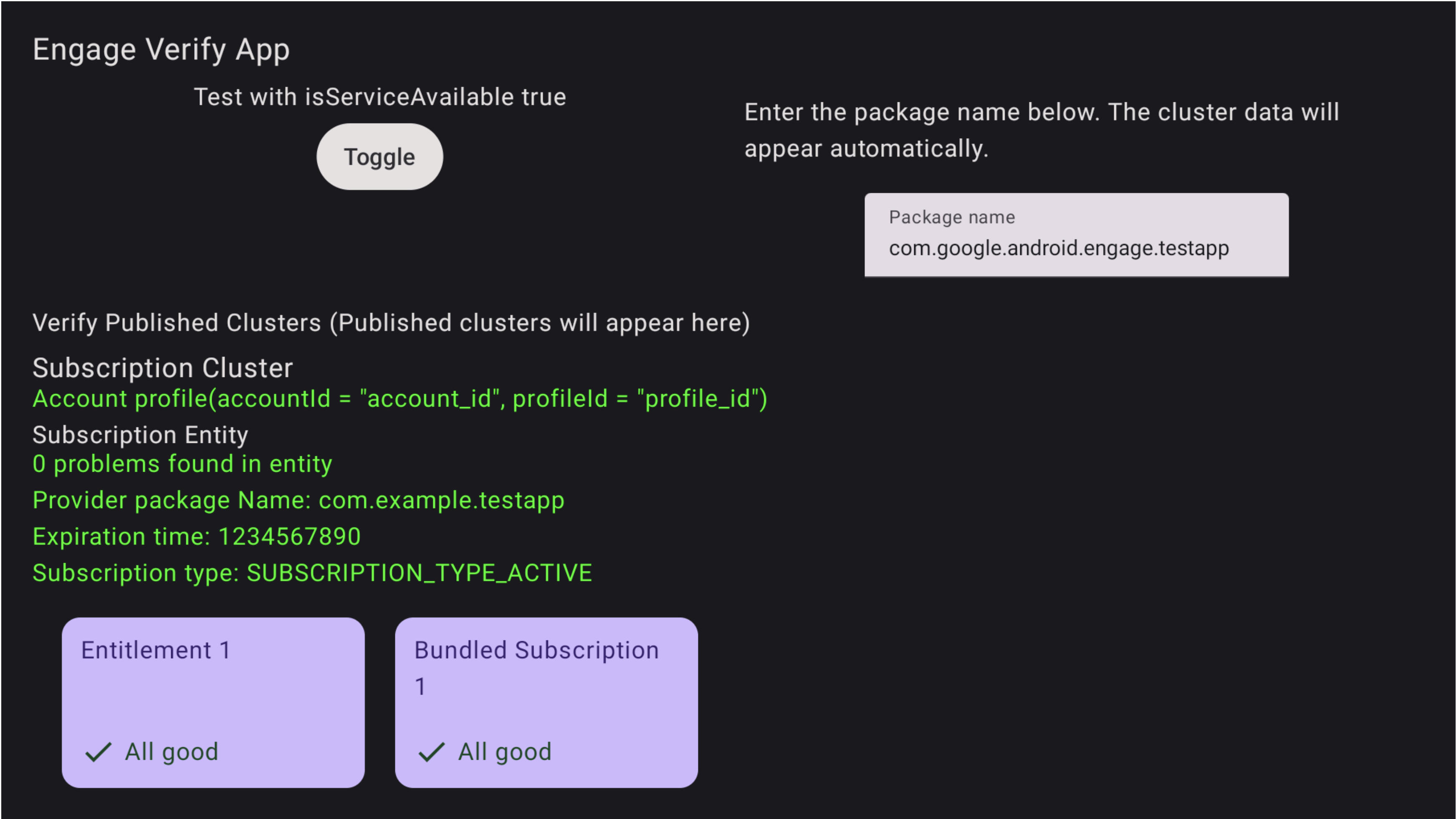
รูปที่ 1 สมัครใช้บริการสำเร็จ นอกจากนี้ ปัญหาจะไฮไลต์ในแอปยืนยันด้วย
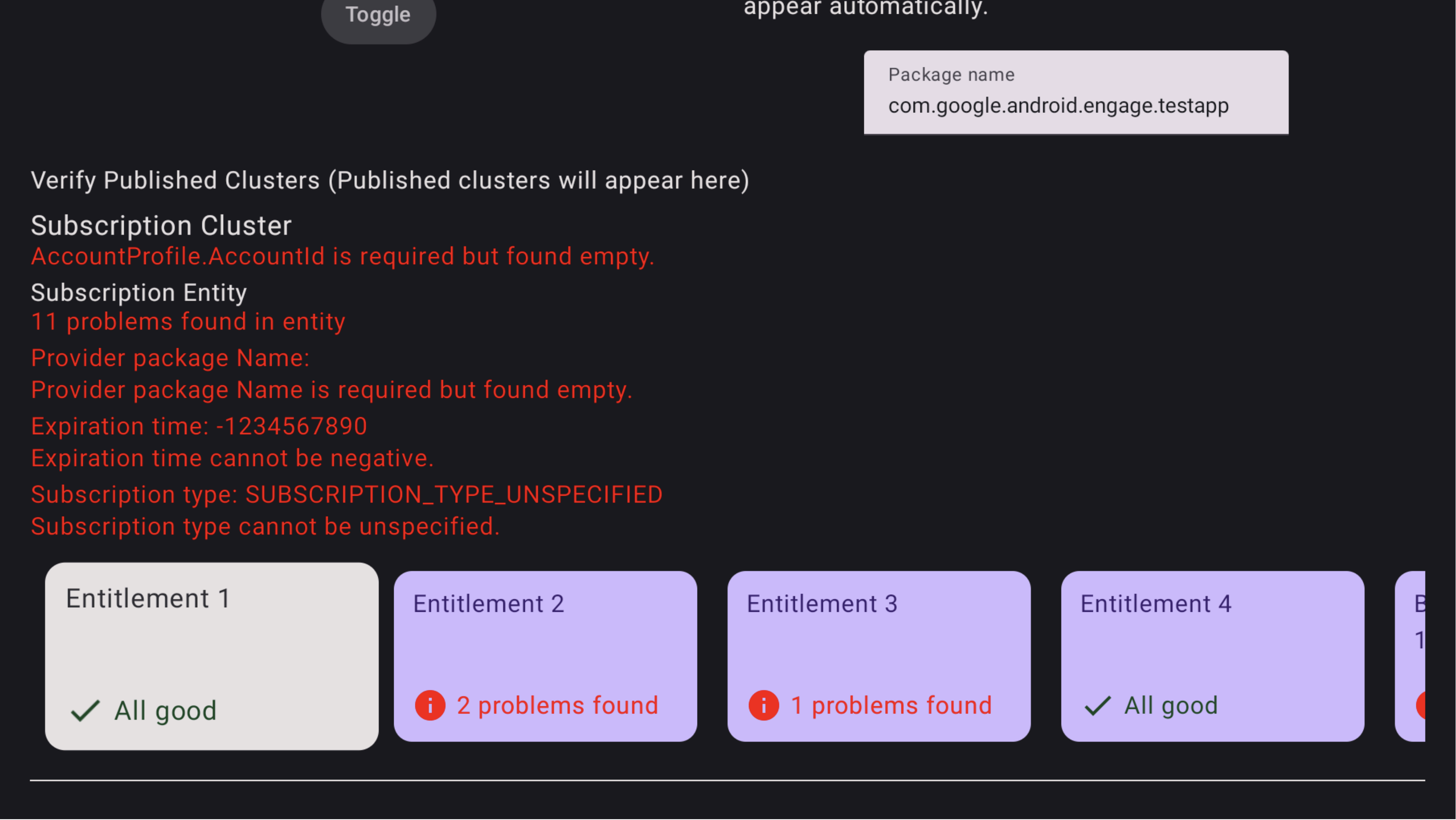
รูปที่ 2การสมัครใช้บริการไม่สำเร็จ หากต้องการดูปัญหาในการสมัครใช้บริการแบบแพ็กเกจ ให้ใช้รีโมตทีวีเพื่อโฟกัส การสมัครใช้บริการแบบแพ็กเกจนั้นๆ แล้วคลิกเพื่อดูปัญหา คุณอาจต้องโฟกัสที่แถวก่อน แล้วเลื่อนไปทางขวาเพื่อค้นหาการ์ดการสมัครใช้บริการแบบแพ็กเกจ ปัญหาจะไฮไลต์เป็นสีแดงดังที่แสดงในรูปที่ 3 นอกจากนี้ ให้ใช้รีโมตเพื่อเลื่อนลงเพื่อดูปัญหาในสิทธิ์ภายใน การสมัครใช้บริการแบบแพ็กเกจ
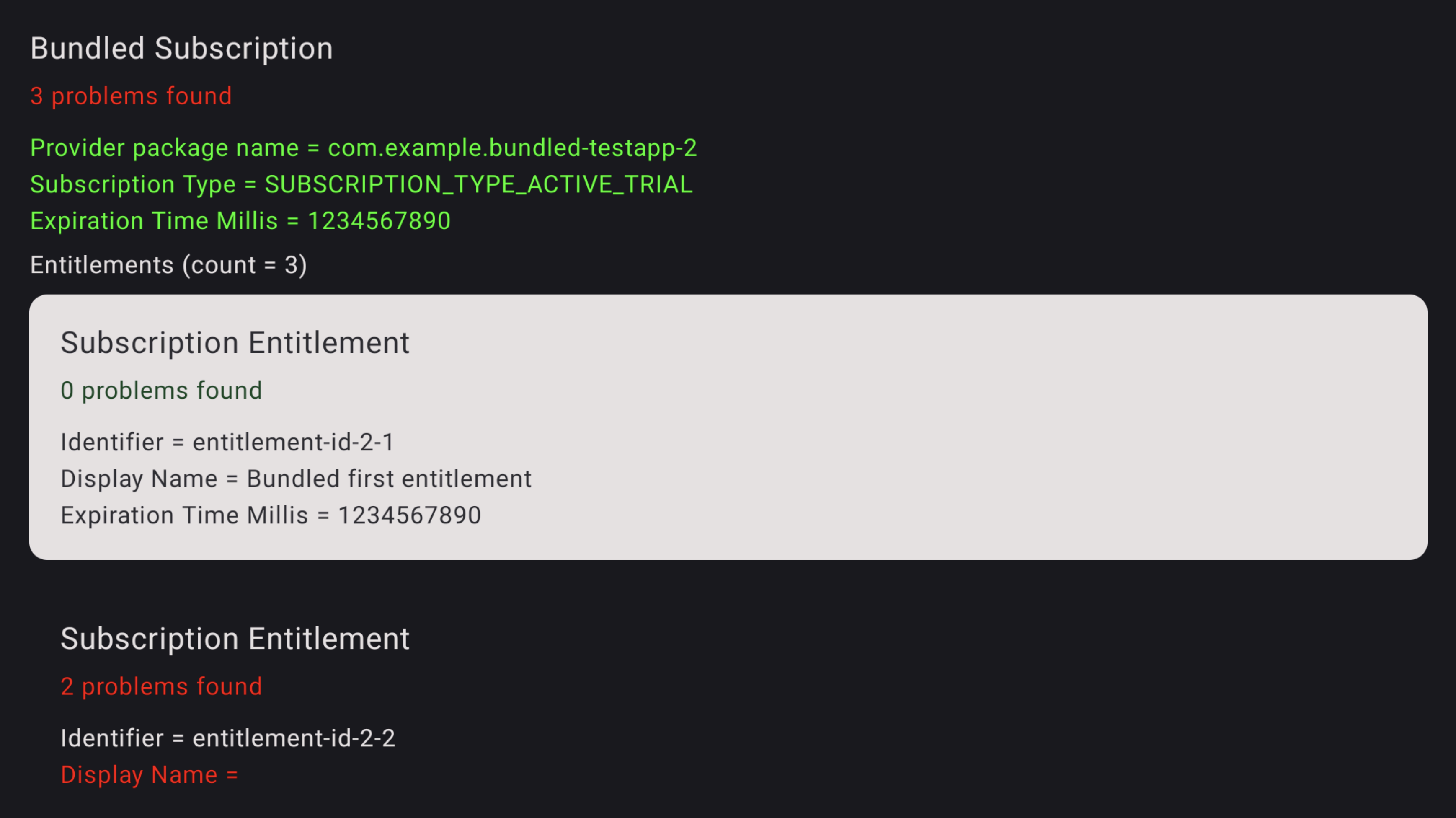
รูปที่ 3ข้อผิดพลาดในการสมัครใช้บริการ หากต้องการดูปัญหาในสิทธิ์ ให้ใช้รีโมตทีวีเพื่อโฟกัสที่สิทธิ์นั้นๆ แล้วคลิกเพื่อดูปัญหา ปัญหาจะ ไฮไลต์เป็นสีแดง
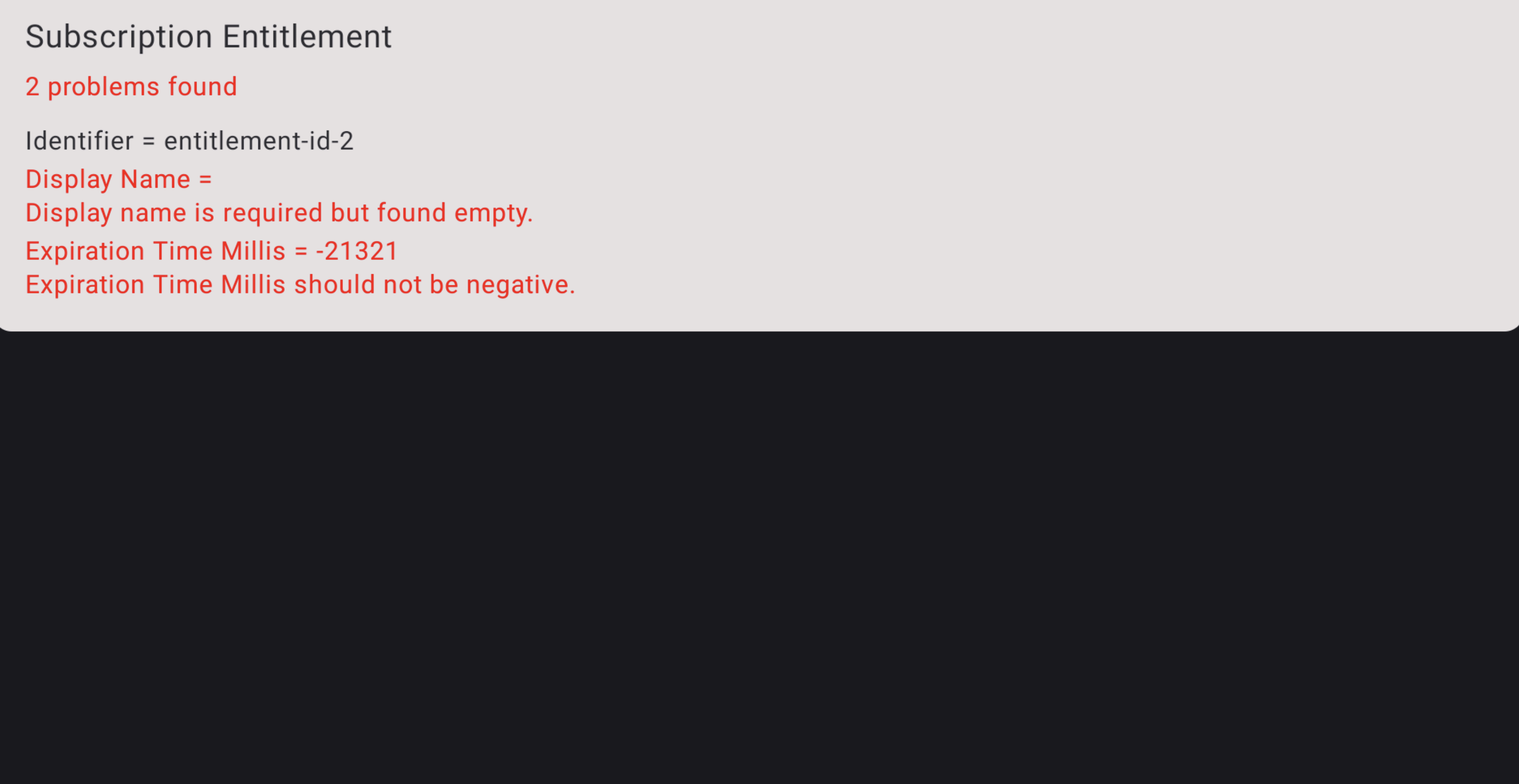
รูปที่ 4รายละเอียดข้อผิดพลาดในการสมัครใช้บริการ