


Direct Preview Preview is a feature in the Android XR Engine Hub that lets you test and iterate on complex interactions directly inside your game engine's editor using live data from the Android XR Device. This completely bypasses the usual, time-consuming build-and-deploy cycle within XR development.
With Direct Preview, instead of exporting a full APK every time you make a change, your host machine renders and debugs the content, streams the visual viewport directly to your physical Android XR device, and streams supported OpenXR extensions back to the host machine in real-time.
Direct Preview OpenXR support
Direct Preview enables instant, low-latency testing inside your engine's viewport for the following streamed extensions:
| Feature or capability | OpenXR extension string |
|---|---|
Device Anchor Persistence |
|
Raycast |
|
Trackables (Planes/Depth) |
|
Object Tracking |
|
Scene Meshing |
|
Face Tracking |
|
Eye Tracking |
|
Passthrough Camera State |
|
Hand Interaction |
Get started with Direct Preview in the Android Engine Hub
Follow the steps in the following sections to enable Direct Preview, configure your physical Android XR device, and enable and start low-latency Direct Preview in your game engine:
Download and install the Android XR Engine Hub
First, download and install the latest version of the Android XR Engine Hub.
Connect and configure your Android XR device
Next, connect and configure your Android XR device for Direct Preview:
- Close any open game engine editors that you have running.
Open the Android XR Engine Hub.
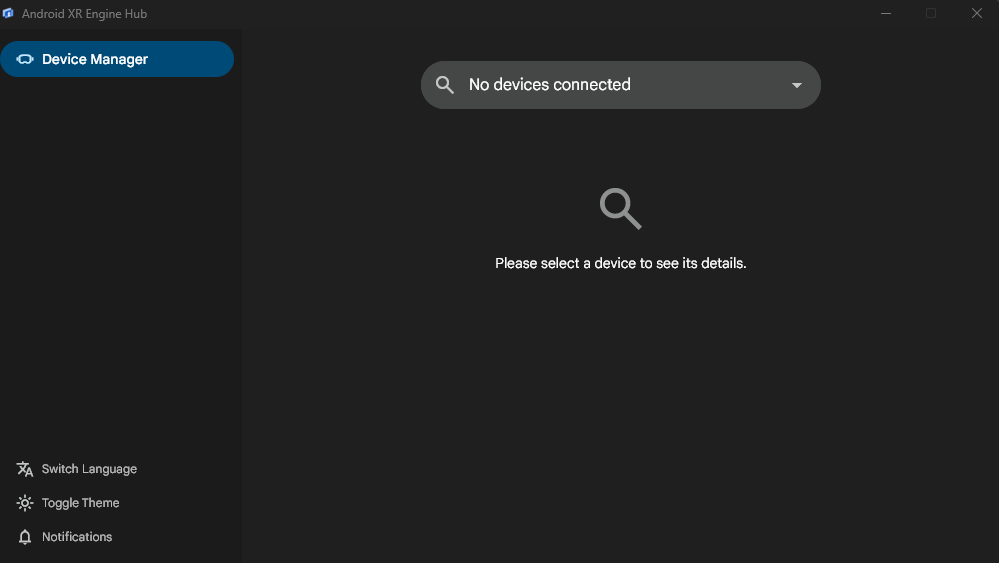
Connect your Android XR device to your host machine using a high-quality USB-C cable.
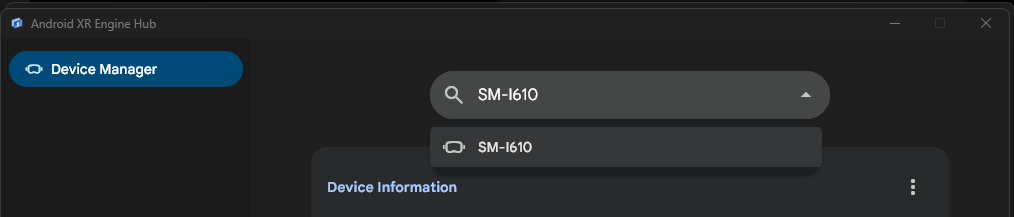
From the device drop-down menu at the top of the interface, select your connected Android XR device.
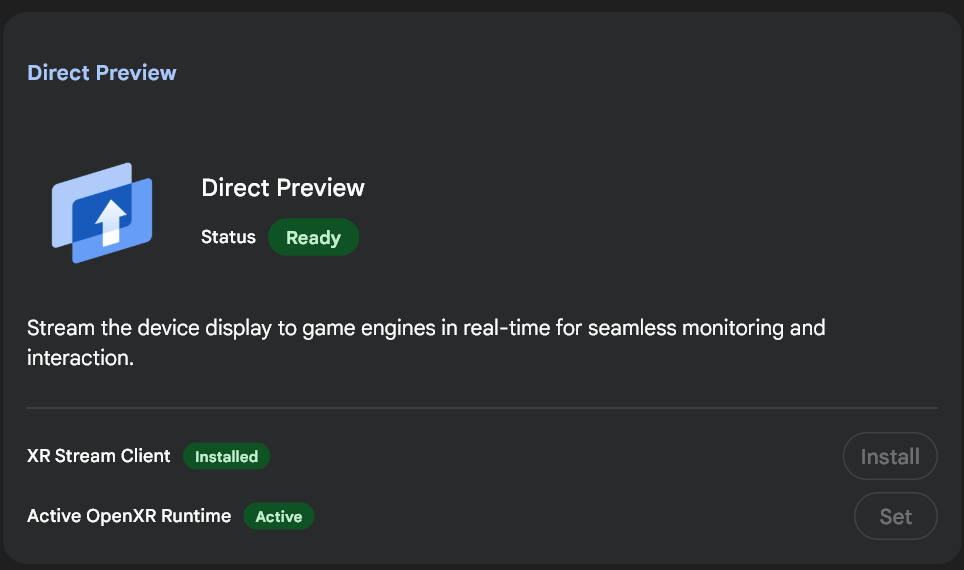
Check that the stream client is initialized:
- Click Install Stream Client to deploy the necessary daemon to your headset.
- Click Set for Active OpenXR Runtime to redirect engine calls from the host machine to the device stream.
Configure and start Direct Preview in your game engine
Finally, configure and start Direct Preview in your game engine:
Complete the first-time setup and configuration steps for your game engine:
Follow the steps in the "Start Direct Preview" section for your game engine each time you want to start Direct Preview: