


The Device Manager dashboard in the Android XR Engine Hub gives you a centralized interface to install and test builds, toggle runtime perception permissions, execute ADB commands, filter real-time logcat streams, and adjust device configuration toggles without switching to a terminal.
Before using the Device Manager tools:
- Connect your Android XR device to your workstation with a USB-C cable.
- Make sure that you've enabled developer options and USB debugging on your device.
- Select your device from the drop-down menu at the top of the Android XR Engine Hub.
Sideload an APK
You can install local .apk builds directly onto your connected Android XR
device from the Device Actions card without running adb install from the
command line:
- In the left navigation sidebar of the Android XR Engine Hub, select Device Manager.
In the Device Actions card, click Sideload APK.
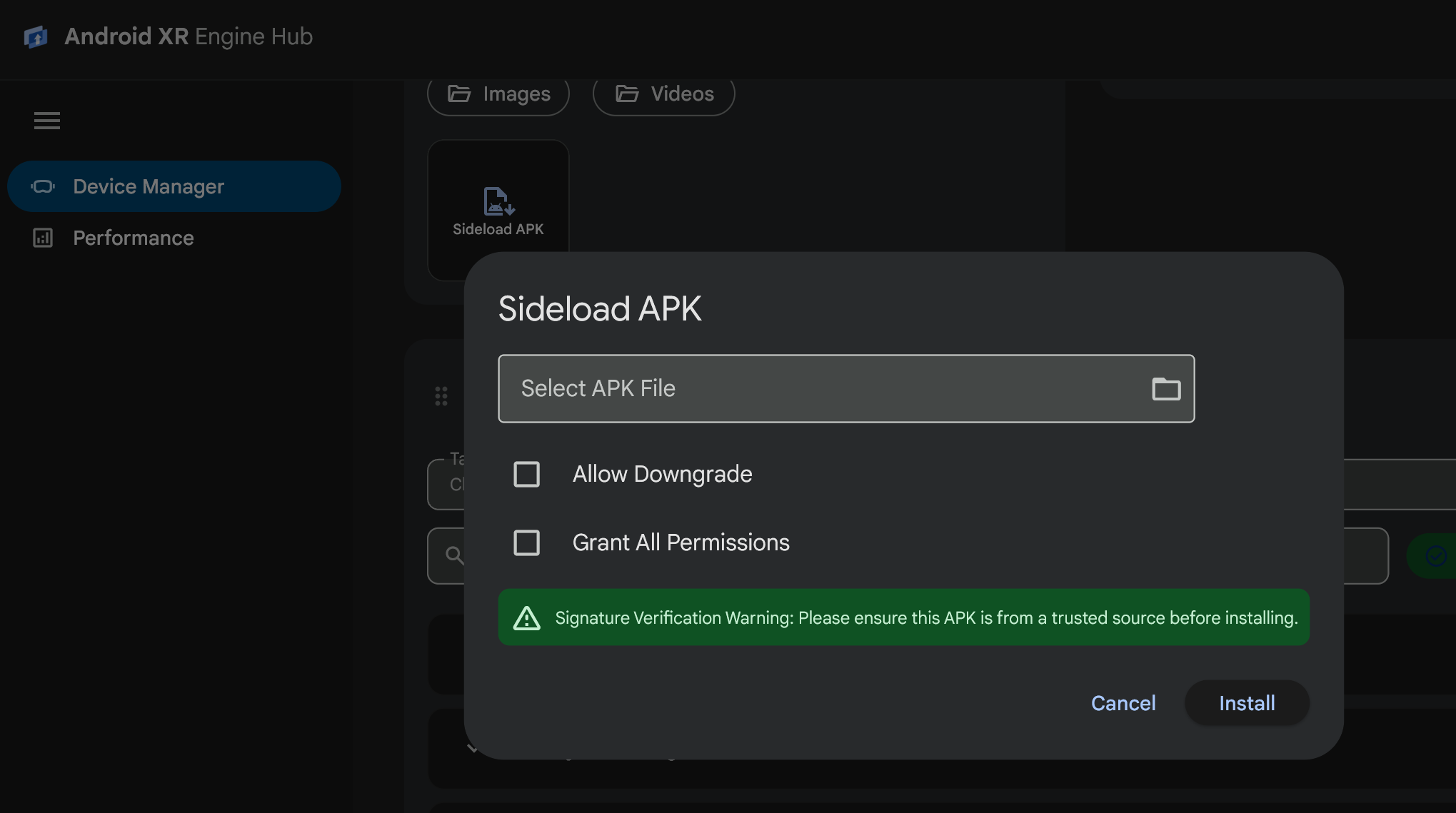
In the Sideload APK dialog, enter the path to your
.apkfile in the Select APK File field, or click the folder icon (Browse APK File) to choose a.apkfile from your workstation.Configure optional installation flags as needed:
- Allow Downgrade: Passes the
-dflag to allow installing an older version code over an existing installation of the app. - Grant All Permissions: Passes the
-gflag to automatically grant all runtime permissions declared in the app manifest upon installation.
- Allow Downgrade: Passes the
Click Install. The dialog displays installation progress and notifies you when the package is installed.
Manage feature permissions
Testing XR perception features often requires switching between granted and denied permission states. The Feature Permissions card lets you inspect and toggle Android XR capability groups and granular runtime permissions in real time for any installed package:
In Device Manager, locate the Feature Permissions card.
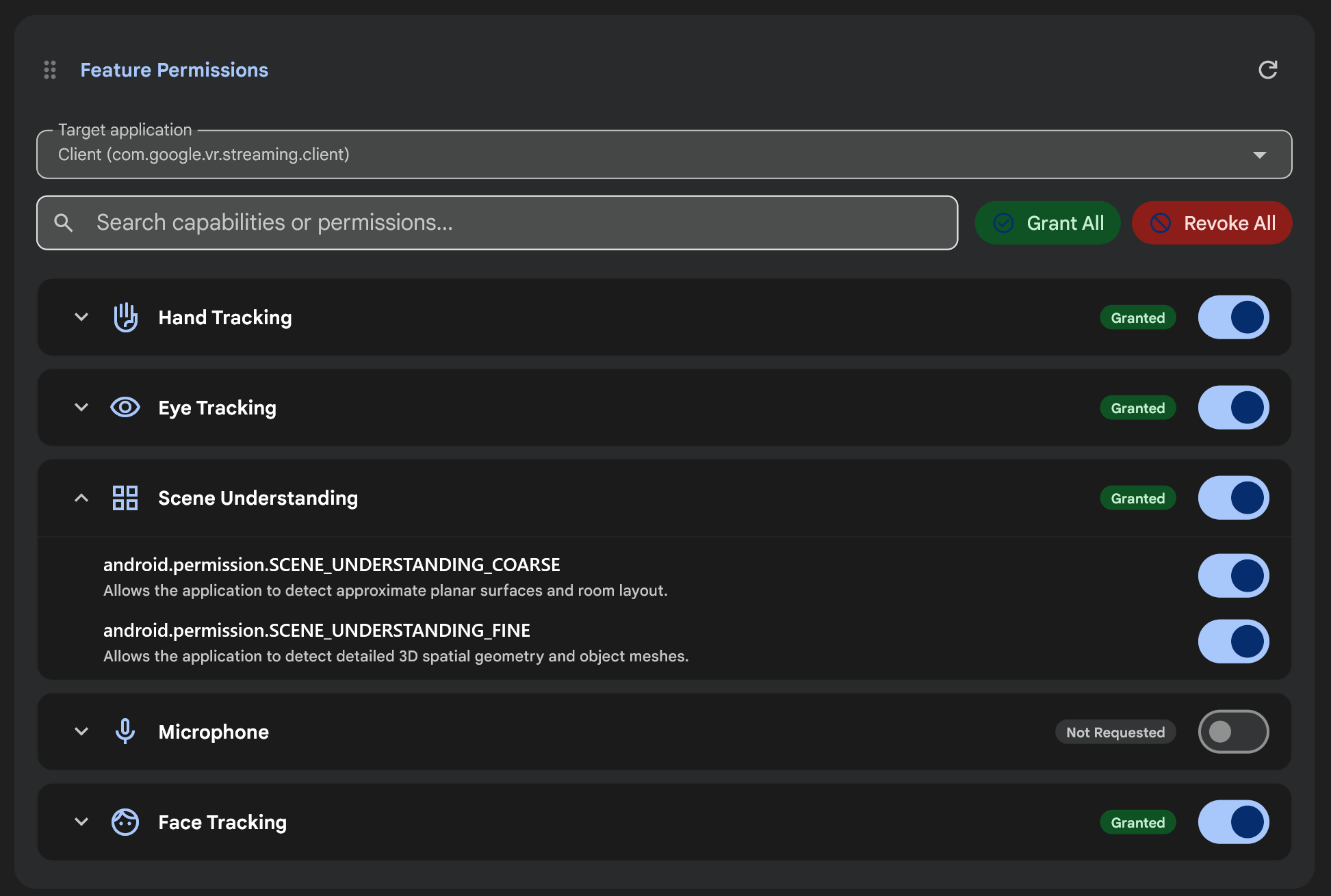
From the Target application drop-down menu, select the installed app whose permissions you want to manage (or click the Refresh icon to reload the package list).
Review the permission status badge (Granted, Denied, or Not Requested) for each Android XR capability group:
- Head Tracking
- Hand Tracking
- Eye Tracking
- Spatial Anchors
- Scene Understanding
- Camera
- Microphone
- Face Tracking
Modify permissions for the selected app using any of the following controls:
- Batch actions: Click Grant All or Revoke All to grant or revoke all requested permissions for the selected app at once.
- Capability toggle: Use the toggle switch on a capability row to grant or revoke all permissions in that capability group.
- Granular permissions: Click the expand arrow on a capability row
(for example, Scene Understanding or Eye Tracking) to inspect
and toggle individual Android permission strings such as
android.permission.SCENE_UNDERSTANDING_COARSEorandroid.permission.SCENE_UNDERSTANDING_FINE. - Search: Enter a capability name or permission string in the Search capabilities or permissions... field to filter the list.
See Understand permissions for XR for more details on Android XR runtime permissions.
Run ADB commands and save shortcuts
The ADB Commands card lets you run arbitrary adb commands against your
selected device, view formatted terminal output and exit codes, and save
frequently used commands as one-click shortcut chips:
In Device Manager, locate the ADB Commands card.
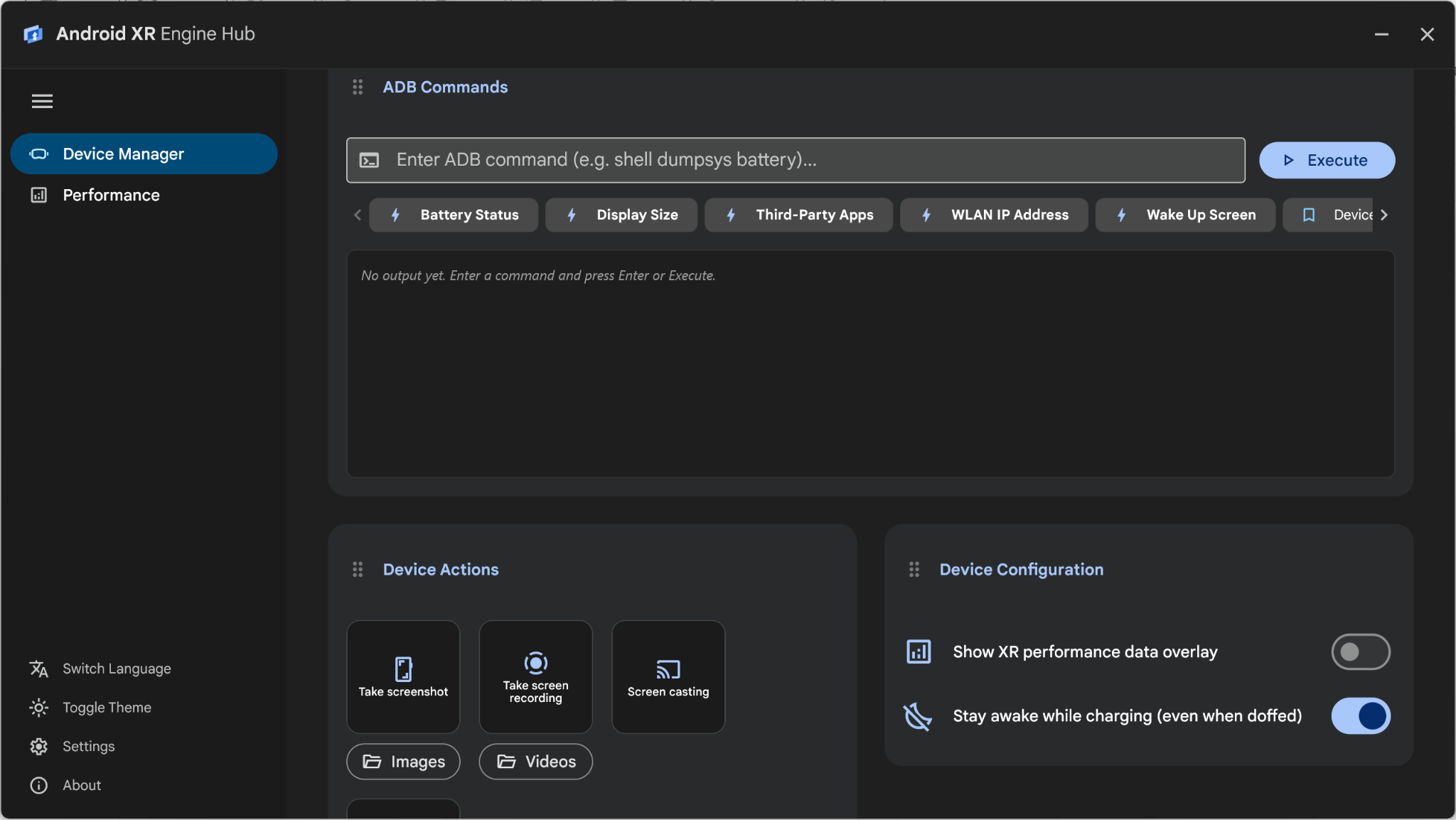
Run a command using either a preset chip or the command input field:
- Built-in presets: Click any of the built-in shortcut chips to run
common diagnostics immediately:
- Battery Status: Runs
shell dumpsys battery - Display Size: Runs
shell wm size - Third-Party Apps: Runs
shell pm list packages -3 - WLAN IP Address: Runs
shell ip addr show wlan0 - Wake Up Screen: Runs
shell input keyevent 224
- Battery Status: Runs
- Custom command: Enter an ADB command (without the leading
adbbinary name, such asshell dumpsys package com.example.xrapp) in the input field and click Execute (or press Enter).
- Built-in presets: Click any of the built-in shortcut chips to run
common diagnostics immediately:
Inspect the Exit Code, execution duration, and command output in the results pane. You can click Copy output or Clear output in the top right of the output pane.
To save a custom command as a reusable chip (up to 10 shortcuts), enter the command in the input field, click the bookmark icon (Save command as shortcut), enter a Shortcut Name in the Save ADB Command Shortcut dialog, and click Save.
Filter device logs and save shortcuts
The Device Logs card streams real-time logcat messages from your connected Android XR device:
- Filter logs: Enter a keyword or log tag (for example,
UnityorOpenXR) in the Filter logs... search field and press Enter to filter log messages. - Save filter shortcuts: Click the bookmark icon (Save filter shortcut) in the search bar to open the Save Log Shortcut dialog and save your current filter query as a clickable shortcut chip (up to 10 shortcuts) below the search bar.
- Standalone window: Click the pop-out icon in the Device Logs card to open the log viewer in a separate, resizable desktop window for multi-monitor setups.
Configure device settings and capture media
Use the Device Configuration and Device Actions cards in Device Manager to control runtime device behavior and capture media during testing:
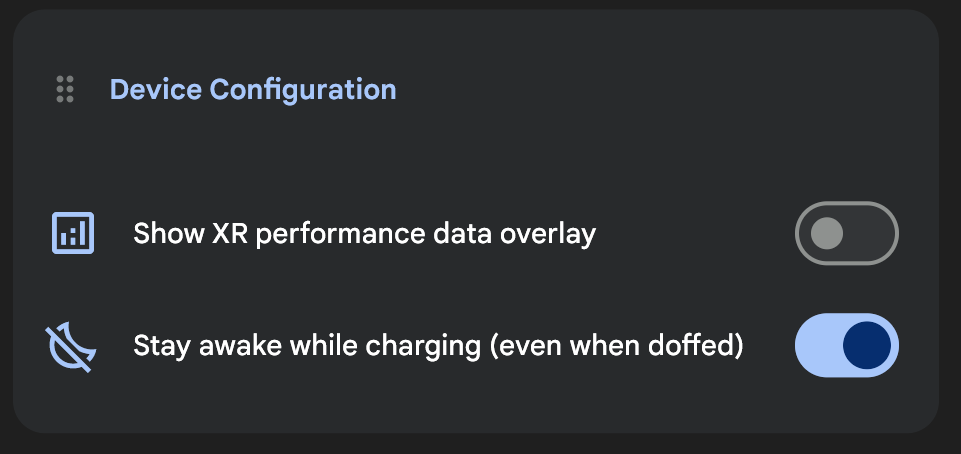
- Show XR performance data overlay: Toggle this setting in the Device Configuration card to display or hide real-time on-device performance metric overlays.
- Stay awake while charging (even when doffed): Toggle this setting in the Device Configuration card to keep your Android XR device awake while it's plugged in, even when you take the headset off between test runs.
- Screen casting: Click Screen casting in the Device Actions card to mirror your Android XR device display in a low-latency desktop window.
- Take screenshot and Take screen recording: Click Take screenshot or Take screen recording (which changes to Recording screen while active) in the Device Actions card to capture images or video from your device display and automatically open the saved file on your workstation. Click Images or Videos to open the local output folders.