


The Android XR Engine Hub lets you capture high-frequency system and application performance traces directly from your connected Android XR device. When a trace recording finishes, the Android XR Engine Hub automatically performs the following actions:
- Saves the
.perfettotrace file to your workstation and opens it in the Perfetto Web UI with pre-configured viewport parameters (visStartandvisEnd). - Reduces the raw
.perfettocapture locally on your workstation into a concise text summary of CPU and GPU utilization, frame timing statistics, and dropped frames. - Sends the reduced trace summary to Gemini (when configured with your API key) to diagnose frame rate bottlenecks and provide actionable optimization recommendations directly inside the hub.
Configure your Gemini API key
AI-powered trace analysis uses a Bring Your Own Key (BYOK) workflow with a Google AI Studio API key. If you don't configure an API key, you can still record traces and inspect them in the Perfetto Web UI, but automated Gemini diagnostics won't run.
To configure your Gemini API key:
- Get a Gemini API key from Google AI Studio.
- Open the Android XR Engine Hub and select Settings in the left navigation sidebar (or click Add Gemini API Key in Settings on the Performance page).
- In the Gemini API key field, paste your API key.
Click Save.
You can update your key at any time, or clear the Gemini API key field and click Save to remove the saved key from your workstation.
Record and analyze a performance trace
Follow these steps to capture a performance trace from your connected Android XR device and review the analysis:
Connect your Android XR device to your workstation using a USB-C cable and select it from the device drop-down menu at the top of the Android XR Engine Hub.
Launch the XR app or scene that you want to profile on your device.
In the left navigation sidebar of the Android XR Engine Hub, select Performance.
In the XR Device Tracing card, click Start Recording and reproduce the interaction or performance issue on your device.
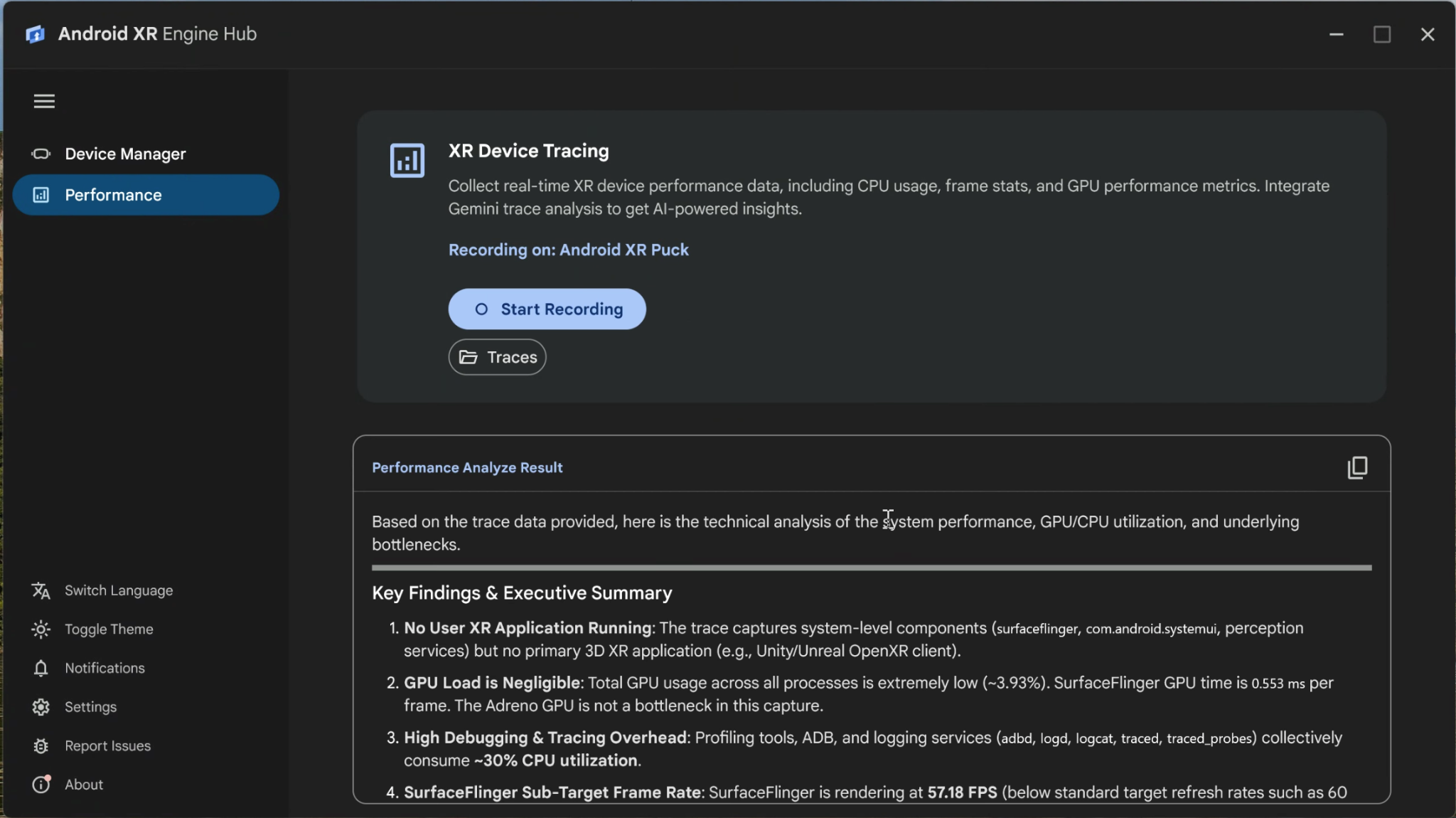
Click Stop Recording when you're done, or wait for the trace to stop automatically when it reaches the 30-second time limit.
When the recording completes, the Android XR Engine Hub processes the capture and provides your results in three ways:
- Perfetto Web UI: Your default browser opens the captured trace in the Perfetto Web UI so that you can inspect detailed timeline tracks, shader compilation, and thread scheduling.
- Performance Analyze Result: If you've configured a Gemini API key, the Performance Analyze Result pane displays Analyzing trace with Gemini while the local trace summary is evaluated, and then renders a structured report highlighting key bottlenecks, missed frames, and suggested fixes. Click the copy icon in the top-right corner of the pane to copy the Markdown report to your clipboard.
- Local trace files: Click Traces in the XR Device Tracing card to
open the local output folder containing your saved
.perfettofiles.