

使用者可能想同時編輯多個媒體資產,讓最終影片同時顯示多個媒體項目。包括以子母畫面、並排或格狀等版面配置排列項目。這類專案的例子如下:
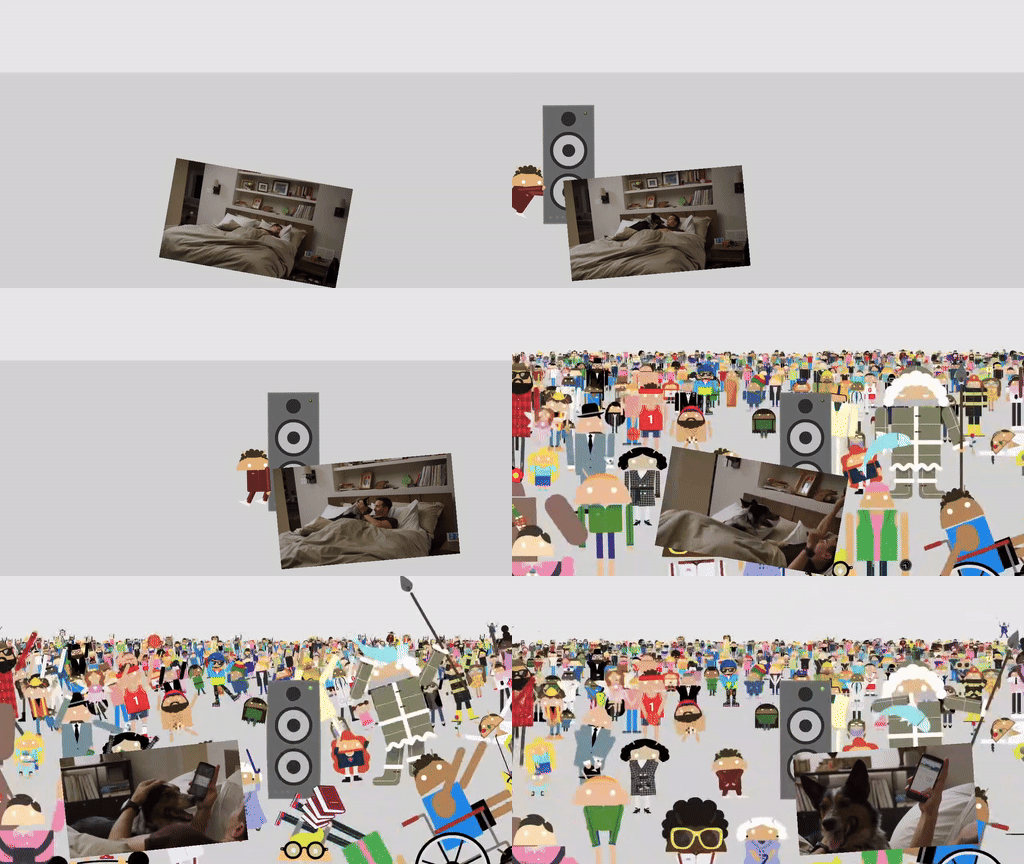
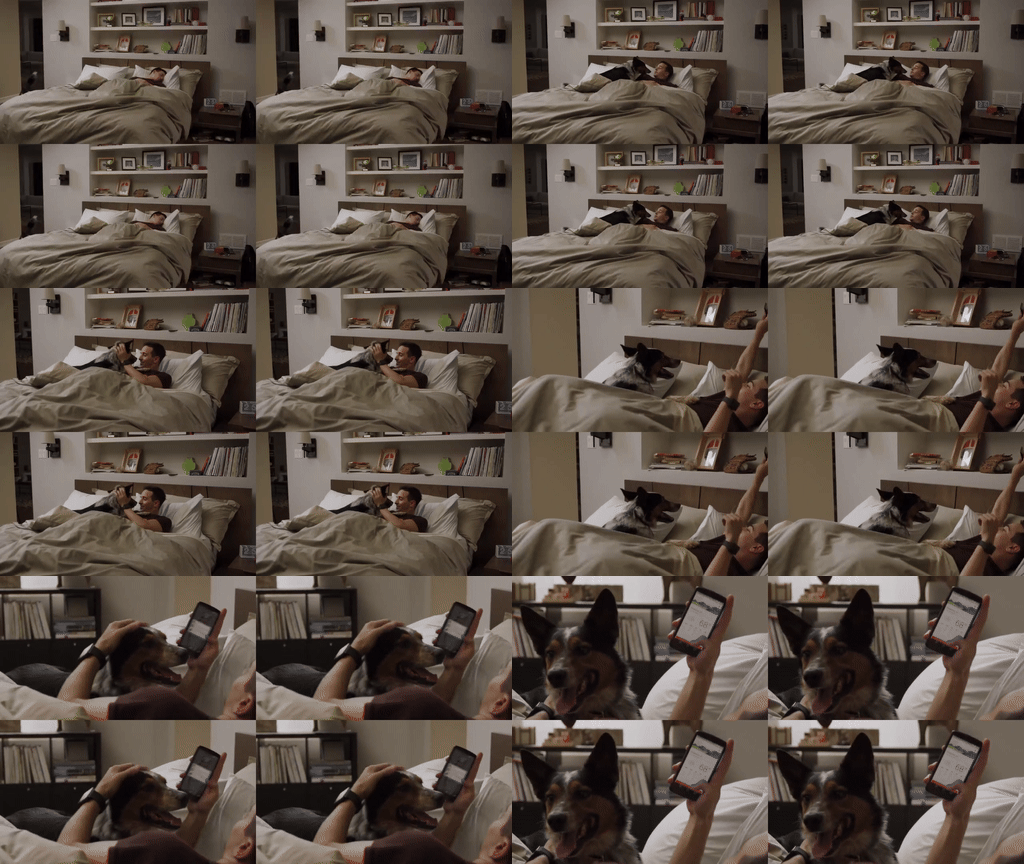
如要瞭解如何實作這些版面配置,請參閱 Composition 試用版應用程式。
導入 VideoCompositorSettings
VideoCompositorSettings 介面包含 2 個方法:
getOutputSize(List<Size> inputSizes),可用於指定每個輸入內容EditedMediaItemSequence的大小getOverlaySettings(int inputId, long presentationTimeUs),您可以在其中指定每個序列在影格中的顯示方式
使用 OverlaySettings 設定序列的呈現方式
實作 getOverlaySettings() 時,應針對專案中的每個序列傳回 OverlaySettings 介面的例項。inputId 參數會指定設定要套用至哪個序列。如要建構例項,可以使用 Media3 隨附的 StaticOverlaySettings 類別。如需完整的設定選項清單,請參閱 StaticOverlaySettings.Builder 參考頁面,包括視覺修改 (例如 Alpha 透明度和 HDR 亮度)、位置修改 (例如錨點和影格內位置),以及轉換 (例如旋轉和縮放)。
override fun getOverlaySettings(inputId: Int, presentationTimeUs: Long): OverlaySettings { return when (inputId) { // Position the first sequence in the top-left 0 -> { StaticOverlaySettings.Builder() // Scale the video down to 1/4th the size of the frame .setScale(0.5f, 0.5f) // Anchor the sequence in the middle of frame .setOverlayFrameAnchor(0f, 0f) // Position the video in the top-left section of the frame .setBackgroundFrameAnchor(-0.5f, 0.5f) .build() } // Add more cases for remaining input sequences else -> StaticOverlaySettings.Builder().build() } }
使用 getOverlaySettings() 方法的 presentationTimeUs 參數,即可根據影片位置修改這些設定,如本頁稍早的移動子母畫面範例所示。
override fun getOverlaySettings(inputId: Int, presentationTimeUs: Long): OverlaySettings { return if (inputId == 0) { // Use the first sequence as the overlay val cycleRadians = 2 * PI * (presentationTimeUs.toDouble() / cycleTimeUs) StaticOverlaySettings.Builder() // Scale the overlay down .setScale(0.35f, 0.35f) // Anchor the overlay in the top-middle of the frame .setOverlayFrameAnchor(0f, 1f) // Move the overlay over time .setBackgroundFrameAnchor(sin(cycleRadians).toFloat() * 0.5f, -0.2f) // Rotate the overlay over time .setRotationDegrees(cos(cycleRadians).toFloat() * -10f) .build() } else { // Present the second sequence in the background as normal StaticOverlaySettings.Builder().build() } }
意見回饋
如要提供意見回饋或要求視訊合成功能,請在 Media3 GitHub 存放區回報問題。