
When a user creates a passkey, the relying party server saves certain details, while the credential provider, such as Google Password Manager, saves others. Specifically:
- The relying party server saves the public key credential.
- The credential provider saves the username, display name, private key, and other associated metadata. This metadata helps users identify and select the required passkey during sign-in.
Potential inconsistencies between the data saved on the relying party server and the credential provider can lead to bad user experiences. Issues may arise in the following scenarios:
- A credential is deleted on the relying party server but not on the credential provider, which results in the credential provider displaying the deleted credential to the user.
- A username or display name is updated on the relying party server but not on the credential provider, which results in the credential provider showing the outdated details.
Credential Manager's Signal API lets relying parties communicate with the credential providers to delete credentials and to update user metadata, such as the username and display name. There are three supported request types for different scenarios:
SignalUnknownCredentialRequest- Indicates that a specific credential is no longer valid and should be hidden from or removed from the credential provider.
SignalAllAcceptedCredentialIdsRequest- Provides a list of accepted credential IDs to the credential provider.
SignalCurrentUserDetailsRequest- Updates the user's metadata details.
Version compatibility
The Signal API is available on devices that run Android 15 or higher, and is
available starting from version 1.6.0-beta03 of the androidx.credentials
library.
Implementation
To use the Signal API, follow these steps:
Add the Credential Manager dependency to your project.
Kotlin
dependencies {
    implementation("androidx.credentials:credentials:1.7.0-alpha03")
}
Groovy
dependencies {
    implementation "androidx.credentials:credentials:1.7.0-alpha03"
}
Call the Signal API
To send a signal request to the credential provider, use a supported signal request. Each of the signal request types requires a JSON request, as shown in the following examples:
Unknown credential (
SignalUnknownCredentialRequest)Use
SignalUnknownCredentialRequestto signal that a credential is rejected and considered unknown. When the credential provider receives this signal, it hides or deletes the credential.Usage
Use this signal when the relying party fails to verify a passkey assertion. This implies that the passkey is invalid and must be hidden from or removed by the credential provider.
The required JSON parameters for this request are
rpIdandcredentialId. For more information about the JSON structure, see signalUnknownCredential options.credentialManager.signalCredentialState( SignalUnknownCredentialRequest( requestJson = JSONObject().apply { put("rpId", rpId /* [String] RP ID of the relying party */) put("credentialId", credentialId /* [String] Credential ID of the credential to be hidden or deleted */) }.toString() ) )All accepted credentials (
SignalAllAcceptedCredentialIdsRequest)Use
SignalAllAcceptedCredentialIdsRequestto notify credential providers with the set of all accepted credentials. Once the signal is received by the credential provider, the credential provider hides or deletes any credentials that are not included in this list, or unhides any previously hidden credentials that are now included in the list.Usage
Use this signal when a passkey verification fails by the relying party. This failure means that the passkey is invalid and must be hidden from or removed by the credential provider. You can also use this signal whenever you need to broadcast the set of known credential IDs to credential providers.
The required JSON parameters for this request are
rpId,userId, andallAcceptedCredentialIds. For more information about the JSON structure, see signalAllAcceptedCredential options.credentialManager.signalCredentialState( SignalAllAcceptedCredentialIdsRequest( requestJson = JSONObject().apply { put("rpId", rpId /* [String] RP ID of the relying party */) put("userId", userId /* [String] User ID of the current user */) put( "allAcceptedCredentialIds", JSONArray(credentialIdsList /* [List<String>] List of accepted Credential IDs */) ) }.toString() ) )Current user details (
SignalCurrentUserDetailsRequest)Use
SignalCurrentUserDetailsRequestto notify credential providers that metadata, such as the username and display name for a given user, has been updated and should appear in the credential provider.Usage
Use this signal when the user or the relying party updates passkey metadata associated with the user account.
The required JSON parameters for this request are
rpId,userId,name, anddisplayName. For more information about the JSON structure, see signalCurrentUserDetails options.credentialManager.signalCredentialState( SignalCurrentUserDetailsRequest( requestJson = JSONObject().apply { put("rpId", rpId /* [String] RP ID of the relying party */) put("userId", userId /* [String] User ID of the current user */) put("name", name /* [String] New Name to be updated for the current user */) put("displayName", displayName /* [String] New display name to be updated for the current user */) }.toString() ) )
Test the implementation
To test your implementation of Signal API, complete the following steps:
Install the credential provider sample named MyVault.
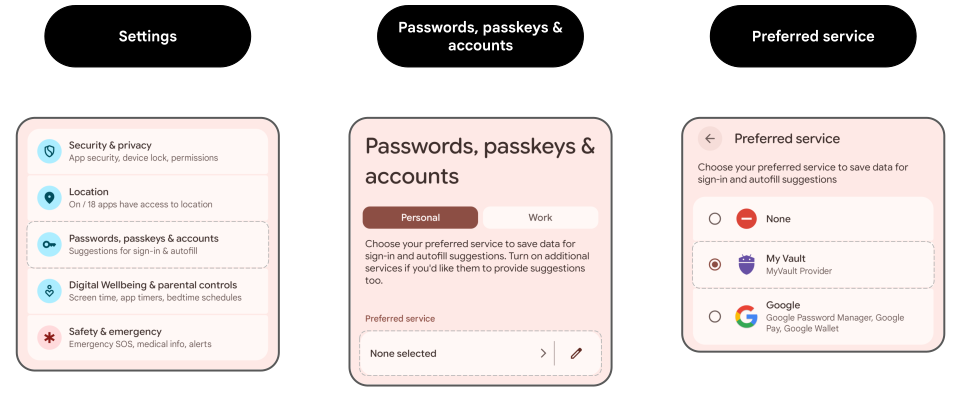
Enable MyVault as a credential provider in Settings > Passwords, Passkeys & Accounts > Preferred Service.
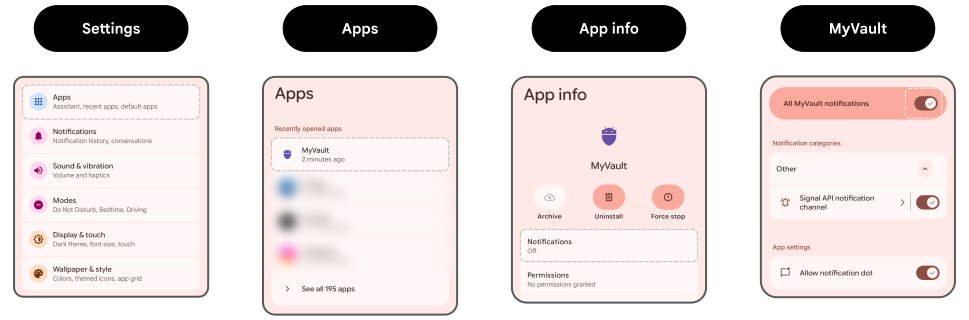
Enable all notifications for MyVault in Settings > Apps > MyVault > Notifications.
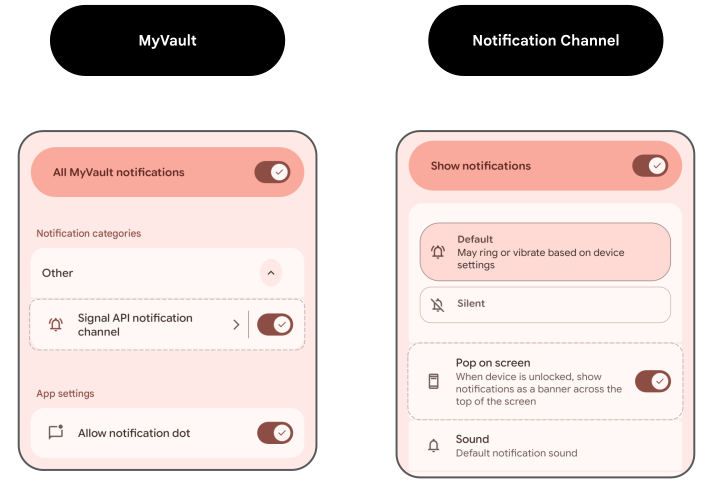
Verify that Pop on screen is on for notifications in Settings > Apps > MyVault > Notifications > Categories > Signal API Notification Channel.
In your app, trigger the flows that send the signal requests to the credential provider. You should see notifications from MyVault on the screen. This verifies that the credential provider received the requests.