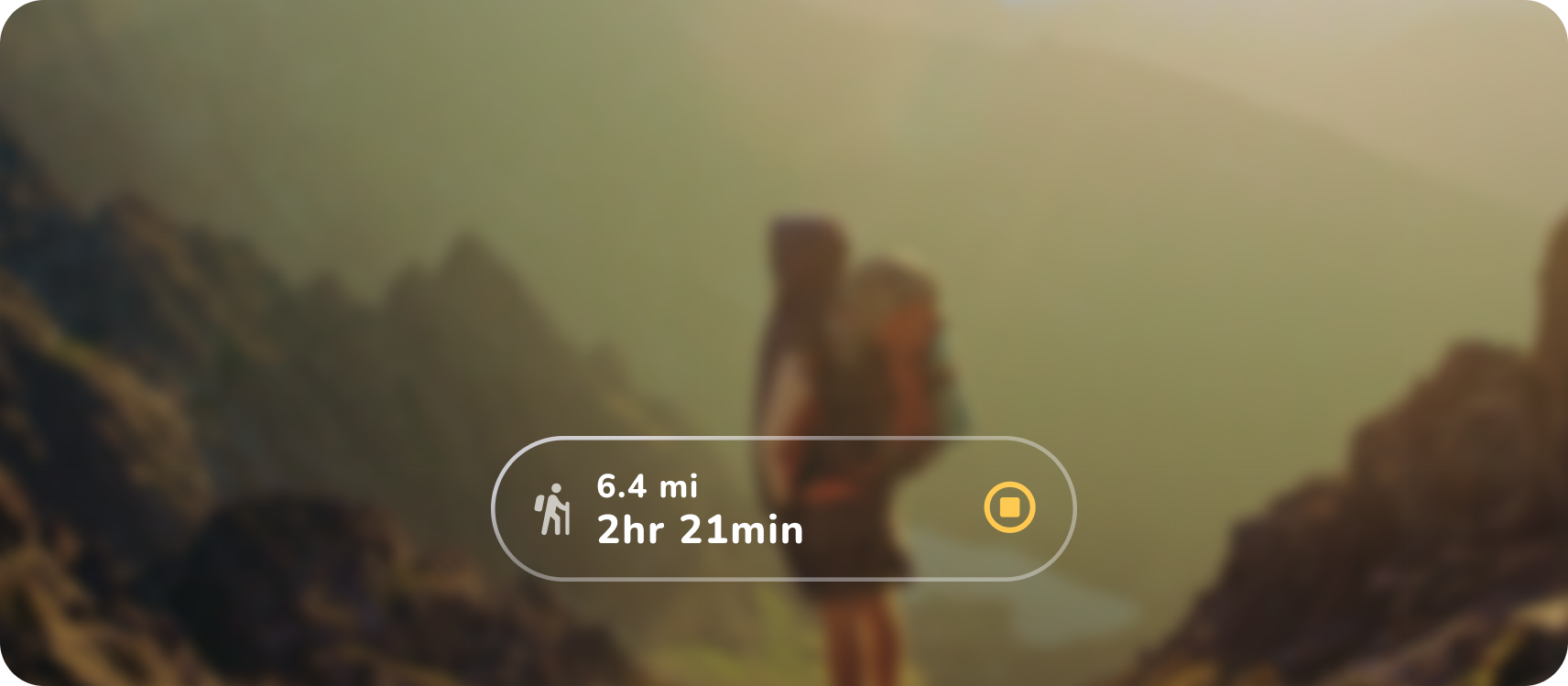
Glasses's augmented experiences are an extension of your existing mobile app, you can create handoff experiences from your mobile app to Glasses. Your app can run on both AI Glasses and Display AI Glasses.
On display AI glasses
Display glasses provide a visual and audio experience, your app experience should include both visual and audio cues.
When the display is on, the user can interact with the touchpad to scroll lists, move focus, click buttons, etc. Show visual feedback to not overwhelm the user's senses with over providing audio feedback.
When the display is off, your app can keep track of whether the display is on or off, so your user can go from a display to audio experience and back.

Display timeout
Users can turn the display off by pressing the display button, or wait for the display to timeout. Timeout can be configured by users or customized for your app. Only customize if crucial to your app's experience as this can have performance impacts.
On displayless AI glasses
Displayless adapts to an audio-only experience.
- Input is mapped to key actions, like playing or pausing with a tap and ending experiences by swiping back. Since there is no UI elements to individually interact with on a display. For example, on displayless the user can't scroll through a list of options and multiple buttons, instead they will need an audio cue with a possible corresponding input. Read more on input.
- Translate visual cues to audio cues.
- Your users may have display or audio-only glasses, this is why it's important to consider audio and visual flows for your app.
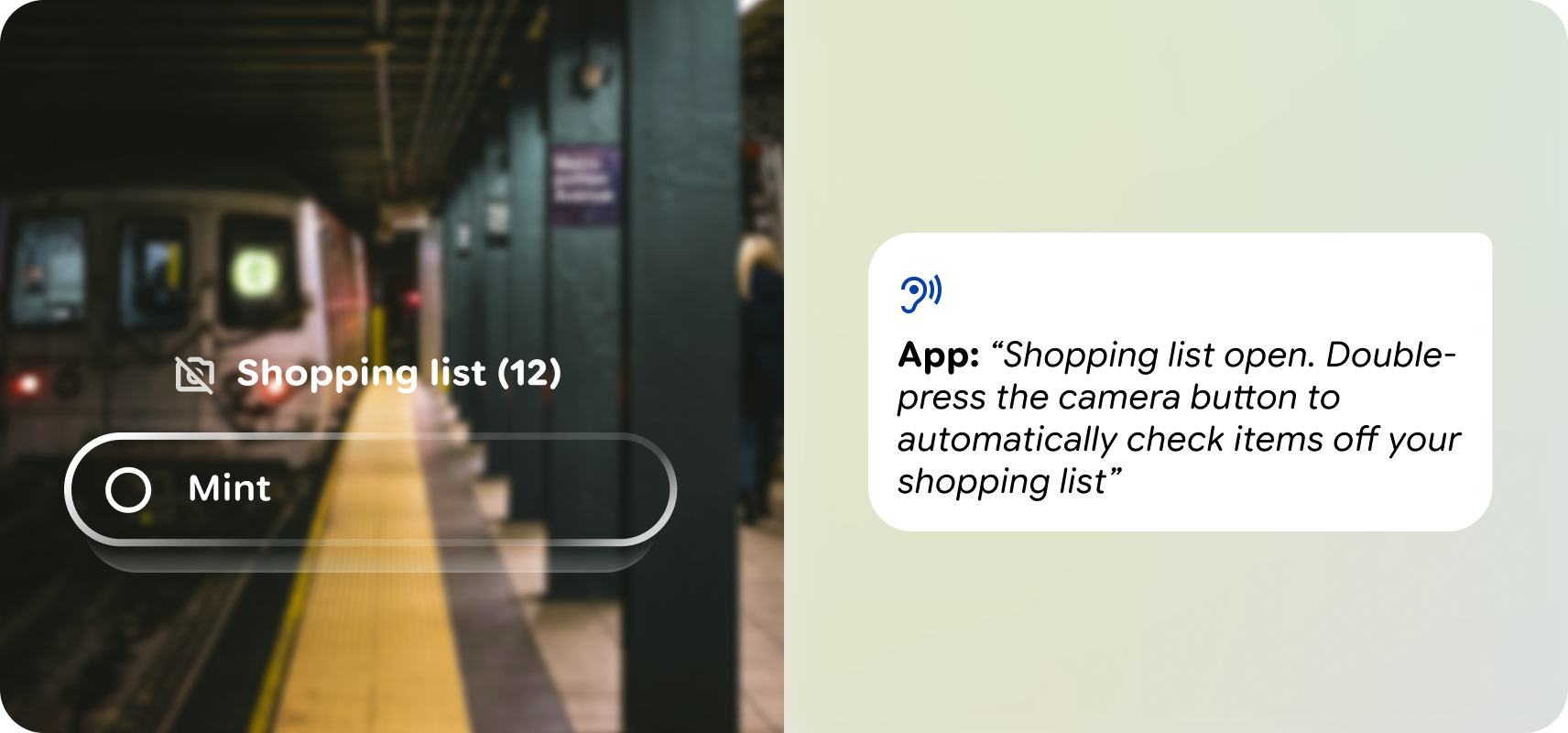
For example, on display AI Glasses, a visual UI would load after the app is launched, while on audio AI Glasses, an audio cue prompts the user on an app-wide interaction.
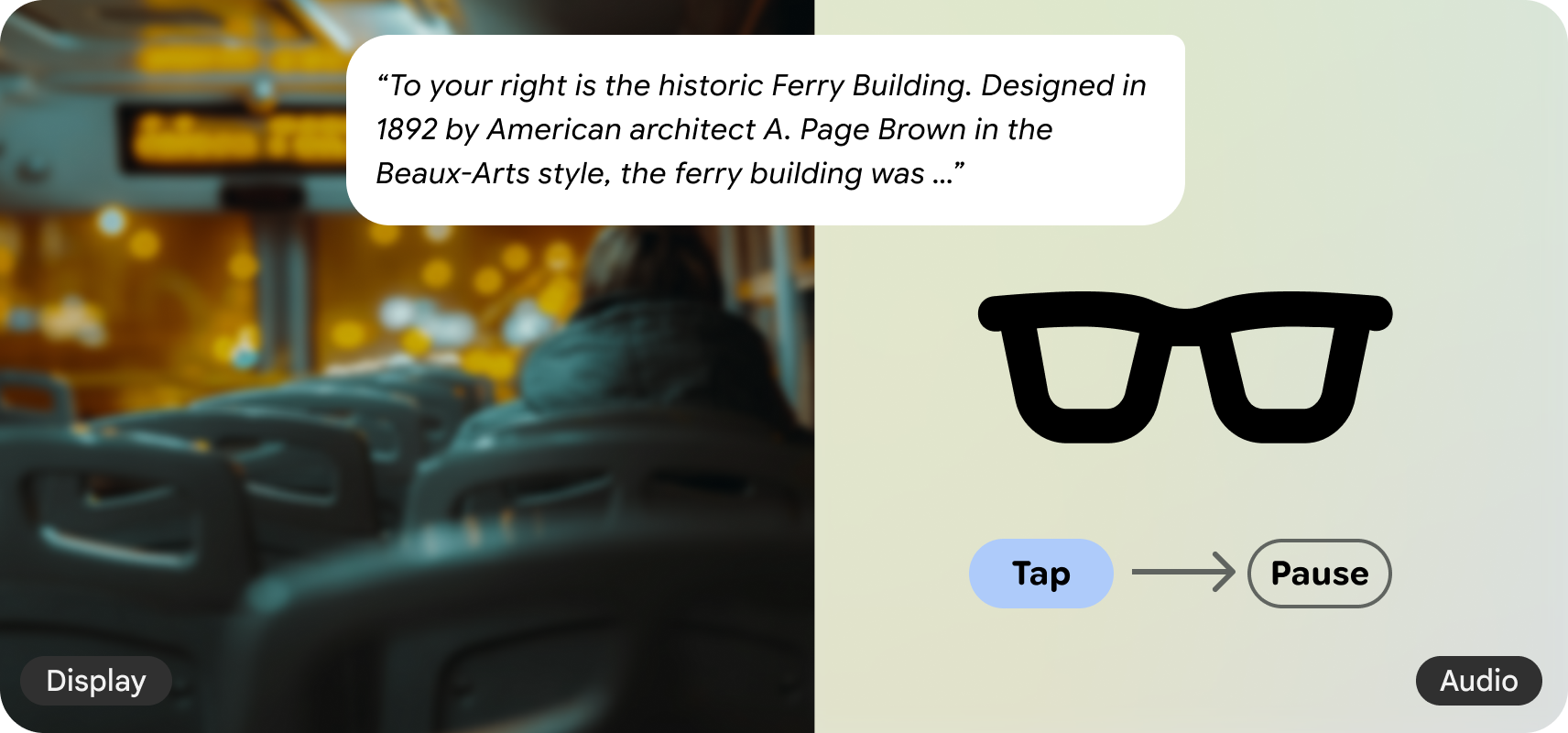
Here the audio readout is paused by visual UI on display glasses, while a hardware input tap pauses for audio-only.
How to build audio interactions for AI glasses.
App anatomy
The Glasses interface builds from the bottom up to augment rather than block a user's line of sight.
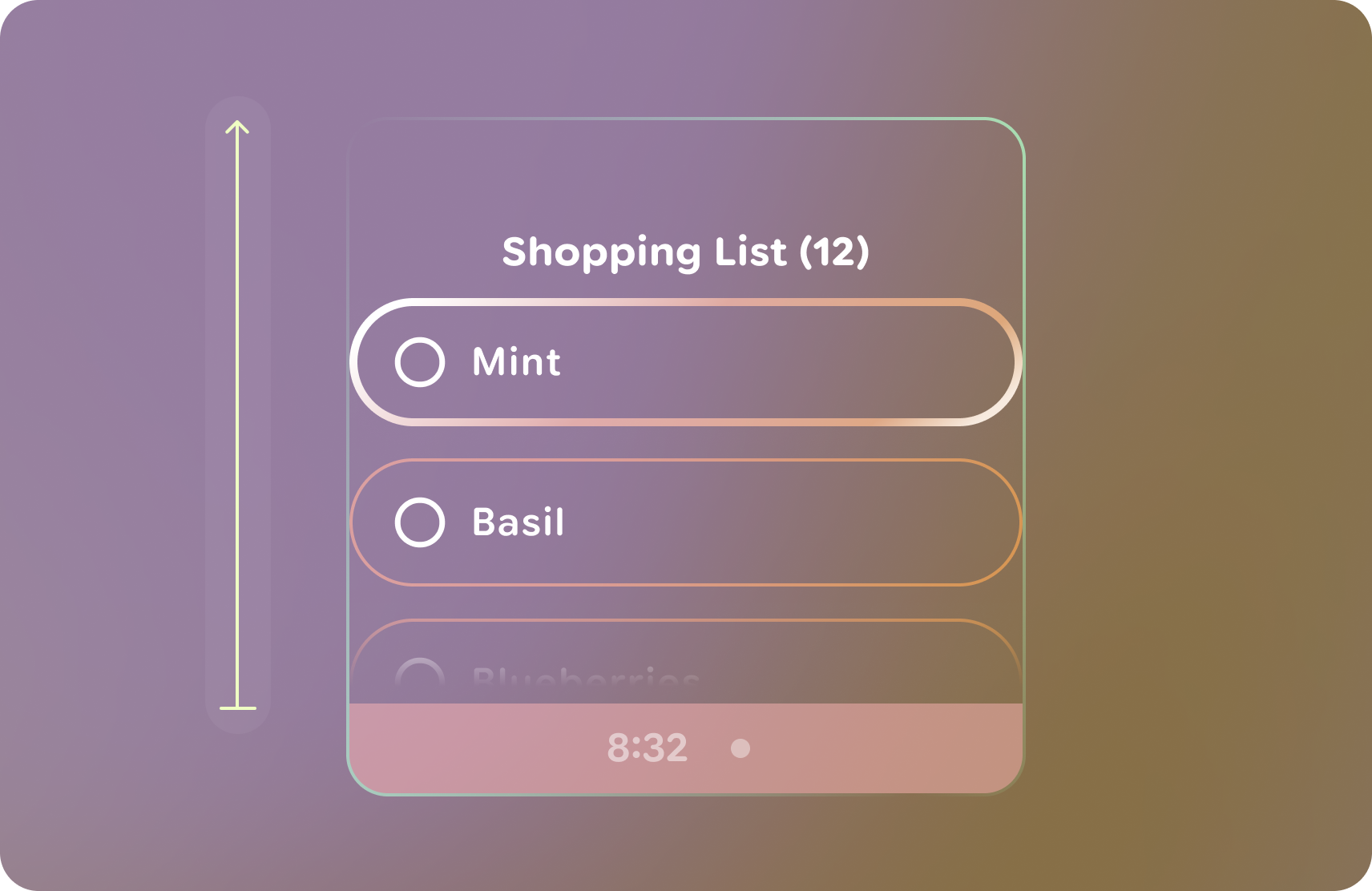
- When designing your app, anchor elements to the bottom of the canvas, to build upwards.
- Content should avoid being centered vertically and remain minimal and thoughtful as to be less distracting in the user's vision.
- Depth is used for visual hierarchy.
- Outside of notifications, apps cannot use the system bar space. When not in use, it's invisible.
- Apps can scroll, but try to keep the number of items minimal to reduce cognitive load and minimize on-frame interactions.
- Balance the amount of voice interaction needed versus physical gestures, sometimes a physical gesture is preferred.
Entry points
Since your glasses app is an extension to your core app experience, consider handoff from the phone as the current primary entry point. You should expect future entry points from the system UI or AI capabilities as the glasses form factor matures.
Handoff from phone
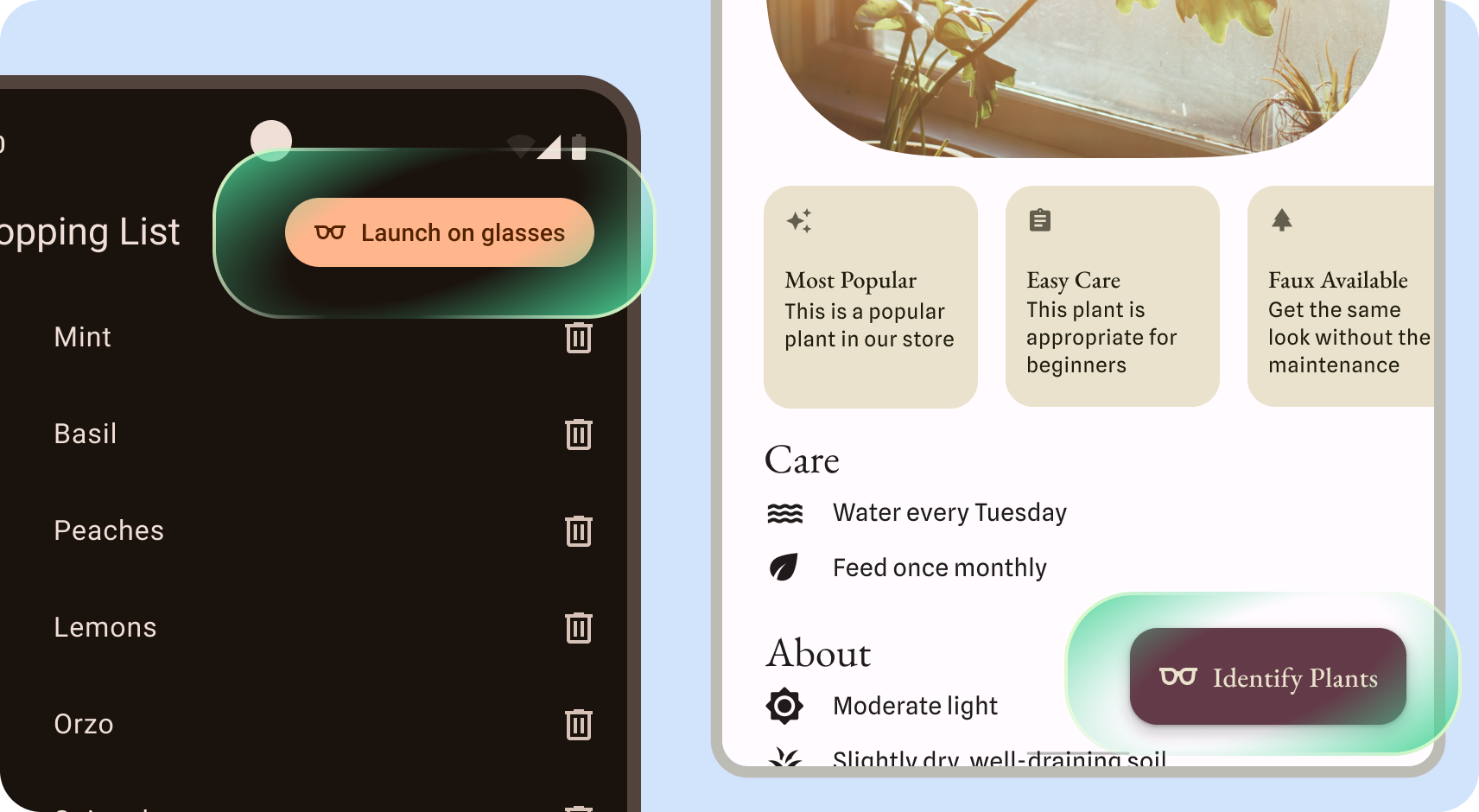
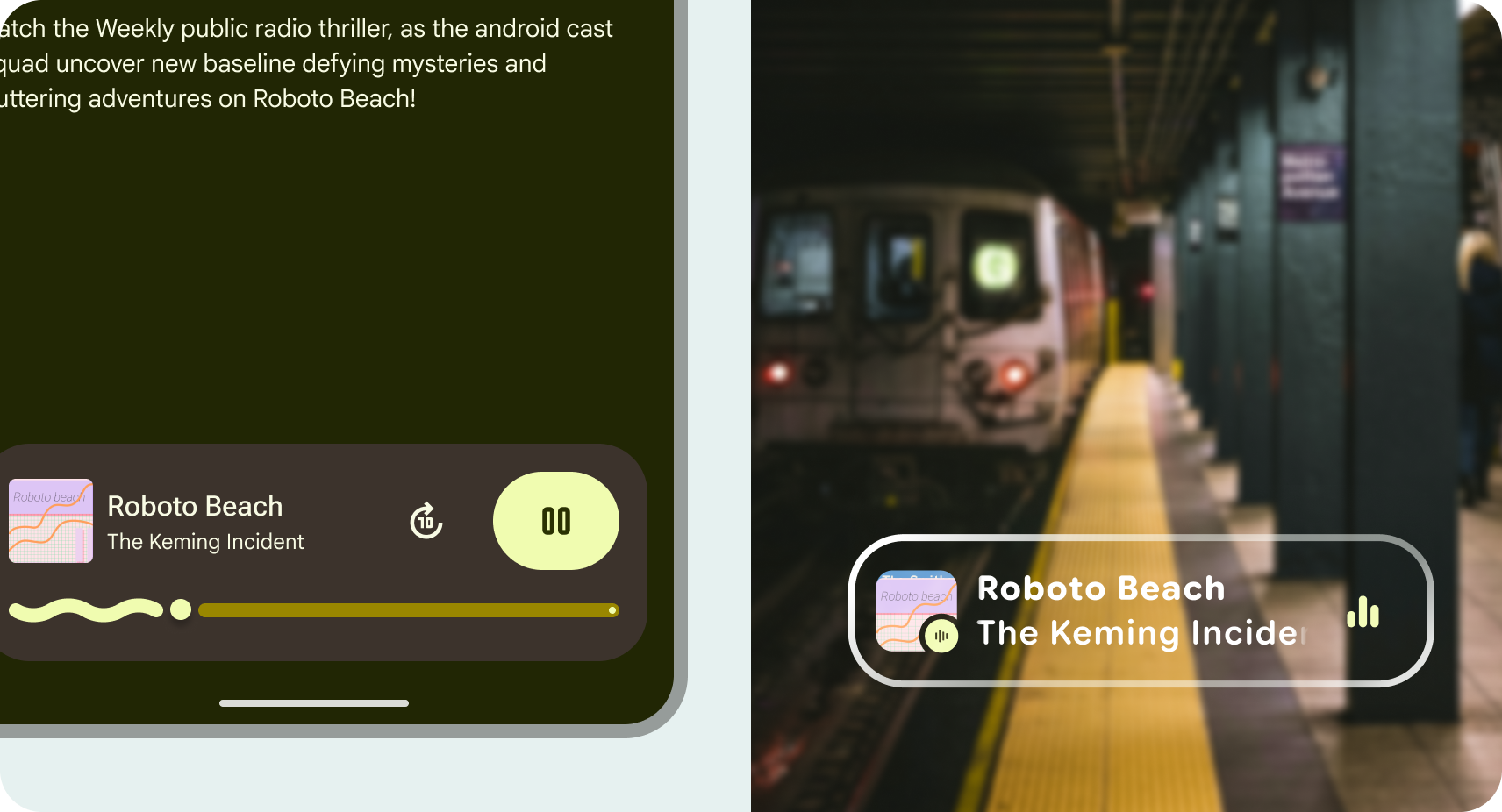
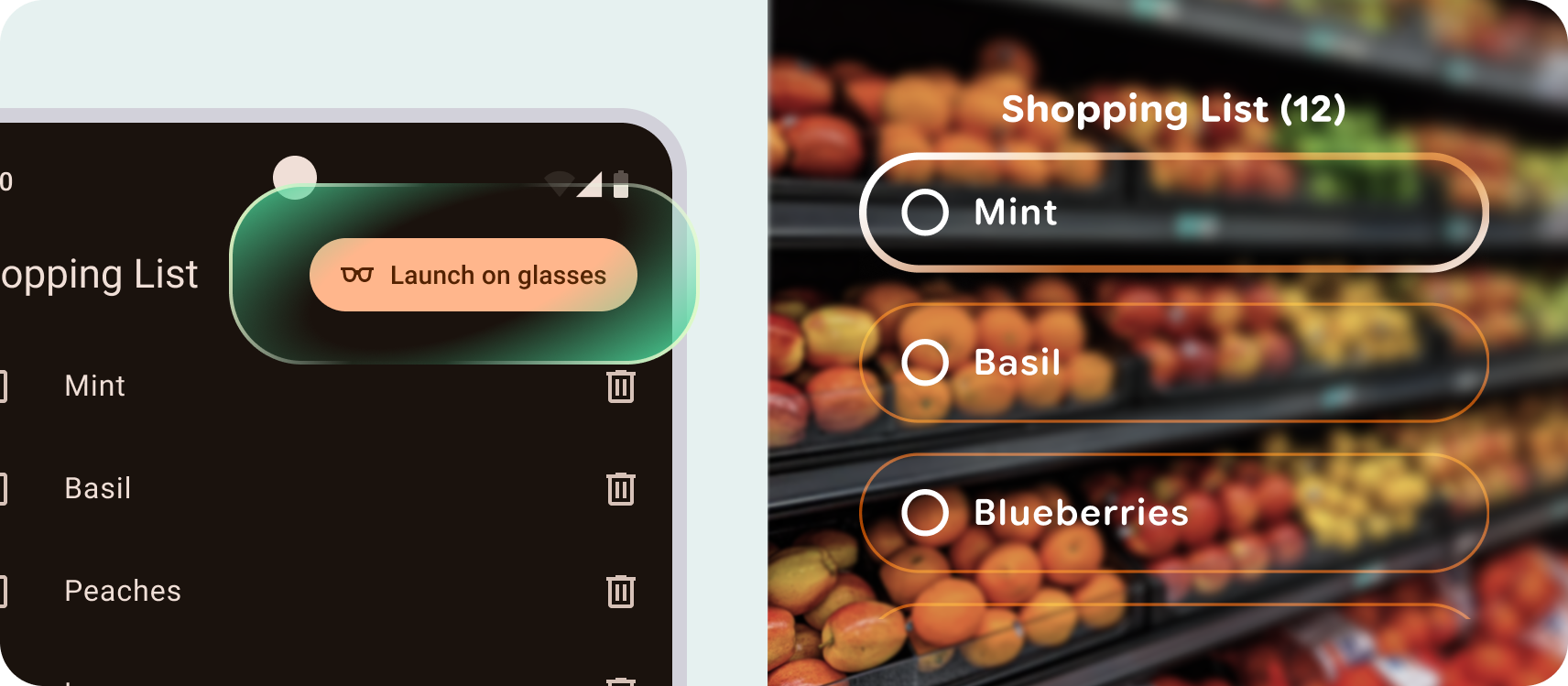
Start an app on your glasses from your phone with an explicit action or implicit handoff.
Implicit handoff can occur automatically as a natural part of a user flow to launch part of the glasses experience. For example, starting navigation displays turn-by-turn on glasses or media playback has a visual indication on glasses.
Explicit handoff requires a user interaction within the mobile app to launch the glasses experience. For example, toggling the camera on from the app or a button that launches the glasses app. Clearly indicate with an eyeglasses icon and optional "Launch on glasses" label.
Customization
Apps on glasses provide flexibility over the user experience and UI design.
The UI framework provides a highly-optimized base set of components, like lists and cards, and base styles, color and typography. Any customization should be thoughtfully done to help communicate to your users or reflect your brand.
Learn more about Jetpack Compose Glimmer styles