
Set up Android Studio for Platform (ASfP) in a few steps. First, verify the system requirements, and then download the latest version of ASfP.
Linux system requirements
The following table lists the Linux system requirements. Because ASfP indexes large AOSP source trees and defaults to a 30 GB maximum heap size, 32 GB or more of system RAM is recommended:
| Requirement | Minimum | Recommended |
|---|---|---|
| OS | Any 64-bit Linux distribution that supports GNOME, KDE, or Unity DE; GNU C Library (glibc) 2.31 or later. | Latest 64-bit version of Linux (Ubuntu or Debian recommended) |
| RAM | 16 GB RAM | 32 GB RAM or more (ASfP defaults to a 30 GB max heap size) |
| CPU | x86_64 CPU architecture; second-generation Intel Core or later, or AMD processor with support for AMD Virtualization (AMD-V) and SSSE3. | Modern multi-core Intel or AMD workstation processor |
| Disk space | 16 GB (IDE, indexes, and Android SDK or Emulator) | NVMe SSD with 50 GB+ free space (in addition to AOSP checkout) |
| Screen resolution | 1280 x 800 | 1920 x 1080 or higher |
Install on Linux
Download the
.debpackage from the ASfP download page, or fetch the latest release from the command line using the persistent channel URLs:Latest Stable (
asfp-current-linux.deb):curl -LO https://dl.google.com/android/asfp/asfp-current-linux.debLatest Canary (
asfp-canary-current-linux.deb):curl -LO https://dl.google.com/android/asfp/asfp-canary-current-linux.deb
Install the downloaded
.debpackage usingapt(which resolves any required system dependencies):sudo apt update sudo apt install ./asfp-current-linux.debThe default installation location is
/opt/android-studio-for-platform/(or/opt/android-studio-for-platform-canary/for Canary builds).Launch ASfP by running the
studio.shscript in thebindirectory of your installation:/opt/android-studio-for-platform/bin/studio.shOn the first launch, ASfP prompts you to import previous settings (if any) and guides you through the Project Setup Wizard to create a project from scratch or import a shared
.asfp-projecttemplate.Optional: To launch ASfP from your system application launcher, select Tools > Create Desktop Entry from the ASfP menu bar.
Optional: To launch ASfP from any terminal directory, add the
bindirectory to yourPATHin~/.bashrcor~/.zshrc:export PATH="$PATH:/opt/android-studio-for-platform/bin"Run
source ~/.bashrc(or open a new terminal) for the changes to take effect.
Update Android Studio for Platform
Starting with ASfP 2026.2.2 Canary 1, ASfP automatically checks for new
releases in the background and notifies you directly inside the IDE. If you're
using an earlier version of ASfP, download and install the latest .deb package
once from the ASfP download page to receive automatic update
notifications for future releases.
In-IDE update notifications
When a later version of ASfP is available, an update notification appears in the main toolbar settings menu and opens the Android Studio and Plugin Updates dialog:
- Check for updates: Select Help > Check for Updates at any time.
Download and install: Click Download in the Android Studio and Plugin Updates dialog to download the new
.debpackage, and then install it in your terminal:sudo apt install ./<asfp-package>.deb
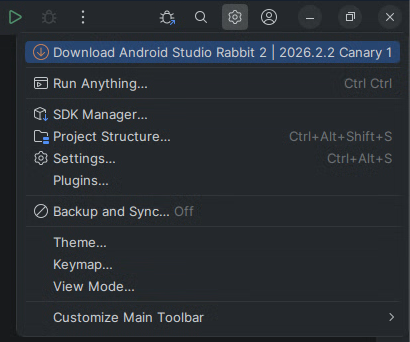
On-disk version mismatch detection
If you install an updated .deb package in your terminal while ASfP is running,
ASfP detects that the installation on disk has changed and displays a
notification banner prompting you to restart the IDE.