

TIER 1 — The top-quality tier of the Adaptive app quality guidelines.

APPS DIFFERENTIATED FOR LARGE SCREENS create a user experience not possible on small screen devices.
Large screen differentiated apps make multitasking and drag and drop convenient and simple. Differentiated apps support the unique features of foldable devices, like tabletop posture, for a user experience other types of devices can't match.
External keyboard, mouse, and trackpad support are on par with desktop computers. Comprehensive stylus support makes the stylus an integral part of the device.
Do's and don'ts
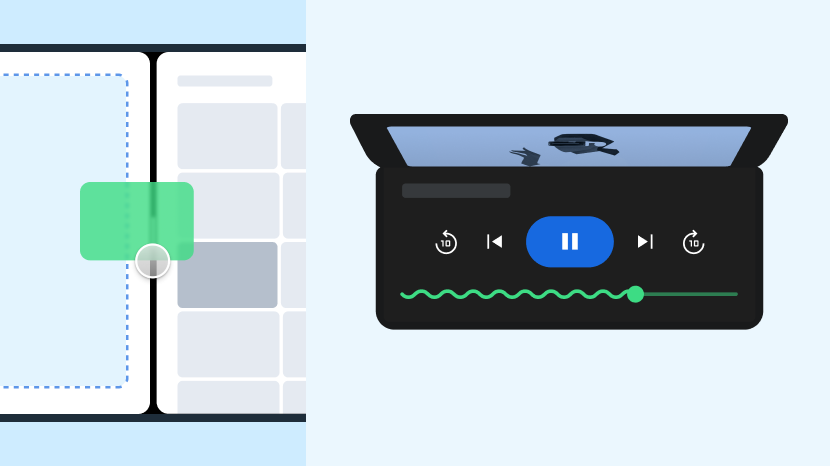
Do
- Think big
- Design custom layouts and behaviors
- Make your app different from anything else
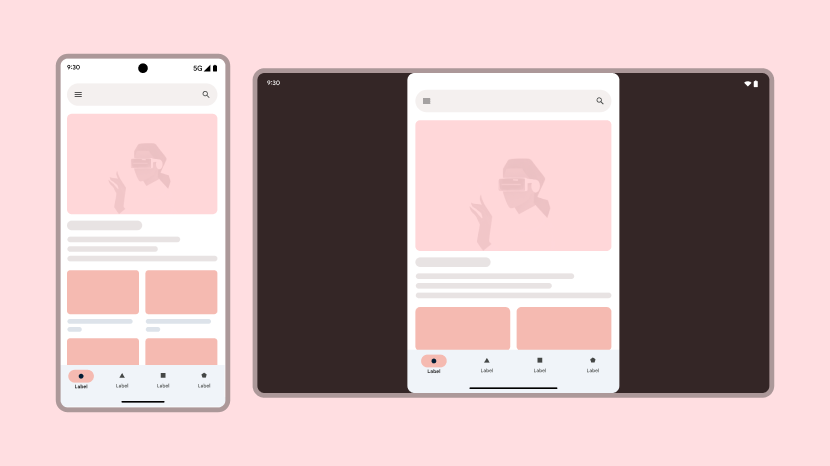
Don't
- Settle for less
- Design for just one or two device types
- Let your app be unremarkable
Guidelines
Differentiate your app by following the Tier 1 guidelines.
Desktop
Deliver a desktop experience on Android by supporting connected displays, peripheral devices, and desktop functionality.

User experience
A top-quality user experience bridges the gap between mobile convenience and desktop power, enabling users to remain focused and productive.
What
App has adaptive, user-configurable layouts, including collapsible, reconfigurable panels. The app displays a scrollbar while content is being scrolled by a mouse or trackpad. UI elements display additional content such as previews and tooltips on hover. Users can display apps fullscreen.
Why
Expansive, configurable screen space and precision input provide a focused and adaptable workflow. Desktop-style UI elements allow users to stay on task without constant navigation.
How
For more about creating refined user experiences, see the User experience overview.

Keyboard, mouse, and trackpad
Provide full support for external input devices.
What
App supports efficient navigation with a keyboard, including distinct, consistent focus states and initial focus on appropriate UI elements. The app provides keyboard shortcut parity with web and desktop versions and enhanced selection capabilities using keyboard and mouse or trackpad combinations.
Why
Give users all the input capabilities possible with keyboard, mouse, and trackpad.
How
To learn how to support advanced input capabilities, see the Keyboard, mouse, and trackpad overview.

Multitasking and multi-instance
Make users more productive with multitasking on large screens.
Guidelines:
What
App supports all multitasking modes, including multi‑window, multi‑instance, and picture‑in‑picture.
Why
Large screens provide plenty of display space for users to work with multiple apps simultaneously.
How
Learn how to include your app in multitasking in the Multi-tasking and multi-instance overview.

Drag and drop
The desktop environment is perfect for drag and drop interactions—within an app or, on Android 7.0 (API level 24) and higher, between apps in multi‑window mode.
Guidelines — Drag_Drop_Support
What
App supports drag and drop within the app and to and from other apps using touch input, mouse, trackpad, and stylus.
Why
Increase user productivity and engagement by adding drag and drop capabilities to your app.
How
See the Drag and drop overview.

Printing and file management
Desktop users rely on efficient file access and the ability to produce printed or electronic documents.
What
App provides support for document printing and exporting to PDF format. The app also implements file management functionality, integration with the OS file picker, and file handler declarations.
Why
Desktop productivity requires powerful, convenient file access and management along with the ability to output digital content to a variety of formats.
How
Learn how to work with files in the Printing and file management overview.

Cursors
Provide context and precision control for mouse, trackpad, and stylus interactions.
Guidelines — Custom_Cursors and Cursor_Target_Size
What
App displays differentiating cursors such as an I-beam for text and resize handles for panels. Cursor target sizes match visual boundaries of UI components for high interactive precision.
Why
Differentiated cursors provide immediate feedback on how users can interact with UI elements, creating a refined and productive user experience.
How
See the Cursors overview.

Cross device
Continuity from device to device allows users to work seamlessly across their Android ecosystem.
Guidelines — Cross_Device_Handoff
What
App allows users to start a task on one Android device and seamlessly transition to another by restoring a near-equivalent state.
Why
Users often work with multiple devices and expect a continuous, uninterrupted workflow.
How
Learn about cross-device development in the Cross device overview.

Offline support
Reliable offline functionality ensures productivity regardless of network availability.
Guidelines — Offline_Support
What
App enables core functionality while offline and provides clear notifications of connection requirements and graceful degradation when online connectivity is limited or unavailable.
Why
Users expect to remain productive regardless of the quality or availability of their network connection.
How
Learn about building for app usage offline in the Offline support overview.

App to web
Smooth transitions between app and web content maintain user flow and application context.
Guidelines — Web_Transition
What
App transitions smoothly between app content and related web content (and vice versa).
Why
Proper handling of deep links and web content avoids a fragmented user experience and maintains user focus.
How
Learn about handling web content in the App to web overview.
Foldables
Differentiate your app by supporting the unique features of premium foldable devices.

Foldable postures and states
Large screen foldable devices are like a phone and tablet in one. Folding features such as tabletop posture and book posture offer new user experience possibilities.
Guidelines — Foldables_Postures and Foldables_Camera
What
App supports all foldable postures, including tabletop posture, book posture, and dual display. App also supports dual‑screen devices.
Why
Differentiate your app by supporting the unique features of foldable devices.
How
Unfold the facts in the Foldables overview.
Camera • audio
Enable engaging media experiences.

Camera
Support for external cameras enables a professional photography and video experience.
Guidelines — Camera_Switcher
What
App includes switchers to toggle between the device's built-in cameras and external devices.
Why
Large screen users often connect cameras for meetings or content production.
How
Learn more about camera support in the Camera • audio overview.

Audio
Premium listening experiences are defined by a choice of available devices and uninterrupted playback and control across all windowing and device states.
Guidelines — Audio_Switcher and Audio_Background_Playback
What
App supports switching between built‑in audio devices, such as a speaker or microphone, and connected devices. The app also supports background playback when minimized or behind other windows or the device screen is locked.
Why
Users expect audio apps to support peripheral devices and continue playing as users manage other windowing tasks.
How
See the Camera • audio overview.
Stylus
Support the natural feel of stylus interactions for creativity and productivity tasks.

Stylus support
Top-tier apps support stylus-equipped devices. A stylus enables users to draw, write, erase, and work with your app using a variety of touch and gesture interactions.
Guidelines:
What
App provides stylus support for drawing, writing, erasing, drag and drop, pressure sensitivity, tilt detection, and palm and finger rejection.
Why
Provide an exceptional user experience on premium devices. Enhance user productivity and satisfaction.
How
For guidance about advanced stylus support, see the Stylus overview.