


Spatial Containers bring volumetric windowing to OpenXR. Defined by the
XR_EXT_spatial_container and
XR_EXT_spatial_container_self_rendering extensions in OpenXR
1.1, a spatial container is a system-managed 3D volumetric region in the user's
space where your app renders 3D content using standard OpenXR composition
layers.
Traditionally, an OpenXR session claims exclusive access to the user's entire field of view. Spatial Containers let your app render 3D OpenXR content inside a bounded 3D box in the user's environment, or transition into an unbounded, full-screen immersive experience at any time.
About Spatial Containers
A spatial container is a bounded or unbounded 3D region that is managed by the Android XR system and rendered by your OpenXR app:
- Bounded mode: Your app suggests 3D dimensions (width, height, and depth in meters), and the system allocates a 3D bounding box in the user's environment. Your app renders stereo 3D content inside the volume, and the system clips rendered content to the boundaries of the 3D box.
- Immersive mode: The spatial container expands to infinite bounds, giving your app the user's entire field of view like a traditional full-screen OpenXR session.
How users interact with Spatial Containers
The Android XR system manages the spatial container's window controls and placement in physical space, providing a consistent interaction model across apps:
- Moving and repositioning: Users can grab a spatial container's system handle using hand gestures (such as pinching) or motion controllers to reposition it in 3D space.
- Minimizing and closing: System window controls let users minimize or close individual spatial containers. When a user closes a container, the system notifies your app so it can clean up resources.
- Locking to the floor with scene understanding: When your app declares
and requests the
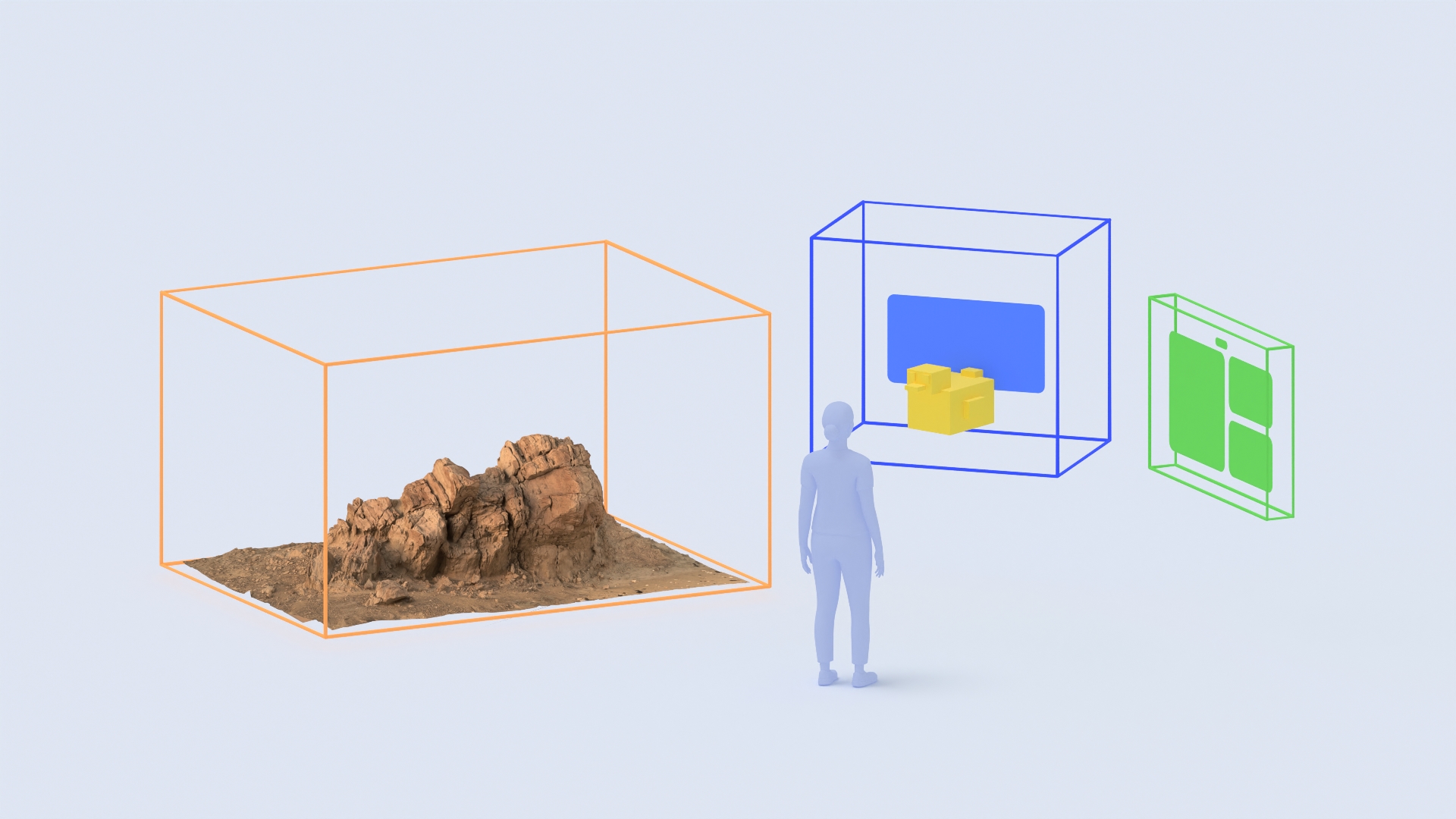
android.permission.SCENE_UNDERSTANDING_COARSEpermission, the system automatically enables surface snapping so users can place and lock a spatial container to the physical floor without additional app configuration, as shown by the orange terrain container in Figure 1. - Direct 3D interaction: When a container is focused and interactive, users can interact directly with the 3D content inside the volume using hand tracking, eye gaze, or 6DoF controllers.
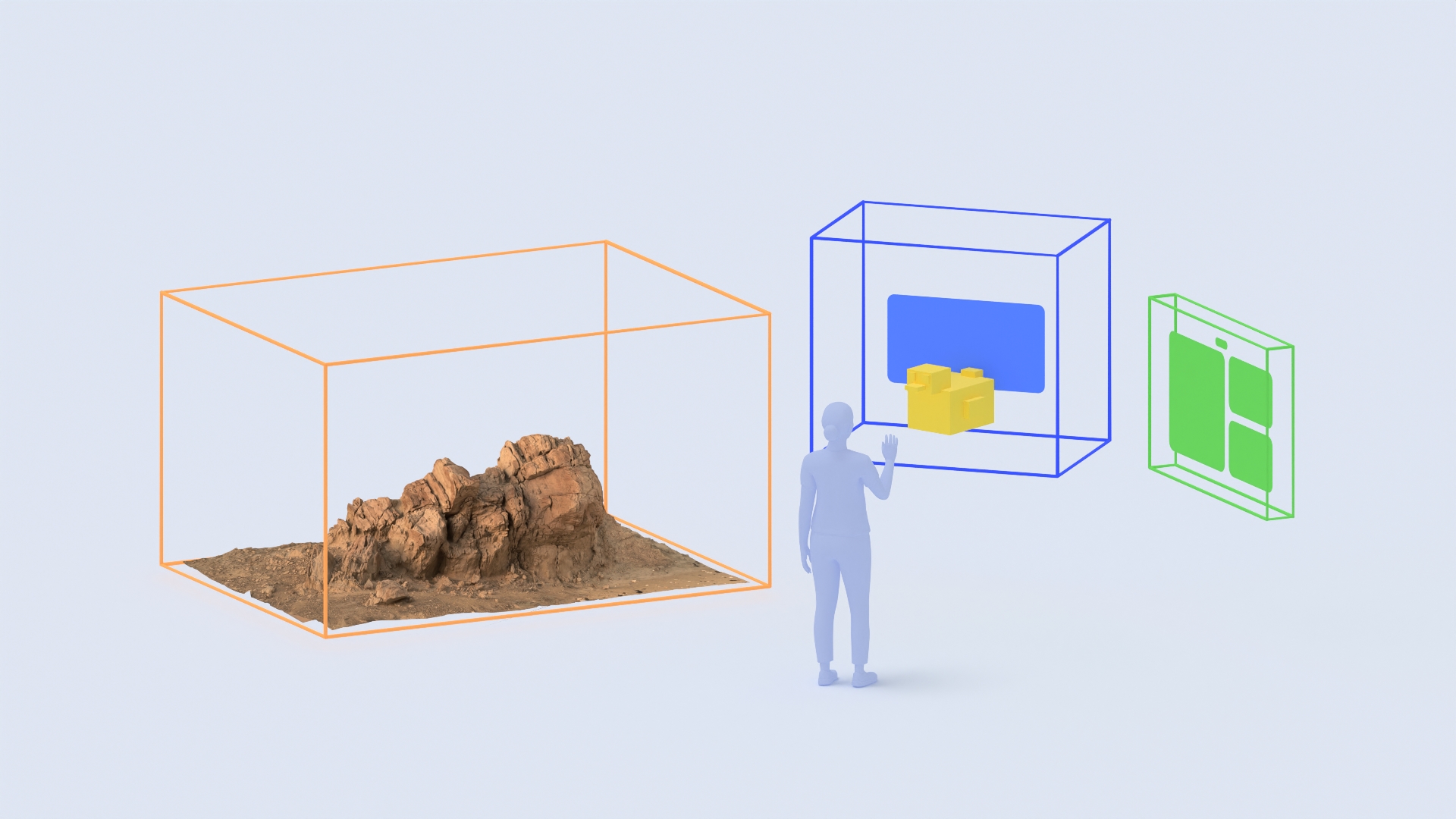
- Transitioning between bounded and immersive modes: Either the user or your app can switch a container between a bounded 3D box and an unbounded full-screen immersive view without restarting the OpenXR session.

- Follow mode on the go: Because the system controls the pose of each
spatial container's coordinate space (
xrCreateSpatialContainerSpaceEXT), users can enable follow mode from the system window controls so a bounded 3D container automatically follows them and stays in their field of view while they walk around—without requiring any additional configuration in your app.
How to use Spatial Containers on Android XR
When building an app with Spatial Containers, design your scene around the container's bounds, state changes, and background blend mode.
Adapt your 3D content to container bounds
In bounded mode, the origin (0, 0, 0) of the spatial container space
(xrCreateSpatialContainerSpaceEXT) is at the center of the 3D bounding box.
Because the system manages the container space's pose in the user's
environment, your app renders its 3D content relative to (0, 0, 0) while the
system handles user repositioning and follow mode. The system clips any geometry
rendered outside the box's width, height, or depth so that content stays within
its assigned volume.
Your app should listen for bounds change events from the runtime and scale or reposition your 3D scene so that key content fits within the container's current dimensions. When the container transitions to immersive mode, the bounds become infinite and you can restore your scene to its full 1:1 world scale.
Respond to container state changes
Instead of managing visibility and focus only at the application level, each spatial container reports its own state so your app can react accordingly:
- Visibility: Indicates whether the container is currently shown or hidden. Pause animations, audio, or simulation updates while the container is hidden. Your app can also request to show or hide a container.
- Interactability: Indicates whether the container is focused and receiving user input from hand tracking, controllers, or eye gaze. Enable or disable interactive highlights and input handling when focus changes.
- Bounds mode: Indicates whether the container is currently in
XR_SPATIAL_CONTAINER_BOUNDS_MODE_BOUNDED_EXT(clipped to a 3D box) orXR_SPATIAL_CONTAINER_BOUNDS_MODE_IMMERSIVE_EXT(unbounded full-screen). Update your scene scale and toggle environment visuals (such as skyboxes or passthrough) when the mode changes. Your app can also request transitions between bounded and immersive modes at any time.
Use alpha-blended transparency in bounded mode
In bounded mode, a transparent background lets the user's physical surroundings and other windows remain visible around your 3D models. Configure your camera or viewport with a transparent background and use the alpha-blend environment blend mode. When switching to immersive mode, you can either keep passthrough enabled or switch to an opaque skybox environment.
Check feature availability and configure your manifest
Spatial Containers require an Android XR device supporting Spatial API Level
4 or higher. Rather than checking the Android API level directly, query the
OpenXR runtime to determine whether Spatial Containers are supported by calling
xrEnumerateInstanceExtensionProperties to verify that
XR_EXT_spatial_container and XR_EXT_spatial_container_self_rendering are
available, and calling xrGetSystemProperties with
XrSystemSpatialContainerPropertiesEXT to inspect supportsBounded and
supportsImmersive.
Before building an app that uses Spatial Containers, configure your activity
start mode and any feature-specific permissions in AndroidManifest.xml.
Enable Full Space Mode in AndroidManifest.xml
Spatial Containers require Full Space Managed mode, even for standalone OpenXR
apps. Traditional full-screen OpenXR apps declare
XR_ACTIVITY_START_MODE_FULL_SPACE_UNMANAGED to take exclusive control of the
display without system window management. By contrast, an app using Spatial
Containers relies on the Android XR system compositor to manage 3D bounded
volumes, window controls, and spatial placement in Full Space Mode, and must set
android.window.PROPERTY_XR_ACTIVITY_START_MODE to
XR_ACTIVITY_START_MODE_FULL_SPACE_MANAGED:
<manifest xmlns:android="http://schemas.android.com/apk/res/android">
    <application ...>
        <!-- Spatial Containers require Full Space Managed mode -->
        <property
            android:name="android.window.PROPERTY_XR_ACTIVITY_START_MODE"
            android:value="XR_ACTIVITY_START_MODE_FULL_SPACE_MANAGED" />

        <activity android:name=".MainActivity" ...>
            <!-- Optional hint declaring which bounds modes the activity uses -->
            <property
                android:name="org.khronos.openxr.PROPERTY_ACTIVITY_HINT_XR_SPATIAL_CONTAINER_USED_BOUNDS_MODES"
                android:value="XR_SPATIAL_CONTAINER_BOUNDS_MODE_BOUNDED_EXT|XR_SPATIAL_CONTAINER_BOUNDS_MODE_IMMERSIVE_EXT" />
        </activity>
    </application>
</manifest>
Declare and request feature-specific permissions
Creating and rendering a basic spatial container does not require dangerous runtime permissions. However, specific features require declaring and requesting the corresponding Android XR permissions:
- To lock and anchor a spatial container to the physical floor using scene
understanding, declare and request the dangerous
android.permission.SCENE_UNDERSTANDING_COARSEpermission at runtime. - To track the user's head pose in OpenXR, declare and request
android.permission.HEAD_TRACKING.
<uses-permission android:name="android.permission.HEAD_TRACKING" />
<uses-permission android:name="android.permission.SCENE_UNDERSTANDING_COARSE" />
See Understand permissions for XR for details on declaring and requesting dangerous XR permissions at runtime.
Enable Spatial Containers in your project
You can build with Spatial Containers using Unity, Godot, or directly with OpenXR in C++. Select a tab to see the prerequisites, editor setup, and code example for your preferred environment:
Unity
Prerequisites
- Unity version: Unity 6 version 6000.0.58f2 or higher.
- Project setup: Complete all steps in the Unity project setup guide.
- Unity packages: Install version 1.5.0 or higher of the Android XR Extensions for Unity package.
Configure your project
- Navigate to Edit > Project Settings > XR Plug-in Management > OpenXR.
- Click Settings next to Android XR (Extensions): Session Management and clear Immersive XR.
- In the OpenXR Feature Groups list, enable Spatial Container.
Use XRSpatialContainerFeature in C# to query bounds, respond to
container events, and switch between bounded and immersive modes:
void OnEnable()
{
    XRSpatialContainerFeature.OnSpatialContainerBoundsChanged += OnBoundsChanged;
}

private void OnBoundsChanged(Vector3 bounds, bool infiniteBounds)
{
    float minScale = Mathf.Min(bounds.x, bounds.y, bounds.z);
    transform.localScale = infiniteBounds ? Vector3.one : Vector3.one * minScale;
}

public void SetImmersiveMode(bool immersive)
{
    XRSpatialContainerFeature.TryRequestBoundsMode(immersive);
}
For complete project setup steps, manifest configuration, and permission handling, see Use Spatial Containers in Unity.
Godot
Prerequisites
- Godot version: Godot 4.8-dev or higher.
- Project setup: Complete all steps in the Godot Engine project setup guide.
- Godot OpenXR Vendors Plugin: Install version 5.2 or higher of the Godot OpenXR Vendors Plugin.
Configure your project
- Navigate to Project > Project Settings, enable Advanced Settings, and go to General > XR > OpenXR > Extensions.
- Under the Spatial Container subsection, select Enabled and configure Bounds Mode and Bounds.
- Navigate to Project > Export... > Android and select Use Experimental Features under Android XR Features.
Use the OpenXRSpatialContainerExtension singleton in GDScript to respond
to container bounds and mode changes:
func _ready() -> void:
    if OpenXRSpatialContainerExtension.is_enabled():
        OpenXRSpatialContainerExtension.spatial_container_bounds_changed.connect(
            _on_bounds_changed
        )

func _on_bounds_changed(_rid: RID, bounds: Vector3) -> void:
    scale = Vector3.ONE * min(bounds.x, bounds.y, bounds.z)

func set_immersive_mode() -> void:
    OpenXRSpatialContainerExtension.request_main_spatial_container_bounds_mode(
        OpenXRSpatialContainerState.IMMERSIVE
    )
For complete project settings, export permissions, and GDScript examples, see Use Spatial Containers in Godot.
OpenXR
Prerequisites
- OpenXR version: OpenXR 1.1 headers with
XR_EXT_spatial_containerandXR_EXT_spatial_container_self_rendering. - Manifest setup: Configure your app manifest as described in
Get started with OpenXR for Android XR, using
XR_ACTIVITY_START_MODE_FULL_SPACE_MANAGED.
Enable XR_EXT_spatial_container and
XR_EXT_spatial_container_self_rendering when creating your XrInstance,
then create and render your spatial container:
// 1. Enable the Spatial Container extensions during xrCreateInstance
const char* enabledExtensions[] = {
    XR_EXT_SPATIAL_CONTAINER_EXTENSION_NAME,
    XR_EXT_SPATIAL_CONTAINER_SELF_RENDERING_EXTENSION_NAME,
};

// 2. Configure and create a self-rendering spatial container
XrSpatialContainerConfigurationSelfRenderingEXT selfRenderingConfig{
    .type = XR_TYPE_SPATIAL_CONTAINER_CONFIGURATION_SELF_RENDERING_EXT,
    .next = nullptr,
    .viewConfigurationType = XR_VIEW_CONFIGURATION_TYPE_PRIMARY_STEREO,
    .suggestedBounds = {1.5f, 1.5f, 1.5f}, // Width, height, depth in meters
};

XrSpatialContainerCreateInfoEXT createInfo{
    .type = XR_TYPE_SPATIAL_CONTAINER_CREATE_INFO_EXT,
    .next = &selfRenderingConfig,
    .spatialContainerConfig =
        reinterpret_cast<const XrSpatialContainerConfigurationBaseHeaderEXT*>(
            &selfRenderingConfig),
};

XrSpatialContainerEXT spatialContainer = XR_NULL_HANDLE;
xrCreateSpatialContainerEXT(session, &createInfo, &spatialContainer);

// 3. Request bounded mode and make the container visible
xrRequestSpatialContainerBoundsModeEXT(
    spatialContainer, XR_SPATIAL_CONTAINER_BOUNDS_MODE_BOUNDED_EXT);
xrRequestSpatialContainerVisibilityEXT(spatialContainer, XR_TRUE);
See also
OpenXR™ and the OpenXR logo are trademarks owned by The Khronos Group Inc. and are registered as a trademark in China, the European Union, Japan and the United Kingdom.