


Spatial Containers let your app render 3D OpenXR content inside a system-managed 3D volumetric bounding box in Full Space Mode, or transition at runtime into a full-screen unbounded experience.
Follow this guide to configure and use Spatial Containers in your project.
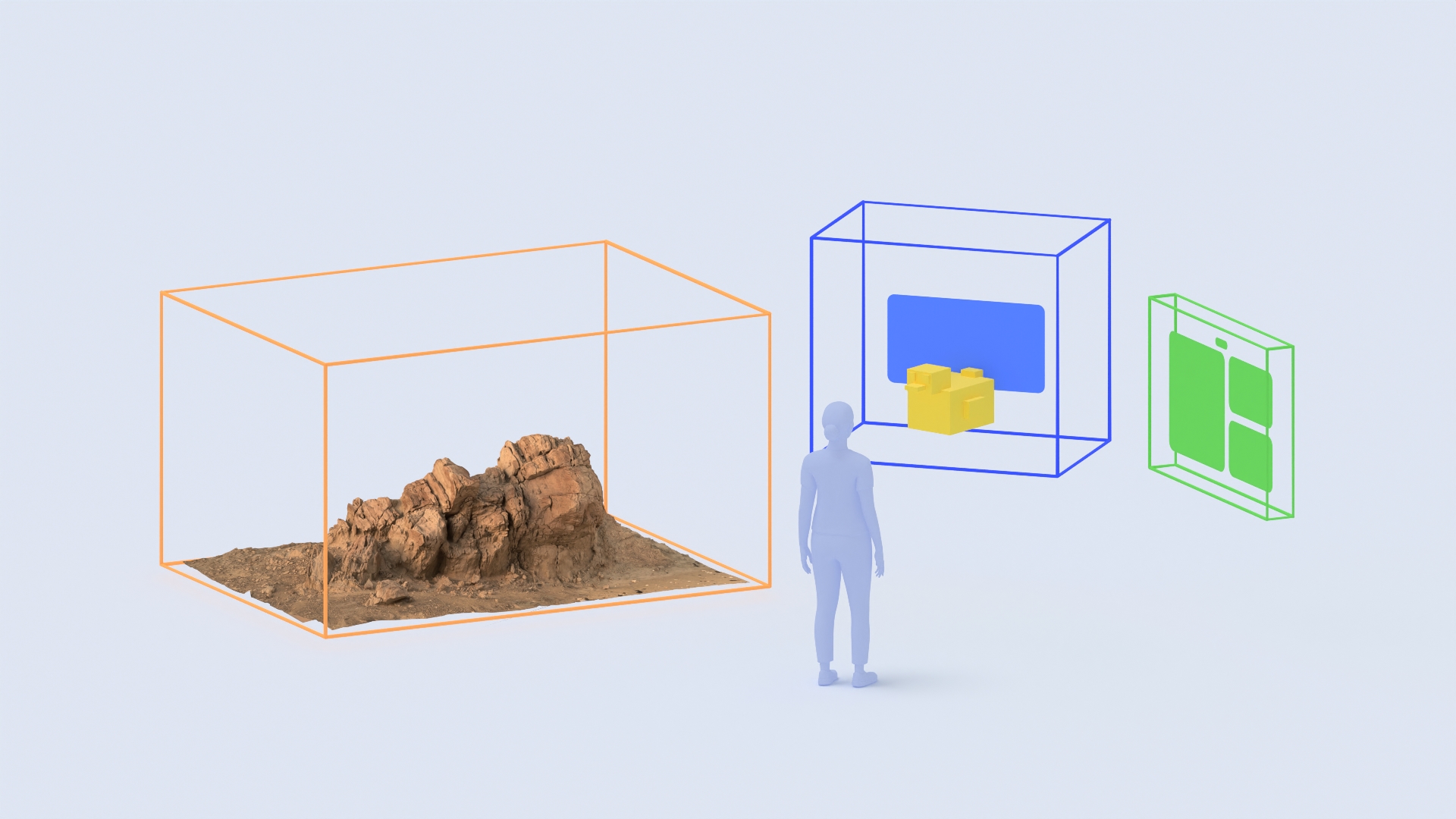
How Spatial Containers work
When you enable Spatial Container in your project settings:
- Your entire active 3D scene is placed inside a single primary spatial
container centered at the scene origin
(0, 0, 0). You don't need to tag or assign individualNode3Dnodes to place them inside the container. - Your app launches into managed Full Space Mode using the Bounds Mode
(
BoundedorImmersive) and initial Bounds dimensions configured in your project settings. In bounded mode, the system automatically clips any 3D geometry in your scene that extends outside the bounding box's dimensions. - By default, the Android XR system provides window controls so the user can
grab, move, and reposition the bounded container in 3D space, or minimize
and close it. At runtime, your app can resize the container, switch between
bounded mode (
OpenXRSpatialContainerState.BOUNDED) and full-screen immersive mode (OpenXRSpatialContainerState.IMMERSIVE), and react to bounds and state changes using theOpenXRSpatialContainerExtensionsingleton.
Prerequisites
Before beginning, ensure your development environment and target device meet the following requirements:
- Godot version: Godot 4.8-dev or higher.
- Project setup: Complete all steps in the Godot Engine project setup guide.
- Godot OpenXR Vendors Plugin: Install version 5.2 or higher of the Godot OpenXR Vendors Plugin, which enables support for Android XR specific extensions.
- Target device: An Android XR device supporting Spatial API Level 4
or higher. At runtime, call
OpenXRSpatialContainerExtension.is_enabled()to verify whether the extension is available on the device.
Enable Spatial Containers in project settings
Configure your project settings to enable OpenXR, Spatial Containers, automatic runtime permissions, and alpha-blended passthrough:
- Open Project > Project Settings.
- Enable the Advanced Settings toggle in the top-right corner of the Project Settings window.
- Navigate to General > XR > Shaders and select Enabled.
- Navigate to General > XR > OpenXR and configure the following settings:
- Select Enabled to turn on OpenXR for the project.
- Set Environment Blend Mode to Alpha Blend.
- Also under OpenXR, go to the Extensions section and configure the
following settings:
- Select Automatically Request Runtime Permissions so your app automatically prompts the user at startup for any XR permissions declared in your Android manifest.
- Under the Spatial Container subsection, select Enabled.
- Set Bounds Mode to Bounded to launch in a 3D bounding box, or Immersive to launch in full-screen immersive mode.
- Set Bounds to the initial width, height, and depth dimensions in
meters, such as
Vector3(1.0, 1.0, 1.0).
- Navigate to General > Rendering > Viewport and select Transparent Background.
Configure Android export, permissions, and Full Space Mode
Next, configure your Android export preset, permissions, and activity start mode so your app runs in Full Space Mode with Spatial Containers enabled.
Configure the Android export preset
- Go to Project > Export... and select your Android export preset.
Under Gradle Build, select Use Gradle Build and set Min SDK to
34or higher.
Under XR Features, set XR Mode to OpenXR and select Enable AndroidXR Plugin.

Under Android XR Features, select Use Experimental Features.
Add scene understanding permissions for floor locking
Creating and rendering a basic spatial container does not require dangerous
runtime permissions (and android.permission.HEAD_TRACKING is added to the
manifest automatically when Use Experimental Features is enabled). However,
if your app uses scene understanding features such as locking and anchoring a
spatial container to the physical floor, your app must declare and request the
android.permission.SCENE_UNDERSTANDING_COARSE permission at runtime.
See Understand permissions for XR for details on Android XR permissions.
If your app uses floor locking or scene understanding, declare and request
android.permission.SCENE_UNDERSTANDING_COARSE:
In Project > Export... > Android, go to Permissions > Custom Permissions and add
android.permission.SCENE_UNDERSTANDING_COARSE.When you select Automatically Request Runtime Permissions in Project Settings > General > XR > OpenXR > Extensions, your app automatically requests the permission when OpenXR starts. If you need to request the permission manually in GDScript instead, call
OS.request_permission():if not OS.get_granted_permissions().has("android.permission.SCENE_UNDERSTANDING_COARSE"): OS.request_permission("android.permission.SCENE_UNDERSTANDING_COARSE")
Configure Full Space Mode
Spatial Containers on Android XR only support Full Space Mode
(XR_ACTIVITY_START_MODE_FULL_SPACE_MANAGED). Make sure your Android activity
declares XR_ACTIVITY_START_MODE_FULL_SPACE_MANAGED in your custom build
template (android/build/AndroidManifest.xml, installed using Project >
Install Android Build Template...):
<manifest ...>
    <application ...>
        <property
            android:name="android.window.PROPERTY_XR_ACTIVITY_START_MODE"
            android:value="XR_ACTIVITY_START_MODE_FULL_SPACE_MANAGED"
            tools:replace="android:value" />
        ...
    </application>
</manifest>
Work with Spatial Containers in GDScript
The OpenXRSpatialContainerExtension singleton and the
OpenXRSpatialContainerState class expose the
XR_EXT_spatial_container and
XR_EXT_spatial_container_self_rendering extensions to
GDScript. At runtime, use OpenXRSpatialContainerExtension to inspect the main
spatial container's state and bounds, listen for container signals, and request
transitions between BOUNDED mode (a 3D bounding box) and IMMERSIVE mode (a
full-screen unbounded view).
Connect to Spatial Container signals
Check OpenXRSpatialContainerExtension.is_enabled() to verify that the Spatial
Container extension is supported and active on the current device, and connect
to container bounds and state signals in _ready().
OpenXRSpatialContainerExtension emits the following state signals for the
spatial container:
spatial_container_visibility_changed: Emitted with(spatial_container, is_visible)when the container is shown (true) or hidden (false). Pause animations, audio, or simulation updates whenis_visibleisfalse.spatial_container_interactability_changed: Emitted with(spatial_container, is_interactive)when the container gains (true) or loses (false) user input focus. Enable or disable interactive highlights and input handling when focus changes.spatial_container_bounds_mode_changed: Emitted with(spatial_container, bounds_mode)when the container switches betweenOpenXRSpatialContainerState.BOUNDEDandOpenXRSpatialContainerState.IMMERSIVE. Toggle environment visuals (such as skyboxes or passthrough) and mode-specific UI controls.
func _ready() -> void:
    if OpenXRSpatialContainerExtension.is_enabled():
        OpenXRSpatialContainerExtension.spatial_container_bounds_changed.connect(
            _on_bounds_changed
        )
        OpenXRSpatialContainerExtension.spatial_container_bounds_mode_changed.connect(
            _on_bounds_mode_changed
        )
        OpenXRSpatialContainerExtension.spatial_container_visibility_changed.connect(
            _on_visibility_changed
        )
        OpenXRSpatialContainerExtension.spatial_container_interactability_changed.connect(
            _on_interactability_changed
        )

func _on_visibility_changed(_rid: RID, is_visible: bool) -> void:
    # Pause or resume simulation and audio based on visibility
    pass

func _on_interactability_changed(_rid: RID, is_interactive: bool) -> void:
    # Enable or disable input handling and focus highlights
    pass
Scale 3D content to container bounds
When in BOUNDED mode, scale your 3D content uniformly by the smallest
dimension of bounds so that it preserves its aspect ratio and always fits
inside the smallest side of the container. When transitioning to IMMERSIVE
mode, restore your scene to its 1:1 scale:
func _on_bounds_changed(_rid: RID, bounds: Vector3) -> void:
    var uniform_scale: float = min(bounds.x, bounds.y, bounds.z)
    content_root.scale = Vector3.ONE * uniform_scale

func _on_bounds_mode_changed(
    _rid: RID, bounds_mode: OpenXRSpatialContainerState.BoundsMode
) -> void:
    if bounds_mode == OpenXRSpatialContainerState.IMMERSIVE:
        content_root.scale = Vector3.ONE
Switch between bounded and immersive modes
Call request_main_spatial_container_bounds_mode with
OpenXRSpatialContainerState.BOUNDED or
OpenXRSpatialContainerState.IMMERSIVE to switch between a bounded 3D volume
and a full-screen immersive view:
# Request transitioning to immersive mode (or pass BOUNDED to return)
OpenXRSpatialContainerExtension.request_main_spatial_container_bounds_mode(
    OpenXRSpatialContainerState.IMMERSIVE
)
See also
- Build with Spatial Containers
- Understand permissions for XR
- Add support for Android XR to an existing Godot XR project
OpenXR™ and the OpenXR logo are trademarks owned by The Khronos Group Inc. and are registered as a trademark in China, the European Union, Japan and the United Kingdom.