
Users might want to edit multiple media assets together such that more than one media item appears at the same time in the final video. This includes arranging items in layouts such as picture-in-picture, side-by-side, or a grid. Here are some examples of such projects:
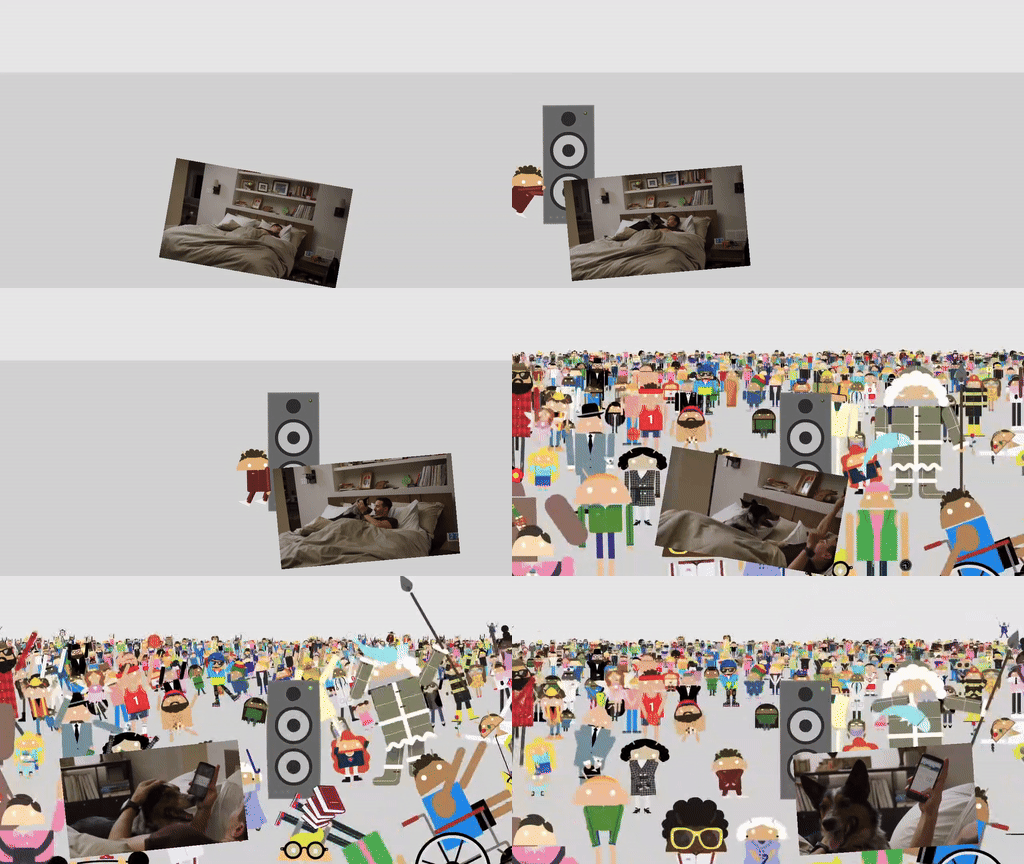
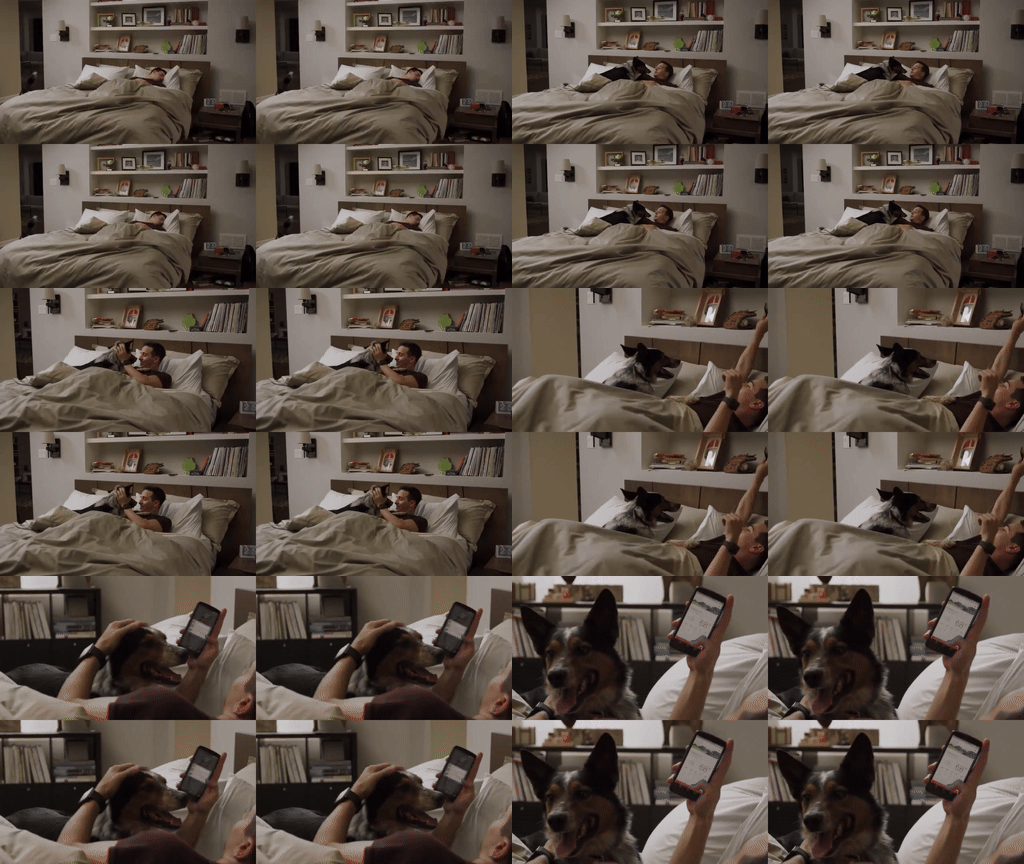
You can explore an implementation of these layouts in the Composition demo app.
Implement a VideoCompositorSettings
The VideoCompositorSettings interface contains 2 methods:
getOutputSize(List<Size> inputSizes), which you can use to specify the size of each inputEditedMediaItemSequencegetOverlaySettings(int inputId, long presentationTimeUs), which is where you can specify how each sequence should appear in the frame
Configure the presentation of a sequence with an OverlaySettings
Your implementation of getOverlaySettings() should return an instance of the
OverlaySettings interface for each sequence in your project. The
inputId parameter identifies which sequence the settings will be applied to.
To build an instance, you can use the StaticOverlaySettings class
included in Media3. See the StaticOverlaySettings.Builder reference page
for a full list of configuration options, which includes visual modifications
like alpha transparency and HDR luminance, positional modifications like anchor
point and location within the frame, and transformations like rotation and
scale.
override fun getOverlaySettings(inputId: Int, presentationTimeUs: Long): OverlaySettings { return when (inputId) { // Position the first sequence in the top-left 0 -> { StaticOverlaySettings.Builder() // Scale the video down to 1/4th the size of the frame .setScale(0.5f, 0.5f) // Anchor the sequence in the middle of frame .setOverlayFrameAnchor(0f, 0f) // Position the video in the top-left section of the frame .setBackgroundFrameAnchor(-0.5f, 0.5f) .build() } // Add more cases for remaining input sequences else -> StaticOverlaySettings.Builder().build() } }
Using the presentationTimeUs parameter of the getOverlaySettings() method,
you can modify these settings based on the position of the video, as
demonstrated by the moving picture-in-picture example earlier on this page.
override fun getOverlaySettings(inputId: Int, presentationTimeUs: Long): OverlaySettings { return if (inputId == 0) { // Use the first sequence as the overlay val cycleRadians = 2 * PI * (presentationTimeUs.toDouble() / cycleTimeUs) StaticOverlaySettings.Builder() // Scale the overlay down .setScale(0.35f, 0.35f) // Anchor the overlay in the top-middle of the frame .setOverlayFrameAnchor(0f, 1f) // Move the overlay over time .setBackgroundFrameAnchor(sin(cycleRadians).toFloat() * 0.5f, -0.2f) // Rotate the overlay over time .setRotationDegrees(cos(cycleRadians).toFloat() * -10f) .build() } else { // Present the second sequence in the background as normal StaticOverlaySettings.Builder().build() } }
Feedback
If you have any feedback or feature requests for video compositing use-cases, file an issue on the Media3 GitHub repository.