

เครื่องมือจัดการข้อมูลเข้าสู่ระบบหมายถึงชุด API ที่เปิดตัวใน Android 14 ซึ่งรองรับวิธีการลงชื่อเข้าใช้หลายวิธี เช่น ชื่อผู้ใช้และรหัสผ่าน พาสคีย์ และโซลูชันการลงชื่อเข้าใช้แบบรวมศูนย์ (เช่น การลงชื่อเข้าใช้ด้วย Google) เมื่อมีการเรียกใช้ Credential Manager API ระบบ Android จะรวบรวมข้อมูลเข้าสู่ระบบจากผู้ให้บริการข้อมูลเข้าสู่ระบบทั้งหมดที่ติดตั้งในอุปกรณ์ เอกสารนี้อธิบายชุด API ที่มีปลายทางการผสานรวมสำหรับผู้ให้บริการข้อมูลเข้าสู่ระบบเหล่านี้
ตั้งค่า
ก่อนที่จะใช้ฟังก์ชันการทำงานในผู้ให้บริการข้อมูลเข้าสู่ระบบ ให้ทำตามขั้นตอนการตั้งค่าที่แสดงในส่วนต่อไปนี้
ประกาศทรัพยากร Dependency
เพิ่มทรัพยากร Dependency ต่อไปนี้ลงในสคริปต์บิลด์ของโมดูลแอปเพื่อใช้ Credential Manager Library เวอร์ชันล่าสุด
Kotlin
dependencies {
    implementation("androidx.credentials:credentials:1.7.0-alpha02")
}
Groovy
dependencies {
    implementation "androidx.credentials:credentials:1.7.0-alpha02"
}
ประกาศองค์ประกอบบริการในไฟล์ Manifest
ในไฟล์ Manifest ของแอป AndroidManifest.xml ให้ใส่การประกาศ <service>
สำหรับคลาสบริการที่ขยายคลาส
CredentialProviderService จาก androidx.credentials Library ดังที่
แสดงในตัวอย่างต่อไปนี้
<service android:name=".MyCredentialProviderService"
    android:enabled="true"
    android:exported="true"
    android:label="My Credential Provider"
    android:icon="@mipmap/ic_launcher"
    android:permission="android.permission.BIND_CREDENTIAL_PROVIDER_SERVICE"
    tools:targetApi="upside_down_cake">
    <intent-filter>
        <action android:name="android.service.credentials.CredentialProviderService"/>
    </intent-filter>
    <meta-data
        android:name="android.credentials.provider"
        android:resource="@xml/provider"/>
</service>
สิทธิ์และตัวกรอง Intent ที่แสดงในตัวอย่างก่อนหน้านี้เป็นส่วนสำคัญเพื่อให้โฟลว์ของ Credential Manager ทำงานได้ตามที่คาดไว้ ต้องมีสิทธิ์เพื่อให้ระบบ Android เท่านั้นที่เชื่อมโยงกับบริการนี้ได้ ตัวกรอง Intent ใช้สำหรับการค้นพบบริการนี้ในฐานะผู้ให้บริการข้อมูลเข้าสู่ระบบที่ Credential Manager จะใช้
ประกาศประเภทข้อมูลเข้าสู่ระบบที่รองรับ
สร้างไฟล์ใหม่ชื่อ provider.xml ในไดเรกทอรี res/xml ในไฟล์นี้ ให้ประกาศประเภทข้อมูลเข้าสู่ระบบที่บริการของคุณรองรับผ่านค่าคงที่ที่กำหนดไว้สำหรับข้อมูลเข้าสู่ระบบแต่ละประเภทในไลบรารี ในตัวอย่างต่อไปนี้ บริการรองรับรหัสผ่านแบบดั้งเดิมและพาสคีย์ โดยค่าคงที่สำหรับรหัสผ่านและพาสคีย์กำหนดไว้เป็น TYPE_PASSWORD_CREDENTIAL และ
TYPE_PUBLIC_KEY_CREDENTIAL
<credential-provider xmlns:android="http://schemas.android.com/apk/res/android">
    <capabilities>
        <capability name="android.credentials.TYPE_PASSWORD_CREDENTIAL" />
        <capability name="androidx.credentials.TYPE_PUBLIC_KEY_CREDENTIAL" />
    </capabilities>
</credential-provider>
ใน API ระดับก่อนหน้านี้ ผู้ให้บริการข้อมูลเข้าสู่ระบบจะผสานรวมกับ API เช่น การป้อนข้อความอัตโนมัติสำหรับรหัสผ่านและข้อมูลอื่นๆ ผู้ให้บริการเหล่านี้สามารถใช้โครงสร้างพื้นฐานภายในเดียวกันเพื่อจัดเก็บข้อมูลเข้าสู่ระบบประเภทที่มีอยู่ ขณะเดียวกันก็ขยายโครงสร้างพื้นฐานเพื่อรองรับข้อมูลเข้าสู่ระบบประเภทอื่นๆ รวมถึงพาสคีย์
แนวทาง 2 ระยะสำหรับการโต้ตอบกับผู้ให้บริการ
Credential Manager โต้ตอบกับผู้ให้บริการข้อมูลเข้าสู่ระบบใน 2 ระยะ ดังนี้
- ระยะแรกคือ ระยะเริ่มต้น/ระยะการค้นหา ซึ่งระบบจะเชื่อมโยงกับ
บริการของผู้ให้บริการข้อมูลเข้าสู่ระบบและเรียกใช้
onBeginGetCredentialRequest(),onBeginCreateCredentialRequest()หรือonClearCredentialStateRequest()เมธอดด้วยBegin…คำขอ ผู้ให้บริการต้องประมวลผลคำขอเหล่านี้และตอบกลับด้วยการตอบกลับBegin…โดยกรอกข้อมูลด้วยรายการที่แสดงตัวเลือกแบบภาพที่จะแสดงในตัวเลือกบัญชี แต่ละรายการต้องมีการตั้งค่าPendingIntent - เมื่อผู้ใช้เลือกรายการแล้ว ระยะการเลือก จะเริ่มต้นขึ้นและ
PendingIntentที่เชื่อมโยงกับรายการจะเริ่มทำงาน ซึ่งจะแสดง กิจกรรมของผู้ให้บริการที่เกี่ยวข้อง เมื่อผู้ใช้โต้ตอบกับกิจกรรมนี้เสร็จแล้ว ผู้ให้บริการข้อมูลเข้าสู่ระบบต้องตั้งค่าการตอบกลับเป็นผลลัพธ์ของกิจกรรมก่อนที่จะสิ้นสุดกิจกรรม จากนั้นระบบจะส่งการตอบกลับนี้ไปยังแอปของไคลเอ็นต์ที่เรียกใช้ Credential Manager
จัดการการสร้างพาสคีย์
จัดการการค้นหาเพื่อสร้างพาสคีย์
เมื่อแอปของไคลเอ็นต์ต้องการ สร้างพาสคีย์ และจัดเก็บไว้กับผู้ให้บริการข้อมูลเข้าสู่ระบบ
แอปจะเรียกใช้ createCredential API หากต้องการจัดการคำขอนี้ในบริการของผู้ให้บริการข้อมูลเข้าสู่ระบบเพื่อให้ระบบจัดเก็บพาสคีย์ไว้ในที่เก็บข้อมูลของคุณจริงๆ ให้ทำตามขั้นตอนที่แสดงในส่วนต่อไปนี้
- ลบล้างเมธอด
onBeginCreateCredentialRequest()ในบริการที่ ขยายจากCredentialProviderService - จัดการ
BeginCreateCredentialRequestโดยสร้างBeginCreateCredentialResponseที่เกี่ยวข้องและส่งผ่าน การเรียกกลับ - ขณะสร้าง
BeginCreateCredentialResponseให้เพิ่ม ที่จำเป็นCreateEntriesCreateEntryแต่ละรายการควรสอดคล้องกับ บัญชีที่บันทึกข้อมูลเข้าสู่ระบบได้ และต้องมีการตั้งค่าPendingIntentพร้อมกับข้อมูลเมตาอื่นๆ ที่จำเป็น
ตัวอย่างต่อไปนี้แสดงวิธีใช้ขั้นตอนเหล่านี้
override fun onBeginCreateCredentialRequest(
    request: BeginCreateCredentialRequest,
    cancellationSignal: CancellationSignal,
    callback: OutcomeReceiver<BeginCreateCredentialResponse, CreateCredentialException>,
) {
    val response: BeginCreateCredentialResponse? = processCreateCredentialRequest(request)
    if (response != null) {
        callback.onResult(response)
    } else {
        callback.onError(CreateCredentialUnknownException())
    }
}

fun processCreateCredentialRequest(request: BeginCreateCredentialRequest): BeginCreateCredentialResponse? {
    when (request) {
        is BeginCreatePublicKeyCredentialRequest -> {
            // Request is passkey type
            return handleCreatePasskeyQuery(request)
        }
    }
    // Request not supported
    return null
}

private fun handleCreatePasskeyQuery(
    request: BeginCreatePublicKeyCredentialRequest
): BeginCreateCredentialResponse {

    // Adding two create entries - one for storing credentials to the 'Personal'
    // account, and one for storing them to the 'Family' account. These
    // accounts are local to this sample app only.
    val createEntries: MutableList<CreateEntry> = mutableListOf()
    createEntries.add(
        CreateEntry(
            PERSONAL_ACCOUNT_ID,
            createNewPendingIntent(PERSONAL_ACCOUNT_ID, CREATE_PASSKEY_INTENT)
        )
    )

    createEntries.add(
        CreateEntry(
            FAMILY_ACCOUNT_ID,
            createNewPendingIntent(FAMILY_ACCOUNT_ID, CREATE_PASSKEY_INTENT)
        )
    )

    return BeginCreateCredentialResponse(createEntries)
}

private fun createNewPendingIntent(accountId: String, action: String): PendingIntent {
    val intent = Intent(action).setPackage(PACKAGE_NAME)

    // Add your local account ID as an extra to the intent, so that when
    // user selects this entry, the credential can be saved to this
    // account
    intent.putExtra(EXTRA_KEY_ACCOUNT_ID, accountId)

    return PendingIntent.getActivity(
        applicationContext, UNIQUE_REQ_CODE,
        intent,
        (
            PendingIntent.FLAG_MUTABLE
                or PendingIntent.FLAG_UPDATE_CURRENT
            )
    )
}
การสร้าง PendingIntent ควรเป็นไปตามข้อกำหนดต่อไปนี้
- ควรตั้งค่ากิจกรรมที่เกี่ยวข้องให้แสดงพรอมต์ไบโอเมตริก การยืนยัน หรือการเลือกที่จำเป็น
- ควรตั้งค่าข้อมูลที่จำเป็นซึ่งผู้ให้บริการต้องการเมื่อมีการเรียกใช้กิจกรรมที่เกี่ยวข้องเป็นข้อมูลเพิ่มเติมใน Intent ที่ใช้สร้าง
PendingIntentเช่นaccountIdในโฟลว์การสร้าง - ต้องสร้าง
PendingIntentด้วยแฟล็กPendingIntent.FLAG_MUTABLEเพื่อให้ระบบสามารถเพิ่มคำขอสุดท้าย ลงในข้อมูลเพิ่มเติมของ Intent ได้ - ต้องไม่สร้าง
PendingIntentด้วยแฟล็กPendingIntent.FLAG_ONE_SHOTเนื่องจากผู้ใช้อาจเลือกรายการ กลับไป และ เลือกรายการอีกครั้ง ซึ่งจะทำให้PendingIntentเริ่มทำงาน 2 ครั้ง - ต้องสร้าง
PendingIntentด้วยรหัสคำขอที่ไม่ซ้ำกันเพื่อให้แต่ละรายการมีPendingIntentที่เกี่ยวข้องของตัวเองได้
จัดการการเลือกรายการสำหรับคำขอสร้างพาสคีย์
- เมื่อผู้ใช้เลือก
CreateEntryที่ป้อนข้อมูลไว้ก่อนหน้านี้ ระบบจะเรียกใช้PendingIntentที่เกี่ยวข้องและสร้างActivityของผู้ให้บริการที่เชื่อมโยง - หลังจากเรียกใช้เมธอด
onCreateของกิจกรรมแล้ว ให้เข้าถึง Intent ที่เชื่อมโยงและส่ง Intent นั้นไปยังคลาสPendingIntentHanderเพื่อรับProviderCreateCredentialRequest - แยก
requestJson,callingAppInfoและclientDataHashออกจากคำขอ - แยก
accountIdในเครื่องออกจากข้อมูลเพิ่มเติมของ Intent นี่คือการติดตั้งใช้งานเฉพาะแอปตัวอย่างและไม่จำเป็น คุณสามารถใช้รหัสบัญชีนี้เพื่อจัดเก็บข้อมูลเข้าสู่ระบบกับรหัสบัญชีนี้ได้ - ตรวจสอบ
requestJsonตัวอย่างด้านล่างใช้คลาสข้อมูลในเครื่อง เช่นPublicKeyCredentialCreationOptionsเพื่อแปลง JSON อินพุตเป็นคลาสที่มีโครงสร้างตามข้อกำหนด WebAuthn ในฐานะผู้ให้บริการข้อมูลเข้าสู่ระบบ คุณสามารถแทนที่คลาสนี้ด้วยตัวแยกวิเคราะห์ของคุณเอง - ตรวจสอบ Asset Link สำหรับแอปการโทรหากการเรียกใช้มาจาก แอป Android ดั้งเดิม
- แสดงพรอมต์การตรวจสอบสิทธิ์ ตัวอย่างด้านล่างใช้ Android Biometric API
- เมื่อการตรวจสอบสิทธิ์สำเร็จ ให้สร้าง
credentialIdและ key pair - บันทึกคีย์ส่วนตัวในฐานข้อมูลในเครื่องกับ
callingAppInfo.packageName - สร้างการตอบกลับ JSON ของ Web Authentication API ที่
ประกอบด้วยคีย์สาธารณะ และ
credentialIdตัวอย่างด้านล่างใช้คลาสยูทิลิตีในเครื่อง เช่นAuthenticatorAttestationResponseและFidoPublicKeyCredentialซึ่งช่วยสร้าง JSON ตามข้อกำหนดที่กล่าวถึงก่อนหน้านี้ ในฐานะผู้ให้บริการข้อมูลเข้าสู่ระบบ คุณสามารถแทนที่คลาสเหล่านี้ด้วยตัวสร้างของคุณเอง - สร้าง
CreatePublicKeyCredentialResponseด้วย JSON ที่สร้างขึ้นข้างต้น - ตั้งค่า
CreatePublicKeyCredentialResponseเป็นข้อมูลเพิ่มเติมในIntentผ่านPendingIntentHander.setCreateCredentialResponse()และตั้งค่า Intent นั้นเป็นผลลัพธ์ของกิจกรรม - สิ้นสุดกิจกรรม
ตัวอย่างโค้ดด้านล่างแสดงขั้นตอนเหล่านี้ คุณต้องจัดการโค้ดนี้ในคลาสกิจกรรมเมื่อมีการเรียกใช้ onCreate()
override fun onCreate(savedInstanceState: Bundle?, persistentState: PersistableBundle?) {
    super.onCreate(savedInstanceState, persistentState)
    // ...

    val request =
        PendingIntentHandler.retrieveProviderCreateCredentialRequest(intent)

    val accountId = intent.getStringExtra(CredentialsRepo.EXTRA_KEY_ACCOUNT_ID)
    if (request != null && request.callingRequest is CreatePublicKeyCredentialRequest) {
        val publicKeyRequest: CreatePublicKeyCredentialRequest =
            request.callingRequest as CreatePublicKeyCredentialRequest
        createPasskey(
            publicKeyRequest.requestJson,
            request.callingAppInfo,
            publicKeyRequest.clientDataHash,
            accountId
        )
    }
}

@SuppressLint("RestrictedApi")
fun createPasskey(
    requestJson: String,
    callingAppInfo: CallingAppInfo?,
    clientDataHash: ByteArray?,
    accountId: String?
) {
    val request = PublicKeyCredentialCreationOptions(requestJson)

    val biometricPrompt = BiometricPrompt(
        this,
        { }, // Pass in your own executor
        object : AuthenticationCallback() {
            override fun onAuthenticationError(errorCode: Int, errString: CharSequence) {
                super.onAuthenticationError(errorCode, errString)
                finish()
            }

            override fun onAuthenticationFailed() {
                super.onAuthenticationFailed()
                finish()
            }

            @RequiresApi(VERSION_CODES.P)
            override fun onAuthenticationSucceeded(
                result: AuthenticationResult
            ) {
                super.onAuthenticationSucceeded(result)

                // Generate a credentialId
                val credentialId = ByteArray(32)
                SecureRandom().nextBytes(credentialId)

                // Generate a credential key pair
                val spec = ECGenParameterSpec("secp256r1")
                val keyPairGen = KeyPairGenerator.getInstance("EC")
                keyPairGen.initialize(spec)
                val keyPair = keyPairGen.genKeyPair()

                // Save passkey in your database as per your own implementation

                // Create AuthenticatorAttestationResponse object to pass to
                // FidoPublicKeyCredential

                val response = AuthenticatorAttestationResponse(
                    requestOptions = request,
                    credentialId = credentialId,
                    credentialPublicKey = getPublicKeyFromKeyPair(keyPair),
                    origin = appInfoToOrigin(callingAppInfo!!),
                    up = true,
                    uv = true,
                    be = true,
                    bs = true,
                    packageName = callingAppInfo.packageName
                )

                val credential = FidoPublicKeyCredential(
                    rawId = credentialId,
                    response = response,
                    authenticatorAttachment = "", // Add your authenticator attachment
                )
                val result = Intent()

                val createPublicKeyCredResponse =
                    CreatePublicKeyCredentialResponse(credential.json())

                // Set the CreateCredentialResponse as the result of the Activity
                PendingIntentHandler.setCreateCredentialResponse(
                    result,
                    createPublicKeyCredResponse
                )
                setResult(RESULT_OK, result)
                finish()
            }
        }
    )

    val promptInfo = BiometricPrompt.PromptInfo.Builder()
        .setTitle("Use your screen lock")
        .setSubtitle("Create passkey for ${request.rp.name}")
        .setAllowedAuthenticators(
            BiometricManager.Authenticators.BIOMETRIC_STRONG
            /* or BiometricManager.Authenticators.DEVICE_CREDENTIAL */
        )
        .build()
    biometricPrompt.authenticate(promptInfo)
}

@RequiresApi(VERSION_CODES.P)
fun appInfoToOrigin(info: CallingAppInfo): String {
    val cert = info.signingInfo.apkContentsSigners[0].toByteArray()
    val md = MessageDigest.getInstance("SHA-256")
    val certHash = md.digest(cert)
    // This is the format for origin
    return "android:apk-key-hash:${b64Encode(certHash)}"
}
จัดการการค้นหาสำหรับคำขอสร้างรหัสผ่าน
หากต้องการจัดการการค้นหาสำหรับคำขอสร้างรหัสผ่าน ให้ทำดังนี้
- ภายในเมธอด
processCreateCredentialRequest()ที่กล่าวถึงในส่วนก่อนหน้า ให้เพิ่มอีกกรณีหนึ่งภายในบล็อก Switch เพื่อจัดการคำขอรหัสผ่าน - ขณะสร้าง
BeginCreateCredentialResponseให้เพิ่มCreateEntriesที่จำเป็น CreateEntryแต่ละรายการควรสอดคล้องกับบัญชีที่บันทึกข้อมูลเข้าสู่ระบบได้ และต้องมีการตั้งค่าPendingIntentพร้อมกับข้อมูลเมตาอื่นๆ
ตัวอย่างต่อไปนี้แสดงวิธีใช้ขั้นตอนเหล่านี้
fun processCreateCredentialRequest(
    request: BeginCreateCredentialRequest
): BeginCreateCredentialResponse? {
    when (request) {
        is BeginCreatePublicKeyCredentialRequest -> {
            // Request is passkey type
            return handleCreatePasskeyQuery(request)
        }

        is BeginCreatePasswordCredentialRequest -> {
            // Request is password type
            return handleCreatePasswordQuery(request)
        }
    }
    return null
}

@RequiresApi(VERSION_CODES.M)
private fun handleCreatePasswordQuery(
    request: BeginCreatePasswordCredentialRequest
): BeginCreateCredentialResponse {
    val createEntries: MutableList<CreateEntry> = mutableListOf()

    // Adding two create entries - one for storing credentials to the 'Personal'
    // account, and one for storing them to the 'Family' account. These
    // accounts are local to this sample app only.
    createEntries.add(
        CreateEntry(
            PERSONAL_ACCOUNT_ID,
            createNewPendingIntent(PERSONAL_ACCOUNT_ID, CREATE_PASSWORD_INTENT)
        )
    )
    createEntries.add(
        CreateEntry(
            FAMILY_ACCOUNT_ID,
            createNewPendingIntent(FAMILY_ACCOUNT_ID, CREATE_PASSWORD_INTENT)
        )
    )

    return BeginCreateCredentialResponse(createEntries)
}
จัดการการเลือกรายการสำหรับคำขอสร้างรหัสผ่าน
เมื่อผู้ใช้เลือก CreateEntry ที่ป้อนข้อมูลไว้ PendingIntent ที่เกี่ยวข้องจะทำงานและแสดงกิจกรรมที่เชื่อมโยง เข้าถึง Intent ที่เชื่อมโยงซึ่งส่งผ่านใน onCreate และส่ง Intent นั้นไปยังคลาส PendingIntentHander เพื่อรับเมธอด ProviderCreateCredentialRequest
ตัวอย่างด้านล่างแสดงวิธีใช้กระบวนการนี้ คุณต้องจัดการโค้ดนี้ในเมธอด onCreate() ของกิจกรรม
val createRequest = PendingIntentHandler.retrieveProviderCreateCredentialRequest(intent)
val accountId = intent.getStringExtra(CredentialsRepo.EXTRA_KEY_ACCOUNT_ID)

if (createRequest == null) {
    return
}

val request: CreatePasswordRequest = createRequest.callingRequest as CreatePasswordRequest

// Fetch the ID and password from the request and save it in your database
mDatabase.addNewPassword(
    PasswordInfo(
        request.id,
        request.password,
        createRequest.callingAppInfo.packageName
    )
)

// Set the final response back
val result = Intent()
val response = CreatePasswordResponse()
PendingIntentHandler.setCreateCredentialResponse(result, response)
setResult(Activity.RESULT_OK, result)
finish()
จัดการการลงชื่อเข้าใช้ของผู้ใช้
ระบบจะจัดการการลงชื่อเข้าใช้ของผู้ใช้ด้วยขั้นตอนต่อไปนี้
- เมื่อแอปของไคลเอ็นต์พยายามลงชื่อเข้าใช้ของผู้ใช้ แอปจะเตรียมอินสแตนซ์
GetCredentialRequest - เฟรมเวิร์ก Android จะเผยแพร่คำขอนี้ไปยังผู้ให้บริการข้อมูลเข้าสู่ระบบที่เกี่ยวข้องทั้งหมดโดยการเชื่อมโยงกับบริการเหล่านี้
- จากนั้นบริการของผู้ให้บริการจะได้รับ
BeginGetCredentialRequestที่มีรายการBeginGetCredentialOptionซึ่งแต่ละรายการจะมีพารามิเตอร์ที่ใช้ดึงข้อมูลเข้าสู่ระบบที่ตรงกันได้
หากต้องการจัดการคำขอนี้ในบริการของผู้ให้บริการข้อมูลเข้าสู่ระบบ ให้ทำตามขั้นตอนต่อไปนี้
ลบล้างเมธอด
onBeginGetCredentialRequest()เพื่อจัดการคำขอ โปรดทราบว่าหากข้อมูลเข้าสู่ระบบล็อกอยู่ คุณสามารถตั้งค่าAuthenticationActionในการตอบกลับและเรียกใช้การเรียกกลับได้ทันทีprivate val unlockEntryTitle = "Authenticate to continue" override fun onBeginGetCredentialRequest( request: BeginGetCredentialRequest, cancellationSignal: CancellationSignal, callback: OutcomeReceiver<BeginGetCredentialResponse, GetCredentialException>, ) { if (isAppLocked()) { callback.onResult( BeginGetCredentialResponse( authenticationActions = mutableListOf( AuthenticationAction( unlockEntryTitle, createUnlockPendingIntent() ) ) ) ) return } try { response = processGetCredentialRequest(request) callback.onResult(response) } catch (e: GetCredentialException) { callback.onError(GetCredentialUnknownException()) } }ผู้ให้บริการที่ต้องปลดล็อกข้อมูลเข้าสู่ระบบก่อนที่จะแสดงผล
credentialEntriesใดๆ ต้องตั้งค่า Intent ที่รอดำเนินการซึ่งนำทางผู้ใช้ไปยังโฟลว์การปลดล็อกของแอปโดยทำดังนี้private fun createUnlockPendingIntent(): PendingIntent { val intent = Intent(UNLOCK_INTENT).setPackage(PACKAGE_NAME) return PendingIntent.getActivity( applicationContext, UNIQUE_REQUEST_CODE, intent, ( PendingIntent.FLAG_MUTABLE or PendingIntent.FLAG_UPDATE_CURRENT ) ) }ดึงข้อมูลเข้าสู่ระบบจากฐานข้อมูลในเครื่องและตั้งค่าโดยใช้
CredentialEntriesเพื่อแสดงในตัวเลือก สำหรับพาสคีย์ คุณสามารถตั้งค่าcredentialIdเป็นข้อมูลเพิ่มเติมใน Intent เพื่อให้ทราบว่าข้อมูลเข้าสู่ระบบใดที่ Intent นั้นเชื่อมโยงอยู่เมื่อผู้ใช้เลือกรายการนี้companion object { // These intent actions are specified for corresponding activities // that are to be invoked through the PendingIntent(s) private const val GET_PASSKEY_INTENT_ACTION = "PACKAGE_NAME.GET_PASSKEY" private const val GET_PASSWORD_INTENT_ACTION = "PACKAGE_NAME.GET_PASSWORD" } fun processGetCredentialRequest( request: BeginGetCredentialRequest ): BeginGetCredentialResponse { val callingPackageInfo = request.callingAppInfo val callingPackageName = callingPackageInfo?.packageName.orEmpty() val credentialEntries: MutableList<CredentialEntry> = mutableListOf() for (option in request.beginGetCredentialOptions) { when (option) { is BeginGetPasswordOption -> { credentialEntries.addAll( populatePasswordData( callingPackageName, option ) ) } is BeginGetPublicKeyCredentialOption -> { credentialEntries.addAll( populatePasskeyData( callingPackageInfo, option ) ) } else -> { Log.i(TAG, "Request not supported") } } } return BeginGetCredentialResponse(credentialEntries) }ค้นหาข้อมูลเข้าสู่ระบบจากฐานข้อมูล สร้างรายการพาสคีย์และรหัสผ่านเพื่อป้อนข้อมูล
private fun populatePasskeyData(
    callingAppInfo: CallingAppInfo?,
    option: BeginGetPublicKeyCredentialOption
): List<CredentialEntry> {
    val passkeyEntries: MutableList<CredentialEntry> = mutableListOf()
    val request = PublicKeyCredentialRequestOptions(option.requestJson)
    // Get your credentials from database where you saved during creation flow
    val creds = getCredentialsFromInternalDb(request.rpId)
    val passkeys = creds.passkeys
    for (passkey in passkeys) {
        val data = Bundle()
        data.putString("credId", passkey.credId)
        passkeyEntries.add(
            PublicKeyCredentialEntry(
                context = applicationContext,
                username = passkey.username,
                pendingIntent = createNewPendingIntent(
                    GET_PASSKEY_INTENT_ACTION,
                    data
                ),
                beginGetPublicKeyCredentialOption = option,
                displayName = passkey.displayName,
                icon = passkey.icon
            )
        )
    }
    return passkeyEntries
}

// Fetch password credentials and create password entries to populate to the user
private fun populatePasswordData(
    callingPackage: String,
    option: BeginGetPasswordOption
): List<CredentialEntry> {
    val passwordEntries: MutableList<CredentialEntry> = mutableListOf()

    // Get your password credentials from database where you saved during
    // creation flow
    val creds = getCredentialsFromInternalDb(callingPackage)
    val passwords = creds.passwords
    for (password in passwords) {
        passwordEntries.add(
            PasswordCredentialEntry(
                context = applicationContext,
                username = password.username,
                pendingIntent = createNewPendingIntent(
                    GET_PASSWORD_INTENT
                ),
                beginGetPasswordOption = option,
                displayName = password.username,
                icon = password.icon
            )
        )
    }
    return passwordEntries
}

private fun createNewPendingIntent(
    action: String,
    extra: Bundle? = null
): PendingIntent {
    val intent = Intent(action).setPackage(PACKAGE_NAME)
    if (extra != null) {
        intent.putExtra("CREDENTIAL_DATA", extra)
    }

    return PendingIntent.getActivity(
        applicationContext, UNIQUE_REQUEST_CODE, intent,
        (PendingIntent.FLAG_MUTABLE or PendingIntent.FLAG_UPDATE_CURRENT)
    )
}
เมื่อค้นหาและป้อนข้อมูลเข้าสู่ระบบแล้ว ตอนนี้คุณต้องจัดการระยะการเลือกสำหรับข้อมูลเข้าสู่ระบบที่ผู้ใช้เลือก ไม่ว่าจะเป็นพาสคีย์หรือรหัสผ่าน
การจัดการการเลือกของผู้ใช้สำหรับพาสคีย์
- ในเมธอด
onCreateของกิจกรรมที่เกี่ยวข้อง ให้ดึง Intent ที่เชื่อมโยงและส่งไปยังPendingIntentHandler.retrieveProviderGetCredentialRequest() - แยก
GetPublicKeyCredentialOptionออกจากคำขอที่ดึงข้อมูล ข้างต้น จากนั้นแยกrequestJsonและclientDataHashออกจากตัวเลือกนี้ - แยก
credentialIdออกจากข้อมูลเพิ่มเติมของ Intent ซึ่งผู้ให้บริการข้อมูลเข้าสู่ระบบป้อนข้อมูลไว้เมื่อมีการตั้งค่าPendingIntentที่เกี่ยวข้อง - แยกพาสคีย์ออกจากฐานข้อมูลในเครื่องโดยใช้พารามิเตอร์คำขอที่เข้าถึงข้างต้น
ยืนยันว่าพาสคีย์ถูกต้องด้วยข้อมูลเมตาที่แยกออกมาและการยืนยันตัวตนของผู้ใช้
val getRequest = PendingIntentHandler.retrieveProviderGetCredentialRequest(intent)
val publicKeyRequest = getRequest?.credentialOptions?.first() as GetPublicKeyCredentialOption

val requestInfo = intent.getBundleExtra("CREDENTIAL_DATA")
val credIdEnc = requestInfo?.getString("credId").orEmpty()

// Get the saved passkey from your database based on the credential ID from the PublicKeyRequest
val passkey = mDatabase.getPasskey(credIdEnc)

// Decode the credential ID, private key and user ID
val credId = b64Decode(credIdEnc)
val privateKey = b64Decode(passkey.credPrivateKey)
val uid = b64Decode(passkey.uid)

val origin = appInfoToOrigin(getRequest.callingAppInfo)
val packageName = getRequest.callingAppInfo.packageName

validatePasskey(
    publicKeyRequest.requestJson,
    origin,
    packageName,
    uid,
    passkey.username,
    credId,
    privateKey
)
หากต้องการยืนยันตัวตนของผู้ใช้ ให้แสดงพรอมต์ไบโอเมตริก (หรือวิธีการยืนยันอื่นๆ) ข้อมูลโค้ดด้านล่างใช้ Android Biometric API
เมื่อการตรวจสอบสิทธิ์สำเร็จ ให้สร้างการตอบกลับ JSON ตามข้อกำหนดการยืนยันตัวตนของ W3 Web ในข้อมูลโค้ด ด้านล่าง มีการใช้คลาสข้อมูลตัวช่วย เช่น
AuthenticatorAssertionResponseเพื่อ รับพารามิเตอร์ที่มีโครงสร้างและแปลงพารามิเตอร์เหล่านั้นเป็นรูปแบบ JSON ที่จำเป็น การตอบกลับจะมีลายเซ็นดิจิทัลจาก คีย์ส่วนตัวของข้อมูลเข้าสู่ระบบ WebAuthn เซิร์ฟเวอร์ของผู้ให้บริการสามารถยืนยันลายเซ็นนี้เพื่อตรวจสอบสิทธิ์ผู้ใช้ก่อนลงชื่อเข้าใช้สร้าง
PublicKeyCredentialโดยใช้ JSON ที่สร้างขึ้นข้างต้นและ ตั้งค่าในGetCredentialResponseสุดท้าย ตั้งค่าการตอบกลับสุดท้ายนี้เป็นผลลัพธ์ของกิจกรรมนี้
ตัวอย่างต่อไปนี้แสดงวิธีใช้ขั้นตอนเหล่านี้
val request = PublicKeyCredentialRequestOptions(requestJson)
val privateKey: ECPrivateKey = convertPrivateKey(privateKeyBytes)

val biometricPrompt = BiometricPrompt(
    this,
    { }, // Pass in your own executor
    object : BiometricPrompt.AuthenticationCallback() {
        override fun onAuthenticationError(
            errorCode: Int,
            errString: CharSequence
        ) {
            super.onAuthenticationError(errorCode, errString)
            finish()
        }

        override fun onAuthenticationFailed() {
            super.onAuthenticationFailed()
            finish()
        }

        override fun onAuthenticationSucceeded(
            result: BiometricPrompt.AuthenticationResult
        ) {
            super.onAuthenticationSucceeded(result)
            val response = AuthenticatorAssertionResponse(
                requestOptions = request,
                credentialId = credId,
                origin = origin,
                up = true,
                uv = true,
                be = true,
                bs = true,
                userHandle = uid,
                packageName = packageName
            )

            val sig = Signature.getInstance("SHA256withECDSA")
            sig.initSign(privateKey)
            sig.update(response.dataToSign())
            response.signature = sig.sign()

            val credential = FidoPublicKeyCredential(
                rawId = credId,
                response = response,
                authenticatorAttachment = "", // Add your authenticator attachment
            )
            val result = Intent()
            val passkeyCredential = PublicKeyCredential(credential.json())
            PendingIntentHandler.setGetCredentialResponse(
                result, GetCredentialResponse(passkeyCredential)
            )
            setResult(RESULT_OK, result)
            finish()
        }
    }
)

val promptInfo = BiometricPrompt.PromptInfo.Builder()
    .setTitle("Use your screen lock")
    .setSubtitle("Use passkey for ${request.rpId}")
    .setAllowedAuthenticators(
        BiometricManager.Authenticators.BIOMETRIC_STRONG
        /* or BiometricManager.Authenticators.DEVICE_CREDENTIAL */
    )
    .build()
biometricPrompt.authenticate(promptInfo)
การจัดการการเลือกของผู้ใช้สำหรับการตรวจสอบสิทธิ์ด้วยรหัสผ่าน
- ในกิจกรรมที่เกี่ยวข้อง ให้เข้าถึง Intent ที่ส่งผ่านไปยัง
onCreateและแยกProviderGetCredentialRequestโดยใช้PendingIntentHandler ใช้
GetPasswordOptionในคำขอเพื่อดึงข้อมูลเข้าสู่ระบบรหัสผ่าน สำหรับชื่อแพ็กเกจขาเข้าval getRequest = PendingIntentHandler.retrieveProviderGetCredentialRequest(intent) val passwordOption = getRequest?.credentialOptions?.first() as GetPasswordOption val username = passwordOption.allowedUserIds.first() // Fetch the credentials for the calling app package name val creds = mDatabase.getCredentials(callingAppInfo.packageName) val passwords = creds.passwords val it = passwords.iterator() var password = "" while (it.hasNext()) { val passwordItemCurrent = it.next() if (passwordItemCurrent.username == username) { password = passwordItemCurrent.password break } }เมื่อดึงข้อมูลเข้าสู่ระบบรหัสผ่านที่เลือกแล้ว ให้ตั้งค่าการตอบกลับสำหรับข้อมูลเข้าสู่ระบบรหัสผ่านนั้น
// Set the response back
val result = Intent()
val passwordCredential = PasswordCredential(username, password)
PendingIntentHandler.setGetCredentialResponse(
    result, GetCredentialResponse(passwordCredential)
)
setResult(Activity.RESULT_OK, result)
finish()
จัดการการเลือกรายการการดำเนินการตรวจสอบสิทธิ์
ดังที่ กล่าวไว้ก่อนหน้านี้ ผู้ให้บริการข้อมูลเข้าสู่ระบบสามารถตั้งค่า
AuthenticationAction ได้หากข้อมูลเข้าสู่ระบบล็อกอยู่ หากผู้ใช้เลือกรายการนี้ ระบบจะเรียกใช้กิจกรรมที่สอดคล้องกับการดำเนินการผ่าน Intent ที่ตั้งค่าไว้ใน PendingIntent จากนั้นผู้ให้บริการข้อมูลเข้าสู่ระบบสามารถแสดงโฟลว์การตรวจสอบสิทธิ์ด้วยไบโอเมตริกหรือกลไกที่คล้ายกันเพื่อปลดล็อกข้อมูลเข้าสู่ระบบ เมื่อสำเร็จแล้ว
ผู้ให้บริการข้อมูลเข้าสู่ระบบต้องสร้าง BeginGetCredentialResponse ในลักษณะเดียวกับที่อธิบายไว้ข้างต้นสำหรับการจัดการการลงชื่อเข้าใช้ของผู้ใช้ เนื่องจากตอนนี้ข้อมูลเข้าสู่ระบบ
ปลดล็อกแล้ว จากนั้นต้องตั้งค่าการตอบกลับนี้ผ่านเมธอด
PendingIntentHandler.setBeginGetCredentialResponse() ก่อนที่จะตั้งค่า Intent ที่
เตรียมไว้เป็นผลลัพธ์และสิ้นสุดกิจกรรม
ล้างคำขอข้อมูลเข้าสู่ระบบ
แอปของไคลเอ็นต์อาจขอให้ล้างสถานะที่เก็บไว้สำหรับการเลือกข้อมูลเข้าสู่ระบบ เช่น ผู้ให้บริการข้อมูลเข้าสู่ระบบอาจจดจำข้อมูลเข้าสู่ระบบที่เลือกไว้ก่อนหน้านี้และแสดงผลเฉพาะข้อมูลเข้าสู่ระบบนั้นในครั้งถัดไป แอปของไคลเอ็นต์จะเรียกใช้ API นี้และคาดหวังให้ล้างการเลือกแบบคงอยู่ บริการของผู้ให้บริการข้อมูลเข้าสู่ระบบ
สามารถจัดการคำขอนี้ได้โดยการลบล้างเมธอด
onClearCredentialStateRequest()
override fun onClearCredentialStateRequest(
    request: ProviderClearCredentialStateRequest,
    cancellationSignal: CancellationSignal,
    callback: OutcomeReceiver<Void?, ClearCredentialException>
) {
    // Delete any maintained state as appropriate.
}
เพิ่มความสามารถในการลิงก์ไปยังหน้าการตั้งค่าของผู้ให้บริการ
หากต้องการอนุญาตให้ผู้ใช้เปิดการตั้งค่าของผู้ให้บริการจากหน้าจอรหัสผ่าน พาสคีย์ และการป้อนข้อความอัตโนมัติ แอปของผู้ให้บริการข้อมูลเข้าสู่ระบบควรใช้แอตทริบิวต์ Manifest settingsActivity ของ credential-provider ใน res/xml/provider.xml แอตทริบิวต์นี้ช่วยให้คุณใช้ Intent เพื่อเปิดหน้าจอการตั้งค่าของแอปเองได้หากผู้ใช้คลิกชื่อผู้ให้บริการในรายการบริการรหัสผ่าน พาสคีย์ และการป้อนข้อความอัตโนมัติ ตั้งค่าแอตทริบิวต์นี้เป็นชื่อของกิจกรรมที่จะเปิดจากหน้าจอการตั้งค่า
<credential-provider
    xmlns:android="http://schemas.android.com/apk/res/android"
    android:settingsSubtitle="Example settings provider name"
    android:settingsActivity="com.example.SettingsActivity">
    <capabilities>
        <capability name="android.credentials.TYPE_PUBLIC_KEY_CREDENTIAL" />
    </capabilities>
</credential-provider>
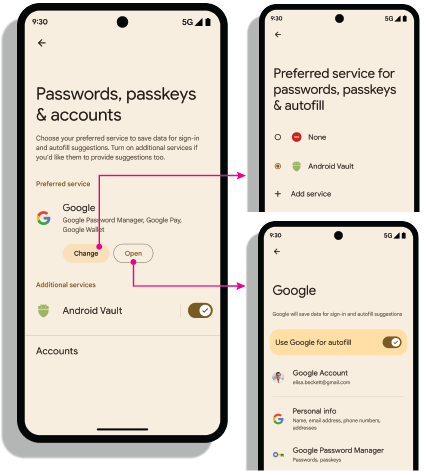
Intent การตั้งค่า
เปิดการตั้งค่า: Intent android.settings.CREDENTIAL_PROVIDER
จะแสดงหน้าจอการตั้งค่าที่ผู้ใช้สามารถเลือกผู้ให้บริการข้อมูลเข้าสู่ระบบที่ต้องการและ
ผู้ให้บริการข้อมูลเข้าสู่ระบบเพิ่มเติมได้
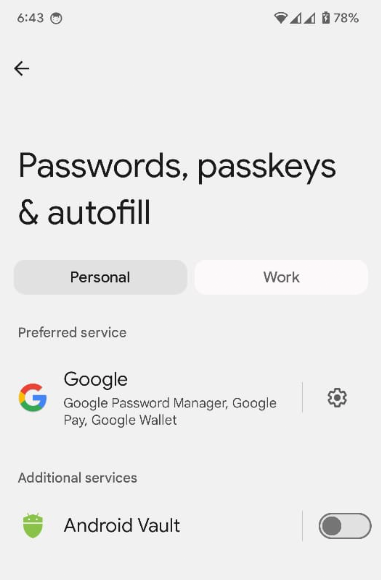
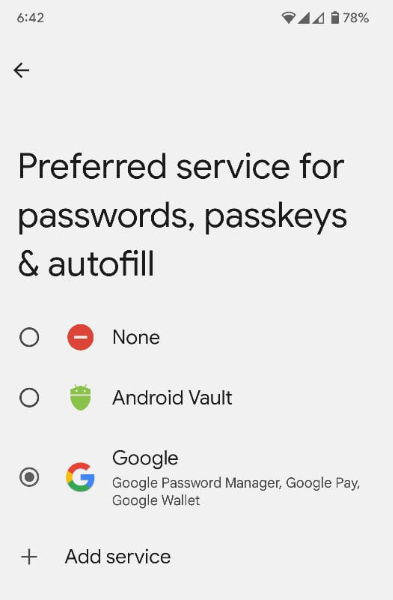
บริการข้อมูลเข้าสู่ระบบที่ต้องการ: Intent
ACTION_REQUEST_SET_AUTOFILL_SERVICE จะเปลี่ยนเส้นทางผู้ใช้ไปยัง
หน้าจอการเลือกผู้ให้บริการที่ต้องการ ผู้ให้บริการที่เลือกในหน้าจอนี้จะกลายเป็นผู้ให้บริการข้อมูลเข้าสู่ระบบและการป้อนข้อความอัตโนมัติที่ต้องการ
รับรายการที่อนุญาตของแอปที่มีสิทธิ์
แอปที่มีสิทธิ์ เช่น เว็บเบราว์เซอร์ จะเรียกใช้ Credential Manager ในนามของผู้ให้บริการรายอื่นโดยการตั้งค่าพารามิเตอร์ origin ในเมธอด GetCredentialRequest() และ
CreatePublicKeyCredentialRequest() ของ Credential
Manager หากต้องการประมวลผลคำขอเหล่านี้
ผู้ให้บริการข้อมูลเข้าสู่ระบบจะดึงข้อมูล origin โดยใช้ getOrigin()
API
หากต้องการดึงข้อมูล origin แอปของผู้ให้บริการข้อมูลเข้าสู่ระบบต้องส่งรายการผู้เรียกที่มีสิทธิ์และเชื่อถือได้ไปยัง
androidx.credentials.provider.CallingAppInfo's getOrigin() API รายการที่อนุญาตนี้ต้องเป็นออบเจ็กต์ JSON ที่ถูกต้อง ระบบจะแสดงผล origin หาก packageName และลายนิ้วมือของใบรับรองที่ได้รับจาก signingInfo ตรงกับลายนิ้วมือของใบรับรองของแอปที่พบใน privilegedAllowlist ซึ่งส่งไปยัง getOrigin() API หลังจากได้รับค่า
origin แล้ว แอปผู้ให้บริการควรพิจารณาว่าการเรียกนี้เป็นการเรียกที่ได้รับสิทธิ์
และตั้งค่า origin นี้ในข้อมูลของไคลเอ็นต์
ใน AuthenticatorResponse แทนที่จะคำนวณ
origin โดยใช้ลายเซ็นของแอปที่เรียกใช้
หากดึงข้อมูล origin ให้ใช้ clientDataHash ที่ระบุไว้โดยตรง
ใน CreatePublicKeyCredentialRequest() หรือ
GetPublicKeyCredentialOption() แทนที่จะประกอบและแฮช
clientDataJSON ระหว่างคำขอการยืนยัน ตั้งค่าค่าตัวยึดตำแหน่งสำหรับ clientDataJSON ในการตอบกลับเอกสารรับรองและการยืนยันเพื่อหลีกเลี่ยงปัญหาการแยกวิเคราะห์ JSON เครื่องมือจัดการรหัสผ่านบน Google ใช้
รายการที่อนุญาตแบบเปิดสำหรับการเรียกใช้ getOrigin() ในฐานะผู้ให้บริการข้อมูลเข้าสู่ระบบ คุณสามารถใช้รายการนี้หรือระบุรายการของคุณเองในรูปแบบ JSON ที่ API อธิบายไว้ ผู้ให้บริการเป็นผู้เลือกรายการที่จะใช้ หากต้องการรับสิทธิ์เข้าถึงที่มีสิทธิ์กับผู้ให้บริการข้อมูลเข้าสู่ระบบบุคคลที่สาม โปรดดูเอกสารประกอบที่ผู้ให้บริการบุคคลที่สามจัดทำขึ้น
เปิดใช้ผู้ให้บริการในอุปกรณ์
ผู้ใช้ต้องเปิดใช้ผู้ให้บริการผ่านการตั้งค่าอุปกรณ์ > รหัสผ่านและบัญชี > ผู้ให้บริการของคุณ > เปิดใช้หรือปิดใช้
fun createSettingsPendingIntent(): PendingIntent