

Esta página descreve como os SDKs de terceiros podem integrar a instalação inline, um novo recurso de teste do Google Play que apresenta os detalhes do produto do app do Google Play em uma interface de meia tela. A instalação inline permite que os usuários tenham um fluxo de instalação de apps sem sair do contexto do app.
Os desenvolvedores de SDKs de terceiros podem integrar o recurso de instalação inline aos SDKs para permitir que os desenvolvedores de apps que usam esses SDKs acessem instalações inline para os apps.
Requisitos
Para que a interface de meia tela de instalação inline apareça em um app:
- A versão mínima do Google Play precisa ser 40.4.
- O nível da API Android precisa ser 24 ou mais recente.
Arquitetura do processo
A arquitetura do processo de instalação inline é mostrada na figura a seguir:
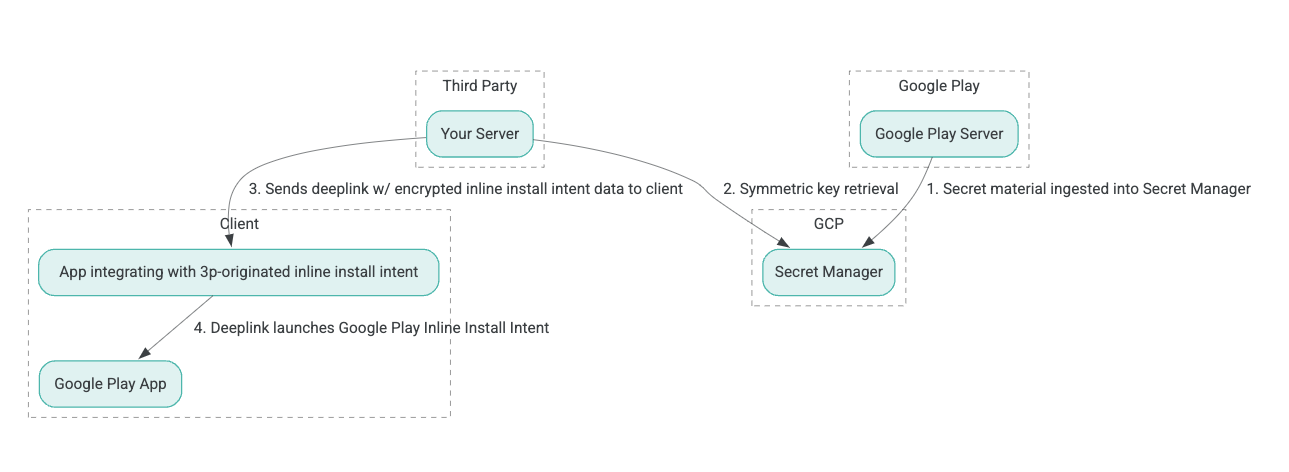
- Os servidores do Google Play geram chaves de criptografia AEAD (Authenticated Encryption with Associated Data) e as ingerem em uma instância do Secret Manager do Google Cloud Platform (GCP).
- O integrador de terceiros recupera a chave AEAD do Secret Manager do GCP.
- O integrador de terceiros criptografa os dados
Intentde instalação inline, gera o texto criptografado transmitido no link direto usado para invocar a intent de instalação inline e envia links diretos ao cliente em respostas. - Quando o link direto é seguido, o app Google Play processa a intent.
Para configurar um SDK de terceiros para usar o processo de instalação inline, siga estas etapas.
Criar contas de serviço no projeto do Google Cloud
Nesta etapa, você configura uma conta de serviço usando o Google Cloud Console.
- Configure um projeto do Google Cloud:
- Crie uma organização do Google Cloud. Quando você cria uma conta do Google Workspace ou do Cloud Identity e a associa ao seu nome de domínio, o recurso da organização é criado automaticamente. Para mais detalhes, consulte Como criar e gerenciar recursos da organização.
- Faça login no console do GCP usando a conta do Google Cloud criada na etapa anterior e crie um projeto na nuvem do Google Cloud. Para mais detalhes, consulte Criar um projeto do Google Cloud.
- Crie uma conta de serviço no projeto na nuvem do Google Cloud criado. A conta de serviço é usada como uma identidade do Google Cloud para acessar a chave simétrica em nome dos seus servidores. Para mais detalhes, consulte Criar uma conta de serviço.
- Use o mesmo ID de cliente do Google Workspace (GWCID, na sigla em inglês) / ID do Dasher que foi inserido no formulário de interesse.
- Crie e faça o download da chave privada dessa conta de serviço.
- Crie uma chave para essa conta de serviço. Para mais detalhes, consulte Criar uma chave de conta de serviço.
- Faça o download da chave da conta de serviço e mantenha-a acessível no servidor, porque ela é usada para autenticação para acessar os recursos do Google Cloud para as chaves simétricas. Para mais detalhes, consulte Receber uma chave de conta de serviço.
Recuperar credenciais
Nesta etapa, você recupera a chave simétrica do Secret Manager e a armazena com segurança (por exemplo, em um arquivo JSON) no armazenamento do servidor. Essa chave é usada para gerar o texto criptografado de dados de instalação inline.
Os valores secret_id/secretId se referem ao nome secreto dentro do Secret Manager. Esse nome é gerado adicionando hsdp-3p-key- ao valor sdk_id fornecido pelo Play. Por exemplo, se o sdk_id for abc, o nome secreto
será hsdp-3p-key-abc.
As versões secretas são atualizadas semanalmente às terças-feiras, às 14h UTC. As chaves mais recentes continuam funcionando até a próxima rotação, e o material da chave precisa ser buscado e armazenado semanalmente.
Exemplo do Python
O exemplo de código a seguir usa um token de acesso armazenado em um arquivo JSON para acessar o material da chave no Secret Manager do GCP e imprimi-lo no console.
#!/usr/bin/env python3
# Import the Secret Manager client library.
from google.cloud import secretmanager
from google.oauth2 import service_account
import google_crc32c

# Create a service account key file.
service_account_key_file = "<json key file of the service account>"
credentials = service_account.Credentials.from_service_account_file(service_account_key_file)

# Create the Secret Manager client.
client = secretmanager.SecretManagerServiceClient(
  credentials=credentials
)

# Build the resource name of the secret version.
name = f"projects/prod-play-hsdp-3p-caller-auth/secrets/<secret_id>/versions/latest"

# Access the secret version.
response = client.access_secret_version(request={"name": name})

# Verify payload checksum.
crc32c = google_crc32c.Checksum()
crc32c.update(response.payload.data)
if response.payload.data_crc32c != int(crc32c.hexdigest(), 16):
    print("Data corruption detected.")

# A keyset created with "tinkey create-keyset --key-template=AES256_GCM". Note
# that this keyset has the secret key information in cleartext.
keyset = response.payload.data.decode("UTF-8")

# WARNING: Do not print the secret in a production environment. Please store it
# in a secure storage.
with open('<key file name>', 'w') as f:
    f.write(keyset)
Exemplo do Java
O exemplo de código a seguir usa um token de acesso armazenado em um arquivo JSON para acessar o material da chave no Secret Manager do GCP e gravá-lo em um arquivo JSON.
import static java.nio.charset.StandardCharsets.UTF_8;
import com.google.api.gax.core.CredentialsProvider;
import com.google.api.gax.core.FixedCredentialsProvider;
import com.google.auth.oauth2.ServiceAccountCredentials;
import com.google.cloud.secretmanager.v1.AccessSecretVersionResponse;
import com.google.cloud.secretmanager.v1.SecretManagerServiceClient;
import com.google.cloud.secretmanager.v1.SecretManagerServiceSettings;
import com.google.cloud.secretmanager.v1.SecretVersionName;
import java.io.FileInputStream;
import java.io.IOException;
import java.io.PrintWriter;
import java.nio.file.Files;
import java.nio.file.Paths;
import java.util.zip.CRC32C;
import java.util.zip.Checksum;

/** */
final class ThirdPartySecretAccessGuide {

  private ThirdPartySecretAccessGuide() {}

  public static void main(String[] args) throws IOException {
    accessSecretVersion();
  }

  public static void accessSecretVersion() throws IOException {
    // TODO(developer): Replace these variables before running the sample.
    String projectId = "projectId";
    String secretId = "secretId";
    String versionId = "versionId";
    String accessTokenPrivateKeyPath = "path/to/credentials.json";
    String secretMaterialOutputPath = "path/to/secret.json";
    accessSecretVersion(
        projectId, secretId, versionId, accessTokenPrivateKeyPath, secretMaterialOutputPath);
  }

  // Access the payload for the given secret version if one exists. The version
  // can be a version number as a string (e.g. "5") or an alias (e.g. "latest").
  public static void accessSecretVersion(
      String projectId,
      String secretId,
      String versionId,
      String accessTokenPrivateKeyPath,
      String secretMaterialOutputPath)
      throws IOException {

    // We can explicitly instantiate the SecretManagerServiceClient (below) from a json file if we:
    // 1. Create a CredentialsProvider from a FileInputStream of the JSON file,
    CredentialsProvider credentialsProvider =
        FixedCredentialsProvider.create(
            ServiceAccountCredentials.fromStream(new FileInputStream(accessTokenPrivateKeyPath)));

    // 2. Build a SecretManagerService Settings object from that credentials provider, and
    SecretManagerServiceSettings secretManagerServiceSettings =
        SecretManagerServiceSettings.newBuilder()
            .setCredentialsProvider(credentialsProvider)
            .build();

    // 3. Initialize client that will be used to send requests by passing the settings object to
    // create(). This client only needs to be created once, and can be reused for multiple requests.
    // After completing all of your requests, call the "close" method on the client to safely clean
    // up any remaining background resources.
    try (SecretManagerServiceClient client =
        SecretManagerServiceClient.create(secretManagerServiceSettings)) {
      SecretVersionName secretVersionName = SecretVersionName.of(projectId, secretId, versionId);

      // Access the secret version.
      AccessSecretVersionResponse response = client.accessSecretVersion(secretVersionName);

      // Verify checksum. The used library is available in Java 9+.
      // If using Java 8, you may use the following:
      // https://github.com/google/guava/blob/e62d6a0456420d295089a9c319b7593a3eae4a83/guava/src/com/google/common/hash/Hashing.java#L395
      byte[] data = response.getPayload().getData().toByteArray();
      Checksum checksum = new CRC32C();
      checksum.update(data, 0, data.length);
      if (response.getPayload().getDataCrc32C() != checksum.getValue()) {
        System.out.printf("Data corruption detected.");
        return;
      }

      String payload = response.getPayload().getData().toStringUtf8();
      // Print the secret payload.
      //
      // WARNING: Do not print the secret in a production environment - this
      // snippet is showing how to access the secret material.
      System.out.printf("Plaintext: %s\n", payload);

      // Write the JSON secret material payload to a json file
      try (PrintWriter out =
          new PrintWriter(Files.newBufferedWriter(Paths.get(secretMaterialOutputPath), UTF_8))) {
        out.write(payload);
      } catch (Exception e) {
        e.printStackTrace();
      }
    }
  }
}
Definir o Application Default Credentials
Se você não quiser usar CredentialsProvider para transmitir a chave privada para um arquivo JSON na implementação Java, modifique a implementação definindo o Application Default Credentials (ADC):
- Informe às bibliotecas de cliente onde encontrar a chave da conta de serviço.
- Adicione dependências do Maven ao projeto Java.
- Chame
SecretManagerServiceClient.create(), que seleciona a autenticação automaticamente (devido à etapa 1).
Essas etapas modificam a implementação Java por:
- Eliminar a necessidade de criar os objetos
CredentialsProvidereSecretManagerServiceSettings. - Mudar a chamada para
SecretManagerServiceClient.create()para não incluir argumentos.
Criar texto criptografado e gerar link direto
Nesta etapa, você usa a biblioteca de criptografia Tink para criar o enifd (texto criptografado InlineInstallData) do objeto protobuf InlineInstallData.
O proto InlineInstallData é definido da seguinte maneira:
syntax = "proto2";
package hsdpexperiments;
option java_package = "com.google.hsdpexperiments";
option java_multiple_files = true;

// InlineInstallData is used by 3p auth callers to generate "encrypted inline
// flow data" (enifd) which is decrypted in PGS to verify authenticity and
// freshness.
message InlineInstallData {
  // The timestamp which indicates the time encrypted data is generated.
  // Used to validate freshness (i.e. generation time in past 4 hours).
  // Required.
  optional int64 timestamp_ms = 1;

  // The docid of the app that we want to open inline install page for.
  // This is the package name.
  // Required.
  optional string target_package_name = 2;

  // This is the name of the app requesting the ad from Google Ad Serving
  // system.
  // Required.
  optional string caller_package_name = 3;

  // This is the advertising id that will be collected by 3P Ad SDKs.
  // Optional.
  optional string advertising_id = 4;

  // This is used to indicate the network from where the inline install was
  // requested.
  // Required.
  optional string ad_network_id = 5;
}
Nesta etapa, você também cria o URL do link direto usando estes parâmetros:
| Campos | Descrição | Obrigatório |
|---|---|---|
| ID | O nome do pacote do app a ser instalado. | Sim |
| em linha | Defina como true se a meia tela de instalação inline for solicitada. Se for
false, o link direto da intent será para o Google Play. |
Sim |
| enifd | O identificador criptografado para SDKs de terceiros. | Sim |
| lft | Um identificador interno. | Sim |
| 3pAuthCallerId | O identificador do SDK. | Sim |
| informações do produto | Um parâmetro opcional para especificar o destino de uma página de detalhes personalizada. | Não |
| referrer | Uma string de acompanhamento de referrer opcional. | Não |
Exemplo do Python
O comando a seguir gera código Python de InlineInstallData.proto:
protoc InlineInstallData.proto --python_out=.
O exemplo de código Python a seguir cria InlineInstallData e o criptografa com a chave simétrica para criar o texto criptografado:
#!/usr/bin/env python3

# Import the Secret Manager client library.
import base64
import time
import inline_install_data_pb2 as InlineInstallData
import tink
from tink import aead
from tink import cleartext_keyset_handle

# Read the stored symmetric key.
with open("example3psecret.json", "r") as f:
  keyset = f.read()

"""Encrypt and decrypt using AEAD."""
# Register the AEAD key managers. This is needed to create an Aead primitive later.
aead.register()

# Create a keyset handle from the cleartext keyset in the previous
# step. The keyset handle provides abstract access to the underlying keyset to
# limit access of the raw key material. WARNING: In practice, it is unlikely
# you will want to use a cleartext_keyset_handle, as it implies that your key
# material is passed in cleartext, which is a security risk.
keyset_handle = cleartext_keyset_handle.read(tink.JsonKeysetReader(keyset))

# Retrieve the Aead primitive we want to use from the keyset handle.
primitive = keyset_handle.primitive(aead.Aead)

inlineInstallData = InlineInstallData.InlineInstallData()
inlineInstallData.timestamp_ms = int(time.time() * 1000)
inlineInstallData.target_package_name = "x.y.z"
inlineInstallData.caller_package_name = "a.b.c"
inlineInstallData.ad_network_id = "<sdk_id>"

# Use the primitive to encrypt a message. In this case the primary key of the
# keyset will be used (which is also the only key in this example).
ciphertext = primitive.encrypt(inlineInstallData.SerializeToString(), b'<sdk_id>')
print(f"InlineInstallData Ciphertext: {ciphertext}")

# Base64 Encoded InlineInstallData Ciphertext
enifd = base64.urlsafe_b64encode(ciphertext).decode('utf-8')
print(enifd)

# Deeplink
print(f"https://play.google.com/d?id={inlineInstallData.target_package_name}\&inline=true\&enifd={enifd}\&lft=1\&3pAuthCallerId={inlineInstallData.ad_network_id}")
Execute o script do Python usando o seguinte comando:
python <file_name>.py
Exemplo do Java
O comando a seguir gera código Java de InlineInstallData.proto:
protoc InlineInstallData.proto --java_out=.
O exemplo de código Java a seguir cria InlineInstallData e o criptografa com a chave simétrica para criar o texto criptografado:
package com.google.hsdpexperiments;

import static com.google.common.io.BaseEncoding.base64Url;
import static java.nio.charset.StandardCharsets.UTF_8;

import com.google.common.flags.Flag;
import com.google.common.flags.FlagSpec;
import com.google.common.flags.Flags;
import com.google.crypto.tink.Aead;
import com.google.crypto.tink.InsecureSecretKeyAccess;
import com.google.crypto.tink.KeysetHandle;
import com.google.crypto.tink.TinkJsonProtoKeysetFormat;
import com.google.crypto.tink.aead.AeadConfig;
import java.nio.file.Files;
import java.nio.file.Path;
import java.nio.file.Paths;
import java.security.Security;
import java.time.Duration;
import org.conscrypt.Conscrypt;

/** info on encryption in https://github.com/google/tink#learn-more */
final class ThirdPartyEnifdGuide {

  @FlagSpec(
      name = "third_party_id",
      help = "the identifier associated with the 3p for which to generate the enifd")
  private static final Flag<String> thirdPartyAuthCallerId = Flag.value("");

  @FlagSpec(name = "package_name", help = "the package name of the target app")
  private static final Flag<String> packageName = Flag.value("");


  @FlagSpec(name = "caller_package_name", help = "the package name of the caller app")
  private static final Flag<String> callerPackageName = Flag.value("");

  @FlagSpec(name = "secret_filename", help = "the path to the json file with the secret material")
  private static final Flag<String> secretFilename = Flag.value("");

  private ThirdPartyEnifdGuide() {}

  public static void main(String[] args) throws Exception {
    // parse flags
    Flags.parse(args);

    // File keyFile = new File(args[0]);
    Path keyFile = Paths.get(secretFilename.get());

    // Create structured inline flow data
    InlineInstallData idrp =
        InlineInstallData.newBuilder()
            .setTargetPackageName(packageName.get())
            .setCallerPackageName(callerPackageName.get())
            .setTimestampMs(System.currentTimeMillis())
            .setAdNetworkId(thirdPartyAuthCallerId.get())
            .build();

    // we can print this out here to make sure it's well formatted, this will help debug
    System.out.println(idrp.toString());

    // Register all AEAD key types with the Tink runtime.
    Conscrypt.checkAvailability();
    Security.addProvider(Conscrypt.newProvider());
    AeadConfig.register();

    // Read AEAD key downloaded from secretmanager into keysethandle
    KeysetHandle handle =
        TinkJsonProtoKeysetFormat.parseKeyset(
            new String(Files.readAllBytes(keyFile), UTF_8), InsecureSecretKeyAccess.get());

    // Generate enifd using tink library
    Aead aead = handle.getPrimitive(Aead.class);
    byte[] plaintext = idrp.toByteArray();
    byte[] ciphertext = aead.encrypt(plaintext, thirdPartyAuthCallerId.get().getBytes(UTF_8));
    String enifd = base64Url().omitPadding().encode(ciphertext);

    // Build deeplink, escaping ampersands (TODO: verify this is necessary while testing e2e)
    String deeplink =
        "https://play.google.com/d?id="
            + packageName.get()
            + "\\&inline=true\\&enifd="
            + enifd
            + "\\&lft=1\\&3pAuthCallerId="
            + thirdPartyAuthCallerId.get();

    System.out.println(deeplink);
  }
}
Por fim, crie o programa Java em um binário e invoque-o usando o seguinte código:
path/to/binary/ThirdPartyEnifdGuide --secret_filename=path/to/jsonfile/example3psecret.json --package_name=<package_name_of_target_app> --third_party_id=<3p_caller_auth_id>
- A flag
secret_filenameespecifica o caminho para o arquivo JSON que contém o material secreto. - A flag
package_nameé o ID do documento do app de destino. - A flag
third_party_idé usada para especificar o ID de autenticação do autor da chamada de terceiros (ou seja, o<sdk_id>).
Iniciar a intent de instalação inline
Para testar o link direto gerado na etapa anterior, conecte um dispositivo Android (verifique se a depuração USB está ativada) a uma estação de trabalho com o ADB instalado e execute o seguinte comando:
adb shell am start "<output_from_the_previous_python_or_java_code>"
No código do cliente, envie a intent usando um dos seguintes métodos (Kotlin ou Java).
Kotlin
val intent = Intent(Intent.ACTION_VIEW)
val deepLinkUrl = "<output_from_the_previous_python_or_java_code>"
intent.setPackage("com.android.vending")
intent.data = Uri.parse(deepLinkUrl)
val packageManager = context.getPackageManager()
if (intent.resolveActivity(packageManager) != null) {
  startActivityForResult(intent, 0)
} else {
  // Fallback to deep linking to full Play Store.
}
Java
Intent intent = new Intent(Intent.ACTION_VIEW);
String id = "exampleAppToBeInstalledId";
String deepLinkUrl = "<output_from_the_previous_python_or_java_code>";
intent.setPackage("com.android.vending");
intent.setData(Uri.parse(deepLinkUrl));
PackageManager packageManager = context.getPackageManager();
if (intent.resolveActivity(packageManager) != null) {
  startActivityForResult(intent, 0);
} else {
  // Fallback to deep linking to full Play Store.
}
Apêndice
As seções a seguir fornecem orientações adicionais sobre determinados casos de uso.
Preparar o ambiente Python
Para executar o exemplo de código Python, configure o ambiente Python na estação de trabalho e instale as dependências necessárias.
Configure o ambiente Python:
Instale o python3.11 (se já estiver instalado, pule esta etapa):
sudo apt install python3.11Instale o pip:
sudo apt-get install pipInstale
virtualenv:sudo apt install python3-virtualenvCrie um ambiente virtual (necessário para a dependência do Tink):
virtualenv inlineinstall --python=/usr/bin/python3.11
Insira o ambiente virtual:
source inlineinstall/bin/activateAtualize o pip:
python -m pip install --upgrade pipInstale as dependências necessárias:
Instale o Tink:
pip install tinkInstale o crc32c do Google:
pip install google-crc32cInstale o Secret Manager:
pip install google-cloud-secret-managerInstale o compilador protobuf:
sudo apt install protobuf-compiler
Geração de enifd em C++
A seguir, apresentamos um exemplo de C++ que escrevemos e validamos internamente para gerar o enifd.
A geração do enifd pode ser realizada usando o código C++ da seguinte maneira:
// A command-line example for using Tink AEAD w/ key template aes128gcmsiv to
// encrypt an InlineInstallData proto.
#include <chrono>
#include <iostream>
#include <memory>
#include <string>

#include "<path_to_protoc_output>/inline_install_data.proto.h"
#include "absl/flags/flag.h"
#include "absl/flags/parse.h"
#include "absl/strings/escaping.h"
#include "absl/strings/string_view.h"
#include "tink/cc/aead.h"
#include "tink/cc/aead_config.h"
#include "tink/cc/aead_key_templates.h"
#include "tink/cc/config/global_registry.h"
#include "tink/cc/examples/util/util.h"
#include "tink/cc/keyset_handle.h"
#include "tink/cc/util/status.h"
#include "tink/cc/util/statusor.h"

ABSL_FLAG(std::string, keyset_filename, "",
          "Keyset file (downloaded from secretmanager) in JSON format");
ABSL_FLAG(std::string, associated_data, "",
          "Associated data for AEAD (default: empty");

namespace {

using ::crypto::tink::Aead;
using ::crypto::tink::AeadConfig;
using ::crypto::tink::KeysetHandle;
using ::crypto::tink::util::Status;
using ::crypto::tink::util::StatusOr;

}  // namespace

namespace tink_cc_examples {

// AEAD example CLI implementation.
void AeadCli(const std::string& keyset_filename,
             absl::string_view associated_data) {
  Status result = AeadConfig::Register();
  if (!result.ok()) {
    std::clog << "Failed to register AeadConfig";
    return;
  }

  // Read the keyset from file.
  StatusOr<std::unique_ptr<KeysetHandle>> keyset_handle =
      ReadJsonCleartextKeyset(keyset_filename);
  if (!keyset_handle.ok()) {
    std::clog << "Failed to read json keyset";
    return;
  }

  // Get the primitive.
  StatusOr<std::unique_ptr<Aead>> aead =
      (*keyset_handle)
          ->GetPrimitive<crypto::tink::Aead>(
              crypto::tink::ConfigGlobalRegistry());
  if (!aead.ok()) {
    std::clog << "Failed to get primitive";
    return;
  }

  // Instantiate the enifd.
  hsdpexperiments::InlineInstallData iid;

  iid.set_timestamp_ms(std::chrono::duration_cast<std::chrono::milliseconds>(
                           std::chrono::system_clock::now().time_since_epoch())
                           .count());
  iid.set_target_package_name("<TARGET_PACKAGE_NAME>");
  iid.set_caller_package_name("<CALLER_PACKAGE_NAME>");
  iid.set_ad_network_id("<SDK_ID>");

  // Compute the output.
  StatusOr<std::string> encrypt_result =
      (*aead)->Encrypt(iid.SerializeAsString(), associated_data);
  if (!encrypt_result.ok()) {
    std::clog << "Failed to encrypt Inline Install Data";
    return;
  }
  const std::string& output = encrypt_result.value();

  std::string enifd;
  absl::WebSafeBase64Escape(output, &enifd);

  std::clog << "enifd: " << enifd << '\n';
}

}  // namespace tink_cc_examples

int main(int argc, char** argv) {
  absl::ParseCommandLine(argc, argv);

  std::string keyset_filename = absl::GetFlag(FLAGS_keyset_filename);
  std::string associated_data = absl::GetFlag(FLAGS_associated_data);

  std::clog << "Using keyset from file " << keyset_filename
            << " to AEAD-encrypt inline install data with associated data '"
            << associated_data << "'." << '\n';

  tink_cc_examples::AeadCli(keyset_filename, associated_data);
  return 0;
}
Esse código foi adaptado de um exemplo que pode ser encontrado nos documentos do Tink.