

Android 15에서는 개발자를 위한 훌륭한 기능과 API가 도입됩니다. 다음 섹션에서는 이러한 기능을 요약하여 관련 API를 시작하는 데 도움을 드립니다.
추가, 수정, 삭제된 API의 자세한 목록은 API diff 보고서를 참고하세요. 추가된 API에 관한 자세한 내용은 Android API 참조를 방문하세요. Android 15의 경우 API 수준 35에서 추가된 API를 찾으세요. 플랫폼 변경이 앱에 영향을 줄 수 있는 분야에 관해 알아보려면 Android 15 동작 변경사항(Android 15를 타겟팅하는 앱 및 모든 앱)을 확인해야 합니다.
카메라 및 미디어
Android 15에는 카메라 및 미디어 환경을 개선하고 크리에이터가 Android에서 자신의 비전을 실현할 수 있도록 지원하는 도구와 하드웨어에 액세스할 수 있는 다양한 기능이 포함되어 있습니다.
Android 미디어 및 카메라의 최신 기능과 개발자 솔루션에 관한 자세한 내용은 Google I/O의 최신 Android 미디어 및 카메라 환경 구축 강연을 참고하세요.
어두운 조명 부스트
Android 15 introduces Low Light Boost, an auto-exposure mode available to both Camera 2 and the night mode camera extension. Low Light Boost adjusts the exposure of the Preview stream in low-light conditions. This is different from how the night mode camera extension creates still images, because night mode combines a burst of photos to create a single, enhanced image. While night mode works very well for creating a still image, it can't create a continuous stream of frames, but Low Light Boost can. Thus, Low Light Boost enables camera capabilities, such as:
- Providing an enhanced image preview, so users are better able to frame their low-light pictures
- Scanning QR codes in low light
If you enable Low Light Boost, it automatically turns on when there's a low light level, and turns off when there's more light.
Apps can record off the Preview stream in low-light conditions to save a brightened video.
For more information, see Low Light Boost.
인앱 카메라 컨트롤
Android 15 adds an extension for more control over the camera hardware and its algorithms on supported devices:
- Advanced flash strength adjustments enabling precise control of flash
intensity in both
SINGLEandTORCHmodes while capturing images.
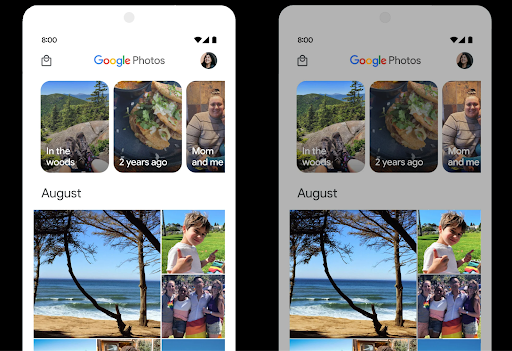
HDR 헤드룸 컨트롤
Android 15 chooses HDR headroom that is appropriate for the underlying device
capabilities and bit-depth of the panel. For pages that have lots of SDR
content, such as a messaging app displaying a single HDR thumbnail, this
behavior can end up adversely influencing the perceived brightness of the SDR
content. Android 15 lets you control the HDR headroom with
setDesiredHdrHeadroom to strike a balance between SDR
and HDR content.
음량 컨트롤

Android 15 introduces support for the CTA-2075 loudness standard to help you avoid audio loudness inconsistencies and ensure users don't have to constantly adjust volume when switching between content. The system leverages known characteristics of the output devices (headphones and speaker) along with loudness metadata available in AAC audio content to intelligently adjust the audio loudness and dynamic range compression levels.
To enable this feature, you need to ensure loudness metadata is available in
your AAC content and enable the platform feature in your app. For this, you
instantiate a LoudnessCodecController object by
calling its create factory method with the audio
session ID from the associated AudioTrack; this
automatically starts applying audio updates. You can pass an
OnLoudnessCodecUpdateListener to modify or filter
loudness parameters before they are applied on the
MediaCodec.
// Media contains metadata of type MPEG_4 OR MPEG_D
val mediaCodec = …
val audioTrack = AudioTrack.Builder()
                                .setSessionId(sessionId)
                                .build()
...
// Create new loudness controller that applies the parameters to the MediaCodec
try {
   val lcController = LoudnessCodecController.create(mSessionId)
   // Starts applying audio updates for each added MediaCodec
}
AndroidX media3 ExoPlayer will also be updated to use the
LoudnessCodecController APIs for a seamless app integration.
가상 MIDI 2.0 기기
Android 13에서는 범용 MIDI 패킷 (UMP)을 사용하여 통신하는 USB를 사용하는 MIDI 2.0 기기에 연결하는 지원을 추가했습니다. Android 15에서는 UMP 지원을 가상 MIDI 앱으로 확장하여 작곡 앱이 USB MIDI 2.0 기기에서와 마찬가지로 가상 MIDI 2.0 기기로 신디사이저 앱을 제어할 수 있도록 합니다.
더 효율적인 AV1 소프트웨어 디코딩

dav1d, the popular AV1 software decoder from VideoLAN is available for Android devices that don't support AV1 decode in hardware. dav1d is up to 3x more performant than the legacy AV1 software decoder, enabling HD AV1 playback for more users, including some low and mid tier devices.
Your app needs to opt-in to using dav1d by invoking it by name
"c2.android.av1-dav1d.decoder". dav1d will be made the default AV1 software
decoder in a subsequent update. This support is standardized and backported to
Android 11 devices that receive Google Play system updates.
개발자 생산성 및 도구
생산성 향상을 위한 대부분의 작업은 Android 스튜디오, Jetpack Compose, Android Jetpack 라이브러리와 같은 도구를 중심으로 이루어지지만, 플랫폼에서 비전을 더 쉽게 실현할 수 있는 방법을 항상 찾고 있습니다.
OpenJDK 17 업데이트
Android 15 continues the work of refreshing Android's core libraries to align with the features in the latest OpenJDK LTS releases.
The following key features and improvements are included:
- Quality-of-life improvements around NIO buffers
- Streams
- Additional
mathandstrictmathmethods utilpackage updates including sequencedcollection,map, andsetByteBuffersupport inDeflater- Security updates such as
X500PrivateCredentialand security key updates
These APIs are updated on over a billion devices running Android 12 (API level 31) and higher through Google Play System updates, so you can target the latest programming features.
PDF 개선사항
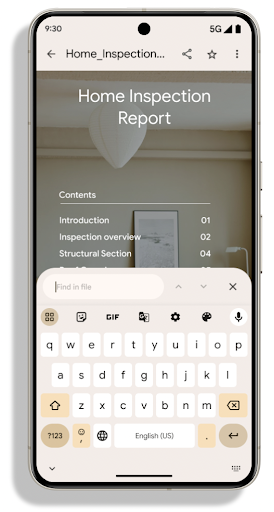
Android 15에서는 PdfRenderer API가 크게 개선되었습니다. 앱에는 렌더링과 같은 고급 기능을
비밀번호로 보호된 파일, 주석, 양식 수정,
검색, 선택(사본 포함) 선형화된 PDF
로컬 PDF 보기의 속도를 높이고 리소스 사용을 줄이기 위해 최적화가 지원됩니다.
Jetpack PDF 라이브러리는 이러한 API를 사용하여 PDF 추가를 간소화합니다.
앱에 추가할 수 있습니다.
PdfRenderer를 Google을 사용하여 업데이트할 수 있는 모듈로 이동했습니다.
플랫폼 출시와는 별개인 Play 시스템 업데이트(Google에서는
Android 11 (API 수준 30)으로 다시 돌아가
API 노출 영역 Android 15 이전 버전
PdfRendererPreV
자동 언어 전환 개선사항
Android 14 added on-device, multi-language recognition in audio with automatic
switching between languages, but this can cause words to get dropped,
especially when languages switch with less of a pause between the two
utterances. Android 15 adds additional controls to help apps tune this switching
to their use case.
EXTRA_LANGUAGE_SWITCH_INITIAL_ACTIVE_DURATION_TIME_MILLIS
confines the automatic switching to the beginning of the audio session, while
EXTRA_LANGUAGE_SWITCH_MATCH_SWITCHES deactivates the
language switching after a defined number of switches. These options are
particularly useful if you expect that there will be a single language spoken
during the session that should be autodetected.
향상된 OpenType 가변 글꼴 API
Android 15 improves the usability of the OpenType variable font. You can create
a FontFamily instance from a variable font without specifying weight axes
with the buildVariableFamily API. The text renderer overrides the value
of wght axis to match the displaying text.
Using the API simplifies the code for creating a Typeface considerably:
Kotlin
val newTypeface = Typeface.CustomFallbackBuilder(
            FontFamily.Builder(
                Font.Builder(assets, "RobotoFlex.ttf").build())
                    .buildVariableFamily())
    .build()
Java
Typeface newTypeface = Typeface.CustomFallbackBuilder(
            new FontFamily.Builder(
                new Font.Builder(assets, "RobotoFlex.ttf").build())
                    .buildVariableFamily())
    .build();
Previously, to create the same Typeface, you would need much more code:
Kotlin
val oldTypeface = Typeface.CustomFallbackBuilder(
            FontFamily.Builder(
                Font.Builder(assets, "RobotoFlex.ttf")
                    .setFontVariationSettings("'wght' 400")
                    .setWeight(400)
                    .build())
                .addFont(
                    Font.Builder(assets, "RobotoFlex.ttf")
                        .setFontVariationSettings("'wght' 100")
                        .setWeight(100)
                        .build()
                )
                .addFont(
                    Font.Builder(assets, "RobotoFlex.ttf")
                        .setFontVariationSettings("'wght' 200")
                        .setWeight(200)
                        .build()
                )
                .addFont(
                    Font.Builder(assets, "RobotoFlex.ttf")
                        .setFontVariationSettings("'wght' 300")
                        .setWeight(300)
                        .build()
                )
                .addFont(
                    Font.Builder(assets, "RobotoFlex.ttf")
                        .setFontVariationSettings("'wght' 500")
                        .setWeight(500)
                        .build()
                )
                .addFont(
                    Font.Builder(assets, "RobotoFlex.ttf")
                        .setFontVariationSettings("'wght' 600")
                        .setWeight(600)
                        .build()
                )
                .addFont(
                    Font.Builder(assets, "RobotoFlex.ttf")
                        .setFontVariationSettings("'wght' 700")
                        .setWeight(700)
                        .build()
                )
                .addFont(
                    Font.Builder(assets, "RobotoFlex.ttf")
                        .setFontVariationSettings("'wght' 800")
                        .setWeight(800)
                        .build()
                )
                .addFont(
                    Font.Builder(assets, "RobotoFlex.ttf")
                        .setFontVariationSettings("'wght' 900")
                        .setWeight(900)
                        .build()
                ).build()
        ).build()
Java
Typeface oldTypeface = new Typeface.CustomFallbackBuilder(
    new FontFamily.Builder(
        new Font.Builder(assets, "RobotoFlex.ttf")
            .setFontVariationSettings("'wght' 400")
            .setWeight(400)
            .build()
    )
    .addFont(
        new Font.Builder(assets, "RobotoFlex.ttf")
            .setFontVariationSettings("'wght' 100")
            .setWeight(100)
            .build()
    )
    .addFont(
        new Font.Builder(assets, "RobotoFlex.ttf")
            .setFontVariationSettings("'wght' 200")
            .setWeight(200)
            .build()
    )
    .addFont(
        new Font.Builder(assets, "RobotoFlex.ttf")
            .setFontVariationSettings("'wght' 300")
            .setWeight(300)
            .build()
    )
    .addFont(
        new Font.Builder(assets, "RobotoFlex.ttf")
            .setFontVariationSettings("'wght' 500")
            .setWeight(500)
            .build()
    )
    .addFont(
        new Font.Builder(assets, "RobotoFlex.ttf")
            .setFontVariationSettings("'wght' 600")
            .setWeight(600)
            .build()
    )
    .addFont(
        new Font.Builder(assets, "RobotoFlex.ttf")
            .setFontVariationSettings("'wght' 700")
            .setWeight(700)
            .build()
    )
    .addFont(
        new Font.Builder(assets, "RobotoFlex.ttf")
            .setFontVariationSettings("'wght' 800")
            .setWeight(800)
            .build()
    )
    .addFont(
        new Font.Builder(assets, "RobotoFlex.ttf")
            .setFontVariationSettings("'wght' 900")
            .setWeight(900)
            .build()
    )
    .build()
).build();
Here's an example of how a Typeface created with both the old and new APIs
renders:
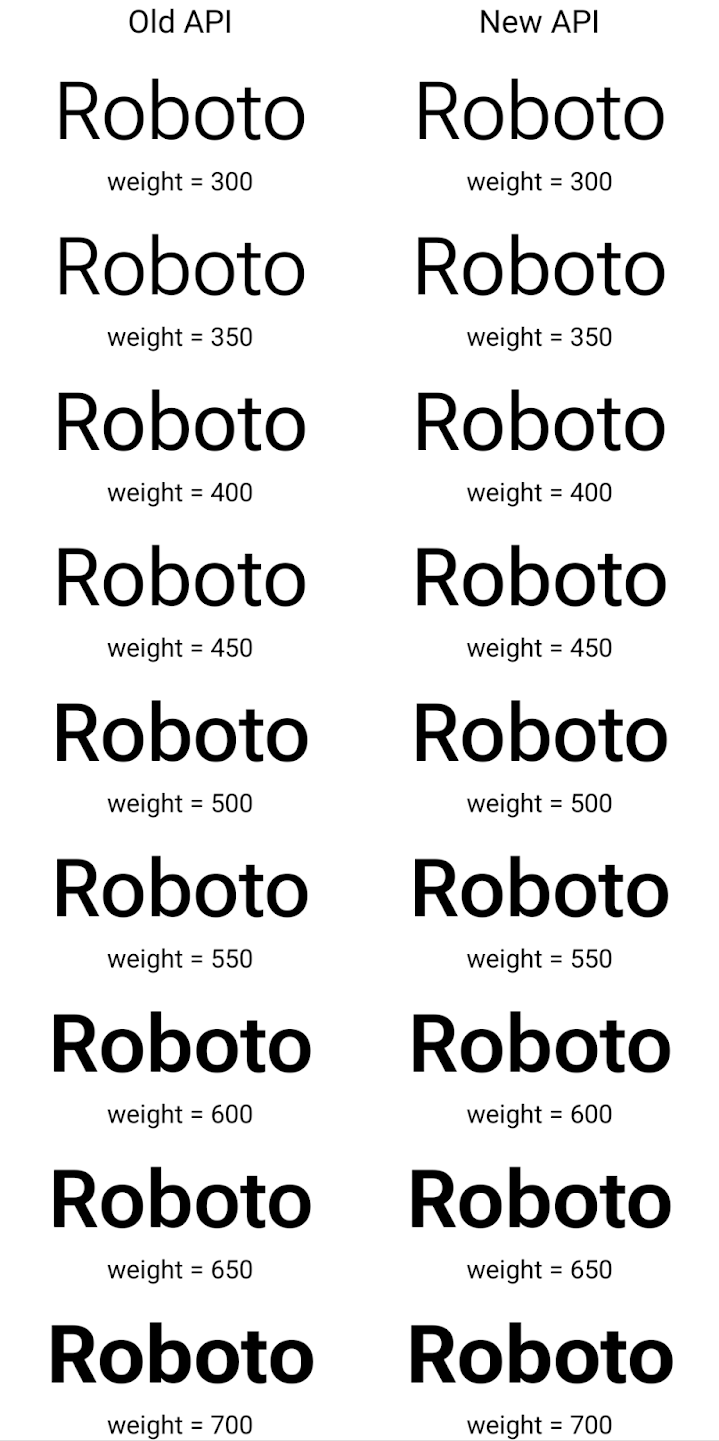
In this example, the Typeface created with the old API doesn't have the
capability to create accurate font weights for the 350, 450, 550 and 650
Font instances, so the renderer falls back to the closest weight. So in
this case, 300 is rendered instead of 350, 400 is rendered instead of 450, and
so on. By contrast, the Typeface created with the new APIs dynamically creates
a Font instance for a given weight, so accurate weights are rendered for 350,
450, 550, and 650 as well.
세밀한 줄바꿈 컨트롤
Android 15부터 TextView 및 기본 줄 바꿈은 가독성을 개선하기 위해 텍스트의 지정된 부분을 동일한 줄에 유지할 수 있습니다. 문자열 리소스 또는 createNoBreakSpan에서 <nobreak> 태그를 사용하여 이 줄바꿈 맞춤설정을 활용할 수 있습니다. 마찬가지로 <nohyphen> 태그 또는 createNoHyphenationSpan를 사용하여 단어를 구두점을 사용하지 않고 유지할 수 있습니다.
예를 들어 다음 문자열 리소스에는 줄바꿈이 포함되어 있지 않으며 'Pixel 8 Pro'라는 텍스트로 렌더링되며 원치 않는 위치에서 줄바꿈이 발생합니다.
<resources>
    <string name="pixel8pro">The power and brains behind Pixel 8 Pro.</string>
</resources>
반대로 이 문자열 리소스에는 'Pixel 8 Pro'라는 문구를 래핑하고 줄바꿈을 방지하는 <nobreak> 태그가 포함되어 있습니다.
<resources>
    <string name="pixel8pro">The power and brains behind <nobreak>Pixel 8 Pro.</nobreak></string>
</resources>
이러한 문자열이 렌더링되는 방식의 차이는 다음 이미지에 나와 있습니다.
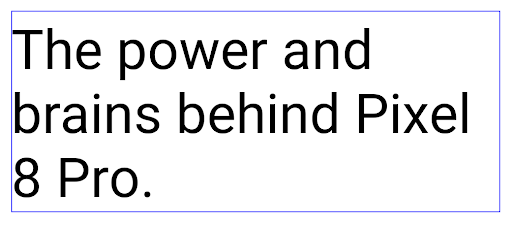
<nobreak> 태그를 사용하여 'Pixel 8 Pro'라는 문구가 줄바꿈되지 않은 텍스트 줄의 레이아웃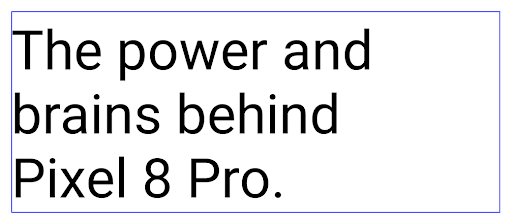
<nobreak> 태그를 사용하여 래핑된 동일한 텍스트 줄의 레이아웃앱 보관처리
Android and Google Play announced support for app archiving last year, allowing users to free up space by partially removing infrequently used apps from the device that were published using Android App Bundle on Google Play. Android 15 includes OS level support for app archiving and unarchiving, making it easier for all app stores to implement it.
Apps with the REQUEST_DELETE_PACKAGES permission can call the
PackageInstaller requestArchive method to request archiving an
installed app package, which removes the APK and any cached files, but persists
user data. Archived apps are returned as displayable apps through the
LauncherApps APIs; users will see a UI treatment to highlight that those
apps are archived. If a user taps on an archived app, the responsible installer
will get a request to unarchive it, and the restoration process can be
monitored by the ACTION_PACKAGE_ADDED broadcast.
개발자 옵션을 사용하여 기기에서 16KB 모드 사용 설정
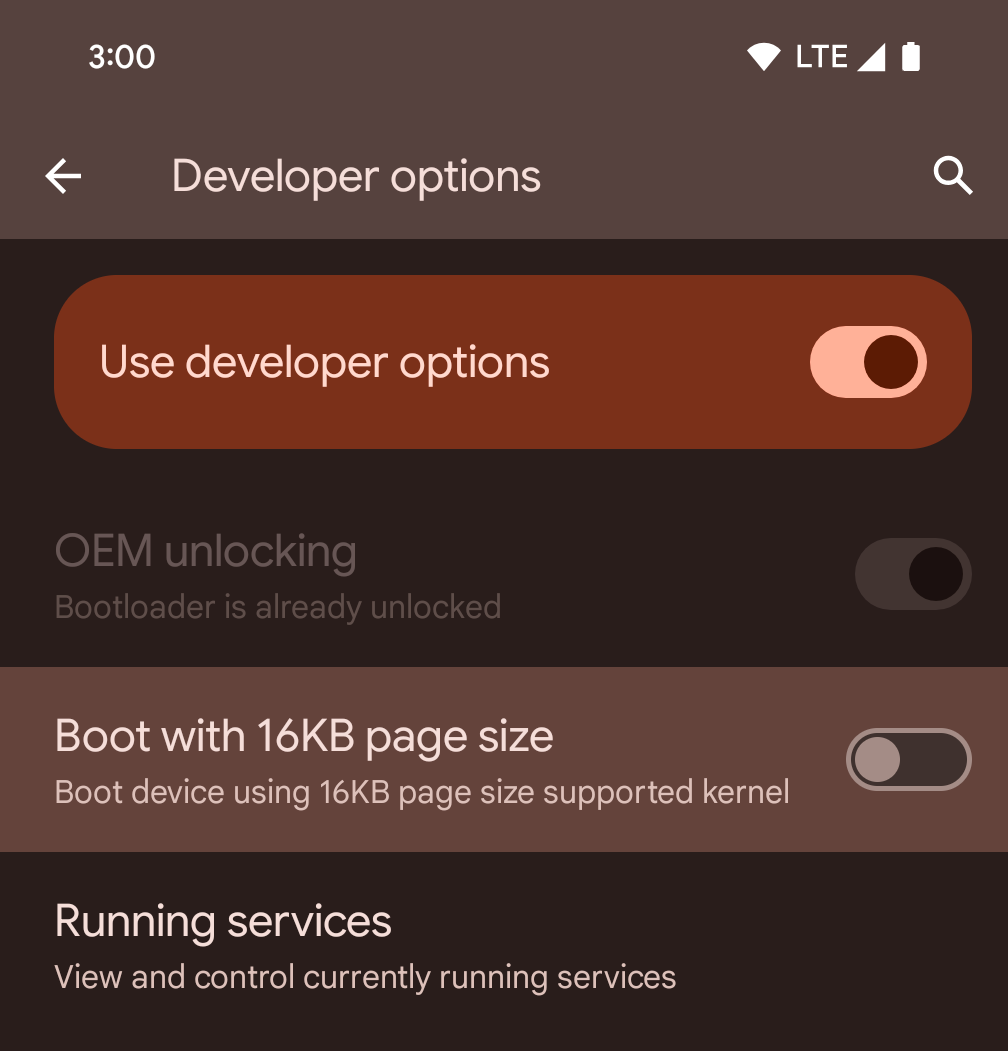
16KB 페이지 크기로 부팅 개발자 옵션을 전환하여 16KB 모드로 기기를 부팅합니다.
Android 15의 QPR 버전에서는 특정 기기에서 사용할 수 있는 개발자 옵션을 사용하여 기기를 16KB 모드로 부팅하고 기기 내 테스트를 실행할 수 있습니다. 개발자 옵션을 사용하기 전에 설정 > 시스템 > 소프트웨어 업데이트로 이동하여 사용 가능한 업데이트를 적용합니다.
이 개발자 옵션은 다음 기기에서 사용할 수 있습니다.
Pixel 8 및 8 Pro (Android 15 QPR1 이상)
Pixel 8a (Android 15 QPR1 이상)
Pixel 9, 9 Pro, 9 Pro XL (Android 15 QPR2 이상)
Pixel 9a (Android 16 이상)
그래픽
Android 15에는 ANGLE 및 Canvas 그래픽 시스템에 추가된 기능을 비롯한 최신 그래픽 개선사항이 적용되었습니다.
Android의 GPU 액세스 현대화

Android hardware has evolved quite a bit from the early days where the core OS would run on a single CPU and GPUs were accessed using APIs based on fixed-function pipelines. The Vulkan® graphics API has been available in the NDK since Android 7.0 (API level 24) with a lower-level abstraction that better reflects modern GPU hardware, scales better to support multiple CPU cores, and offers reduced CPU driver overhead — leading to improved app performance. Vulkan is supported by all modern game engines.
Vulkan is Android's preferred interface to the GPU. Therefore, Android 15 includes ANGLE as an optional layer for running OpenGL® ES on top of Vulkan. Moving to ANGLE will standardize the Android OpenGL implementation for improved compatibility, and, in some cases, improved performance. You can test out your OpenGL ES app stability and performance with ANGLE by enabling the developer option in Settings -> System -> Developer Options -> Experimental: Enable ANGLE on Android 15.
The Android ANGLE on Vulkan roadmap
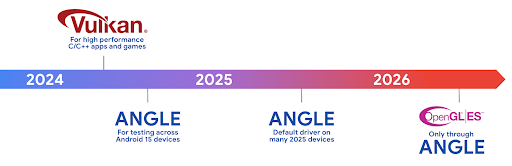
As part of streamlining our GPU stack, going forward we will be shipping ANGLE as the GL system driver on more new devices, with the future expectation that OpenGL/ES will be only available through ANGLE. That being said, we plan to continue support for OpenGL ES on all devices.
Recommended next steps
Use the developer options to select the ANGLE driver for OpenGL ES and test your app. For new projects, we strongly encourage using Vulkan for C/C++.
Canvas 개선사항
Android 15 continues our modernization of Android's Canvas graphics system with additional capabilities:
Matrix44provides a 4x4 matrix for transforming coordinates that should be used when you want to manipulate the canvas in 3D.clipShaderintersects the current clip with the specified shader, whileclipOutShadersets the clip to the difference of the current clip and the shader, each treating the shader as an alpha mask. This supports the drawing of complex shapes efficiently.
성능 및 배터리
Android는 앱의 성능과 품질을 개선하는 데 계속 중점을 두고 있습니다. Android 15에서는 앱에서 작업을 더 효율적으로 실행하고, 앱 성능을 최적화하고, 앱에 관한 통계를 수집하는 데 도움이 되는 API를 도입합니다.
배터리 효율적인 권장사항, 네트워크 및 전원 사용량 디버깅, Android 15 및 최근 버전의 Android에서 백그라운드 작업의 배터리 효율성을 개선하는 방법에 관한 자세한 내용은 Google I/O의 Android에서 백그라운드 작업의 배터리 효율성 개선 강연을 참고하세요.
ApplicationStartInfo API
In previous versions of Android, app startup has been a bit of a mystery. It was
challenging to determine within your app whether it started from a cold, warm,
or hot state. It was also difficult to know how long your app spent during the
various launch phases: forking the process, calling onCreate, drawing the
first frame, and more. When your Application class was instantiated, you had no
way of knowing whether the app started from a broadcast, a content provider, a
job, a backup, boot complete, an alarm, or an Activity.
The ApplicationStartInfo API on Android 15 provides
all of this and more. You can even choose to add your own timestamps into the
flow to help collect timing data in one place. In addition to collecting
metrics, you can use ApplicationStartInfo to help directly optimize app
startup; for example, you can eliminate the costly instantiation of UI-related
libraries within your Application class when your app is starting up due to a
broadcast.
자세한 앱 크기 정보
Since Android 8.0 (API level 26), Android has included the
StorageStats.getAppBytes API that summarizes the installed
size of an app as a single number of bytes, which is a sum of the APK size, the
size of files extracted from the APK, and files that were generated on the
device such as ahead-of-time (AOT) compiled code. This number is not very
insightful in terms of how your app is using storage.
Android 15 adds the
StorageStats.getAppBytesByDataType([type]) API, which lets
you get insight into how your app is using up all that space, including APK file
splits, AOT and speedup related code, dex metadata, libraries, and guided
profiles.
앱 관리 프로파일링
Android 15에는 힙 덤프, 힙 프로필, 스택 샘플링과 같은 프로파일링 정보를 앱 내에서 수집할 수 있는 ProfilingManager 클래스가 포함되어 있습니다. 앱의 파일 디렉터리에 전송되는 출력 파일을 식별하는 제공된 태그와 함께 앱에 콜백을 제공합니다. API는 성능 영향을 최소화하기 위해 비율 제한을 사용합니다.
앱에서 프로파일링 요청 구성을 간소화하려면 Core 1.15.0-rc01 이상에서 사용할 수 있는 상응하는 Profiling AndroidX API를 사용하는 것이 좋습니다.
SQLite 데이터베이스 개선사항
Android 15 introduces SQLite APIs that expose advanced features from the underlying SQLite engine that target specific performance issues that can manifest in apps. These APIs are included with the update of SQLite to version 3.44.3.
Developers should consult best practices for SQLite performance to get the most out of their SQLite database, especially when working with large databases or when running latency-sensitive queries.
- Read-only deferred transactions: when issuing transactions that are
read-only (don't include write statements), use
beginTransactionReadOnly()andbeginTransactionWithListenerReadOnly(SQLiteTransactionListener)to issue read-onlyDEFERREDtransactions. Such transactions can run concurrently with each other, and if the database is in WAL mode, they can run concurrently withIMMEDIATEorEXCLUSIVEtransactions. - Row counts and IDs: APIs were added to retrieve the count of changed
rows or the last inserted row ID without issuing an additional query.
getLastChangedRowCount()returns the number of rows that were inserted, updated, or deleted by the most recent SQL statement within the current transaction, whilegetTotalChangedRowCount()returns the count on the current connection.getLastInsertRowId()returns therowidof the last row to be inserted on the current connection. - Raw statements: issue a raw SQlite statement, bypassing convenience wrappers and any additional processing overhead that they may incur.
Android Dynamic Performance Framework 업데이트
Android 15 continues our investment in the Android Dynamic Performance Framework (ADPF), a set of APIs that allow games and performance intensive apps to interact more directly with power and thermal systems of Android devices. On supported devices, Android 15 adds ADPF capabilities:
- A power-efficiency mode for hint sessions to indicate that their associated threads should prefer power saving over performance, great for long-running background workloads.
- GPU and CPU work durations can both be reported in hint sessions, allowing the system to adjust CPU and GPU frequencies together to best meet workload demands.
- Thermal headroom thresholds to interpret possible thermal throttling status based on headroom prediction.
To learn more about how to use ADPF in your apps and games, head over to the documentation.
개인 정보 보호
Android 15에는 앱 개발자가 사용자 개인 정보 보호를 지원하는 다양한 기능이 포함되어 있습니다.
화면 녹화 감지
Android 15 adds support for apps to detect that they are being recorded. A callback is invoked whenever the app transitions between being visible or invisible within a screen recording. An app is considered visible if activities owned by the registering process's UID are being recorded. This way, if your app is performing a sensitive operation, you can inform the user that they're being recorded.
val mCallback = Consumer<Int> { state ->
  if (state == SCREEN_RECORDING_STATE_VISIBLE) {
    // We're being recorded
  } else {
    // We're not being recorded
  }
}

override fun onStart() {
   super.onStart()
   val initialState =
      windowManager.addScreenRecordingCallback(mainExecutor, mCallback)
   mCallback.accept(initialState)
}

override fun onStop() {
    super.onStop()
    windowManager.removeScreenRecordingCallback(mCallback)
}
확장된 IntentFilter 기능
Android 15는 UriRelativeFilterGroup를 통해 더 정확한 Intent 해상도를 지원합니다. 여기에는 URL 쿼리 매개변수, URL 프래그먼트, 차단 또는 제외 규칙 등 각각 충족해야 하는 Intent 매칭 규칙 집합을 형성하는 UriRelativeFilter 객체의 집합이 포함됩니다.
이러한 규칙은 android:allow 태그를 선택적으로 포함할 수 있는 <uri-relative-filter-group> 태그를 사용하여 AndroidManifest XML 파일에서 정의할 수 있습니다. 이러한 태그에는 기존 데이터 태그 속성과 android:query 및 android:fragment 속성을 사용하는 <data> 태그가 포함될 수 있습니다.
다음은 AndroidManifest 문법의 예입니다.
<intent-filter android:autoVerify="true">
  <action android:name="android.intent.action.VIEW" />
  <category android:name="android.intent.category.BROWSABLE" />
  <category android:name="android.intent.category.DEFAULT" />
  <data android:scheme="http" />
  <data android:scheme="https" />
  <data android:host="astore.com" />
  <uri-relative-filter-group>
    <data android:pathPrefix="/auth" />
    <data android:query="region=na" />
  </uri-relative-filter-group>
  <uri-relative-filter-group android:allow="false">
    <data android:pathPrefix="/auth" />
    <data android:query="mobileoptout=true" />
  </uri-relative-filter-group>
  <uri-relative-filter-group android:allow="false">
    <data android:pathPrefix="/auth" />
    <data android:fragmentPrefix="faq" />
  </uri-relative-filter-group>
</intent-filter>
비공개 스페이스
비공개 스페이스를 사용하면 사용자는 기기에 별도의 공간을 만들어 민감한 앱을 다른 사람이 보지 못하도록 추가 인증 레이어로 보관할 수 있습니다. 비공개 스페이스는 별도의 사용자 프로필을 사용합니다. 사용자는 비공개 스페이스에 기기 잠금을 사용할지, 또는 별도의 잠금 수단을 사용할지 선택할 수 있습니다.
비공개 스페이스의 앱은 런처의 별도의 컨테이너에 표시되며, 비공개 스페이스가 잠겨 있으면 최근 항목 보기, 알림, 설정, 그 밖의 앱에서 숨겨집니다. 사용자가 생성했거나 다운로드한 콘텐츠 (예: 미디어 또는 파일)와 계정은 비공개 스페이스와 기본 스페이스 간에 구분되어 보관됩니다. 시스템 Sharesheet 및 사진 선택 도구를 사용하면 비공개 스페이스가 잠금 해제된 경우 앱이 여러 스페이스의 콘텐츠에 액세스하도록 허용할 수 있습니다.
사용자는 기존 앱과 데이터를 비공개 스페이스로 이동할 수 없습니다. 대신 사용자는 비공개 스페이스에서 설치 옵션을 선택하여 원하는 앱 스토어를 사용하여 앱을 설치합니다. 비공개 스페이스의 앱은 기본 스페이스의 앱과 별도의 사본으로 설치됩니다 (동일한 앱의 새 사본).
사용자가 비공개 스페이스를 잠그면 프로필이 중지됩니다. 프로필이 중지된 동안 비공개 스페이스의 앱은 더 이상 활성 상태가 아니며 알림 표시와 같은 포그라운드 또는 백그라운드 활동을 실행할 수 없습니다.
특히 앱이 다음 카테고리 중 하나에 해당하는 경우 비공개 공간으로 앱을 테스트하여 앱이 예상대로 작동하는지 확인하는 것이 좋습니다.
- 기본 프로필에 없는 설치된 앱 사본이 직장 프로필에 있다고 가정하는 직장 프로필 로직이 있는 앱
- 의료 앱
- 런처 앱
- 앱 스토어 앱
선택한 사진 액세스를 위한 가장 최근의 사용자 선택 쿼리
Apps can now highlight only the most-recently-selected photos and videos when
partial access to media permissions is granted. This feature can improve
the user experience for apps that frequently request access to photos and
videos. To use this feature in your app, enable the
QUERY_ARG_LATEST_SELECTION_ONLY argument when querying MediaStore
through ContentResolver.
Kotlin
val externalContentUri = MediaStore.Files.getContentUri("external")

val mediaColumns = arrayOf(
   FileColumns._ID,
   FileColumns.DISPLAY_NAME,
   FileColumns.MIME_TYPE,
)

val queryArgs = bundleOf(
   // Return only items from the last selection (selected photos access)
   QUERY_ARG_LATEST_SELECTION_ONLY to true,
   // Sort returned items chronologically based on when they were added to the device's storage
   QUERY_ARG_SQL_SORT_ORDER to "${FileColumns.DATE_ADDED} DESC",
   QUERY_ARG_SQL_SELECTION to "${FileColumns.MEDIA_TYPE} = ? OR ${FileColumns.MEDIA_TYPE} = ?",
   QUERY_ARG_SQL_SELECTION_ARGS to arrayOf(
       FileColumns.MEDIA_TYPE_IMAGE.toString(),
       FileColumns.MEDIA_TYPE_VIDEO.toString()
   )
)
Java
Uri externalContentUri = MediaStore.Files.getContentUri("external");

String[] mediaColumns = {
    FileColumns._ID,
    FileColumns.DISPLAY_NAME,
    FileColumns.MIME_TYPE
};

Bundle queryArgs = new Bundle();
queryArgs.putBoolean(MediaStore.QUERY_ARG_LATEST_SELECTION_ONLY, true);
queryArgs.putString(MediaStore.QUERY_ARG_SQL_SORT_ORDER, FileColumns.DATE_ADDED + " DESC");
queryArgs.putString(MediaStore.QUERY_ARG_SQL_SELECTION, FileColumns.MEDIA_TYPE + " = ? OR " + FileColumns.MEDIA_TYPE + " = ?");
queryArgs.putStringArray(MediaStore.QUERY_ARG_SQL_SELECTION_ARGS, new String[] {
    String.valueOf(FileColumns.MEDIA_TYPE_IMAGE),
    String.valueOf(FileColumns.MEDIA_TYPE_VIDEO)
});
Android의 개인 정보 보호 샌드박스
Android 15에는 최신 버전의 Android의 개인 정보 보호 샌드박스를 통합한 최신 Android 광고 서비스 확장 프로그램이 포함되어 있습니다. 이번 추가는 사용자 개인 정보 보호를 개선하고 모바일 앱에 효과적인 개인 맞춤 광고 경험을 제공하는 기술을 개발하기 위한 Google의 노력의 일환입니다. 개인 정보 보호 샌드박스 페이지에서 Android의 개인 정보 보호 샌드박스 개발자 프리뷰 및 베타 프로그램에 관한 자세한 내용을 확인하고 시작해 보세요.
헬스 커넥트
Android 15는 앱에서 수집한 건강/피트니스 데이터를 관리하고 공유하는 안전하고 중앙 집중식 플랫폼인 Android용 헬스 커넥트를 중심으로 최신 확장 프로그램을 통합합니다. 이번 업데이트에서는 피트니스, 영양, 피부 온도, 훈련 계획 등에서 추가 데이터 유형을 지원합니다.
피부 온도 측정으로 보다 정확하게 저장하고 공유할 수 있음 웨어러블 또는 기타 추적 장치의 온도 데이터.
트레이닝 계획은 사용자가 피트니스 목표를 달성할 수 있도록 도와주는 구조화된 운동 계획입니다. 트레이닝 계획 지원에는 다양한 완료 및 실적 목표가 포함됩니다.
- 칼로리 소모량과 같은 달성 목표 distance, duration 반복, 단계입니다.
- 다음과 같은 실적 목표 최대한 많이 반복하기 (AMRAP), 케이던스, 심박수, 파워, 운동 인지 속도 및 속도.
Android에서 헬스 커넥트의 최신 업데이트에 관해 자세히 알아보려면 Android로 적응형 환경 구축 Health 강연을 확인해 보세요.
앱 화면 공유
Android 15에서는 앱 화면 공유를 지원하므로 사용자가 전체 기기 화면이 아닌 앱 창만 공유하거나 녹화할 수 있습니다. Android 14 QPR2에서 처음 사용 설정된 이 기능에는 앱에서 앱 화면 공유 환경을 맞춤설정할 수 있는 MediaProjection 콜백이 포함되어 있습니다. Android 14 (API 수준 34) 이상을 타겟팅하는 앱의 경우 각 MediaProjection 캡처 세션에 사용자 동의가 필요합니다.
사용자 환경 및 시스템 UI
Android 15에서는 앱 개발자와 사용자에게 필요에 맞게 기기를 구성할 수 있는 더 많은 제어 기능과 유연성을 제공합니다.
Android 15의 최신 개선사항을 사용하여 앱의 사용자 환경을 개선하는 방법에 관한 자세한 내용은 Google I/O의 Android 앱의 사용자 환경 개선 강연을 참고하세요.
생성된 미리보기 API를 사용한 더 풍부한 위젯 미리보기
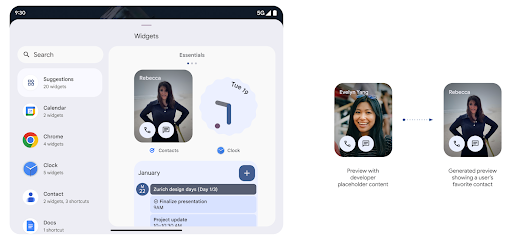
Before Android 15, the only way to provide widget picker previews was to specify a static image or layout resource. These previews often differ significantly from the look of the actual widget when it is placed on the home screen. Also, static resources can't be created with Jetpack Glance, so a Glance developer had to screenshot their widget or create an XML layout to have a widget preview.
Android 15 adds support for generated previews. This means that app widget
providers can generate RemoteViews to use as the picker preview, instead
of a static resource.
Push API
Apps can provide generated previews through a push API. Apps can provide
previews at any point in their lifecycle, and don't receive an explicit request
from the host to provide previews. Previews are persisted in AppWidgetService,
and hosts can request them on-demand. The following example loads an XML widget
layout resource and sets it as the preview:
AppWidgetManager.getInstance(appContext).setWidgetPreview(
   ComponentName(
       appContext,
       SociaLiteAppWidgetReceiver::class.java
   ),
   AppWidgetProviderInfo.WIDGET_CATEGORY_HOME_SCREEN,
   RemoteViews("com.example", R.layout.widget_preview)
)
The expected flow is:
- At any time, the widget provider calls
setWidgetPreview. The provided previews are persisted inAppWidgetServicewith other provider info. setWidgetPreviewnotifies hosts of an updated preview through theAppWidgetHost.onProvidersChangedcallback. In response, the widget host reloads all of its provider information.- When displaying a widget preview, the host checks
AppWidgetProviderInfo.generatedPreviewCategories, and if the chosen category is available, callsAppWidgetManager.getWidgetPreviewto return the saved preview for this provider.
When to call setWidgetPreview
Because there is no callback to provide previews, apps can choose to send previews at any point when they are running. How often to update the preview depends on the widget's use case.
The following list describes the two main categories of preview use cases:
- Providers that show real data in their widget previews, such as personalized or recent information. These providers can set the preview once the user has signed in or has done initial configuration in their app. After this, they can set up a periodic task to update the previews at their chosen cadence. Examples of this type of widget could be a photo, calendar, weather or news widget.
- Providers that show static information in previews or quick-action widgets that don't display any data. These providers can set previews once, when the app first launches. Examples of this type of widget include a drive quick actions widget or chrome shortcuts widget.
Some providers might show static previews on the hub mode picker, but real information on the homescreen picker. These providers should follow the guidance for both of these use cases to set previews.
PIP 모드
Android 15 introduces changes in Picture-in-Picture (PiP) ensuring an even smoother transition when entering into PiP mode. This will be beneficial for apps having UI elements overlaid on top of their main UI, which goes into PiP.
Developers use the onPictureInPictureModeChanged callback to define logic
that toggles the visibility of the overlaid UI elements. This callback is
triggered when the PiP enter or exit animation is completed. Beginning in
Android 15, the PictureInPictureUiState class includes another state.
With this UI state, apps targeting Android 15 (API level 35) will observe the
Activity#onPictureInPictureUiStateChanged callback being invoked with
isTransitioningToPip() as soon as the PiP animation starts. There are
many UI elements that are not relevant for the app when it is in PiP mode, for
example views or layout that include information such as suggestions, upcoming
video, ratings, and titles. When the app goes to PiP mode, use the
onPictureInPictureUiStateChanged callback to hide these UI elements. When the
app goes to full screen mode from the PiP window, use
onPictureInPictureModeChanged callback to unhide these elements, as shown in
the following examples:
override fun onPictureInPictureUiStateChanged(pipState: PictureInPictureUiState) {
        if (pipState.isTransitioningToPip()) {
          // Hide UI elements
        }
    }
override fun onPictureInPictureModeChanged(isInPictureInPictureMode: Boolean) {
        if (isInPictureInPictureMode) {
          // Unhide UI elements
        }
    }
This quick visibility toggle of irrelevant UI elements (for a PiP window) helps ensure a smoother and flicker-free PiP enter animation.
향상된 방해 금지 모드 규칙
AutomaticZenRule lets apps customize Attention
Management (Do Not Disturb) rules and decide when to activate or deactivate
them. Android 15 greatly enhances these rules with the goal of improving the
user experience. The following enhancements are included:
- Adding types to
AutomaticZenRule, allowing the system to apply special treatment to some rules. - Adding an icon to
AutomaticZenRule, helping to make the modes be more recognizable. - Adding a
triggerDescriptionstring toAutomaticZenRulethat describes the conditions on which the rule should become active for the user. - Added
ZenDeviceEffectstoAutomaticZenRule, allowing rules to trigger things like grayscale display, night mode, or dimming the wallpaper.
알림 채널의 VibrationEffect 설정
Android 15 supports setting rich vibrations for incoming notifications by
channel using NotificationChannel.setVibrationEffect, so
your users can distinguish between different types of notifications without
having to look at their device.
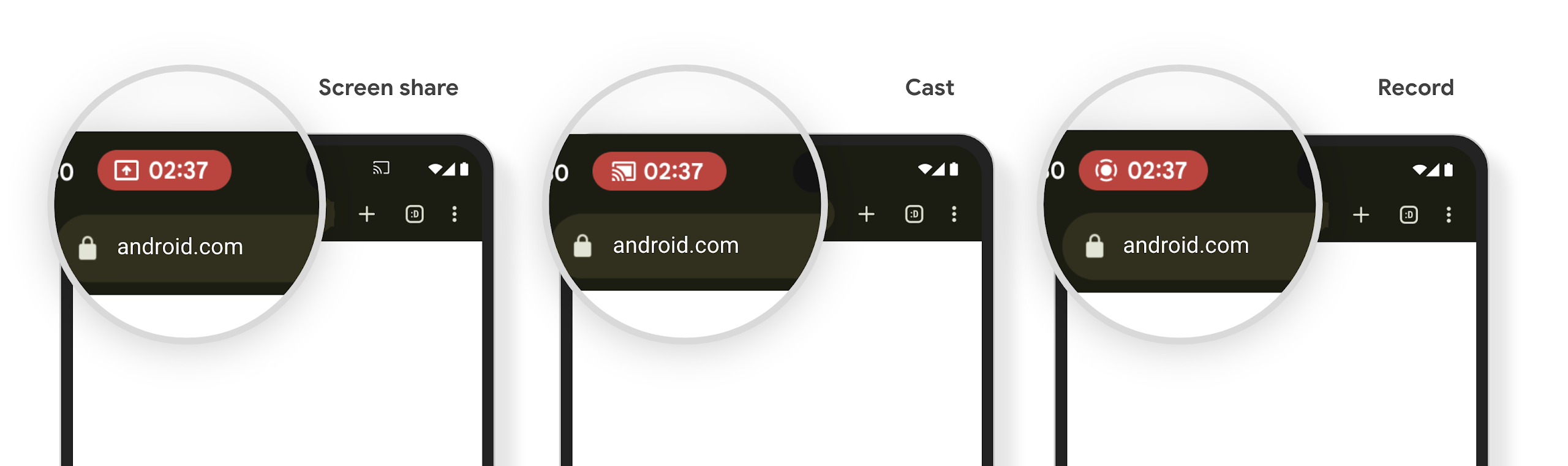
미디어 프로젝션 상태 표시줄 칩 및 자동 중지
Media projection can expose private user information. A new, prominent status bar chip makes users aware of any ongoing screen projection. Users can tap the chip to stop screen casting, sharing, or recording. Also, for a more intuitive user experience, any in‑progress screen projection now automatically stops when the device screen is locked.
대형 화면 및 폼 팩터
Android 15에서는 대형 화면, 플립형, 폴더블을 비롯한 Android의 폼 팩터를 최대한 활용할 수 있도록 앱을 지원합니다.
향상된 대형 화면 멀티태스킹
Android 15는 사용자가 대형 화면 기기에서 멀티태스킹하는 더 나은 방법을 제공합니다. 대상 예를 들어 사용자는 자주 사용하는 화면 분할 앱 조합을 저장하여 빠르게 화면의 태스크 바에 액세스하고 고정하여 앱 간에 빠르게 전환할 수 있습니다. 다시 말해 하는 것이 그 어느 때보다 중요하다고 생각합니다.
Google I/O의 적응형 Android 빌드 빌드 앱 및 Material 3으로 UI 빌드 적응형 라이브러리 이 문서에는 대규모 캠페인을 위한 디자인 화면을 선택합니다.
커버 화면 지원
Your app can declare a property that Android 15 uses to
allow your Application or Activity to be presented on the small cover
screens of supported flippable devices. These screens are too small to be
considered as compatible targets for Android apps to run on, but your app can
opt in to supporting them, making your app available in more places.
연결
Android 15에서는 앱이 통신 및 무선 기술의 최신 발전에 액세스할 수 있도록 플랫폼을 업데이트합니다.
위성 지원
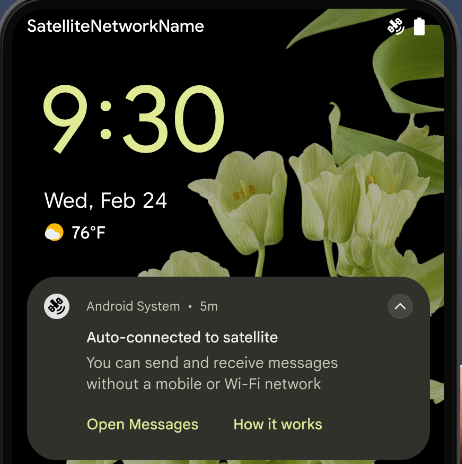
Android 15는 위성 연결에 대한 플랫폼 지원을 계속 확장하고 위성 연결 환경 전반에서 일관된 사용자 환경을 보장하기 위한 몇 가지 UI 요소를 포함합니다.
앱은 ServiceState.isUsingNonTerrestrialNetwork()를 사용하여 기기가 위성에 연결된 시점을 감지하여 전체 네트워크 서비스를 사용할 수 없는 이유를 더 잘 파악할 수 있습니다. 또한 Android 15는 메시지 전송 및 수신에 위성 연결을 사용하도록 사전 로드된 RCS 앱뿐만 아니라 SMS 및 MMS 앱을 지원합니다.
더 원활한 NFC 환경
Android 15 is working to make the tap to pay experience more seamless and
reliable while continuing to support Android's robust NFC app ecosystem. On
supported devices, apps can request the NfcAdapter to enter
observe mode, where the device listens but doesn't respond to NFC
readers, sending the app's NFC service PollingFrame
objects to process. The PollingFrame objects can be used to auth
ahead of the first communication to the NFC reader, allowing for a one tap
transaction in many cases.
In addition, apps can register a filter on supported devices so they can be notified of polling loop activity, which allows for smooth operation with multiple NFC-aware applications.
월렛 역할
Android 15 introduces a Wallet role that allows tighter integration with the user's preferred wallet app. This role replaces the NFC default contactless payment setting. Users can manage the Wallet role holder by navigating to Settings > Apps > Default Apps.
The Wallet role is used when routing NFC taps for AIDs registered in the payment category. Taps always go to the Wallet role holder unless another app that is registered for the same AID is running in the foreground.
This role is also used to determine where the Wallet Quick Access tile should go when activated. When the role is set to "None", the Quick Access tile isn't available and payment category NFC taps are only delivered to the foreground app.
보안
Android 15는 앱의 보안을 강화하고, 앱의 데이터를 보호하며, 사용자에게 데이터에 관한 더 많은 투명성과 제어 기능을 제공합니다. 사용자 보호를 개선하고 새로운 위협으로부터 앱을 보호하기 위해 Google에서 진행 중인 작업에 관한 자세한 내용은 Google I/O의 Android에서 사용자 보안 보호 강연을 참고하세요.
자동 완성과 인증 관리자 통합
Starting with Android 15, developers can link specific views like username or password fields with Credential Manager requests, making it easier to provide a tailored user experience during the sign-in process. When the user focuses on one of these views, a corresponding request is sent to Credential Manager. The resulting credentials are aggregated across providers and displayed in autofill fallback UIs, such as inline suggestions or drop-down suggestions. The Jetpack androidx.credentials library is the preferred endpoint for developers to use and will soon be available to further enhance this feature in Android 15 and higher.
원탭 가입 및 로그인을 생체 인식 메시지와 통합
인증 관리자는 생체 인식 메시지를 사용자 인증 정보 생성에 통합 및 로그인 프로세스로 이루어져 있으므로 제공업체가 생체 인식 프롬프트 따라서 사용자 인증 정보 제공업체는 생성 및 가져오기 흐름의 결과를 제공하며, 생체 인식 흐름 결과로 보강됩니다. 이 간소화된 프로세스로 더 효율적이고 간소화된 사용자 인증 정보를 만들 수 있습니다. 생성 및 검색 프로세스가 포함됩니다.
엔드 투 엔드 암호화를 위한 키 관리
We are introducing the E2eeContactKeysManager in Android 15, which
facilitates end-to-end encryption (E2EE) in your Android apps by providing an
OS-level API for the storage of cryptographic public keys.
The E2eeContactKeysManager is designed to integrate with the platform
contacts app to give users a centralized way to manage and verify their
contacts' public keys.
콘텐츠 URI의 권한 확인
Android 15 introduces a set of APIs that perform permission checks on content URIs:
Context.checkContentUriPermissionFull: This performs a full permission check on content URIs.Activitymanifest attributerequireContentUriPermissionFromCaller: This enforces specified permissions on the provided content URIs at activity launch.ComponentCallerclass forActivitycallers: This represents the app that launched the activity.
접근성
Android 15에는 사용자의 접근성을 개선하는 기능이 추가되었습니다.
향상된 점자
In Android 15, we've made it possible for TalkBack to support Braille displays that are using the HID standard over both USB and secure Bluetooth.
This standard, much like the one used by mice and keyboards, will help Android support a wider range of Braille displays over time.
다국어 지원
Android 15에는 기기가 여러 언어로 사용될 때 사용자 환경을 보완하는 기능이 추가되었습니다.
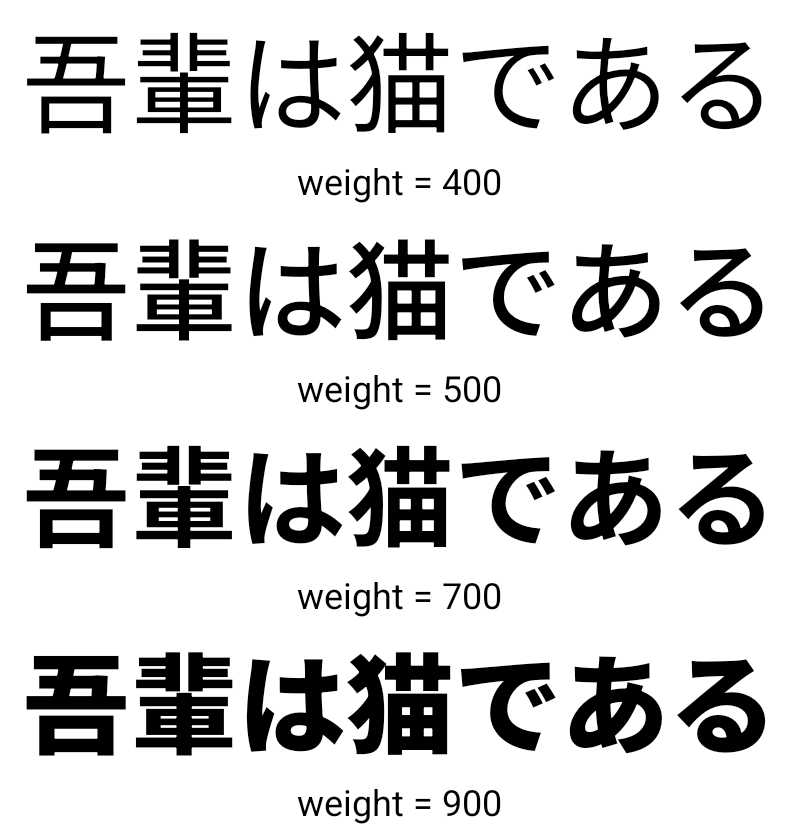
CJK 가변 글꼴
Android 15부터 중국어, 일본어, 한국어 (CJK) 언어의 글꼴 파일인 NotoSansCJK가 이제 가변 글꼴이 되었습니다. 가변 글꼴을 사용하면 CJK 언어로 창의적인 서체를 만들 수 있습니다. 디자이너는 더 다양한 스타일을 살펴보고 이전에는 어렵거나 불가능했던 시각적으로 눈에 띄는 레이아웃을 만들 수 있습니다.
자간 맞춤
Android 15부터
JUSTIFICATION_MODE_INTER_CHARACTER 사용 이전 단어 간 사유(이전):
Android 8.0 (API 수준 26)에서 처음 도입되었으며
근거는 특정 API를 사용하는 언어에 유사한 기능을
중국어, 일본어 등 분할을 위한 공백 문자
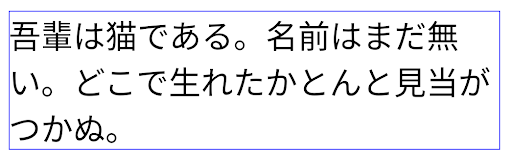
JUSTIFICATION_MODE_NONE를 사용한 일본어 텍스트 레이아웃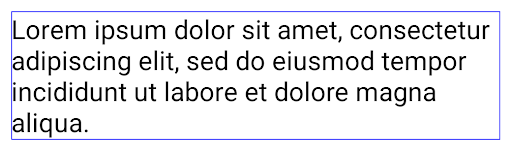
JUSTIFICATION_MODE_NONE를 사용한 영어 텍스트 레이아웃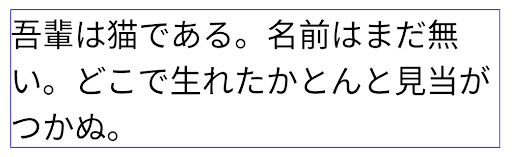
JUSTIFICATION_MODE_INTER_WORD를 사용한 일본어 텍스트 레이아웃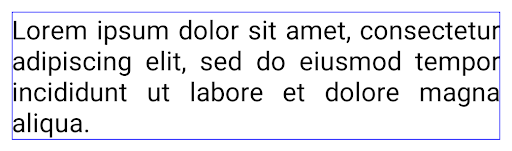
JUSTIFICATION_MODE_INTER_WORD를 사용한 영어 텍스트 레이아웃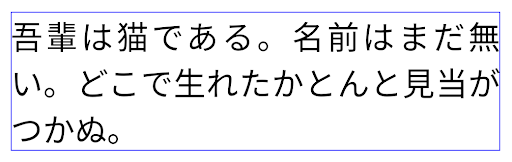
JUSTIFICATION_MODE_INTER_CHARACTER를 사용한 일본어 텍스트 레이아웃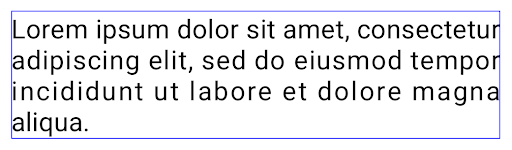
JUSTIFICATION_MODE_INTER_CHARACTER를 사용한 영어 텍스트 레이아웃자동 줄바꿈 구성
Android는 일본어와 한국어의 구문 기반 줄바꿈을
Android 13 (API 수준 33) 그러나 구문 기반 줄바꿈은 짧은 텍스트 줄의 가독성을 개선하지만 긴 텍스트 줄에는 적합하지 않습니다.
Android 15에서는 앱이 짧은 줄에만 구문 기반 줄바꿈을 적용할 수 있습니다.
LINE_BREAK_WORD_STYLE_AUTO를 사용하여 텍스트 생성
옵션을 선택합니다. 이 옵션을 선택하면 텍스트에 가장 적합한 단어 스타일 옵션이 선택됩니다.
짧은 텍스트 줄의 경우 동일하게 작동하는 구문 기반 줄바꿈이 사용됨
다음과 같이 LINE_BREAK_WORD_STYLE_PHRASE로 설정합니다.
다음 이미지:
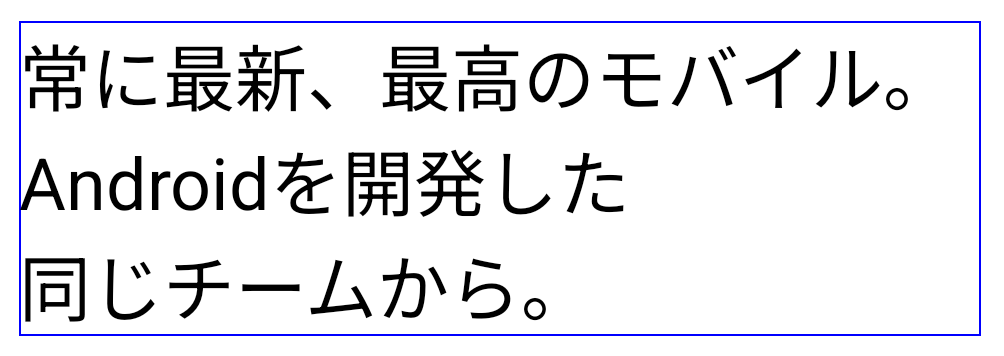
LINE_BREAK_WORD_STYLE_AUTO은 짧은 텍스트 줄의 경우 구문 기반 줄바꿈을 적용하여 텍스트의 가독성을 개선합니다.
이 방법은
LINE_BREAK_WORD_STYLE_PHRASE텍스트가 더 긴 경우 LINE_BREAK_WORD_STYLE_AUTO는 no를 사용합니다.
줄바꿈 단어 스타일로,
LINE_BREAK_WORD_STYLE_NONE
다음 이미지:
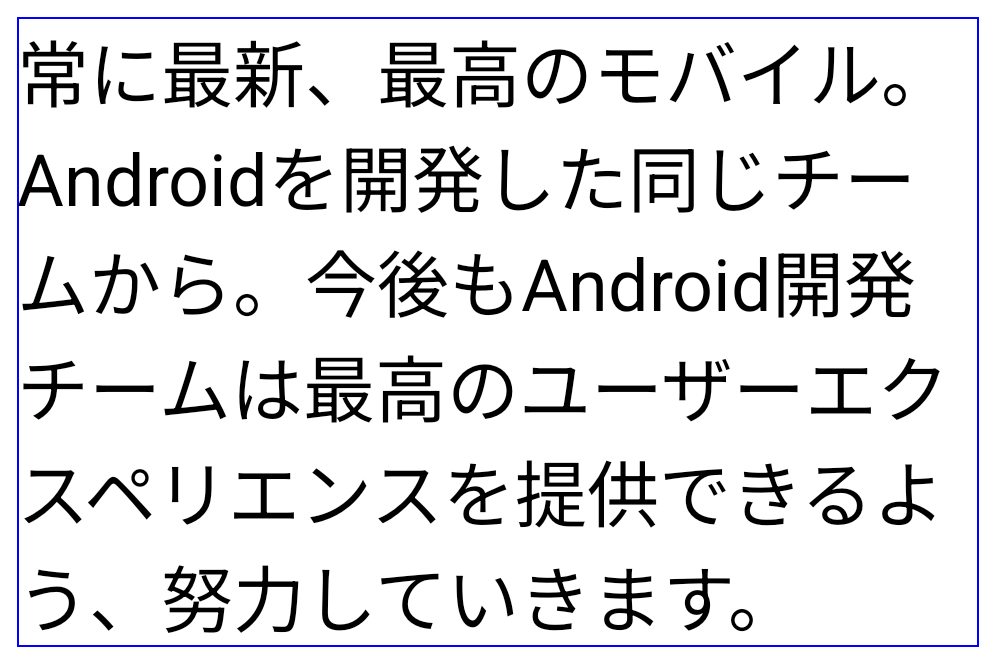
LINE_BREAK_WORD_STYLE_AUTO
줄바꿈 단어 스타일을 적용하지 않으므로 텍스트의 가독성이 향상됩니다.
이 방법은
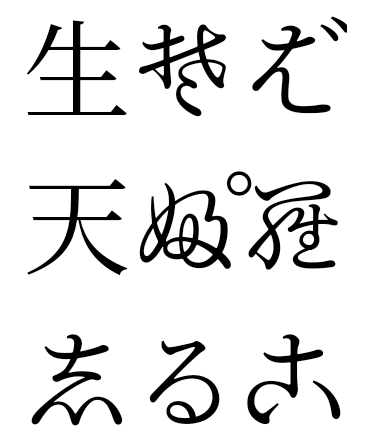
LINE_BREAK_WORD_STYLE_NONE추가 일본어 변체 가나 글꼴
Android 15의 오래된 일본어 히라가나 (헨타이가나) 글꼴 파일 기본적으로 번들로 묶여 있습니다. 독특한 모양의 헨타이가나 캐릭터는 예술 작품이나 디자인에 독특한 감각을 더하는 동시에 전송 및 이해에 대해 살펴봤습니다.
VideoLAN 원뿔 저작권 (c) 1996-2010 VideoLAN. 이 로고 또는 수정된 버전은 누구나 VideoLAN 프로젝트 또는 VideoLAN팀에서 개발한 제품을 언급하기 위해 사용하거나 수정할 수 있지만, 프로젝트의 추천을 나타내지는 않습니다.
Vulkan 및 Vulkan 로고는 Khronos Group Inc.의 등록 상표입니다.
OpenGL은 등록된 상표이며 OpenGL ES 로고는 Khronos의 허가를 받아 Hewlett Packard Enterprise의 상표입니다.