TV devices require a secondary hardware device for interacting with apps—a basic remote controller, pointer remote, or game controller. To provide a consistent user experience, your app must support directional pad (D-pad) input, handle controllers going offline, and support input from multiple controller types, including pointer remotes.
D-pad minimum controls
The default controller for a TV device is a D-pad. In general, your app must be operable from a remote controller that only has up, down, left, right, select, Back, and Home buttons. If your app is a game that typically requires a game controller with additional controls, attempt to support gameplay with only these D-pad controls. Otherwise, warn the user that a controller is required and let them exit your game gracefully using the D-pad controller.
For more information about navigation with D-pad controllers for TV devices, see TV navigation.
Handle controller disconnects
Controllers for TV are frequently Bluetooth devices, which might attempt to save power by periodically going into sleep mode and disconnecting from the TV device. This means that an app might be interrupted or restarted if it isn't configured to handle these reconnect events. These events can happen in any of the following circumstances:
- While a video that is several minutes long plays, a D-pad or game controller might go into sleep mode, disconnect from the TV device, and reconnect later.
- During gameplay, a new player might join the game using a game controller that isn't already connected.
- During gameplay, a player might leave the game and disconnect a game controller.
Any TV app activity that is subject to disconnect and reconnect events must be configured to handle reconnection events in the app manifest. The following code sample demonstrates how to enable an activity to handle configuration changes, including a keyboard or navigation device connecting, disconnecting, or reconnecting:
<activity
  android:name="com.example.android.TvActivity"
  android:label="@string/app_name"
  android:configChanges="keyboard|keyboardHidden|navigation"
  android:theme="@style/Theme.Leanback">

  <intent-filter>
    <action android:name="android.intent.action.MAIN" />
    <category android:name="android.intent.category.LEANBACK_LAUNCHER" />
  </intent-filter>
  ...
</activity>
This configuration change lets the app continue running through a reconnection event—rather than being restarted by the Android framework, which isn't a good user experience.
Handle D-pad input variations
TV device users might have more than one type of controller that they use with their TV. For example, a user might have a basic D-pad controller, a pointer remote, or a game controller. The key codes provided by a game controller when it is used for D-pad functions might vary from the key codes sent by a basic D-pad.
Handle the variations in D-pad input so the user doesn't have to switch controllers to operate your app. For more information on handling input variations, see Process directional pad input.
Support pointer remotes
Some TV devices support pointer remotes, such as air mice or remotes with touch-sensitive directional pads (trackpads). Supporting pointer remotes lets users interact with your app using point-and-click, hover, swipe, and drag gestures, providing a more fluid experience on compatible hardware while maintaining full D-pad compatibility.
Declare pointer remote support in the manifest
To indicate that your app is navigable with pointer and touch input, configure
your app manifest with the android.software.leanback.supports_touch metadata
set to true:
<manifest ...>
    <!-- Signal whether the app is adaptive or built just for TV -->
    <uses-feature
        android:name="android.software.leanback"
        android:required="true|false" />
    <!-- Ensure the app can be installed on conventional TVs -->
    <uses-feature
        android:name="android.hardware.touchscreen"
        android:required="false" />
    <!-- Signal whether the app supports pointer remotes -->
    <meta-data
        android:name="android.software.leanback.supports_touch"
        android:value="true" />
    <application ...>
        ...
    </application>
</manifest>
Support click, hover, and scroll interactions
When supporting pointer remotes, make sure your UI components respond appropriately to cursor and touch input across the following interactions:
- Click and selection: all focusable, selectable UI elements must be
clickable with the pointer remote, matching the behavior of D-pad selection
(
KEYCODE_DPAD_CENTER).- Jetpack Compose: use
Modifier.clickable()orpointerInputmodifiers. For more details, see Tap and press. - Views: handle click events on views. For more details, see the Input events overview.
- Jetpack Compose: use
- Visual hover states: provide a clear visual hover effect to indicate
when the pointer cursor is positioned over a selectable item.
- Jetpack Compose: use
Modifier.hoverable()or observe hover states using anInteractionSource. For more details, see Handle user interactions. - Views: define hover states using state-list drawables with
android:state_hovered="true".
- Jetpack Compose: use
- Swipe and fling scrolling: horizontal and vertical scrolling triggered by a swipe or fling gesture on a touch-sensitive center D-pad button must work smoothly across all scrollable content.
- Drag scrolling: users must be able to drag to scroll vertically (up and
down) or horizontally (left and right) across scrollable containers.
- Jetpack Compose: standard scrollable containers support pointer and touch scrolling by default. For custom implementations, see Pointer input in Compose.
- Views: standard scrollable views support touch scrolling by default. For custom input handling, see Touch and input.
- Media playback scrubbing: during media playback (such as TV shows and movies), users must be able to interact with the playback progress bar (seek bar) by pointing and clicking to jump to a past or future timestamp, as well as dragging (scrubbing) along the progress bar to seek to a specific time.
Handle button events
When the user clicks a button on a controller, your app receives an event with a
KeyEvent. The intended behavior for the button might be a media event,
like play, pause, or stop, or it might be a TV-type event, like selection or
navigation. To provide a good user experience, assign consistent behavior to
controller buttons.
TV UI events
Assign TV UI behavior to the buttons that generate KeyEvent types as shown in
the following table:
KeyEvent |
Behavior |
|---|---|
KEYCODE_BUTTON_B, KEYCODE_BACK |
Back |
KEYCODE_BUTTON_SELECT, KEYCODE_BUTTON_A, KEYCODE_ENTER, KEYCODE_DPAD_CENTER, KEYCODE_NUMPAD_ENTER |
Selection |
KEYCODE_DPAD_UP, KEYCODE_DPAD_DOWN, KEYCODE_DPAD_LEFT, KEYCODE_DPAD_RIGHT |
Navigation |
Media events
When the user is watching media, assign behavior to the buttons that generate
KeyEvent types as shown in the following table. If your app is controlling a
MediaSession, use a MediaControllerAdapter to call one of the
MediaControllerCompat.TransportControls methods shown in the table. Note that
the selection buttons act as Play or Pause buttons in this context.
KeyEvent |
TransportControls call | Behavior |
|---|---|---|
BUTTON_SELECT, BUTTON_A, ENTER, DPAD_CENTER, KEYCODE_NUMPAD_ENTER |
play() |
Play |
BUTTON_START, BUTTON_SELECT, BUTTON_A, ENTER, DPAD_CENTER, KEYCODE_NUMPAD_ENTER |
pause() |
Pause |
BUTTON_R1 |
skipToNext() |
Skip to next |
BUTTON_L1 |
skipToPrevious() |
Skip to previous |
DPAD_RIGHT, BUTTON_R2, AXIS_RTRIGGER, AXIS_THROTTLE |
fastForward() |
Fast forward |
DPAD_LEFT, BUTTON_L2, AXIS_LTRIGGER, AXIS_BRAKE |
rewind() |
Rewind |
| N/A | stop() |
Stop |
Provide appropriate Back button behavior
The Back button must never act as a toggle. For example, don't use it to both open and close a menu. Only use it to navigate backward, breadcrumb-style, through the previous screens the player has been on.
Since the Back button only performs linear, backward navigation, you can use it to leave an in-app menu opened by a different button and return to the app. Consecutively pressing the Back button must always eventually lead to the Android TV home screen. For example: game play > game pause screen > game main screen > Android TV home screen or TV show play > TV app main screen
Android TV home screen.
For more information about design for navigation, see Designing Back and Up navigation. To learn about implementation, refer to Providing proper back navigation.
Handle controllers for games
When building games for Android TV, design your control scheme to work with both standard TV remotes and dedicated game controllers.
Support D-pad controls
Plan your control scheme around a D-pad control, since this control set is the default for Android TV devices. The player needs to be able to use a D-pad for all aspects of the game—not only controlling core gameplay but also navigating menus and ads. For this reason, make sure that your Android TV game doesn't refer to a touch interface with language like "Tap here to continue."
How you shape the player's interaction with the controller can be key to achieving a great user experience. Consider the following best practices:
- Communicate controller requirements up front: use your Google Play description to communicate to the player any expectations about controllers. If a game is better suited to a gamepad with a joystick than one with only a D-pad, make this clear. A player who uses an ill-suited controller for a game might have a poor experience and give your game a bad rating.
- Use consistent button mapping: intuitive button mapping is key to a good user experience. For example, adhere to accepted customs by using the A button to accept and the B button to cancel. You can also offer flexibility by allowing the user to remap buttons. For more information about button mapping, see Handle controller actions.
- Detect controller capabilities and adjust accordingly: query the controller about its capabilities to optimize the match between controller and game. For example, you might intend for a player to steer an object by waving the controller in the air, but if a player's controller lacks accelerometer and gyroscope hardware, waving doesn't work. Query the controller and, if motion detection isn't supported, switch to an alternative, available control scheme. For more information about querying controller capabilities, see Support controllers across Android versions.
Use appropriate buttons
Not all game controllers provide Start, Search, or Menu buttons. Be sure your UI doesn't depend on the use of these buttons.
Handle multiple controllers
When multiple players are playing a game, each with their own controller, it's
important to map each player-controller pair. For information about how to
implement controller-number identification, see getControllerNumber().
Handle controller disconnects
When a controller is disconnected in the middle of gameplay, pause the game and show a dialog prompting the disconnected player to reconnect their controller.
Also, offer troubleshooting tips in the dialog. For example, tell the player to "Check your Bluetooth connection." For more information about implementing input-device support, see Handle controller actions and the Bluetooth overview.
Show controller instructions
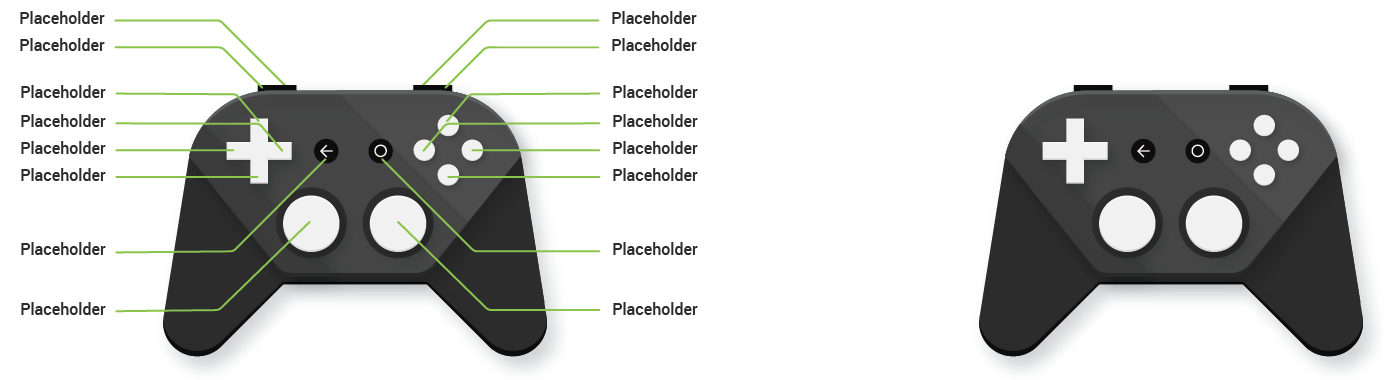
If your game provides visual game control instructions, use a controller image free of branding and include only buttons compatible with Android.
For sample images of an Android-compatible controller, download the Android TV Gamepad Template (ZIP). It includes a white controller on a black background and a black controller on a white background—shown in figure 1—as a PNG file and as an Adobe® Illustrator® file.