

আপনার অ্যাপের মধ্যে সংবেদনশীল তথ্য বা প্রিমিয়াম কন্টেন্ট সুরক্ষিত রাখার একটি পদ্ধতি হলো বায়োমেট্রিক প্রমাণীকরণের অনুরোধ করা, যেমন মুখমণ্ডল শনাক্তকরণ বা আঙুলের ছাপ শনাক্তকরণ ব্যবহার করা। এই নির্দেশিকাটি ব্যাখ্যা করে যে কীভাবে আপনার অ্যাপে বায়োমেট্রিক লগইন প্রক্রিয়া সমর্থন করবেন।
সাধারণত, কোনো ডিভাইসে প্রথমবার সাইন-ইন করার জন্য ক্রেডেনশিয়াল ম্যানেজার ব্যবহার করা উচিত। পরবর্তী পুনঃঅনুমোদন বায়োমেট্রিক প্রম্পট অথবা ক্রেডেনশিয়াল ম্যানেজার—যেকোনো একটির মাধ্যমে করা যেতে পারে। বায়োমেট্রিক প্রম্পট ব্যবহারের সুবিধা হলো এটিতে কাস্টমাইজেশনের জন্য বেশি বিকল্প থাকে, অন্যদিকে ক্রেডেনশিয়াল ম্যানেজার উভয় প্রক্রিয়ার জন্যই একটিমাত্র ব্যবস্থা প্রদান করে।
আপনার অ্যাপ যে ধরনের প্রমাণীকরণ সমর্থন করে তা ঘোষণা করুন।
আপনার অ্যাপ যে ধরনের প্রমাণীকরণ সমর্থন করে তা নির্ধারণ করতে, BiometricManager.Authenticators ইন্টারফেসটি ব্যবহার করুন। সিস্টেম আপনাকে নিম্নলিখিত ধরনের প্রমাণীকরণ ঘোষণা করার সুযোগ দেয়:
-
BIOMETRIC_STRONG - অ্যান্ড্রয়েড সামঞ্জস্যতা সংজ্ঞা পৃষ্ঠায় সংজ্ঞায়িত ক্লাস ৩ বায়োমেট্রিক ব্যবহার করে প্রমাণীকরণ।
-
BIOMETRIC_WEAK - অ্যান্ড্রয়েড সামঞ্জস্যতা সংজ্ঞা পৃষ্ঠায় সংজ্ঞায়িত ক্লাস ২ বায়োমেট্রিক ব্যবহার করে প্রমাণীকরণ।
-
DEVICE_CREDENTIAL - স্ক্রিন লক ক্রেডেনশিয়াল – অর্থাৎ ব্যবহারকারীর পিন, প্যাটার্ন বা পাসওয়ার্ড ব্যবহার করে প্রমাণীকরণ।
অথেন্টিকেটর ব্যবহার শুরু করতে, ব্যবহারকারীকে একটি পিন, প্যাটার্ন বা পাসওয়ার্ড তৈরি করতে হবে। যদি ব্যবহারকারীর আগে থেকে কোনোটি না থাকে, তাহলে বায়োমেট্রিক তালিকাভুক্তি প্রক্রিয়াটি তাকে একটি তৈরি করার জন্য অনুরোধ করে।
আপনার অ্যাপ কোন ধরনের বায়োমেট্রিক অথেন্টিকেশন গ্রহণ করবে তা নির্ধারণ করতে, setAllowedAuthenticators() মেথডে একটি অথেন্টিকেশন টাইপ অথবা টাইপগুলোর একটি বিটওয়াইজ কম্বিনেশন পাস করুন। নিচের কোড স্নিপেটটিতে দেখানো হয়েছে কীভাবে ক্লাস ৩ বায়োমেট্রিক অথবা স্ক্রিন লক ক্রেডেনশিয়াল ব্যবহার করে অথেন্টিকেশন সমর্থন করা যায়।
কোটলিন
// Lets the user authenticate using either a Class 3 biometric or
// their lock screen credential (PIN, pattern, or password).
promptInfo = BiometricPrompt.PromptInfo.Builder()
        .setTitle("Biometric login for my app")
        .setSubtitle("Log in using your biometric credential")
        .setAllowedAuthenticators(BIOMETRIC_STRONG or DEVICE_CREDENTIAL)
        .build()
জাভা
// Lets user authenticate using either a Class 3 biometric or
// their lock screen credential (PIN, pattern, or password).
promptInfo = new BiometricPrompt.PromptInfo.Builder()
        .setTitle("Biometric login for my app")
        .setSubtitle("Log in using your biometric credential")
        .setAllowedAuthenticators(BIOMETRIC_STRONG | DEVICE_CREDENTIAL)
        .build();
নিম্নলিখিত অথেন্টিকেটর টাইপের সংমিশ্রণগুলি Android 10 (API লেভেল 29) এবং এর নিচের সংস্করণগুলিতে সমর্থিত নয়: DEVICE_CREDENTIAL এবং BIOMETRIC_STRONG | DEVICE_CREDENTIAL । Android 10 এবং এর নিচের সংস্করণগুলিতে PIN, প্যাটার্ন বা পাসওয়ার্ডের উপস্থিতি পরীক্ষা করতে, KeyguardManager.isDeviceSecure() পদ্ধতিটি ব্যবহার করুন।
বায়োমেট্রিক প্রমাণীকরণ উপলব্ধ আছে কিনা তা যাচাই করুন।
আপনার অ্যাপ কোন কোন অথেনটিকেশন এলিমেন্ট সাপোর্ট করবে তা ঠিক করার পর, সেই এলিমেন্টগুলো উপলব্ধ আছে কিনা তা যাচাই করুন। এটি করার জন্য, setAllowedAuthenticators() মেথড ব্যবহার করে আপনি যে টাইপগুলোর বিটওয়াইজ কম্বিনেশন ডিক্লেয়ার করেছেন, সেটিই canAuthenticate() মেথডে পাস করুন। প্রয়োজনে, ACTION_BIOMETRIC_ENROLL ইন্টেন্ট অ্যাকশনটি কল করুন। ইন্টেন্ট এক্সট্রাতে, আপনার অ্যাপ যে অথেনটিকেটরগুলো গ্রহণ করে তার সেটটি প্রদান করুন। এই ইন্টেন্টটি ব্যবহারকারীকে আপনার অ্যাপ দ্বারা গৃহীত কোনো একটি অথেনটিকেটরের জন্য ক্রেডেনশিয়াল রেজিস্টার করতে অনুরোধ করে।
কোটলিন
val biometricManager = BiometricManager.from(this)
when (biometricManager.canAuthenticate(BIOMETRIC_STRONG or DEVICE_CREDENTIAL)) {
    BiometricManager.BIOMETRIC_SUCCESS ->
        Log.d("MY_APP_TAG", "App can authenticate using biometrics.")
    BiometricManager.BIOMETRIC_ERROR_NO_HARDWARE ->
        Log.e("MY_APP_TAG", "No biometric features available on this device.")
    BiometricManager.BIOMETRIC_ERROR_HW_UNAVAILABLE ->
        Log.e("MY_APP_TAG", "Biometric features are currently unavailable.")
    BiometricManager.BIOMETRIC_ERROR_NONE_ENROLLED -> {
        // Prompts the user to create credentials that your app accepts.
        val enrollIntent = Intent(Settings.ACTION_BIOMETRIC_ENROLL).apply {
            putExtra(Settings.EXTRA_BIOMETRIC_AUTHENTICATORS_ALLOWED,
                BIOMETRIC_STRONG or DEVICE_CREDENTIAL)
        }
        startActivityForResult(enrollIntent, REQUEST_CODE)
    }
}
জাভা
BiometricManager biometricManager = BiometricManager.from(this);
switch (biometricManager.canAuthenticate(BIOMETRIC_STRONG | DEVICE_CREDENTIAL)) {
    case BiometricManager.BIOMETRIC_SUCCESS:
        Log.d("MY_APP_TAG", "App can authenticate using biometrics.");
        break;
    case BiometricManager.BIOMETRIC_ERROR_NO_HARDWARE:
        Log.e("MY_APP_TAG", "No biometric features available on this device.");
        break;
    case BiometricManager.BIOMETRIC_ERROR_HW_UNAVAILABLE:
        Log.e("MY_APP_TAG", "Biometric features are currently unavailable.");
        break;
    case BiometricManager.BIOMETRIC_ERROR_NONE_ENROLLED:
        // Prompts the user to create credentials that your app accepts.
        final Intent enrollIntent = new Intent(Settings.ACTION_BIOMETRIC_ENROLL);
        enrollIntent.putExtra(Settings.EXTRA_BIOMETRIC_AUTHENTICATORS_ALLOWED,
                BIOMETRIC_STRONG | DEVICE_CREDENTIAL);
        startActivityForResult(enrollIntent, REQUEST_CODE);
        break;
}
ব্যবহারকারী কীভাবে প্রমাণীকরণ করেছেন তা নির্ধারণ করুন
ব্যবহারকারী প্রমাণীকরণের পরে, আপনি getAuthenticationType() কল করে যাচাই করতে পারেন যে ব্যবহারকারী ডিভাইস ক্রেডেনশিয়াল নাকি বায়োমেট্রিক ক্রেডেনশিয়াল ব্যবহার করে প্রমাণীকরণ করেছেন।
লগইন প্রম্পট প্রদর্শন করুন
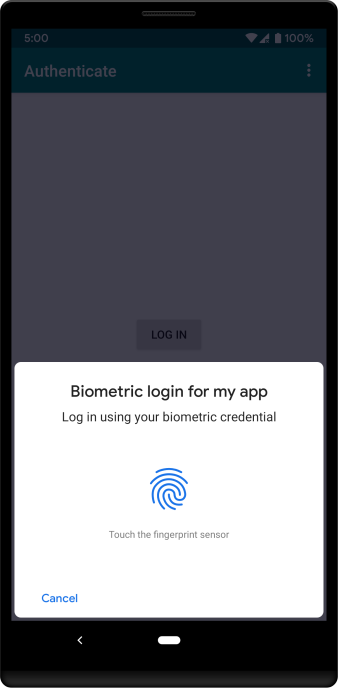
বায়োমেট্রিক ক্রেডেনশিয়াল ব্যবহার করে ব্যবহারকারীকে প্রমাণীকরণের অনুরোধ জানিয়ে একটি সিস্টেম প্রম্পট প্রদর্শন করতে, বায়োমেট্রিক লাইব্রেরি ব্যবহার করুন। এই সিস্টেম-প্রদত্ত ডায়ালগটি ব্যবহারকারী অ্যাপগুলো জুড়ে সামঞ্জস্যপূর্ণ থাকে, যা আরও বিশ্বাসযোগ্য ব্যবহারকারীর অভিজ্ঞতা তৈরি করে। চিত্র ১-এ একটি উদাহরণ ডায়ালগ দেখানো হয়েছে।
বায়োমেট্রিক লাইব্রেরি ব্যবহার করে আপনার অ্যাপে বায়োমেট্রিক প্রমাণীকরণ যোগ করতে, নিম্নলিখিত ধাপগুলো সম্পন্ন করুন:
আপনার অ্যাপ মডিউলের
build.gradleফাইলেandroidx.biometricলাইব্রেরির উপর একটি ডিপেন্ডেন্সি যোগ করুন ।যে অ্যাক্টিভিটি বা ফ্র্যাগমেন্টে বায়োমেট্রিক লগইন ডায়ালগটি রয়েছে, সেখানে নিম্নলিখিত কোড স্নিপেটে দেখানো লজিক ব্যবহার করে ডায়ালগটি প্রদর্শন করুন:
কোটলিন
private lateinit var executor: Executor
private lateinit var biometricPrompt: BiometricPrompt
private lateinit var promptInfo: BiometricPrompt.PromptInfo

override fun onCreate(savedInstanceState: Bundle?) {
    super.onCreate(savedInstanceState)
    setContentView(R.layout.activity_login)
    executor = ContextCompat.getMainExecutor(this)
    biometricPrompt = BiometricPrompt(this, executor,
            object : BiometricPrompt.AuthenticationCallback() {
        override fun onAuthenticationError(errorCode: Int,
                errString: CharSequence) {
            super.onAuthenticationError(errorCode, errString)
            Toast.makeText(applicationContext,
                "Authentication error: $errString", Toast.LENGTH_SHORT)
                .show()
        }

        override fun onAuthenticationSucceeded(
                result: BiometricPrompt.AuthenticationResult) {
            super.onAuthenticationSucceeded(result)
            Toast.makeText(applicationContext,
                "Authentication succeeded!", Toast.LENGTH_SHORT)
                .show()
        }

        override fun onAuthenticationFailed() {
            super.onAuthenticationFailed()
            Toast.makeText(applicationContext, "Authentication failed",
                Toast.LENGTH_SHORT)
                .show()
        }
    })

    promptInfo = BiometricPrompt.PromptInfo.Builder()
            .setTitle("Biometric login for my app")
            .setSubtitle("Log in using your biometric credential")
            .setNegativeButtonText("Use account password")
            .build()

    // Prompt appears when user clicks "Log in".
    // Consider integrating with the keystore to unlock cryptographic operations,
    // if needed by your app.
    val biometricLoginButton =
            findViewById<Button>(R.id.biometric_login)
    biometricLoginButton.setOnClickListener {
        biometricPrompt.authenticate(promptInfo)
    }
}
জাভা
private Executor executor;
private BiometricPrompt biometricPrompt;
private BiometricPrompt.PromptInfo promptInfo;

@Override
protected void onCreate(Bundle savedInstanceState) {
    super.onCreate(savedInstanceState);
    setContentView(R.layout.activity_login);
    executor = ContextCompat.getMainExecutor(this);
    biometricPrompt = new BiometricPrompt(MainActivity.this,
            executor, new BiometricPrompt.AuthenticationCallback() {
        @Override
        public void onAuthenticationError(int errorCode,
                @NonNull CharSequence errString) {
            super.onAuthenticationError(errorCode, errString);
            Toast.makeText(getApplicationContext(),
                "Authentication error: " + errString, Toast.LENGTH_SHORT)
                .show();
        }

        @Override
        public void onAuthenticationSucceeded(
                @NonNull BiometricPrompt.AuthenticationResult result) {
            super.onAuthenticationSucceeded(result);
            Toast.makeText(getApplicationContext(),
                "Authentication succeeded!", Toast.LENGTH_SHORT).show();
        }

        @Override
        public void onAuthenticationFailed() {
            super.onAuthenticationFailed();
            Toast.makeText(getApplicationContext(), "Authentication failed",
                Toast.LENGTH_SHORT)
                .show();
        }
    });

    promptInfo = new BiometricPrompt.PromptInfo.Builder()
            .setTitle("Biometric login for my app")
            .setSubtitle("Log in using your biometric credential")
            .setNegativeButtonText("Use account password")
            .build();

    // Prompt appears when user clicks "Log in".
    // Consider integrating with the keystore to unlock cryptographic operations,
    // if needed by your app.
    Button biometricLoginButton = findViewById(R.id.biometric_login);
    biometricLoginButton.setOnClickListener(view -> {
            biometricPrompt.authenticate(promptInfo);
    });
}
এমন একটি ক্রিপ্টোগ্রাফিক সমাধান ব্যবহার করুন যা প্রমাণীকরণের উপর নির্ভর করে।
আপনার অ্যাপের মধ্যে থাকা সংবেদনশীল তথ্যকে আরও সুরক্ষিত করতে, আপনি CryptoObject এর একটি ইনস্ট্যান্স ব্যবহার করে আপনার বায়োমেট্রিক প্রমাণীকরণ কার্যপ্রবাহে ক্রিপ্টোগ্রাফি অন্তর্ভুক্ত করতে পারেন। এই ফ্রেমওয়ার্কটি নিম্নলিখিত ক্রিপ্টোগ্রাফিক অবজেক্টগুলোকে সমর্থন করে: Signature , Cipher , Mac , এবং KeyAgreement ।
ব্যবহারকারী বায়োমেট্রিক প্রম্পট ব্যবহার করে সফলভাবে প্রমাণীকরণ করার পর, আপনার অ্যাপ একটি ক্রিপ্টোগ্রাফিক অপারেশন সম্পাদন করতে পারে। উদাহরণস্বরূপ, যদি আপনি একটি Cipher অবজেক্ট ব্যবহার করে প্রমাণীকরণ করেন, তাহলে আপনার অ্যাপ একটি SecretKey অবজেক্ট ব্যবহার করে এনক্রিপশন এবং ডিক্রিপশন করতে পারে।
নিম্নলিখিত বিভাগগুলিতে ডেটা এনক্রিপ্ট করার জন্য একটি Cipher অবজেক্ট এবং একটি SecretKey অবজেক্ট ব্যবহারের উদাহরণ আলোচনা করা হয়েছে। প্রতিটি উদাহরণে নিম্নলিখিত মেথডগুলি ব্যবহার করা হয়েছে:
কোটলিন
private fun generateSecretKey(keyGenParameterSpec: KeyGenParameterSpec) {
    val keyGenerator = KeyGenerator.getInstance(
            KeyProperties.KEY_ALGORITHM_AES, "AndroidKeyStore")
    keyGenerator.init(keyGenParameterSpec)
    keyGenerator.generateKey()
}

private fun getSecretKey(): SecretKey {
    val keyStore = KeyStore.getInstance("AndroidKeyStore")

    // Before the keystore can be accessed, it must be loaded.
    keyStore.load(null)
    return keyStore.getKey(KEY_NAME, null) as SecretKey
}

private fun getCipher(): Cipher {
    return Cipher.getInstance(KeyProperties.KEY_ALGORITHM_AES + "/"
            + KeyProperties.BLOCK_MODE_CBC + "/"
            + KeyProperties.ENCRYPTION_PADDING_PKCS7)
}
জাভা
private void generateSecretKey(KeyGenParameterSpec keyGenParameterSpec) {
    KeyGenerator keyGenerator = KeyGenerator.getInstance(
            KeyProperties.KEY_ALGORITHM_AES, "AndroidKeyStore");
    keyGenerator.init(keyGenParameterSpec);
    keyGenerator.generateKey();
}

private SecretKey getSecretKey() {
    KeyStore keyStore = KeyStore.getInstance("AndroidKeyStore");

    // Before the keystore can be accessed, it must be loaded.
    keyStore.load(null);
    return ((SecretKey)keyStore.getKey(KEY_NAME, null));
}

private Cipher getCipher() {
    return Cipher.getInstance(KeyProperties.KEY_ALGORITHM_AES + "/"
            + KeyProperties.BLOCK_MODE_CBC + "/"
            + KeyProperties.ENCRYPTION_PADDING_PKCS7);
}
শুধুমাত্র বায়োমেট্রিক পরিচয়পত্র ব্যবহার করে প্রমাণীকরণ করুন
যদি আপনার অ্যাপ এমন কোনো গোপন কী ব্যবহার করে যা আনলক করার জন্য বায়োমেট্রিক তথ্যের প্রয়োজন হয়, তাহলে আপনার অ্যাপ কী-টি অ্যাক্সেস করার আগে ব্যবহারকারীকে প্রতিবার তার বায়োমেট্রিক তথ্য দিয়ে প্রমাণীকরণ করতে হবে।
ব্যবহারকারী বায়োমেট্রিক পরিচয়পত্র ব্যবহার করে প্রমাণীকরণের পরেই সংবেদনশীল তথ্য এনক্রিপ্ট করতে, নিম্নলিখিত ধাপগুলি সম্পন্ন করুন:
নিম্নলিখিত
KeyGenParameterSpecকনফিগারেশন ব্যবহার করে একটি কী তৈরি করুন:কোটলিন
generateSecretKey(KeyGenParameterSpec.Builder(
        KEY_NAME,
        KeyProperties.PURPOSE_ENCRYPT or KeyProperties.PURPOSE_DECRYPT)
        .setBlockModes(KeyProperties.BLOCK_MODE_CBC)
        .setEncryptionPaddings(KeyProperties.ENCRYPTION_PADDING_PKCS7)
        .setUserAuthenticationRequired(true)
        // Invalidate the keys if the user has registered a new biometric
        // credential, such as a new fingerprint. Can call this method only
        // on Android 7.0 (API level 24) or higher. The variable
        // "invalidatedByBiometricEnrollment" is true by default.
        .setInvalidatedByBiometricEnrollment(true)
        .build())
জাভা
generateSecretKey(new KeyGenParameterSpec.Builder(
        KEY_NAME,
        KeyProperties.PURPOSE_ENCRYPT | KeyProperties.PURPOSE_DECRYPT)
        .setBlockModes(KeyProperties.BLOCK_MODE_CBC)
        .setEncryptionPaddings(KeyProperties.ENCRYPTION_PADDING_PKCS7)
        .setUserAuthenticationRequired(true)
        // Invalidate the keys if the user has registered a new biometric
        // credential, such as a new fingerprint. Can call this method only
        // on Android 7.0 (API level 24) or higher. The variable
        // "invalidatedByBiometricEnrollment" is true by default.
        .setInvalidatedByBiometricEnrollment(true)
        .build());
একটি সাইফার অন্তর্ভুক্ত করে এমন একটি বায়োমেট্রিক প্রমাণীকরণ কর্মপ্রবাহ শুরু করুন:
কোটলিন
biometricLoginButton.setOnClickListener {
    // Exceptions are unhandled within this snippet.
    val cipher = getCipher()
    val secretKey = getSecretKey()
    cipher.init(Cipher.ENCRYPT_MODE, secretKey)
    biometricPrompt.authenticate(promptInfo,
            BiometricPrompt.CryptoObject(cipher))
}
জাভা
biometricLoginButton.setOnClickListener(view -> {
    // Exceptions are unhandled within this snippet.
    Cipher cipher = getCipher();
    SecretKey secretKey = getSecretKey();
    cipher.init(Cipher.ENCRYPT_MODE, secretKey);
    biometricPrompt.authenticate(promptInfo,
            new BiometricPrompt.CryptoObject(cipher));
});
আপনার বায়োমেট্রিক প্রমাণীকরণ কলব্যাকগুলির মধ্যে, সংবেদনশীল তথ্য এনক্রিপ্ট করতে গোপন কী ব্যবহার করুন:
কোটলিন
override fun onAuthenticationSucceeded(
        result: BiometricPrompt.AuthenticationResult) {
    val encryptedInfo: ByteArray = result.cryptoObject.cipher?.doFinal(
        // plaintext-string text is whatever data the developer would like
        // to encrypt. It happens to be plain-text in this example, but it
        // can be anything
            plaintext-string.toByteArray(Charset.defaultCharset())
    )
    Log.d("MY_APP_TAG", "Encrypted information: " +
            Arrays.toString(encryptedInfo))
}
জাভা
@Override
public void onAuthenticationSucceeded(
        @NonNull BiometricPrompt.AuthenticationResult result) {
    // NullPointerException is unhandled; use Objects.requireNonNull().
    byte[] encryptedInfo = result.getCryptoObject().getCipher().doFinal(
        // plaintext-string text is whatever data the developer would like
        // to encrypt. It happens to be plain-text in this example, but it
        // can be anything
            plaintext-string.getBytes(Charset.defaultCharset()));
    Log.d("MY_APP_TAG", "Encrypted information: " +
            Arrays.toString(encryptedInfo));
}
বায়োমেট্রিক অথবা লক স্ক্রিন ক্রেডেনশিয়াল ব্যবহার করে প্রমাণীকরণ করুন।
আপনি একটি গোপন কী ব্যবহার করতে পারেন যা বায়োমেট্রিক ক্রেডেনশিয়াল অথবা লক স্ক্রিন ক্রেডেনশিয়াল (পিন, প্যাটার্ন বা পাসওয়ার্ড) ব্যবহার করে প্রমাণীকরণের সুযোগ দেয়। এই কী-টি কনফিগার করার সময়, একটি বৈধতার সময়কাল নির্দিষ্ট করে দিন। এই সময়কালে, ব্যবহারকারীকে পুনরায় প্রমাণীকরণের প্রয়োজন ছাড়াই আপনার অ্যাপ একাধিক ক্রিপ্টোগ্রাফিক অপারেশন সম্পাদন করতে পারবে।
ব্যবহারকারী বায়োমেট্রিক বা লক স্ক্রিন ক্রেডেনশিয়াল ব্যবহার করে প্রমাণীকরণের পর সংবেদনশীল তথ্য এনক্রিপ্ট করতে, নিম্নলিখিত ধাপগুলি সম্পন্ন করুন:
নিম্নলিখিত
KeyGenParameterSpecকনফিগারেশন ব্যবহার করে একটি কী তৈরি করুন:কোটলিন
generateSecretKey(KeyGenParameterSpec.Builder(
    KEY_NAME,
    KeyProperties.PURPOSE_ENCRYPT or KeyProperties.PURPOSE_DECRYPT)
    .setBlockModes(KeyProperties.BLOCK_MODE_CBC)
    .setEncryptionPaddings(KeyProperties.ENCRYPTION_PADDING_PKCS7)
    .setUserAuthenticationRequired(true)
    .setUserAuthenticationParameters(VALIDITY_DURATION_SECONDS,
            ALLOWED_AUTHENTICATORS)
    .build())
জাভা
generateSecretKey(new KeyGenParameterSpec.Builder(
    KEY_NAME,
    KeyProperties.PURPOSE_ENCRYPT | KeyProperties.PURPOSE_DECRYPT)
    .setBlockModes(KeyProperties.BLOCK_MODE_CBC)
    .setEncryptionPaddings(KeyProperties.ENCRYPTION_PADDING_PKCS7)
    .setUserAuthenticationRequired(true)
    .setUserAuthenticationParameters(VALIDITY_DURATION_SECONDS,
            ALLOWED_AUTHENTICATORS)
    .build());
ব্যবহারকারীর প্রমাণীকরণের পর
VALIDITY_DURATION_SECONDSসময়কালের মধ্যে সংবেদনশীল তথ্য এনক্রিপ্ট করুন:কোটলিন
private fun encryptSecretInformation() {
    // Exceptions are unhandled for getCipher() and getSecretKey().
    val cipher = getCipher()
    val secretKey = getSecretKey()
    try {
        cipher.init(Cipher.ENCRYPT_MODE, secretKey)
        val encryptedInfo: ByteArray = cipher.doFinal(
            // plaintext-string text is whatever data the developer would
            // like to encrypt. It happens to be plain-text in this example,
            // but it can be anything
                plaintext-string.toByteArray(Charset.defaultCharset()))
        Log.d("MY_APP_TAG", "Encrypted information: " +
                Arrays.toString(encryptedInfo))
    } catch (e: InvalidKeyException) {
        Log.e("MY_APP_TAG", "Key is invalid.")
    } catch (e: UserNotAuthenticatedException) {
        Log.d("MY_APP_TAG", "The key's validity timed out.")
        biometricPrompt.authenticate(promptInfo)
    }
জাভা
private void encryptSecretInformation() {
    // Exceptions are unhandled for getCipher() and getSecretKey().
    Cipher cipher = getCipher();
    SecretKey secretKey = getSecretKey();
    try {
        // NullPointerException is unhandled; use Objects.requireNonNull().
        ciper.init(Cipher.ENCRYPT_MODE, secretKey);
        byte[] encryptedInfo = cipher.doFinal(
            // plaintext-string text is whatever data the developer would
            // like to encrypt. It happens to be plain-text in this example,
            // but it can be anything
                plaintext-string.getBytes(Charset.defaultCharset()));
    } catch (InvalidKeyException e) {
        Log.e("MY_APP_TAG", "Key is invalid.");
    } catch (UserNotAuthenticatedException e) {
        Log.d("MY_APP_TAG", "The key's validity timed out.");
        biometricPrompt.authenticate(promptInfo);
    }
}
প্রতি-ব্যবহার প্রমাণীকরণ কী ব্যবহার করে প্রমাণীকরণ করুন
আপনি আপনার BiometricPrompt ইনস্ট্যান্সের মধ্যে অথ-পার-ইউজ কী-এর জন্য সাপোর্ট প্রদান করতে পারেন। এই ধরনের কী দ্বারা সুরক্ষিত ডেটা অ্যাক্সেস করার জন্য, আপনার অ্যাপকে প্রতিবার ব্যবহারকারীকে একটি বায়োমেট্রিক ক্রেডেনশিয়াল বা একটি ডিভাইস ক্রেডেনশিয়াল উপস্থাপন করতে হয়। উচ্চ-মূল্যের লেনদেনের ক্ষেত্রে, যেমন বড় অঙ্কের অর্থ প্রদান করা বা কোনো ব্যক্তির স্বাস্থ্য রেকর্ড আপডেট করার জন্য, অথ-পার-ইউজ কী কার্যকর হতে পারে।
একটি BiometricPrompt অবজেক্টকে একটি auth-per-use কী-এর সাথে যুক্ত করতে, নিম্নলিখিতের অনুরূপ কোড যোগ করুন:
কোটলিন
val authPerOpKeyGenParameterSpec =
        KeyGenParameterSpec.Builder("myKeystoreAlias", key-purpose)
    // Accept either a biometric credential or a device credential.
    // To accept only one type of credential, include only that type as the
    // second argument.
    .setUserAuthenticationParameters(0 /* duration */,
            KeyProperties.AUTH_BIOMETRIC_STRONG or
            KeyProperties.AUTH_DEVICE_CREDENTIAL)
    .build()
জাভা
KeyGenParameterSpec authPerOpKeyGenParameterSpec =
        new KeyGenParameterSpec.Builder("myKeystoreAlias", key-purpose)
    // Accept either a biometric credential or a device credential.
    // To accept only one type of credential, include only that type as the
    // second argument.
    .setUserAuthenticationParameters(0 /* duration */,
            KeyProperties.AUTH_BIOMETRIC_STRONG |
            KeyProperties.AUTH_DEVICE_CREDENTIAL)
    .build();
ব্যবহারকারীর সুস্পষ্ট পদক্ষেপ ছাড়াই প্রমাণীকরণ
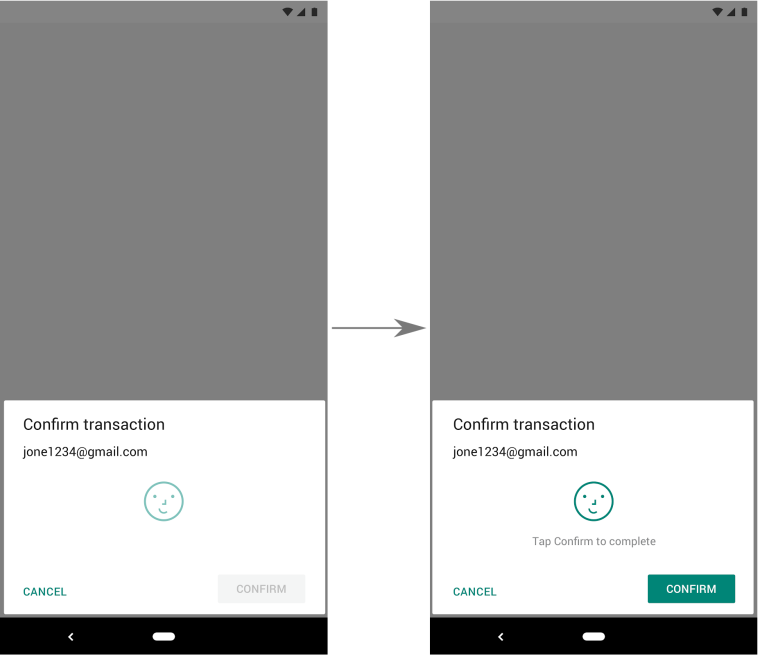
ডিফল্টরূপে, বায়োমেট্রিক তথ্য গৃহীত হওয়ার পর সিস্টেমটি ব্যবহারকারীদের একটি নির্দিষ্ট কাজ, যেমন একটি বোতাম চাপা, করতে বলে। এই কনফিগারেশনটি শ্রেয়, যদি আপনার অ্যাপটি কোনো সংবেদনশীল বা উচ্চ-ঝুঁকিপূর্ণ কাজ, যেমন কেনাকাটা করা, নিশ্চিত করার জন্য ডায়ালগ বক্সটি দেখায়।
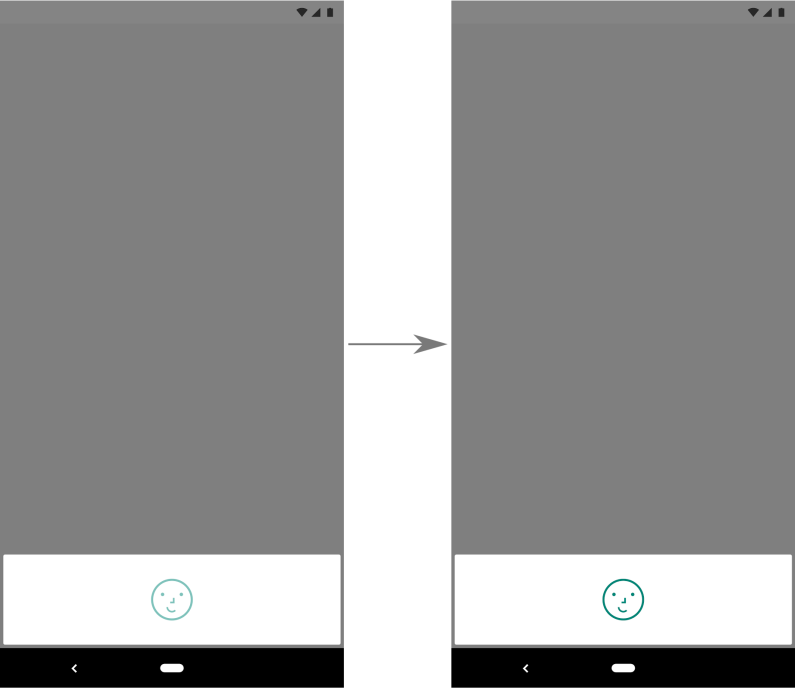
তবে, যদি আপনার অ্যাপ কোনো কম-ঝুঁকিপূর্ণ কাজের জন্য বায়োমেট্রিক প্রমাণীকরণের ডায়ালগ দেখায়, তাহলে আপনি সিস্টেমকে একটি ইঙ্গিত দিতে পারেন যে ব্যবহারকারীকে প্রমাণীকরণ নিশ্চিত করার প্রয়োজন নেই। এই ইঙ্গিতটি ব্যবহারকারীকে মুখ বা আইরিস-ভিত্তিক শনাক্তকরণের মতো কোনো প্যাসিভ পদ্ধতির মাধ্যমে পুনরায় প্রমাণীকরণের পর আপনার অ্যাপের বিষয়বস্তু আরও দ্রুত দেখতে সাহায্য করতে পারে। এই ইঙ্গিতটি দেওয়ার জন্য, setConfirmationRequired() মেথডে false পাস করুন।
চিত্র ২-এ একই ডায়ালগের দুটি সংস্করণ দেখানো হয়েছে। একটি সংস্করণে ব্যবহারকারীর সুস্পষ্ট পদক্ষেপের প্রয়োজন হয়, এবং অন্যটিতে হয় না।
নিম্নলিখিত কোড স্নিপেটটি দেখায় কিভাবে এমন একটি ডায়ালগ উপস্থাপন করতে হয়, যেখানে প্রমাণীকরণ প্রক্রিয়াটি সম্পন্ন করার জন্য ব্যবহারকারীর কোনো সুস্পষ্ট পদক্ষেপের প্রয়োজন হয় না :
কোটলিন
// Lets the user authenticate without performing an action, such as pressing a
// button, after their biometric credential is accepted.
promptInfo = BiometricPrompt.PromptInfo.Builder()
        .setTitle("Biometric login for my app")
        .setSubtitle("Log in using your biometric credential")
        .setNegativeButtonText("Use account password")
        .setConfirmationRequired(false)
        .build()
জাভা
// Lets the user authenticate without performing an action, such as pressing a
// button, after their biometric credential is accepted.
promptInfo = new BiometricPrompt.PromptInfo.Builder()
        .setTitle("Biometric login for my app")
        .setSubtitle("Log in using your biometric credential")
        .setNegativeButtonText("Use account password")
        .setConfirmationRequired(false)
        .build();
বায়োমেট্রিক নয় এমন পরিচয়পত্র ব্যবহারের সুযোগ রাখুন।
আপনি যদি আপনার অ্যাপে বায়োমেট্রিক বা ডিভাইস ক্রেডেনশিয়াল যেকোনোটি ব্যবহার করে অথেনটিকেশনের অনুমতি দিতে চান, setAllowedAuthenticators() ফাংশনে পাস করা ভ্যালুগুলোর সেটে DEVICE_CREDENTIAL অন্তর্ভুক্ত করে ঘোষণা করতে পারেন যে আপনার অ্যাপ ডিভাইস ক্রেডেনশিয়াল সমর্থন করে ।
আপনার অ্যাপ যদি বর্তমানে এই সক্ষমতা প্রদানের জন্য createConfirmDeviceCredentialIntent() বা setDeviceCredentialAllowed() ব্যবহার করে থাকে, তাহলে setAllowedAuthenticators() ব্যবহার শুরু করুন।
অতিরিক্ত সম্পদ
অ্যান্ড্রয়েডে বায়োমেট্রিক প্রমাণীকরণ সম্পর্কে আরও জানতে, নিম্নলিখিত উৎসগুলো দেখুন।