

Auf Geräten mit Android 8.0 (API‑Level 26) und höher führt die Begleitgerät
kopplung einen Bluetooth- oder WLAN-Scan von Geräten in der Nähe im Namen Ihrer
App durch, ohne dass die
ACCESS_FINE_LOCATION
Berechtigung erforderlich ist. So wird der Datenschutz für Nutzer maximiert. Verwenden Sie diese Methode, um die Erstkonfiguration des Begleitgeräts vorzunehmen, z. B. einer Smartwatch mit BLE-Funktion. Außerdem müssen für die Begleitgerätkopplung die Standortdienste aktiviert sein.
Bei der Begleitgerätkopplung werden keine Verbindungen erstellt und kein kontinuierlicher Scan aktiviert. Apps können Bluetooth- oder WLAN-Verbindungs-APIs verwenden, um Verbindungen herzustellen.
Nachdem das Gerät gekoppelt wurde, kann es die
REQUEST_COMPANION_RUN_IN_BACKGROUND
und
REQUEST_COMPANION_USE_DATA_IN_BACKGROUND
Berechtigungen verwenden, um die App im Hintergrund zu starten. Apps können auch die Berechtigung
REQUEST_COMPANION_START_FOREGROUND_SERVICES_FROM_BACKGROUND
verwenden, um einen Vordergrunddienst im Hintergrund zu starten.
Ein Nutzer kann ein Gerät aus einer Liste auswählen und der App Berechtigungen für den Zugriff auf das Gerät gewähren. Diese Berechtigungen werden widerrufen, wenn Sie die App deinstallieren oder
disassociate() aufrufen.
Die Companion-App ist dafür verantwortlich, ihre eigenen Verknüpfungen zu löschen, wenn der Nutzer sie nicht mehr benötigt, z. B. wenn er sich abmeldet oder verknüpfte Geräte entfernt.
Begleitgerätkopplung implementieren
In diesem Abschnitt wird erläutert, wie Sie CompanionDeviceManager verwenden, um Ihre
App über Bluetooth, BLE und WLAN mit Begleitgeräten zu koppeln.
Begleitgeräte angeben
Das folgende Codebeispiel zeigt, wie Sie das
<uses-feature> Flag einer
Manifestdatei hinzufügen. Dadurch wird dem System mitgeteilt, dass Ihre App Begleitgeräte einrichten möchte.
<uses-feature android:name="android.software.companion_device_setup"/>
Geräte nach DeviceFilter auflisten
Sie können alle Begleitgeräte in Reichweite anzeigen, die mit dem
DeviceFilter
von Ihnen angegebenen übereinstimmen (siehe Abbildung 1). Wenn Sie den Scan auf ein einzelnes
Gerät beschränken möchten, können Sie
setSingleDevice()
auf true setzen (siehe Abbildung 2).
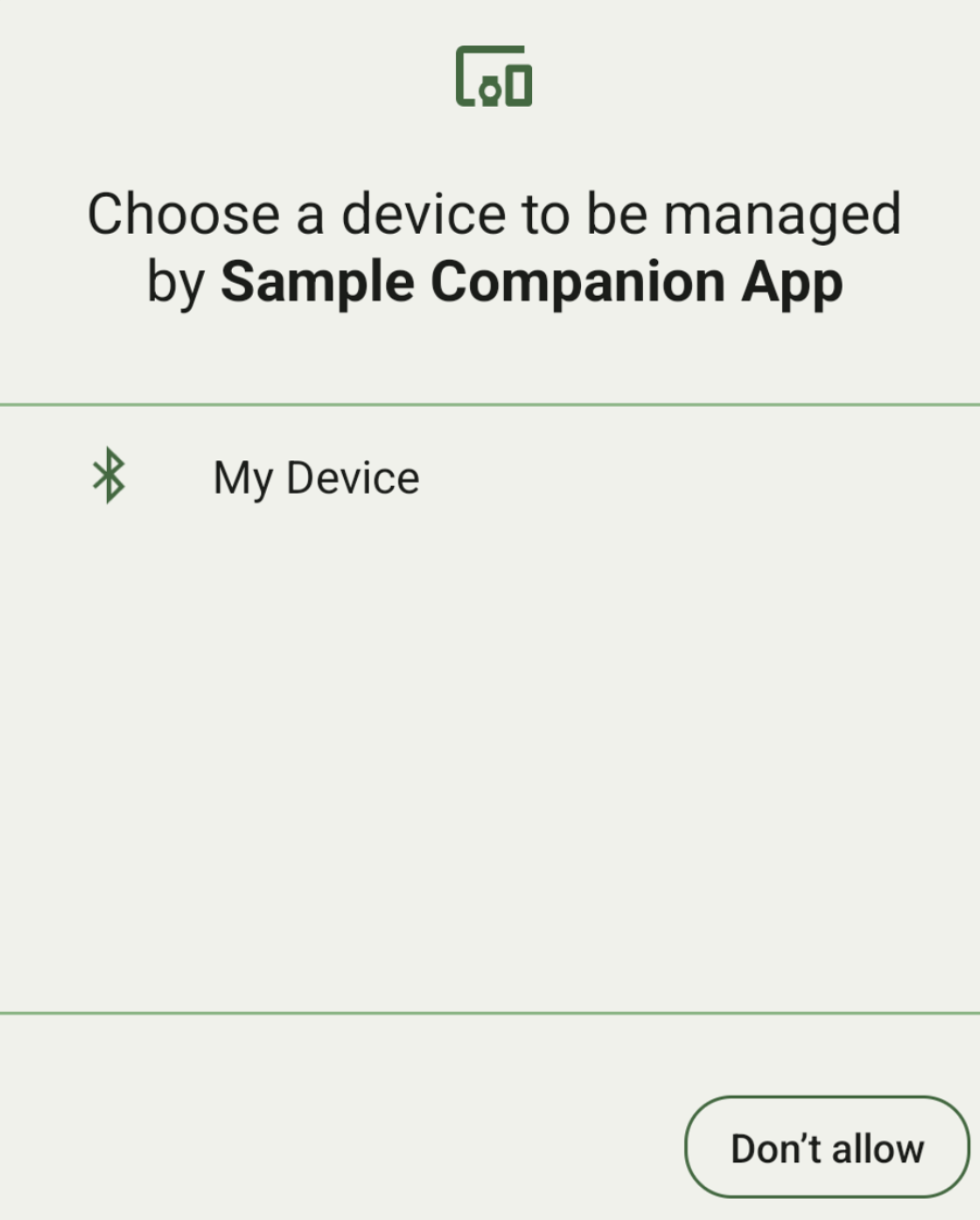
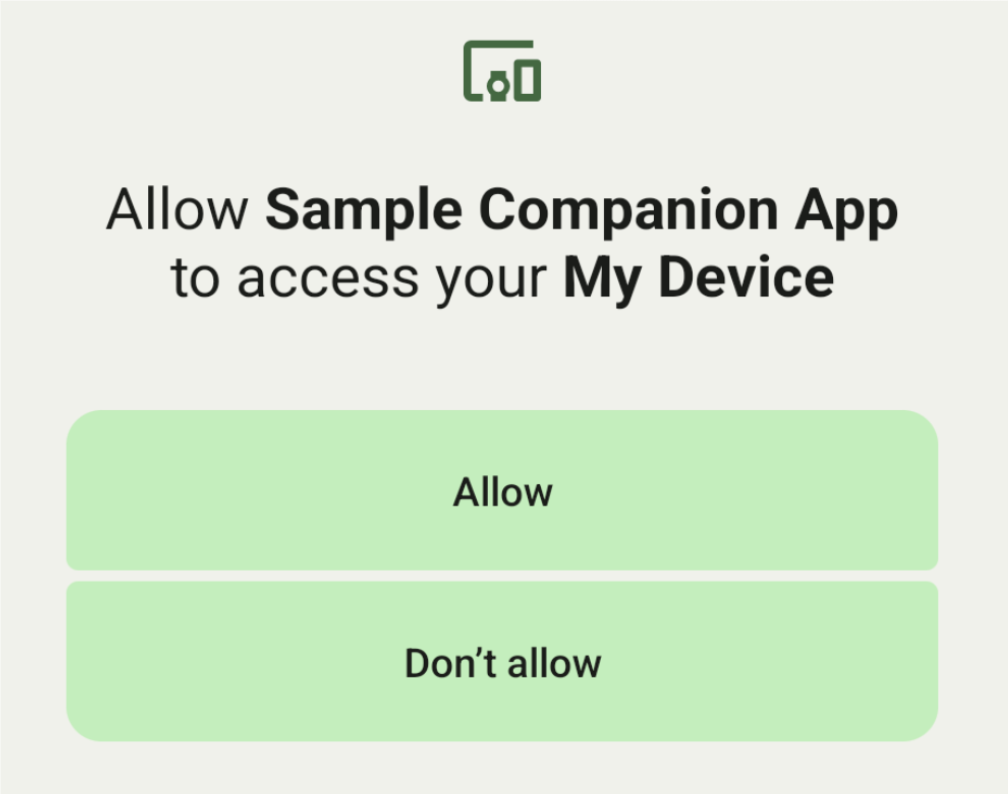
Die folgenden Unterklassen von DeviceFilter, die
in AssociationRequest angegeben werden können:
Alle drei Unterklassen haben Builder, die die Konfiguration von Filtern vereinfachen.
Im folgenden Beispiel sucht ein Gerät mit einem
BluetoothDeviceFilter nach einem Bluetooth-Gerät.
Kotlin
val deviceFilter: BluetoothDeviceFilter = BluetoothDeviceFilter.Builder()
        // Match only Bluetooth devices whose name matches the pattern.
        .setNamePattern(Pattern.compile("My device"))
        // Match only Bluetooth devices whose service UUID matches this pattern.
        .addServiceUuid(ParcelUuid(UUID(0x123abcL, -1L)), null)
        .build()
Java
BluetoothDeviceFilter deviceFilter = new BluetoothDeviceFilter.Builder()
        // Match only Bluetooth devices whose name matches the pattern.
        .setNamePattern(Pattern.compile("My device"))
        // Match only Bluetooth devices whose service UUID matches this pattern.
        .addServiceUuid(new ParcelUuid(new UUID(0x123abcL, -1L)), null)
        .build();
Legen Sie einen DeviceFilter für eine AssociationRequest fest, damit
CompanionDeviceManager bestimmen kann, nach welchen Gerätetypen gesucht werden soll.
Kotlin
val pairingRequest: AssociationRequest = AssociationRequest.Builder()
        // Find only devices that match this request filter.
        .addDeviceFilter(deviceFilter)
        // Stop scanning as soon as one device matching the filter is found.
        .setSingleDevice(true)
        .build()
Java
AssociationRequest pairingRequest = new AssociationRequest.Builder()
        // Find only devices that match this request filter.
        .addDeviceFilter(deviceFilter)
        // Stop scanning as soon as one device matching the filter is found.
        .setSingleDevice(true)
        .build();
Nachdem Ihre App eine AssociationRequest initialisiert hat, führen Sie die
associate()
Funktion für CompanionDeviceManager aus. Die associate() Funktion
verwendet eine AssociationRequest und einen Callback.
Der Callback gibt in der
onAssociationPending einen
IntentSender zurück, wenn CompanionDeviceManager ein Gerät findet
und ein Dialog zur Einholung von Einwilligungen gestartet werden kann.
Nachdem der Nutzer das Gerät bestätigt hat, wird in onAssociationCreated eine AssociationInfo
des Geräts zurückgegeben.
Wenn Ihre App keine Geräte findet, gibt der Callback onFailure
mit einer Fehlermeldung zurück.
Auf Geräten mit Android 13 (API‑Level 33) und höher:
Kotlin
val deviceManager =
  requireContext().getSystemService(Context.COMPANION_DEVICE_SERVICE)

val executor: Executor =  Executor { it.run() }

deviceManager.associate(pairingRequest,
    executor,
    object : CompanionDeviceManager.Callback() {
    // Called when a device is found. Launch the IntentSender so the user
    // can select the device they want to pair with.
    override fun onAssociationPending(intentSender: IntentSender) {
        intentSender?.let {
             startIntentSenderForResult(it, SELECT_DEVICE_REQUEST_CODE, null, 0, 0, 0)
        }
    }

    override fun onAssociationCreated(associationInfo: AssociationInfo) {
        // An association is created.
    }

    override fun onFailure(errorMessage: CharSequence?) {
        // To handle the failure.
     }
})
Java
CompanionDeviceManager deviceManager =
        (CompanionDeviceManager) getSystemService(Context.COMPANION_DEVICE_SERVICE);

Executor executor = new Executor() {
            @Override
            public void execute(Runnable runnable) {
                runnable.run();
            }
        };
deviceManager.associate(pairingRequest, new CompanionDeviceManager.Callback() {
    executor,
    // Called when a device is found. Launch the IntentSender so the user can
    // select the device they want to pair with.
    @Override
    public void onDeviceFound(IntentSender chooserLauncher) {
        try {
            startIntentSenderForResult(
                    chooserLauncher, SELECT_DEVICE_REQUEST_CODE, null, 0, 0, 0
            );
        } catch (IntentSender.SendIntentException e) {
            Log.e("MainActivity", "Failed to send intent");
        }
    }

    @Override
    public void onAssociationCreated(AssociationInfo associationInfo) {
        // An association is created.
    }

    @Override
    public void onFailure(CharSequence errorMessage) {
        // To handle the failure.
    });
Auf Geräten mit Android 12L (API‑Level 32) oder niedriger (eingestellt):
Kotlin
val deviceManager =
      requireContext().getSystemService(Context.COMPANION_DEVICE_SERVICE)

deviceManager.associate(pairingRequest,
    object : CompanionDeviceManager.Callback() {
        // Called when a device is found. Launch the IntentSender so the user
        // can select the device they want to pair with.
        override fun onDeviceFound(chooserLauncher: IntentSender) {
            startIntentSenderForResult(chooserLauncher,
                SELECT_DEVICE_REQUEST_CODE, null, 0, 0, 0)
        }

        override fun onFailure(error: CharSequence?) {
            // To handle the failure.
        }
    }, null)
Java
CompanionDeviceManager deviceManager =
        (CompanionDeviceManager) getSystemService(Context.COMPANION_DEVICE_SERVICE);
deviceManager.associate(pairingRequest, new CompanionDeviceManager.Callback() {
    // Called when a device is found. Launch the IntentSender so the user can
    // select the device they want to pair with.
    @Override
    public void onDeviceFound(IntentSender chooserLauncher) {
        try {
            startIntentSenderForResult(
                    chooserLauncher, SELECT_DEVICE_REQUEST_CODE, null, 0, 0, 0
            );
        } catch (IntentSender.SendIntentException e) {
            Log.e("MainActivity", "Failed to send intent");
        }
    }

    @Override
    public void onFailure(CharSequence error) {
        // To handle the failure.
    }
}, null);
Das Ergebnis der Nutzerauswahl wird in das Fragment in der
onActivityResult()
Ihrer Aktivität zurückgesendet. Anschließend können Sie auf das ausgewählte Gerät zugreifen.
Wenn der Nutzer ein Bluetooth-Gerät auswählt, wird ein
BluetoothDevice erwartet.
Wenn der Nutzer ein Bluetooth LE-Gerät auswählt, wird ein
android.bluetooth.le.ScanResult erwartet.
Wenn der Nutzer ein WLAN-Gerät auswählt, wird ein
android.net.wifi.ScanResult erwartet.
Kotlin
override fun onActivityResult(requestCode: Int, resultCode: Int, data: Intent?) {
    when (requestCode) {
        SELECT_DEVICE_REQUEST_CODE -> when(resultCode) {
            Activity.RESULT_OK -> {
                // The user chose to pair the app with a Bluetooth device.
                val deviceToPair: BluetoothDevice? =
data?.getParcelableExtra(CompanionDeviceManager.EXTRA_DEVICE)
                deviceToPair?.let { device ->
                    device.createBond()
                    // Continue to interact with the paired device.
                }
            }
        }
        else -> super.onActivityResult(requestCode, resultCode, data)
    }
}
Java
@Override
protected void onActivityResult(int requestCode, int resultCode, @Nullable Intent data) {
    if (resultCode != Activity.RESULT_OK) {
        return;
    }
    if (requestCode == SELECT_DEVICE_REQUEST_CODE && data != null) {
        BluetoothDevice deviceToPair =
data.getParcelableExtra(CompanionDeviceManager.EXTRA_DEVICE);
        if (deviceToPair != null) {
            deviceToPair.createBond();
            // Continue to interact with the paired device.
        }
    } else {
        super.onActivityResult(requestCode, resultCode, data);
    }
}
Hier sehen Sie das vollständige Beispiel:
Auf Geräten mit Android 13 (API‑Level 33) und höher:
Kotlin
private const val SELECT_DEVICE_REQUEST_CODE = 0

class MainActivity : AppCompatActivity() {

    private val deviceManager: CompanionDeviceManager by lazy {
        getSystemService(Context.COMPANION_DEVICE_SERVICE) as CompanionDeviceManager
    }
    val mBluetoothAdapter: BluetoothAdapter by lazy {
        val java = BluetoothManager::class.java
        getSystemService(java)!!.adapter }
    val executor: Executor =  Executor { it.run() }

    override fun onCreate(savedInstanceState: Bundle?) {
        super.onCreate(savedInstanceState)
        setContentView(R.layout.activity_main)

        // To skip filters based on names and supported feature flags (UUIDs),
        // omit calls to setNamePattern() and addServiceUuid()
        // respectively, as shown in the following  Bluetooth example.
        val deviceFilter: BluetoothDeviceFilter = BluetoothDeviceFilter.Builder()
            .setNamePattern(Pattern.compile("My device"))
            .addServiceUuid(ParcelUuid(UUID(0x123abcL, -1L)), null)
            .build()

        // The argument provided in setSingleDevice() determines whether a single
        // device name or a list of them appears.
        val pairingRequest: AssociationRequest = AssociationRequest.Builder()
            .addDeviceFilter(deviceFilter)
            .setSingleDevice(true)
            .build()

        // When the app tries to pair with a Bluetooth device, show the
        // corresponding dialog box to the user.
        deviceManager.associate(pairingRequest,
            executor,
            object : CompanionDeviceManager.Callback() {
                // Called when a device is found. Launch the IntentSender so the user
                // can select the device they want to pair with.
                override fun onAssociationPending(intentSender: IntentSender) {
                intentSender?.let {
                    startIntentSenderForResult(it, SELECT_DEVICE_REQUEST_CODE, null, 0, 0, 0)
              }
            }

             override fun onAssociationCreated(associationInfo: AssociationInfo) {
                 // AssociationInfo object is created and get association id and the
                 // macAddress.
                 var associationId: int = associationInfo.id
                 var macAddress: MacAddress = associationInfo.deviceMacAddress
             }
             override fun onFailure(errorMessage: CharSequence?) {
                // Handle the failure.
            }
    )

    override fun onActivityResult(requestCode: Int, resultCode: Int, data: Intent?) {
        when (requestCode) {
            SELECT_DEVICE_REQUEST_CODE -> when(resultCode) {
                Activity.RESULT_OK -> {
                    // The user chose to pair the app with a Bluetooth device.
                    val deviceToPair: BluetoothDevice? =
                        data?.getParcelableExtra(CompanionDeviceManager.EXTRA_DEVICE)
                    deviceToPair?.let { device ->
                        device.createBond()
                        // Maintain continuous interaction with a paired device.
                    }
                }
            }
            else -> super.onActivityResult(requestCode, resultCode, data)
        }
    }
}
Java
class MainActivityJava extends AppCompatActivity {

    private static final int SELECT_DEVICE_REQUEST_CODE = 0;
    Executor executor = new Executor() {
        @Override
        public void execute(Runnable runnable) {
            runnable.run();
        }
    };

    @Override
    protected void onCreate(@Nullable Bundle savedInstanceState) {
        super.onCreate(savedInstanceState);
        setContentView(R.layout.activity_main);

        CompanionDeviceManager deviceManager =
            (CompanionDeviceManager) getSystemService(
                Context.COMPANION_DEVICE_SERVICE
            );

        // To skip filtering based on name and supported feature flags,
        // do not include calls to setNamePattern() and addServiceUuid(),
        // respectively. This example uses Bluetooth.
        BluetoothDeviceFilter deviceFilter =
            new BluetoothDeviceFilter.Builder()
                .setNamePattern(Pattern.compile("My device"))
                .addServiceUuid(
                    new ParcelUuid(new UUID(0x123abcL, -1L)), null
                )
                .build();

        // The argument provided in setSingleDevice() determines whether a single
        // device name or a list of device names is presented to the user as
        // pairing options.
        AssociationRequest pairingRequest = new AssociationRequest.Builder()
            .addDeviceFilter(deviceFilter)
            .setSingleDevice(true)
            .build();

        // When the app tries to pair with the Bluetooth device, show the
        // appropriate pairing request dialog to the user.
        deviceManager.associate(pairingRequest, new CompanionDeviceManager.Callback() {
            executor,
           // Called when a device is found. Launch the IntentSender so the user can
           // select the device they want to pair with.
           @Override
           public void onDeviceFound(IntentSender chooserLauncher) {
               try {
                   startIntentSenderForResult(
                       chooserLauncher, SELECT_DEVICE_REQUEST_CODE, null, 0, 0, 0
                   );
               } catch (IntentSender.SendIntentException e) {
                   Log.e("MainActivity", "Failed to send intent");
               }
           }

          @Override
          public void onAssociationCreated(AssociationInfo associationInfo) {
                 // AssociationInfo object is created and get association id and the
                 // macAddress.
                 int associationId = associationInfo.getId();
                 MacAddress macAddress = associationInfo.getDeviceMacAddress();
          }

          @Override
          public void onFailure(CharSequence errorMessage) {
             // Handle the failure.
        });
    }

    @Override
    protected void onActivityResult(int requestCode, int resultCode, @Nullable Intent data) {
        if (resultCode != Activity.RESULT_OK) {
            return;
        }
        if (requestCode == SELECT_DEVICE_REQUEST_CODE) {
            if (resultCode == Activity.RESULT_OK && data != null) {
                BluetoothDevice deviceToPair = data.getParcelableExtra(
                    CompanionDeviceManager.EXTRA_DEVICE
                );

                if (deviceToPair != null) {
                    deviceToPair.createBond();
                    // ... Continue interacting with the paired device.
                }
            }
        } else {
            super.onActivityResult(requestCode, resultCode, data);
        }
    }
}
Auf Geräten mit Android 12L (API‑Level 32) oder niedriger (eingestellt):
Kotlin
private const val SELECT_DEVICE_REQUEST_CODE = 0

class MainActivity : AppCompatActivity() {

    private val deviceManager: CompanionDeviceManager by lazy {
        getSystemService(Context.COMPANION_DEVICE_SERVICE) as CompanionDeviceManager
    }

    override fun onCreate(savedInstanceState: Bundle?) {
        super.onCreate(savedInstanceState)
        setContentView(R.layout.activity_main)

        // To skip filters based on names and supported feature flags (UUIDs),
        // omit calls to setNamePattern() and addServiceUuid()
        // respectively, as shown in the following  Bluetooth example.
        val deviceFilter: BluetoothDeviceFilter = BluetoothDeviceFilter.Builder()
            .setNamePattern(Pattern.compile("My device"))
            .addServiceUuid(ParcelUuid(UUID(0x123abcL, -1L)), null)
            .build()

        // The argument provided in setSingleDevice() determines whether a single
        // device name or a list of them appears.
        val pairingRequest: AssociationRequest = AssociationRequest.Builder()
            .addDeviceFilter(deviceFilter)
            .setSingleDevice(true)
            .build()

        // When the app tries to pair with a Bluetooth device, show the
        // corresponding dialog box to the user.
        deviceManager.associate(pairingRequest,
            object : CompanionDeviceManager.Callback() {

                override fun onDeviceFound(chooserLauncher: IntentSender) {
                    startIntentSenderForResult(chooserLauncher,
                        SELECT_DEVICE_REQUEST_CODE, null, 0, 0, 0)
                }

                override fun onFailure(error: CharSequence?) {
                    // Handle the failure.
                }
            }, null)
    }

    override fun onActivityResult(requestCode: Int, resultCode: Int, data: Intent?) {
        when (requestCode) {
            SELECT_DEVICE_REQUEST_CODE -> when(resultCode) {
                Activity.RESULT_OK -> {
                    // The user chose to pair the app with a Bluetooth device.
                    val deviceToPair: BluetoothDevice? =
                        data?.getParcelableExtra(CompanionDeviceManager.EXTRA_DEVICE)
                    deviceToPair?.let { device ->
                        device.createBond()
                        // Maintain continuous interaction with a paired device.
                    }
                }
            }
            else -> super.onActivityResult(requestCode, resultCode, data)
        }
    }
}
Java
class MainActivityJava extends AppCompatActivity {

    private static final int SELECT_DEVICE_REQUEST_CODE = 0;

    @Override
    protected void onCreate(@Nullable Bundle savedInstanceState) {
        super.onCreate(savedInstanceState);
        setContentView(R.layout.activity_main);

        CompanionDeviceManager deviceManager =
            (CompanionDeviceManager) getSystemService(
                Context.COMPANION_DEVICE_SERVICE
            );

        // To skip filtering based on name and supported feature flags,
        // don't include calls to setNamePattern() and addServiceUuid(),
        // respectively. This example uses Bluetooth.
        BluetoothDeviceFilter deviceFilter =
            new BluetoothDeviceFilter.Builder()
                .setNamePattern(Pattern.compile("My device"))
                .addServiceUuid(
                    new ParcelUuid(new UUID(0x123abcL, -1L)), null
                )
                .build();

        // The argument provided in setSingleDevice() determines whether a single
        // device name or a list of device names is presented to the user as
        // pairing options.
        AssociationRequest pairingRequest = new AssociationRequest.Builder()
            .addDeviceFilter(deviceFilter)
            .setSingleDevice(true)
            .build();

        // When the app tries to pair with the Bluetooth device, show the
        // appropriate pairing request dialog to the user.
        deviceManager.associate(pairingRequest,
            new CompanionDeviceManager.Callback() {
                @Override
                public void onDeviceFound(IntentSender chooserLauncher) {
                    try {
                        startIntentSenderForResult(chooserLauncher,
                            SELECT_DEVICE_REQUEST_CODE, null, 0, 0, 0);
                    } catch (IntentSender.SendIntentException e) {
                        // failed to send the intent
                    }
                }

                @Override
                public void onFailure(CharSequence error) {
                    // handle failure to find the companion device
                }
            }, null);
    }

    @Override
    protected void onActivityResult(int requestCode, int resultCode, @Nullable Intent data) {
        if (requestCode == SELECT_DEVICE_REQUEST_CODE) {
            if (resultCode == Activity.RESULT_OK && data != null) {
                BluetoothDevice deviceToPair = data.getParcelableExtra(
                    CompanionDeviceManager.EXTRA_DEVICE
                );

                if (deviceToPair != null) {
                    deviceToPair.createBond();
                    // ... Continue interacting with the paired device.
                }
            }
        } else {
            super.onActivityResult(requestCode, resultCode, data);
        }
    }
}
Begleitgerätprofile
Unter Android 12 (API‑Level 31) und höher können Companion-Apps, die Geräte wie Smartwatches verwalten, Begleitgerätprofile verwenden, um die Einrichtung zu vereinfachen, indem sie beim Koppeln die erforderlichen Berechtigungen gewähren. Weitere Informationen finden Sie unter Begleitgerätprofile.
Companion-Apps aktiv halten
Ab Android 16 (API‑Level 36)
CompanionDeviceManager.startObservingDevicePresence(String)
und
CompanionDeviceService.onDeviceAppeared()
sind eingestellt.
Verwenden Sie
CompanionDeviceManager.startObservingDevicePresence
(ObservingDevicePresenceRequest)
, um die Bindung Ihres implementiertenCompanionDeviceServiceautomatisch zu verwalten.- Der Bindungsstatus Ihres
CompanionDeviceServicewird automatisch anhand des Anwesenheitsstatus des zugehörigen Begleitgeräts verwaltet:- Der Dienst ist gebunden, wenn sich das Begleitgerät in BLE-Reichweite befindet oder über Bluetooth verbunden ist.
- Die Bindung des Dienstes wird aufgehoben, wenn sich das Begleitgerät außerhalb der BLE-Reichweite befindet oder die Bluetooth-Verbindung beendet wird.
- Der Bindungsstatus Ihres
Die App erhält einen Callback basierend auf verschiedenen
DevicePresenceEvent.Weitere Informationen finden Sie unter
CompanionDeviceService.onDeviceEvent().