

На устройствах с Android 8.0 (уровень API 26) и более поздними версиями ОС при подключении дополнительного устройства выполняется сканирование Bluetooth или Wi-Fi для поиска устройств поблизости от имени вашего приложения без необходимости запрашивать разрешение ACCESS_FINE_LOCATION. Это помогает обеспечить максимальную защиту конфиденциальности пользователей. Используйте этот метод, чтобы выполнить первоначальную настройку дополнительного устройства, например умных часов с поддержкой BLE. Кроме того, для подключения сопутствующего устройства необходимо включить геолокацию.
Подключение дополнительных устройств не создает подключения само по себе и не включает непрерывное сканирование. Для установки соединения приложения могут использовать API Bluetooth или Wi-Fi.
После подключения устройство может использовать разрешения REQUEST_COMPANION_RUN_IN_BACKGROUND и REQUEST_COMPANION_USE_DATA_IN_BACKGROUND, чтобы запускать приложение из фонового режима. Приложения также могут использовать разрешение REQUEST_COMPANION_START_FOREGROUND_SERVICES_FROM_BACKGROUND, чтобы запускать активные службы из фонового режима.
Пользователь может выбрать устройство из списка и предоставить приложению разрешения на доступ к нему. Эти разрешения будут отозваны, если вы удалите приложение или вызовете метод disassociate().
Сопутствующее приложение должно удалять свои связи, если они больше не нужны пользователю, например когда он выходит из аккаунта или удаляет связанные устройства.
Как реализовать подключение сопутствующих устройств
В этом разделе рассказывается, как использовать CompanionDeviceManager, чтобы подключить приложение к дополнительным устройствам по Bluetooth, BLE и Wi-Fi.
Как указать дополнительные устройства
В примере кода ниже показано, как добавить флаг <uses-feature> в файл манифеста. Это сообщает системе, что ваше приложение предназначено для настройки сопутствующих устройств.
<uses-feature android:name="android.software.companion_device_setup"/>
Список устройств по DeviceFilter
Вы можете показать все дополнительные устройства в зоне действия, которые соответствуют указанному вами фильтру DeviceFilter (см. рисунок 1). Если вы хотите ограничить сканирование только одним устройством, вы можете изменить значение setSingleDevice() на true (см. рисунок 2).
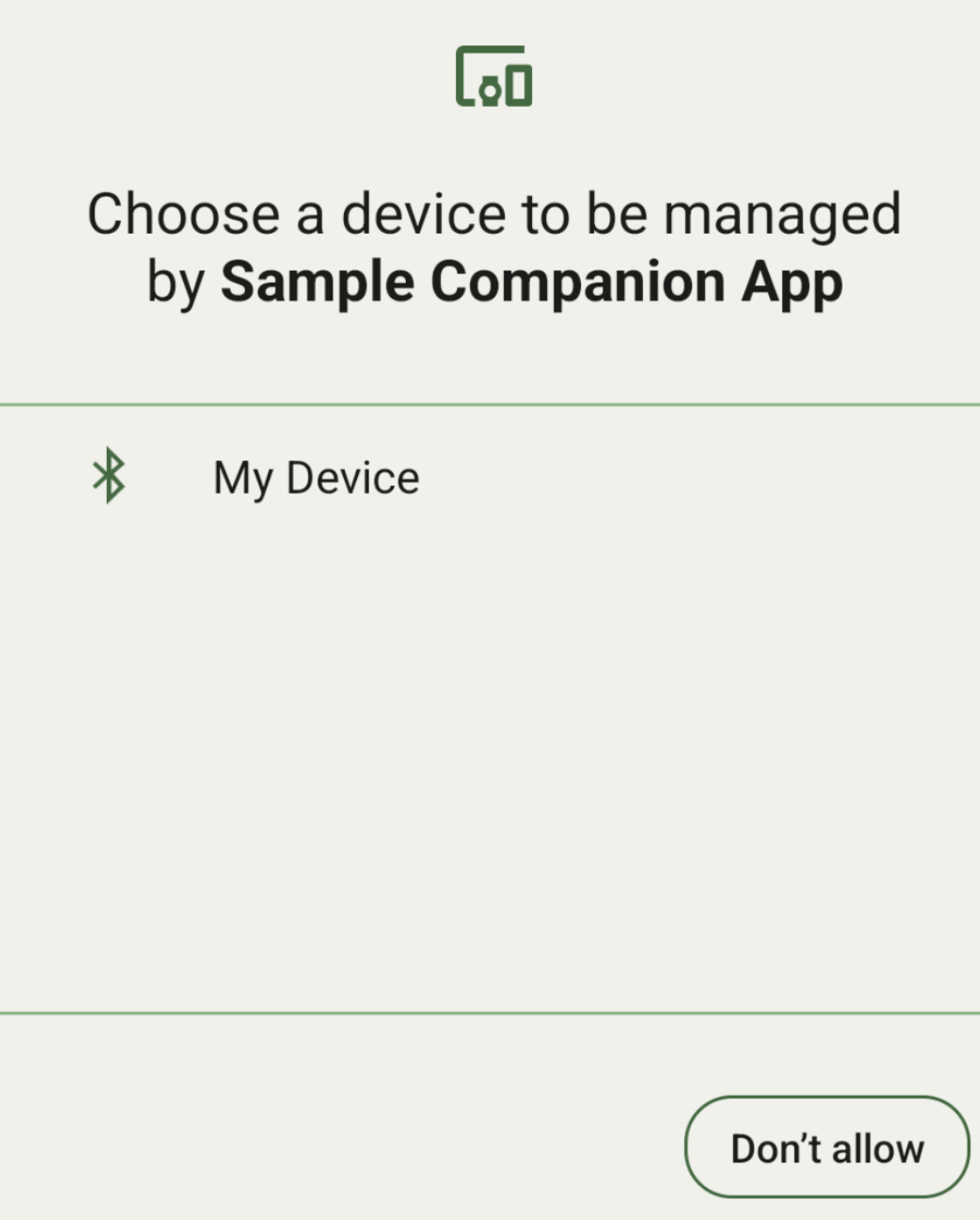
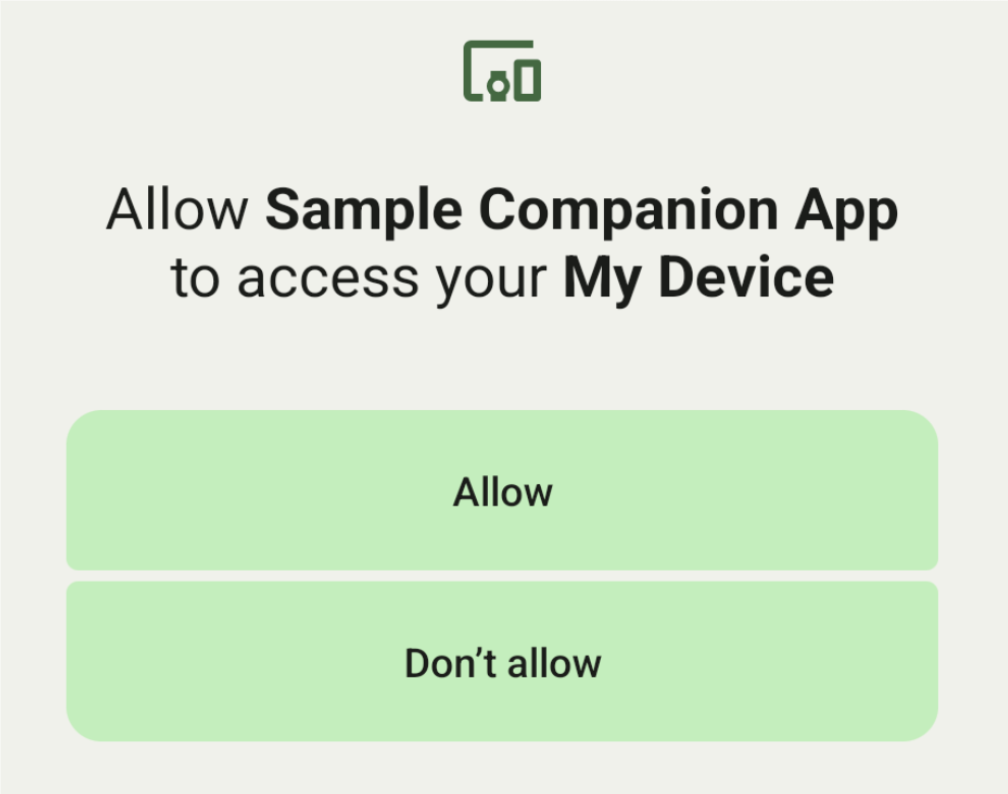
Ниже перечислены подклассы DeviceFilter, которые можно указать в AssociationRequest.
У всех трех подклассов есть конструкторы, которые упрощают настройку фильтров.
В примере ниже устройство ищет устройство Bluetooth с BluetoothDeviceFilter.
Kotlin
val deviceFilter: BluetoothDeviceFilter = BluetoothDeviceFilter.Builder()
        // Match only Bluetooth devices whose name matches the pattern.
        .setNamePattern(Pattern.compile("My device"))
        // Match only Bluetooth devices whose service UUID matches this pattern.
        .addServiceUuid(ParcelUuid(UUID(0x123abcL, -1L)), null)
        .build()
Java
BluetoothDeviceFilter deviceFilter = new BluetoothDeviceFilter.Builder()
        // Match only Bluetooth devices whose name matches the pattern.
        .setNamePattern(Pattern.compile("My device"))
        // Match only Bluetooth devices whose service UUID matches this pattern.
        .addServiceUuid(new ParcelUuid(new UUID(0x123abcL, -1L)), null)
        .build();
Задайте для DeviceFilter значение AssociationRequest, чтобы CompanionDeviceManager мог определить, какие типы устройств нужно искать.
Kotlin
val pairingRequest: AssociationRequest = AssociationRequest.Builder()
        // Find only devices that match this request filter.
        .addDeviceFilter(deviceFilter)
        // Stop scanning as soon as one device matching the filter is found.
        .setSingleDevice(true)
        .build()
Java
AssociationRequest pairingRequest = new AssociationRequest.Builder()
        // Find only devices that match this request filter.
        .addDeviceFilter(deviceFilter)
        // Stop scanning as soon as one device matching the filter is found.
        .setSingleDevice(true)
        .build();
После того как приложение инициализирует AssociationRequest, запустите функцию associate() для CompanionDeviceManager. Функция associate() принимает AssociationRequest и Callback.
Метод Callback возвращает IntentSender в onAssociationPending, когда CompanionDeviceManager находит устройство и готов показать диалоговое окно для получения согласия пользователя.
После того как пользователь подтвердит устройство, в onAssociationCreated возвращается AssociationInfo устройства.
Если приложение не находит устройства, обратный вызов возвращает onFailure с сообщением об ошибке.
На устройствах с Android 13 (уровень API 33) и более поздними версиями:
Kotlin
val deviceManager =
  requireContext().getSystemService(Context.COMPANION_DEVICE_SERVICE)

val executor: Executor =  Executor { it.run() }

deviceManager.associate(pairingRequest,
    executor,
    object : CompanionDeviceManager.Callback() {
    // Called when a device is found. Launch the IntentSender so the user
    // can select the device they want to pair with.
    override fun onAssociationPending(intentSender: IntentSender) {
        intentSender?.let {
             startIntentSenderForResult(it, SELECT_DEVICE_REQUEST_CODE, null, 0, 0, 0)
        }
    }

    override fun onAssociationCreated(associationInfo: AssociationInfo) {
        // An association is created.
    }

    override fun onFailure(errorMessage: CharSequence?) {
        // To handle the failure.
     }
})
Java
CompanionDeviceManager deviceManager =
        (CompanionDeviceManager) getSystemService(Context.COMPANION_DEVICE_SERVICE);

Executor executor = new Executor() {
            @Override
            public void execute(Runnable runnable) {
                runnable.run();
            }
        };
deviceManager.associate(pairingRequest, new CompanionDeviceManager.Callback() {
    executor,
    // Called when a device is found. Launch the IntentSender so the user can
    // select the device they want to pair with.
    @Override
    public void onDeviceFound(IntentSender chooserLauncher) {
        try {
            startIntentSenderForResult(
                    chooserLauncher, SELECT_DEVICE_REQUEST_CODE, null, 0, 0, 0
            );
        } catch (IntentSender.SendIntentException e) {
            Log.e("MainActivity", "Failed to send intent");
        }
    }

    @Override
    public void onAssociationCreated(AssociationInfo associationInfo) {
        // An association is created.
    }

    @Override
    public void onFailure(CharSequence errorMessage) {
        // To handle the failure.
    });
На устройствах с Android 12L (уровень API 32) или более ранней версией (поддержка прекращена):
Kotlin
val deviceManager =
      requireContext().getSystemService(Context.COMPANION_DEVICE_SERVICE)

deviceManager.associate(pairingRequest,
    object : CompanionDeviceManager.Callback() {
        // Called when a device is found. Launch the IntentSender so the user
        // can select the device they want to pair with.
        override fun onDeviceFound(chooserLauncher: IntentSender) {
            startIntentSenderForResult(chooserLauncher,
                SELECT_DEVICE_REQUEST_CODE, null, 0, 0, 0)
        }

        override fun onFailure(error: CharSequence?) {
            // To handle the failure.
        }
    }, null)
Java
CompanionDeviceManager deviceManager =
        (CompanionDeviceManager) getSystemService(Context.COMPANION_DEVICE_SERVICE);
deviceManager.associate(pairingRequest, new CompanionDeviceManager.Callback() {
    // Called when a device is found. Launch the IntentSender so the user can
    // select the device they want to pair with.
    @Override
    public void onDeviceFound(IntentSender chooserLauncher) {
        try {
            startIntentSenderForResult(
                    chooserLauncher, SELECT_DEVICE_REQUEST_CODE, null, 0, 0, 0
            );
        } catch (IntentSender.SendIntentException e) {
            Log.e("MainActivity", "Failed to send intent");
        }
    }

    @Override
    public void onFailure(CharSequence error) {
        // To handle the failure.
    }
}, null);
Результат выбора пользователя отправляется обратно во фрагмент в методе onActivityResult() вашего действия. После этого вы сможете получить доступ к выбранному устройству.
Когда пользователь выбирает устройство Bluetooth, ожидайте BluetoothDevice.
Когда пользователь выбирает устройство Bluetooth LE, ожидайте android.bluetooth.le.ScanResult.
Когда пользователь выбирает устройство Wi-Fi, ожидайте android.net.wifi.ScanResult.
Kotlin
override fun onActivityResult(requestCode: Int, resultCode: Int, data: Intent?) {
    when (requestCode) {
        SELECT_DEVICE_REQUEST_CODE -> when(resultCode) {
            Activity.RESULT_OK -> {
                // The user chose to pair the app with a Bluetooth device.
                val deviceToPair: BluetoothDevice? =
data?.getParcelableExtra(CompanionDeviceManager.EXTRA_DEVICE)
                deviceToPair?.let { device ->
                    device.createBond()
                    // Continue to interact with the paired device.
                }
            }
        }
        else -> super.onActivityResult(requestCode, resultCode, data)
    }
}
Java
@Override
protected void onActivityResult(int requestCode, int resultCode, @Nullable Intent data) {
    if (resultCode != Activity.RESULT_OK) {
        return;
    }
    if (requestCode == SELECT_DEVICE_REQUEST_CODE && data != null) {
        BluetoothDevice deviceToPair =
data.getParcelableExtra(CompanionDeviceManager.EXTRA_DEVICE);
        if (deviceToPair != null) {
            deviceToPair.createBond();
            // Continue to interact with the paired device.
        }
    } else {
        super.onActivityResult(requestCode, resultCode, data);
    }
}
Посмотрите полный пример:
На устройствах с Android 13 (уровень API 33) и более поздними версиями:
Kotlin
private const val SELECT_DEVICE_REQUEST_CODE = 0

class MainActivity : AppCompatActivity() {

    private val deviceManager: CompanionDeviceManager by lazy {
        getSystemService(Context.COMPANION_DEVICE_SERVICE) as CompanionDeviceManager
    }
    val mBluetoothAdapter: BluetoothAdapter by lazy {
        val java = BluetoothManager::class.java
        getSystemService(java)!!.adapter }
    val executor: Executor =  Executor { it.run() }

    override fun onCreate(savedInstanceState: Bundle?) {
        super.onCreate(savedInstanceState)
        setContentView(R.layout.activity_main)

        // To skip filters based on names and supported feature flags (UUIDs),
        // omit calls to setNamePattern() and addServiceUuid()
        // respectively, as shown in the following  Bluetooth example.
        val deviceFilter: BluetoothDeviceFilter = BluetoothDeviceFilter.Builder()
            .setNamePattern(Pattern.compile("My device"))
            .addServiceUuid(ParcelUuid(UUID(0x123abcL, -1L)), null)
            .build()

        // The argument provided in setSingleDevice() determines whether a single
        // device name or a list of them appears.
        val pairingRequest: AssociationRequest = AssociationRequest.Builder()
            .addDeviceFilter(deviceFilter)
            .setSingleDevice(true)
            .build()

        // When the app tries to pair with a Bluetooth device, show the
        // corresponding dialog box to the user.
        deviceManager.associate(pairingRequest,
            executor,
            object : CompanionDeviceManager.Callback() {
                // Called when a device is found. Launch the IntentSender so the user
                // can select the device they want to pair with.
                override fun onAssociationPending(intentSender: IntentSender) {
                intentSender?.let {
                    startIntentSenderForResult(it, SELECT_DEVICE_REQUEST_CODE, null, 0, 0, 0)
              }
            }

             override fun onAssociationCreated(associationInfo: AssociationInfo) {
                 // AssociationInfo object is created and get association id and the
                 // macAddress.
                 var associationId: int = associationInfo.id
                 var macAddress: MacAddress = associationInfo.deviceMacAddress
             }
             override fun onFailure(errorMessage: CharSequence?) {
                // Handle the failure.
            }
    )

    override fun onActivityResult(requestCode: Int, resultCode: Int, data: Intent?) {
        when (requestCode) {
            SELECT_DEVICE_REQUEST_CODE -> when(resultCode) {
                Activity.RESULT_OK -> {
                    // The user chose to pair the app with a Bluetooth device.
                    val deviceToPair: BluetoothDevice? =
                        data?.getParcelableExtra(CompanionDeviceManager.EXTRA_DEVICE)
                    deviceToPair?.let { device ->
                        device.createBond()
                        // Maintain continuous interaction with a paired device.
                    }
                }
            }
            else -> super.onActivityResult(requestCode, resultCode, data)
        }
    }
}
Java
class MainActivityJava extends AppCompatActivity {

    private static final int SELECT_DEVICE_REQUEST_CODE = 0;
    Executor executor = new Executor() {
        @Override
        public void execute(Runnable runnable) {
            runnable.run();
        }
    };

    @Override
    protected void onCreate(@Nullable Bundle savedInstanceState) {
        super.onCreate(savedInstanceState);
        setContentView(R.layout.activity_main);

        CompanionDeviceManager deviceManager =
            (CompanionDeviceManager) getSystemService(
                Context.COMPANION_DEVICE_SERVICE
            );

        // To skip filtering based on name and supported feature flags,
        // do not include calls to setNamePattern() and addServiceUuid(),
        // respectively. This example uses Bluetooth.
        BluetoothDeviceFilter deviceFilter =
            new BluetoothDeviceFilter.Builder()
                .setNamePattern(Pattern.compile("My device"))
                .addServiceUuid(
                    new ParcelUuid(new UUID(0x123abcL, -1L)), null
                )
                .build();

        // The argument provided in setSingleDevice() determines whether a single
        // device name or a list of device names is presented to the user as
        // pairing options.
        AssociationRequest pairingRequest = new AssociationRequest.Builder()
            .addDeviceFilter(deviceFilter)
            .setSingleDevice(true)
            .build();

        // When the app tries to pair with the Bluetooth device, show the
        // appropriate pairing request dialog to the user.
        deviceManager.associate(pairingRequest, new CompanionDeviceManager.Callback() {
            executor,
           // Called when a device is found. Launch the IntentSender so the user can
           // select the device they want to pair with.
           @Override
           public void onDeviceFound(IntentSender chooserLauncher) {
               try {
                   startIntentSenderForResult(
                       chooserLauncher, SELECT_DEVICE_REQUEST_CODE, null, 0, 0, 0
                   );
               } catch (IntentSender.SendIntentException e) {
                   Log.e("MainActivity", "Failed to send intent");
               }
           }

          @Override
          public void onAssociationCreated(AssociationInfo associationInfo) {
                 // AssociationInfo object is created and get association id and the
                 // macAddress.
                 int associationId = associationInfo.getId();
                 MacAddress macAddress = associationInfo.getDeviceMacAddress();
          }

          @Override
          public void onFailure(CharSequence errorMessage) {
             // Handle the failure.
        });
    }

    @Override
    protected void onActivityResult(int requestCode, int resultCode, @Nullable Intent data) {
        if (resultCode != Activity.RESULT_OK) {
            return;
        }
        if (requestCode == SELECT_DEVICE_REQUEST_CODE) {
            if (resultCode == Activity.RESULT_OK && data != null) {
                BluetoothDevice deviceToPair = data.getParcelableExtra(
                    CompanionDeviceManager.EXTRA_DEVICE
                );

                if (deviceToPair != null) {
                    deviceToPair.createBond();
                    // ... Continue interacting with the paired device.
                }
            }
        } else {
            super.onActivityResult(requestCode, resultCode, data);
        }
    }
}
На устройствах с Android 12L (уровень API 32) или более ранней версией (поддержка прекращена):
Kotlin
private const val SELECT_DEVICE_REQUEST_CODE = 0

class MainActivity : AppCompatActivity() {

    private val deviceManager: CompanionDeviceManager by lazy {
        getSystemService(Context.COMPANION_DEVICE_SERVICE) as CompanionDeviceManager
    }

    override fun onCreate(savedInstanceState: Bundle?) {
        super.onCreate(savedInstanceState)
        setContentView(R.layout.activity_main)

        // To skip filters based on names and supported feature flags (UUIDs),
        // omit calls to setNamePattern() and addServiceUuid()
        // respectively, as shown in the following  Bluetooth example.
        val deviceFilter: BluetoothDeviceFilter = BluetoothDeviceFilter.Builder()
            .setNamePattern(Pattern.compile("My device"))
            .addServiceUuid(ParcelUuid(UUID(0x123abcL, -1L)), null)
            .build()

        // The argument provided in setSingleDevice() determines whether a single
        // device name or a list of them appears.
        val pairingRequest: AssociationRequest = AssociationRequest.Builder()
            .addDeviceFilter(deviceFilter)
            .setSingleDevice(true)
            .build()

        // When the app tries to pair with a Bluetooth device, show the
        // corresponding dialog box to the user.
        deviceManager.associate(pairingRequest,
            object : CompanionDeviceManager.Callback() {

                override fun onDeviceFound(chooserLauncher: IntentSender) {
                    startIntentSenderForResult(chooserLauncher,
                        SELECT_DEVICE_REQUEST_CODE, null, 0, 0, 0)
                }

                override fun onFailure(error: CharSequence?) {
                    // Handle the failure.
                }
            }, null)
    }

    override fun onActivityResult(requestCode: Int, resultCode: Int, data: Intent?) {
        when (requestCode) {
            SELECT_DEVICE_REQUEST_CODE -> when(resultCode) {
                Activity.RESULT_OK -> {
                    // The user chose to pair the app with a Bluetooth device.
                    val deviceToPair: BluetoothDevice? =
                        data?.getParcelableExtra(CompanionDeviceManager.EXTRA_DEVICE)
                    deviceToPair?.let { device ->
                        device.createBond()
                        // Maintain continuous interaction with a paired device.
                    }
                }
            }
            else -> super.onActivityResult(requestCode, resultCode, data)
        }
    }
}
Java
class MainActivityJava extends AppCompatActivity {

    private static final int SELECT_DEVICE_REQUEST_CODE = 0;

    @Override
    protected void onCreate(@Nullable Bundle savedInstanceState) {
        super.onCreate(savedInstanceState);
        setContentView(R.layout.activity_main);

        CompanionDeviceManager deviceManager =
            (CompanionDeviceManager) getSystemService(
                Context.COMPANION_DEVICE_SERVICE
            );

        // To skip filtering based on name and supported feature flags,
        // don't include calls to setNamePattern() and addServiceUuid(),
        // respectively. This example uses Bluetooth.
        BluetoothDeviceFilter deviceFilter =
            new BluetoothDeviceFilter.Builder()
                .setNamePattern(Pattern.compile("My device"))
                .addServiceUuid(
                    new ParcelUuid(new UUID(0x123abcL, -1L)), null
                )
                .build();

        // The argument provided in setSingleDevice() determines whether a single
        // device name or a list of device names is presented to the user as
        // pairing options.
        AssociationRequest pairingRequest = new AssociationRequest.Builder()
            .addDeviceFilter(deviceFilter)
            .setSingleDevice(true)
            .build();

        // When the app tries to pair with the Bluetooth device, show the
        // appropriate pairing request dialog to the user.
        deviceManager.associate(pairingRequest,
            new CompanionDeviceManager.Callback() {
                @Override
                public void onDeviceFound(IntentSender chooserLauncher) {
                    try {
                        startIntentSenderForResult(chooserLauncher,
                            SELECT_DEVICE_REQUEST_CODE, null, 0, 0, 0);
                    } catch (IntentSender.SendIntentException e) {
                        // failed to send the intent
                    }
                }

                @Override
                public void onFailure(CharSequence error) {
                    // handle failure to find the companion device
                }
            }, null);
    }

    @Override
    protected void onActivityResult(int requestCode, int resultCode, @Nullable Intent data) {
        if (requestCode == SELECT_DEVICE_REQUEST_CODE) {
            if (resultCode == Activity.RESULT_OK && data != null) {
                BluetoothDevice deviceToPair = data.getParcelableExtra(
                    CompanionDeviceManager.EXTRA_DEVICE
                );

                if (deviceToPair != null) {
                    deviceToPair.createBond();
                    // ... Continue interacting with the paired device.
                }
            }
        } else {
            super.onActivityResult(requestCode, resultCode, data);
        }
    }
}
Профили дополнительных устройств
В Android 12 (уровень API 31) и более поздних версиях сопутствующие приложения, которые управляют дополнительными устройствами, например часами, могут использовать профили дополнительных устройств, чтобы упростить процесс настройки, предоставляя необходимые разрешения при подключении. Подробнее о профилях дополнительных устройств…
Не отключать сопутствующие приложения
Начиная с Android 16 (уровень API 36)
CompanionDeviceManager.startObservingDevicePresence(String) и CompanionDeviceService.onDeviceAppeared() больше не поддерживаются.
Для автоматического управления привязкой реализованного интерфейса
CompanionDeviceServiceследует использоватьCompanionDeviceManager.startObservingDevicePresence (ObservingDevicePresenceRequest).- Статус привязки
CompanionDeviceServiceавтоматически управляется на основе статуса присутствия связанного дополнительного устройства:- Сервис привязывается, когда дополнительное устройство находится в диапазоне BLE или подключено по Bluetooth.
- Сервис отключается, когда дополнительное устройство выходит из зоны действия BLE или когда соединение Bluetooth прерывается.
- Статус привязки
Приложение будет получать обратный вызов в зависимости от различных значений
DevicePresenceEvent.Подробную информацию можно найти в статье
CompanionDeviceService.onDeviceEvent().