
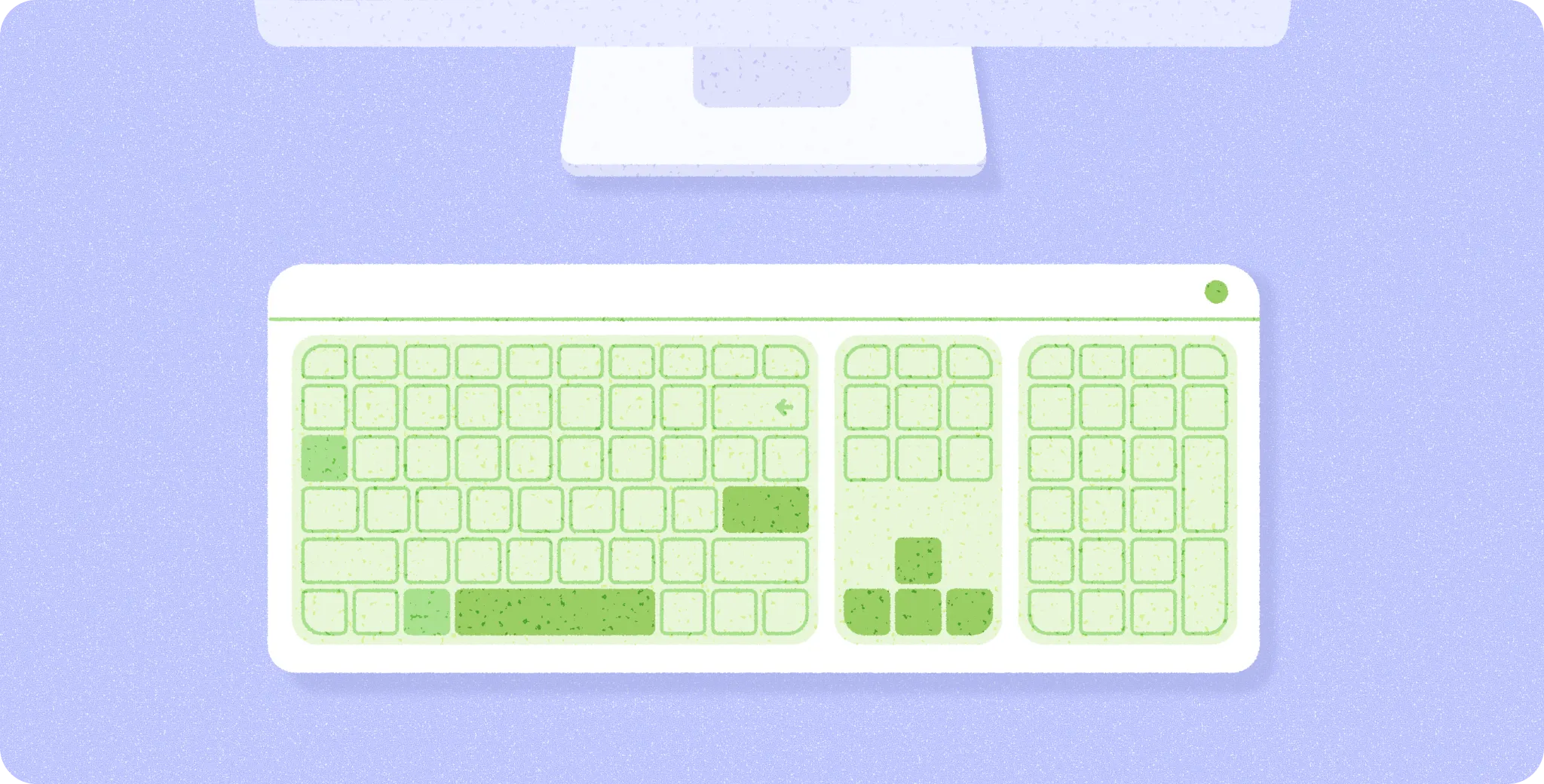
In desktop experiences, physical keyboards enable more than just typing—they are key to app efficiency and accessibility.
Takeaways when adapting to desktop inputs
- Your users should be able to navigate conveniently with only a keyboard.
- Consider efficiency actions that could translate to keyboard shortcuts.
Keyboard navigation
Physical keyboards and D-pads enable desktop navigation and are especially important for users with limited reach and dexterity.
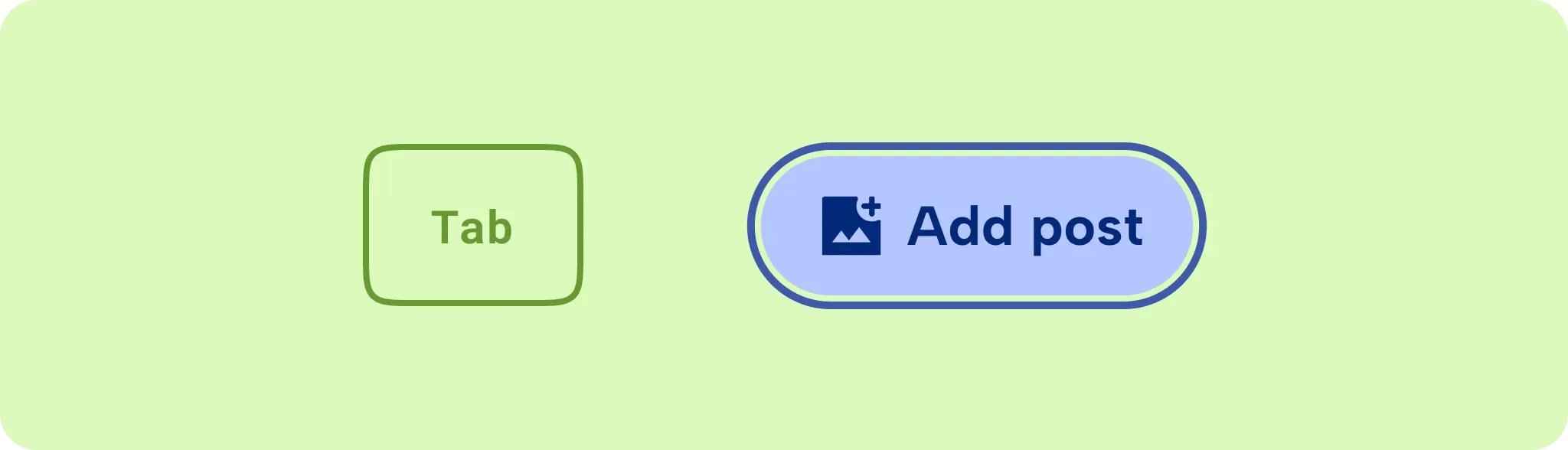
The Tab key should cycle through all interactive elements of your app in the logical reading order, typically top-to-bottom and left-to-right, automatically adapting to right-to-left for RTL languages.
Arrow keys should navigate through all interactive elements directionally. For example, the Right arrow moves focus to the next item in a row and the Down arrow moves focus to the next row.
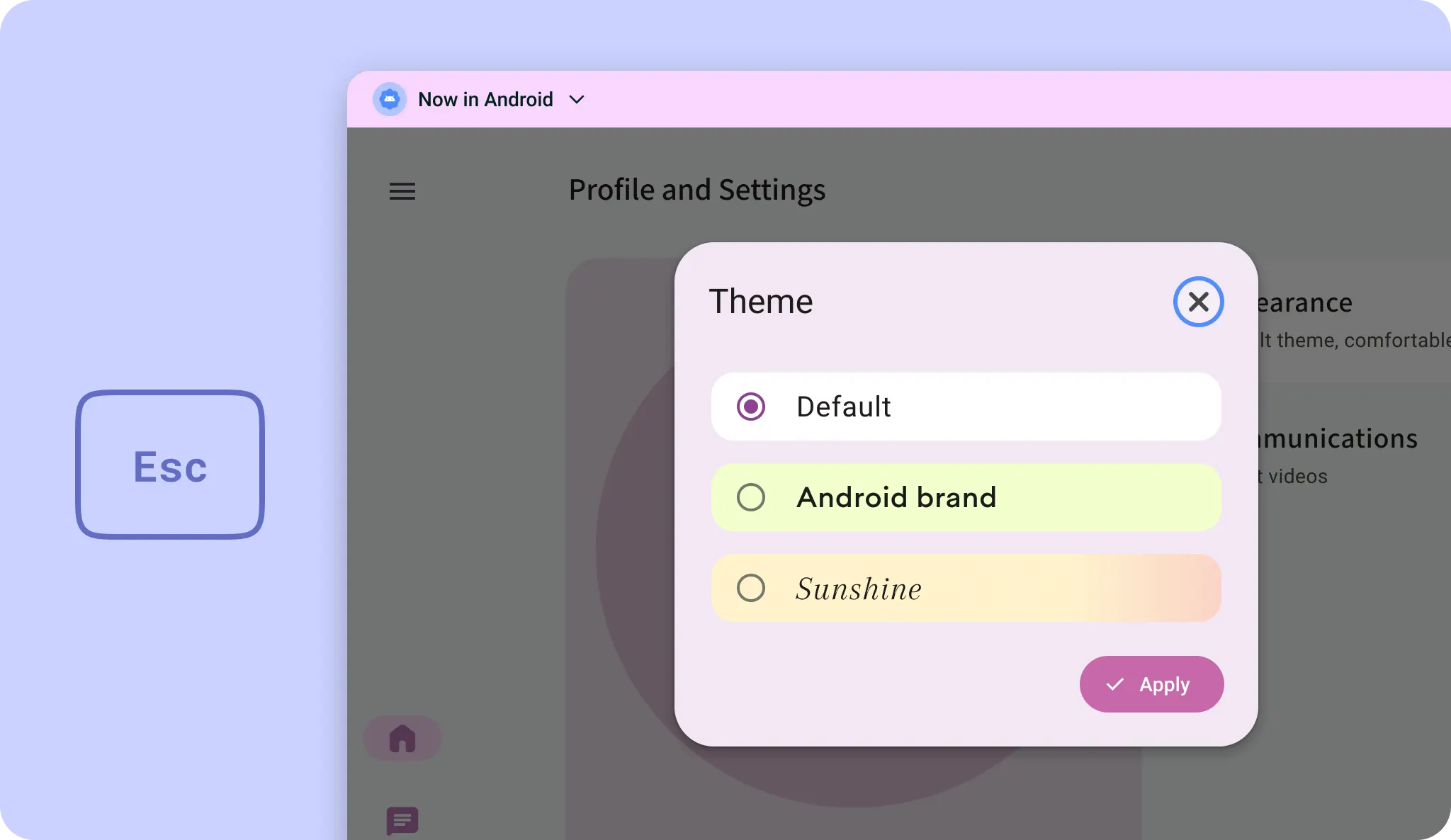
In specific contexts like modal dialogs, keyboard navigation should stay within the dialog, preventing focus from moving to the underlying page. Allow users to dismiss the focused element using the Escape key.
Component interaction
Adhere to component-specific navigation patterns. For example, when keyboard focus lands on a slider, users expect the Left and Right arrow keys to adjust the value rather than moving focus to the next element. For component-specific navigation guidance, read more on ARIA Authoring Practices Guide: Pattern.
While the Android framework automatically handles most keyboard navigation, you may need to manage focus manually for a seamless user experience. For design guidance, learn more on inputs and input compatibility on large screens for implementation details.
Whenever possible, set the initial keyboard focus to a UI element that serves an important use case in your app, such as a search bar or primary action button. This reduces keystrokes and improves navigation efficiency.
Users should be able to identify which element holds focus by applying distinct and consistent focus styles to all interactive elements in your app. For design guidance, learn more at states.
Allow users to dismiss temporary UI elements, such as dialogs, menus, and bottom sheets, by pressing the Escape key, which acts strictly as a local 'cancel' command.
Keyboard shortcuts
Use physical keyboards to support standard and custom shortcuts. This meets user expectations for common actions and accelerates productivity.
To help users discover available commands and view system and app shortcuts in a unified location, integrate your app with Android's built-in Keyboard Shortcuts Helper. For implementation details, Keyboard Shortcuts Helper.
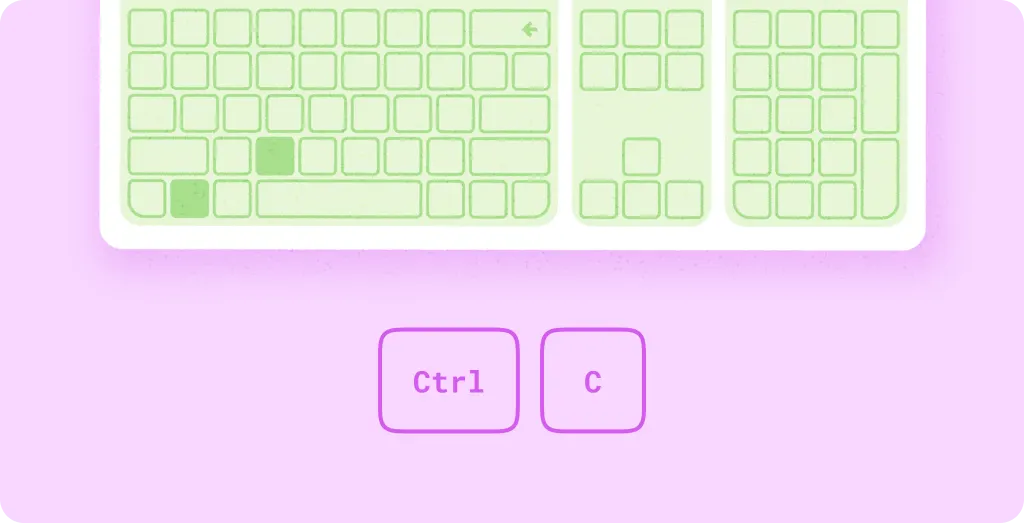
For design guidance on keyboard interactions, read more on inputs.