

Assim como nas versões anteriores, o Android 15 inclui mudanças de comportamento que podem afetar seu app. As mudanças de comportamento a seguir se aplicam exclusivamente a apps destinados ao Android 15 ou versões mais recentes. Caso seu app seja direcionado ao Android 15 ou a versões mais recentes, faça modificações para oferecer suporte a esses comportamentos de forma adequada, quando aplicável.
Consulte também a lista de mudanças de comportamento que afetam todos os apps
executados no Android 15, independente da targetSdkVersion do seu app.
Principal recurso
O Android 15 modifica ou expande vários recursos principais do sistema Android.
Mudanças nos serviços em primeiro plano
We are making the following changes to foreground services with Android 15.
- Data sync foreground service timeout behavior
- New media processing foreground service type
- Restrictions on
BOOT_COMPLETEDbroadcast receivers launching foreground services - Restrictions on starting foreground services while an app holds the
SYSTEM_ALERT_WINDOWpermission
Data sync foreground service timeout behavior
Android 15 introduces a new timeout behavior to dataSync for apps targeting
Android 15 (API level 35) or higher. This behavior also applies to the new
mediaProcessing foreground service type.
The system permits an app's dataSync services to run for a total of 6 hours
in a 24-hour period, after which the system calls the running service's
Service.onTimeout(int, int) method (introduced in Android
15). At this time, the service has a few seconds to call
Service.stopSelf(). When Service.onTimeout() is called, the
service is no longer considered a foreground service. If the service does not
call Service.stopSelf(), the system throws an internal exception. The
exception is logged in Logcat with the following message:
Fatal Exception: android.app.RemoteServiceException: "A foreground service of
type dataSync did not stop within its timeout: [component name]"
To avoid problems with this behavior change, you can do one or more of the following:
- Have your service implement the new
Service.onTimeout(int, int)method. When your app receives the callback, make sure to callstopSelf()within a few seconds. (If you don't stop the app right away, the system generates a failure.) - Make sure your app's
dataSyncservices don't run for more than a total of 6 hours in any 24-hour period (unless the user interacts with the app, resetting the timer). - Only start
dataSyncforeground services as a result of direct user interaction; since your app is in the foreground when the service starts, your service has the full six hours after the app goes to the background. - Instead of using a
dataSyncforeground service, use an alternative API.
If your app's dataSync foreground services have run for 6 hours in the last
24, you cannot start another dataSync foreground service unless the user
has brought your app to the foreground (which resets the timer). If you try to
start another dataSync foreground service, the system throws
ForegroundServiceStartNotAllowedException
with an error message like "Time limit already exhausted for foreground service
type dataSync".
Testing
To test your app's behavior, you can enable data sync timeouts even if your app
is not targeting Android 15 (as long as the app is running on an Android 15
device). To enable timeouts, run the following adb command:
adb shell am compat enable FGS_INTRODUCE_TIME_LIMITS your-package-name
You can also adjust the timeout period, to make it easier to test how your
app behaves when the limit is reached. To set a new timeout period, run the
following adb command:
adb shell device_config put activity_manager data_sync_fgs_timeout_duration duration-in-milliseconds
New media processing foreground service type
Android 15 introduces a new foreground service type, mediaProcessing. This
service type is appropriate for operations like transcoding media files. For
example, a media app might download an audio file and need to convert it to a
different format before playing it. You can use a mediaProcessing foreground
service to make sure the conversion continues even while the app is in the
background.
The system permits an app's mediaProcessing services to run for a total of 6
hours in a 24-hour period, after which the system calls the running service's
Service.onTimeout(int, int) method (introduced in Android
15). At this time, the service has a few seconds to call
Service.stopSelf(). If the service does not
call Service.stopSelf(), the system throws an internal exception. The
exception is logged in Logcat with the following message:
Fatal Exception: android.app.RemoteServiceException: "A foreground service of
type mediaProcessing did not stop within its timeout: [component name]"
To avoid having the exception, you can do one of the following:
- Have your service implement the new
Service.onTimeout(int, int)method. When your app receives the callback, make sure to callstopSelf()within a few seconds. (If you don't stop the app right away, the system generates a failure.) - Make sure your app's
mediaProcessingservices don't run for more than a total of 6 hours in any 24-hour period (unless the user interacts with the app, resetting the timer). - Only start
mediaProcessingforeground services as a result of direct user interaction; since your app is in the foreground when the service starts, your service has the full six hours after the app goes to the background. - Instead of using a
mediaProcessingforeground service, use an alternative API, like WorkManager.
If your app's mediaProcessing foreground services have run for 6 hours in the
last 24, you cannot start another mediaProcessing foreground service unless
the user has brought your app to the foreground (which resets the timer). If you
try to start another mediaProcessing foreground service, the system throws
ForegroundServiceStartNotAllowedException
with an error message like "Time limit already exhausted for foreground service
type mediaProcessing".
For more information about the mediaProcessing service type, see Changes to
foreground service types for Android 15: Media processing.
Testing
To test your app's behavior, you can enable media processing timeouts even if
your app is not targeting Android 15 (as long as the app is running on an
Android 15 device). To enable timeouts, run the following adb command:
adb shell am compat enable FGS_INTRODUCE_TIME_LIMITS your-package-name
You can also adjust the timeout period, to make it easier to test how your
app behaves when the limit is reached. To set a new timeout period, run the
following adb command:
adb shell device_config put activity_manager media_processing_fgs_timeout_duration duration-in-milliseconds
Restrictions on BOOT_COMPLETED broadcast receivers launching foreground services
Há novas restrições para inicialização de broadcast receivers BOOT_COMPLETED
serviços em primeiro plano. Receptores BOOT_COMPLETED não têm permissão para iniciar o
seguintes tipos de serviços em primeiro plano:
dataSynccameramediaPlaybackphoneCallmediaProjectionmicrophone(esta restrição está em vigor paramicrophonedesde o Android 14)
Se um receptor BOOT_COMPLETED tentar iniciar qualquer um desses tipos de primeiro plano
serviços, o sistema gera ForegroundServiceStartNotAllowedException.
Teste
Para testar o comportamento do app, ative essas novas restrições mesmo que seu
O app não é destinado ao Android 15, desde que seja executado em um Android 15
dispositivo). Execute o seguinte comando adb:
adb shell am compat enable FGS_BOOT_COMPLETED_RESTRICTIONS your-package-name
Para enviar uma transmissão BOOT_COMPLETED sem reiniciar o dispositivo:
Execute o seguinte comando adb:
adb shell am broadcast -a android.intent.action.BOOT_COMPLETED your-package-name
Restrictions on starting foreground services while an app holds the SYSTEM_ALERT_WINDOW permission
Previously, if an app held the SYSTEM_ALERT_WINDOW permission, it could launch
a foreground service even if the app was currently in the background (as
discussed in exemptions from background start restrictions).
If an app targets Android 15, this exemption is now narrower. The app now needs
to have the SYSTEM_ALERT_WINDOW permission and also have a visible overlay
window. That is, the app needs to first launch a
TYPE_APPLICATION_OVERLAY window and the window
needs to be visible before you start a foreground service.
If your app attempts to start a foreground service from the background without
meeting these new requirements (and it does not have some other exemption), the
system throws ForegroundServiceStartNotAllowedException.
If your app declares the SYSTEM_ALERT_WINDOW permission
and launches foreground services from the background, it may be affected by this
change. If your app gets a ForegroundServiceStartNotAllowedException, check
your app's order of operations and make sure your app already has an active
overlay window before it attempts to start a foreground service from the
background. You can check if your overlay window is currently visible
by calling View.getWindowVisibility(), or you
can override View.onWindowVisibilityChanged()
to get notified whenever the visibility changes.
Testing
To test your app's behavior, you can enable these new restrictions even if your
app is not targeting Android 15 (as long as the app is running on an Android 15
device). To enable these new restrictions on starting foreground services
from the background, run the following adb command:
adb shell am compat enable FGS_SAW_RESTRICTIONS your-package-name
Mudanças em quando os apps podem modificar o estado global do modo Não perturbe
Os apps direcionados ao Android 15 (nível 35 da API) e mais recentes não podem mais mudar o
estado global ou a política de Não perturbe (DND, na sigla em inglês) em um dispositivo, seja modificando
as configurações do usuário ou desativando o modo DND. Em vez disso, os apps precisam contribuir com um
AutomaticZenRule, que o sistema combina em uma política global com o
esquema de política mais restritiva. As chamadas para APIs que
afetam o estado global (setInterruptionFilter,
setNotificationPolicy) resultam na criação ou atualização de um
AutomaticZenRule implícito, que é ativado e desativado dependendo do ciclo de chamadas
dessas chamadas de API.
Essa mudança só afeta o comportamento observável se o app estiver chamando
setInterruptionFilter(INTERRUPTION_FILTER_ALL) e esperar que essa chamada desative uma AutomaticZenRule que foi ativada anteriormente pelos proprietários.
Mudanças na API OpenJDK
O Android 15 continua o trabalho de atualizar as principais bibliotecas do Android para se alinhar aos recursos das versões mais recentes do LTS do OpenJDK.
Algumas dessas mudanças podem afetar a compatibilidade de apps destinados ao Android 15 (nível 35 da API):
Mudanças nas APIs de formatação de strings: a validação de índice de argumento, flags, largura e precisão agora é mais rigorosa ao usar as seguintes APIs
String.format()eFormatter.format():String.format(String, Object[])String.format(Locale, String, Object[])Formatter.format(String, Object[])Formatter.format(Locale, String, Object[])
Por exemplo, a exceção a seguir é gerada quando um índice de argumento 0 é usado (
%0na string de formato):IllegalFormatArgumentIndexException: Illegal format argument index = 0Nesse caso, o problema pode ser corrigido usando um índice de argumento 1 (
%1na string de formato).Mudanças no tipo de componente de
Arrays.asList(...).toArray(): ao usarArrays.asList(...).toArray(), o tipo de componente da matriz resultante agora é umObject, não o tipo dos elementos da matriz subjacente. Portanto, o código a seguir gera umClassCastException:String[] elements = (String[]) Arrays.asList("one", "two").toArray();Nesse caso, para preservar
Stringcomo o tipo de componente na matriz resultante, useCollection.toArray(Object[]):String[] elements = Arrays.asList("two", "one").toArray(new String[0]);Mudanças no processamento de códigos de idioma: ao usar a API
Locale, os códigos de idioma para hebraico, iídiche e indonésio não são mais convertidos para as formas obsoletas (hebraico:iw, iídiche:jie indonésio:in). Ao especificar o código de idioma para uma dessas localidades, use os códigos do ISO 639-1 (hebraico:he, iídiche:yie indonésio:id).Mudanças nas sequências de números inteiros aleatórios: seguindo as mudanças feitas em https://bugs.openjdk.org/browse/JDK-8301574, os seguintes métodos
Random.ints()agora retornam uma sequência de números diferente dos métodosRandom.nextInt():Em geral, essa mudança não deve resultar em um comportamento que prejudique o app, mas seu código não deve esperar que a sequência gerada pelos métodos
Random.ints()corresponda aRandom.nextInt().
A nova API SequencedCollection pode afetar a compatibilidade do app
depois que você atualizar compileSdk na configuração do build do app para usar
o Android 15 (nível da API 35):
Conflito com as funções de extensão
MutableList.removeFirst()eMutableList.removeLast()emkotlin-stdlibO tipo
Listem Java é mapeado para o tipoMutableListem Kotlin. Como as APIsList.removeFirst()eList.removeLast()foram introduzidas no Android 15 (nível 35 da API), o compilador Kotlin resolve chamadas de função, por exemplo,list.removeFirst(), estaticamente para as novas APIsListem vez das funções de extensão emkotlin-stdlib.Se um app for recompilado com
compileSdkdefinido como35eminSdkdefinido como34ou inferior, e depois o app for executado no Android 14 e versões anteriores, um erro de tempo de execução será gerado:java.lang.NoSuchMethodError: No virtual method removeFirst()Ljava/lang/Object; in class Ljava/util/ArrayList;A opção
NewApido lint no Plug-in do Android para Gradle pode detectar esses novos usos da API../gradlew lintMainActivity.kt:41: Error: Call requires API level 35 (current min is 34): java.util.List#removeFirst [NewApi] list.removeFirst()Para corrigir a exceção de tempo de execução e os erros de lint, as chamadas de função
removeFirst()eremoveLast()podem ser substituídas porremoveAt(0)eremoveAt(list.lastIndex), respectivamente, em Kotlin. Se você estiver usando o Android Studio Ladybug | 2024.1.3 ou mais recente, ele também vai oferecer uma opção de correção rápida para esses erros.Considere remover
@SuppressLint("NewApi")elintOptions { disable 'NewApi' }se a opção de lint tiver sido desativada.Colisão com outros métodos em Java
Novos métodos foram adicionados aos tipos atuais, por exemplo,
ListeDeque. Esses novos métodos podem não ser compatíveis com os métodos de mesmo nome e tipos de argumentos em outras interfaces e classes. No caso de uma colisão de assinatura de método com incompatibilidade, o compiladorjavacgera um erro de tempo de build. Exemplo:Exemplo de erro 1:
javac MyList.javaMyList.java:135: error: removeLast() in MyList cannot implement removeLast() in List public void removeLast() { ^ return type void is not compatible with Object where E is a type-variable: E extends Object declared in interface ListExemplo de erro 2:
javac MyList.javaMyList.java:7: error: types Deque<Object> and List<Object> are incompatible; public class MyList implements List<Object>, Deque<Object> { both define reversed(), but with unrelated return types 1 errorExemplo de erro 3:
javac MyList.javaMyList.java:43: error: types List<E#1> and MyInterface<E#2> are incompatible; public static class MyList implements List<Object>, MyInterface<Object> { class MyList inherits unrelated defaults for getFirst() from types List and MyInterface where E#1,E#2 are type-variables: E#1 extends Object declared in interface List E#2 extends Object declared in interface MyInterface 1 errorPara corrigir esses erros de build, a classe que implementa essas interfaces precisa substituir o método com um tipo de retorno compatível. Exemplo:
@Override
public Object getFirst() {
    return List.super.getFirst();
}
Segurança
O Android 15 inclui mudanças que promovem a segurança do sistema para ajudar a proteger apps e usuários contra apps maliciosos.
Versões TLS restritas
O Android 15 restringe o uso das versões 1.0 e 1.1 do TLS. Essas versões foram descontinuadas no Android, mas agora não são mais permitidas para apps destinados ao Android 15.
Início de atividades em segundo plano seguras
Android 15 protects users from malicious apps and gives them more control over their devices by adding changes that prevent malicious background apps from bringing other apps to the foreground, elevating their privileges, and abusing user interaction. Background activity launches have been restricted since Android 10 (API level 29).
Other changes
- Change
PendingIntentcreators to block background activity launches by default. This helps prevent apps from accidentally creating aPendingIntentthat could be abused by malicious actors. - Don't bring an app to the foreground unless the
PendingIntentsender allows it. This change aims to prevent malicious apps from abusing the ability to start activities in the background. By default, apps are not allowed to bring the task stack to the foreground unless the creator allows background activity launch privileges or the sender has background activity launch privileges. - Control how the top activity of a task stack can finish its task. If the top activity finishes a task, Android will go back to whichever task was last active. Moreover, if a non-top activity finishes its task, Android will go back to the home screen; it won't block the finish of this non-top activity.
- Prevent launching arbitrary activities from other apps into your own task. This change prevents malicious apps from phishing users by creating activities that appear to be from other apps.
- Block non-visible windows from being considered for background activity launches. This helps prevent malicious apps from abusing background activity launches to display unwanted or malicious content to users.
Intents mais seguras
Agora, o Android 15 tem o StrictMode para intents.
Para conferir registros detalhados sobre violações de uso do Intent, use o seguinte método:
Kotlin
fun onCreate() {
    StrictMode.setVmPolicy(VmPolicy.Builder()
        .detectUnsafeIntentLaunch()
        .build()
    )
}
Java
public void onCreate() {
    StrictMode.setVmPolicy(new VmPolicy.Builder()
            .detectUnsafeIntentLaunch()
            .build());
}
Experiência do usuário e interface do sistema
O Android 15 inclui algumas mudanças que visam criar uma experiência do usuário mais consistente e intuitiva.
Mudanças no encarte da janela
Há duas mudanças relacionadas aos engastes de janela no Android 15: o engaste de borda a borda é forçado por padrão, e também há mudanças de configuração, como a configuração padrão das barras do sistema.
Aplicação de ponta a ponta
Apps are edge-to-edge by default on devices running Android 15 if the app is targeting Android 15 (API level 35).

This is a breaking change that might negatively impact your app's UI. The changes affect the following UI areas:
- Gesture handle navigation bar
- Transparent by default.
- Bottom offset is disabled so content draws behind the system navigation bar unless insets are applied.
setNavigationBarColorandR.attr#navigationBarColorare deprecated and don't affect gesture navigation.setNavigationBarContrastEnforcedandR.attr#navigationBarContrastEnforcedcontinue to have no effect on gesture navigation.
- 3-button navigation
- Opacity set to 80% by default, with color possibly matching the window background.
- Bottom offset disabled so content draws behind the system navigation bar unless insets are applied.
setNavigationBarColorandR.attr#navigationBarColorare set to match the window background by default. The window background must be a color drawable for this default to apply. This API is deprecated but continues to affect 3-button navigation.setNavigationBarContrastEnforcedandR.attr#navigationBarContrastEnforcedis true by default, which adds an 80% opaque background across 3-button navigation.
- Status bar
- Transparent by default.
- The top offset is disabled so content draws behind the status bar unless insets are applied.
setStatusBarColorandR.attr#statusBarColorare deprecated and have no effect on Android 15.setStatusBarContrastEnforcedandR.attr#statusBarContrastEnforcedare deprecated but still have an effect on Android 15.
- Display cutout
layoutInDisplayCutoutModeof non-floating windows must beLAYOUT_IN_DISPLAY_CUTOUT_MODE_ALWAYS.SHORT_EDGES,NEVER, andDEFAULTare interpreted asALWAYSso that users don't see a black bar caused by the display cutout and appear edge-to-edge.
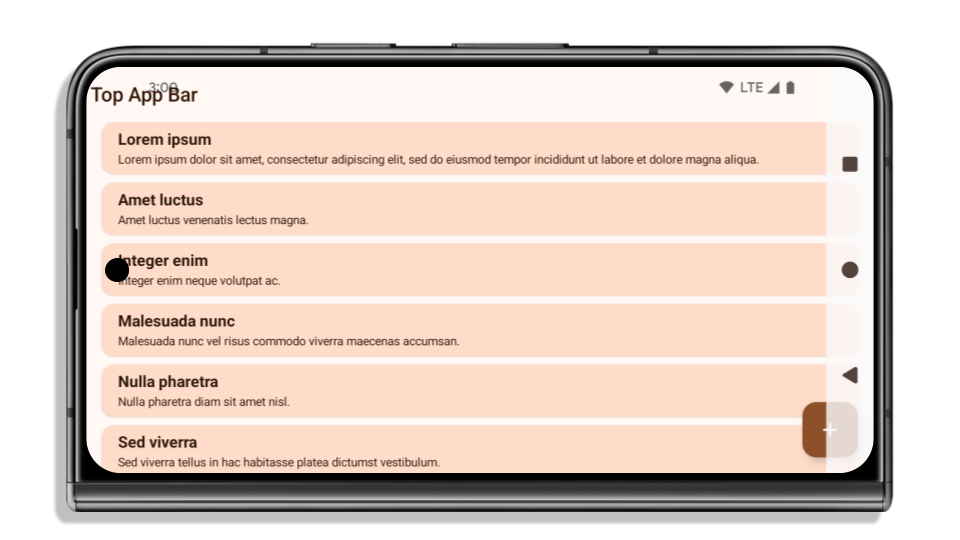
The following example shows an app before and after targeting Android 15 (API level 35), and before and after applying insets. This example is not comprehensive, this might appear differently on Android Auto.


What to check if your app is already edge-to-edge
If your app is already edge-to-edge and applies insets, you are mostly unimpacted, except in the following scenarios. However, even if you think you aren't impacted, we recommend you test your app.
- You have a non-floating window, such as an
Activitythat usesSHORT_EDGES,NEVERorDEFAULTinstead ofLAYOUT_IN_DISPLAY_CUTOUT_MODE_ALWAYS. If your app crashes on launch, this might be due to your splashscreen. You can either upgrade the core splashscreen dependency to 1.2.0-alpha01 or later or setwindow.attributes.layoutInDisplayCutoutMode = WindowManager.LayoutInDisplayCutoutMode.always. - There might be lower-traffic screens with occluded UI. Verify these
less-visited screens don't have occluded UI. Lower-traffic screens include:
- Onboarding or sign-in screens
- Settings pages
What to check if your app is not already edge-to-edge
If your app is not already edge-to-edge, you are most likely impacted. In addition to the scenarios for apps that are already edge-to-edge, you should consider the following:
- If your app uses Material 3 Components (
androidx.compose.material3) in compose, such asTopAppBar,BottomAppBar, andNavigationBar, these components are likely not impacted because they automatically handle insets. - If your app is using Material 2 Components (
androidx.compose.material) in Compose, these components don't automatically handle insets. However, you can get access to the insets and apply them manually. In androidx.compose.material 1.6.0 and later, use thewindowInsetsparameter to apply the insets manually forBottomAppBar,TopAppBar,BottomNavigation, andNavigationRail. Likewise, use thecontentWindowInsetsparameter forScaffold. - If your app uses views and Material Components
(
com.google.android.material), most views-based Material Components such asBottomNavigationView,BottomAppBar,NavigationRailView, orNavigationView, handle insets and require no additional work. However, you need to addandroid:fitsSystemWindows="true"if usingAppBarLayout. - For custom composables, apply the insets manually as padding. If your
content is within a
Scaffold, you can consume insets using theScaffoldpadding values. Otherwise, apply padding using one of theWindowInsets. - If your app is using views and
BottomSheet,SideSheetor custom containers, apply padding usingViewCompat.setOnApplyWindowInsetsListener. ForRecyclerView, apply padding using this listener and also addclipToPadding="false".
What to check if your app must offer custom background protection
If your app must offer custom background protection to 3-button navigation or
the status bar, your app should place a composable or view behind the system bar
using WindowInsets.Type#tappableElement() to get the 3-button
navigation bar height or WindowInsets.Type#statusBars.
Additional edge-to-edge resources
See the Edge to Edge Views and Edge to Edge Compose guides for additional considerations on applying insets.
Deprecated APIs
The following APIs are deprecated but not disabled:
R.attr#enforceStatusBarContrastR.attr#navigationBarColor(for 3 button navigation, with 80% alpha)Window#isStatusBarContrastEnforcedWindow#setNavigationBarColor(for 3 button navigation, with 80% alpha)Window#setStatusBarContrastEnforced
The following APIs are deprecated and disabled:
R.attr#navigationBarColor(for gesture navigation)R.attr#navigationBarDividerColorR.attr#statusBarColorWindow#setDecorFitsSystemWindowsWindow#getNavigationBarColorWindow#getNavigationBarDividerColorWindow#getStatusBarColorWindow#setNavigationBarColor(for gesture navigation)Window#setNavigationBarDividerColorWindow#setStatusBarColor
Configuração estável
Se o app for direcionado ao Android 15 (nível 35 da API) ou a versões mais recentes, a Configuration não vai mais excluir as barras do sistema. Se você usa o tamanho da tela na classe Configuration para o cálculo do layout, substitua por alternativas melhores, como um ViewGroup, WindowInsets ou WindowMetricsCalculator adequado, dependendo da sua necessidade.
A Configuration está disponível desde a API 1. Ela é normalmente recebida de Activity.onConfigurationChanged. Ela fornece informações como densidade, orientação e tamanhos da janela. Uma característica importante sobre os tamanhos de janela retornados da Configuration é que ela excluía as barras do sistema.
O tamanho da configuração é normalmente usado para seleção de recursos, como /res/layout-h500dp, e esse ainda é um caso de uso válido. No entanto, o uso para cálculo de layout sempre foi desencorajado. Se você fizer isso, é recomendável parar agora. Substitua o uso de Configuration por algo mais adequado, dependendo do seu caso de uso.
Se você usar para calcular o layout, use um ViewGroup adequado, como CoordinatorLayout ou ConstraintLayout. Se você usar para determinar a altura da barra de navegação do sistema, use WindowInsets. Se quiser saber o tamanho atual da janela do app, use computeCurrentWindowMetrics.
A lista a seguir descreve os campos afetados por essa mudança:
Configuration.screenWidthDpescreenHeightDptamanhos não excluem mais as barras do sistema.Configuration.smallestScreenWidthDpé afetado indiretamente por mudanças emscreenWidthDpescreenHeightDp.Configuration.orientationé afetado indiretamente por mudanças emscreenWidthDpescreenHeightDpem dispositivos quase quadrados.Display.getSize(Point)é afetado indiretamente pelas mudanças naConfiguration. Esse método foi descontinuado a partir do nível 30 da API.Display.getMetrics()já funciona assim desde o nível 33 da API.
O atributo elegantTextHeight tem o valor padrão "true"
For apps targeting Android 15 (API level 35), the
elegantTextHeight TextView attribute
becomes true by default, replacing the compact font used by default with some
scripts that have large vertical metrics with one that is much more readable.
The compact font was introduced to prevent breaking layouts; Android 13 (API
level 33) prevents many of these breakages by allowing the text layout to
stretch the vertical height utilizing the fallbackLineSpacing
attribute.
In Android 15, the compact font still remains in the system, so your app can set
elegantTextHeight to false to get the same behavior as before, but it is
unlikely to be supported in upcoming releases. So, if your app supports the
following scripts: Arabic, Lao, Myanmar, Tamil, Gujarati, Kannada, Malayalam,
Odia, Telugu or Thai, test your app by setting elegantTextHeight to true.

elegantTextHeight behavior for apps targeting Android 14 (API level 34) and lower.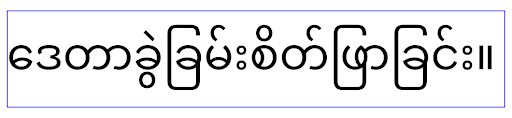
elegantTextHeight behavior for apps targeting Android 15.Mudanças na largura da TextView para formas de letras complexas
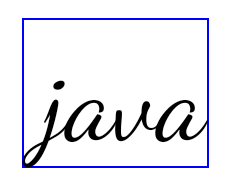
In previous versions of Android, some cursive fonts or languages that have
complex shaping might draw the letters in the previous or next character's area.
In some cases, such letters were clipped at the beginning or ending position.
Starting in Android 15, a TextView allocates width for drawing enough space
for such letters and allows apps to request extra paddings to the left to
prevent clipping.
Because this change affects how a TextView decides the width, TextView
allocates more width by default if the app targets Android 15 (API level 35) or
higher. You can enable or disable this behavior by calling the
setUseBoundsForWidth API on TextView.
Because adding left padding might cause a misalignment for existing layouts, the
padding is not added by default even for apps that target Android 15 or higher.
However, you can add extra padding to preventing clipping by calling
setShiftDrawingOffsetForStartOverhang.
The following examples show how these changes can improve text layout for some fonts and languages.

<TextView
    android:fontFamily="cursive"
    android:text="java" />
<TextView
    android:fontFamily="cursive"
    android:text="java"
    android:useBoundsForWidth="true"
    android:shiftDrawingOffsetForStartOverhang="true" />

<TextView
    android:text="คอมพิวเตอร์" />

<TextView
    android:text="คอมพิวเตอร์"
    android:useBoundsForWidth="true"
    android:shiftDrawingOffsetForStartOverhang="true" />
Altura da linha padrão compatível com localidade para EditText
Nas versões anteriores do Android, o layout de texto estendia a altura do
texto para atender à altura da linha da fonte que correspondia à localidade atual. Por
exemplo, se o conteúdo estivesse em japonês, a altura da linha da fonte japonesa
seria um pouco maior do que a de uma fonte latina, e a altura do texto
ficaria um pouco maior. No entanto, apesar dessas diferenças nas alturas das linhas, o elemento
EditText foi dimensionado de maneira uniforme, independentemente
da localidade usada, conforme ilustrado na imagem a seguir:

EditText que
podem conter texto em inglês (en), japonês (ja) e birmanês (my). A
altura do EditText é a mesma, mesmo que esses idiomas
tenham alturas de linha diferentes.Para apps direcionados ao Android 15 (nível 35 da API), uma altura mínima de linha agora é
reservada para EditText para corresponder à fonte de referência da localidade especificada, conforme
mostrado na imagem a seguir:

EditText que
podem conter texto em inglês (en), japonês (ja) e birmanês (my). A
altura do EditText agora inclui espaço para acomodar a
altura da linha padrão das fontes desses idiomas.Se necessário, o app pode restaurar o comportamento anterior especificando o atributo
useLocalePreferredLineHeightForMinimum
para false e definir métricas verticais mínimas personalizadas usando a
API setMinimumFontMetrics em Kotlin e Java.
Câmera e mídia
O Android 15 faz as seguintes mudanças no comportamento de mídia e câmera para apps direcionados ao Android 15 ou versões mais recentes.
Restrições ao solicitar a seleção de áudio
Os apps direcionados ao Android 15 (nível 35 da API) precisam ser o app principal ou executar um
serviço em primeiro plano para solicitar o foco de áudio. Se um app
tentar solicitar o foco quando não atender a um desses requisitos, a
chamada vai retornar AUDIOFOCUS_REQUEST_FAILED.
Saiba mais sobre o foco de áudio em Gerenciar o foco de áudio.
Atualização das restrições não SDK
O Android 15 inclui listas atualizadas de interfaces não SDK restritas com base na colaboração com desenvolvedores Android e nos testes internos mais recentes. Antes de restringirmos interfaces não SDK, sempre que possível, garantimos que haja alternativas públicas disponíveis.
Caso seu app não seja destinado ao Android 15, é possível que algumas dessas mudanças não afetem você imediatamente. No entanto, embora seja possível que seu app acesse algumas interfaces não SDK dependendo do nível desejado da API do app, o uso de qualquer método ou campo não SDK sempre apresenta um alto risco de corromper o app.
Se você não souber se seu app usa interfaces não SDK, poderá testá-lo para descobrir. Se ele depende de interfaces não SDK, comece a planejar uma migração para alternativas SDK. No entanto, entendemos que alguns apps têm casos de uso válidos para interfaces não SDK. Se você não encontrar uma alternativa para deixar de usar uma interface não SDK em um recurso no seu app, solicite uma nova API pública.
Para saber mais sobre as mudanças dessa versão do Android, consulte Atualizações para restrições de interfaces não SDK no Android 15. Para saber mais sobre interfaces não SDK em geral, consulte Restrições para interfaces não SDK.