
Wear OS apps should work independently of a phone. However, if your Wear OS app depends on a mobile app, see the following information about connecting either an emulated watch or a physical watch to a phone.
Pair devices with a watch emulator
You can pair devices to your watch Android Virtual Device (AVD), or emulator, manually or with the Wear OS emulator pairing assistant.
Use the Wear OS emulator pairing assistant
The Wear OS emulator pairing assistant simplifies managing and connecting Wear emulators. You can pair multiple Wear devices with a single virtual or physical phone. Android Studio saves and re-pairs previously paired devices when you launch them.
To pair two devices, follow these steps:
If you haven't already, create a Wear emulator.
If your phone doesn't have a companion watch app, install it. For example, if you don't have the Google Pixel Watch app installed, follow the prompts to sign in to the Play Store, install it, and set it up.
In the Device Manager, click the overflow menu icon next to a device you want to pair and select Pair Wearable.

Figure 1: Overflow menu of a device that can be paired with a Wear emulator. This action launches the Wear OS emulator pairing assistant. If you selected Pair Wearable on the entry for a phone, you see a list of available Wear devices. If you started with a Wear device, you see a list of available phones. Select the device you want to pair and tap Next.
It might take a few minutes for Android Studio to launch and prepare the devices.
After your devices are successfully paired, the Device Manager shows small icons next to the paired devices. You can also tap the overflow drop-down menu and select View Details to see a list of paired devices.
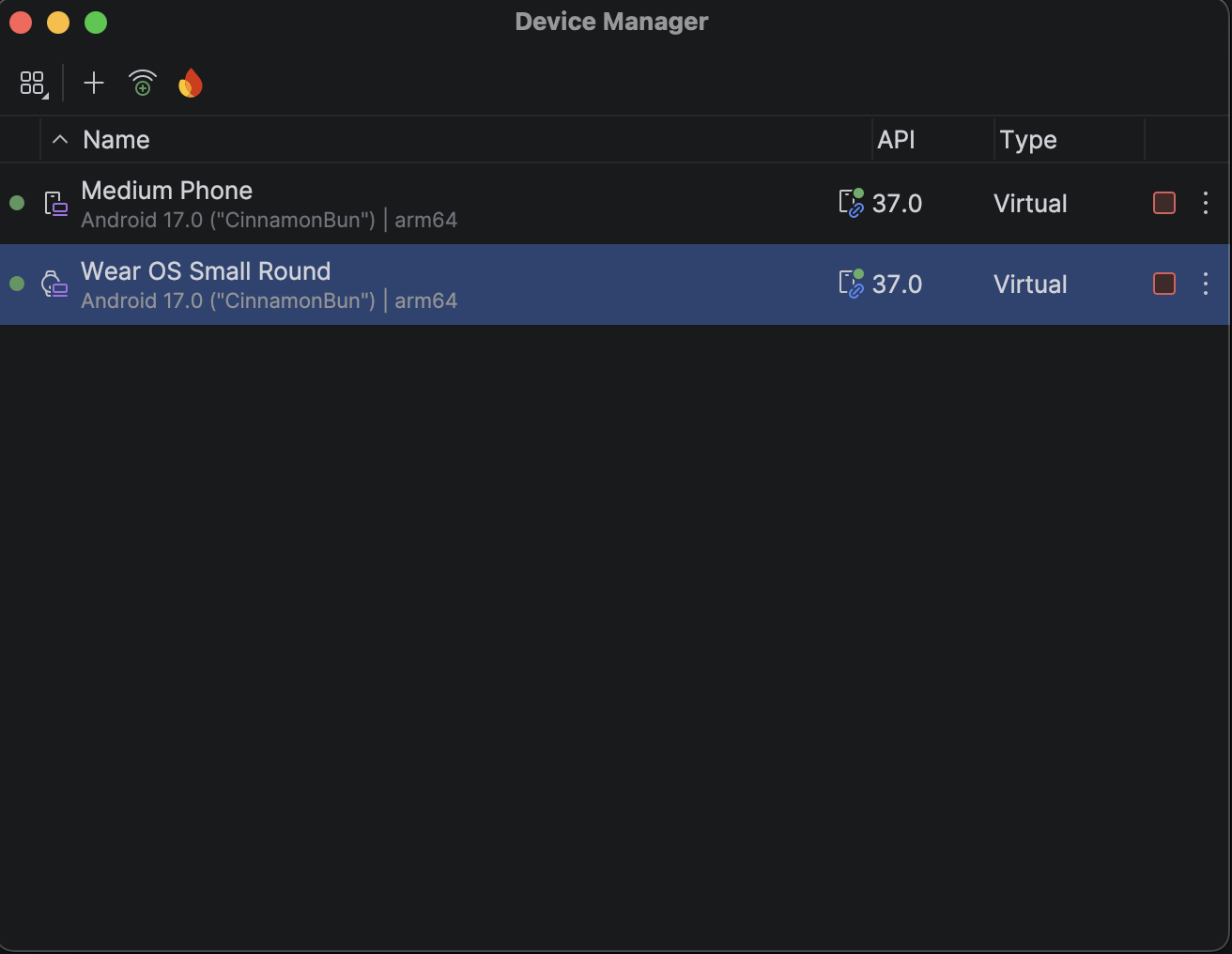
Connect a phone to multiple Wear OS devices
To connect a second Wear device to a virtual or physical phone, follow the same steps you would for an initial pairing: locate the phone or Wear device you want to pair in the Device Manager, click the overflow menu icon, and click Pair Wearable.
Set up a phone
This section describes how to set up a mobile phone with a Wear OS companion app, such as the Google Pixel Watch app.
Use the Android version of the companion app
On an Android phone, go to the Google Pixel Watch app listing. Tap Update to download and install the app. After installation, confirm that Auto-update is selected for the app. See the "How to update individual Android apps automatically" section of Update downloaded apps. Tap Open to start the app.
Pair an Android phone to a watch
After you install the companion app on a phone, unpair any outdated watch pairings, if necessary. Then pair the phone to a newly imaged watch. To do this, complete the following steps:
On the phone, select your watch device name from the list of devices. A pairing code displays on the phone and on the watch. Check that the codes match.
Tap Pair to continue the pairing process. When the watch connects to the phone, a confirmation message displays. After confirming, a list of accounts will appear on the phone.
Choose a Google Account to add and sync to your watch.
Confirm the screen lock and enter the password to start copying the account from the phone to the watch.
Follow the instructions in the wizard to finish the pairing process.