

ในอุปกรณ์ที่ใช้ Android 8.0 (ระดับ API 26) ขึ้นไป การจับคู่อุปกรณ์ที่ใช้ร่วมกันจะสแกนหาอุปกรณ์ที่อยู่ใกล้เคียงผ่านบลูทูธหรือ Wi-Fi ในนามของแอปโดยไม่ต้องใช้สิทธิ์ ACCESS_FINE_LOCATION ซึ่งจะช่วยเพิ่มการคุ้มครองความเป็นส่วนตัวของผู้ใช้ให้ได้มากที่สุด ใช้วิธีนี้เพื่อกำหนดค่าเริ่มต้นของอุปกรณ์ที่ใช้ร่วมกัน เช่น สมาร์ทวอทช์ที่รองรับ BLE นอกจากนี้ การจับคู่อุปกรณ์ที่ใช้ร่วมกันยังต้องเปิดใช้บริการตำแหน่งด้วย
การจับคู่อุปกรณ์ที่ใช้ร่วมกันไม่ได้สร้างการเชื่อมต่อด้วยตัวเองหรือเปิดใช้การสแกนอย่างต่อเนื่อง แอปสามารถใช้ API การเชื่อมต่อบลูทูธหรือ Wi-Fi เพื่อสร้างการเชื่อมต่อได้
หลังจากจับคู่อุปกรณ์แล้ว อุปกรณ์จะใช้สิทธิ์ REQUEST_COMPANION_RUN_IN_BACKGROUND และ REQUEST_COMPANION_USE_DATA_IN_BACKGROUND เพื่อเริ่มแอปจากเบื้องหลังได้ นอกจากนี้ แอปยังใช้สิทธิ์ REQUEST_COMPANION_START_FOREGROUND_SERVICES_FROM_BACKGROUND เพื่อเริ่มบริการที่ทำงานอยู่เบื้องหน้าจากเบื้องหลังได้ด้วย
ผู้ใช้สามารถเลือกอุปกรณ์จากรายการและให้สิทธิ์ของแอปเข้าถึงอุปกรณ์ได้ ระบบจะเพิกถอนสิทธิ์เหล่านี้หากคุณถอนการติดตั้งแอปหรือเรียกใช้ disassociate()
แอปที่ใช้ร่วมกันมีหน้าที่ล้างการเชื่อมโยงของตนเองหากผู้ใช้ไม่ต้องการอีกต่อไป เช่น เมื่อผู้ใช้ออกจากระบบหรือนำอุปกรณ์ที่เชื่อมโยงออก
ใช้การจับคู่อุปกรณ์ที่ใช้ร่วมกัน
ส่วนนี้จะอธิบายวิธีใช้ CompanionDeviceManager เพื่อจับคู่แอปกับอุปกรณ์ที่ใช้ร่วมกันผ่านบลูทูธ, BLE และ Wi-Fi
ระบุอุปกรณ์ที่ใช้ร่วมกัน
ตัวอย่างโค้ดต่อไปนี้แสดงวิธีเพิ่มแฟล็ก <uses-feature> ลงในไฟล์ Manifest ซึ่งจะบอกระบบว่าแอปของคุณตั้งใจที่จะตั้งค่าอุปกรณ์ที่ใช้ร่วมกัน
<uses-feature android:name="android.software.companion_device_setup"/>
แสดงรายการอุปกรณ์ตาม DeviceFilter
คุณสามารถแสดงอุปกรณ์ที่ใช้ร่วมกันทั้งหมดที่อยู่ในระยะซึ่งตรงกับ DeviceFilter ที่คุณระบุ (ดังที่แสดงในรูปที่ 1) หากต้องการจำกัดการสแกนให้เหลือเพียงอุปกรณ์เดียว คุณสามารถsetSingleDevice()เป็น true (ดังที่แสดงในรูปที่ 2)
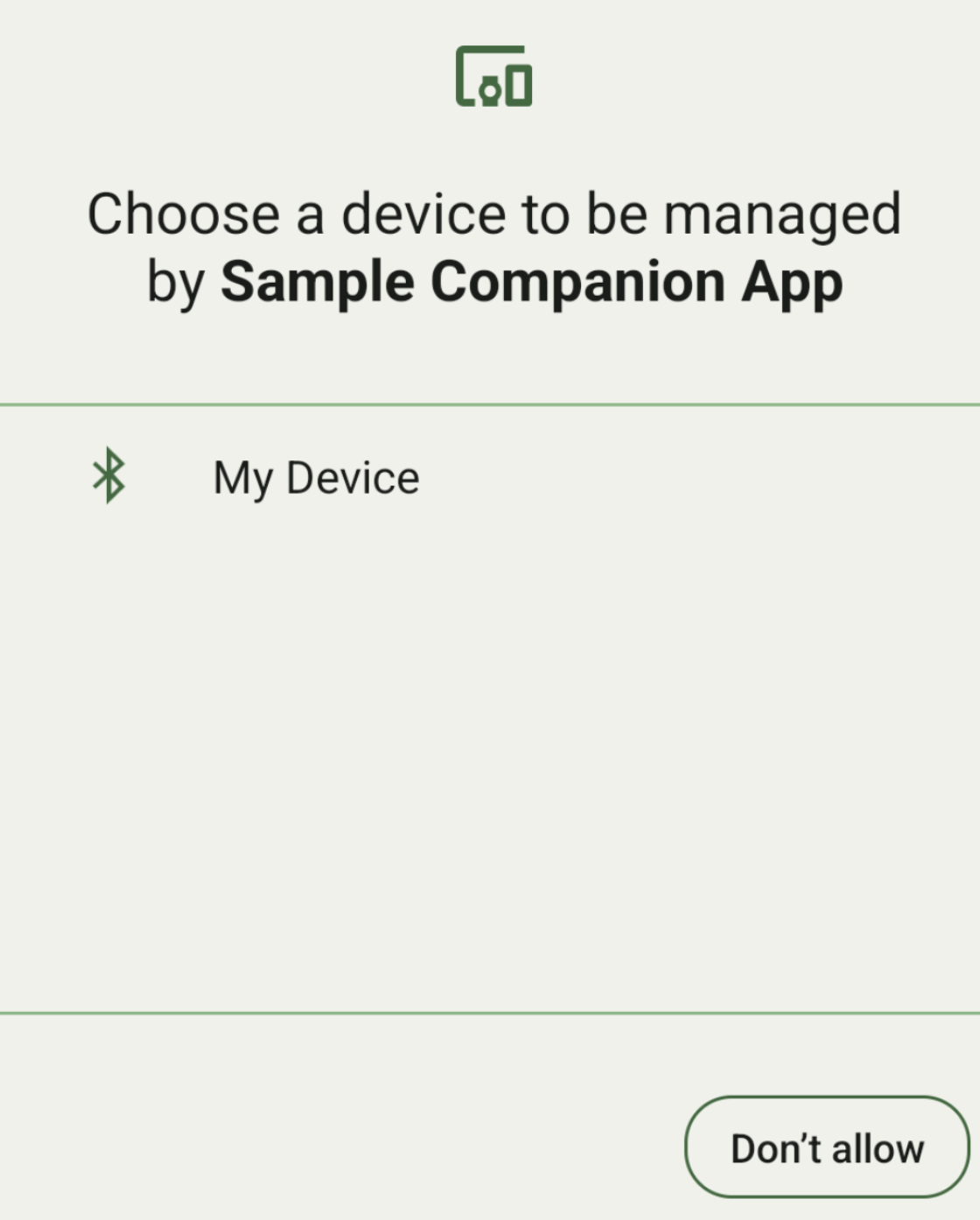
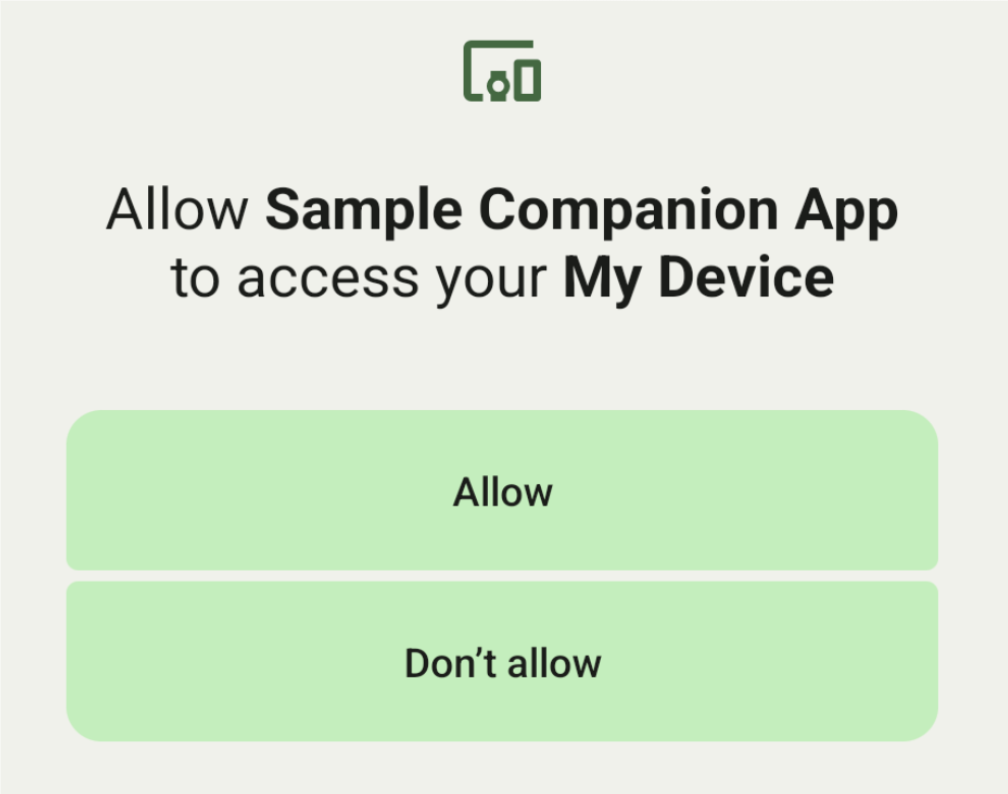
ต่อไปนี้คือคลาสย่อยของ DeviceFilter ที่สามารถระบุใน AssociationRequest ได้
คลาสย่อยทั้ง 3 คลาสมีเครื่องมือสร้างที่ช่วยปรับปรุงการกำหนดค่าตัวกรอง
ในตัวอย่างต่อไปนี้ อุปกรณ์จะสแกนหาอุปกรณ์บลูทูธที่มี BluetoothDeviceFilter
Kotlin
val deviceFilter: BluetoothDeviceFilter = BluetoothDeviceFilter.Builder()
        // Match only Bluetooth devices whose name matches the pattern.
        .setNamePattern(Pattern.compile("My device"))
        // Match only Bluetooth devices whose service UUID matches this pattern.
        .addServiceUuid(ParcelUuid(UUID(0x123abcL, -1L)), null)
        .build()
Java
BluetoothDeviceFilter deviceFilter = new BluetoothDeviceFilter.Builder()
        // Match only Bluetooth devices whose name matches the pattern.
        .setNamePattern(Pattern.compile("My device"))
        // Match only Bluetooth devices whose service UUID matches this pattern.
        .addServiceUuid(new ParcelUuid(new UUID(0x123abcL, -1L)), null)
        .build();
ตั้งค่า DeviceFilter เป็น AssociationRequest เพื่อให้ CompanionDeviceManager ระบุประเภทอุปกรณ์ที่จะค้นหาได้
Kotlin
val pairingRequest: AssociationRequest = AssociationRequest.Builder()
        // Find only devices that match this request filter.
        .addDeviceFilter(deviceFilter)
        // Stop scanning as soon as one device matching the filter is found.
        .setSingleDevice(true)
        .build()
Java
AssociationRequest pairingRequest = new AssociationRequest.Builder()
        // Find only devices that match this request filter.
        .addDeviceFilter(deviceFilter)
        // Stop scanning as soon as one device matching the filter is found.
        .setSingleDevice(true)
        .build();
หลังจากแอปเริ่มต้น AssociationRequest ให้เรียกใช้ฟังก์ชัน associate() ใน CompanionDeviceManager ฟังก์ชัน associate() จะรับ AssociationRequest และ Callback
Callback จะแสดงผล IntentSender ใน onAssociationPending เมื่อ CompanionDeviceManager ค้นหาอุปกรณ์และพร้อมที่จะเปิดกล่องโต้ตอบความยินยอมของผู้ใช้
หลังจากผู้ใช้ยืนยันอุปกรณ์แล้ว ระบบจะแสดงผล AssociationInfo ของอุปกรณ์ใน onAssociationCreated
หากแอปไม่พบอุปกรณ์ใดๆ Callback จะแสดงผล onFailure พร้อมข้อความแสดงข้อผิดพลาด
สำหรับอุปกรณ์ที่ใช้ Android 13 (ระดับ API 33) ขึ้นไป
Kotlin
val deviceManager =
  requireContext().getSystemService(Context.COMPANION_DEVICE_SERVICE)

val executor: Executor =  Executor { it.run() }

deviceManager.associate(pairingRequest,
    executor,
    object : CompanionDeviceManager.Callback() {
    // Called when a device is found. Launch the IntentSender so the user
    // can select the device they want to pair with.
    override fun onAssociationPending(intentSender: IntentSender) {
        intentSender?.let {
             startIntentSenderForResult(it, SELECT_DEVICE_REQUEST_CODE, null, 0, 0, 0)
        }
    }

    override fun onAssociationCreated(associationInfo: AssociationInfo) {
        // An association is created.
    }

    override fun onFailure(errorMessage: CharSequence?) {
        // To handle the failure.
     }
})
Java
CompanionDeviceManager deviceManager =
        (CompanionDeviceManager) getSystemService(Context.COMPANION_DEVICE_SERVICE);

Executor executor = new Executor() {
            @Override
            public void execute(Runnable runnable) {
                runnable.run();
            }
        };
deviceManager.associate(pairingRequest, new CompanionDeviceManager.Callback() {
    executor,
    // Called when a device is found. Launch the IntentSender so the user can
    // select the device they want to pair with.
    @Override
    public void onDeviceFound(IntentSender chooserLauncher) {
        try {
            startIntentSenderForResult(
                    chooserLauncher, SELECT_DEVICE_REQUEST_CODE, null, 0, 0, 0
            );
        } catch (IntentSender.SendIntentException e) {
            Log.e("MainActivity", "Failed to send intent");
        }
    }

    @Override
    public void onAssociationCreated(AssociationInfo associationInfo) {
        // An association is created.
    }

    @Override
    public void onFailure(CharSequence errorMessage) {
        // To handle the failure.
    });
ในอุปกรณ์ที่ใช้ Android 12L (API ระดับ 32) หรือต่ำกว่า (เลิกใช้งานแล้ว) ให้ทำดังนี้
Kotlin
val deviceManager =
      requireContext().getSystemService(Context.COMPANION_DEVICE_SERVICE)

deviceManager.associate(pairingRequest,
    object : CompanionDeviceManager.Callback() {
        // Called when a device is found. Launch the IntentSender so the user
        // can select the device they want to pair with.
        override fun onDeviceFound(chooserLauncher: IntentSender) {
            startIntentSenderForResult(chooserLauncher,
                SELECT_DEVICE_REQUEST_CODE, null, 0, 0, 0)
        }

        override fun onFailure(error: CharSequence?) {
            // To handle the failure.
        }
    }, null)
Java
CompanionDeviceManager deviceManager =
        (CompanionDeviceManager) getSystemService(Context.COMPANION_DEVICE_SERVICE);
deviceManager.associate(pairingRequest, new CompanionDeviceManager.Callback() {
    // Called when a device is found. Launch the IntentSender so the user can
    // select the device they want to pair with.
    @Override
    public void onDeviceFound(IntentSender chooserLauncher) {
        try {
            startIntentSenderForResult(
                    chooserLauncher, SELECT_DEVICE_REQUEST_CODE, null, 0, 0, 0
            );
        } catch (IntentSender.SendIntentException e) {
            Log.e("MainActivity", "Failed to send intent");
        }
    }

    @Override
    public void onFailure(CharSequence error) {
        // To handle the failure.
    }
}, null);
ระบบจะส่งผลลัพธ์ของการเลือกของผู้ใช้กลับไปยัง Fragment ใน onActivityResult() ของกิจกรรม จากนั้นคุณจะเข้าถึงอุปกรณ์ที่เลือกได้
เมื่อผู้ใช้เลือกอุปกรณ์บลูทูธ ให้คาดหวังว่าจะได้รับ BluetoothDevice
เมื่อผู้ใช้เลือกอุปกรณ์บลูทูธ LE ให้รอรับ android.bluetooth.le.ScanResult
เมื่อผู้ใช้เลือกอุปกรณ์ Wi-Fi ให้คาดว่าจะได้รับ android.net.wifi.ScanResult
Kotlin
override fun onActivityResult(requestCode: Int, resultCode: Int, data: Intent?) {
    when (requestCode) {
        SELECT_DEVICE_REQUEST_CODE -> when(resultCode) {
            Activity.RESULT_OK -> {
                // The user chose to pair the app with a Bluetooth device.
                val deviceToPair: BluetoothDevice? =
data?.getParcelableExtra(CompanionDeviceManager.EXTRA_DEVICE)
                deviceToPair?.let { device ->
                    device.createBond()
                    // Continue to interact with the paired device.
                }
            }
        }
        else -> super.onActivityResult(requestCode, resultCode, data)
    }
}
Java
@Override
protected void onActivityResult(int requestCode, int resultCode, @Nullable Intent data) {
    if (resultCode != Activity.RESULT_OK) {
        return;
    }
    if (requestCode == SELECT_DEVICE_REQUEST_CODE && data != null) {
        BluetoothDevice deviceToPair =
data.getParcelableExtra(CompanionDeviceManager.EXTRA_DEVICE);
        if (deviceToPair != null) {
            deviceToPair.createBond();
            // Continue to interact with the paired device.
        }
    } else {
        super.onActivityResult(requestCode, resultCode, data);
    }
}
ดูตัวอย่างที่เสร็จสมบูรณ์
สำหรับอุปกรณ์ที่ใช้ Android 13 (ระดับ API 33) ขึ้นไป
Kotlin
private const val SELECT_DEVICE_REQUEST_CODE = 0

class MainActivity : AppCompatActivity() {

    private val deviceManager: CompanionDeviceManager by lazy {
        getSystemService(Context.COMPANION_DEVICE_SERVICE) as CompanionDeviceManager
    }
    val mBluetoothAdapter: BluetoothAdapter by lazy {
        val java = BluetoothManager::class.java
        getSystemService(java)!!.adapter }
    val executor: Executor =  Executor { it.run() }

    override fun onCreate(savedInstanceState: Bundle?) {
        super.onCreate(savedInstanceState)
        setContentView(R.layout.activity_main)

        // To skip filters based on names and supported feature flags (UUIDs),
        // omit calls to setNamePattern() and addServiceUuid()
        // respectively, as shown in the following  Bluetooth example.
        val deviceFilter: BluetoothDeviceFilter = BluetoothDeviceFilter.Builder()
            .setNamePattern(Pattern.compile("My device"))
            .addServiceUuid(ParcelUuid(UUID(0x123abcL, -1L)), null)
            .build()

        // The argument provided in setSingleDevice() determines whether a single
        // device name or a list of them appears.
        val pairingRequest: AssociationRequest = AssociationRequest.Builder()
            .addDeviceFilter(deviceFilter)
            .setSingleDevice(true)
            .build()

        // When the app tries to pair with a Bluetooth device, show the
        // corresponding dialog box to the user.
        deviceManager.associate(pairingRequest,
            executor,
            object : CompanionDeviceManager.Callback() {
                // Called when a device is found. Launch the IntentSender so the user
                // can select the device they want to pair with.
                override fun onAssociationPending(intentSender: IntentSender) {
                intentSender?.let {
                    startIntentSenderForResult(it, SELECT_DEVICE_REQUEST_CODE, null, 0, 0, 0)
              }
            }

             override fun onAssociationCreated(associationInfo: AssociationInfo) {
                 // AssociationInfo object is created and get association id and the
                 // macAddress.
                 var associationId: int = associationInfo.id
                 var macAddress: MacAddress = associationInfo.deviceMacAddress
             }
             override fun onFailure(errorMessage: CharSequence?) {
                // Handle the failure.
            }
    )

    override fun onActivityResult(requestCode: Int, resultCode: Int, data: Intent?) {
        when (requestCode) {
            SELECT_DEVICE_REQUEST_CODE -> when(resultCode) {
                Activity.RESULT_OK -> {
                    // The user chose to pair the app with a Bluetooth device.
                    val deviceToPair: BluetoothDevice? =
                        data?.getParcelableExtra(CompanionDeviceManager.EXTRA_DEVICE)
                    deviceToPair?.let { device ->
                        device.createBond()
                        // Maintain continuous interaction with a paired device.
                    }
                }
            }
            else -> super.onActivityResult(requestCode, resultCode, data)
        }
    }
}
Java
class MainActivityJava extends AppCompatActivity {

    private static final int SELECT_DEVICE_REQUEST_CODE = 0;
    Executor executor = new Executor() {
        @Override
        public void execute(Runnable runnable) {
            runnable.run();
        }
    };

    @Override
    protected void onCreate(@Nullable Bundle savedInstanceState) {
        super.onCreate(savedInstanceState);
        setContentView(R.layout.activity_main);

        CompanionDeviceManager deviceManager =
            (CompanionDeviceManager) getSystemService(
                Context.COMPANION_DEVICE_SERVICE
            );

        // To skip filtering based on name and supported feature flags,
        // do not include calls to setNamePattern() and addServiceUuid(),
        // respectively. This example uses Bluetooth.
        BluetoothDeviceFilter deviceFilter =
            new BluetoothDeviceFilter.Builder()
                .setNamePattern(Pattern.compile("My device"))
                .addServiceUuid(
                    new ParcelUuid(new UUID(0x123abcL, -1L)), null
                )
                .build();

        // The argument provided in setSingleDevice() determines whether a single
        // device name or a list of device names is presented to the user as
        // pairing options.
        AssociationRequest pairingRequest = new AssociationRequest.Builder()
            .addDeviceFilter(deviceFilter)
            .setSingleDevice(true)
            .build();

        // When the app tries to pair with the Bluetooth device, show the
        // appropriate pairing request dialog to the user.
        deviceManager.associate(pairingRequest, new CompanionDeviceManager.Callback() {
            executor,
           // Called when a device is found. Launch the IntentSender so the user can
           // select the device they want to pair with.
           @Override
           public void onDeviceFound(IntentSender chooserLauncher) {
               try {
                   startIntentSenderForResult(
                       chooserLauncher, SELECT_DEVICE_REQUEST_CODE, null, 0, 0, 0
                   );
               } catch (IntentSender.SendIntentException e) {
                   Log.e("MainActivity", "Failed to send intent");
               }
           }

          @Override
          public void onAssociationCreated(AssociationInfo associationInfo) {
                 // AssociationInfo object is created and get association id and the
                 // macAddress.
                 int associationId = associationInfo.getId();
                 MacAddress macAddress = associationInfo.getDeviceMacAddress();
          }

          @Override
          public void onFailure(CharSequence errorMessage) {
             // Handle the failure.
        });
    }

    @Override
    protected void onActivityResult(int requestCode, int resultCode, @Nullable Intent data) {
        if (resultCode != Activity.RESULT_OK) {
            return;
        }
        if (requestCode == SELECT_DEVICE_REQUEST_CODE) {
            if (resultCode == Activity.RESULT_OK && data != null) {
                BluetoothDevice deviceToPair = data.getParcelableExtra(
                    CompanionDeviceManager.EXTRA_DEVICE
                );

                if (deviceToPair != null) {
                    deviceToPair.createBond();
                    // ... Continue interacting with the paired device.
                }
            }
        } else {
            super.onActivityResult(requestCode, resultCode, data);
        }
    }
}
ในอุปกรณ์ที่ใช้ Android 12L (API ระดับ 32) หรือต่ำกว่า (เลิกใช้งานแล้ว) ให้ทำดังนี้
Kotlin
private const val SELECT_DEVICE_REQUEST_CODE = 0

class MainActivity : AppCompatActivity() {

    private val deviceManager: CompanionDeviceManager by lazy {
        getSystemService(Context.COMPANION_DEVICE_SERVICE) as CompanionDeviceManager
    }

    override fun onCreate(savedInstanceState: Bundle?) {
        super.onCreate(savedInstanceState)
        setContentView(R.layout.activity_main)

        // To skip filters based on names and supported feature flags (UUIDs),
        // omit calls to setNamePattern() and addServiceUuid()
        // respectively, as shown in the following  Bluetooth example.
        val deviceFilter: BluetoothDeviceFilter = BluetoothDeviceFilter.Builder()
            .setNamePattern(Pattern.compile("My device"))
            .addServiceUuid(ParcelUuid(UUID(0x123abcL, -1L)), null)
            .build()

        // The argument provided in setSingleDevice() determines whether a single
        // device name or a list of them appears.
        val pairingRequest: AssociationRequest = AssociationRequest.Builder()
            .addDeviceFilter(deviceFilter)
            .setSingleDevice(true)
            .build()

        // When the app tries to pair with a Bluetooth device, show the
        // corresponding dialog box to the user.
        deviceManager.associate(pairingRequest,
            object : CompanionDeviceManager.Callback() {

                override fun onDeviceFound(chooserLauncher: IntentSender) {
                    startIntentSenderForResult(chooserLauncher,
                        SELECT_DEVICE_REQUEST_CODE, null, 0, 0, 0)
                }

                override fun onFailure(error: CharSequence?) {
                    // Handle the failure.
                }
            }, null)
    }

    override fun onActivityResult(requestCode: Int, resultCode: Int, data: Intent?) {
        when (requestCode) {
            SELECT_DEVICE_REQUEST_CODE -> when(resultCode) {
                Activity.RESULT_OK -> {
                    // The user chose to pair the app with a Bluetooth device.
                    val deviceToPair: BluetoothDevice? =
                        data?.getParcelableExtra(CompanionDeviceManager.EXTRA_DEVICE)
                    deviceToPair?.let { device ->
                        device.createBond()
                        // Maintain continuous interaction with a paired device.
                    }
                }
            }
            else -> super.onActivityResult(requestCode, resultCode, data)
        }
    }
}
Java
class MainActivityJava extends AppCompatActivity {

    private static final int SELECT_DEVICE_REQUEST_CODE = 0;

    @Override
    protected void onCreate(@Nullable Bundle savedInstanceState) {
        super.onCreate(savedInstanceState);
        setContentView(R.layout.activity_main);

        CompanionDeviceManager deviceManager =
            (CompanionDeviceManager) getSystemService(
                Context.COMPANION_DEVICE_SERVICE
            );

        // To skip filtering based on name and supported feature flags,
        // don't include calls to setNamePattern() and addServiceUuid(),
        // respectively. This example uses Bluetooth.
        BluetoothDeviceFilter deviceFilter =
            new BluetoothDeviceFilter.Builder()
                .setNamePattern(Pattern.compile("My device"))
                .addServiceUuid(
                    new ParcelUuid(new UUID(0x123abcL, -1L)), null
                )
                .build();

        // The argument provided in setSingleDevice() determines whether a single
        // device name or a list of device names is presented to the user as
        // pairing options.
        AssociationRequest pairingRequest = new AssociationRequest.Builder()
            .addDeviceFilter(deviceFilter)
            .setSingleDevice(true)
            .build();

        // When the app tries to pair with the Bluetooth device, show the
        // appropriate pairing request dialog to the user.
        deviceManager.associate(pairingRequest,
            new CompanionDeviceManager.Callback() {
                @Override
                public void onDeviceFound(IntentSender chooserLauncher) {
                    try {
                        startIntentSenderForResult(chooserLauncher,
                            SELECT_DEVICE_REQUEST_CODE, null, 0, 0, 0);
                    } catch (IntentSender.SendIntentException e) {
                        // failed to send the intent
                    }
                }

                @Override
                public void onFailure(CharSequence error) {
                    // handle failure to find the companion device
                }
            }, null);
    }

    @Override
    protected void onActivityResult(int requestCode, int resultCode, @Nullable Intent data) {
        if (requestCode == SELECT_DEVICE_REQUEST_CODE) {
            if (resultCode == Activity.RESULT_OK && data != null) {
                BluetoothDevice deviceToPair = data.getParcelableExtra(
                    CompanionDeviceManager.EXTRA_DEVICE
                );

                if (deviceToPair != null) {
                    deviceToPair.createBond();
                    // ... Continue interacting with the paired device.
                }
            }
        } else {
            super.onActivityResult(requestCode, resultCode, data);
        }
    }
}
โปรไฟล์อุปกรณ์ที่ใช้ร่วมกัน
ใน Android 12 (ระดับ API 31) ขึ้นไป แอปที่ใช้ร่วมกันซึ่งจัดการอุปกรณ์ต่างๆ เช่น นาฬิกา สามารถใช้โปรไฟล์อุปกรณ์ที่ใช้ร่วมกันเพื่อปรับปรุงกระบวนการตั้งค่าโดยให้สิทธิ์ที่จำเป็นเมื่อจับคู่ ดูข้อมูลเพิ่มเติมได้ที่โปรไฟล์อุปกรณ์ที่ใช้ร่วมกัน
เปิดแอปที่ใช้ร่วมกันไว้เสมอ
ตั้งแต่ Android 16 (ระดับ API 36) เป็นต้นไป
CompanionDeviceManager.startObservingDevicePresence(String) และ CompanionDeviceService.onDeviceAppeared() เลิกใช้งานแล้ว
คุณควรใช้
CompanionDeviceManager.startObservingDevicePresence (ObservingDevicePresenceRequest)เพื่อจัดการการเชื่อมโยงCompanionDeviceServiceที่ติดตั้งใช้งานโดยอัตโนมัติ- ระบบจะจัดการสถานะการเชื่อมโยงของ
CompanionDeviceServiceโดยอัตโนมัติตามสถานะการตรวจหาบุคคลในบ้านของอุปกรณ์ที่ใช้ร่วมกันที่เชื่อมโยง ดังนี้- บริการจะเชื่อมโยงเมื่ออุปกรณ์ที่ใช้ร่วมกันอยู่ในระยะ BLE หรือเชื่อมต่อโดยใช้บลูทูธ
- บริการจะยกเลิกการเชื่อมโยงเมื่ออุปกรณ์ที่ใช้ร่วมกันอยู่นอกระยะ BLE หรือการเชื่อมต่อบลูทูธสิ้นสุดลง
- ระบบจะจัดการสถานะการเชื่อมโยงของ
แอปจะได้รับ Callback ตาม
DevicePresenceEventต่างๆโปรดดูรายละเอียดที่หัวข้อ
CompanionDeviceService.onDeviceEvent()