

Trên các thiết bị chạy Android 8.0 (cấp độ API 26) trở lên, tính năng ghép nối thiết bị đồng hành sẽ thực hiện quét Bluetooth hoặc Wi-Fi của các Thiết bị ở gần thay cho ứng dụng của bạn mà không cần quyền ACCESS_FINE_LOCATION. Điều này giúp tối đa hoá các biện pháp bảo vệ quyền riêng tư của người dùng. Sử dụng phương thức này để
thực hiện cấu hình ban đầu cho thiết bị đồng hành, chẳng hạn như
đồng hồ thông minh có hỗ trợ BLE. Ngoài ra, bạn phải bật Dịch vụ vị trí để ghép nối thiết bị đồng hành.
Tính năng ghép nối thiết bị đồng hành không tự tạo kết nối cũng như không bật tính năng quét liên tục. Ứng dụng có thể sử dụng API kết nối Bluetooth hoặc Wi-Fi để thiết lập kết nối.
Sau khi được ghép nối, thiết bị có thể sử dụng các quyền
REQUEST_COMPANION_RUN_IN_BACKGROUND
và
REQUEST_COMPANION_USE_DATA_IN_BACKGROUND
để khởi động ứng dụng ở chế độ nền. Ứng dụng cũng có thể sử dụng quyền
REQUEST_COMPANION_START_FOREGROUND_SERVICES_FROM_BACKGROUND
để bắt đầu một dịch vụ nền trước từ nền.
Người dùng có thể chọn một thiết bị trong danh sách và cấp quyền cho ứng dụng truy cập vào thiết bị đó. Các quyền này sẽ bị thu hồi nếu bạn gỡ cài đặt ứng dụng hoặc gọi disassociate().
Ứng dụng đồng hành chịu trách nhiệm xoá các mối liên kết của chính ứng dụng đó nếu người dùng không cần đến nữa, chẳng hạn như khi họ đăng xuất hoặc xoá các thiết bị liên kết.
Triển khai tính năng ghép nối thiết bị đồng hành
Phần này giải thích cách sử dụng CompanionDeviceManager để ghép nối ứng dụng của bạn với các thiết bị đồng hành qua Bluetooth, BLE và Wi-Fi.
Chỉ định thiết bị đồng hành
Mã mẫu sau đây cho biết cách thêm cờ <uses-feature> vào tệp kê khai. Thao tác này cho hệ thống biết rằng ứng dụng của bạn dự định thiết lập thiết bị đồng hành.
<uses-feature android:name="android.software.companion_device_setup"/>
Liệt kê thiết bị theo DeviceFilter
Bạn có thể hiển thị tất cả thiết bị đồng hành trong phạm vi phù hợp với
DeviceFilter
mà bạn cung cấp (như trong hình 1). Nếu muốn giới hạn việc quét chỉ cho một thiết bị, bạn có thể đặt setSingleDevice() thành true (như trong hình 2).
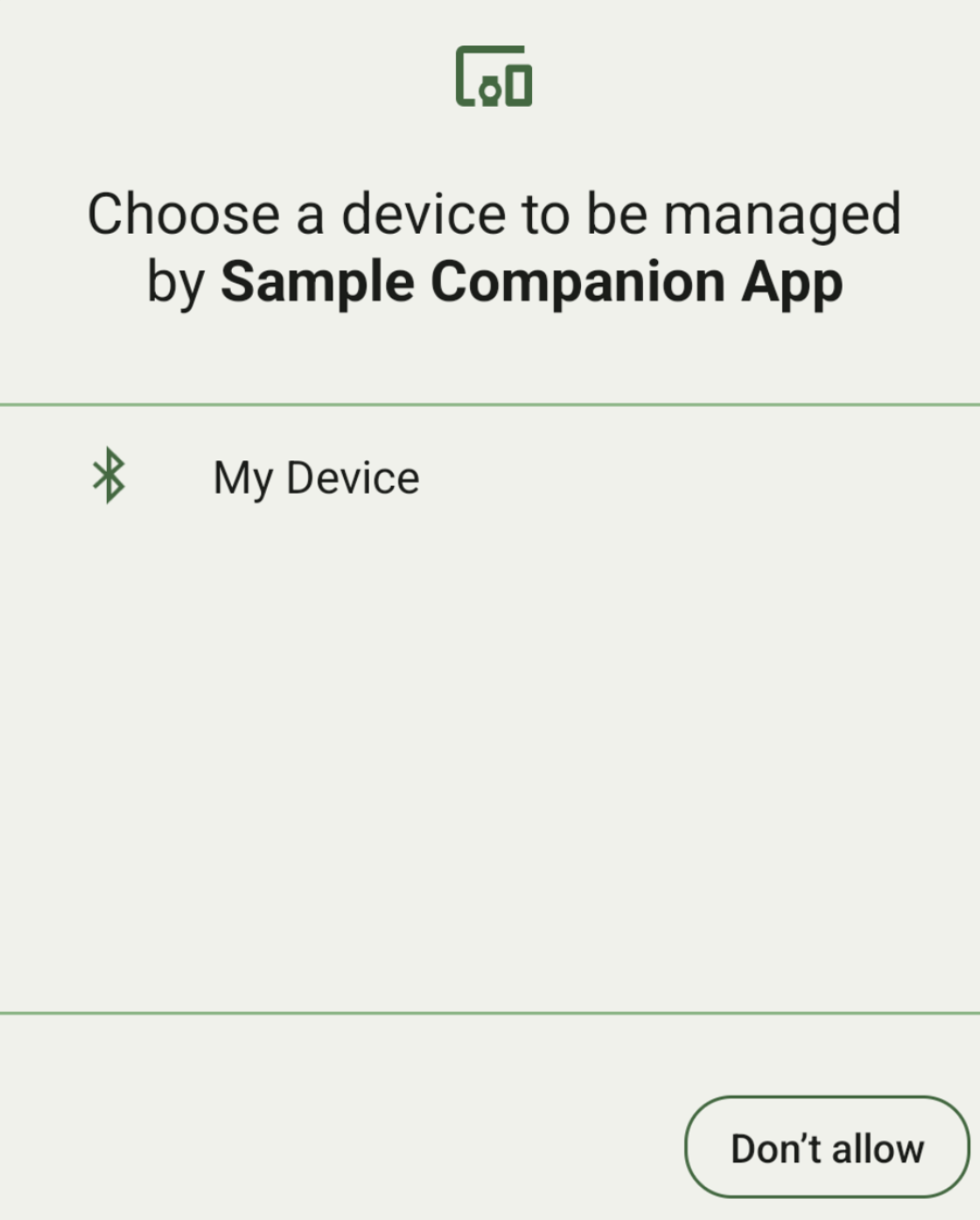
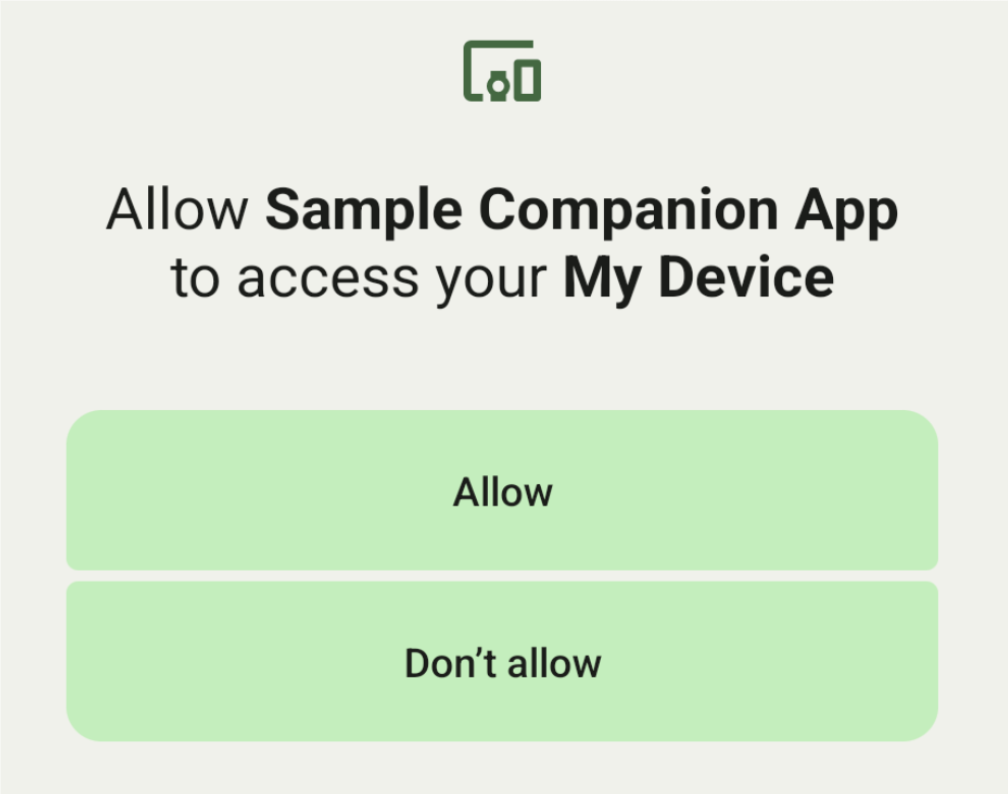
Sau đây là các lớp con của DeviceFilter có thể được chỉ định trong AssociationRequest:
Cả ba lớp con đều có trình tạo giúp đơn giản hoá việc định cấu hình bộ lọc.
Trong ví dụ sau, một thiết bị quét tìm thiết bị Bluetooth có BluetoothDeviceFilter.
Kotlin
val deviceFilter: BluetoothDeviceFilter = BluetoothDeviceFilter.Builder()
        // Match only Bluetooth devices whose name matches the pattern.
        .setNamePattern(Pattern.compile("My device"))
        // Match only Bluetooth devices whose service UUID matches this pattern.
        .addServiceUuid(ParcelUuid(UUID(0x123abcL, -1L)), null)
        .build()
Java
BluetoothDeviceFilter deviceFilter = new BluetoothDeviceFilter.Builder()
        // Match only Bluetooth devices whose name matches the pattern.
        .setNamePattern(Pattern.compile("My device"))
        // Match only Bluetooth devices whose service UUID matches this pattern.
        .addServiceUuid(new ParcelUuid(new UUID(0x123abcL, -1L)), null)
        .build();
Đặt DeviceFilter thành AssociationRequest để CompanionDeviceManager có thể xác định loại thiết bị cần tìm.
Kotlin
val pairingRequest: AssociationRequest = AssociationRequest.Builder()
        // Find only devices that match this request filter.
        .addDeviceFilter(deviceFilter)
        // Stop scanning as soon as one device matching the filter is found.
        .setSingleDevice(true)
        .build()
Java
AssociationRequest pairingRequest = new AssociationRequest.Builder()
        // Find only devices that match this request filter.
        .addDeviceFilter(deviceFilter)
        // Stop scanning as soon as one device matching the filter is found.
        .setSingleDevice(true)
        .build();
Sau khi ứng dụng khởi chạy AssociationRequest, hãy chạy hàm associate() trên CompanionDeviceManager. Hàm associate() nhận một AssociationRequest và một Callback.
Callback trả về một IntentSender trong onAssociationPending khi CompanionDeviceManager tìm thấy một thiết bị và sẵn sàng chạy hộp thoại yêu cầu người dùng đồng ý.
Sau khi người dùng xác nhận thiết bị, AssociationInfo của thiết bị sẽ được trả về trong onAssociationCreated.
Nếu ứng dụng của bạn không tìm thấy thiết bị nào, lệnh gọi lại sẽ trả về onFailure kèm theo thông báo lỗi.
Trên thiết bị chạy Android 13 (cấp độ API 33) trở lên:
Kotlin
val deviceManager =
  requireContext().getSystemService(Context.COMPANION_DEVICE_SERVICE)

val executor: Executor =  Executor { it.run() }

deviceManager.associate(pairingRequest,
    executor,
    object : CompanionDeviceManager.Callback() {
    // Called when a device is found. Launch the IntentSender so the user
    // can select the device they want to pair with.
    override fun onAssociationPending(intentSender: IntentSender) {
        intentSender?.let {
             startIntentSenderForResult(it, SELECT_DEVICE_REQUEST_CODE, null, 0, 0, 0)
        }
    }

    override fun onAssociationCreated(associationInfo: AssociationInfo) {
        // An association is created.
    }

    override fun onFailure(errorMessage: CharSequence?) {
        // To handle the failure.
     }
})
Java
CompanionDeviceManager deviceManager =
        (CompanionDeviceManager) getSystemService(Context.COMPANION_DEVICE_SERVICE);

Executor executor = new Executor() {
            @Override
            public void execute(Runnable runnable) {
                runnable.run();
            }
        };
deviceManager.associate(pairingRequest, new CompanionDeviceManager.Callback() {
    executor,
    // Called when a device is found. Launch the IntentSender so the user can
    // select the device they want to pair with.
    @Override
    public void onDeviceFound(IntentSender chooserLauncher) {
        try {
            startIntentSenderForResult(
                    chooserLauncher, SELECT_DEVICE_REQUEST_CODE, null, 0, 0, 0
            );
        } catch (IntentSender.SendIntentException e) {
            Log.e("MainActivity", "Failed to send intent");
        }
    }

    @Override
    public void onAssociationCreated(AssociationInfo associationInfo) {
        // An association is created.
    }

    @Override
    public void onFailure(CharSequence errorMessage) {
        // To handle the failure.
    });
Trên thiết bị chạy Android 12L (cấp độ API 32) trở xuống (không dùng nữa):
Kotlin
val deviceManager =
      requireContext().getSystemService(Context.COMPANION_DEVICE_SERVICE)

deviceManager.associate(pairingRequest,
    object : CompanionDeviceManager.Callback() {
        // Called when a device is found. Launch the IntentSender so the user
        // can select the device they want to pair with.
        override fun onDeviceFound(chooserLauncher: IntentSender) {
            startIntentSenderForResult(chooserLauncher,
                SELECT_DEVICE_REQUEST_CODE, null, 0, 0, 0)
        }

        override fun onFailure(error: CharSequence?) {
            // To handle the failure.
        }
    }, null)
Java
CompanionDeviceManager deviceManager =
        (CompanionDeviceManager) getSystemService(Context.COMPANION_DEVICE_SERVICE);
deviceManager.associate(pairingRequest, new CompanionDeviceManager.Callback() {
    // Called when a device is found. Launch the IntentSender so the user can
    // select the device they want to pair with.
    @Override
    public void onDeviceFound(IntentSender chooserLauncher) {
        try {
            startIntentSenderForResult(
                    chooserLauncher, SELECT_DEVICE_REQUEST_CODE, null, 0, 0, 0
            );
        } catch (IntentSender.SendIntentException e) {
            Log.e("MainActivity", "Failed to send intent");
        }
    }

    @Override
    public void onFailure(CharSequence error) {
        // To handle the failure.
    }
}, null);
Kết quả lựa chọn của người dùng được gửi trở lại mảnh trong
onActivityResult()
của hoạt động. Sau đó, bạn có thể truy cập vào thiết bị đã chọn.
Khi người dùng chọn một thiết bị Bluetooth, hãy chờ BluetoothDevice.
Khi người dùng chọn một thiết bị Bluetooth LE, hãy chờ android.bluetooth.le.ScanResult.
Khi người dùng chọn một thiết bị Wi-Fi, hãy chờ
android.net.wifi.ScanResult.
Kotlin
override fun onActivityResult(requestCode: Int, resultCode: Int, data: Intent?) {
    when (requestCode) {
        SELECT_DEVICE_REQUEST_CODE -> when(resultCode) {
            Activity.RESULT_OK -> {
                // The user chose to pair the app with a Bluetooth device.
                val deviceToPair: BluetoothDevice? =
data?.getParcelableExtra(CompanionDeviceManager.EXTRA_DEVICE)
                deviceToPair?.let { device ->
                    device.createBond()
                    // Continue to interact with the paired device.
                }
            }
        }
        else -> super.onActivityResult(requestCode, resultCode, data)
    }
}
Java
@Override
protected void onActivityResult(int requestCode, int resultCode, @Nullable Intent data) {
    if (resultCode != Activity.RESULT_OK) {
        return;
    }
    if (requestCode == SELECT_DEVICE_REQUEST_CODE && data != null) {
        BluetoothDevice deviceToPair =
data.getParcelableExtra(CompanionDeviceManager.EXTRA_DEVICE);
        if (deviceToPair != null) {
            deviceToPair.createBond();
            // Continue to interact with the paired device.
        }
    } else {
        super.onActivityResult(requestCode, resultCode, data);
    }
}
Xem ví dụ hoàn chỉnh:
Trên thiết bị chạy Android 13 (cấp độ API 33) trở lên:
Kotlin
private const val SELECT_DEVICE_REQUEST_CODE = 0

class MainActivity : AppCompatActivity() {

    private val deviceManager: CompanionDeviceManager by lazy {
        getSystemService(Context.COMPANION_DEVICE_SERVICE) as CompanionDeviceManager
    }
    val mBluetoothAdapter: BluetoothAdapter by lazy {
        val java = BluetoothManager::class.java
        getSystemService(java)!!.adapter }
    val executor: Executor =  Executor { it.run() }

    override fun onCreate(savedInstanceState: Bundle?) {
        super.onCreate(savedInstanceState)
        setContentView(R.layout.activity_main)

        // To skip filters based on names and supported feature flags (UUIDs),
        // omit calls to setNamePattern() and addServiceUuid()
        // respectively, as shown in the following  Bluetooth example.
        val deviceFilter: BluetoothDeviceFilter = BluetoothDeviceFilter.Builder()
            .setNamePattern(Pattern.compile("My device"))
            .addServiceUuid(ParcelUuid(UUID(0x123abcL, -1L)), null)
            .build()

        // The argument provided in setSingleDevice() determines whether a single
        // device name or a list of them appears.
        val pairingRequest: AssociationRequest = AssociationRequest.Builder()
            .addDeviceFilter(deviceFilter)
            .setSingleDevice(true)
            .build()

        // When the app tries to pair with a Bluetooth device, show the
        // corresponding dialog box to the user.
        deviceManager.associate(pairingRequest,
            executor,
            object : CompanionDeviceManager.Callback() {
                // Called when a device is found. Launch the IntentSender so the user
                // can select the device they want to pair with.
                override fun onAssociationPending(intentSender: IntentSender) {
                intentSender?.let {
                    startIntentSenderForResult(it, SELECT_DEVICE_REQUEST_CODE, null, 0, 0, 0)
              }
            }

             override fun onAssociationCreated(associationInfo: AssociationInfo) {
                 // AssociationInfo object is created and get association id and the
                 // macAddress.
                 var associationId: int = associationInfo.id
                 var macAddress: MacAddress = associationInfo.deviceMacAddress
             }
             override fun onFailure(errorMessage: CharSequence?) {
                // Handle the failure.
            }
    )

    override fun onActivityResult(requestCode: Int, resultCode: Int, data: Intent?) {
        when (requestCode) {
            SELECT_DEVICE_REQUEST_CODE -> when(resultCode) {
                Activity.RESULT_OK -> {
                    // The user chose to pair the app with a Bluetooth device.
                    val deviceToPair: BluetoothDevice? =
                        data?.getParcelableExtra(CompanionDeviceManager.EXTRA_DEVICE)
                    deviceToPair?.let { device ->
                        device.createBond()
                        // Maintain continuous interaction with a paired device.
                    }
                }
            }
            else -> super.onActivityResult(requestCode, resultCode, data)
        }
    }
}
Java
class MainActivityJava extends AppCompatActivity {

    private static final int SELECT_DEVICE_REQUEST_CODE = 0;
    Executor executor = new Executor() {
        @Override
        public void execute(Runnable runnable) {
            runnable.run();
        }
    };

    @Override
    protected void onCreate(@Nullable Bundle savedInstanceState) {
        super.onCreate(savedInstanceState);
        setContentView(R.layout.activity_main);

        CompanionDeviceManager deviceManager =
            (CompanionDeviceManager) getSystemService(
                Context.COMPANION_DEVICE_SERVICE
            );

        // To skip filtering based on name and supported feature flags,
        // do not include calls to setNamePattern() and addServiceUuid(),
        // respectively. This example uses Bluetooth.
        BluetoothDeviceFilter deviceFilter =
            new BluetoothDeviceFilter.Builder()
                .setNamePattern(Pattern.compile("My device"))
                .addServiceUuid(
                    new ParcelUuid(new UUID(0x123abcL, -1L)), null
                )
                .build();

        // The argument provided in setSingleDevice() determines whether a single
        // device name or a list of device names is presented to the user as
        // pairing options.
        AssociationRequest pairingRequest = new AssociationRequest.Builder()
            .addDeviceFilter(deviceFilter)
            .setSingleDevice(true)
            .build();

        // When the app tries to pair with the Bluetooth device, show the
        // appropriate pairing request dialog to the user.
        deviceManager.associate(pairingRequest, new CompanionDeviceManager.Callback() {
            executor,
           // Called when a device is found. Launch the IntentSender so the user can
           // select the device they want to pair with.
           @Override
           public void onDeviceFound(IntentSender chooserLauncher) {
               try {
                   startIntentSenderForResult(
                       chooserLauncher, SELECT_DEVICE_REQUEST_CODE, null, 0, 0, 0
                   );
               } catch (IntentSender.SendIntentException e) {
                   Log.e("MainActivity", "Failed to send intent");
               }
           }

          @Override
          public void onAssociationCreated(AssociationInfo associationInfo) {
                 // AssociationInfo object is created and get association id and the
                 // macAddress.
                 int associationId = associationInfo.getId();
                 MacAddress macAddress = associationInfo.getDeviceMacAddress();
          }

          @Override
          public void onFailure(CharSequence errorMessage) {
             // Handle the failure.
        });
    }

    @Override
    protected void onActivityResult(int requestCode, int resultCode, @Nullable Intent data) {
        if (resultCode != Activity.RESULT_OK) {
            return;
        }
        if (requestCode == SELECT_DEVICE_REQUEST_CODE) {
            if (resultCode == Activity.RESULT_OK && data != null) {
                BluetoothDevice deviceToPair = data.getParcelableExtra(
                    CompanionDeviceManager.EXTRA_DEVICE
                );

                if (deviceToPair != null) {
                    deviceToPair.createBond();
                    // ... Continue interacting with the paired device.
                }
            }
        } else {
            super.onActivityResult(requestCode, resultCode, data);
        }
    }
}
Trên thiết bị chạy Android 12L (cấp độ API 32) trở xuống (không dùng nữa):
Kotlin
private const val SELECT_DEVICE_REQUEST_CODE = 0

class MainActivity : AppCompatActivity() {

    private val deviceManager: CompanionDeviceManager by lazy {
        getSystemService(Context.COMPANION_DEVICE_SERVICE) as CompanionDeviceManager
    }

    override fun onCreate(savedInstanceState: Bundle?) {
        super.onCreate(savedInstanceState)
        setContentView(R.layout.activity_main)

        // To skip filters based on names and supported feature flags (UUIDs),
        // omit calls to setNamePattern() and addServiceUuid()
        // respectively, as shown in the following  Bluetooth example.
        val deviceFilter: BluetoothDeviceFilter = BluetoothDeviceFilter.Builder()
            .setNamePattern(Pattern.compile("My device"))
            .addServiceUuid(ParcelUuid(UUID(0x123abcL, -1L)), null)
            .build()

        // The argument provided in setSingleDevice() determines whether a single
        // device name or a list of them appears.
        val pairingRequest: AssociationRequest = AssociationRequest.Builder()
            .addDeviceFilter(deviceFilter)
            .setSingleDevice(true)
            .build()

        // When the app tries to pair with a Bluetooth device, show the
        // corresponding dialog box to the user.
        deviceManager.associate(pairingRequest,
            object : CompanionDeviceManager.Callback() {

                override fun onDeviceFound(chooserLauncher: IntentSender) {
                    startIntentSenderForResult(chooserLauncher,
                        SELECT_DEVICE_REQUEST_CODE, null, 0, 0, 0)
                }

                override fun onFailure(error: CharSequence?) {
                    // Handle the failure.
                }
            }, null)
    }

    override fun onActivityResult(requestCode: Int, resultCode: Int, data: Intent?) {
        when (requestCode) {
            SELECT_DEVICE_REQUEST_CODE -> when(resultCode) {
                Activity.RESULT_OK -> {
                    // The user chose to pair the app with a Bluetooth device.
                    val deviceToPair: BluetoothDevice? =
                        data?.getParcelableExtra(CompanionDeviceManager.EXTRA_DEVICE)
                    deviceToPair?.let { device ->
                        device.createBond()
                        // Maintain continuous interaction with a paired device.
                    }
                }
            }
            else -> super.onActivityResult(requestCode, resultCode, data)
        }
    }
}
Java
class MainActivityJava extends AppCompatActivity {

    private static final int SELECT_DEVICE_REQUEST_CODE = 0;

    @Override
    protected void onCreate(@Nullable Bundle savedInstanceState) {
        super.onCreate(savedInstanceState);
        setContentView(R.layout.activity_main);

        CompanionDeviceManager deviceManager =
            (CompanionDeviceManager) getSystemService(
                Context.COMPANION_DEVICE_SERVICE
            );

        // To skip filtering based on name and supported feature flags,
        // don't include calls to setNamePattern() and addServiceUuid(),
        // respectively. This example uses Bluetooth.
        BluetoothDeviceFilter deviceFilter =
            new BluetoothDeviceFilter.Builder()
                .setNamePattern(Pattern.compile("My device"))
                .addServiceUuid(
                    new ParcelUuid(new UUID(0x123abcL, -1L)), null
                )
                .build();

        // The argument provided in setSingleDevice() determines whether a single
        // device name or a list of device names is presented to the user as
        // pairing options.
        AssociationRequest pairingRequest = new AssociationRequest.Builder()
            .addDeviceFilter(deviceFilter)
            .setSingleDevice(true)
            .build();

        // When the app tries to pair with the Bluetooth device, show the
        // appropriate pairing request dialog to the user.
        deviceManager.associate(pairingRequest,
            new CompanionDeviceManager.Callback() {
                @Override
                public void onDeviceFound(IntentSender chooserLauncher) {
                    try {
                        startIntentSenderForResult(chooserLauncher,
                            SELECT_DEVICE_REQUEST_CODE, null, 0, 0, 0);
                    } catch (IntentSender.SendIntentException e) {
                        // failed to send the intent
                    }
                }

                @Override
                public void onFailure(CharSequence error) {
                    // handle failure to find the companion device
                }
            }, null);
    }

    @Override
    protected void onActivityResult(int requestCode, int resultCode, @Nullable Intent data) {
        if (requestCode == SELECT_DEVICE_REQUEST_CODE) {
            if (resultCode == Activity.RESULT_OK && data != null) {
                BluetoothDevice deviceToPair = data.getParcelableExtra(
                    CompanionDeviceManager.EXTRA_DEVICE
                );

                if (deviceToPair != null) {
                    deviceToPair.createBond();
                    // ... Continue interacting with the paired device.
                }
            }
        } else {
            super.onActivityResult(requestCode, resultCode, data);
        }
    }
}
Hồ sơ thiết bị đồng hành
Trên Android 12 (cấp độ API 31) trở lên, các ứng dụng đồng hành quản lý thiết bị như đồng hồ có thể sử dụng hồ sơ thiết bị đồng hành để đơn giản hoá quy trình thiết lập bằng cách cấp các quyền cần thiết khi ghép nối. Để biết thêm thông tin, hãy xem phần Hồ sơ thiết bị đồng hành.
Duy trì trạng thái hoạt động của ứng dụng đồng hành
Kể từ Android 16 (cấp độ API 36),
Ngừng sử dụng CompanionDeviceManager.startObservingDevicePresence(String) và CompanionDeviceService.onDeviceAppeared().
Bạn nên sử dụng
CompanionDeviceManager.startObservingDevicePresence
(ObservingDevicePresenceRequest)
để tự động quản lý việc liên kếtCompanionDeviceServiceđã triển khai.- Trạng thái liên kết của
CompanionDeviceServiceđược tự động quản lý dựa trên trạng thái hiện diện của thiết bị đồng hành được liên kết:- Dịch vụ này được liên kết khi thiết bị đồng hành nằm trong phạm vi BLE hoặc được kết nối bằng Bluetooth.
- Dịch vụ sẽ huỷ liên kết khi thiết bị đồng hành di chuyển ra khỏi phạm vi BLE hoặc kết nối Bluetooth của thiết bị đó bị chấm dứt.
- Trạng thái liên kết của
Ứng dụng sẽ nhận được lệnh gọi lại dựa trên nhiều
DevicePresenceEvent.Để biết thông tin chi tiết, hãy xem
CompanionDeviceService.onDeviceEvent().