

これまでのリリースと同様、Android 15 には、アプリに影響する可能性がある動作変更が含まれています。下記の動作変更は、Android 15 以上をターゲットとするアプリにのみ適用されます。アプリが Android 15 以上をターゲットとする場合は、必要に応じてアプリを変更し、下記の動作に適切に対応できるようにしてください。
アプリの targetSdkVersion に関係なく、Android 15 で実行されるすべてのアプリに影響する動作変更のリストも必ずご確認ください。
コア機能
Android 15 では、Android システムのさまざまなコア機能が変更または拡張されています。
フォアグラウンド サービスの変更
Android 15 では、フォアグラウンド サービスに次の変更を加えます。
- データ同期フォアグラウンド サービスのタイムアウト動作
- 新しいメディア処理フォアグラウンド サービスのタイプ
- フォアグラウンド サービスを起動する
BOOT_COMPLETEDブロードキャスト レシーバに関する制限 - アプリが
SYSTEM_ALERT_WINDOW権限を保持しているときにフォアグラウンド サービスを起動する場合の制限
データ同期フォアグラウンド サービスのタイムアウト動作
Android 15 introduces a new timeout behavior to dataSync for apps targeting
Android 15 (API level 35) or higher. This behavior also applies to the new
mediaProcessing foreground service type.
The system permits an app's dataSync services to run for a total of 6 hours
in a 24-hour period, after which the system calls the running service's
Service.onTimeout(int, int) method (introduced in Android
15). At this time, the service has a few seconds to call
Service.stopSelf(). When Service.onTimeout() is called, the
service is no longer considered a foreground service. If the service does not
call Service.stopSelf(), the system throws an internal exception. The
exception is logged in Logcat with the following message:
Fatal Exception: android.app.RemoteServiceException: "A foreground service of
type dataSync did not stop within its timeout: [component name]"
To avoid problems with this behavior change, you can do one or more of the following:
- Have your service implement the new
Service.onTimeout(int, int)method. When your app receives the callback, make sure to callstopSelf()within a few seconds. (If you don't stop the app right away, the system generates a failure.) - Make sure your app's
dataSyncservices don't run for more than a total of 6 hours in any 24-hour period (unless the user interacts with the app, resetting the timer). - Only start
dataSyncforeground services as a result of direct user interaction; since your app is in the foreground when the service starts, your service has the full six hours after the app goes to the background. - Instead of using a
dataSyncforeground service, use an alternative API.
If your app's dataSync foreground services have run for 6 hours in the last
24, you cannot start another dataSync foreground service unless the user
has brought your app to the foreground (which resets the timer). If you try to
start another dataSync foreground service, the system throws
ForegroundServiceStartNotAllowedException
with an error message like "Time limit already exhausted for foreground service
type dataSync".
Testing
To test your app's behavior, you can enable data sync timeouts even if your app
is not targeting Android 15 (as long as the app is running on an Android 15
device). To enable timeouts, run the following adb command:
adb shell am compat enable FGS_INTRODUCE_TIME_LIMITS your-package-name
You can also adjust the timeout period, to make it easier to test how your
app behaves when the limit is reached. To set a new timeout period, run the
following adb command:
adb shell device_config put activity_manager data_sync_fgs_timeout_duration duration-in-milliseconds
新しいメディア処理フォアグラウンド サービス タイプ
Android 15 では、新しいフォアグラウンド サービス タイプ mediaProcessing が導入されています。このサービスタイプは、メディア ファイルのコード変換などのオペレーションに適しています。たとえば、メディアアプリが音声ファイルをダウンロードし、再生する前に別の形式に変換する必要がある場合があります。mediaProcessing フォアグラウンド サービスを使用すると、アプリがバックグラウンドにあっても変換を続行できます。
システムは、アプリの mediaProcessing サービスを 24 時間以内に合計 6 時間実行することを許可します。その後、システムは実行中のサービスの Service.onTimeout(int, int) メソッド(Android 15 で導入)を呼び出します。この時点で、サービスは Service.stopSelf() を呼び出すために数秒間待機します。サービスが Service.stopSelf() を呼び出さない場合、システムは内部例外をスローします。例外は Logcat に次のメッセージとともに記録されます。
Fatal Exception: android.app.RemoteServiceException: "A foreground service of
type mediaProcessing did not stop within its timeout: [component name]"
この例外を回避するには、次のいずれかを行います。
- サービスに新しい
Service.onTimeout(int, int)メソッドを実装します。アプリがコールバックを受信したら、数秒以内にstopSelf()を呼び出します。(アプリをすぐに停止しないと、システムは障害を生成します)。 - アプリの
mediaProcessingサービスが 24 時間以内に合計 6 時間を超えて実行されないようにします(ユーザーがアプリを操作してタイマーをリセットする場合を除く)。 mediaProcessingフォアグラウンド サービスは、ユーザーが直接操作した結果としてのみ開始します。サービスが開始されたときにアプリはフォアグラウンドにあるため、アプリがバックグラウンドに移動した後も 6 時間間サービスは実行されます。mediaProcessingフォアグラウンド サービスを使用する代わりに、WorkManager などの代替 API を使用してください。
アプリの mediaProcessing フォアグラウンド サービスが過去 24 時間以内に 6 時間実行されている場合、ユーザーがアプリをフォアグラウンドに表示して(タイマーがリセットされる)場合を除き、別の mediaProcessing フォアグラウンド サービスを開始することはできません。別の mediaProcessing フォアグラウンド サービスを開始しようとすると、システムによって ForegroundServiceStartNotAllowedException がスローされ、「フォアグラウンド サービス タイプ mediaProcessing で時間制限がすでになくなりました」などのエラー メッセージが表示されます。
mediaProcessing サービスタイプについて詳しくは、Android 15 のフォアグラウンド サービス タイプの変更: メディア処理をご覧ください。
テスト
アプリの動作をテストするには、アプリが Android 15 をターゲットとしていない場合でも、メディア処理のタイムアウトを有効にできます(アプリが Android 15 デバイスで実行されている場合)。タイムアウトを有効にするには、次の adb コマンドを実行します。
adb shell am compat enable FGS_INTRODUCE_TIME_LIMITS your-package-name
タイムアウト期間を調整して、上限に達したときアプリの動作を簡単にテストすることもできます。新しいタイムアウト期間を設定するには、次の adb コマンドを実行します。
adb shell device_config put activity_manager media_processing_fgs_timeout_duration duration-in-milliseconds
フォアグラウンド サービスを起動する BOOT_COMPLETED ブロードキャスト レシーバの制限
There are new restrictions on BOOT_COMPLETED broadcast receivers launching
foreground services. BOOT_COMPLETED receivers are not allowed to launch the
following types of foreground services:
dataSynccameramediaPlaybackphoneCallmediaProjectionmicrophone(this restriction has been in place formicrophonesince Android 14)
If a BOOT_COMPLETED receiver tries to launch any of those types of foreground
services, the system throws ForegroundServiceStartNotAllowedException.
Testing
To test your app's behavior, you can enable these new restrictions even if your
app is not targeting Android 15 (as long as the app is running on an Android 15
device). Run the following adb command:
adb shell am compat enable FGS_BOOT_COMPLETED_RESTRICTIONS your-package-name
To send a BOOT_COMPLETED broadcast without restarting the device,
run the following adb command:
adb shell am broadcast -a android.intent.action.BOOT_COMPLETED your-package-name
アプリが SYSTEM_ALERT_WINDOW 権限を保持しているときにフォアグラウンド サービスを開始する場合の制限
以前は、アプリが SYSTEM_ALERT_WINDOW 権限を保持している場合、アプリが現在バックグラウンドで実行されている場合でも、フォアグラウンド サービスを起動できました(バックグラウンドでの起動制限の免除で説明しています)。
アプリが Android 15 をターゲットとしている場合、この免除はより限定的になりました。アプリには SYSTEM_ALERT_WINDOW 権限が必要になり、また、表示可能なオーバーレイ ウィンドウも必要になります。つまり、フォアグラウンド サービスを開始する前に、アプリがまず TYPE_APPLICATION_OVERLAY ウィンドウを起動し、そのウィンドウを表示する必要があります。
アプリがこれらの新しい要件を満たさずにバックグラウンドからフォアグラウンド サービスを起動しようとすると(他の例外がない限り)、システムは ForegroundServiceStartNotAllowedException をスローします。
アプリが SYSTEM_ALERT_WINDOW 権限を宣言し、バックグラウンドからフォアグラウンド サービスを起動する場合、この変更の影響を受ける可能性があります。アプリが ForegroundServiceStartNotAllowedException を取得した場合は、アプリの処理順序を確認し、バックグラウンドからフォアグラウンド サービスを開始する前に、アプリにアクティブなオーバーレイ ウィンドウがすでに存在することを確認します。オーバーレイ ウィンドウが現在表示されているかどうかを確認するには、View.getWindowVisibility() を呼び出します。また、View.onWindowVisibilityChanged() を上書きして、可視性が変更されるたびに通知を受け取ることもできます。
テスト
アプリの動作をテストするには、アプリが Android 15 をターゲットとしていない場合でも、これらの新しい制限を有効にできます(アプリが Android 15 デバイスで実行されている場合)。バックグラウンドからフォアグラウンド サービスを起動する際の新しい制限を有効にするには、次の adb コマンドを実行します。
adb shell am compat enable FGS_SAW_RESTRICTIONS your-package-name
アプリがサイレント モードのグローバル状態を変更できるタイミングの変更
Android 15(API レベル 35)以降をターゲットとするアプリは、デバイスのサイレント(DND)モードのグローバル状態やポリシーを変更できなくなりました(ユーザー設定の変更や DND モードのオフによる変更も含みます)。代わりに、アプリは AutomaticZenRule を提供する必要がある。システムは、既存の最も制限の厳しいポリシーが優先されるスキームで、これをグローバル ポリシーに統合します。以前はグローバル状態に影響していた既存の API(setInterruptionFilter、setNotificationPolicy)を呼び出すと、暗黙的な AutomaticZenRule が作成または更新されます。この AutomaticZenRule は、API 呼び出しの呼び出しサイクルに応じてオンまたはオフに切り替わります。
この変更は、アプリが setInterruptionFilter(INTERRUPTION_FILTER_ALL) を呼び出し、その呼び出しによって所有者によって以前に有効にされた AutomaticZenRule が無効になることを想定している場合にのみ、検出可能な動作に影響します。
OpenJDK API の変更
Android 15 continues the work of refreshing Android's core libraries to align with the features in the latest OpenJDK LTS releases.
Some of these changes can affect app compatibility for apps targeting Android 15 (API level 35):
Changes to string formatting APIs: Validation of argument index, flags, width, and precision are now more strict when using the following
String.format()andFormatter.format()APIs:String.format(String, Object[])String.format(Locale, String, Object[])Formatter.format(String, Object[])Formatter.format(Locale, String, Object[])
For example, the following exception is thrown when an argument index of 0 is used (
%0in the format string):IllegalFormatArgumentIndexException: Illegal format argument index = 0In this case, the issue can be fixed by using an argument index of 1 (
%1in the format string).Changes to component type of
Arrays.asList(...).toArray(): When usingArrays.asList(...).toArray(), the component type of the resulting array is now anObject—not the type of the underlying array's elements. So the following code throws aClassCastException:String[] elements = (String[]) Arrays.asList("one", "two").toArray();For this case, to preserve
Stringas the component type in the resulting array, you could useCollection.toArray(Object[])instead:String[] elements = Arrays.asList("two", "one").toArray(new String[0]);Changes to language code handling: When using the
LocaleAPI, language codes for Hebrew, Yiddish, and Indonesian are no longer converted to their obsolete forms (Hebrew:iw, Yiddish:ji, and Indonesian:in). When specifying the language code for one of these locales, use the codes from ISO 639-1 instead (Hebrew:he, Yiddish:yi, and Indonesian:id).Changes to random int sequences: Following the changes made in https://bugs.openjdk.org/browse/JDK-8301574, the following
Random.ints()methods now return a different sequence of numbers than theRandom.nextInt()methods do:Generally, this change shouldn't result in app-breaking behavior, but your code shouldn't expect the sequence generated from
Random.ints()methods to matchRandom.nextInt().
The new SequencedCollection API can affect your app's compatibility
after you update compileSdk in your app's build configuration to use
Android 15 (API level 35):
Collision with
MutableList.removeFirst()andMutableList.removeLast()extension functions inkotlin-stdlibThe
Listtype in Java is mapped to theMutableListtype in Kotlin. Because theList.removeFirst()andList.removeLast()APIs have been introduced in Android 15 (API level 35), the Kotlin compiler resolves function calls, for examplelist.removeFirst(), statically to the newListAPIs instead of to the extension functions inkotlin-stdlib.If an app is re-compiled with
compileSdkset to35andminSdkset to34or lower, and then the app is run on Android 14 and lower, a runtime error is thrown:java.lang.NoSuchMethodError: No virtual method removeFirst()Ljava/lang/Object; in class Ljava/util/ArrayList;The existing
NewApilint option in Android Gradle Plugin can catch these new API usages../gradlew lintMainActivity.kt:41: Error: Call requires API level 35 (current min is 34): java.util.List#removeFirst [NewApi] list.removeFirst()To fix the runtime exception and lint errors, the
removeFirst()andremoveLast()function calls can be replaced withremoveAt(0)andremoveAt(list.lastIndex)respectively in Kotlin. If you're using Android Studio Ladybug | 2024.1.3 or higher, it also provides a quick fix option for these errors.Consider removing
@SuppressLint("NewApi")andlintOptions { disable 'NewApi' }if the lint option has been disabled.Collision with other methods in Java
New methods have been added into the existing types, for example,
ListandDeque. These new methods might not be compatible with the methods with the same name and argument types in other interfaces and classes. In the case of a method signature collision with incompatibility, thejavaccompiler outputs a build-time error. For example:Example error 1:
javac MyList.javaMyList.java:135: error: removeLast() in MyList cannot implement removeLast() in List public void removeLast() { ^ return type void is not compatible with Object where E is a type-variable: E extends Object declared in interface ListExample error 2:
javac MyList.javaMyList.java:7: error: types Deque<Object> and List<Object> are incompatible; public class MyList implements List<Object>, Deque<Object> { both define reversed(), but with unrelated return types 1 errorExample error 3:
javac MyList.javaMyList.java:43: error: types List<E#1> and MyInterface<E#2> are incompatible; public static class MyList implements List<Object>, MyInterface<Object> { class MyList inherits unrelated defaults for getFirst() from types List and MyInterface where E#1,E#2 are type-variables: E#1 extends Object declared in interface List E#2 extends Object declared in interface MyInterface 1 errorTo fix these build errors, the class implementing these interfaces should override the method with a compatible return type. For example:
@Override
public Object getFirst() {
    return List.super.getFirst();
}
セキュリティ
Android 15 には、悪意のあるアプリからアプリとユーザーを保護するために、システムのセキュリティを強化する変更が含まれています。
制限付き TLS バージョン
Android 15 では、TLS バージョン 1.0 および 1.1 の使用が制限されています。これまではこれらのバージョンは Android で非推奨でしたが、現在は Android 15 をターゲットとするアプリで許可されないようになりました。
バックグラウンド アクティビティの安全な起動
Android 15 では、悪意のあるバックグラウンド アプリが他のアプリをフォアグラウンドに移動させたり、権限を昇格させたり、ユーザー インタラクションを悪用したりすることを防ぐ変更が加えられ、悪意のあるアプリからユーザーを保護し、デバイスの制御性を高めています。Android 10(API レベル 29)以降、バックグラウンド アクティビティの起動が制限されています。
その他の変更点
PendingIntentクリエイターのデフォルトをバックグラウンド アクティビティの起動をブロックに変更。これにより、アプリが誤ってPendingIntentを作成し、悪意のある行為者によって不正使用されるのを防ぐことができます。PendingIntent送信者が許可しない限り、アプリをフォアグラウンドに移動しないでください。この変更は、悪意のあるアプリがバックグラウンドでアクティビティを開始する機能を悪用することを防ぐことを目的としています。デフォルトでは、作成者がバックグラウンド アクティビティの起動権限を許可するか、送信者がバックグラウンド アクティビティの起動権限を持っている場合を除き、アプリがタスクスタックをフォアグラウンドに移動することは許可されません。- タスクスタックの最上位のアクティビティがタスクを完了する方法を制御します。最上位のアクティビティがタスクを終了すると、Android は最後にアクティブだったタスクに戻ります。また、最上位でないアクティビティがタスクを終了した場合、Android はホーム画面に戻ります。この最上位でないアクティビティの終了はブロックされません。
- 他のアプリから任意の Activity が自分のタスクに起動されるのを防ぎます。この変更により、悪意のあるアプリが他のアプリからのものに見せかけたアクティビティを作成してユーザーをフィッシングするのを防ぐことができます。
- 非表示のウィンドウがバックグラウンド アクティビティの起動の対象にならないようにブロック。これにより、悪意のあるアプリがバックグラウンド アクティビティの起動を不正使用して、ユーザーに不要なコンテンツや悪意のあるコンテンツを表示するのを防ぐことができます。
より安全なインテント
Android 15 では、インテント用に StrictMode が導入されています。
Intent の使用違反に関する詳細なログを表示するには、次の方法を使用します。
Kotlin
fun onCreate() {
    StrictMode.setVmPolicy(VmPolicy.Builder()
        .detectUnsafeIntentLaunch()
        .build()
    )
}
Java
public void onCreate() {
    StrictMode.setVmPolicy(new VmPolicy.Builder()
            .detectUnsafeIntentLaunch()
            .build());
}
ユーザー エクスペリエンスとシステム UI
Android 15 には、より一貫性のある直感的なユーザー エクスペリエンスを実現するための変更が含まれています。
ウィンドウ インセットの変更
Android 15 では、ウィンドウの切り欠きに関連する 2 つの変更があります。エッジツーエッジがデフォルトで適用され、システムバーのデフォルト構成などの構成も変更されています。
エッジ ツー エッジの適用
アプリが Android 15(API レベル 35)をターゲットとしている場合、Android 15 を搭載しているデバイスではデフォルトでエッジツーエッジ表示となります。
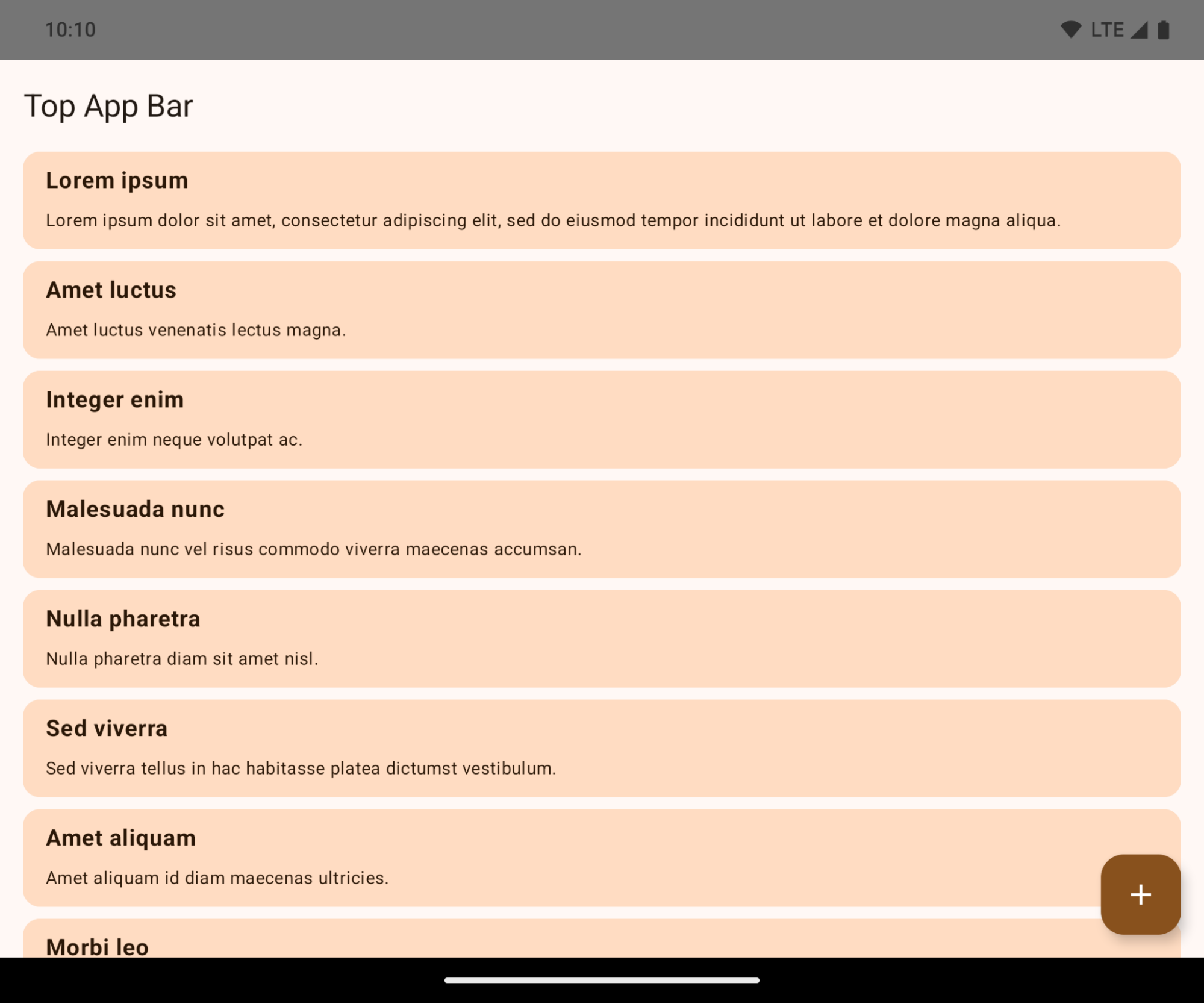
これは、アプリの UI に悪影響を及ぼす可能性のある互換性を破る変更です。この変更は、次の UI 領域に影響します。
- ジェスチャー ハンドル ナビゲーション バー
- デフォルトでは透明です。
- 下部のオフセットが無効になっているため、インセットが適用されない限り、コンテンツはシステム ナビゲーション バーの背後に描画されます。
setNavigationBarColorとR.attr#navigationBarColorは非推奨であり、ジェスチャー ナビゲーションには影響しません。setNavigationBarContrastEnforcedとR.attr#navigationBarContrastEnforcedは、引き続きジェスチャー ナビゲーションに影響しません。
- 3 ボタン ナビゲーション
- デフォルトでは不透明度は 80% に設定され、ウィンドウの背景色と一致する可能性があります。
- 下部のオフセットが無効になり、インセットが適用されない限り、コンテンツがシステム ナビゲーション バーの背後に描画されるようになりました。
setNavigationBarColorとR.attr#navigationBarColorは、デフォルトでウィンドウの背景に一致するように設定されています。このデフォルトを適用するには、ウィンドウの背景がカラー ドローアブルである必要があります。この API は非推奨ですが、3 ボタン ナビゲーションに引き続き影響します。setNavigationBarContrastEnforcedとR.attr#navigationBarContrastEnforcedはデフォルトで true になっており、3 ボタン ナビゲーション全体に 80% の不透明度の背景が追加されます。
- ステータスバー
- デフォルトでは透明です。
- 上部のオフセットが無効になっているため、インセットが適用されない限り、コンテンツはステータスバーの背後に描画されます。
setStatusBarColorとR.attr#statusBarColorは非推奨であり、Android 15 では無効になっています。setStatusBarContrastEnforcedとR.attr#statusBarContrastEnforcedは非推奨ですが、Android 15 でも引き続き有効です。
- ディスプレイ カットアウト
- フローティング ウィンドウ以外の
layoutInDisplayCutoutModeはLAYOUT_IN_DISPLAY_CUTOUT_MODE_ALWAYSにする必要があります。SHORT_EDGES、NEVER、DEFAULTはALWAYSとして解釈され、ディスプレイ カットアウトによる黒いバーがユーザーに表示されず、端から端まで表示されます。
- フローティング ウィンドウ以外の
次の例は、Android 15(API レベル 35)をターゲットにする前後のアプリと、インセットを適用する前後のアプリを示しています。この例は包括的なものではなく、Android Auto では異なる表示になる可能性があります。


アプリがすでにエッジ ツー エッジに対応している場合に確認すること
アプリがすでに エッジ ツー エッジでインセットを適用している場合、次のシナリオを除き、ほとんど影響はありません。ただし、影響を受けないと思われる場合でも、アプリをテストすることをおすすめします。
LAYOUT_IN_DISPLAY_CUTOUT_MODE_ALWAYSの代わりにSHORT_EDGES、NEVER、DEFAULTを使用するActivityなどの非フローティング ウィンドウがあります。アプリが起動時にクラッシュする場合は、スプラッシュ画面が原因である可能性があります。コア スプラッシュ画面の依存関係を 1.2.0-alpha01 以降にアップグレードするか、window.attributes.layoutInDisplayCutoutMode = WindowManager.LayoutInDisplayCutoutMode.alwaysを設定します。- トラフィックが少なく、UI が隠れている画面がある可能性があります。これらのアクセス頻度の低い画面に、隠れた UI がないことを確認します。トラフィックの少ない画面には、次のものがあります。
- オンボーディング画面またはログイン画面
- 設定ページ
アプリがエッジ ツー エッジに対応していない場合に確認すること
アプリがエッジ ツー エッジに対応していない場合は、影響を受ける可能性が高いです。すでにエッジ ツー エッジに対応しているアプリのシナリオに加えて、次の点も考慮する必要があります。
- アプリが Compose でマテリアル デザイン 3 のコンポーネント(
androidx.compose.material3)(TopAppBar、BottomAppBar、NavigationBarなど)を使用している場合、これらのコンポーネントはインセットを自動的に処理するため、影響を受けない可能性があります。 - アプリが Compose でマテリアル デザイン 2 のコンポーネント(
androidx.compose.material)を使用している場合、コンポーネントはインセットを自動的には処理しません。ただし、インセットにアクセスして手動で適用することはできます。androidx.compose.material 1.6.0 以降では、windowInsetsパラメータを使用して、BottomAppBar、TopAppBar、BottomNavigation、NavigationRailにインセットを手動で適用します。同様に、ScaffoldにはcontentWindowInsetsパラメータを使用します。 - アプリでビューとマテリアル コンポーネント(
com.google.android.material)を使用する場合、ビューベースのマテリアル コンポーネントの多く(BottomNavigationView、BottomAppBar、NavigationRailView、NavigationViewなど)はインセットを処理します。追加の作業は不要です。ただし、AppBarLayoutを使用する場合はandroid:fitsSystemWindows="true"を追加する必要があります。 - カスタム コンポーザブルの場合は、インセットをパディングとして手動で適用します。コンテンツが
Scaffold内にある場合は、Scaffoldパディング値を使用してインセットを使用できます。それ以外の場合は、WindowInsetsのいずれかを使用してパディングを適用します。 - アプリがビューと
BottomSheet、SideSheet、またはカスタム コンテナを使用する場合、ViewCompat.setOnApplyWindowInsetsListenerを使用してパディングを適用します。RecyclerViewについては、このリスナーを使用してパディングを適用して、さらにclipToPadding="false"を追加します。
アプリでカスタム バックグラウンド保護を提供する必要があるかどうかを確認する
アプリで 3 ボタン ナビゲーションまたはステータスバーにカスタムの背景保護を提供する必要がある場合は、WindowInsets.Type#tappableElement() を使用して 3 ボタン ナビゲーション バーの高さを取得するか、WindowInsets.Type#statusBars を使用して、システムバーの背後にコンポーザブルまたはビューを配置する必要があります。
エッジ ツー エッジに関するその他のリソース
インセットの適用に関するその他の考慮事項については、エッジ ツー エッジ ビューとエッジ ツー エッジ Compose のガイドをご覧ください。
サポート終了 API
次の API は非推奨ですが、無効にはなっていません。
R.attr#enforceStatusBarContrastR.attr#navigationBarColor(3 ボタン ナビゲーション、アルファ値 80%)Window#isStatusBarContrastEnforcedWindow#setNavigationBarColor(3 ボタン ナビゲーション用、アルファ値 80%)Window#setStatusBarContrastEnforced
次の API は非推奨となり、無効になっています。
R.attr#navigationBarColor(ジェスチャー ナビゲーションの場合)R.attr#navigationBarDividerColorR.attr#statusBarColorWindow#setDecorFitsSystemWindowsWindow#getNavigationBarColorWindow#getNavigationBarDividerColorWindow#getStatusBarColorWindow#setNavigationBarColor(ジェスチャー ナビゲーションの場合)Window#setNavigationBarDividerColorWindow#setStatusBarColor
安定版の構成
If your app targets Android 15 (API level 35) or higher, Configuration no
longer excludes the system bars. If you use the screen size in the
Configuration class for layout calculation, you should replace it with better
alternatives like an appropriate ViewGroup, WindowInsets, or
WindowMetricsCalculator depending on your need.
Configuration has been available since API 1. It is typically obtained from
Activity.onConfigurationChanged. It provides information like window density,
orientation, and sizes. One important characteristic about the window sizes
returned from Configuration is that it previously excluded the system bars.
The configuration size is typically used for resource selection, such as
/res/layout-h500dp, and this is still a valid use case. However, using it for
layout calculation has always been discouraged. If you do so, you should move
away from it now. You should replace the use of Configuration with something
more suitable depending on your use case.
If you use it to calculate the layout, use an appropriate ViewGroup, such as
CoordinatorLayout or ConstraintLayout. If you use it to determine the height
of the system navbar, use WindowInsets. If you want to know the current size
of your app window, use computeCurrentWindowMetrics.
The following list describes the fields affected by this change:
Configuration.screenWidthDpandscreenHeightDpsizes no longer exclude the system bars.Configuration.smallestScreenWidthDpis indirectly affected by changes toscreenWidthDpandscreenHeightDp.Configuration.orientationis indirectly affected by changes toscreenWidthDpandscreenHeightDpon close-to-square devices.Display.getSize(Point)is indirectly affected by the changes inConfiguration. This was deprecated beginning in API level 30.Display.getMetrics()has already worked like this since API level 33.
elegantTextHeight 属性のデフォルト値が true になりました
Android 15(API レベル 35)をターゲットとするアプリの場合、elegantTextHeight TextView 属性はデフォルトで true になります。これにより、デフォルトで使用されるコンパクトなフォントが、読みやすく大きな縦方向の測定値を持つスクリプトに置き換えられます。コンパクト フォントは、レイアウトの分割を防ぐために導入されました。Android 13(API レベル 33)では、fallbackLineSpacing 属性を使用してテキスト レイアウトの垂直方向の高さを伸ばすことで、このような分割の多くを防ぐことができます。
Android 15 では、コンパクト フォントは引き続きシステムに残るため、アプリで elegantTextHeight を false に設定して以前と同じ動作を実現できますが、今後のリリースでサポートされる可能性は低いです。そのため、アプリがアラビア語、ラオス語、ミャンマー語、タミル語、グジャラート語、カンナダ語、マラヤーラム語、オディア語、テルグ語、タイ語のスクリプトをサポートしている場合は、elegantTextHeight を true に設定してアプリをテストします。
 Android 14(API レベル 34)以前をターゲットとするアプリの
 elegantTextHeight の動作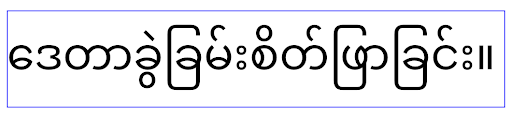
elegantTextHeight の動作。複雑な文字の形状に対する TextView の幅の変更
In previous versions of Android, some cursive fonts or languages that have
complex shaping might draw the letters in the previous or next character's area.
In some cases, such letters were clipped at the beginning or ending position.
Starting in Android 15, a TextView allocates width for drawing enough space
for such letters and allows apps to request extra paddings to the left to
prevent clipping.
Because this change affects how a TextView decides the width, TextView
allocates more width by default if the app targets Android 15 (API level 35) or
higher. You can enable or disable this behavior by calling the
setUseBoundsForWidth API on TextView.
Because adding left padding might cause a misalignment for existing layouts, the
padding is not added by default even for apps that target Android 15 or higher.
However, you can add extra padding to preventing clipping by calling
setShiftDrawingOffsetForStartOverhang.
The following examples show how these changes can improve text layout for some fonts and languages.

<TextView
    android:fontFamily="cursive"
    android:text="java" />

<TextView
    android:fontFamily="cursive"
    android:text="java"
    android:useBoundsForWidth="true"
    android:shiftDrawingOffsetForStartOverhang="true" />

<TextView
    android:text="คอมพิวเตอร์" />
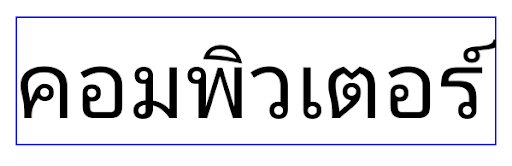
<TextView
    android:text="คอมพิวเตอร์"
    android:useBoundsForWidth="true"
    android:shiftDrawingOffsetForStartOverhang="true" />
EditText の言語 / 地域対応のデフォルトの行の高さ
In previous versions of Android, the text layout stretched the height of the
text to meet the line height of the font that matched the current locale. For
example, if the content was in Japanese, because the line height of the Japanese
font is slightly larger than the one of a Latin font, the height of the text
became slightly larger. However, despite these differences in line heights, the
EditText element was sized uniformly, regardless
of the locale being used, as illustrated in the following image:

EditText elements that
can contain text from English (en), Japanese (ja), and Burmese (my). The
height of the EditText is the same, even though these languages
have different line heights from each other.For apps targeting Android 15 (API level 35), a minimum line height is now
reserved for EditText to match the reference font for the specified Locale, as
shown in the following image:

EditText elements that
can contain text from English (en), Japanese (ja), and Burmese (my). The
height of the EditText now includes space to accommodate the
default line height for these languages' fonts.If needed, your app can restore the previous behavior by specifying the
useLocalePreferredLineHeightForMinimum attribute
to false, and your app can set custom minimum vertical metrics using the
setMinimumFontMetrics API in Kotlin and Java.
カメラとメディア
Android 15 では、Android 15 以上をターゲットとするアプリのカメラとメディアの動作が次のように変更されています。
音声フォーカス リクエストの制限
Android 15(API レベル 35)をターゲットとするアプリが音声フォーカスをリクエストするには、最上位のアプリであるか、フォアグラウンド サービスを実行している必要があります。アプリがこれらの要件のいずれかを満たしていないときにフォーカスをリクエストしようとすると、呼び出しは AUDIOFOCUS_REQUEST_FAILED を返します。
音声フォーカスの詳細については、音声フォーカスを管理するをご覧ください。
非 SDK の制限の更新
Android 15 では、Android デベロッパーの協力と直近の内部テストに基づいて、制限を受ける非 SDK インターフェースのリストが更新されています。Google は、非 SDK インターフェースを制限する前に、可能な限り、その代わりとなる公開インターフェースを利用可能にしています。
Android 15 をターゲットとしないアプリでは、この変更の一部はすぐには影響しない可能性があります。ただし、アプリのターゲット API レベルに応じて、アプリが一部の非 SDK インターフェースにアクセスできる場合もありますが、非 SDK のメソッドまたはフィールドを使用すると、アプリが機能しなくなるリスクが高くなります。
アプリが非 SDK インターフェースを使用しているかどうか不明な場合は、アプリをテストして確認できます。アプリが非 SDK インターフェースに依存している場合は、SDK の代替インターフェースへの移行を計画してください。ただし Google も、一部のアプリには非 SDK インターフェースを使用する正当なユースケースがあると承知しています。アプリの機能に使用している非 SDK インターフェースの代わりが見つからない場合は、新しい公開 API をリクエストしてください。
Android の今回のリリースの変更について詳しくは、非 SDK インターフェースの制限に関する Android 15 での変更点をご覧ください。非 SDK インターフェース全般について詳しくは、非 SDK インターフェースの制限をご覧ください。