

如要在應用程式中使用藍牙功能,您必須宣告多項權限。您也應指定應用程式是否需要支援經典藍牙或藍牙低功耗 (BLE)。如果應用程式不需要傳統藍牙或 BLE,但仍可受益於這些技術,您可以在執行階段檢查可用性。
宣告權限
您在應用程式中宣告的權限組合,取決於應用程式的目標 SDK 版本。
指定 Android 12 以上版本
注意: 在 Android 8.0 (API 級別 26) 以上版本中,隨附裝置管理工具 (CDM) 提供更簡便的方法,可連線至配對裝置,相較於本節所述的權限。CDM 系統會代表應用程式提供配對 UI,且不需要位置存取權。
如要進一步控管配對和連線體驗,請使用本節所述的權限。
如果應用程式指定 Android 12 (API 級別 31) 以上版本,請在應用程式的資訊清單檔案中宣告下列權限:
- 如果應用程式會尋找藍牙裝置 (例如 BLE 周邊裝置),請宣告
BLUETOOTH_SCAN權限。 - 如果應用程式可讓其他藍牙裝置偵測到目前裝置,請宣告
BLUETOOTH_ADVERTISE權限。 - 如果應用程式與已配對的藍牙裝置通訊,請宣告
BLUETOOTH_CONNECT權限。 - 針對舊版藍牙相關權限聲明,請將
android:maxSdkVersion設為 30。這個應用程式相容性步驟可協助系統在搭載 Android 12 以上版本的裝置上安裝應用程式時,僅授予應用程式所需的藍牙權限。 - 如果應用程式使用藍牙掃描結果推導實際位置,請宣告
ACCESS_FINE_LOCATION權限。否則,您可以明確宣告應用程式不會衍生實際位置,並將ACCESS_FINE_LOCATION權限的android:maxSdkVersion設為 30。
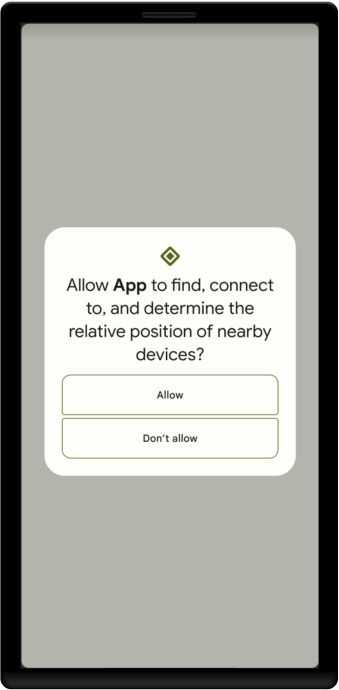
BLUETOOTH_ADVERTISE、BLUETOOTH_CONNECT 和 BLUETOOTH_SCAN 權限是執行階段權限。因此,您必須在應用程式中明確要求使用者核准,才能尋找藍牙裝置、讓其他裝置可供偵測到裝置,或與已配對的藍牙裝置通訊。當應用程式要求至少一項這類權限時,系統會提示使用者允許應用程式存取「鄰近裝置」,如圖 1 所示。
下列程式碼片段說明如何在指定 Android 12 以上版本的應用程式中,宣告藍牙相關權限:
<manifest>
    <!-- Request legacy Bluetooth permissions on older devices. -->
    <uses-permission android:name="android.permission.BLUETOOTH"
                     android:maxSdkVersion="30" />
    <uses-permission android:name="android.permission.BLUETOOTH_ADMIN"
                     android:maxSdkVersion="30" />

    <!-- Needed only if your app looks for Bluetooth devices.
         If your app doesn't use Bluetooth scan results to derive physical
         location information, you can
         <a href="#assert-never-for-location">strongly assert that your app
         doesn't derive physical location</a>. -->
    <uses-permission android:name="android.permission.BLUETOOTH_SCAN" />

    <!-- Needed only if your app makes the device discoverable to Bluetooth
         devices. -->
    <uses-permission android:name="android.permission.BLUETOOTH_ADVERTISE" />

    <!-- Needed only if your app communicates with already-paired Bluetooth
         devices. -->
    <uses-permission android:name="android.permission.BLUETOOTH_CONNECT" />

    <!-- Needed only if your app uses Bluetooth scan results to derive
         physical location. -->
    <uses-permission android:name="android.permission.ACCESS_FINE_LOCATION" />
    ...
</manifest>
明確聲明應用程式不會推測實際位置
如果應用程式不使用藍牙掃描結果推測實際位置,您可以明確聲明應用程式絕不會使用藍牙權限推測實際位置。若要這樣做,請完成下列步驟:
在
BLUETOOTH_SCAN權限聲明中加入android:usesPermissionFlags屬性,並將這個屬性的值設為neverForLocation。如果應用程式不需要位置資訊,請從應用程式資訊清單中移除
ACCESS_FINE_LOCATION權限。
以下程式碼片段說明如何更新應用程式的資訊清單檔案:
<manifest>
    <!-- Include "neverForLocation" only if you can strongly assert that
         your app never derives physical location from Bluetooth scan results. -->
    <uses-permission android:name="android.permission.BLUETOOTH_SCAN"
                     android:usesPermissionFlags="neverForLocation" />

    <!-- Set maxSdkVersion to 30 if you can strongly assert that, on
         Android 12 and higher, your app never derives physical location from
         Bluetooth scan results and doesn't need location access for any other
         purpose. -->
    <uses-permission android:name="android.permission.ACCESS_FINE_LOCATION"
                     android:maxSdkVersion="30" />
    ...
</manifest>
指定 Android 11 以下版本
如果應用程式指定 Android 11 (API 級別 30) 以下版本為目標,請在應用程式的資訊清單檔案中宣告下列權限:
BLUETOOTH是執行任何經典藍牙或 BLE 通訊的必要權限,例如要求連線、接受連線和傳輸資料。ACCESS_FINE_LOCATION是必要權限,因為在 Android 11 以下版本中,藍牙掃描可能會用於收集使用者位置資訊。
由於位置存取權屬於執行階段權限,因此您必須在執行階段要求這些權限,並在資訊清單中宣告。
探索本機藍牙裝置
如要讓應用程式啟動裝置探索或操控藍牙設定,您必須宣告 BLUETOOTH_ADMIN 權限。大多數應用程式只需要這項權限,就能探索本機藍牙裝置。除非應用程式是「電源管理工具」,可根據使用者要求修改藍牙設定,否則請勿使用這項權限授予的其他功能。在應用程式資訊清單檔案中宣告權限。例如:
<manifest>
...
<uses-permission android:name="android.permission.BLUETOOTH_ADMIN" />
...
</manifest>
如果應用程式支援服務,且可在 Android 10 (API 級別 29) 或 Android 11 上執行,您也必須宣告 ACCESS_BACKGROUND_LOCATION 權限,才能探索藍牙裝置。如要進一步瞭解這項規定,請參閱「在背景存取位置資訊」。
下列程式碼片段說明如何宣告 ACCESS_BACKGROUND_LOCATION 權限:
<manifest>
...
<uses-permission android:name="android.permission.ACCESS_BACKGROUND_LOCATION" />
...
</manifest>
如要進一步瞭解如何宣告應用程式權限,請參閱 <uses-permission> 參考資料。
指定藍牙功能用途
如果藍牙是應用程式的重要部分,您可以在資訊清單檔案中加入標記,指出這項需求。<uses-feature> 元素可讓您指定應用程式使用的硬體類型,以及是否需要該硬體。
以下範例說明如何指出應用程式需要傳統藍牙。
<uses-feature android:name="android.hardware.bluetooth" android:required="true"/>
如果應用程式需要藍牙低功耗功能,可以使用下列程式碼:
<uses-feature android:name="android.hardware.bluetooth_le" android:required="true"/>
如果您聲明應用程式需要某項功能,Google Play 商店就會對不具備這些功能的裝置使用者隱藏您的應用程式。因此,只有在應用程式沒有該功能就無法運作時,才應將必要屬性設為 true。
在執行階段檢查功能可用性
如要讓不支援經典藍牙或 BLE 的裝置也能使用您的應用程式,您仍應在應用程式資訊清單中加入 <uses-feature> 元素,但請設定 required="false"。接著,在執行階段,您可以使用 PackageManager.hasSystemFeature() 判斷功能可用性:
Kotlin
// Check to see if the Bluetooth classic feature is available.
val bluetoothAvailable = packageManager.hasSystemFeature(PackageManager.FEATURE_BLUETOOTH)

// Check to see if the BLE feature is available.
val bluetoothLEAvailable = packageManager.hasSystemFeature(PackageManager.FEATURE_BLUETOOTH_LE)
Java
// Use this check to determine whether Bluetooth classic is supported on the device.
// Then you can selectively disable BLE-related features.
boolean bluetoothAvailable = getPackageManager().hasSystemFeature(PackageManager.FEATURE_BLUETOOTH);

// Use this check to determine whether BLE is supported on the device. Then
// you can selectively disable BLE-related features.
boolean bluetoothLEAvailable = getPackageManager().hasSystemFeature(PackageManager.FEATURE_BLUETOOTH_LE);