

UI Automator เป็นเฟรมเวิร์กการทดสอบ UI ที่เหมาะสำหรับการทดสอบ UI เชิงฟังก์ชันข้ามแอปในแอปของระบบและแอปที่ติดตั้ง API ของ UI Automator ช่วยให้คุณโต้ตอบ
กับองค์ประกอบที่มองเห็นได้บนอุปกรณ์ ไม่ว่า Activity จะอยู่ใน
โฟกัสก็ตาม จึงช่วยให้คุณดำเนินการต่างๆ ได้ เช่น เปิดเมนูการตั้งค่า
หรือตัวเปิดแอปในอุปกรณ์ทดสอบ การทดสอบสามารถค้นหาคอมโพเนนต์ UI ได้โดยใช้ตัวอธิบายที่สะดวก เช่น ข้อความที่แสดงในคอมโพเนนต์นั้นหรือคำอธิบายเนื้อหา
เฟรมเวิร์กการทดสอบ UI Automator เป็น API ที่อิงตามการวัดประสิทธิภาพและทำงานร่วมกับ
ตัวดำเนินการทดสอบ AndroidJUnitRunner เหมาะอย่างยิ่งสำหรับการเขียนการทดสอบอัตโนมัติแบบกล่องดำ ซึ่งโค้ดทดสอบไม่ได้ขึ้นอยู่กับรายละเอียดการติดตั้งใช้งานภายในของแอปเป้าหมาย
ฟีเจอร์หลักของเฟรมเวิร์กการทดสอบ UI Automator มีดังนี้
- API สำหรับดึงข้อมูลสถานะและดำเนินการในอุปกรณ์เป้าหมาย ดูข้อมูลเพิ่มเติมได้ที่การเข้าถึงสถานะอุปกรณ์
- API ที่รองรับการทดสอบ UI ข้ามแอป ดูข้อมูลเพิ่มเติมได้ที่ API ของ UI Automator
การเข้าถึงสถานะอุปกรณ์
เฟรมเวิร์กการทดสอบ UI Automator มีคลาส UiDevice สำหรับเข้าถึง
และดำเนินการในอุปกรณ์ที่แอปเป้าหมายทำงานอยู่ คุณสามารถเรียกใช้เมธอดของคลาสนี้เพื่อเข้าถึงพร็อพเพอร์ตี้ของอุปกรณ์ เช่น การวางแนวปัจจุบันหรือขนาดหน้าจอ คลาส UiDevice ยังช่วยให้คุณดำเนินการต่อไปนี้ได้ด้วย
- เปลี่ยนการหมุนของอุปกรณ์
- กดปุ่มฮาร์ดแวร์ เช่น "เพิ่มระดับเสียง"
- กดปุ่มย้อนกลับ หน้าแรก หรือเมนู
- เปิดหน้าต่างแจ้งเตือน
- ถ่ายภาพหน้าจอของหน้าต่างปัจจุบัน
เช่น หากต้องการจำลองการกดปุ่มหน้าแรก ให้เรียกใช้เมธอด UiDevice.pressHome()
API ของ UI Automator
API ของ UI Automator ช่วยให้คุณเขียนการทดสอบที่มีประสิทธิภาพได้โดยไม่ต้องทราบรายละเอียดการติดตั้งใช้งานของแอปเป้าหมาย คุณสามารถใช้ API เหล่านี้เพื่อจับภาพและจัดการคอมโพเนนต์ UI ในแอปต่างๆ ได้
UiObject2: แสดงองค์ประกอบ UI ที่มองเห็นได้บนอุปกรณ์BySelector: ระบุเกณฑ์สำหรับการจับคู่องค์ประกอบ UIBy: สร้างBySelectorในลักษณะที่กระชับConfigurator: ช่วยให้คุณตั้งค่าพารามิเตอร์หลักสำหรับการเรียกใช้การทดสอบ UI Automator
ตัวอย่างเช่น โค้ดต่อไปนี้แสดงวิธีเขียนสคริปต์การทดสอบที่เปิดแอป Gmail ในอุปกรณ์
Kotlin
device = UiDevice.getInstance(InstrumentationRegistry.getInstrumentation())
device.pressHome()

val gmail: UiObject2 = device.findObject(By.text("Gmail"))
// Perform a click and wait until the app is opened.
val opened: Boolean = gmail.clickAndWait(Until.newWindow(), 3000)
assertThat(opened).isTrue()
Java
device = UiDevice.getInstance(InstrumentationRegistry.getInstrumentation());
device.pressHome();

UiObject2 gmail = device.findObject(By.text("Gmail"));
// Perform a click and wait until the app is opened.
Boolean opened = gmail.clickAndWait(Until.newWindow(), 3000);
assertTrue(opened);
ตั้งค่า UI Automator
ก่อนที่จะสร้างการทดสอบ UI ด้วย UI Automator โปรดตรวจสอบว่าได้กำหนดค่าตำแหน่งซอร์สโค้ดทดสอบ และทรัพยากร Dependency ของโปรเจ็กต์ตามที่อธิบายไว้ในหัวข้อตั้งค่าโปรเจ็กต์ สำหรับการทดสอบ AndroidX
ในไฟล์ build.gradle ของโมดูลแอป Android คุณต้องตั้งค่าการอ้างอิงทรัพยากร Dependency ไปยังไลบรารี UI Automator ดังนี้
Kotlin
dependencies {
  ...
  androidTestImplementation("androidx.test.uiautomator:uiautomator:2.3.0")
}
ดึงดูด
dependencies {
  ...
  androidTestImplementation "androidx.test.uiautomator:uiautomator:2.3.0"
}
หากต้องการเพิ่มประสิทธิภาพการทดสอบ UI Automator คุณควรตรวจสอบคอมโพเนนต์ UI ของแอปเป้าหมายก่อนและตรวจสอบว่าเข้าถึงได้ เราจะอธิบายเคล็ดลับการเพิ่มประสิทธิภาพเหล่านี้ใน 2 ส่วนถัดไป
ตรวจสอบ UI ในอุปกรณ์
ก่อนออกแบบการทดสอบ ให้ตรวจสอบคอมโพเนนต์ UI ที่มองเห็นได้บนอุปกรณ์ ตรวจสอบว่าคอมโพเนนต์เหล่านี้มีป้ายกำกับข้อความที่มองเห็นได้
android:contentDescription ค่า หรือทั้ง 2 อย่าง เพื่อให้แน่ใจว่าการทดสอบ UI Automator จะเข้าถึงคอมโพเนนต์เหล่านี้ได้
เครื่องมือ uiautomatorviewer มีอินเทอร์เฟซแบบภาพที่สะดวกสำหรับการตรวจสอบลำดับชั้นของเลย์เอาต์และดูพร็อพเพอร์ตี้ของคอมโพเนนต์ UI ที่มองเห็นได้ในเบื้องหน้าของอุปกรณ์ ข้อมูลนี้ช่วยให้คุณสร้างการทดสอบที่ละเอียดยิ่งขึ้นโดยใช้ UI Automator เช่น คุณสามารถสร้างตัวเลือก UI ที่ตรงกับพร็อพเพอร์ตี้ที่มองเห็นได้ที่เฉพาะเจาะจง
วิธีเปิดใช้เครื่องมือ uiautomatorviewer
- เปิดแอปเป้าหมายในอุปกรณ์จริง
- เชื่อมต่ออุปกรณ์กับคอมพิวเตอร์สำหรับการพัฒนาซอฟต์แวร์
- เปิดหน้าต่างเทอร์มินัลและไปที่ไดเรกทอรี
<android-sdk>/tools/ - เรียกใช้เครื่องมือด้วยคำสั่งนี้
$ uiautomatorviewer
วิธีดูพร็อพเพอร์ตี้ UI ของแอปพลิเคชัน
- ในอินเทอร์เฟซ
uiautomatorviewerให้คลิกปุ่มภาพหน้าจอของอุปกรณ์ - วางเมาส์เหนือสแนปช็อตในแผงด้านซ้ายเพื่อดูคอมโพเนนต์ UI ที่เครื่องมือ
uiautomatorviewerระบุ พร็อพเพอร์ตี้จะแสดงอยู่ในแผงด้านขวาล่าง และลำดับชั้นของเลย์เอาต์จะแสดงอยู่ในแผงด้านขวาบน - คุณสามารถคลิกปุ่มสลับโหนด NAF เพื่อดูคอมโพเนนต์ UI ที่ UI Automator เข้าถึงไม่ได้ คอมโพเนนต์เหล่านี้อาจมีข้อมูลจำกัด
ดูข้อมูลเกี่ยวกับคอมโพเนนต์ UI ประเภททั่วไปที่ Android มีให้ได้ที่ User Interface
ตรวจสอบว่ากิจกรรมเข้าถึงได้
เฟรมเวิร์กการทดสอบ UI Automator ทำงานได้ดีขึ้นในแอปที่ใช้ฟีเจอร์การช่วยเหลือพิเศษของ Android เมื่อใช้องค์ประกอบ UI ประเภท View หรือ
คลาสย่อยของ View จาก SDK คุณไม่จำเป็นต้องใช้การรองรับการช่วยเหลือพิเศษ
เนื่องจากคลาสเหล่านี้ได้ดำเนินการให้คุณแล้ว
อย่างไรก็ตาม แอปบางแอปใช้คอมโพเนนต์ UI ที่กำหนดเองเพื่อให้ผู้ใช้ได้รับประสบการณ์ที่ดียิ่งขึ้น
องค์ประกอบดังกล่าวจะไม่รองรับการช่วยเหลือพิเศษโดยอัตโนมัติ หากแอปมีอินสแตนซ์ของคลาสย่อยของ View ที่ไม่ได้มาจาก SDK โปรดตรวจสอบว่าคุณได้เพิ่มฟีเจอร์การช่วยเหลือพิเศษลงในองค์ประกอบเหล่านี้โดยทำตามขั้นตอนต่อไปนี้
- สร้างคลาสที่เป็นรูปธรรมซึ่งขยาย ExploreByTouchHelper
- เชื่อมโยงอินสแตนซ์ของคลาสใหม่กับคอมโพเนนต์ UI ที่กำหนดเองที่เฉพาะเจาะจงโดย เรียกใช้ setAccessibilityDelegate()
ดูคำแนะนำเพิ่มเติมเกี่ยวกับการเพิ่มฟีเจอร์การช่วยเหลือพิเศษลงในองค์ประกอบมุมมองที่กำหนดเอง ได้ที่การสร้างมุมมองที่กำหนดเองที่เข้าถึงได้ ดูข้อมูลเพิ่มเติมเกี่ยวกับ แนวทางปฏิบัติแนะนำทั่วไปสำหรับการช่วยเหลือพิเศษใน Android ได้ที่ การทำให้แอปเข้าถึงได้มากขึ้น
สร้างคลาสการทดสอบ UI Automator
คุณควรเขียนคลาสการทดสอบ UI Automator ในลักษณะเดียวกับคลาสการทดสอบ JUnit 4 ดูข้อมูลเพิ่มเติมเกี่ยวกับการสร้างคลาสการทดสอบ JUnit 4 และการใช้คำยืนยันและคำอธิบายประกอบ JUnit 4 ได้ที่ สร้างคลาสการทดสอบหน่วยที่วัดประสิทธิภาพ
เพิ่มคำอธิบายประกอบ @RunWith(AndroidJUnit4.class) ที่จุดเริ่มต้นของคำจำกัดความคลาสการทดสอบ นอกจากนี้ คุณยังต้องระบุคลาส AndroidJUnitRunner ซึ่งมีให้ใน AndroidX Test เป็นตัวดำเนินการทดสอบเริ่มต้นด้วย เราจะอธิบายขั้นตอนนี้โดยละเอียดเพิ่มเติมใน เรียกใช้การทดสอบ UI Automator ในอุปกรณ์หรือโปรแกรมจำลอง
ใช้โมเดลการเขียนโปรแกรมต่อไปนี้ในคลาสการทดสอบ UI Automator
- รับออบเจ็กต์
UiDeviceเพื่อเข้าถึงอุปกรณ์ที่ต้องการทดสอบโดยเรียกใช้ เมธอด getInstance() และส่งออบเจ็กต์ Instrumentation เป็น อาร์กิวเมนต์ - รับออบเจ็กต์
UiObject2เพื่อเข้าถึงคอมโพเนนต์ UI ที่แสดงบน อุปกรณ์ (เช่น มุมมองปัจจุบันในเบื้องหน้า) โดยเรียกใช้เมธอด findObject() - จำลองการโต้ตอบของผู้ใช้ที่เฉพาะเจาะจงเพื่อดำเนินการกับคอมโพเนนต์ UI นั้นโดย
เรียกใช้เมธอด
UiObject2เช่น เรียกใช้ scrollUntil() เพื่อเลื่อน และ setText() เพื่อแก้ไขช่องข้อความ คุณสามารถเรียกใช้ API ในขั้นตอนที่ 2 และ 3 ซ้ำๆ ได้ตามต้องการเพื่อทดสอบการโต้ตอบของผู้ใช้ที่ซับซ้อนมากขึ้นซึ่งเกี่ยวข้องกับคอมโพเนนต์ UI หลายรายการหรือลำดับการดำเนินการของผู้ใช้ - ตรวจสอบว่า UI แสดงสถานะหรือลักษณะการทำงานที่คาดไว้หลังจากดำเนินการโต้ตอบของผู้ใช้เหล่านี้
เราจะอธิบายขั้นตอนเหล่านี้โดยละเอียดเพิ่มเติมในส่วนด้านล่าง
เข้าถึงคอมโพเนนต์ UI
ออบเจ็กต์ UiDevice เป็นวิธีหลักในการเข้าถึงและจัดการ
สถานะของอุปกรณ์ ในการทดสอบ คุณสามารถเรียกใช้เมธอด UiDevice เพื่อตรวจสอบสถานะของพร็อพเพอร์ตี้ต่างๆ เช่น การวางแนวปัจจุบันหรือขนาดหน้าจอ
การทดสอบสามารถใช้ออบเจ็กต์ UiDevice เพื่อดำเนินการระดับอุปกรณ์ เช่น บังคับให้อุปกรณ์หมุนในทิศทางที่เฉพาะเจาะจง กดปุ่มฮาร์ดแวร์ D-pad และกดปุ่มหน้าแรกและปุ่มเมนู
แนวทางปฏิบัติแนะนำคือให้เริ่มการทดสอบจากหน้าจอหลักของอุปกรณ์ จากหน้าจอหลัก (หรือตำแหน่งเริ่มต้นอื่นๆ ที่คุณเลือกในอุปกรณ์) คุณสามารถเรียกใช้เมธอดที่ API ของ UI Automator มีให้เพื่อเลือกและโต้ตอบกับองค์ประกอบ UI ที่เฉพาะเจาะจง
ข้อมูลโค้ดต่อไปนี้แสดงวิธีที่การทดสอบอาจได้รับอินสแตนซ์ของ UiDevice และจำลองการกดปุ่มหน้าแรก
Kotlin
import org.junit.Before
import androidx.test.runner.AndroidJUnit4
import androidx.test.uiautomator.UiDevice
import androidx.test.uiautomator.By
import androidx.test.uiautomator.Until
...

private const val BASIC_SAMPLE_PACKAGE = "com.example.android.testing.uiautomator.BasicSample"
private const val LAUNCH_TIMEOUT = 5000L
private const val STRING_TO_BE_TYPED = "UiAutomator"

@RunWith(AndroidJUnit4::class)
@SdkSuppress(minSdkVersion = 18)
class ChangeTextBehaviorTest2 {

private lateinit var device: UiDevice

@Before
fun startMainActivityFromHomeScreen() {
  // Initialize UiDevice instance
  device = UiDevice.getInstance(InstrumentationRegistry.getInstrumentation())

  // Start from the home screen
  device.pressHome()

  // Wait for launcher
  val launcherPackage: String = device.launcherPackageName
  assertThat(launcherPackage, notNullValue())
  device.wait(
    Until.hasObject(By.pkg(launcherPackage).depth(0)),
    LAUNCH_TIMEOUT
  )

  // Launch the app
  val context = ApplicationProvider.getApplicationContext<Context>()
  val intent = context.packageManager.getLaunchIntentForPackage(
  BASIC_SAMPLE_PACKAGE).apply {
    // Clear out any previous instances
    addFlags(Intent.FLAG_ACTIVITY_CLEAR_TASK)
  }
  context.startActivity(intent)

  // Wait for the app to appear
  device.wait(
    Until.hasObject(By.pkg(BASIC_SAMPLE_PACKAGE).depth(0)),
    LAUNCH_TIMEOUT
    )
  }
}
Java
import org.junit.Before;
import androidx.test.runner.AndroidJUnit4;
import androidx.test.uiautomator.UiDevice;
import androidx.test.uiautomator.By;
import androidx.test.uiautomator.Until;
...

@RunWith(AndroidJUnit4.class)
@SdkSuppress(minSdkVersion = 18)
public class ChangeTextBehaviorTest {

  private static final String BASIC_SAMPLE_PACKAGE
  = "com.example.android.testing.uiautomator.BasicSample";
  private static final int LAUNCH_TIMEOUT = 5000;
  private static final String STRING_TO_BE_TYPED = "UiAutomator";
  private UiDevice device;

  @Before
  public void startMainActivityFromHomeScreen() {
    // Initialize UiDevice instance
    device = UiDevice.getInstance(InstrumentationRegistry.getInstrumentation());

    // Start from the home screen
    device.pressHome();

    // Wait for launcher
    final String launcherPackage = device.getLauncherPackageName();
    assertThat(launcherPackage, notNullValue());
    device.wait(Until.hasObject(By.pkg(launcherPackage).depth(0)),
    LAUNCH_TIMEOUT);

    // Launch the app
    Context context = ApplicationProvider.getApplicationContext();
    final Intent intent = context.getPackageManager()
    .getLaunchIntentForPackage(BASIC_SAMPLE_PACKAGE);
    // Clear out any previous instances
    intent.addFlags(Intent.FLAG_ACTIVITY_CLEAR_TASK);
    context.startActivity(intent);

    // Wait for the app to appear
    device.wait(Until.hasObject(By.pkg(BASIC_SAMPLE_PACKAGE).depth(0)),
    LAUNCH_TIMEOUT);
    }
}
ในตัวอย่างนี้ คำสั่ง @SdkSuppress(minSdkVersion = 18) ช่วยให้มั่นใจว่าการทดสอบจะทำงานในอุปกรณ์ที่ใช้ Android 4.3 (ระดับ API 18) ขึ้นไปเท่านั้น ตามที่เฟรมเวิร์ก UI Automator กำหนด
ใช้เมธอด findObject() เพื่อดึงข้อมูล UiObject2 ซึ่งแสดงมุมมองที่ตรงกับเกณฑ์ตัวเลือกที่ระบุ คุณสามารถใช้ซ้ำอินสแตนซ์ UiObject2 ที่สร้างไว้ในส่วนอื่นๆ ของการทดสอบแอปได้ตามต้องการ
โปรดทราบว่าเฟรมเวิร์กการทดสอบ UI Automator จะค้นหาการแสดงผลปัจจุบันเพื่อหาการจับคู่ทุกครั้งที่การทดสอบใช้อินสแตนซ์ UiObject2 เพื่อคลิกองค์ประกอบ UI หรือค้นหาพร็อพเพอร์ตี้
ข้อมูลโค้ดต่อไปนี้แสดงวิธีที่การทดสอบอาจสร้างอินสแตนซ์ UiObject2 ที่แสดงปุ่มยกเลิกและปุ่มตกลงในแอป
Kotlin
val okButton: UiObject2 = device.findObject(
    By.text("OK").clazz("android.widget.Button")
)

// Simulate a user-click on the OK button, if found.
if (okButton != null) {
    okButton.click()
}
Java
UiObject2 okButton = device.findObject(
    By.text("OK").clazz("android.widget.Button")
);

// Simulate a user-click on the OK button, if found.
if (okButton != null) {
    okButton.click();
}
ระบุตัวเลือก
หากต้องการเข้าถึงคอมโพเนนต์ UI ที่เฉพาะเจาะจงในแอป ให้ใช้คลาส
By เพื่อสร้างอินสแตนซ์ BySelector BySelector
แสดงการค้นหาองค์ประกอบที่เฉพาะเจาะจงใน UI ที่แสดง
หากพบองค์ประกอบที่ตรงกันมากกว่า 1 รายการ ระบบจะแสดงผลองค์ประกอบแรกที่ตรงกันในลำดับชั้นของเลย์เอาต์เป็น UiObject2 เป้าหมาย เมื่อสร้าง BySelector คุณสามารถเชื่อมโยงพร็อพเพอร์ตี้หลายรายการเข้าด้วยกันเพื่อปรับแต่งการค้นหา หากไม่พบองค์ประกอบ UI ที่ตรงกัน ระบบจะแสดงผล null
คุณสามารถใช้เมธอด hasChild() หรือ hasDescendant() เพื่อซ้อน
อินสแตนซ์ BySelector หลายรายการ ตัวอย่างเช่น โค้ดต่อไปนี้แสดง
วิธีที่การทดสอบอาจระบุการค้นหาเพื่อค้นหา ListView รายการแรกที่
มีองค์ประกอบ UI ย่อยที่มีพร็อพเพอร์ตี้ข้อความ
Kotlin
val listView: UiObject2 = device.findObject(
    By.clazz("android.widget.ListView")
        .hasChild(
            By.text("Apps")
        )
)
Java
UiObject2 listView = device.findObject(
    By.clazz("android.widget.ListView")
        .hasChild(
            By.text("Apps")
        )
);
การระบุสถานะออบเจ็กต์ในเกณฑ์ตัวเลือกอาจมีประโยชน์ เช่น
หากต้องการเลือกรายการองค์ประกอบที่เลือกทั้งหมดเพื่อล้างองค์ประกอบเหล่านั้น
ให้เรียกใช้เมธอด checked() โดยตั้งค่าอาร์กิวเมนต์เป็น "จริง"
ดำเนินการ
เมื่อการทดสอบได้รับออบเจ็กต์ UiObject2 แล้ว คุณสามารถเรียกใช้เมธอดในคลาส UiObject2 เพื่อดำเนินการโต้ตอบของผู้ใช้กับคอมโพเนนต์ UI ที่ออบเจ็กต์นั้นแสดง คุณสามารถระบุการดำเนินการต่างๆ ได้ เช่น
click(): คลิกตรงกลางขอบเขตที่มองเห็นได้ขององค์ประกอบ UIdrag(): ลากออบเจ็กต์นี้ไปยังพิกัดที่กำหนดsetText(): ตั้งค่าข้อความในช่องที่แก้ไขได้หลังจากล้างเนื้อหาของช่อง ในทางกลับกัน เมธอดclear()จะล้างข้อความที่มีอยู่ ในช่องที่แก้ไขได้swipe(): ปัดไปในทิศทางที่ระบุscrollUntil(): เลื่อนไปในทิศทางที่ระบุ จนกว่าConditionหรือEventConditionจะเป็นจริง
เฟรมเวิร์กการทดสอบ UI Automator ช่วยให้คุณส่ง Intent หรือเปิดใช้
Activity ได้โดยไม่ต้องใช้คำสั่งเชลล์ โดยรับ Context
ออบเจ็กต์ผ่าน getContext()
ข้อมูลโค้ดต่อไปนี้แสดงวิธีที่การทดสอบสามารถใช้ Intent เพื่อเปิดใช้ แอปที่อยู่ระหว่างการทดสอบ วิธีนี้มีประโยชน์เมื่อคุณสนใจทดสอบเฉพาะแอปเครื่องคิดเลขและไม่สนใจตัวเปิดแอป
Kotlin
fun setUp() {
...

  // Launch a simple calculator app
  val context = getInstrumentation().context
  val intent = context.packageManager.getLaunchIntentForPackage(CALC_PACKAGE).apply {
    addFlags(Intent.FLAG_ACTIVITY_CLEAR_TASK)
  }
  // Clear out any previous instances
  context.startActivity(intent)
  device.wait(Until.hasObject(By.pkg(CALC_PACKAGE).depth(0)), TIMEOUT)
}
Java
public void setUp() {
...

  // Launch a simple calculator app
  Context context = getInstrumentation().getContext();
  Intent intent = context.getPackageManager()
  .getLaunchIntentForPackage(CALC_PACKAGE);
  intent.addFlags(Intent.FLAG_ACTIVITY_CLEAR_TASK);

  // Clear out any previous instances
  context.startActivity(intent);
  device.wait(Until.hasObject(By.pkg(CALC_PACKAGE).depth(0)), TIMEOUT);
}
ยืนยันผลลัพธ์
InstrumentationTestCase ขยาย TestCase ดังนั้นคุณจึงสามารถใช้ เมธอด Assert มาตรฐานของ JUnit เพื่อทดสอบว่าคอมโพเนนต์ UI ในแอปแสดงผลลัพธ์ที่คาดไว้
ข้อมูลโค้ดต่อไปนี้แสดงวิธีที่การทดสอบสามารถค้นหาปุ่มหลายปุ่มในแอปเครื่องคิดเลข คลิกปุ่มเหล่านั้นตามลำดับ แล้วยืนยันว่าผลลัพธ์ที่ถูกต้องแสดงขึ้น
Kotlin
private const val CALC_PACKAGE = "com.myexample.calc"

fun testTwoPlusThreeEqualsFive() {
  // Enter an equation: 2 + 3 = ?
  device.findObject(By.res(CALC_PACKAGE, "two")).click()
  device.findObject(By.res(CALC_PACKAGE, "plus")).click()
  device.findObject(By.res(CALC_PACKAGE, "three")).click()
  device.findObject(By.res(CALC_PACKAGE, "equals")).click()

  // Verify the result = 5
  val result: UiObject2 = device.findObject(By.res(CALC_PACKAGE, "result"))
  assertEquals("5", result.text)
}
Java
private static final String CALC_PACKAGE = "com.myexample.calc";

public void testTwoPlusThreeEqualsFive() {
  // Enter an equation: 2 + 3 = ?
  device.findObject(By.res(CALC_PACKAGE, "two")).click();
  device.findObject(By.res(CALC_PACKAGE, "plus")).click();
  device.findObject(By.res(CALC_PACKAGE, "three")).click();
  device.findObject(By.res(CALC_PACKAGE, "equals")).click();

  // Verify the result = 5
  UiObject2 result = device.findObject(By.res(CALC_PACKAGE, "result"));
  assertEquals("5", result.getText());
}
เรียกใช้การทดสอบ UI Automator ในอุปกรณ์หรือโปรแกรมจำลอง
คุณสามารถเรียกใช้การทดสอบ UI Automator จาก Android Studio หรือจาก
บรรทัดคำสั่ง โปรดตรวจสอบว่าได้ระบุ AndroidJUnitRunner เป็นตัวดำเนินการวัดประสิทธิภาพเริ่มต้นในโปรเจ็กต์
ตัวอย่างเพิ่มเติม
โต้ตอบกับ UI ของระบบ
UI Automator สามารถโต้ตอบกับทุกสิ่งบนหน้าจอ รวมถึงองค์ประกอบของระบบภายนอกแอปของคุณ ดังที่แสดงในข้อมูลโค้ดต่อไปนี้
Kotlin
// Opens the System Settings.
device = UiDevice.getInstance(InstrumentationRegistry.getInstrumentation())
device.executeShellCommand("am start -a android.settings.SETTINGS")
Java
// Opens the System Settings.
device = UiDevice.getInstance(InstrumentationRegistry.getInstrumentation());
device.executeShellCommand("am start -a android.settings.SETTINGS");
Kotlin
// Opens the notification shade.
device = UiDevice.getInstance(InstrumentationRegistry.getInstrumentation())
device.openNotification()
Java
// Opens the notification shade.
device = UiDevice.getInstance(InstrumentationRegistry.getInstrumentation());
device.openNotification();
Kotlin
// Opens the Quick Settings shade.
device = UiDevice.getInstance(InstrumentationRegistry.getInstrumentation())
device.openQuickSettings()
Java
// Opens the Quick Settings shade.
device = UiDevice.getInstance(InstrumentationRegistry.getInstrumentation());
device.openQuickSettings();
Kotlin
// Get the system clock.
device = UiDevice.getInstance(InstrumentationRegistry.getInstrumentation())
UiObject2 clock = device.findObject(By.res("com.android.systemui:id/clock"))
print(clock.getText())
Java
// Get the system clock.
device = UiDevice.getInstance(InstrumentationRegistry.getInstrumentation());
UiObject2 clock = device.findObject(By.res("com.android.systemui:id/clock"));
print(clock.getText());
รอการเปลี่ยนผ่าน
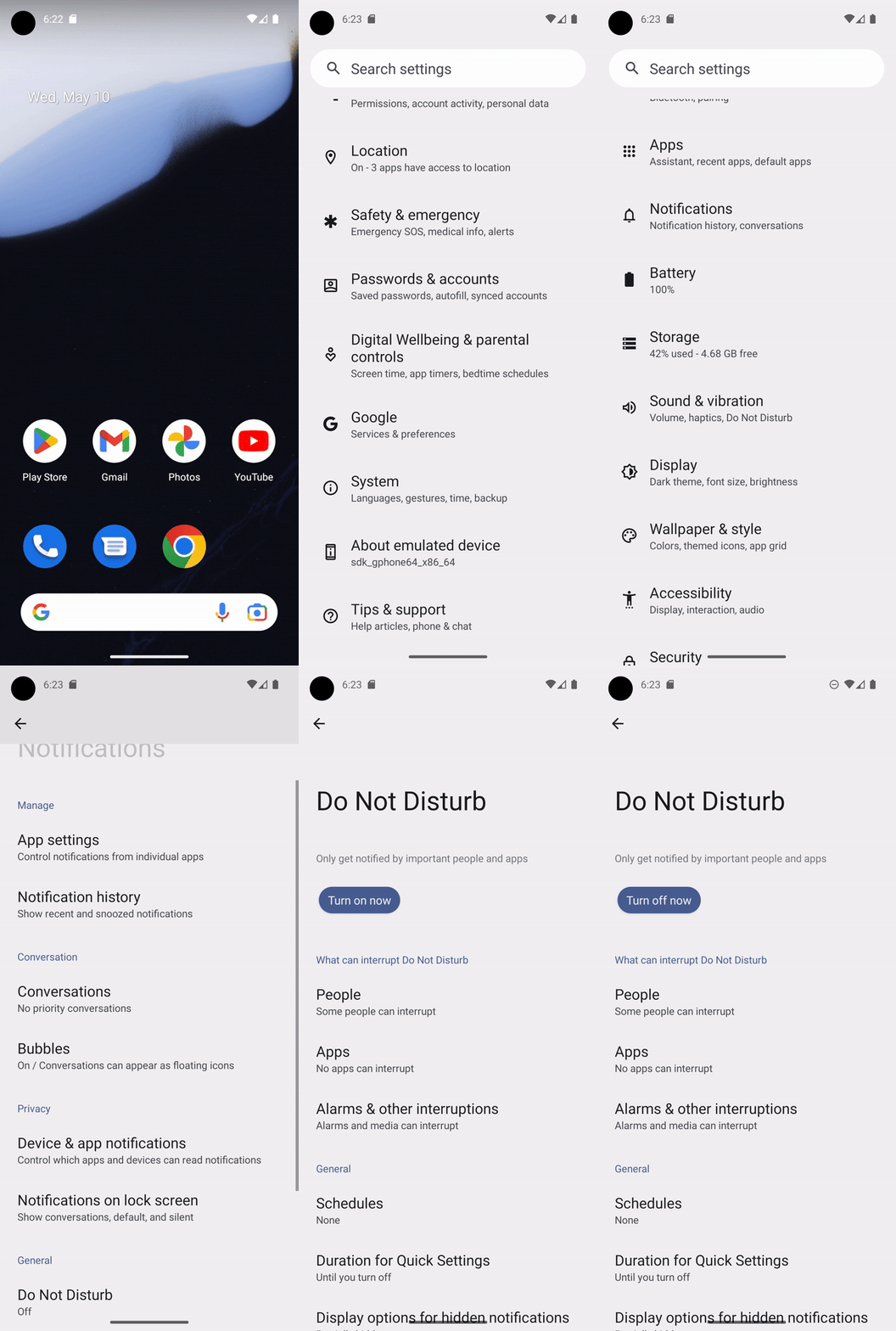
การเปลี่ยนผ่านของหน้าจออาจใช้เวลา และการคาดการณ์ระยะเวลาของการเปลี่ยนผ่านนั้นไม่น่าเชื่อถือ ดังนั้นคุณควรให้ UI Automator รอหลังจากดำเนินการ UI Automator มีเมธอดหลายวิธีสำหรับดำเนินการนี้
UiDevice.performActionAndWait(Runnable action, EventCondition<U> condition, long timeout): เช่น หากต้องการคลิกปุ่มและรอจนกว่าหน้าต่างใหม่จะปรากฏขึ้น ให้เรียกใช้device.performActionAndWait(() -> button.click(), Until.newWindow(), timeout)UiDevice.wait(Condition<Object, U> condition, long timeout): เช่น หากต้องการรอจนกว่าจะมีUiObject2ที่เฉพาะเจาะจงในอุปกรณ์ ให้เรียกใช้device.wait(Until.hasObject(By.text("my_text")), timeout);UiObject2.wait(@NonNull Condition<Object, U> condition, long timeout): เช่น หากต้องการรอจนกว่าจะมีการเลือกช่องทำเครื่องหมาย ให้เรียกใช้checkbox.wait(Until.checked(true), timeout);UiObject2.clickAndWait(@NonNull EventCondition<U> condition, long timeout): เช่น หากต้องการคลิกปุ่มและรอจนกว่าหน้าต่างใหม่จะปรากฏขึ้น ให้เรียกใช้button.clickAndWait(Until.newWindow(), timeout);UiObject2.scrollUntil(@NonNull Direction direction, @NonNull Condition<Object, U> condition): เช่น หากต้องการเลื่อนลงจนกว่าออบเจ็กต์ใหม่จะปรากฏขึ้น ให้เรียกใช้object.scrollUntil(Direction.DOWN, Until.hasObject(By.text('new_obj')));UiObject2.scrollUntil(@NonNull Direction direction, @NonNull EventCondition<U> condition): เช่น หากต้องการเลื่อนลงไปที่ด้านล่าง ให้เรียกใช้object.scrollUntil(Direction.DOWN, Until.scrollFinished(Direction.DOWN));
ข้อมูลโค้ดต่อไปนี้แสดงวิธีใช้ UI Automator เพื่อปิดโหมดห้ามรบกวนในการตั้งค่าระบบโดยใช้เมธอด performActionAndWait() ที่รอการเปลี่ยนผ่าน
Kotlin
@Test
@SdkSuppress(minSdkVersion = 21)
@Throws(Exception::class)
fun turnOffDoNotDisturb() {
    device = UiDevice.getInstance(InstrumentationRegistry.getInstrumentation())
    device.performActionAndWait({
        try {
            device.executeShellCommand("am start -a android.settings.SETTINGS")
        } catch (e: IOException) {
            throw RuntimeException(e)
        }
    }, Until.newWindow(), 1000)
    // Check system settings has been opened.
    Assert.assertTrue(device.hasObject(By.pkg("com.android.settings")))

    // Scroll the settings to the top and find Notifications button
    var scrollableObj: UiObject2 = device.findObject(By.scrollable(true))
    scrollableObj.scrollUntil(Direction.UP, Until.scrollFinished(Direction.UP))
    val notificationsButton = scrollableObj.findObject(By.text("Notifications"))

    // Click the Notifications button and wait until a new window is opened.
    device.performActionAndWait({ notificationsButton.click() }, Until.newWindow(), 1000)
    scrollableObj = device.findObject(By.scrollable(true))
    // Scroll down until it finds a Do Not Disturb button.
    val doNotDisturb = scrollableObj.scrollUntil(
        Direction.DOWN,
        Until.findObject(By.textContains("Do Not Disturb"))
    )
    device.performActionAndWait({ doNotDisturb.click() }, Until.newWindow(), 1000)
    // Turn off the Do Not Disturb.
    val turnOnDoNotDisturb = device.findObject(By.text("Turn on now"))
    turnOnDoNotDisturb?.click()
    Assert.assertTrue(device.wait(Until.hasObject(By.text("Turn off now")), 1000))
}
Java
@Test
@SdkSuppress(minSdkVersion = 21)
public void turnOffDoNotDisturb() throws Exception{
    device = UiDevice.getInstance(InstrumentationRegistry.getInstrumentation());
    device.performActionAndWait(() -> {
        try {
            device.executeShellCommand("am start -a android.settings.SETTINGS");
        } catch (IOException e) {
            throw new RuntimeException(e);
        }
    }, Until.newWindow(), 1000);
    // Check system settings has been opened.
    assertTrue(device.hasObject(By.pkg("com.android.settings")));

    // Scroll the settings to the top and find Notifications button
    UiObject2 scrollableObj = device.findObject(By.scrollable(true));
    scrollableObj.scrollUntil(Direction.UP, Until.scrollFinished(Direction.UP));
    UiObject2 notificationsButton = scrollableObj.findObject(By.text("Notifications"));

    // Click the Notifications button and wait until a new window is opened.
    device.performActionAndWait(() -> notificationsButton.click(), Until.newWindow(), 1000);
    scrollableObj = device.findObject(By.scrollable(true));
    // Scroll down until it finds a Do Not Disturb button.
    UiObject2 doNotDisturb = scrollableObj.scrollUntil(Direction.DOWN,
            Until.findObject(By.textContains("Do Not Disturb")));
    device.performActionAndWait(()-> doNotDisturb.click(), Until.newWindow(), 1000);
    // Turn off the Do Not Disturb.
    UiObject2 turnOnDoNotDisturb = device.findObject(By.text("Turn on now"));
    if(turnOnDoNotDisturb != null) {
        turnOnDoNotDisturb.click();
    }
    assertTrue(device.wait(Until.hasObject(By.text("Turn off now")), 1000));
}
แหล่งข้อมูลเพิ่มเติม
ดูข้อมูลเพิ่มเติมเกี่ยวกับการใช้ UI Automator ในการทดสอบ Android ได้ที่แหล่งข้อมูลต่อไปนี้
เอกสารอ้างอิง
ตัวอย่าง
- BasicSample: ตัวอย่าง UI Automator ระดับพื้นฐาน