
Credential Manager simplifies authentication across the entire Android ecosystem. It provides a consistent experience for users and a unified API surface for developers to use passkeys, passwords, and federated sign-in mechanisms such as Sign in with Google. While the core programming interface remains consistent across form factors, each form factor has unique UI and UX considerations. Successful implementation requires adapting your app's authentication flows to the specific input methods, screen sizes, and user contexts of each device.
This guide provides an overview of how to implement Credential Manager on different Android form factors, highlighting key considerations and linking to more detailed documentation.
Mobile devices
Mobile devices, including phones, tablets, and foldables, represent the most common target for Android development. The standard Credential Manager implementation is well-suited for these devices, which typically feature touchscreens and on-device keyboards. The user experience on this form factor serves as the baseline from which you adapt for others. Authentication flows should be suited to the form factor and use the full capabilities of the device's screen real estate and input methods.
Wear OS
Wear OS devices are characterized by their small screens and limited on-device input. Credential Manager's passkeys implementation provides a secure environment for users to sign in to apps, without needing a connected paired phone and without the need to remember a password.
The API for Wear OS is identical to mobile, so you can reuse an existing mobile integration. In addition to passkeys, Sign in with Google, and passwords with Credential Manager, you can use other authentication methods including Data Layer Token Sharing, OAuth, or your existing solutions. These can be used as backups while you transition your users to Credential Manager, or in the case of Data Layer Token Sharing, as a long-term solution.
Using Credential Manager for Wear OS has the following requirements:
- Minimum API level:
minSdkVersion33 or higher- Includes support for passwords, passkeys, and Sign in with Google
- GMS version: The same as required for mobile apps
The user interface on Wear OS devices is as follows:

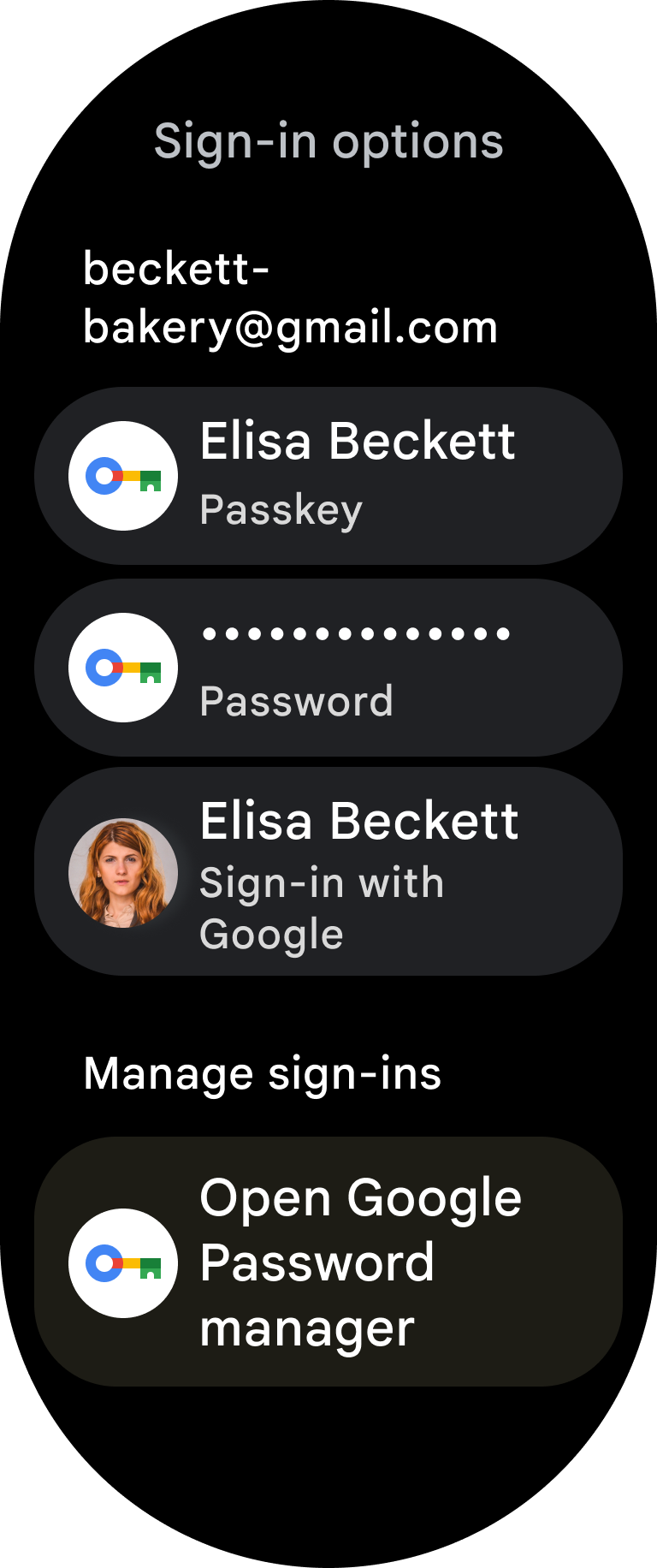
For detailed implementation guidance and code samples, see the following resources:
- Authentication on wearables: Credential Manager
- UI design recommendations for Wear OS
- Wear Credential Manager sample
Limitations
Using Credential Manager on Wear OS has the following limitations:
- Does not support creating passkeys.
- Does not support About Restore Credentials.
Android XR
With Android XR (which includes virtual and augmented reality), apps render in 3D space. User input is fundamentally different from those in other form factors, relying on natural inputs like hand gestures.
Adapting Credential Manager for XR means rethinking the authentication UI (whether with passkeys, passwords, or federated sign-in methods) for a 3D space. For example, authentication prompts appear in floating panels, and users make selections using hand gestures. You also need to consider any specific hardware or software prerequisites for your target XR devices.
A critical design challenge is creating an intuitive and secure authentication experience within a VR or AR environment. You must also consider how to manage identity in multi-user XR scenarios, where different people might use the same device.
Using Credential Manager for Android XR has the following requirements:
- Minimum API level:
minSdkVersion34 or higher - GMS version: The same as required for mobile apps
- Emulator:
- Minimum emulator system image:
- macOS: Google Play XR ARM 64 v8a System Image Revision 7
- Windows: Google Play XR Intel x86_64 Atom System Image Revision 7
- Emulator versions higher than 35.6.11 Stable
- Minimum emulator system image:
A sign-in experience on XR might look like the following:

Flows unsupported by XR
Credential Manager in Android XR does not support authentication flows that require another device to scan a QR code. This is observable during sign-in processes on XR headsets and when testing with the emulator.
To learn more about XR, see Android XR.
Android TV
Android TV devices are typically communal, viewed from a distance, and navigated using D-pad remotes. Entering usernames and passwords in this environment can be difficult for users. Credential Manager simplifies authentication on Android TV by supporting Sign in with Google, saved passwords, and cross-device passkeys.

Because TVs are communal devices and don't have a lock screen knowledge factor (LSKF), passkeys aren't created or stored directly on the TV. Instead, passkey authentication uses a cross-device hybrid flow: the TV displays a QR code that the user scans with their mobile device to complete biometric authentication.
Using Credential Manager for Android TV has the following requirements:
- Minimum API level: Android 14 (API level 34,
minSdkVersion34) or higher - GMS version: 2026W30 or higher
- Hardware for passkeys: A secondary mobile device with a camera and Bluetooth is required to scan the QR code and complete the FIDO hybrid flow
Limitations
Because Android TV is a communal device, using Credential Manager on this platform has the following intentional limitations to protect user privacy and security:
- No local passkey creation or storage: Passkeys can't be created or
stored directly on the TV. Because local credentials aren't supported, don't
set
preferImmediatelyAvailableCredentialstotruein your requests; doing so filters out cross-device passkeys and fails to return credentials. - No third-party credential providers: Android TV doesn't support autofill, so third-party password managers are unavailable on the platform. Users must use Google Password Manager.
- No Restore Credentials: Automatic sign-in to new devices using About Restore Credentials isn't supported on Android TV.
To learn more about TV development, see Android TV overview.
Android Automotive OS
Android Automotive OS (AAOS) devices are communal systems integrated into vehicles. Adapting Credential Manager for AAOS requires supporting secure authentication (typically while the vehicle is parked) and accommodating multiple user profiles on a shared device.
If you bring a large-screen or tablet-optimized app to cars, and your app already supports Credential Manager and passkeys on mobile devices or tablets, it works on Android Automotive OS without requiring changes to your authentication flows.
Authentication on Android Automotive OS supports the following methods:
- Passkeys (cross-device hybrid flow): Users can authenticate with existing passkeys through a cross-device flow. The system displays a QR code on the car screen that the user scans with their mobile device. Because biometric and screen-lock verification takes place on the user's phone, users don't need to configure a screen lock on the car display.
- Sign in with Google: Displays the native Sign in with Google screen directly on the car display.
- Saved passwords: Users can retrieve saved passwords from Google Password Manager to sign in without manually entering credentials on the vehicle screen.

Android Automotive OS manages sessions and credentials per profile, isolating user-specific session data between profiles (for example, Profile A, Profile B, or a guest profile).
Using Credential Manager for Android Automotive OS has the following requirements:
- Minimum API level: Android 9 (API level 28,
minSdkVersion28) or higher. Cross-device passkey retrieval requires Android 14 (API level 34) or higher. - GMS version: The same as required for mobile apps.
Testing limitations
Testing passkeys requires a physical device running an Android Automotive OS build as the primary surface. For setup instructions, see Test using Android Automotive OS on Pixel Tablet. Emulators can't be used for passkey testing because they don't support Bluetooth Low Energy (BLE), which is required for the FIDO hybrid flow.
Limitations and unsupported flows
Using Credential Manager on Android Automotive OS has the following limitations:
- No local passkey storage or retrieval: Direct local passkey retrieval is unsupported because vehicles are communal devices. Syncing passkeys directly to the vehicle poses a security risk, so passkeys must be used through the cross-device hybrid flow.
- Immediately available credentials unsupported: If your app requests a
passkey and sets
preferImmediatelyAvailableCredentialstotrue, the automotive UI terminates immediately and throws aNoCredentialException. Provide an appropriate fallback UX for this scenario. - No third-party credential providers: Third-party password managers aren't supported on Android Automotive OS. Users must use Google Password Manager or cross-device hybrid flows to authenticate.
- No stored password creation: The API doesn't support creating and saving a new stored password directly from the car interface. Credential creation is restricted to new passkeys using the FIDO hybrid flow.
To learn more about Automotive OS development, see Android Automotive OS overview.
Additional resources
- About Credential Manager
- About Restore Credentials
- Android TV overview
- Android Automotive OS overview