

Android 15 mang đến cho nhà phát triển các tính năng và API mới hữu ích. Các phần sau đây tóm tắt những tính năng này để giúp bạn làm quen với các API liên quan.
Để biết danh sách chi tiết về các API đã thêm, đã sửa đổi và đã xoá, hãy đọc báo cáo điểm khác biệt về API. Để biết thông tin chi tiết về các API được thêm, hãy truy cập tài liệu tham khảo về API cho Android. Đối với Android 15, hãy tìm các API được thêm vào API cấp 35. Để tìm hiểu những thay đổi của nền tảng có thể tác động đến ứng dụng của bạn, hãy nhớ tham khảo các thay đổi về hành vi của Android 15 đối với ứng dụng nhắm đến Android 15 và tất cả ứng dụng.
Camera và nội dung nghe nhìn
Android 15 có nhiều tính năng giúp cải thiện trải nghiệm về camera và nội dung nghe nhìn, đồng thời cung cấp cho bạn quyền truy cập vào các công cụ và phần cứng để hỗ trợ nhà sáng tạo hiện thực hoá ý tưởng của họ trên Android.
Để biết thêm thông tin về các tính năng mới nhất và giải pháp dành cho nhà phát triển về nội dung nghe nhìn và camera trên Android, hãy xem bài nói chuyện Xây dựng trải nghiệm nội dung nghe nhìn và camera hiện đại trên Android tại Google I/O.
Tăng cường ánh sáng yếu
Android 15 ra mắt tính năng Tăng cường ánh sáng yếu, một chế độ tự động phơi sáng có sẵn cho cả Camera 2 và tiện ích máy ảnh chế độ ban đêm. Tính năng Tăng cường ánh sáng yếu điều chỉnh độ phơi sáng của luồng Xem trước trong điều kiện ánh sáng yếu. Điều này khác với cách tiện ích máy ảnh chế độ ban đêm tạo ảnh tĩnh, vì chế độ ban đêm kết hợp một loạt ảnh để tạo một ảnh duy nhất, được nâng cao. Mặc dù chế độ ban đêm hoạt động rất tốt để tạo ảnh tĩnh, nhưng không thể tạo luồng khung hình liên tục, còn tính năng Tăng cường ánh sáng yếu thì có thể. Do đó, tính năng Cải tiến ánh sáng yếu sẽ hỗ trợ các tính năng của máy ảnh, chẳng hạn như:
- Cung cấp bản xem trước hình ảnh nâng cao để người dùng có thể căn chỉnh khung hình ảnh chụp trong điều kiện ánh sáng yếu tốt hơn
- Quét mã QR trong điều kiện ánh sáng yếu
Nếu bạn bật tính năng Tăng cường ánh sáng yếu, tính năng này sẽ tự động bật khi có mức độ ánh sáng yếu và tắt khi có nhiều ánh sáng hơn.
Các ứng dụng có thể ghi lại luồng Xem trước trong điều kiện ánh sáng yếu để lưu video được làm sáng.
Để biết thêm thông tin, hãy xem phần Tăng cường ánh sáng yếu.
Các chế độ điều khiển camera trong ứng dụng
Android 15 bổ sung một tiện ích để kiểm soát tốt hơn phần cứng máy ảnh và các thuật toán của phần cứng đó trên các thiết bị được hỗ trợ:
- Tính năng Điều chỉnh cường độ đèn flash nâng cao cho phép kiểm soát chính xác cường độ đèn flash ở cả chế độ
SINGLEvàTORCHtrong khi chụp ảnh.
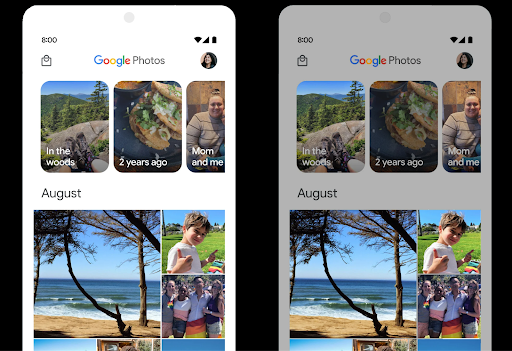
Kiểm soát khoảng không gian HDR
Android 15 chọn khoảng đầu vào HDR phù hợp với các tính năng cơ bản của thiết bị và độ sâu bit của bảng điều khiển. Đối với các trang có nhiều nội dung SDR, chẳng hạn như ứng dụng nhắn tin hiển thị một hình thu nhỏ HDR, hành vi này có thể ảnh hưởng bất lợi đến độ sáng được cảm nhận của nội dung SDR. Android 15 cho phép bạn kiểm soát khoảng đầu vào HDR bằng setDesiredHdrHeadroom để tạo ra sự cân bằng giữa nội dung SDR và HDR.
Kiểm soát độ lớn âm thanh

Android 15 hỗ trợ cho Tiêu chuẩn độ lớn CTA-2075 để trợ giúp bạn tránh sự không thống nhất về độ ồn của âm thanh và đảm bảo người dùng không phải liên tục điều chỉnh âm lượng khi chuyển đổi giữa các nội dung. Hệ thống tận dụng các đặc điểm đã biết của thiết bị đầu ra (tai nghe và loa) cùng với siêu dữ liệu về độ to trong nội dung âm thanh AAC để điều chỉnh độ to của âm thanh và mức độ nén phạm vi động một cách thông minh.
Để bật tính năng này, bạn cần đảm bảo siêu dữ liệu về độ to trong nội dung AAC và bật tính năng nền tảng trong ứng dụng. Để thực hiện việc này, bạn tạo bản sao của đối tượng LoudnessCodecController bằng cách gọi phương thức nhà máy create của đối tượng đó với mã phiên âm thanh từ AudioTrack được liên kết; thao tác này sẽ tự động bắt đầu áp dụng các bản cập nhật âm thanh. Bạn có thể truyền một OnLoudnessCodecUpdateListener để sửa đổi hoặc lọc các thông số âm lượng trước khi áp dụng các thông số đó trên MediaCodec.
// Media contains metadata of type MPEG_4 OR MPEG_D
val mediaCodec = …
val audioTrack = AudioTrack.Builder()
                                .setSessionId(sessionId)
                                .build()
...
// Create new loudness controller that applies the parameters to the MediaCodec
try {
   val lcController = LoudnessCodecController.create(mSessionId)
   // Starts applying audio updates for each added MediaCodec
}
AndroidX media3 ExoPlayer cũng sẽ được cập nhật để sử dụng
Các API LoudnessCodecController để tích hợp liền mạch ứng dụng.
Thiết bị MIDI 2.0 ảo
Android 13 added support for connecting to MIDI 2.0 devices using USB, which communicate using Universal MIDI Packets (UMP). Android 15 extends UMP support to virtual MIDI apps, enabling composition apps to control synthesizer apps as a virtual MIDI 2.0 device just like they would with an USB MIDI 2.0 device.
Giải mã phần mềm AV1 hiệu quả hơn

dav1d, bộ giải mã phần mềm AV1 phổ biến của VideoLAN, có sẵn cho các thiết bị Android không hỗ trợ giải mã AV1 trong phần cứng. dav1d có hiệu suất cao hơn gấp 3 lần so với bộ giải mã phần mềm AV1 cũ, cho phép phát AV1 ở độ phân giải cao cho nhiều người dùng hơn, bao gồm cả một số thiết bị cấp thấp và trung bình.
Ứng dụng của bạn cần chọn sử dụng dav1d bằng cách gọi theo tên "c2.android.av1-dav1d.decoder". dav1d sẽ được đặt làm bộ giải mã phần mềm AV1 mặc định trong bản cập nhật tiếp theo. Tính năng hỗ trợ này được chuẩn hoá và điều chỉnh cho phiên bản cũ là các thiết bị Android 11 nhận được bản cập nhật hệ thống Google Play.
Năng suất và công cụ dành cho nhà phát triển
Mặc dù hầu hết công việc của chúng tôi nhằm cải thiện năng suất của bạn đều xoay quanh các công cụ như Android Studio, Jetpack Compose và các thư viện Android Jetpack, nhưng chúng tôi luôn tìm cách giúp bạn dễ dàng hiện thực hoá ý tưởng của mình hơn trên nền tảng này.
Nội dung cập nhật OpenJDK 17
Android 15 continues the work of refreshing Android's core libraries to align with the features in the latest OpenJDK LTS releases.
The following key features and improvements are included:
- Quality-of-life improvements around NIO buffers
- Streams
- Additional
mathandstrictmathmethods utilpackage updates including sequencedcollection,map, andsetByteBuffersupport inDeflater- Security updates such as
X500PrivateCredentialand security key updates
These APIs are updated on over a billion devices running Android 12 (API level 31) and higher through Google Play System updates, so you can target the latest programming features.
Cải thiện tệp PDF
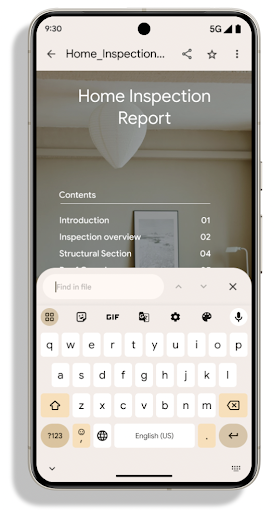
Android 15 includes substantial improvements to the PdfRenderer
APIs. Apps can incorporate advanced features such as rendering
password-protected files, annotations, form editing,
searching, and selection with copy. Linearized PDF
optimizations are supported to speed local PDF viewing and reduce resource use.
The Jetpack PDF library uses these APIs to simplify adding PDF
viewing capabilities to your app.
The PdfRenderer has been moved to a module that can be updated using Google
Play system updates independent of the platform release, and we're supporting
these changes back to Android 11 (API level 30) by creating a compatible
pre-Android 15 version of the API surface, called
PdfRendererPreV.
Tinh chỉnh tính năng tự động chuyển đổi ngôn ngữ
Android 14 added on-device, multi-language recognition in audio with automatic
switching between languages, but this can cause words to get dropped,
especially when languages switch with less of a pause between the two
utterances. Android 15 adds additional controls to help apps tune this switching
to their use case.
EXTRA_LANGUAGE_SWITCH_INITIAL_ACTIVE_DURATION_TIME_MILLIS
confines the automatic switching to the beginning of the audio session, while
EXTRA_LANGUAGE_SWITCH_MATCH_SWITCHES deactivates the
language switching after a defined number of switches. These options are
particularly useful if you expect that there will be a single language spoken
during the session that should be autodetected.
Cải thiện OpenType Variable Font API
Android 15 cải thiện khả năng hữu dụng của phông chữ biến đổi OpenType. Bạn có thể tạo
thực thể FontFamily từ phông chữ có thể thay đổi mà không chỉ định các trục trọng số
bằng API buildVariableFamily. Trình kết xuất văn bản ghi đè giá trị
trên trục wght để khớp với văn bản đang hiển thị.
Việc sử dụng API giúp đơn giản hoá đáng kể mã để tạo Typeface:
Kotlin
val newTypeface = Typeface.CustomFallbackBuilder(
            FontFamily.Builder(
                Font.Builder(assets, "RobotoFlex.ttf").build())
                    .buildVariableFamily())
    .build()
Java
Typeface newTypeface = Typeface.CustomFallbackBuilder(
            new FontFamily.Builder(
                new Font.Builder(assets, "RobotoFlex.ttf").build())
                    .buildVariableFamily())
    .build();
Trước đây, để tạo cùng một Typeface, bạn cần nhiều mã hơn:
Kotlin
val oldTypeface = Typeface.CustomFallbackBuilder(
            FontFamily.Builder(
                Font.Builder(assets, "RobotoFlex.ttf")
                    .setFontVariationSettings("'wght' 400")
                    .setWeight(400)
                    .build())
                .addFont(
                    Font.Builder(assets, "RobotoFlex.ttf")
                        .setFontVariationSettings("'wght' 100")
                        .setWeight(100)
                        .build()
                )
                .addFont(
                    Font.Builder(assets, "RobotoFlex.ttf")
                        .setFontVariationSettings("'wght' 200")
                        .setWeight(200)
                        .build()
                )
                .addFont(
                    Font.Builder(assets, "RobotoFlex.ttf")
                        .setFontVariationSettings("'wght' 300")
                        .setWeight(300)
                        .build()
                )
                .addFont(
                    Font.Builder(assets, "RobotoFlex.ttf")
                        .setFontVariationSettings("'wght' 500")
                        .setWeight(500)
                        .build()
                )
                .addFont(
                    Font.Builder(assets, "RobotoFlex.ttf")
                        .setFontVariationSettings("'wght' 600")
                        .setWeight(600)
                        .build()
                )
                .addFont(
                    Font.Builder(assets, "RobotoFlex.ttf")
                        .setFontVariationSettings("'wght' 700")
                        .setWeight(700)
                        .build()
                )
                .addFont(
                    Font.Builder(assets, "RobotoFlex.ttf")
                        .setFontVariationSettings("'wght' 800")
                        .setWeight(800)
                        .build()
                )
                .addFont(
                    Font.Builder(assets, "RobotoFlex.ttf")
                        .setFontVariationSettings("'wght' 900")
                        .setWeight(900)
                        .build()
                ).build()
        ).build()
Java
Typeface oldTypeface = new Typeface.CustomFallbackBuilder(
    new FontFamily.Builder(
        new Font.Builder(assets, "RobotoFlex.ttf")
            .setFontVariationSettings("'wght' 400")
            .setWeight(400)
            .build()
    )
    .addFont(
        new Font.Builder(assets, "RobotoFlex.ttf")
            .setFontVariationSettings("'wght' 100")
            .setWeight(100)
            .build()
    )
    .addFont(
        new Font.Builder(assets, "RobotoFlex.ttf")
            .setFontVariationSettings("'wght' 200")
            .setWeight(200)
            .build()
    )
    .addFont(
        new Font.Builder(assets, "RobotoFlex.ttf")
            .setFontVariationSettings("'wght' 300")
            .setWeight(300)
            .build()
    )
    .addFont(
        new Font.Builder(assets, "RobotoFlex.ttf")
            .setFontVariationSettings("'wght' 500")
            .setWeight(500)
            .build()
    )
    .addFont(
        new Font.Builder(assets, "RobotoFlex.ttf")
            .setFontVariationSettings("'wght' 600")
            .setWeight(600)
            .build()
    )
    .addFont(
        new Font.Builder(assets, "RobotoFlex.ttf")
            .setFontVariationSettings("'wght' 700")
            .setWeight(700)
            .build()
    )
    .addFont(
        new Font.Builder(assets, "RobotoFlex.ttf")
            .setFontVariationSettings("'wght' 800")
            .setWeight(800)
            .build()
    )
    .addFont(
        new Font.Builder(assets, "RobotoFlex.ttf")
            .setFontVariationSettings("'wght' 900")
            .setWeight(900)
            .build()
    )
    .build()
).build();
Dưới đây là ví dụ về cách một Typeface được tạo bằng cả API cũ và mới
hiển thị:
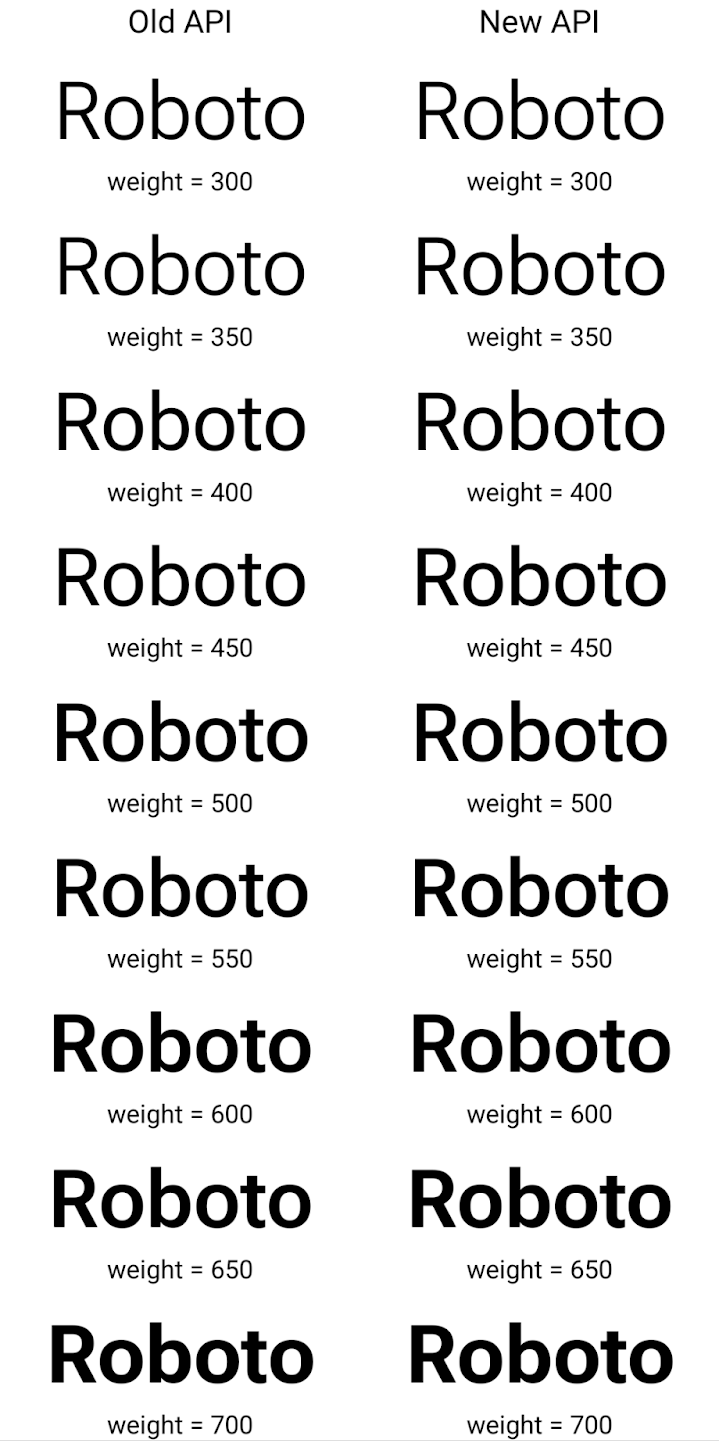
Trong ví dụ này, Typeface được tạo bằng API cũ không có khả năng tạo độ đậm phông chữ chính xác cho các thực thể Font 350, 450, 550 và 650, vì vậy, trình kết xuất sẽ quay lại độ đậm gần nhất. Vì vậy, trong trường hợp này, 300 được kết xuất thay vì 350, 400 được kết xuất thay vì 450, v.v. Ngược lại, Typeface được tạo bằng các API mới sẽ tự động tạo
thực thể Font cho một trọng số nhất định, do đó trọng số chính xác được hiển thị là 350,
450, 550 và 650.
Các chế độ kiểm soát chi tiết dấu ngắt dòng
Starting in Android 15, a TextView and the underlying
line breaker can preserve the given portion of text in the same line to improve
readability. You can take advantage of this line break customization by using
the <nobreak> tag in string resources or
createNoBreakSpan. Similarly, you can preserve words from
hyphenation by using the <nohyphen> tag or
createNoHyphenationSpan.
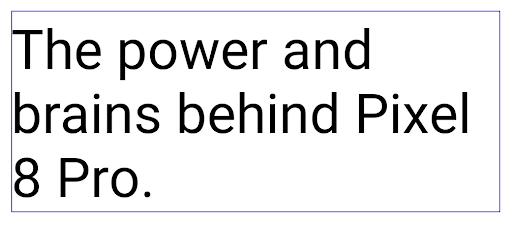
For example, the following string resource doesn't include a line break, and renders with the text "Pixel 8 Pro." breaking in an undesirable place:
<resources>
    <string name="pixel8pro">The power and brains behind Pixel 8 Pro.</string>
</resources>
In contrast, this string resource includes the <nobreak> tag, which wraps the
phrase "Pixel 8 Pro." and prevents line breaks:
<resources>
    <string name="pixel8pro">The power and brains behind <nobreak>Pixel 8 Pro.</nobreak></string>
</resources>
The difference in how these strings are rendered is shown in the following images:
<nobreak> tag.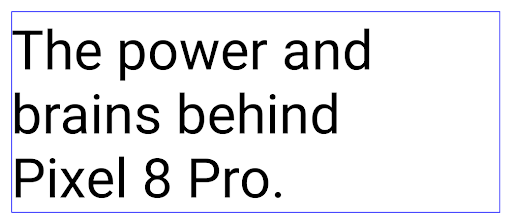
<nobreak> tag.Lưu trữ ứng dụng
Android và Google Play đã công bố hỗ trợ tính năng lưu trữ ứng dụng vào năm ngoái, cho phép người dùng giải phóng dung lượng bằng cách xoá một phần các ứng dụng ít dùng trên thiết bị được phát hành bằng Android App Bundle trên Google Play. Android 15 hỗ trợ cấp hệ điều hành để lưu trữ và huỷ lưu trữ ứng dụng, giúp tất cả các cửa hàng ứng dụng dễ dàng triển khai tính năng này.
Các ứng dụng có quyền REQUEST_DELETE_PACKAGES có thể gọi
PackageInstaller requestArchive để yêu cầu lưu trữ một
đã cài đặt gói ứng dụng. Thao tác này sẽ xoá APK và mọi tệp đã lưu vào bộ nhớ đệm nhưng vẫn tồn tại
dữ liệu người dùng. Các ứng dụng đã lưu trữ được trả về dưới dạng ứng dụng có thể hiển thị thông qua các API LauncherApps; người dùng sẽ thấy một cách xử lý giao diện người dùng để làm nổi bật rằng các ứng dụng đó đã được lưu trữ. Nếu người dùng nhấn vào một ứng dụng đã lưu trữ, trình cài đặt chịu trách nhiệm sẽ nhận được yêu cầu huỷ lưu trữ ứng dụng đó và quá trình khôi phục có thể được theo dõi bằng thông báo truyền tin ACTION_PACKAGE_ADDED.
Bật chế độ 16 KB trên thiết bị bằng cách sử dụng tuỳ chọn cho nhà phát triển
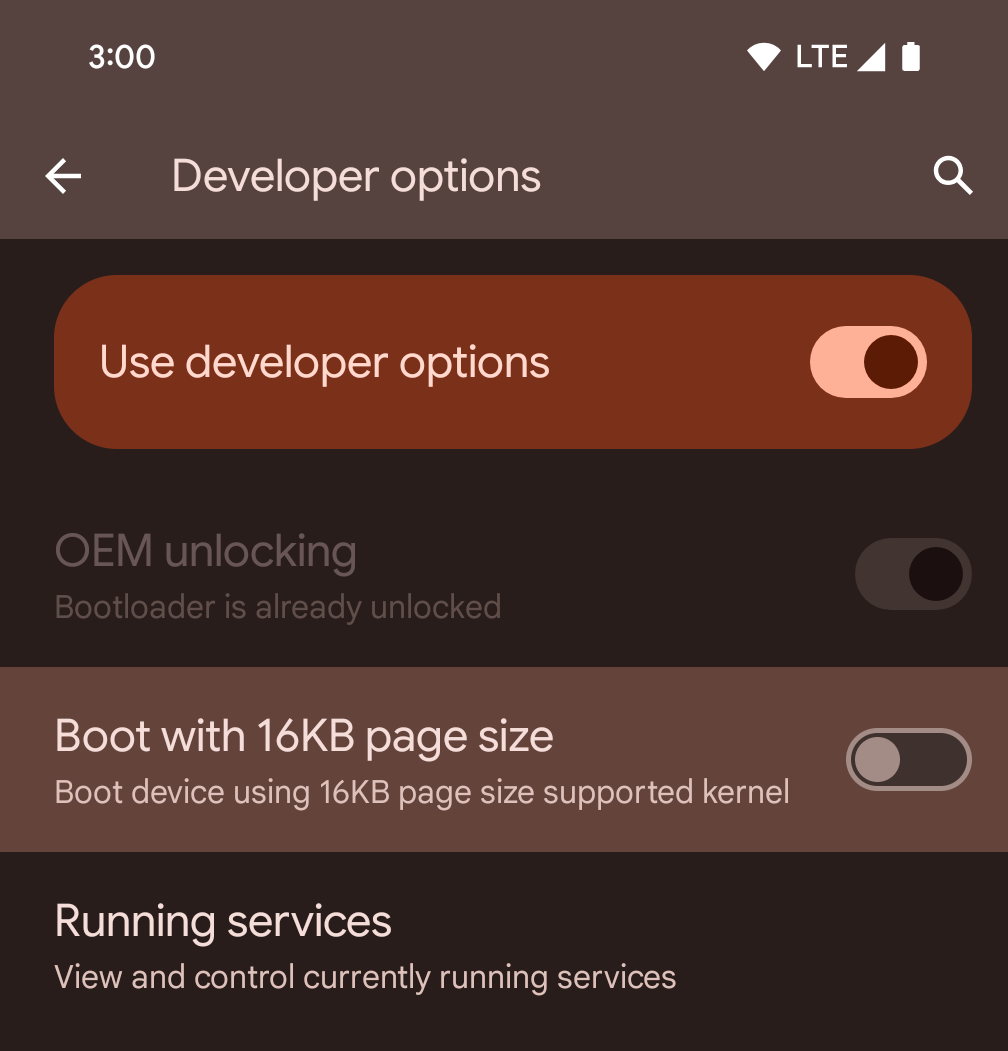
Bật/tắt lựa chọn cho nhà phát triển Khởi động với kích thước trang 16 KB để khởi động thiết bị ở chế độ 16 KB.
Trong các phiên bản QPR của Android 15, bạn có thể sử dụng lựa chọn dành cho nhà phát triển có trên một số thiết bị để khởi động thiết bị ở chế độ 16 KB và thực hiện kiểm thử trên thiết bị. Trước khi sử dụng tuỳ chọn cho nhà phát triển, hãy chuyển đến phần Cài đặt > Hệ thống > Bản cập nhật phần mềm rồi áp dụng mọi bản cập nhật hiện có.
Tuỳ chọn cho nhà phát triển này có trên các thiết bị sau:
Pixel 8 và 8 Pro (chạy Android 15 QPR1 trở lên)
Pixel 8a (chạy Android 15 QPR1 trở lên)
Pixel 9, 9 Pro và 9 Pro XL (chạy Android 15 QPR2 Beta 2 trở lên)
Đồ hoạ
Android 15 mang đến những điểm cải tiến mới nhất về đồ hoạ, bao gồm cả ANGLE và các điểm bổ sung cho hệ thống đồ hoạ Canvas.
Hiện đại hoá quyền truy cập vào GPU của Android

Android hardware has evolved quite a bit from the early days where the core OS would run on a single CPU and GPUs were accessed using APIs based on fixed-function pipelines. The Vulkan® graphics API has been available in the NDK since Android 7.0 (API level 24) with a lower-level abstraction that better reflects modern GPU hardware, scales better to support multiple CPU cores, and offers reduced CPU driver overhead — leading to improved app performance. Vulkan is supported by all modern game engines.
Vulkan is Android's preferred interface to the GPU. Therefore, Android 15 includes ANGLE as an optional layer for running OpenGL® ES on top of Vulkan. Moving to ANGLE will standardize the Android OpenGL implementation for improved compatibility, and, in some cases, improved performance. You can test out your OpenGL ES app stability and performance with ANGLE by enabling the developer option in Settings -> System -> Developer Options -> Experimental: Enable ANGLE on Android 15.
The Android ANGLE on Vulkan roadmap
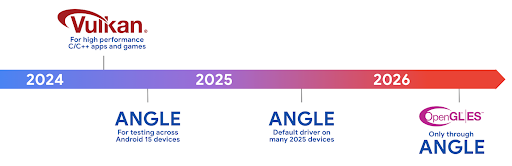
As part of streamlining our GPU stack, going forward we will be shipping ANGLE as the GL system driver on more new devices, with the future expectation that OpenGL/ES will be only available through ANGLE. That being said, we plan to continue support for OpenGL ES on all devices.
Recommended next steps
Use the developer options to select the ANGLE driver for OpenGL ES and test your app. For new projects, we strongly encourage using Vulkan for C/C++.
Những điểm cải tiến cho Canvas
Android 15 continues our modernization of Android's Canvas graphics system with additional capabilities:
Matrix44provides a 4x4 matrix for transforming coordinates that should be used when you want to manipulate the canvas in 3D.clipShaderintersects the current clip with the specified shader, whileclipOutShadersets the clip to the difference of the current clip and the shader, each treating the shader as an alpha mask. This supports the drawing of complex shapes efficiently.
Hiệu suất và pin
Android tiếp tục tập trung vào việc giúp bạn cải thiện hiệu suất và chất lượng của ứng dụng. Android 15 giới thiệu các API giúp thực hiện các tác vụ trong ứng dụng của bạn hiệu quả hơn, tối ưu hoá hiệu suất ứng dụng và thu thập thông tin chi tiết về ứng dụng của bạn.
Để biết các phương pháp hay nhất giúp tiết kiệm pin, gỡ lỗi mức sử dụng mạng và điện năng, cũng như thông tin chi tiết về cách chúng tôi cải thiện hiệu suất sử dụng pin của hoạt động ở chế độ nền trong Android 15 và các phiên bản Android gần đây, hãy xem bài nói chuyện Cải thiện hiệu suất sử dụng pin của hoạt động ở chế độ nền trên Android trong Google I/O.
ApplicationStartInfo API
In previous versions of Android, app startup has been a bit of a mystery. It was
challenging to determine within your app whether it started from a cold, warm,
or hot state. It was also difficult to know how long your app spent during the
various launch phases: forking the process, calling onCreate, drawing the
first frame, and more. When your Application class was instantiated, you had no
way of knowing whether the app started from a broadcast, a content provider, a
job, a backup, boot complete, an alarm, or an Activity.
The ApplicationStartInfo API on Android 15 provides
all of this and more. You can even choose to add your own timestamps into the
flow to help collect timing data in one place. In addition to collecting
metrics, you can use ApplicationStartInfo to help directly optimize app
startup; for example, you can eliminate the costly instantiation of UI-related
libraries within your Application class when your app is starting up due to a
broadcast.
Thông tin chi tiết về kích thước ứng dụng
Since Android 8.0 (API level 26), Android has included the
StorageStats.getAppBytes API that summarizes the installed
size of an app as a single number of bytes, which is a sum of the APK size, the
size of files extracted from the APK, and files that were generated on the
device such as ahead-of-time (AOT) compiled code. This number is not very
insightful in terms of how your app is using storage.
Android 15 adds the
StorageStats.getAppBytesByDataType([type]) API, which lets
you get insight into how your app is using up all that space, including APK file
splits, AOT and speedup related code, dex metadata, libraries, and guided
profiles.
Lập hồ sơ do ứng dụng quản lý
Android 15 bao gồm lớp ProfilingManager, cho phép bạn thu thập thông tin phân tích tài nguyên từ trong ứng dụng, chẳng hạn như tệp báo lỗi, hồ sơ vùng nhớ khối xếp, lấy mẫu ngăn xếp, v.v. Mã này cung cấp lệnh gọi lại cho ứng dụng kèm theo thẻ đã cung cấp để xác định tệp đầu ra. Tệp này được phân phối đến thư mục tệp của ứng dụng. API này giới hạn tốc độ để giảm thiểu tác động đến hiệu suất.
Để đơn giản hoá việc tạo các yêu cầu phân tích tài nguyên trong ứng dụng, bạn nên sử dụng API AndroidX Profiling tương ứng, có trong Core 1.15.0-rc01 trở lên.
Cải thiện cơ sở dữ liệu SQLite
Android 15 giới thiệu các API SQLite hiển thị các tính năng nâng cao từ công cụ SQLite cơ bản nhắm đến các vấn đề hiệu suất cụ thể có thể xuất hiện trong ứng dụng. Các API này đi kèm với bản cập nhật SQLite cho phiên bản 3.44.3.
Nhà phát triển nên tham khảo các phương pháp hay nhất về hiệu suất SQLite để khai thác tối đa cơ sở dữ liệu SQLite, đặc biệt là khi làm việc với các cơ sở dữ liệu lớn hoặc khi chạy các truy vấn nhạy cảm với độ trễ.
- Giao dịch bị hoãn chỉ có thể đọc: khi thực hiện các giao dịch có
chỉ đọc (không bao gồm câu lệnh ghi), hãy sử dụng
beginTransactionReadOnly()vàbeginTransactionWithListenerReadOnly(SQLiteTransactionListener)để phát hành giao dịchDEFERREDchỉ đọc. Các giao dịch như vậy có thể chạy đồng thời với nhau và nếu cơ sở dữ liệu ở chế độ WAL, chúng có thể chạy đồng thời với các giao dịchIMMEDIATEhoặcEXCLUSIVE. - Số lượng hàng và mã nhận dạng: Các API được thêm vào để truy xuất số lượng hàng đã thay đổi
hàng hoặc mã hàng được chèn gần đây nhất mà không tạo thêm truy vấn.
getLastChangedRowCount()trả về số lượng hàng được chèn, cập nhật hoặc xoá bởi câu lệnh SQL gần đây nhất trong giao dịch hiện tại, trong khigetTotalChangedRowCount()sẽ trả về số lượng trên kết nối hiện tại.getLastInsertRowId()trả vềrowidcủa hàng cuối cùng cần chèn vào kết nối hiện tại. - Câu lệnh thô: phát hành một câu lệnh SQlite thô, bỏ qua các trình bao bọc thuận tiện và mọi chi phí xử lý bổ sung mà chúng có thể phát sinh.
Bản cập nhật Khung hiệu suất động Android
Android 15 continues our investment in the Android Dynamic Performance Framework (ADPF), a set of APIs that allow games and performance intensive apps to interact more directly with power and thermal systems of Android devices. On supported devices, Android 15 adds ADPF capabilities:
- A power-efficiency mode for hint sessions to indicate that their associated threads should prefer power saving over performance, great for long-running background workloads.
- GPU and CPU work durations can both be reported in hint sessions, allowing the system to adjust CPU and GPU frequencies together to best meet workload demands.
- Thermal headroom thresholds to interpret possible thermal throttling status based on headroom prediction.
To learn more about how to use ADPF in your apps and games, head over to the documentation.
Quyền riêng tư
Android 15 có nhiều tính năng giúp nhà phát triển ứng dụng bảo vệ quyền riêng tư của người dùng.
Phát hiện bản ghi màn hình
Android 15 adds support for apps to detect that they are being recorded. A callback is invoked whenever the app transitions between being visible or invisible within a screen recording. An app is considered visible if activities owned by the registering process's UID are being recorded. This way, if your app is performing a sensitive operation, you can inform the user that they're being recorded.
val mCallback = Consumer<Int> { state ->
  if (state == SCREEN_RECORDING_STATE_VISIBLE) {
    // We're being recorded
  } else {
    // We're not being recorded
  }
}

override fun onStart() {
   super.onStart()
   val initialState =
      windowManager.addScreenRecordingCallback(mainExecutor, mCallback)
   mCallback.accept(initialState)
}

override fun onStop() {
    super.onStop()
    windowManager.removeScreenRecordingCallback(mCallback)
}
Các chức năng mở rộng của IntentFilter
Android 15 tích hợp tính năng hỗ trợ độ phân giải Intent chính xác hơn thông qua UriRelativeFilterGroup. Tính năng này chứa một tập hợp các đối tượng UriRelativeFilter tạo thành một tập hợp các quy tắc so khớp Intent mà mỗi quy tắc phải được đáp ứng, bao gồm cả các tham số truy vấn URL, phân đoạn URL và các quy tắc chặn hoặc loại trừ.
Bạn có thể xác định các quy tắc này trong tệp XML AndroidManifest bằng thẻ <uri-relative-filter-group>. Thẻ này có thể bao gồm thẻ android:allow (không bắt buộc). Các thẻ này có thể chứa thẻ <data> sử dụng các thuộc tính thẻ dữ liệu hiện có cũng như thuộc tính android:query và android:fragment.
Sau đây là ví dụ về cú pháp AndroidManifest:
<intent-filter android:autoVerify="true">
  <action android:name="android.intent.action.VIEW" />
  <category android:name="android.intent.category.BROWSABLE" />
  <category android:name="android.intent.category.DEFAULT" />
  <data android:scheme="http" />
  <data android:scheme="https" />
  <data android:host="astore.com" />
  <uri-relative-filter-group>
    <data android:pathPrefix="/auth" />
    <data android:query="region=na" />
  </uri-relative-filter-group>
  <uri-relative-filter-group android:allow="false">
    <data android:pathPrefix="/auth" />
    <data android:query="mobileoptout=true" />
  </uri-relative-filter-group>
  <uri-relative-filter-group android:allow="false">
    <data android:pathPrefix="/auth" />
    <data android:fragmentPrefix="faq" />
  </uri-relative-filter-group>
</intent-filter>
Không gian riêng tư
Private space lets users create a separate space on their device where they can keep sensitive apps away from prying eyes, under an additional layer of authentication. The private space uses a separate user profile. The user can choose to use the device lock or a separate lock factor for the private space.
Apps in the private space show up in a separate container in the launcher, and are hidden from the recents view, notifications, settings, and from other apps when the private space is locked. User-generated and downloaded content (such as media or files) and accounts are separated between the private space and the main space. The system sharesheet and the photo picker can be used to give apps access to content across spaces when the private space is unlocked.
Users can't move existing apps and their data into the private space. Instead, users select an install option in the private space to install an app using whichever app store they prefer. Apps in the private space are installed as separate copies from any apps in the main space (new copies of the same app).
When a user locks the private space, the profile is stopped. While the profile is stopped, apps in the private space are no longer active and can't perform foreground or background activities, including showing notifications.
We recommend that you test your app with private space to make sure your app works as expected, especially if your app falls into one of the following categories:
- Apps with logic for work profiles that assumes that any installed copies of their app that aren't in the main profile are in the work profile.
- Medical apps
- Launcher apps
- App store apps
Truy vấn lựa chọn gần đây nhất của người dùng đối với quyền truy cập vào ảnh đã chọn
Apps can now highlight only the most-recently-selected photos and videos when
partial access to media permissions is granted. This feature can improve
the user experience for apps that frequently request access to photos and
videos. To use this feature in your app, enable the
QUERY_ARG_LATEST_SELECTION_ONLY argument when querying MediaStore
through ContentResolver.
Kotlin
val externalContentUri = MediaStore.Files.getContentUri("external")

val mediaColumns = arrayOf(
   FileColumns._ID,
   FileColumns.DISPLAY_NAME,
   FileColumns.MIME_TYPE,
)

val queryArgs = bundleOf(
   // Return only items from the last selection (selected photos access)
   QUERY_ARG_LATEST_SELECTION_ONLY to true,
   // Sort returned items chronologically based on when they were added to the device's storage
   QUERY_ARG_SQL_SORT_ORDER to "${FileColumns.DATE_ADDED} DESC",
   QUERY_ARG_SQL_SELECTION to "${FileColumns.MEDIA_TYPE} = ? OR ${FileColumns.MEDIA_TYPE} = ?",
   QUERY_ARG_SQL_SELECTION_ARGS to arrayOf(
       FileColumns.MEDIA_TYPE_IMAGE.toString(),
       FileColumns.MEDIA_TYPE_VIDEO.toString()
   )
)
Java
Uri externalContentUri = MediaStore.Files.getContentUri("external");

String[] mediaColumns = {
    FileColumns._ID,
    FileColumns.DISPLAY_NAME,
    FileColumns.MIME_TYPE
};

Bundle queryArgs = new Bundle();
queryArgs.putBoolean(MediaStore.QUERY_ARG_LATEST_SELECTION_ONLY, true);
queryArgs.putString(MediaStore.QUERY_ARG_SQL_SORT_ORDER, FileColumns.DATE_ADDED + " DESC");
queryArgs.putString(MediaStore.QUERY_ARG_SQL_SELECTION, FileColumns.MEDIA_TYPE + " = ? OR " + FileColumns.MEDIA_TYPE + " = ?");
queryArgs.putStringArray(MediaStore.QUERY_ARG_SQL_SELECTION_ARGS, new String[] {
    String.valueOf(FileColumns.MEDIA_TYPE_IMAGE),
    String.valueOf(FileColumns.MEDIA_TYPE_VIDEO)
});
Hộp cát về quyền riêng tư trên Android
Android 15 includes the latest Android Ad Services extensions, incorporating the latest version of the Privacy Sandbox on Android. This addition is part of our work to develop technologies that improve user privacy and enable effective, personalized advertising experiences for mobile apps. Our privacy sandbox page has more information about the Privacy Sandbox on Android developer preview and beta programs to help you get started.
Health Connect
Android 15 tích hợp các tiện ích mới nhất Health Connect của Android, một ứng dụng bảo mật và tập trung để quản lý và chia sẻ dữ liệu sức khoẻ và thể chất do ứng dụng thu thập. Thông tin cập nhật này thêm tính năng hỗ trợ cho các loại dữ liệu khác về tính năng thể dục, dinh dưỡng, nhiệt độ trên da, kế hoạch tập luyện, v.v.
Tính năng theo dõi nhiệt độ trên da giúp người dùng lưu trữ và chia sẻ thông tin chính xác hơn dữ liệu về nhiệt độ từ thiết bị đeo hoặc thiết bị theo dõi khác.
Kế hoạch tập luyện là kế hoạch tập thể dục có cấu trúc để giúp người dùng đạt được mục tiêu về thể chất. Hỗ trợ kế hoạch tập luyện bao gồm nhiều mục tiêu về hiệu suất và hoàn thành:
- Mục tiêu hoàn thành liên quan đến lượng calo đã đốt cháy, quãng đường, thời lượng, số lần lặp lại và số bước.
- Mục tiêu về hiệu suất liên quan đến việc thực hiện nhiều lần nhất có thể (AMRAP), tốc độ, nhịp tim, công suất, tốc độ gắng sức được nhận thấy và tốc độ.
Tìm hiểu thêm về các bản cập nhật mới nhất cho Health Connect trong Android trong bài nói chuyện Tạo trải nghiệm thích ứng bằng Android Health tại Google I/O.
Chia sẻ màn hình ứng dụng
Android 15 supports app screen sharing so users can share or record just an
app window rather than the entire device screen. This feature, first enabled in
Android 14 QPR2, includes
MediaProjection callbacks that allow your app
to customize the app screen sharing experience. Note that for apps targeting
Android 14 (API level 34) or higher,
user consent is required for each
MediaProjection capture session.
Trải nghiệm người dùng và giao diện người dùng hệ thống
Android 15 mang đến cho nhà phát triển ứng dụng và người dùng nhiều quyền kiểm soát và tính linh hoạt hơn khi định cấu hình thiết bị cho phù hợp với nhu cầu của họ.
Để tìm hiểu thêm về cách sử dụng những điểm cải tiến mới nhất trong Android 15 nhằm cải thiện trải nghiệm người dùng của ứng dụng, hãy xem bài nói chuyện Cải thiện trải nghiệm người dùng trong ứng dụng Android tại Google I/O.
Bản xem trước tiện ích phong phú hơn nhờ Generated Previews API
Trước Android 15, cách duy nhất để cung cấp bản xem trước bộ chọn tiện ích là chỉ định một hình ảnh hoặc tài nguyên bố cục tĩnh. Các bản xem trước này thường khác biệt đáng kể với giao diện của tiện ích thực tế khi được đặt trên màn hình chính. Ngoài ra, không thể tạo tài nguyên tĩnh bằng Jetpack Glance, vì vậy tính năng Glance nhà phát triển phải chụp ảnh màn hình tiện ích của họ hoặc tạo bố cục XML để có một bản xem trước tiện ích.
Android 15 bổ sung tính năng hỗ trợ cho bản xem trước đã tạo. Điều này có nghĩa là trình cung cấp tiện ích ứng dụng có thể tạo RemoteViews để dùng làm bản xem trước bộ chọn, thay vì tài nguyên tĩnh.
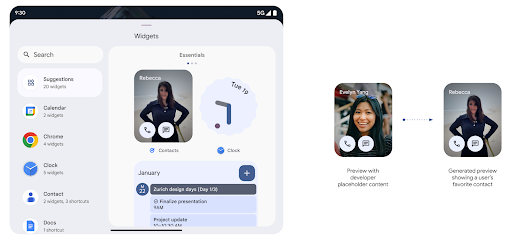
API Đẩy
Ứng dụng có thể cung cấp bản xem trước đã tạo thông qua API đẩy. Ứng dụng có thể cung cấp bản xem trước tại bất kỳ thời điểm nào trong vòng đời và không nhận được yêu cầu rõ ràng từ máy chủ lưu trữ để cung cấp bản xem trước. Bản xem trước được lưu trữ trong AppWidgetService và máy chủ lưu trữ có thể yêu cầu bản xem trước theo yêu cầu. Ví dụ sau đây tải tài nguyên bố cục tiện ích XML và đặt tài nguyên đó làm bản xem trước:
AppWidgetManager.getInstance(appContext).setWidgetPreview(
   ComponentName(
       appContext,
       SociaLiteAppWidgetReceiver::class.java
   ),
   AppWidgetProviderInfo.WIDGET_CATEGORY_HOME_SCREEN,
   RemoteViews("com.example", R.layout.widget_preview)
)
Quy trình dự kiến là:
- Nhà cung cấp tiện ích sẽ gọi
setWidgetPreviewbất cứ lúc nào. Các bản xem trước được cung cấp sẽ được lưu trữ trongAppWidgetServicecùng với thông tin khác của nhà cung cấp. setWidgetPreviewthông báo cho máy chủ lưu trữ về bản xem trước đã cập nhật thông qua lệnh gọi lạiAppWidgetHost.onProvidersChanged. Để phản hồi, máy chủ của tiện ích sẽ tải lại tất cả thông tin của nhà cung cấp.- Khi hiển thị bản xem trước của tiện ích, máy chủ lưu trữ sẽ kiểm tra
AppWidgetProviderInfo.generatedPreviewCategoriesvà nếu được chọn có sẵn danh mục, hãy gọiAppWidgetManager.getWidgetPreviewtới trả về bản xem trước đã lưu cho ứng dụng nhà cung cấp này.
Thời điểm gọi setWidgetPreview
Do không có lệnh gọi lại để cung cấp bản xem trước, ứng dụng có thể chọn gửi bản xem trước bất kỳ lúc nào khi chúng đang chạy. Tần suất cập nhật bản xem trước phụ thuộc vào trường hợp sử dụng tiện ích.
Danh sách sau đây mô tả hai danh mục chính của trường hợp sử dụng bản xem trước:
- Những nhà cung cấp cho thấy dữ liệu thực trong bản xem trước tiện ích, chẳng hạn như dữ liệu được cá nhân hoá hoặc thông tin gần đây. Các nhà cung cấp này có thể thiết lập bản xem trước sau khi người dùng đăng nhập hoặc đã định cấu hình ban đầu trong ứng dụng của họ. Sau đó, họ có thể thiết lập một tác vụ định kỳ để cập nhật bản xem trước theo tần suất mà họ chọn. Ví dụ về loại tiện ích này có thể là ảnh, lịch, thời tiết hoặc tin tức tiện ích.
- Các trình cung cấp hiển thị thông tin tĩnh trong bản xem trước hoặc tiện ích thao tác nhanh mà không hiển thị bất kỳ dữ liệu nào. Các nhà cung cấp này có thể đặt bản xem trước một lần, khi khởi chạy ứng dụng lần đầu tiên. Ví dụ về loại tiện ích này bao gồm trình đơn nhanh tiện ích hành động hoặc tiện ích lối tắt Chrome.
Một số nhà cung cấp có thể hiển thị bản xem trước tĩnh trên bộ chọn chế độ thiết bị trung tâm, nhưng thực tế thông tin trên bộ chọn màn hình chính. Các nhà cung cấp này phải tuân theo hướng dẫn cho cả hai trường hợp sử dụng này để đặt bản xem trước.
Hình trong hình
Android 15 introduces changes in Picture-in-Picture (PiP) ensuring an even smoother transition when entering into PiP mode. This will be beneficial for apps having UI elements overlaid on top of their main UI, which goes into PiP.
Developers use the onPictureInPictureModeChanged callback to define logic
that toggles the visibility of the overlaid UI elements. This callback is
triggered when the PiP enter or exit animation is completed. Beginning in
Android 15, the PictureInPictureUiState class includes another state.
With this UI state, apps targeting Android 15 (API level 35) will observe the
Activity#onPictureInPictureUiStateChanged callback being invoked with
isTransitioningToPip() as soon as the PiP animation starts. There are
many UI elements that are not relevant for the app when it is in PiP mode, for
example views or layout that include information such as suggestions, upcoming
video, ratings, and titles. When the app goes to PiP mode, use the
onPictureInPictureUiStateChanged callback to hide these UI elements. When the
app goes to full screen mode from the PiP window, use
onPictureInPictureModeChanged callback to unhide these elements, as shown in
the following examples:
override fun onPictureInPictureUiStateChanged(pipState: PictureInPictureUiState) {
        if (pipState.isTransitioningToPip()) {
          // Hide UI elements
        }
    }
override fun onPictureInPictureModeChanged(isInPictureInPictureMode: Boolean) {
        if (isInPictureInPictureMode) {
          // Unhide UI elements
        }
    }
This quick visibility toggle of irrelevant UI elements (for a PiP window) helps ensure a smoother and flicker-free PiP enter animation.
Cải thiện quy tắc Không làm phiền
AutomaticZenRule lets apps customize Attention
Management (Do Not Disturb) rules and decide when to activate or deactivate
them. Android 15 greatly enhances these rules with the goal of improving the
user experience. The following enhancements are included:
- Adding types to
AutomaticZenRule, allowing the system to apply special treatment to some rules. - Adding an icon to
AutomaticZenRule, helping to make the modes be more recognizable. - Adding a
triggerDescriptionstring toAutomaticZenRulethat describes the conditions on which the rule should become active for the user. - Added
ZenDeviceEffectstoAutomaticZenRule, allowing rules to trigger things like grayscale display, night mode, or dimming the wallpaper.
Đặt VibrationEffect cho các kênh thông báo
Android 15 supports setting rich vibrations for incoming notifications by
channel using NotificationChannel.setVibrationEffect, so
your users can distinguish between different types of notifications without
having to look at their device.
Khối nội dung trên thanh trạng thái của tính năng chiếu nội dung nghe nhìn và tính năng tự động dừng
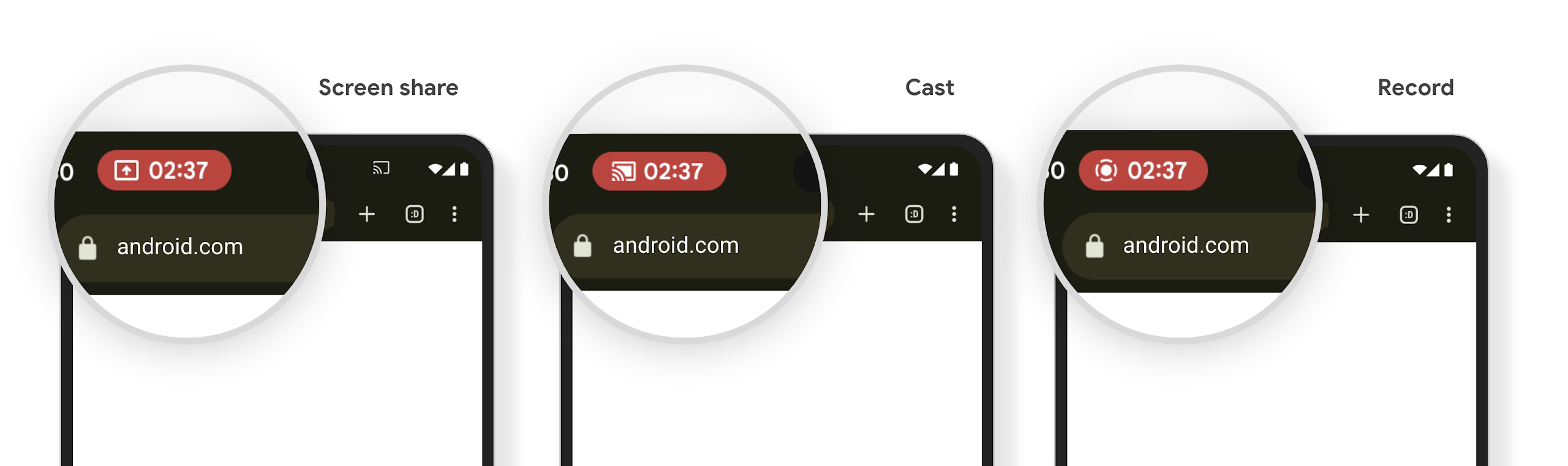
Media projection can expose private user information. A new, prominent status bar chip makes users aware of any ongoing screen projection. Users can tap the chip to stop screen casting, sharing, or recording. Also, for a more intuitive user experience, any in‑progress screen projection now automatically stops when the device screen is locked.
Màn hình lớn và kiểu dáng
Android 15 hỗ trợ các ứng dụng của bạn khai thác tối đa các kiểu dáng của Android, bao gồm cả màn hình lớn, thiết bị có thể lật và thiết bị có thể gập lại.
Cải thiện khả năng đa nhiệm trên màn hình lớn
Android 15 mang đến cho người dùng nhiều cách tốt hơn để làm nhiều việc cùng lúc trên các thiết bị có màn hình lớn. Để Ví dụ: người dùng có thể lưu các kiểu kết hợp ứng dụng mà họ yêu thích ở chế độ chia đôi màn hình để hãy truy cập và ghim thanh tác vụ trên màn hình để chuyển đổi nhanh giữa các ứng dụng. Điều này có nghĩa là việc đảm bảo ứng dụng của bạn có khả năng thích ứng là quan trọng hơn bao giờ hết.
Google I/O có các phiên về chủ đề Xây dựng Android thích ứng ứng dụng và Xây dựng giao diện người dùng bằng Material 3 thư viện thích ứng có thể hữu ích, và tài liệu của chúng tôi có nhiều tài liệu hơn để giúp bạn Thiết kế cho màn hình.
Hỗ trợ màn hình ngoài
Your app can declare a property that Android 15 uses to
allow your Application or Activity to be presented on the small cover
screens of supported flippable devices. These screens are too small to be
considered as compatible targets for Android apps to run on, but your app can
opt in to supporting them, making your app available in more places.
Khả năng kết nối
Android 15 cập nhật nền tảng để ứng dụng của bạn có thể sử dụng những tiến bộ mới nhất về công nghệ truyền thông và không dây.
Hỗ trợ vệ tinh
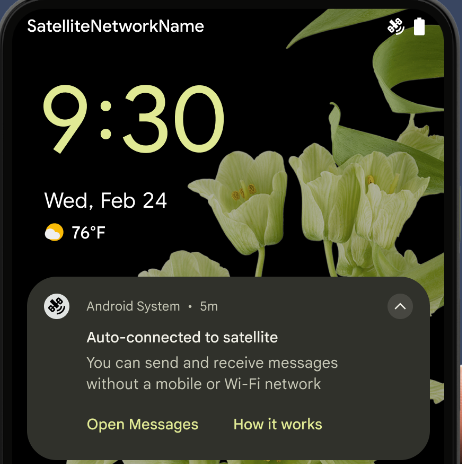
Android 15 continues to extend platform support for satellite connectivity and includes some UI elements to ensure a consistent user experience across the satellite connectivity landscape.
Apps can use ServiceState.isUsingNonTerrestrialNetwork() to
detect when a device is connected to a satellite, giving them more awareness of
why full network services might be unavailable. Additionally, Android 15
provides support for SMS and MMS apps as well as preloaded RCS apps to use
satellite connectivity for sending and receiving messages.
Trải nghiệm NFC mượt mà hơn
Android 15 is working to make the tap to pay experience more seamless and
reliable while continuing to support Android's robust NFC app ecosystem. On
supported devices, apps can request the NfcAdapter to enter
observe mode, where the device listens but doesn't respond to NFC
readers, sending the app's NFC service PollingFrame
objects to process. The PollingFrame objects can be used to auth
ahead of the first communication to the NFC reader, allowing for a one tap
transaction in many cases.
In addition, apps can register a filter on supported devices so they can be notified of polling loop activity, which allows for smooth operation with multiple NFC-aware applications.
Vai trò trong Wallet
Android 15 introduces a Wallet role that allows tighter integration with the user's preferred wallet app. This role replaces the NFC default contactless payment setting. Users can manage the Wallet role holder by navigating to Settings > Apps > Default Apps.
The Wallet role is used when routing NFC taps for AIDs registered in the payment category. Taps always go to the Wallet role holder unless another app that is registered for the same AID is running in the foreground.
This role is also used to determine where the Wallet Quick Access tile should go when activated. When the role is set to "None", the Quick Access tile isn't available and payment category NFC taps are only delivered to the foreground app.
Bảo mật
Android 15 giúp bạn tăng cường tính bảo mật cho ứng dụng, bảo vệ dữ liệu của ứng dụng và mang đến cho người dùng sự minh bạch cũng như quyền kiểm soát đối với dữ liệu của họ. Xem bài nói chuyện Bảo vệ tính bảo mật của người dùng trên Android tại Google I/O để biết thêm về những việc chúng tôi đang làm nhằm cải thiện các biện pháp bảo vệ người dùng và bảo vệ ứng dụng của bạn trước các mối đe doạ mới.
Tích hợp Trình quản lý thông tin xác thực với tính năng tự động điền
Kể từ Android 15, nhà phát triển có thể liên kết các thành phần hiển thị cụ thể như trường tên người dùng hoặc mật khẩu với các yêu cầu của Trình quản lý thông tin xác thực, giúp dễ dàng cung cấp trải nghiệm phù hợp cho người dùng trong quá trình đăng nhập. Khi người dùng tập trung vào một trong các chế độ xem này, một yêu cầu tương ứng sẽ được gửi đến Trình quản lý thông tin xác thực. Thông tin xác thực thu được được tổng hợp trên các trình cung cấp và hiển thị trong giao diện người dùng dự phòng tự động điền, chẳng hạn như đề xuất cùng dòng hoặc đề xuất thả xuống. Thư viện Jetpack androidx.credentials là điểm cuối ưu tiên mà nhà phát triển nên sử dụng và sẽ sớm ra mắt để nâng cao hơn nữa tính năng này trong Android 15 trở lên.
Tích hợp tính năng đăng ký và đăng nhập bằng một lần nhấn với lời nhắc sinh trắc học
Trình quản lý thông tin xác thực tích hợp lời nhắc sinh trắc học vào quy trình tạo thông tin xác thực và đăng nhập, giúp các nhà cung cấp không cần phải quản lý lời nhắc sinh trắc học. Do đó, trình cung cấp thông tin xác thực chỉ cần tập trung vào kết quả của quy trình tạo và nhận, được tăng cường bằng kết quả của quy trình sinh trắc học. Quy trình đơn giản này giúp tạo và truy xuất thông tin xác thực hiệu quả và đơn giản hơn.
Quản lý khoá để mã hoá hai đầu
We are introducing the E2eeContactKeysManager in Android 15, which
facilitates end-to-end encryption (E2EE) in your Android apps by providing an
OS-level API for the storage of cryptographic public keys.
The E2eeContactKeysManager is designed to integrate with the platform
contacts app to give users a centralized way to manage and verify their
contacts' public keys.
Kiểm tra quyền đối với URI nội dung
Android 15 introduces a set of APIs that perform permission checks on content URIs:
Context.checkContentUriPermissionFull: This performs a full permission check on content URIs.Activitymanifest attributerequireContentUriPermissionFromCaller: This enforces specified permissions on the provided content URIs at activity launch.ComponentCallerclass forActivitycallers: This represents the app that launched the activity.
Hỗ trợ tiếp cận
Android 15 bổ sung các tính năng giúp cải thiện khả năng hỗ trợ tiếp cận cho người dùng.
Chữ nổi hiệu quả hơn
In Android 15, we've made it possible for TalkBack to support Braille displays that are using the HID standard over both USB and secure Bluetooth.
This standard, much like the one used by mice and keyboards, will help Android support a wider range of Braille displays over time.
Quốc tế hoá
Android 15 bổ sung các tính năng và chức năng bổ trợ cho trải nghiệm người dùng khi thiết bị được dùng bằng nhiều ngôn ngữ.
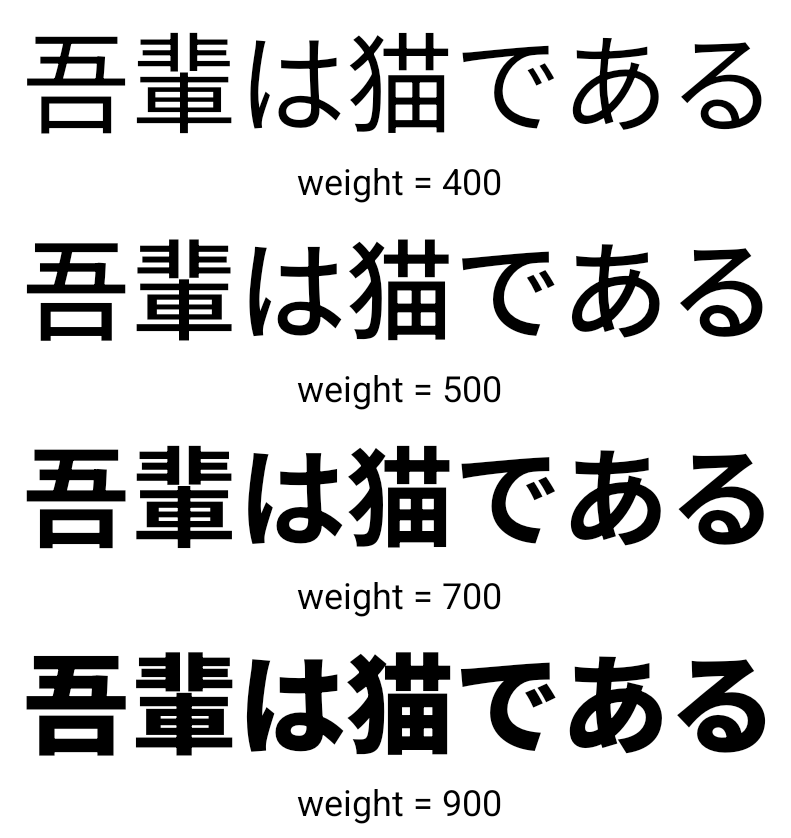
Phông chữ biến đổi CJK
Starting with Android 15, the font file for Chinese, Japanese, and Korean (CJK) languages, NotoSansCJK, is now a variable font. Variable fonts open up possibilities for creative typography in CJK languages. Designers can explore a broader range of styles and create visually striking layouts that were previously difficult or impossible to achieve.
Căn chỉnh giữa các ký tự
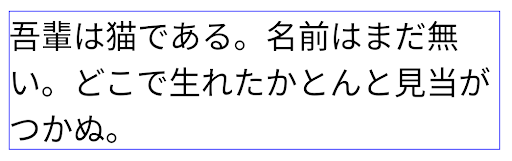
Starting with Android 15, text can be justified utilizing letter spacing by
using JUSTIFICATION_MODE_INTER_CHARACTER. Inter-word justification was
first introduced in Android 8.0 (API level 26), and inter-character
justification provides similar capabilities for languages that use the
whitespace character for segmentation, such as Chinese, Japanese, and others.
JUSTIFICATION_MODE_NONE.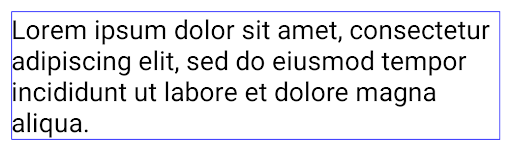
JUSTIFICATION_MODE_NONE.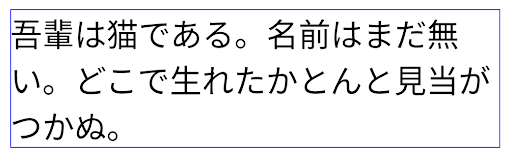
JUSTIFICATION_MODE_INTER_WORD.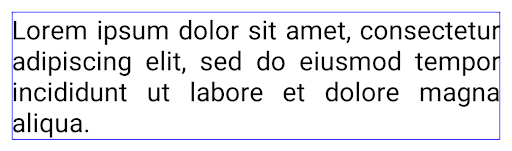
JUSTIFICATION_MODE_INTER_WORD.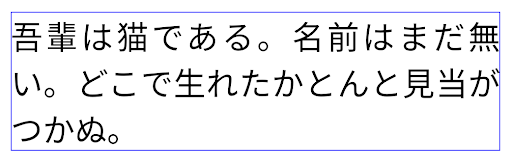
JUSTIFICATION_MODE_INTER_CHARACTER.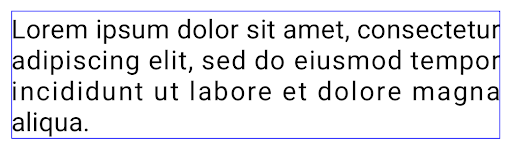
JUSTIFICATION_MODE_INTER_CHARACTER.Cấu hình ngắt dòng tự động
Android bắt đầu hỗ trợ ngắt dòng dựa trên cụm từ cho tiếng Nhật và tiếng Hàn bằng
Android 13 (API cấp 33). Tuy nhiên, mặc dù ngắt dòng dựa trên cụm từ sẽ cải thiện
mức độ dễ đọc của các dòng văn bản ngắn, nhưng chúng sẽ không phù hợp với các dòng văn bản dài.
Trên Android 15, ứng dụng chỉ có thể ngắt dòng dựa trên cụm từ cho các dòng ngắn
văn bản, sử dụng LINE_BREAK_WORD_STYLE_AUTO
. Lựa chọn này chọn kiểu từ phù hợp nhất cho văn bản.
Đối với các dòng văn bản ngắn, dấu ngắt dòng dựa trên cụm từ được sử dụng, hoạt động giống như LINE_BREAK_WORD_STYLE_PHRASE, như minh hoạ trong hình sau:
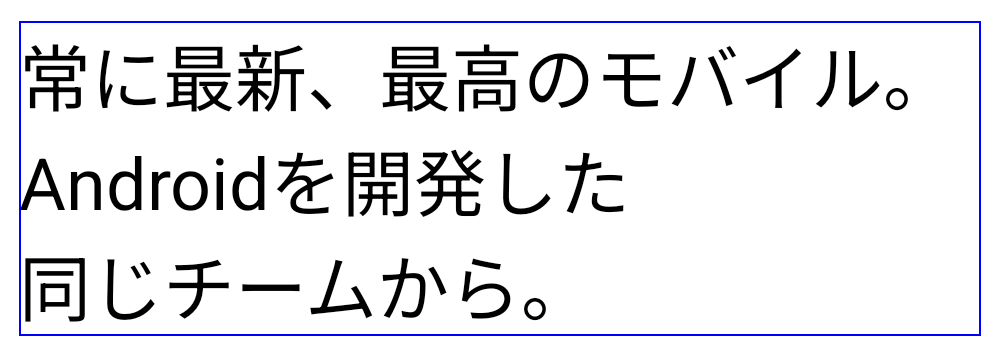
LINE_BREAK_WORD_STYLE_AUTO
áp dụng ngắt dòng dựa trên cụm từ để cải thiện khả năng đọc văn bản.
Điều này giống như việc áp dụng LINE_BREAK_WORD_STYLE_PHRASE.Đối với các dòng văn bản dài hơn, LINE_BREAK_WORD_STYLE_AUTO sử dụng ký tự no
kiểu chữ ngắt dòng, hoạt động giống như
LINE_BREAK_WORD_STYLE_NONE, như được hiển thị trong
hình ảnh sau đây:
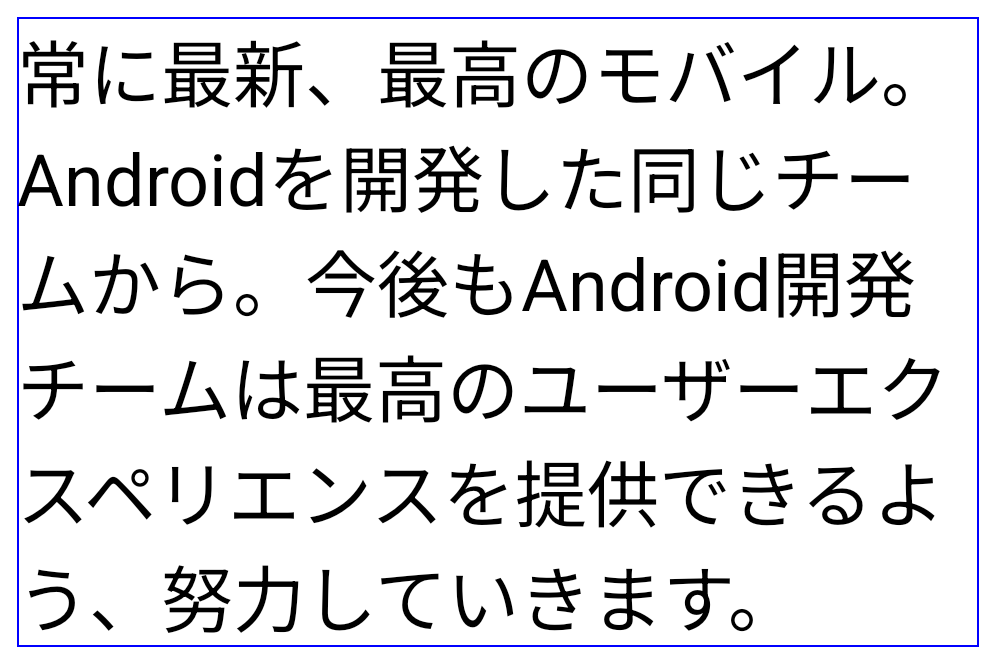
LINE_BREAK_WORD_STYLE_AUTO
sẽ áp dụng kiểu chữ không ngắt dòng để cải thiện khả năng đọc văn bản.
Việc này cũng giống như áp dụng
LINE_BREAK_WORD_STYLE_NONE.Phông chữ Hentaigana tiếng Nhật bổ sung
Trong Android 15, một tệp phông chữ dành cho chữ Hiragana tiếng Nhật cũ (còn gọi là Hentaigana) được nhóm theo mặc định. Hình dạng độc đáo của các nhân vật trong Hentaigana có thể khiến nét đặc trưng riêng cho hình minh hoạ hoặc thiết kế, đồng thời vẫn giúp đảm bảo tính chính xác sự truyền tải và hiểu biết của các tài liệu cổ của Nhật Bản.

VideoLAN cone Copyright (c) 1996-2010 VideoLAN. This logo or a modified version may be used or modified by anyone to refer to the VideoLAN project or any product developed by the VideoLAN team, but does not indicate endorsement by the project.
Vulkan and the Vulkan logo are registered trademarks of the Khronos Group Inc.
OpenGL is a registered trademark and the OpenGL ES logo is a trademark of Hewlett Packard Enterprise used by permission by Khronos.