

Android 15 มีการเปลี่ยนแปลงลักษณะการทำงานที่อาจส่งผลต่อแอปของคุณเช่นเดียวกับรุ่นก่อนๆ โดยการเปลี่ยนแปลงลักษณะการทำงานต่อไปนี้จะมีผลกับแอปที่กำหนดเป้าหมายเป็น Android 15 ขึ้นไปเท่านั้น หากแอปกำหนดเป้าหมายเป็น Android 15 ขึ้นไป คุณควรแก้ไขแอปให้รองรับลักษณะการทำงานเหล่านี้อย่างเหมาะสมในกรณีที่เกี่ยวข้อง
นอกจากนี้ โปรดตรวจสอบรายการการเปลี่ยนแปลงลักษณะการทำงานที่มีผลกับแอปทั้งหมด
ที่ทำงานบน Android 15 ไม่ว่า targetSdkVersionของแอปจะเป็นเวอร์ชันใดก็ตาม
ฟังก์ชันหลัก
Android 15 แก้ไขหรือขยายความสามารถหลักต่างๆ ของระบบ Android
การเปลี่ยนแปลงบริการเบื้องหน้า
เราจะทำการเปลี่ยนแปลงต่อไปนี้กับบริการที่ทำงานอยู่เบื้องหน้าใน Android 15
- ลักษณะการหมดเวลาของบริการที่ทำงานอยู่เบื้องหน้าของการซิงค์ข้อมูล
- ประเภทบริการที่ทำงานอยู่เบื้องหน้าสำหรับการประมวลผลสื่อแบบใหม่
- ข้อจำกัดเกี่ยวกับ
BOOT_COMPLETEDBroadcast Receiver ที่เปิดบริการที่ทำงานอยู่เบื้องหน้า - ข้อจำกัดในการเริ่มบริการที่ทำงานอยู่เบื้องหน้าขณะที่แอปมีสิทธิ์
SYSTEM_ALERT_WINDOW
ลักษณะการหมดเวลาของบริการที่ทำงานอยู่เบื้องหน้าของการซิงค์ข้อมูล
Android 15 เปิดตัวลักษณะการหมดเวลาใหม่สำหรับ dataSync ในแอปที่กำหนดเป้าหมายเป็น Android 15 (API ระดับ 35) ขึ้นไป ลักษณะการทำงานนี้มีผลกับmediaProcessingบริการที่ทำงานอยู่เบื้องหน้าประเภทใหม่ด้วย
ระบบอนุญาตให้บริการ dataSync ของแอปทำงานได้นาน 6 ชั่วโมงโดยรวมในระยะเวลา 24 ชั่วโมง หลังจากนั้นระบบจะเรียกใช้เมธอด Service.onTimeout(int, int) ของบริการที่ทำงานอยู่ (เปิดตัวใน Android 15) ในขณะนี้บริการมีเวลา 2-3 วินาทีในการเรียกใช้ Service.stopSelf() เมื่อมีการเรียกใช้ Service.onTimeout() บริการดังกล่าวจะไม่ถือว่าเป็นบริการที่ทำงานอยู่เบื้องหน้าอีกต่อไป หากบริการไม่ได้เรียกใช้ Service.stopSelf() ระบบจะแสดงข้อผิดพลาดภายใน ระบบจะบันทึกข้อยกเว้นใน Logcat โดยมีข้อความต่อไปนี้
Fatal Exception: android.app.RemoteServiceException: "A foreground service of
type dataSync did not stop within its timeout: [component name]"
หากต้องการหลีกเลี่ยงปัญหาการเปลี่ยนแปลงลักษณะการทำงานนี้ คุณสามารถทำอย่างใดอย่างหนึ่งต่อไปนี้
- ขอให้บริการของคุณใช้วิธีการ
Service.onTimeout(int, int)ใหม่ เมื่อแอปได้รับการติดต่อกลับ ให้โทรหาstopSelf()ภายใน 2-3 วินาที (หากคุณไม่หยุดแอปทันที ระบบจะสร้างสถานะ "ไม่สำเร็จ") - ตรวจสอบว่าบริการ
dataSyncของแอปไม่ทำงานเป็นเวลารวม 6 ชั่วโมงในช่วง 24 ชั่วโมงใดก็ได้ (เว้นแต่ผู้ใช้โต้ตอบกับแอป จะเป็นการรีเซ็ตตัวจับเวลา) - เริ่มบริการที่ทำงานอยู่เบื้องหน้า
dataSyncเฉพาะในกรณีที่มีการโต้ตอบโดยตรงจากผู้ใช้ เนื่องจากแอปของคุณอยู่เบื้องหน้าเมื่อบริการเริ่มทำงาน บริการของคุณจึงมีเวลา 6 ชั่วโมงเต็มหลังจากที่แอปเปลี่ยนไปทำงานในเบื้องหลัง - ใช้API อื่นแทน
dataSyncบริการที่ทำงานอยู่เบื้องหน้า
หากบริการที่ทำงานอยู่เบื้องหน้า dataSync ของแอปทำงานเป็นเวลา 6 ชั่วโมงในช่วง 24 ชั่วโมงที่ผ่านมา คุณจะไม่สามารถเริ่มบริการที่ทำงานอยู่เบื้องหน้า dataSync อื่นได้เว้นแต่ผู้ใช้จะนำแอปของคุณไปไว้ที่เบื้องหน้า (ซึ่งจะรีเซ็ตตัวจับเวลา) หากคุณพยายามเริ่มบริการที่ทำงานอยู่เบื้องหน้า dataSync อื่น ระบบจะแสดง ForegroundServiceStartNotAllowedException พร้อมข้อความแสดงข้อผิดพลาด เช่น "หมดเวลาสำหรับบริการที่ทำงานอยู่เบื้องหน้าประเภท dataSync แล้ว"
การทดสอบ
หากต้องการทดสอบลักษณะการทํางานของแอป คุณสามารถเปิดใช้การหมดเวลาการซิงค์ข้อมูลได้แม้ว่าแอปจะไม่กําหนดเป้าหมายเป็น Android 15 ก็ตาม (ตราบใดที่แอปทํางานบนอุปกรณ์ Android 15) หากต้องการเปิดใช้การหมดเวลา ให้เรียกใช้คำสั่ง adb ต่อไปนี้
adb shell am compat enable FGS_INTRODUCE_TIME_LIMITS your-package-name
นอกจากนี้ คุณยังปรับระยะเวลาหมดเวลาเพื่อให้ทดสอบลักษณะการทํางานของแอปเมื่อถึงขีดจํากัดได้ง่ายขึ้นได้ด้วย หากต้องการตั้งค่าระยะเวลาหมดเวลาใหม่ ให้เรียกใช้คำสั่ง adb ต่อไปนี้
adb shell device_config put activity_manager data_sync_fgs_timeout_duration duration-in-milliseconds
ประเภทบริการที่ทำงานอยู่เบื้องหน้าใหม่สำหรับการประมวลผลสื่อ
Android 15 ขอแนะนำบริการที่ทำงานอยู่เบื้องหน้าประเภทใหม่ ได้แก่ mediaProcessing บริการประเภทนี้เหมาะสำหรับการดำเนินการต่างๆ เช่น การแปลงไฟล์สื่อ เช่น แอปสื่ออาจดาวน์โหลดไฟล์เสียงและต้องแปลงไฟล์เป็นรูปแบบอื่นก่อนเล่น คุณสามารถใช้mediaProcessingบริการที่ทำงานอยู่เบื้องหน้าเพื่อให้ Conversion ดำเนินต่อไปได้แม้ว่าแอปจะทำงานอยู่เบื้องหลัง
ระบบอนุญาตให้บริการ mediaProcessing ของแอปทำงานได้นาน 6 ชั่วโมงโดยรวมในระยะเวลา 24 ชั่วโมง หลังจากนั้นระบบจะเรียกใช้เมธอด Service.onTimeout(int, int) ของบริการที่ทำงานอยู่ (เปิดตัวใน Android 15) ขณะนี้บริการมีเวลา 2-3 วินาทีในการโทรไปที่ Service.stopSelf() หากบริการไม่ได้เรียกใช้ Service.stopSelf() ระบบจะแสดงข้อยกเว้นภายใน ระบบจะบันทึกข้อยกเว้นใน Logcat พร้อมข้อความต่อไปนี้
Fatal Exception: android.app.RemoteServiceException: "A foreground service of
type mediaProcessing did not stop within its timeout: [component name]"
หากต้องการหลีกเลี่ยงการมีข้อยกเว้น ให้ทําอย่างใดอย่างหนึ่งต่อไปนี้
- ให้บริการของคุณใช้วิธีการ
Service.onTimeout(int, int)ใหม่ เมื่อแอปได้รับการติดต่อกลับ โปรดโทรหาstopSelf()ภายในไม่กี่วินาที (หากคุณไม่หยุดแอปในทันที ระบบจะล้มเหลว) - ตรวจสอบว่าบริการ
mediaProcessingของแอปไม่ทำงานเป็นเวลานานกว่า 6 ชั่วโมงในทุกๆ 24 ชั่วโมง (เว้นแต่ผู้ใช้โต้ตอบกับแอป จะเป็นการรีเซ็ตตัวจับเวลา) - เริ่มบริการที่ทำงานอยู่เบื้องหน้า
mediaProcessingเฉพาะในกรณีที่มีการโต้ตอบโดยตรงจากผู้ใช้ เนื่องจากแอปของคุณอยู่เบื้องหน้าเมื่อบริการเริ่มทำงาน บริการของคุณจึงมีเวลา 6 ชั่วโมงเต็มหลังจากที่แอปเปลี่ยนไปทำงานในเบื้องหลัง - ใช้ API อื่น เช่น WorkManager แทนบริการที่ทำงานอยู่เบื้องหน้าของ
mediaProcessing
หากบริการที่ทำงานอยู่เบื้องหน้า mediaProcessing ของแอปทำงานเป็นเวลา 6 ชั่วโมงในช่วง 24 ชั่วโมงที่ผ่านมา คุณจะไม่สามารถเริ่มบริการที่ทำงานอยู่เบื้องหน้า mediaProcessing อื่นได้เว้นแต่ผู้ใช้จะนำแอปของคุณไปไว้ที่เบื้องหน้า (ซึ่งจะรีเซ็ตตัวจับเวลา) หากคุณพยายามเริ่มบริการที่ทำงานอยู่เบื้องหน้า mediaProcessing รายการอื่น ระบบจะแสดงForegroundServiceStartNotAllowedExceptionพร้อมข้อความแสดงข้อผิดพลาด เช่น "บริการที่ทำงานอยู่เบื้องหน้าประเภท mediaProcessing หมดเวลาแล้ว"
ดูข้อมูลเพิ่มเติมเกี่ยวกับประเภทบริการ mediaProcessing ได้ที่การเปลี่ยนแปลงประเภทบริการที่ทำงานอยู่เบื้องหน้าสำหรับ Android 15: การประมวลผลสื่อ
การทดสอบ
หากต้องการทดสอบลักษณะการทำงานของแอป ให้เปิดใช้ระยะหมดเวลาการประมวลผลสื่อ แม้ว่าแอปจะไม่ได้กำหนดเป้าหมายเป็น Android 15 ก็ตาม (ตราบใดที่แอปทำงานอยู่ในอุปกรณ์ Android 15) หากต้องการเปิดใช้การหมดเวลา ให้เรียกใช้คำสั่ง adb ต่อไปนี้
adb shell am compat enable FGS_INTRODUCE_TIME_LIMITS your-package-name
นอกจากนี้ คุณยังปรับระยะเวลาหมดเวลาเพื่อให้ทดสอบลักษณะการทํางานของแอปเมื่อถึงขีดจํากัดได้ง่ายขึ้นได้ด้วย หากต้องการตั้งค่าระยะเวลาหมดเวลาใหม่ ให้เรียกใช้คำสั่ง adb ต่อไปนี้
adb shell device_config put activity_manager media_processing_fgs_timeout_duration duration-in-milliseconds
ข้อจำกัดเกี่ยวกับ Broadcast Receiver BOOT_COMPLETED ที่เปิดบริการที่ทำงานอยู่เบื้องหน้า
มีข้อจำกัดใหม่ในการเปิดตัว Broadcast Receiver ของ BOOT_COMPLETED
บริการที่ทำงานอยู่เบื้องหน้า ระบบไม่อนุญาตให้ Receiver BOOT_COMPLETED เปิดบริการที่ทำงานอยู่เบื้องหน้าประเภทต่อไปนี้
dataSynccameramediaPlaybackphoneCallmediaProjectionmicrophone(ข้อจำกัดนี้มีการใช้มาเป็นเวลาmicrophoneตั้งแต่ Android 14)
หากตัวรับสัญญาณ BOOT_COMPLETED พยายามเปิดเบื้องหน้าประเภทใดก็ตามเหล่านี้
ระบบอาจไม่แสดง ForegroundServiceStartNotAllowedException
การทดสอบ
หากต้องการทดสอบลักษณะการทำงานของแอป คุณสามารถเปิดใช้ข้อจำกัดใหม่เหล่านี้ได้ แม้ว่า
แอปไม่ได้กําหนดเป้าหมายเป็น Android 15 (ตราบใดที่แอปยังทํางานอยู่ใน Android 15
อุปกรณ์) เรียกใช้คำสั่ง adb ต่อไปนี้
adb shell am compat enable FGS_BOOT_COMPLETED_RESTRICTIONS your-package-name
หากต้องการส่งประกาศBOOT_COMPLETEDโดยไม่ต้องรีสตาร์ทอุปกรณ์ ให้ทำดังนี้
เรียกใช้คำสั่ง adb ต่อไปนี้
adb shell am broadcast -a android.intent.action.BOOT_COMPLETED your-package-name
ข้อจำกัดในการเริ่มบริการที่ทำงานอยู่เบื้องหน้าขณะที่แอปมีสิทธิ์ SYSTEM_ALERT_WINDOW
ก่อนหน้านี้ หากแอปมีสิทธิ์ SYSTEM_ALERT_WINDOW แอปจะเปิดบริการที่ทำงานอยู่เบื้องหน้าได้แม้ว่าในขณะนั้นแอปจะทำงานอยู่เบื้องหลังก็ตาม (ตามที่ได้อธิบายไว้ในการยกเว้นจากการจำกัดการเริ่มทำงานในเบื้องหลัง)
หากแอปกำหนดเป้าหมายเป็น Android 15 การยกเว้นนี้จะแคบลงแล้ว ตอนนี้แอปต้องมีสิทธิ์ SYSTEM_ALERT_WINDOW และต้องมีหน้าต่างวางซ้อนที่มองเห็นได้ กล่าวคือ แอปต้องเปิดหน้าต่าง TYPE_APPLICATION_OVERLAY ก่อน และหน้าต่างต้องปรากฏขึ้นก่อนที่คุณจะเริ่มบริการที่ทำงานอยู่เบื้องหน้า
หากแอปพยายามเริ่มบริการที่ทำงานอยู่เบื้องหน้าจากเบื้องหลังโดยไม่เป็นไปตามข้อกำหนดใหม่เหล่านี้ (และไม่มีข้อยกเว้นอื่นๆ) ระบบจะแสดงข้อผิดพลาด ForegroundServiceStartNotAllowedException
หากแอปประกาศสิทธิ์ SYSTEM_ALERT_WINDOW และเปิดบริการที่ทำงานอยู่เบื้องหน้าจากเบื้องหลัง แอปอาจได้รับผลกระทบจากการเปลี่ยนแปลงนี้ หากแอปได้รับ ForegroundServiceStartNotAllowedException ให้ตรวจสอบลําดับการทํางานของแอปและตรวจสอบว่าแอปมีหน้าต่างวางซ้อนที่ใช้งานอยู่ก่อนที่จะพยายามเริ่มบริการที่ทำงานอยู่เบื้องหน้าจากเบื้องหลัง คุณสามารถตรวจสอบว่าขณะนี้หน้าต่างวางซ้อนแสดงอยู่หรือไม่โดยเรียกใช้ View.getWindowVisibility() หรือจะลบล้าง View.onWindowVisibilityChanged() เพื่อรับการแจ้งเตือนทุกครั้งที่ระดับการแชร์มีการเปลี่ยนแปลงก็ได้
การทดสอบ
หากต้องการทดสอบลักษณะการทํางานของแอป คุณสามารถเปิดใช้ข้อจํากัดใหม่เหล่านี้ได้แม้ว่าแอปของคุณจะไม่กําหนดเป้าหมายเป็น Android 15 ก็ตาม (ตราบใดที่แอปทํางานบนอุปกรณ์ Android 15) หากต้องการเปิดใช้ข้อจำกัดใหม่เหล่านี้เกี่ยวกับการเริ่มบริการที่ทำงานอยู่เบื้องหน้าจากเบื้องหลัง ให้เรียกใช้คำสั่ง adb ต่อไปนี้
adb shell am compat enable FGS_SAW_RESTRICTIONS your-package-name
การเปลี่ยนแปลงเวลาที่แอปจะแก้ไขสถานะส่วนกลางของโหมดอย่ารบกวนได้
แอปที่กำหนดเป้าหมายเป็น Android 15 (API ระดับ 35) ขึ้นไปจะไม่สามารถเปลี่ยนแปลงสถานะหรือนโยบายแบบรวมของโหมดห้ามรบกวน (DND) ในอุปกรณ์ได้อีกต่อไป (ไม่ว่าจะแก้ไขการตั้งค่าของผู้ใช้หรือปิดโหมด DND) แต่แอปต้องส่งAutomaticZenRule ซึ่งระบบจะรวมเข้ากับนโยบายส่วนกลางโดยใช้รูปแบบ "นโยบายที่เข้มงวดที่สุดจะชนะ" ที่มีอยู่ การเรียก API ที่มีอยู่ซึ่งก่อนหน้านี้ส่งผลต่อสถานะส่วนกลาง (setInterruptionFilter,
setNotificationPolicy) จะส่งผลให้มีการสร้างหรืออัปเดต AutomaticZenRule ที่ไม่ชัดแจ้ง ซึ่งจะเปิดและปิดอยู่โดยขึ้นอยู่กับรอบการเรียกของ API เหล่านั้น
โปรดทราบว่าการเปลี่ยนแปลงนี้มีผลต่อลักษณะการทำงานที่สังเกตได้เฉพาะในกรณีที่แอปเรียกใช้ setInterruptionFilter(INTERRUPTION_FILTER_ALL) และคาดว่าการเรียกใช้ดังกล่าวจะปิดใช้งาน AutomaticZenRule ที่เจ้าของเปิดใช้งานไว้ก่อนหน้านี้
การเปลี่ยนแปลง OpenJDK API
Android 15 ยังคงดำเนินการรีเฟรชไลบรารีหลักของ Android ให้สอดคล้องกับฟีเจอร์ใน OpenJDK LTS เวอร์ชันล่าสุด
การเปลี่ยนแปลงบางอย่างเหล่านี้อาจส่งผลต่อความเข้ากันได้ของแอปที่กำหนดเป้าหมายเป็น Android 15 (ระดับ API 35) ดังนี้
การเปลี่ยนแปลง API การจัดรูปแบบสตริง: ตอนนี้การตรวจสอบดัชนีอาร์กิวเมนต์ แฟล็ก ความกว้าง และความแม่นยำจะเข้มงวดมากขึ้นเมื่อใช้ API
String.format()และFormatter.format()ต่อไปนี้String.format(String, Object[])String.format(Locale, String, Object[])Formatter.format(String, Object[])Formatter.format(Locale, String, Object[])
ตัวอย่างเช่น ระบบจะแสดงข้อยกเว้นต่อไปนี้เมื่อใช้อาร์กิวเมนต์ดัชนี 0 (
%0ในสตริงรูปแบบ)IllegalFormatArgumentIndexException: Illegal format argument index = 0ในกรณีนี้ คุณสามารถแก้ไขปัญหาได้โดยใช้อาร์กิวเมนต์ดัชนี 1 (
%1ในสตริงรูปแบบ)การเปลี่ยนแปลงประเภทคอมโพเนนต์ของ
Arrays.asList(...).toArray(): เมื่อใช้Arrays.asList(...).toArray()ประเภทคอมโพเนนต์ของอาร์เรย์ผลลัพธ์จะเป็นObjectไม่ใช่ประเภทขององค์ประกอบของอาร์เรย์พื้นฐาน ดังนั้นโค้ดต่อไปนี้จะแสดงClassCastExceptionString[] elements = (String[]) Arrays.asList("one", "two").toArray();ในกรณีนี้ หากต้องการเก็บ
Stringไว้เป็นประเภทคอมโพเนนต์ในอาร์เรย์ผลลัพธ์ คุณสามารถใช้Collection.toArray(Object[])แทนได้String[] elements = Arrays.asList("two", "one").toArray(new String[0]);การเปลี่ยนแปลงการจัดการรหัสภาษา: เมื่อใช้
LocaleAPI ระบบจะไม่แปลงรหัสภาษาสำหรับภาษาฮีบรู ภาษายิดดิช และภาษาอินโดนีเซียเป็นรูปแบบที่ล้าสมัยอีกต่อไป (ฮีบรู:iw, ยิดดิช:jiและอินโดนีเซีย:in) เมื่อระบุรหัสภาษาสำหรับภาษาใดภาษาหนึ่งเหล่านี้ ให้ใช้รหัสจาก ISO 639-1 แทน (ฮีบรู:he, ยิดดิช:yiและอินโดนีเซีย:id)การเปลี่ยนแปลงลำดับจำนวนเต็มแบบสุ่ม: หลังจากทำการเปลี่ยนแปลงใน https://bugs.openjdk.org/browse/JDK-8301574 แล้ว ตอนนี้เมธอด
Random.ints()ต่อไปนี้จะแสดงลำดับตัวเลขที่แตกต่างจากเมธอดRandom.nextInt()โดยทั่วไป การเปลี่ยนแปลงนี้ไม่ควรทำให้เกิดลักษณะการทำงานที่ทำให้แอปหยุดทำงาน แต่โค้ดของคุณไม่ควรคาดหวังว่าลำดับที่สร้างจากเมธอด
Random.ints()จะตรงกับRandom.nextInt()
SequencedCollection API ใหม่นี้อาจส่งผลต่อความเข้ากันได้ของแอปหลังจากที่คุณอัปเดต compileSdk ในการกำหนดค่าบิลด์ของแอปเพื่อใช้ Android 15 (API ระดับ 35)
ความขัดแย้งกับฟังก์ชันส่วนขยาย
MutableList.removeFirst()และMutableList.removeLast()ในkotlin-stdlibประเภท
Listใน Java จะแมปกับประเภทMutableListใน Kotlin เนื่องจากมีการเปิดตัว APIList.removeFirst()และList.removeLast()ใน Android 15 (API ระดับ 35) คอมไพเลอร์ Kotlin จึงแก้ไขการเรียกใช้ฟังก์ชัน เช่นlist.removeFirst()แบบคงที่ไปยังListAPI ใหม่แทนที่จะเป็นฟังก์ชันส่วนขยายในkotlin-stdlibหากมีการคอมไพล์แอปอีกครั้งโดยตั้งค่า
compileSdkเป็น35และตั้งค่าminSdkเป็น34หรือต่ำกว่า จากนั้นเรียกใช้แอปใน Android 14 หรือต่ำกว่า ระบบจะแสดงข้อผิดพลาดรันไทม์java.lang.NoSuchMethodError: No virtual method removeFirst()Ljava/lang/Object; in class Ljava/util/ArrayList;NewApiตัวเลือก Lint ที่มีอยู่ในปลั๊กอิน Android Gradle สามารถตรวจพบการใช้ API ใหม่เหล่านี้ได้./gradlew lintMainActivity.kt:41: Error: Call requires API level 35 (current min is 34): java.util.List#removeFirst [NewApi] list.removeFirst()หากต้องการแก้ไขข้อยกเว้นรันไทม์และข้อผิดพลาดของ Lint คุณสามารถแทนที่การเรียกใช้ฟังก์ชัน
removeFirst()และremoveLast()ด้วยremoveAt(0)และremoveAt(list.lastIndex)ตามลำดับใน Kotlin หากคุณใช้ Android Studio Ladybug | 2024.1.3 ขึ้นไป ก็จะมีตัวเลือกการแก้ไขด่วนสำหรับข้อผิดพลาดเหล่านี้ด้วยพิจารณานำ
@SuppressLint("NewApi")และlintOptions { disable 'NewApi' }ออกหากปิดใช้ตัวเลือก Lint แล้วความขัดแย้งกับเมธอดอื่นๆ ใน Java
เราได้เพิ่มวิธีการใหม่ๆ ลงในประเภทที่มีอยู่แล้ว เช่น
ListและDequeวิธีการใหม่เหล่านี้อาจใช้ร่วมกับวิธีการที่มีชื่อและประเภทอาร์กิวเมนต์เดียวกันในอินเทอร์เฟซและคลาสอื่นๆ ไม่ได้ ในกรณีที่ลายเซ็นของเมธอดขัดแย้งกับความไม่เข้ากัน คอมไพเลอร์javacจะแสดงข้อผิดพลาดเวลาบิลด์ เช่นตัวอย่างข้อผิดพลาด 1
javac MyList.javaMyList.java:135: error: removeLast() in MyList cannot implement removeLast() in List public void removeLast() { ^ return type void is not compatible with Object where E is a type-variable: E extends Object declared in interface Listตัวอย่างข้อผิดพลาด 2
javac MyList.javaMyList.java:7: error: types Deque<Object> and List<Object> are incompatible; public class MyList implements List<Object>, Deque<Object> { both define reversed(), but with unrelated return types 1 errorตัวอย่างข้อผิดพลาด 3
javac MyList.javaMyList.java:43: error: types List<E#1> and MyInterface<E#2> are incompatible; public static class MyList implements List<Object>, MyInterface<Object> { class MyList inherits unrelated defaults for getFirst() from types List and MyInterface where E#1,E#2 are type-variables: E#1 extends Object declared in interface List E#2 extends Object declared in interface MyInterface 1 errorหากต้องการแก้ไขข้อผิดพลาดในการบิลด์เหล่านี้ คลาสที่ใช้การติดตั้งอินเทอร์เฟซเหล่านี้ควรลบล้างเมธอดด้วยประเภทการแสดงผลที่เข้ากันได้ เช่น
@Override
public Object getFirst() {
    return List.super.getFirst();
}
ความปลอดภัย
Android 15 มีการเปลี่ยนแปลงที่ส่งเสริมความปลอดภัยของระบบเพื่อช่วยปกป้องแอปและผู้ใช้จากแอปที่เป็นอันตราย
เวอร์ชัน TLS ที่จำกัด
Android 15 จำกัดการใช้ TLS เวอร์ชัน 1.0 และ 1.1 ก่อนหน้านี้ Android ได้เลิกใช้งานเวอร์ชันเหล่านี้แล้ว แต่ตอนนี้ไม่อนุญาตให้แอปที่กําหนดเป้าหมายเป็น Android 15 ใช้เวอร์ชันดังกล่าว
การเปิดใช้กิจกรรมในเบื้องหลังที่ปลอดภัย
Android 15 ปกป้องผู้ใช้จากแอปที่เป็นอันตรายและให้ผู้ใช้ควบคุมอุปกรณ์ได้มากขึ้น โดยการเพิ่มการเปลี่ยนแปลงที่ป้องกันไม่ให้แอปที่เป็นอันตรายซึ่งทำงานในเบื้องหลัง นำแอปอื่นๆ มาไว้ที่เบื้องหน้า ยกระดับสิทธิ์ และละเมิด การโต้ตอบของผู้ใช้ การเปิดใช้กิจกรรมในเบื้องหลังถูกจำกัดตั้งแต่ Android 10 (API ระดับ 29)
การเปลี่ยนแปลงอื่นๆ
- เปลี่ยนให้ครีเอเตอร์
PendingIntentบล็อกการเปิดใช้กิจกรรมในเบื้องหลังโดย ค่าเริ่มต้น ซึ่งจะช่วยป้องกันไม่ให้แอปสร้างPendingIntentโดยไม่ได้ตั้งใจ ซึ่งผู้ไม่ประสงค์ดีอาจนำไปใช้ในทางที่ผิดได้ - อย่านำแอปมาไว้เบื้องหน้า เว้นแต่
PendingIntentผู้ส่ง จะอนุญาต การเปลี่ยนแปลงนี้มีจุดมุ่งหมายเพื่อป้องกันไม่ให้แอปที่เป็นอันตรายใช้ความสามารถในการเริ่มกิจกรรมในเบื้องหลังในทางที่ผิด โดยค่าเริ่มต้น แอปจะไม่ได้รับอนุญาตให้นำสแต็กงานมาไว้ที่เบื้องหน้า เว้นแต่ผู้สร้างจะอนุญาตสิทธิ์ในการเปิดกิจกรรมในเบื้องหลัง หรือผู้ส่งมีสิทธิ์ในการเปิดกิจกรรมในเบื้องหลัง - ควบคุมวิธีที่กิจกรรมบนสุดของสแต็กงานจะทำงานให้เสร็จ หากกิจกรรมที่อยู่ด้านบนสุดทำงานเสร็จแล้ว Android จะกลับไปที่งานที่ใช้งานล่าสุด นอกจากนี้ หากกิจกรรมที่ไม่ใช่กิจกรรมที่อยู่ด้านบนสุดทำงานเสร็จ Android จะ กลับไปที่หน้าจอหลัก และจะไม่บล็อกการสิ้นสุดของกิจกรรมที่ไม่ใช่กิจกรรมที่อยู่ด้านบนสุดนี้
- ป้องกันไม่ให้แอปอื่นๆ เปิดกิจกรรมที่กำหนดเองในงานของคุณ การเปลี่ยนแปลงนี้จะป้องกันไม่ให้แอปที่เป็นอันตรายฟิชชิงผู้ใช้โดยการสร้าง กิจกรรมที่ดูเหมือนมาจากแอปอื่นๆ
- บล็อกไม่ให้ระบบพิจารณาหน้าต่างที่มองไม่เห็นสำหรับการเปิดใช้กิจกรรมในเบื้องหลัง ซึ่งจะช่วยป้องกันไม่ให้แอปที่เป็นอันตรายใช้การเปิดใช้งานในเบื้องหลังในทางที่ผิดเพื่อแสดงเนื้อหาที่ไม่พึงประสงค์หรือเนื้อหาที่เป็นอันตรายต่อผู้ใช้
Intent ที่ปลอดภัยยิ่งขึ้น
Android 15 ขอแนะนำ StrictMode สำหรับ
Intent
หากต้องการดูบันทึกโดยละเอียดเกี่ยวกับการละเมิดการใช้งาน Intent ให้ใช้วิธีต่อไปนี้
Kotlin
fun onCreate() {
    StrictMode.setVmPolicy(VmPolicy.Builder()
        .detectUnsafeIntentLaunch()
        .build()
    )
}
Java
public void onCreate() {
    StrictMode.setVmPolicy(new VmPolicy.Builder()
            .detectUnsafeIntentLaunch()
            .build());
}
ประสบการณ์ของผู้ใช้และ UI ของระบบ
Android 15 มีการเปลี่ยนแปลงบางอย่างที่มุ่งสร้างประสบการณ์ของผู้ใช้ที่สอดคล้องและใช้งานง่ายยิ่งขึ้น
การเปลี่ยนแปลงส่วนที่เว้นไว้ในหน้าต่าง
การเปลี่ยนแปลงที่เกี่ยวข้องกับส่วนแทรกของหน้าต่างใน Android 15 มี 2 อย่าง ได้แก่ ระบบจะบังคับใช้การแสดงผลแบบเต็มหน้าจอโดยค่าเริ่มต้น และยังมีการเปลี่ยนแปลงการกำหนดค่า เช่น การกําหนดค่าเริ่มต้นของแถบระบบ
การบังคับใช้แบบไร้ขอบ
แอปจะแสดงผลแบบไร้ขอบโดยค่าเริ่มต้นในอุปกรณ์ที่ใช้ Android 15 หากแอปกำหนดเป้าหมายเป็น Android 15 (ระดับ API 35)
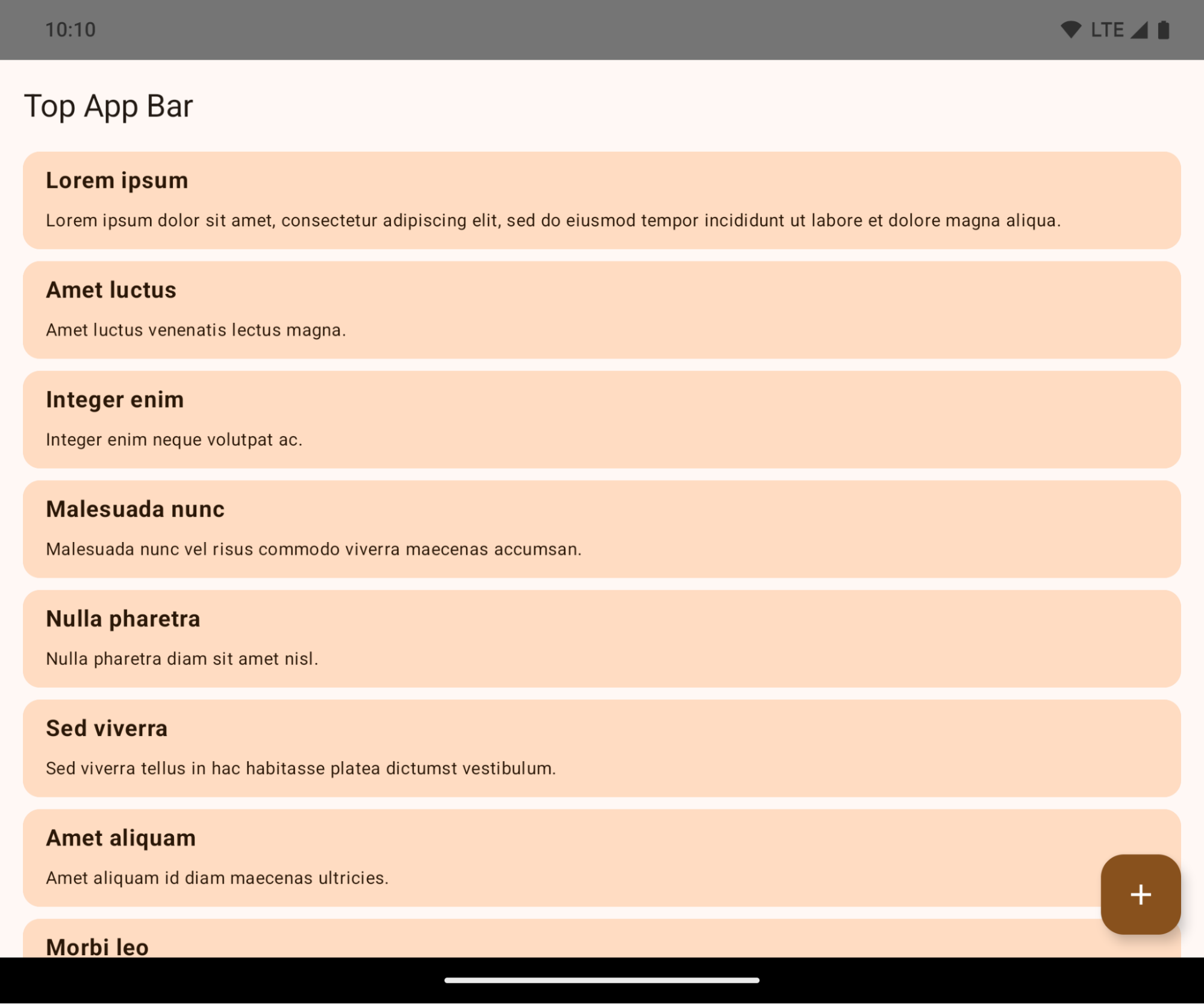
นี่เป็นการเปลี่ยนแปลงที่อาจทำให้เกิดปัญหาซึ่งอาจส่งผลเสียต่อ UI ของแอป การเปลี่ยนแปลงนี้จะส่งผลต่อพื้นที่ UI ต่อไปนี้
- แถบนำทางด้วยท่าทางสัมผัส
- โปร่งใสโดยค่าเริ่มต้น
- ระบบจะปิดใช้การชดเชยด้านล่างเพื่อให้เนื้อหาแสดงอยู่ด้านหลังแถบนำทางของระบบ เว้นแต่จะมีการใช้ระยะขอบ
setNavigationBarColorและR.attr#navigationBarColorเลิกใช้งานแล้วและไม่ส่งผลต่อการไปยังส่วนต่างๆ ด้วยท่าทางสัมผัสsetNavigationBarContrastEnforcedและR.attr#navigationBarContrastEnforcedจะยังคงไม่ส่งผลต่อการไปยังส่วนต่างๆ ด้วยท่าทางสัมผัส
- การไปยังส่วนต่างๆ แบบ 3 ปุ่ม
- ความทึบแสงตั้งค่าเป็น 80% โดยค่าเริ่มต้น และสีอาจตรงกับพื้นหลังของหน้าต่าง
- ปิดใช้การชดเชยด้านล่างเพื่อให้เนื้อหาแสดงอยู่ด้านหลังแถบนำทางของระบบ เว้นแต่จะมีการใช้ส่วนที่เว้นไว้
setNavigationBarColorและR.attr#navigationBarColorจะตั้งค่าให้ตรงกับพื้นหลังของหน้าต่างโดยค่าเริ่มต้น พื้นหลังของหน้าต่างต้องเป็น Drawable สีเพื่อให้ค่าเริ่มต้นนี้มีผล API นี้เลิกใช้งานแล้วแต่ยังคงส่งผลต่อการไปยังส่วนต่างๆ แบบ 3 ปุ่มsetNavigationBarContrastEnforcedและR.attr#navigationBarContrastEnforcedเป็นจริงโดยค่าเริ่มต้น ซึ่งจะเพิ่มพื้นหลังทึบแสง 80% ในการไปยังส่วนต่างๆ แบบ 3 ปุ่ม
- แถบสถานะ
- โปร่งใสโดยค่าเริ่มต้น
- ระบบจะปิดใช้การชดเชยด้านบนเพื่อให้เนื้อหาแสดงอยู่ด้านหลังแถบสถานะ เว้นแต่จะมีการใช้ระยะขอบ
setStatusBarColorและR.attr#statusBarColorเลิกใช้งานแล้วและไม่มีผลกับ Android 15setStatusBarContrastEnforcedและR.attr#statusBarContrastEnforcedเลิกใช้งานแล้วแต่ยังคงมีผลกับ Android 15
- หน้าจอรอยบาก
layoutInDisplayCutoutModeของหน้าต่างที่ไม่ลอยต้องเป็นLAYOUT_IN_DISPLAY_CUTOUT_MODE_ALWAYSระบบจะตีความSHORT_EDGES,NEVERและDEFAULTเป็นALWAYSเพื่อไม่ให้ผู้ใช้เห็นแถบสีดำที่เกิดจากหน้าจอรอยบากและแสดงผลแบบไร้ขอบ
ตัวอย่างต่อไปนี้แสดงแอปก่อนและหลังกำหนดเป้าหมายเป็น Android 15 (ระดับ API 35) รวมถึงก่อนและหลังใช้ส่วนที่เว้นไว้ ตัวอย่างนี้ไม่ครอบคลุมทั้งหมด และอาจปรากฏแตกต่างกันใน Android Auto

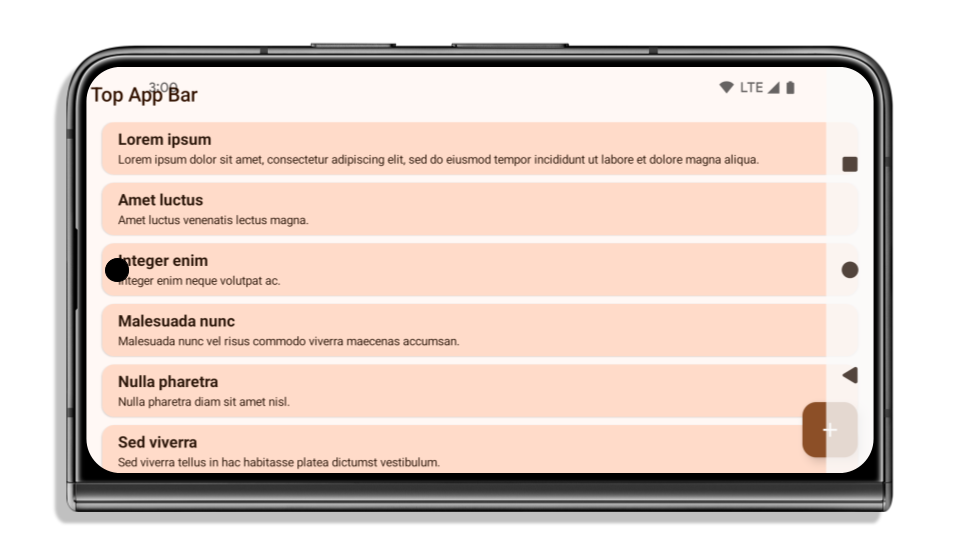

สิ่งที่ต้องตรวจสอบหากแอปแสดงผลแบบไร้ขอบอยู่แล้ว
หากแอปแสดงผลแบบไร้ขอบอยู่แล้วและใช้ระยะขอบ คุณจะไม่ได้รับผลกระทบมากนัก ยกเว้นในสถานการณ์ต่อไปนี้ อย่างไรก็ตาม เราขอแนะนำให้คุณทดสอบแอปแม้ว่าคุณจะคิดว่าไม่ได้รับผลกระทบก็ตาม
- คุณมีหน้าต่างที่ไม่ลอย เช่น
Activityที่ใช้SHORT_EDGES,NEVERหรือDEFAULTแทนLAYOUT_IN_DISPLAY_CUTOUT_MODE_ALWAYSหากแอปขัดข้องเมื่อเปิดใช้งาน อาจเป็นเพราะหน้าจอเริ่มต้น คุณสามารถอัปเกรดการพึ่งพา หน้าจอเริ่มต้น หลักเป็น 1.2.0-alpha01 ขึ้นไป หรือตั้งค่าwindow.attributes.layoutInDisplayCutoutMode = WindowManager.LayoutInDisplayCutoutMode.always - อาจมีหน้าจอที่มีปริมาณการเข้าชมต่ำซึ่งมี UI ถูกบดบัง ตรวจสอบว่าหน้าจอที่มีการเข้าชมน้อยเหล่านี้ไม่มี UI ถูกบดบัง หน้าจอที่มีปริมาณการเข้าชมต่ำ ได้แก่
- หน้าจอเริ่มต้นใช้งานหรือหน้าจอลงชื่อเข้าใช้
- หน้าการตั้งค่า
สิ่งที่ต้องตรวจสอบหากแอปยังไม่ได้แสดงผลแบบไร้ขอบ
หากแอปยังไม่ได้แสดงผลแบบไร้ขอบ คุณมีแนวโน้มที่จะได้รับผลกระทบ นอกเหนือจากสถานการณ์สำหรับแอปที่แสดงผลแบบไร้ขอบอยู่แล้ว คุณควรพิจารณาสิ่งต่อไปนี้
- หากแอปใช้คอมโพเนนต์ Material 3 (
androidx.compose.material3) ใน Compose เช่นTopAppBar,BottomAppBar, และNavigationBarคอมโพเนนต์เหล่านี้ ไม่น่า จะได้รับผลกระทบเนื่องจากจัดการระยะขอบโดยอัตโนมัติ - หากแอปใช้คอมโพเนนต์ Material 2 (
androidx.compose.material) ใน Compose คอมโพเนนต์เหล่านี้ จะไม่จัดการระยะขอบโดยอัตโนมัติ อย่างไรก็ตาม คุณสามารถเข้าถึงระยะขอบและใช้ระยะขอบด้วยตนเองได้ ใน androidx.compose.material 1.6.0 ขึ้นไป ให้ใช้พารามิเตอร์windowInsetsเพื่อใช้ระยะขอบด้วยตนเองสำหรับBottomAppBar,TopAppBar,BottomNavigationและNavigationRailเช่นเดียวกัน ให้ใช้พารามิเตอร์contentWindowInsetsสำหรับScaffold - หากแอปใช้ View และคอมโพเนนต์ Material (
com.google.android.material) คอมโพเนนต์ Material ส่วนใหญ่ที่อิงตาม View เช่นBottomNavigationViewBottomAppBarNavigationRailViewหรือNavigationViewจะจัดการระยะขอบและไม่จำเป็นต้องดำเนินการเพิ่มเติม อย่างไรก็ตาม คุณต้องเพิ่มandroid:fitsSystemWindows="true"หากใช้AppBarLayout - สำหรับ Composable ที่กำหนดเอง ให้ใช้ระยะขอบเป็นระยะห่างภายในด้วยตนเอง หากเนื้อหาอยู่ใน
Scaffoldคุณสามารถใช้ระยะขอบได้โดยใช้ค่าระยะห่างภายในScaffoldหรือใช้ระยะห่างภายในโดยใช้หนึ่งในWindowInsets - หากแอปใช้ View และ
BottomSheet,SideSheetหรือคอนเทนเนอร์ที่กำหนดเอง ให้ใช้ระยะห่างภายในโดยใช้ViewCompat.setOnApplyWindowInsetsListenerสำหรับRecyclerViewให้ใช้ระยะห่างภายในโดยใช้ Listener นี้ และเพิ่มclipToPadding="false"ด้วย
สิ่งที่ต้องตรวจสอบหากแอปต้องมีการคุ้มครองพื้นหลังที่กำหนดเอง
หากแอปต้องมีการคุ้มครองพื้นหลังที่กำหนดเองสำหรับการไปยังส่วนต่างๆ แบบ 3 ปุ่มหรือ แถบสถานะ แอปควรวาง Composable หรือ View ไว้ด้านหลังแถบระบบ โดยใช้ WindowInsets.Type#tappableElement() เพื่อรับความสูงของแถบนำทางแบบ 3 ปุ่ม หรือ WindowInsets.Type#statusBars
แหล่งข้อมูลเพิ่มเติมเกี่ยวกับการแสดงผลแบบไร้ขอบ
ดูข้อควรพิจารณาเพิ่มเติมเกี่ยวกับการใช้ระยะขอบได้จากคู่มือ View แบบไร้ขอบ และ Compose แบบไร้ขอบ
API ที่เลิกใช้งานแล้ว
API ต่อไปนี้เลิกใช้งานแล้วแต่ยังไม่ถูกปิดใช้
R.attr#enforceStatusBarContrastR.attr#navigationBarColor(สำหรับการนำทางแบบ 3 ปุ่ม โดยมีค่าอัลฟ่า 80%)Window#isStatusBarContrastEnforcedWindow#setNavigationBarColor(สำหรับการนำทางแบบ 3 ปุ่ม โดยมีค่าอัลฟ่า 80%)Window#setStatusBarContrastEnforced
API ต่อไปนี้เลิกใช้งานแล้วและถูกปิดใช้
R.attr#navigationBarColor(สำหรับการไปยังส่วนต่างๆ ด้วยท่าทางสัมผัส)R.attr#navigationBarDividerColorR.attr#statusBarColorWindow#setDecorFitsSystemWindowsWindow#getNavigationBarColorWindow#getNavigationBarDividerColorWindow#getStatusBarColorWindow#setNavigationBarColor(สำหรับการไปยังส่วนต่างๆ ด้วยท่าทางสัมผัส)Window#setNavigationBarDividerColorWindow#setStatusBarColor
การกำหนดค่าที่เสถียร
หากแอปกำหนดเป้าหมายเป็น Android 15 (ระดับ API 35) ขึ้นไป Configuration จะไม่รวมแถบระบบอีกต่อไป หากใช้ขนาดหน้าจอในคลาส Configuration เพื่อคำนวณเลย์เอาต์ คุณควรแทนที่ด้วยตัวเลือกอื่นที่ดีกว่า เช่น ViewGroup, WindowInsets หรือ WindowMetricsCalculator ที่เหมาะสม ทั้งนี้ขึ้นอยู่กับความต้องการของคุณ
Configuration พร้อมใช้งานตั้งแต่ API 1 โดยปกติแล้วจะได้รับจาก
Activity.onConfigurationChanged โดยจะให้ข้อมูล เช่น ความหนาแน่นของหน้าต่าง
การวางแนว และขนาด ลักษณะสำคัญอย่างหนึ่งเกี่ยวกับขนาดหน้าต่างที่ได้จาก Configuration คือก่อนหน้านี้จะไม่รวมแถบระบบ
โดยปกติแล้ว ขนาดการกำหนดค่าจะใช้สำหรับการเลือกทรัพยากร เช่น
/res/layout-h500dp และยังคงเป็น Use Case ที่ถูกต้อง อย่างไรก็ตาม เราไม่แนะนำให้ใช้สำหรับ
การคำนวณเลย์เอาต์มาโดยตลอด หากคุณกำลังทำเช่นนั้น คุณควรหยุด
ทำทันที คุณควรแทนที่การใช้ Configuration ด้วยสิ่งอื่นที่เหมาะสมกว่าตามกรณีการใช้งาน
หากใช้เพื่อคำนวณเลย์เอาต์ ให้ใช้ ViewGroup ที่เหมาะสม เช่น
CoordinatorLayout หรือ ConstraintLayout หากคุณใช้เพื่อกำหนดความสูง
ของแถบนำทางของระบบ ให้ใช้ WindowInsets หากต้องการทราบขนาดปัจจุบัน
ของหน้าต่างแอป ให้ใช้ computeCurrentWindowMetrics
รายการต่อไปนี้อธิบายฟิลด์ที่ได้รับผลกระทบจากการเปลี่ยนแปลงนี้
- ขนาด
Configuration.screenWidthDpและscreenHeightDpจะไม่ รวมแถบระบบอีกต่อไป Configuration.smallestScreenWidthDpได้รับผลกระทบโดยอ้อมจากการเปลี่ยนแปลง ในscreenWidthDpและscreenHeightDpConfiguration.orientationได้รับผลกระทบโดยอ้อมจากการเปลี่ยนแปลงในscreenWidthDpและscreenHeightDpในอุปกรณ์ที่มีสัดส่วนใกล้เคียงกับสี่เหลี่ยมจัตุรัสDisplay.getSize(Point)ได้รับผลกระทบโดยอ้อมจากการเปลี่ยนแปลงในConfigurationซึ่งเลิกใช้งานตั้งแต่ระดับ API 30 เป็นต้นไปDisplay.getMetrics()ทำงานในลักษณะนี้มาตั้งแต่ API ระดับ 33 แล้ว
แอตทริบิวต์ elegantTextHeight มีค่าเริ่มต้นเป็น true
สําหรับแอปที่กําหนดเป้าหมายเป็น Android 15 (API ระดับ 35) แอตทริบิวต์ elegantTextHeight TextView จะเปลี่ยนเป็น true โดยค่าเริ่มต้น โดยแทนที่แบบอักษรแบบกะทัดรัดที่ใช้โดยค่าเริ่มต้นด้วยสคริปต์บางรายการที่มีเมตริกแนวตั้งขนาดใหญ่ด้วยแบบอักษรที่อ่านง่ายกว่ามาก
แบบอักษรแบบกะทัดรัดมีไว้เพื่อป้องกันการแบ่งเลย์เอาต์ Android 13 (API ระดับ 33) ป้องกันปัญหาการแบ่งเลย์เอาต์เหล่านี้ได้หลายอย่างโดยอนุญาตให้เลย์เอาต์ข้อความยืดความสูงแนวตั้งโดยใช้แอตทริบิวต์ fallbackLineSpacing
ใน Android 15 ฟอนต์แบบกะทัดรัดจะยังคงอยู่ในระบบ แอปของคุณจึงตั้งค่า elegantTextHeight เป็น false เพื่อให้มีลักษณะการทำงานเหมือนเดิมได้ แต่ไม่น่าจะได้รับการสนับสนุนในรุ่นที่กำลังจะเปิดตัว ดังนั้น หากแอปของคุณรองรับสคริปต์ต่อไปนี้ อาหรับ ลาว พม่า ทมิฬ คุชราต กันนาดา มาลายาลัม โอเดีย เตลูกู หรือไทย ให้ทดสอบแอปโดยตั้งค่า elegantTextHeight เป็น true
 ลักษณะการทํางานของ
 elegantTextHeight สําหรับแอปที่กําหนดเป้าหมายเป็น Android 14 (API ระดับ 34) และต่ำกว่า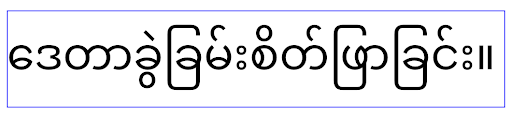 ลักษณะการทํางานของ
 elegantTextHeight สําหรับแอปที่กําหนดเป้าหมายเป็น Android 15การเปลี่ยนแปลงความกว้างของ TextView สำหรับรูปร่างตัวอักษรที่ซับซ้อน
ใน Android เวอร์ชันเก่า แบบอักษรตัวเขียนบางแบบหรือภาษาที่มีรูปร่างซับซ้อนอาจวาดตัวอักษรในพื้นที่ของตัวอักษรก่อนหน้าหรือถัดไปตามลำดับ
ในบางกรณี ตัวอักษรเหล่านั้นอาจถูกตัดออกตั้งแต่จุดเริ่มต้นหรือจุดสิ้นสุด
ตั้งแต่ Android 15 เป็นต้นไป TextView จะจัดสรรความกว้างสำหรับการวาดตัวอักษรดังกล่าวให้มีพื้นที่เพียงพอ และอนุญาตให้แอปขอการถ่วงข้อความเพิ่มเติมทางด้านซ้ายเพื่อป้องกันการตัดข้อความ
เนื่องจากการเปลี่ยนแปลงนี้ส่งผลต่อวิธีที่ TextView กำหนดความกว้าง TextView จะจัดสรรความกว้างเพิ่มเติมโดยค่าเริ่มต้นหากแอปกำหนดเป้าหมายเป็น Android 15 (API ระดับ 35) ขึ้นไป คุณเปิดหรือปิดใช้ลักษณะการทำงานนี้ได้โดยเรียกใช้ setUseBoundsForWidth API ใน TextView
เนื่องจากการเพิ่มระยะห่างจากขอบด้านซ้ายอาจทําให้เลย์เอาต์ที่มีอยู่ไม่สอดคล้องกัน ระบบจึงไม่เพิ่มระยะห่างจากขอบโดยค่าเริ่มต้น แม้แต่สําหรับแอปที่กําหนดเป้าหมายเป็น Android 15 ขึ้นไป
อย่างไรก็ตาม คุณสามารถเพิ่มการเว้นวรรคเพิ่มเติมเพื่อป้องกันการตัดได้โดยเรียกใช้
setShiftDrawingOffsetForStartOverhang
ตัวอย่างต่อไปนี้แสดงให้เห็นว่าการเปลี่ยนแปลงเหล่านี้ช่วยปรับปรุงเลย์เอาต์ข้อความสำหรับแบบอักษรและภาษาบางแบบได้อย่างไร

<TextView
    android:fontFamily="cursive"
    android:text="java" />
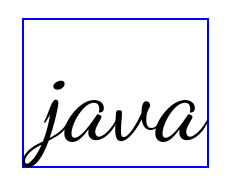
<TextView
    android:fontFamily="cursive"
    android:text="java"
    android:useBoundsForWidth="true"
    android:shiftDrawingOffsetForStartOverhang="true" />
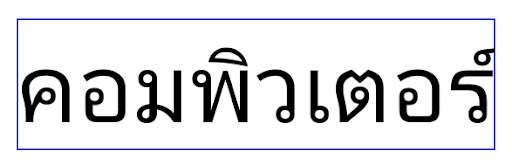
<TextView
    android:text="คอมพิวเตอร์" />

<TextView
    android:text="คอมพิวเตอร์"
    android:useBoundsForWidth="true"
    android:shiftDrawingOffsetForStartOverhang="true" />
ความสูงของบรรทัดเริ่มต้นที่คำนึงถึงภาษาสำหรับ EditText
ใน Android เวอร์ชันก่อนหน้า เลย์เอาต์ข้อความจะยืดความสูงของข้อความให้เท่ากับความสูงของบรรทัดแบบอักษรที่ตรงกับภาษาปัจจุบัน เช่น หากเนื้อหาเป็นภาษาญี่ปุ่น ความสูงของบรรทัดของแบบอักษรญี่ปุ่นจะสูงกว่าแบบอักษรละตินเล็กน้อย ความสูงของข้อความจึงเพิ่มขึ้นเล็กน้อย อย่างไรก็ตาม แม้ความสูงของบรรทัดจะแตกต่างกัน แต่องค์ประกอบ EditText ก็มีการปรับขนาดให้เหมือนกัน โดยไม่คำนึงถึงภาษาที่ใช้ ดังที่แสดงในภาพต่อไปนี้

EditText ซึ่งอาจมีข้อความจากภาษาอังกฤษ (en), ญี่ปุ่น (ja) และพม่า (my) ความสูงของ EditText เหมือนกัน แม้ว่าภาษาเหล่านี้จะมีความสูงของบรรทัดต่างกันสำหรับแอปที่กำหนดเป้าหมายเป็น Android 15 (API ระดับ 35) ระบบจะสงวนความสูงบรรทัดขั้นต่ำไว้สำหรับ EditText เพื่อให้ตรงกับแบบอักษรอ้างอิงสำหรับภาษาที่ระบุ ดังที่แสดงในภาพต่อไปนี้

EditText ซึ่งอาจมีข้อความจากภาษาอังกฤษ (en), ญี่ปุ่น (ja) และพม่า (my) ตอนนี้ความสูงของ EditText จะรวมช่องว่างไว้เพื่อรองรับความสูงของบรรทัดเริ่มต้นสำหรับแบบอักษรของภาษาเหล่านี้หากจําเป็น แอปจะกู้คืนลักษณะการทํางานก่อนหน้าได้โดยระบุแอตทริบิวต์ useLocalePreferredLineHeightForMinimum เป็น false และแอปจะตั้งค่าเมตริกแนวตั้งขั้นต่ำที่กําหนดเองได้โดยใช้ setMinimumFontMetrics API ใน Kotlin และ Java
กล้องและสื่อ
Android 15 ทำการเปลี่ยนแปลงลักษณะการทำงานของกล้องและสื่อต่อไปนี้สำหรับแอปที่กำหนดเป้าหมายเป็น Android 15 ขึ้นไป
ข้อจำกัดในการขอโฟกัสเสียง
แอปที่กำหนดเป้าหมายเป็น Android 15 (API ระดับ 35) ต้องเป็นแอปที่ทำงานอยู่ด้านบนหรือกำลังใช้บริการที่ทำงานอยู่เบื้องหน้าเพื่อขอโฟกัสเสียง หากแอปพยายามขอโฟกัสเมื่อไม่เป็นไปตามข้อกำหนดข้อใดข้อหนึ่งเหล่านี้ การเรียกใช้จะแสดงผลเป็น AUDIOFOCUS_REQUEST_FAILED
ดูข้อมูลเพิ่มเติมเกี่ยวกับโหมดโฟกัสเสียงได้ที่จัดการโหมดโฟกัสเสียง
ข้อจำกัดที่ไม่ใช่ SDK ที่อัปเดตแล้ว
Android 15 มีรายการอัปเดตของอินเทอร์เฟซที่ไม่ใช่ SDK ซึ่งถูกจำกัด โดยการทำงานร่วมกับนักพัฒนาแอป Android และการทดสอบภายในล่าสุด เราจะตรวจสอบว่ามีทางเลือกอื่นที่เผยแพร่ต่อสาธารณะพร้อมใช้งานก่อนที่จะจำกัดอินเทอร์เฟซที่ไม่ใช่ SDK ทุกครั้งที่ทำได้
หากแอปไม่ได้กำหนดเป้าหมายเป็น Android 15 การเปลี่ยนแปลงบางอย่างเหล่านี้ อาจไม่มีผลกับคุณในทันที อย่างไรก็ตาม แม้ว่าแอปจะเข้าถึงอินเทอร์เฟซที่ไม่ใช่ SDK บางรายการได้ (ขึ้นอยู่กับระดับ API เป้าหมายของแอป) แต่การใช้เมธอดหรือฟิลด์ที่ไม่ใช่ SDK ใดๆ ก็มีความเสี่ยงสูงที่จะทำให้แอปขัดข้องเสมอ
หากต้องการดูว่าแอปใช้อินเทอร์เฟซที่ไม่ใช่ SDK อยู่หรือเปล่า คุณสามารถ ทดสอบแอปดูได้ หากแอปของคุณใช้อินเทอร์เฟซที่ไม่ใช่ SDK คุณควรเริ่มวางแผนย้ายไปใช้ทางเลือกอื่นที่เป็น SDK อย่างไรก็ตาม เราเข้าใจว่าแอปบางแอปมี Use Case ที่ถูกต้องสำหรับการใช้อินเทอร์เฟซที่ไม่ใช่ SDK หากไม่พบวิธีอื่นแทนการใช้อินเทอร์เฟซที่ไม่ใช่ SDK สำหรับฟีเจอร์ในแอป คุณควร ขอ API สาธารณะใหม่
ดูข้อมูลเพิ่มเติมเกี่ยวกับการเปลี่ยนแปลงใน Android เวอร์ชันนี้ได้ที่การอัปเดตข้อจำกัดของอินเทอร์เฟซที่ไม่ใช่ SDK ใน Android 15 ดูข้อมูลเพิ่มเติมเกี่ยวกับอินเทอร์เฟซที่ไม่ใช่ SDK โดยทั่วไปได้ที่ข้อจำกัดเกี่ยวกับอินเทอร์เฟซที่ไม่ใช่ SDK