

Android 14 offre aux développeurs de nouvelles fonctionnalités et API de qualité. Les informations suivantes vous présentent les nouvelles fonctionnalités disponibles pour vos applications et leurs nouvelles API.
Pour obtenir une liste détaillée des nouvelles API, des API modifiées et supprimées, consultez le rapport de différences des API. Pour en savoir plus sur les API ajoutées, consultez la documentation de référence de l'API Android. Pour Android 14, recherchez les API ajoutées au niveau d'API 34. Pour savoir dans quels domaines les changements de plate-forme peuvent affecter vos applications, consultez les modifications de comportement d'Android 14 pour les applications ciblant Android 14 et pour toutes les applications.
Internationalisation
Préférences linguistiques par application
Android 14 développe les fonctionnalités de langage par application introduites dans Android 13 (niveau d'API 33) avec les fonctionnalités supplémentaires suivantes :
Générer automatiquement la
localeConfigd'une application : à partir d'Android Studio Giraffe Canary 7 et AGP 8.1.0-alpha07, vous pouvez configurer votre application pour qu'elle prenne automatiquement en charge votre préférence linguistique par appli. En fonction des ressources de votre projet, le plug-in Android Gradle génère le fichierLocaleConfiget ajoute une référence dans le fichier manifeste final. Vous n'avez donc plus besoin de créer ni de mettre à jour le fichier manuellement. Le plug-in Android Gradle utilise les ressources des dossiersresde vos modules d'application et les dépendances des modules de la bibliothèque pour déterminer les paramètres régionaux à inclure dans le fichierLocaleConfig.Mises à jour dynamiques pour la
localeConfigd'une application : utilisez les méthodessetOverrideLocaleConfig()etgetOverrideLocaleConfig()dansLocaleManagerpour mettre à jour de façon dynamique la liste des langues disponibles de votre application dans les paramètres système de l'appareil. Utilisez cette flexibilité pour personnaliser la liste des langues disponibles par région, effectuer des tests A/B ou fournir une liste actualisée des paramètres régionaux si votre application utilise des transferts côté serveur pour la localisation.Visibilité de la langue de l'application pour les éditeurs de mode de saisie (IME) : les éditeurs de mode de saisie peuvent utiliser la méthode
getApplicationLocales()pour vérifier la langue de l'application et choisir la même langue.
API Grammatical Inflection
3 milliards de personnes parlent des langues genrées : des langues dont les catégories grammaticales, telles que les noms, verbes, adjectifs et prépositions, s'accordent en fonction du genre des personnes et des objets auxquels on s'adresse ou dont on parle. Traditionnellement, de nombreuses langues genrées utilisent le genre grammatical masculin comme genre par défaut ou générique.
S'adresser à une personne en utilisant le mauvais genre grammatical, par exemple s'adresser à une femme en utilisant le genre masculin, peut avoir un impact négatif sur son comportement et son attitude. En revanche, une interface utilisateur dont le langage reflète correctement le genre grammatical de l'utilisateur ou de l'utilisatrice peut améliorer l'engagement et fournir une expérience utilisateur plus personnalisée et naturelle.
Pour vous aider à localiser une UI axée sur l'utilisateur dans une langue genrée, Android 14 introduit l'API Grammatical Inflection, qui permet d'ajouter une prise en charge du genre grammatical sans refactoriser votre application.
Préférences régionales
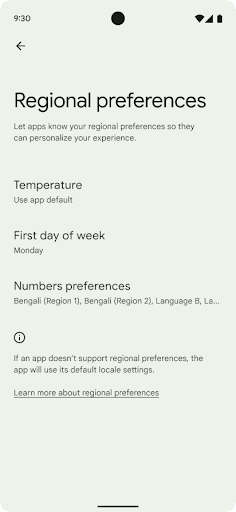
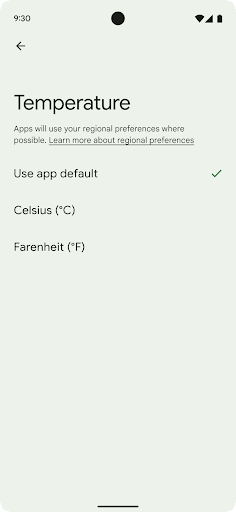
Les préférences régionales permettent aux utilisateurs de personnaliser les unités de température, le premier jour de la semaine et les systèmes de numérotation. Une personne européenne vivant aux États-Unis peut préférer que les unités de température soient exprimées en Celsius plutôt qu'en Fahrenheit, et que les applications considèrent le lundi comme le début de la semaine et non le dimanche, comme c'est le cas aux États-Unis.
Les nouveaux menus des paramètres Android correspondant à ces préférences offrent aux utilisateurs un emplacement centralisé et visible pour modifier les préférences des applications. Ces préférences sont également conservées lors de la sauvegarde et de la restauration. Plusieurs API et intents, tels que getTemperatureUnit et getFirstDayOfWeek, autorisent votre application l'accès en lecture aux préférences utilisateur afin que votre application puisse ajuster la façon dont elle affiche les informations. Vous pouvez également enregistrer un BroadcastReceiver sur ACTION_LOCALE_CHANGED pour gérer les modifications de configuration des paramètres régionaux lorsque les préférences régionales changent.
Pour accéder à ces paramètres, ouvrez l'application Paramètres et accédez à System > Languages & input > Regional preferences (Système > Langues et saisie > Préférences régionales).
Accessibilité
Mise à l'échelle non linéaire de la police à 200%
À partir d'Android 14, le système prend en charge la mise à l'échelle des polices jusqu'à 200 %, offrant ainsi aux utilisateurs des options d'accessibilité supplémentaires.
Pour éviter que les éléments de texte de grande taille ne soient trop grands à l'écran, le système applique une courbe de mise à l'échelle non linéaire. Cette stratégie de mise à l'échelle signifie que le texte de grande taille n'a pas le même niveau de mise à l'échelle que le texte de petite taille. La mise à l'échelle non linéaire de la police permet de préserver la hiérarchie proportionnelle entre des éléments de différentes tailles, tout en limitant les problèmes liés à la mise à l'échelle linéaire du texte à des degrés élevés (par exemple, le texte coupé ou le texte qui est plus difficile à lire sur de très grands écrans).
Tester votre application avec la mise à l'échelle non linéaire de la police
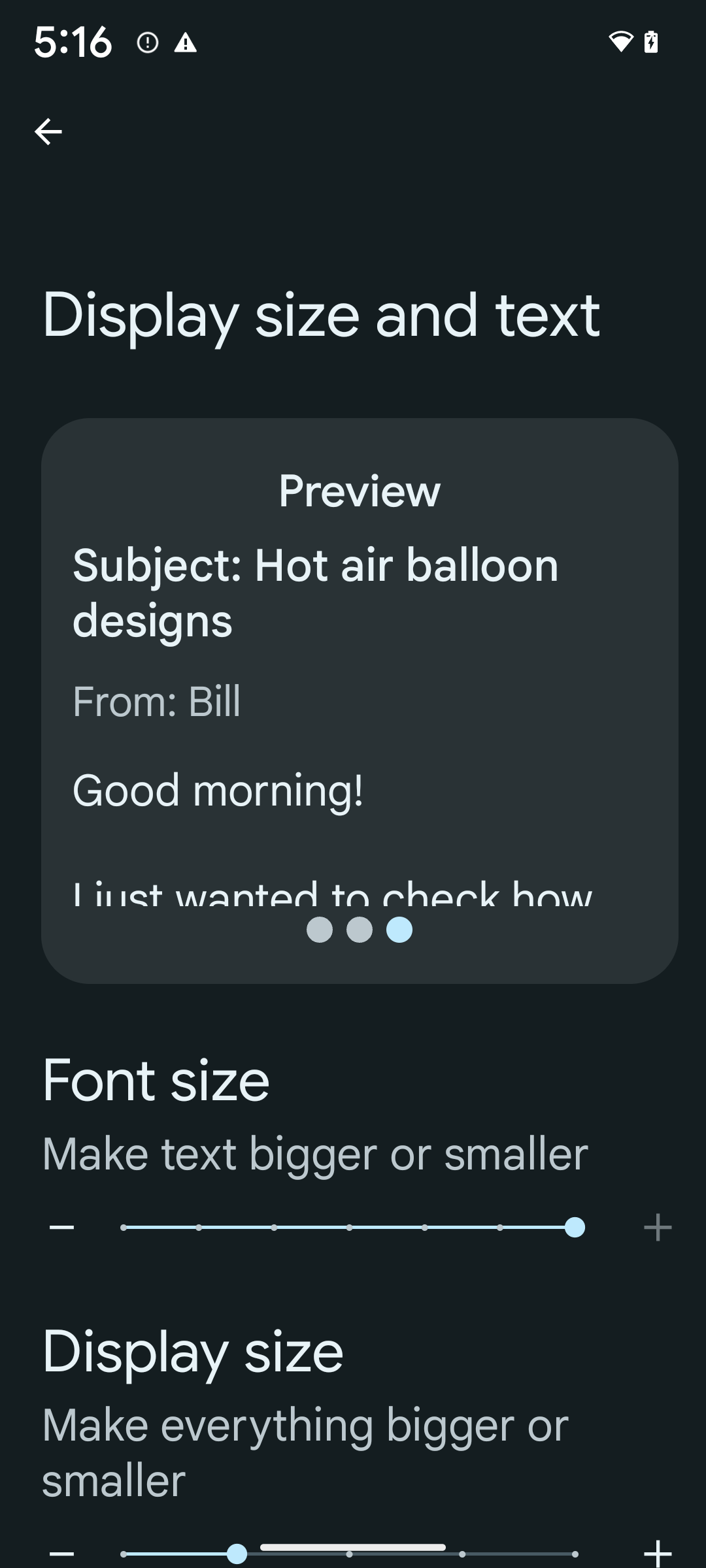
Si vous utilisez déjà des unités de pixels indépendants de l'échelle (sp) pour définir la taille du texte, ces options supplémentaires et améliorations de la mise à l'échelle sont appliquées automatiquement au texte de votre application. Toutefois, vous devez toujours effectuer des tests d'UI avec la taille de police maximale activée (200 %) pour vous assurer que votre application applique correctement les tailles de police et peut s'adapter à des tailles de police plus grandes sans affecter la facilité d'utilisation.
Pour activer la taille de police 200 %, procédez comme suit :
- Ouvrez l'application Paramètres, puis accédez à Accessibility > Display size and text (Accessibilité > Taille d'affichage et texte).
- Pour l'option Font size (Taille de la police), appuyez sur l'icône plus (+) jusqu'à ce que le paramètre de taille de police maximale soit activé, comme illustré sur l'image.
Utiliser des unités de pixels mis à l'échelle (sp) pour les tailles de texte
N'oubliez pas de toujours spécifier la taille du texte dans les unités de pixels mis à l'échelle. Lorsque votre application utilise des unités sp, Android peut appliquer la taille de texte préférée de l'utilisateur et la mettre à l'échelle de manière appropriée.
N'utilisez pas les unités sp pour les marges intérieures ni pour définir la hauteur des vues en supposant une marge intérieure implicite : avec la mise à l'échelle non linéaire de la police, les dimensions sp peuvent ne pas être proportionnelles. Par conséquent, 4sp + 20sp peut ne pas être égal à 24sp.
Convertir les unités de pixels mis à l'échelle (sp)
Utilisez TypedValue.applyDimension() pour convertir des unités de sp en pixels et TypedValue.deriveDimension() pour convertir des pixels en sp. Ces méthodes appliquent automatiquement la courbe de mise à l'échelle non linéaire appropriée.
Évitez de coder les équations en dur avec Configuration.fontScale ou DisplayMetrics.scaledDensity. La mise à l'échelle de la police n'étant plus linéaire, le champ scaledDensity n'est plus précis. Le champ fontScale ne doit être utilisé qu'à des fins d'information, car les polices ne sont plus mises à l'échelle avec une seule valeur scalaire.
Utiliser des unités sp pour lineHeight
Définissez toujours android:lineHeight en utilisant des unités sp plutôt que dp, afin que la hauteur de ligne soit mise à l'échelle en même temps que votre texte. Sinon, si votre texte est en sp, mais que votre lineHeight est en dp ou px, il ne s'adapte pas et semble à l'étroit.
TextView corrige automatiquement le lineHeight afin de préserver les proportions souhaitées, mais uniquement si textSize et lineHeight sont définis en unités sp.
Appareil photo et médias
Ultra HDR pour les images
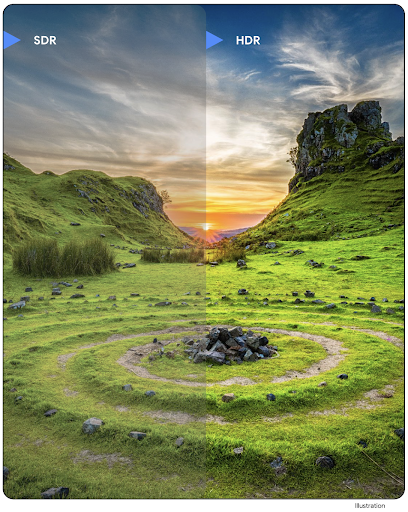
Android 14 prend en charge les images HDR (plage dynamique élevée) qui conservent davantage d'informations du capteur lors de la prise de vue, ce qui permet d'obtenir des couleurs plus vives et un contraste plus élevé. Android utilise le format Ultra HDR, qui est entièrement rétrocompatible avec les images JPEG. Il permet aux applications d'interagir de manière fluide avec les images HDR, en les affichant en plage dynamique standard (SDR) si nécessaire.
Le rendu de ces images dans l'UI en HDR est effectué automatiquement par le framework lorsque votre application active l'UI HDR pour sa fenêtre d'activité, soit via une entrée de fichier manifeste, soit au moment de l'exécution en appelant Window.setColorMode(). Vous pouvez également prendre des images fixes Ultra HDR compressées sur les appareils compatibles. Avec plus de couleurs récupérées à partir du capteur, le post-traitement peut être plus flexible. Le Gainmap associé aux images Ultra HDR peut être utilisé pour les afficher à l'aide d'OpenGL ou de Vulkan.
Zoom, mise au point, post-visualisation et plus encore dans les extensions de l'appareil photo
Android 14 met à niveau et améliore les extensions d'appareil photo, ce qui permet aux applications de gérer des temps de traitement plus longs, ce qui améliore les images à l'aide d'algorithmes gourmands en calcul, comme la photographie en faible luminosité sur les appareils compatibles. Ces fonctionnalités offrent aux utilisateurs une expérience encore plus robuste lorsqu'ils utilisent les fonctionnalités d'extension de la caméra. Voici quelques exemples d'améliorations:
- L'estimation dynamique de la latence de traitement de la capture d'image fixe fournit des estimations de la latence de capture d'image fixe beaucoup plus précises en fonction de la scène et des conditions environnementales actuelles. Appelez
CameraExtensionSession.getRealtimeStillCaptureLatency()pour obtenir un objetStillCaptureLatencyqui comporte deux méthodes d'estimation de la latence. La méthodegetCaptureLatency()renvoie la latence estimée entreonCaptureStartedetonCaptureProcessStarted(), et la méthodegetProcessingLatency()renvoie la latence estimée entreonCaptureProcessStarted()et le frame traité final disponible. - Prise en charge des rappels de progression de la capture afin que les applications puissent afficher la progression actuelle des opérations de traitement de la capture d'image fixe de longue durée. Vous pouvez vérifier si cette fonctionnalité est disponible avec
CameraExtensionCharacteristics.isCaptureProcessProgressAvailable. Si c'est le cas, vous implémentez le rappelonCaptureProcessProgressed(), qui transmet la progression (de 0 à 100) en tant que paramètre. Métadonnées spécifiques à l'extension, telles que
CaptureRequest.EXTENSION_STRENGTHpour régler l'intensité d'un effet d'extension, comme l'intensité du floutage de l'arrière-plan avecEXTENSION_BOKEH.Fonctionnalité Postview pour la capture d'images fixes dans les extensions d'appareil photo, qui fournit une image moins traitée plus rapidement que l'image finale. Si une extension a augmenté la latence de traitement, une image post-vue peut être fournie en tant que zone réservée pour améliorer l'expérience utilisateur et être remplacée plus tard par l'image finale. Vous pouvez vérifier si cette fonctionnalité est disponible avec
CameraExtensionCharacteristics.isPostviewAvailable. Vous pouvez ensuite transmettre unOutputConfigurationàExtensionSessionConfiguration.setPostviewOutputConfiguration.Compatibilité avec
SurfaceView, ce qui permet d'obtenir un chemin de rendu d'aperçu plus optimisé et plus économe en énergie.Prise en charge de la mise au point et du zoom par appui pendant l'utilisation de l'extension.
Zoom intégré au capteur
Lorsque REQUEST_AVAILABLE_CAPABILITIES_STREAM_USE_CASE dans CameraCharacteristics contient SCALER_AVAILABLE_STREAM_USE_CASES_CROPPED_RAW, votre application peut utiliser des fonctionnalités avancées de capteur pour attribuer à un flux RAW recadré les mêmes pixels que le champ de vision complet à l'aide d'un CaptureRequest avec une cible RAW dont le cas d'utilisation du flux est défini sur CameraMetadata.SCALER_AVAILABLE_STREAM_USE_CASES_CROPPED_RAW.
En implémentant les commandes de forçage de la requête, la caméra mise à jour permet aux utilisateurs de contrôler le zoom avant même que les autres commandes de la caméra ne soient prêtes.
Audio USB sans perte
Android 14 est compatible avec les formats audio sans perte pour des expériences audiophiles via des casques filaires USB. Vous pouvez interroger un appareil USB pour ses attributs de mixeur préférés, enregistrer un écouteur pour les modifications apportées aux attributs de mixeur préférés et configurer les attributs de mixeur à l'aide de la classe AudioMixerAttributes. Cette classe représente le format, comme le masque de canal, le taux d'échantillonnage et le comportement du mixeur audio. La classe permet d'envoyer directement l'audio, sans mélange, réglage du volume ni effets de traitement.
Productivité et outils pour les développeurs
Gestionnaire d'identifiants
Android 14 ajoute le Gestionnaire d'identifiants en tant qu'API de plate-forme, avec une compatibilité supplémentaire pour les appareils équipés d'Android 4.4 (niveau d'API 19) et versions ultérieures grâce à une bibliothèque Jetpack utilisant les services Google Play. Le Gestionnaire d'identifiants vise à faciliter la connexion des utilisateurs grâce à des API qui récupèrent et stockent les identifiants avec des fournisseurs d'identifiants configurés par l'utilisateur. Le Gestionnaire d'identifiants prend en charge plusieurs méthodes de connexion, y compris la combinaison nom d'utilisateur/mot de passe, les clés d'accès et les solutions de connexion fédérée (comme Se connecter avec Google) dans une seule API.
Les clés d'accès présentent de nombreux avantages. Par exemple, les clés d'accès s'appuient sur des normes du secteur, peuvent fonctionner sur différents systèmes d'exploitation et écosystèmes de navigateurs, et peuvent être utilisées avec des sites Web et des applications.
Pour en savoir plus, consultez la documentation sur le Gestionnaire d'identifiants et les clés d'accès et l'article de blog sur le Gestionnaire d'identifiants et les clés d'accès.
Santé Connect
Santé Connect est un dépôt sur l'appareil pour les données de santé et de remise en forme des utilisateurs. Il permet aux utilisateurs de partager des données entre leurs applications préférées, avec un seul et même endroit pour contrôler les données qu'ils souhaitent partager avec ces applications.
Sur les appareils équipés de versions d'Android antérieures à Android 14, Santé Connect est disponible en téléchargement en tant qu'application sur le Google Play Store. À partir d'Android 14, Santé Connect fait partie de la plate-forme et reçoit les mises à jour via les mises à jour du système Google Play, sans nécessiter de téléchargement distinct. Santé Connect peut ainsi être mis à jour fréquemment, et vos applications peuvent compter sur Santé Connect sur les appareils équipés d'Android 14 ou version ultérieure. Les utilisateurs peuvent accéder à Santé Connect depuis les paramètres de leur appareil, avec des commandes de confidentialité intégrées aux paramètres système.
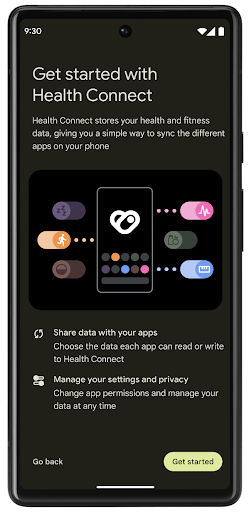
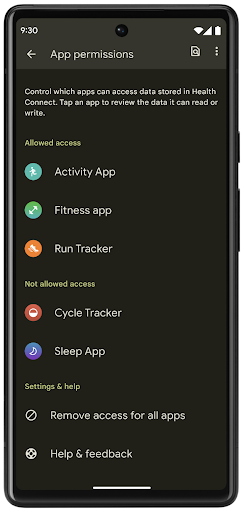
Santé Connect inclut plusieurs nouvelles fonctionnalités dans Android 14, comme les parcours d'exercice, qui permettent aux utilisateurs de partager un parcours de leur entraînement qui peut être visualisé sur une carte. Un parcours est défini comme une liste d'emplacements enregistrés dans une période donnée. Votre application peut insérer des parcours dans des séances d'exercice, en les associant. Pour que les utilisateurs aient un contrôle total sur ces données sensibles, ils doivent autoriser le partage de trajets individuels avec d'autres applications.
Pour en savoir plus, consultez la documentation sur Santé Connect et l'article de blog sur les nouveautés d'Android Santé.
Mises à jour OpenJDK 17
Android 14 poursuit le travail d'actualisation des principales bibliothèques Android afin de s'adapter aux fonctionnalités des dernières versions d'OpenJDK LTS, y compris les mises à jour de la bibliothèque et la compatibilité avec le langage Java 17 pour les développeurs d'applications et de plates-formes.
Les fonctionnalités et améliorations suivantes sont incluses :
- Mise à jour d'environ 300 classes
java.basepour la prise en charge de Java 17. - Les blocs de texte, qui introduisent des littéraux de chaîne multilignes dans le langage de programmation Java.
- La correspondance de structure pour instanceof, qui permet de traiter un objet comme ayant un type spécifique dans une
instanceofsans aucune variable supplémentaire. - Les classes scellées, qui vous permettent de limiter les classes et les interfaces pouvant les étendre ou les implémenter.
Grâce aux mises à jour du système Google Play (projet Mainline), plus de 600 millions d'appareils sont compatibles avec les dernières mises à jour d'Android Runtime (ART) qui incluent ces modifications. Tout ceci fait partie de notre engagement à fournir aux applications un environnement plus cohérent et sécurisé sur tous les appareils, et à proposer de nouvelles fonctionnalités aux utilisateurs indépendamment des versions de la plate-forme.
Java et OpenJDK sont des marques ou des marques déposées d'Oracle et/ou de ses sociétés affiliées.
Améliorations apportées aux plates-formes de téléchargement d'applications
Android 14 introduit plusieurs API PackageInstaller qui permettent aux plates-formes de téléchargement d'applications d'améliorer leur expérience utilisateur.
Demander l'autorisation de l'installation avant le téléchargement
L'installation ou la mise à jour d'une application peut nécessiter l'autorisation de l'utilisateur.
Par exemple, lorsqu'un programme d'installation qui utilise l'autorisation REQUEST_INSTALL_PACKAGES tente d'installer une nouvelle application. Dans les versions précédentes d'Android, les plates-formes de téléchargement d'applications ne pouvaient demander l'autorisation de l'utilisateur qu'une fois les APK écrits dans la session d'installation et que la session était lancée.
À partir d'Android 14, la méthode requestUserPreapproval() permet aux installateurs de demander l'autorisation de l'utilisateur avant de lancer la session d'installation. Cette amélioration permet à une plate-forme de téléchargement d'applications de différer le téléchargement des APK jusqu'à ce que l'installation ait été autorisée par l'utilisateur. En outre, une fois qu'un utilisateur a autorisé l'installation de l'application, la plate-forme de téléchargement d'applications peut la télécharger et l'installer en arrière-plan sans interrompre l'utilisateur.
Revendiquer la responsabilité des prochaines mises à jour
La méthode setRequestUpdateOwnership() permet à un programme d'installation d'indiquer au système qu'il a l'intention d'être responsable des futures mises à jour d'une application qu'il installe. Cette fonctionnalité active l'application forcée de la propriété de la mise à jour, ce qui signifie que seul le propriétaire des mises à jour est autorisé à installer des mises à jour automatiques de l'application. L'application forcée de la propriété de la mise à jour permet de s'assurer que les utilisateurs ne reçoivent des mises à jour que depuis la plate-forme de téléchargement d'applications attendue.
Tout autre programme d'installation, y compris ceux utilisant l'autorisation INSTALL_PACKAGES, doit recevoir une approbation explicite de l'utilisateur pour installer une mise à jour. Si un utilisateur décide de procéder à une mise à jour à partir d'une autre source, la propriété de la mise à jour est perdue.
Mettre à jour les applications au meilleur moment
Les plates-formes de téléchargement d'applications évitent généralement de mettre à jour une application en cours d'utilisation, car cela entraîne la fermeture des processus en cours d'exécution, ce qui peut potentiellement interrompre l'activité de l'utilisateur.
À partir d'Android 14, l'API InstallConstraints permet aux programmes d'installation de s'assurer que les mises à jour de leur application sont effectuées au moment opportun. Par exemple, une plate-forme de téléchargement d'applications peut appeler la méthode commitSessionAfterInstallConstraintsAreMet() pour s'assurer qu'une mise à jour n'est lancée que lorsque l'utilisateur n'interagit plus avec l'application en question.
Installer facilement des divisions facultatives
Avec les APK divisés, les fonctionnalités d'une application peuvent être distribuées dans des fichiers APK distincts plutôt que sous forme d'un APK monolithique. Les APK divisés permettent aux plates-formes de téléchargement d'applications d'optimiser la distribution des différents composants de l'application. Par exemple, les plates-formes de téléchargement d'applications peuvent être optimisées en fonction des propriétés de l'appareil cible. L'API PackageInstaller est compatible avec les divisions depuis son lancement au niveau d'API 22.
Dans Android 14, la méthode setDontKillApp() permet à un programme d'installation d'indiquer que les processus en cours d'exécution de l'application ne doivent pas être supprimés lorsque de nouvelles divisions sont installées. Les plates-formes de téléchargement d'applications peuvent utiliser cette fonctionnalité pour installer facilement les nouvelles fonctionnalités d'une application lorsque l'utilisateur l'utilise.
Bundles de métadonnées d'application
Starting in Android 14, the Android package installer lets you specify app metadata, such as data safety practices, to include on app store pages such as Google Play.
Détecter quand les utilisateurs prennent des captures d'écran de l'appareil
Pour créer une expérience plus standardisée, Android 14 introduit une API de détection des captures d'écran protégeant la confidentialité. Cette API permet aux applications d'enregistrer des rappels par activité. Ces rappels sont appelés, et l'utilisateur en est informé lorsqu'une capture d'écran est prise et que cette activité est visible.
Expérience utilisateur
Actions personnalisées Sharesheet et classement amélioré
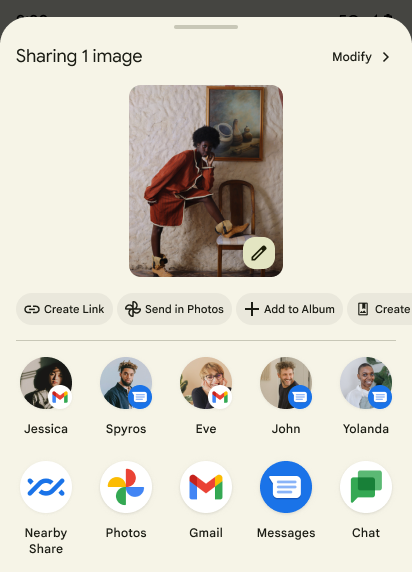
Android 14 updates the system sharesheet to support custom app actions and more informative preview results for users.
Add custom actions
With Android 14, your app can add custom actions to the system sharesheet it invokes.
Improve ranking of Direct Share targets
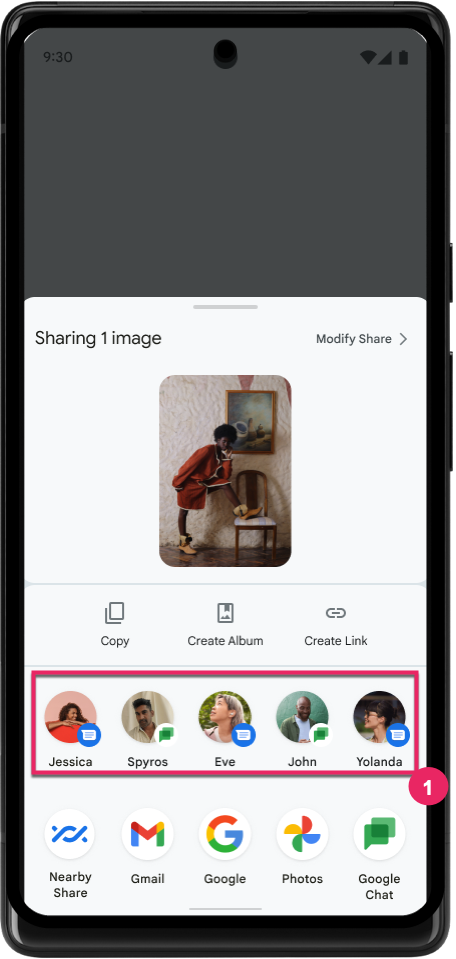
Android 14 uses more signals from apps to determine the ranking of the direct share targets to provide more helpful results for the user. To provide the most useful signal for ranking, follow the guidance for improving rankings of your Direct Share targets. Communication apps can also report shortcut usage for outgoing and incoming messages.
Prise en charge des animations intégrées et personnalisées pour la prévisualisation du Retour
Android 13 a introduit l'animation pour la prévisualisation du retour à l'accueil via une option pour les développeurs. Dans une application compatible, et si l'option pour les développeurs est activée, le fait de balayer l'écran vers l'arrière déclenche l'affichage d'une animation indiquant que le geste Retour permet de quitter l'application et de revenir à l'écran d'accueil.
Android 14 comporte plusieurs améliorations et de nouvelles consignes pour la prévisualisation du Retour :
- Vous pouvez définir
android:enableOnBackInvokedCallback=truepour activer les animations système pour la prévisualisation du Retour par activité plutôt que pour l'ensemble de l'application. - Nous avons ajouté de nouvelles animations système pour accompagner l'animation de retour à l'écran d'accueil à partir d'Android 13. Les nouvelles animations système sont multi-activités et multitâches. Vous les obtenez automatiquement après avoir migré vers la prévisualisation du Retour.
- Nous avons ajouté de nouvelles animations de composant Material pour les bottom sheets, les espaces annexes et la recherche.
- Nous avons rédigé des conseils de conception pour créer des animations et des transitions personnalisées dans l'application.
- Nous avons ajouté de nouvelles API pour prendre en charge les animations de transition personnalisées dans l'application :
handleOnBackStarted,handleOnBackProgressed,handleOnBackCancelledinOnBackPressedCallbackonBackStarted,onBackProgressed,onBackCancelledinOnBackAnimationCallback- Utilisez
overrideActivityTransitionau lieu deoverridePendingTransitionpour les transitions qui réagissent lorsque l'utilisateur balaie l'écran vers l'arrière.
Avec cette version preview d'Android 14, toutes les fonctionnalités de la prévisualisation du Retour sont accessibles via une option pour les développeurs. Consultez le guide du développeur pour migrer votre application vers la prévisualisation du Retour ainsi que le guide du développeur pour créer des transitions personnalisées dans l'application.
Forçages par application du fabricant d'appareils à grand écran
Les forçages par application permettent aux fabricants d'appareils de modifier le comportement des applications sur les appareils à grand écran. Par exemple, le forçage FORCE_RESIZE_APP indique au système de redimensionner l'application pour qu'elle s'adapte aux dimensions d'affichage (en évitant le mode de compatibilité de taille), même si resizeableActivity="false" est défini dans le fichier manifeste de l'application.
Les remplacements sont destinés à améliorer l'expérience utilisateur sur les grands écrans.
Les nouvelles propriétés de fichier manifeste vous permettent de désactiver certains forçages du fabricant de l'appareil pour votre application.
Forçages par application de l'utilisateur d'appareils à grand écran
Les forçages par application modifient le comportement des applications sur les appareils à grand écran. Par exemple, le forçage du fabricant de l'appareil OVERRIDE_MIN_ASPECT_RATIO_LARGE définit le format de l'application sur 16:9, quelle que soit la configuration de l'application.
Android 14 QPR1 permet aux utilisateurs d'appliquer des forçages par application à l'aide d'un nouveau menu des paramètres sur les appareils à grand écran.
Partage du contenu d'une appli à l'écran
Le partage d'écran d'application permet aux utilisateurs de partager une fenêtre d'application au lieu de l'intégralité de l'écran de l'appareil lors de l'enregistrement du contenu de l'écran.
Avec le partage d'écran de l'application, la barre d'état, la barre de navigation, les notifications et d'autres éléments d'interface utilisateur du système sont exclus de l'écran partagé. Seul le contenu de l'application sélectionnée est partagé.
Le partage d'écran d'une application améliore la productivité et la confidentialité en permettant aux utilisateurs d'exécuter plusieurs applications, mais en limitant le partage de contenu à une seule application.
Réponses suggérées basées sur un LLM dans Gboard sur le Pixel 8 Pro
Sur les appareils Pixel 8 Pro avec le Feature Drop de décembre, les développeurs peuvent essayer des réponses intelligentes de meilleure qualité dans Gboard, qui sont optimisées par de grands modèles de langage (LLM) sur l'appareil exécutés sur Google Tensor.
Cette fonctionnalité est disponible en version Preview limitée pour l'anglais américain dans WhatsApp, Line et KakaoTalk. Pour cela, vous devez utiliser un appareil Pixel 8 Pro avec Gboard comme clavier.
Pour tester cette fonctionnalité, activez-la dans Paramètres > Options pour les développeurs > Paramètres AICore > Activer la persistance AICore.
Ouvrez ensuite une conversation dans une application compatible pour voir la réponse suggérée optimisée par LLM dans la bande de suggestions de Gboard en réponse aux messages entrants.
Graphiques
Chemins interrogeables et interpolables
L'API Path d'Android est un mécanisme puissant et flexible permettant de créer et d'afficher des graphiques vectoriels. Elle permet de tracer ou de remplir un tracé, de construire un tracé à partir de segments de ligne ou de courbes quadratiques ou cubiques, d'effectuer des opérations booléennes pour obtenir des formes encore plus complexes, ou tout cela simultanément. L'une des limites est la possibilité de savoir ce qui se trouve réellement dans un objet Path, une fois créés, les composants internes de l'objet sont opaques pour les appelants.
Pour créer un Path, appelez des méthodes telles que moveTo(), lineTo() et cubicTo() afin d'ajouter des segments de chemin. Cependant, il n'existe aucun moyen de lui demander quels sont les segments. Vous devez donc conserver ces informations au moment de la création.
À partir d'Android 14, vous pouvez interroger des chemins pour connaître leur contenu.
Tout d'abord, vous devez obtenir un objet PathIterator à l'aide de l'API Path.getPathIterator :
Kotlin
val path = Path().apply {
    moveTo(1.0f, 1.0f)
    lineTo(2.0f, 2.0f)
    close()
}
val pathIterator = path.pathIterator
Java
Path path = new Path();
path.moveTo(1.0F, 1.0F);
path.lineTo(2.0F, 2.0F);
path.close();
PathIterator pathIterator = path.getPathIterator();
Vous pouvez ensuite appeler PathIterator pour itérer les segments un par un, en récupérant toutes les données nécessaires pour chaque segment. Cet exemple utilise des objets PathIterator.Segment, qui empaquettent les données pour vous:
Kotlin
for (segment in pathIterator) {
    println("segment: ${segment.verb}, ${segment.points}")
}
Java
while (pathIterator.hasNext()) {
    PathIterator.Segment segment = pathIterator.next();
    Log.i(LOG_TAG, "segment: " + segment.getVerb() + ", " + segment.getPoints());
}
PathIterator dispose également d'une version non attribuée de next() dans laquelle vous pouvez transmettre un tampon pour stocker les données de point.
L'interpolation est l'un des principaux cas d'utilisation des demandes de données formulées à Path. Par exemple, vous pouvez animer (ou transformer) entre deux chemins différents. Pour simplifier ce cas d'utilisation, Android 14 inclut également la méthode interpolate() sur Path. En supposant que les deux chemins aient la même structure interne, la méthode interpolate() crée un nouveau Path avec ce résultat interpolé. Cet exemple renvoie un tracé dont la forme est à mi-chemin (interpolation linéaire de 0,5) entre path et otherPath :
Kotlin
val interpolatedResult = Path()
if (path.isInterpolatable(otherPath)) {
    path.interpolate(otherPath, .5f, interpolatedResult)
}
Java
Path interpolatedResult = new Path();
if (path.isInterpolatable(otherPath)) {
    path.interpolate(otherPath, 0.5F, interpolatedResult);
}
La bibliothèque Jetpack graphics-path permet également d'utiliser des API similaires pour les versions antérieures d'Android.
Maillages personnalisés avec des shaders de vertex et de fragment
Android permet depuis longtemps de dessiner des maillages triangulaires avec un ombrage personnalisé, mais le format de maillage d'entrée était limité à quelques combinaisons d'attributs prédéfinies. Android 14 est compatible avec les maillages personnalisés, qui peuvent être définis comme des triangles ou des bandes de triangles, et peuvent éventuellement être indexés. Ces maillages sont spécifiés avec des attributs personnalisés, des pas de vertex, des variations, et des nuanceurs de vertex et de fragment écrits en AGSL.
Le nuanceur de sommet définit les variations, telles que la position et la couleur, tandis que le nuanceur de fragment peut éventuellement définir la couleur du pixel, généralement à l'aide des variations créées par le nuanceur de sommet. Si une couleur est fournie par le nuanceur de fragment, elle est ensuite mélangée à la couleur Paint actuelle à l'aide du mode de fusion sélectionné lors du dessin du maillage. Les uniformes peuvent être transmis aux nuanceurs de fragment et de sommet pour plus de flexibilité.
Renderer de tampon matériel pour Canvas
Pour faciliter l'utilisation de l'API Canvas d'Android pour dessiner avec une accélération matérielle dans un HardwareBuffer, Android 14 introduit HardwareBufferRenderer. Cette API est
particulièrement utile lorsque votre cas d'utilisation implique une communication avec le système
compositeur via SurfaceControl pour une faible latence
un dessin.