

Come le release precedenti, Android 15 include modifiche al comportamento che potrebbero influire sulla tua app. Le seguenti modifiche al comportamento si applicano esclusivamente alle app che hanno come target Android 15 o versioni successive. Se la tua app ha come target Android 15 o versioni successive, devi modificarla per supportare correttamente questi comportamenti, ove applicabile.
Assicurati di esaminare anche l'elenco delle modifiche al comportamento che interessano tutte le app
in esecuzione su Android 15, indipendentemente dal targetSdkVersion della tua app.
Funzionalità di base
Android 15 modifica o espande varie funzionalità di base del sistema Android.
Modifiche ai servizi in primo piano
Con Android 15 stiamo apportando le seguenti modifiche ai servizi in primo piano.
- Comportamento del timeout del servizio in primo piano di sincronizzazione dei dati
- Nuovo tipo di servizio in primo piano per l'elaborazione di contenuti multimediali
- Limitazioni relative ai broadcast receiver
BOOT_COMPLETEDche avviano servizi in primo piano - Restrizioni relative all'avvio dei servizi in primo piano quando un'app detiene l'autorizzazione
SYSTEM_ALERT_WINDOW
Comportamento del timeout del servizio in primo piano di sincronizzazione dei dati
Android 15 introduce un nuovo comportamento di timeout in dataSync per le app che hanno come target Android 15 (livello API 35) o versioni successive. Questo comportamento si applica anche al nuovo
mediaProcessing tipo di servizio in primo piano.
Il sistema consente l'esecuzione dei servizi dataSync di un'app per un totale di 6 ore
in un periodo di 24 ore, dopodiché il sistema chiama il metodo
Service.onTimeout(int, int) del servizio in esecuzione (introdotto in Android
15). Al momento, il servizio ha alcuni secondi di tempo per chiamare
Service.stopSelf(). Quando viene chiamato Service.onTimeout(), il servizio non è più considerato un servizio in primo piano. Se il servizio non chiama Service.stopSelf(), il sistema genera un'eccezione interna. L'eccezione viene registrata in Logcat con il seguente messaggio:
Fatal Exception: android.app.RemoteServiceException: "A foreground service of
type dataSync did not stop within its timeout: [component name]"
Per evitare problemi con questa modifica del comportamento, puoi eseguire una o più delle seguenti operazioni:
- Chiedi al tuo servizio di implementare il nuovo metodo
Service.onTimeout(int, int). Quando l'app riceve il Callback, assicurati di chiamarestopSelf()entro alcuni secondi. Se non interrompi immediatamente l'app, il sistema genera un errore. - Assicurati che i servizi
dataSyncdella tua app non vengano eseguiti per più di un totale di 6 ore in un periodo di 24 ore (a meno che l'utente non interagisca con l'app, reimpostando il timer). - Avvia
dataSyncservizi in primo piano solo a seguito dell'interazione diretta degli utenti. Poiché la tua app è in primo piano all'avvio del servizio, il tuo servizio ha a disposizione tutte le sei ore dopo il passaggio dell'app in background. - Anziché utilizzare un servizio in primo piano
dataSync, utilizza un'API alternativa.
Se i servizi in primo piano dataSync della tua app sono stati in esecuzione per 6 ore nelle ultime 24, non puoi avviare un altro servizio in primo piano dataSync a meno che l'utente non abbia portato la tua app in primo piano (il che reimposta il timer). Se provi a avviare un altro servizio in primo piano dataSync, il sistema genera un messaggio di errore ForegroundServiceStartNotAllowedException come "Tempo limite già esaurito per il servizio in primo piano di tipo dataSync".
Test
Per testare il comportamento dell'app, puoi attivare i timeout della sincronizzazione dei dati anche se la tua app non ha come target Android 15 (a condizione che l'app sia in esecuzione su un dispositivo Android 15). Per abilitare i timeout, esegui questo comando adb:
adb shell am compat enable FGS_INTRODUCE_TIME_LIMITS your-package-name
Puoi anche modificare il periodo di timeout per testare più facilmente il comportamento della tua app quando viene raggiunto il limite. Per impostare un nuovo periodo di timeout, esegui il
seguente comando adb:
adb shell device_config put activity_manager data_sync_fgs_timeout_duration duration-in-milliseconds
Nuovo tipo di servizio in primo piano per l'elaborazione multimediale
Android 15 introduce un nuovo tipo di servizio in primo piano, mediaProcessing. Questo
tipo di servizio è appropriato per operazioni come la transcodifica di file multimediali. Ad esempio, un'app multimediale potrebbe scaricare un file audio e doverlo convertire in un formato diverso prima di riprodurlo. Puoi utilizzare un servizio in primo piano mediaProcessing per assicurarti che la conversione continui anche quando l'app è in background.
Il sistema consente l'esecuzione dei servizi mediaProcessing di un'app per un totale di 6 ore in un periodo di 24 ore, dopodiché chiama il metodo Service.onTimeout(int, int) del servizio in esecuzione (introdotto in Android 15). Al momento, il servizio ha alcuni secondi di tempo per chiamare
Service.stopSelf(). Se il servizio non chiama Service.stopSelf(), il sistema genera un'eccezione interna. L'eccezione viene registrata in Logcat con il seguente messaggio:
Fatal Exception: android.app.RemoteServiceException: "A foreground service of
type mediaProcessing did not stop within its timeout: [component name]"
Per evitare l'eccezione, puoi procedere in uno dei seguenti modi:
- Fai in modo che il tuo servizio implementi il nuovo metodo
Service.onTimeout(int, int). Quando la tua app viene richiamata, assicurati di chiamare il numerostopSelf()entro pochi secondi. Se non interrompi immediatamente l'app, il sistema genera un errore. - Assicurati che i servizi
mediaProcessingdella tua app non vengano eseguiti per più di 6 ore in un periodo di 24 ore (a meno che l'utente non interagisca con l'app, reimpostando il timer). - Avvia
mediaProcessingservizi in primo piano solo a seguito dell'interazione diretta degli utenti. Poiché la tua app è in primo piano all'avvio del servizio, il tuo servizio ha a disposizione tutte le sei ore dopo il passaggio dell'app in background. - Anziché utilizzare un servizio in primo piano
mediaProcessing, utilizza un'API alternativa, come WorkManager.
Se i servizi in primo piano mediaProcessing della tua app sono stati in esecuzione per 6 ore nelle ultime 24, non puoi avviare un altro servizio in primo piano mediaProcessing a meno che
l'utente non abbia portato la tua app in primo piano (il che reimposta il timer). Se
provi ad avviare un altro servizio in primo piano mediaProcessing, il sistema genera un messaggio di errore ForegroundServiceStartNotAllowedException
come "Tempo limite già esaurito per il servizio in primo piano
tipo mediaProcessing".
Per ulteriori informazioni sul tipo di servizio mediaProcessing, consulta Modifiche ai tipi di servizio in primo piano per Android 15: elaborazione multimediale.
Test
Per testare il comportamento dell'app, puoi attivare i timeout di elaborazione dei contenuti multimediali anche se la tua app non ha come target Android 15 (a condizione che l'app sia in esecuzione su un dispositivo Android 15). Per abilitare i timeout, esegui il seguente comando adb:
adb shell am compat enable FGS_INTRODUCE_TIME_LIMITS your-package-name
Puoi anche modificare il periodo di timeout per testare più facilmente il comportamento della tua app quando viene raggiunto il limite. Per impostare un nuovo periodo di timeout, esegui il
seguente comando adb:
adb shell device_config put activity_manager media_processing_fgs_timeout_duration duration-in-milliseconds
Limitazioni relative ai BOOT_COMPLETED broadcast receiver che avviano servizi in primo piano
Esistono nuove limitazioni per i BOOT_COMPLETED ricevitori di trasmissione che avviano servizi in primo piano. BOOT_COMPLETED di destinatari non sono autorizzati ad avviare il
i seguenti tipi di servizi in primo piano:
dataSynccameramediaPlaybackphoneCallmediaProjectionmicrophone(questa limitazione è in vigore permicrophonedal giorno Android 14)
Se un receiver BOOT_COMPLETED tenta di avviare uno di questi tipi di servizi in primo piano, il sistema genera un'eccezione ForegroundServiceStartNotAllowedException.
Test
Per verificare il comportamento della tua app, puoi attivare queste nuove limitazioni anche se le tue
L'app non ha come target Android 15 (purché l'app sia installata su un Android 15)
dispositivo). Esegui il seguente comando adb:
adb shell am compat enable FGS_BOOT_COMPLETED_RESTRICTIONS your-package-name
Per inviare un annuncio BOOT_COMPLETED senza riavviare il dispositivo:
esegui questo comando adb:
adb shell am broadcast -a android.intent.action.BOOT_COMPLETED your-package-name
Restrizioni relative all'avvio dei servizi in primo piano quando un'app dispone dell'autorizzazione SYSTEM_ALERT_WINDOW
In precedenza, se un'app disponeva dell'autorizzazione SYSTEM_ALERT_WINDOW, poteva avviare un servizio in primo piano anche se l'app era attualmente in background (come discusso nella sezione Esclusioni dalle limitazioni di avvio in background).
Se un'app ha come target Android 15, l'esenzione è ora più limitata. Ora l'app deve avere l'autorizzazione SYSTEM_ALERT_WINDOW e anche una finestra overlay visibile. In altre parole, l'app deve prima avviare una finestra TYPE_APPLICATION_OVERLAY e la finestra deve essere visibile prima di avviare un servizio in primo piano.
Se la tua app tenta di avviare un servizio in primo piano in background senza
soddisfare questi nuovi requisiti (e non ha altre esenzioni), il
sistema restituisce ForegroundServiceStartNotAllowedException.
Se la tua app dichiara l'autorizzazione SYSTEM_ALERT_WINDOW
e avvia servizi in primo piano in background, potrebbe essere interessata da questa
modifica. Se la tua app riceve un ForegroundServiceStartNotAllowedException, controlla l'ordine di operazioni dell'app e assicurati che abbia già una finestra in overlay attiva prima di tentare di avviare un servizio in primo piano da un servizio in background. Puoi controllare se la finestra dell'overlay è attualmente visibile
chiamando View.getWindowVisibility() oppure
puoi eseguire l'override di View.onWindowVisibilityChanged()
per ricevere una notifica ogni volta che la visibilità cambia.
Test
Per testare il comportamento della tua app, puoi attivare queste nuove limitazioni anche se la tua app non ha come target Android 15 (a condizione che l'app sia in esecuzione su un dispositivo Android 15). Per attivare queste nuove limitazioni per l'avvio dei servizi in primo piano
dall'background, esegui il seguente comando adb:
adb shell am compat enable FGS_SAW_RESTRICTIONS your-package-name
Modifiche al momento in cui le app possono modificare lo stato globale della modalità Non disturbare
Le app che hanno come target Android 15 (livello API 35) e versioni successive non possono più modificare lo stato o i criteri globali della modalità Non disturbare (ND) su un dispositivo (modificando le impostazioni utente o disattivando la modalità ND). Le app devono invece fornire un AutomaticZenRule, che il sistema combina in una norma globale con lo schema vigente che prevede l'applicazione della norma più restrittiva. Le chiamate alle API esistenti che precedentemente influivano sullo stato globale (setInterruptionFilter,
setNotificationPolicy) comportano la creazione o l'aggiornamento di un valore AutomaticZenRule implicito, che viene attivato e disattivato in base al ciclo di chiamata di queste chiamate API.
Tieni presente che questa modifica influisce sul comportamento osservabile solo se l'app chiama setInterruptionFilter(INTERRUPTION_FILTER_ALL) e si aspetta che la chiamata disattivi un AutomaticZenRule precedentemente attivato dai relativi proprietari.
Modifiche all'API OpenJDK
Android 15 continua il lavoro di aggiornamento delle librerie di base di Android per allinearle alle funzionalità delle ultime versioni LTS di OpenJDK.
Alcune di queste modifiche possono influire sulla compatibilità delle app che hanno come target Android 15 (livello API 35):
Modifiche alle API di formattazione delle stringhe: la convalida di indice, flag, larghezza e precisione degli argomenti è ora più rigorosa quando si utilizzano le seguenti API
String.format()eFormatter.format():String.format(String, Object[])String.format(Locale, String, Object[])Formatter.format(String, Object[])Formatter.format(Locale, String, Object[])
Ad esempio, la seguente eccezione viene generata quando viene utilizzato un indice di argomento pari a 0 (
%0nella stringa di formato):IllegalFormatArgumentIndexException: Illegal format argument index = 0In questo caso, il problema può essere risolto utilizzando un indice di argomento pari a 1 (
%1nella stringa di formato).Modifiche al tipo di componente di
Arrays.asList(...).toArray(): quando utilizziArrays.asList(...).toArray(), il tipo di componente dell'array risultante è oraObject, non il tipo degli elementi dell'array sottostante. Pertanto, il seguente codice genera unClassCastException:String[] elements = (String[]) Arrays.asList("one", "two").toArray();In questo caso, per conservare
Stringcome tipo di componente nell'array risultante, puoi utilizzareCollection.toArray(Object[]):String[] elements = Arrays.asList("two", "one").toArray(new String[0]);Modifiche alla gestione dei codici lingua: quando utilizzi l'API
Locale, i codici lingua per ebraico, yiddish e indonesiano non vengono più convertiti nelle loro forme obsolete (ebraico:iw, yiddish:jie indonesiano:in). Quando specifichi il codice lingua per una di queste impostazioni internazionali, utilizza i codici dello standard ISO 639-1 (ebraico:he, yiddish:yie indonesiano:id).Modifiche alle sequenze di numeri interi casuali: in seguito alle modifiche apportate in https://bugs.openjdk.org/browse/JDK-8301574, i seguenti metodi
Random.ints()ora restituiscono una sequenza di numeri diversa rispetto ai metodiRandom.nextInt():In generale, questa modifica non dovrebbe comportare un comportamento che interrompe il funzionamento dell'app, ma il tuo codice non deve aspettarsi che la sequenza generata dai metodi
Random.ints()corrisponda aRandom.nextInt().
La nuova API SequencedCollection può influire sulla compatibilità della tua app
dopo che avrai aggiornato compileSdk nella configurazione di compilazione della tua app per utilizzare
Android 15 (livello API 35):
Collisione con le funzioni di estensione
MutableList.removeFirst()eMutableList.removeLast()inkotlin-stdlibIl tipo
Listin Java viene mappato al tipoMutableListin Kotlin. Poiché le APIList.removeFirst()eList.removeLast()sono state introdotte in Android 15 (livello API 35), il compilatore Kotlin risolve le chiamate di funzioni, ad esempiolist.removeFirst(), in modo statico alle nuove APIListanziché alle funzioni di estensione inkotlin-stdlib.Se un'app viene ricompilata con
compileSdkimpostato su35eminSdkimpostato su34o versioni precedenti e poi viene eseguita su Android 14 e versioni precedenti, viene generato un errore di runtime:java.lang.NoSuchMethodError: No virtual method removeFirst()Ljava/lang/Object; in class Ljava/util/ArrayList;L'opzione lint
NewApiesistente nel plug-in Android per Gradle può rilevare questi nuovi utilizzi dell'API../gradlew lintMainActivity.kt:41: Error: Call requires API level 35 (current min is 34): java.util.List#removeFirst [NewApi] list.removeFirst()Per correggere l'eccezione di runtime e gli errori di lint, le chiamate di funzione
removeFirst()eremoveLast()possono essere sostituite rispettivamente conremoveAt(0)eremoveAt(list.lastIndex)in Kotlin. Se utilizzi Android Studio Ladybug | 2024.1.3 o versioni successive, è disponibile anche un'opzione di correzione rapida per questi errori.Valuta la possibilità di rimuovere
@SuppressLint("NewApi")elintOptions { disable 'NewApi' }se l'opzione di analisi statica è stata disattivata.Collisione con altri metodi in Java
Sono stati aggiunti nuovi metodi ai tipi esistenti, ad esempio
ListeDeque. Questi nuovi metodi potrebbero non essere compatibili con i metodi con lo stesso nome e gli stessi tipi di argomenti in altre interfacce e classi. In caso di collisione della firma del metodo con incompatibilità, il compilatorejavacrestituisce un errore in fase di compilazione. Ad esempio:Errore di esempio 1:
javac MyList.javaMyList.java:135: error: removeLast() in MyList cannot implement removeLast() in List public void removeLast() { ^ return type void is not compatible with Object where E is a type-variable: E extends Object declared in interface ListEsempio di errore 2:
javac MyList.javaMyList.java:7: error: types Deque<Object> and List<Object> are incompatible; public class MyList implements List<Object>, Deque<Object> { both define reversed(), but with unrelated return types 1 errorErrore di esempio 3:
javac MyList.javaMyList.java:43: error: types List<E#1> and MyInterface<E#2> are incompatible; public static class MyList implements List<Object>, MyInterface<Object> { class MyList inherits unrelated defaults for getFirst() from types List and MyInterface where E#1,E#2 are type-variables: E#1 extends Object declared in interface List E#2 extends Object declared in interface MyInterface 1 errorPer correggere questi errori di compilazione, la classe che implementa queste interfacce deve eseguire l'override del metodo con un tipo restituito compatibile. Ad esempio:
@Override
public Object getFirst() {
    return List.super.getFirst();
}
Sicurezza
Android 15 include modifiche che promuovono la sicurezza del sistema per proteggere app e utenti da app dannose.
Versioni TLS limitate
Android 15 limita l'utilizzo delle versioni TLS 1.0 e 1.1. Queste versioni erano precedentemente deprecate in Android, ma ora non sono consentite per le app che hanno come target Android 15.
Avvii di attività in background protetti
Android 15 protegge gli utenti da app dannose e offre loro un maggiore controllo sui propri dispositivi aggiungendo modifiche che impediscono alle app dannose in background di portare altre app in primo piano, elevare i propri privilegi e abusare dell'interazione con l'utente. Gli avvii di attività in background sono limitati a partire da Android 10 (livello API 29).
Altre modifiche
- Modifica i creator di
PendingIntentin modo che blocchino l'avvio delle attività in background per impostazione predefinita. In questo modo, si impedisce alle app di creare accidentalmente unPendingIntentche potrebbe essere sfruttato da malintenzionati. - Non portare un'app in primo piano a meno che il mittente
PendingIntentnon lo consenta. Questa modifica ha lo scopo di impedire alle app dannose di abusare della possibilità di avviare attività in background. Per impostazione predefinita, le app non sono autorizzate a portare in primo piano lo stack di attività, a meno che il creatore non consenta i privilegi di avvio dell'attività in background o il mittente non disponga di questi privilegi. - Controlla come l'attività principale di una pila di attività può terminare l'attività. Se l'attività in primo piano termina un'attività, Android torna all'ultima attività attiva. Inoltre, se un'attività non in primo piano termina la sua attività, Android tornerà alla schermata Home e non bloccherà il completamento di questa attività non in primo piano.
- Impedisci l'avvio di attività arbitrarie da altre app nella tua attività. Questa modifica impedisce alle app dannose di effettuare phishing sugli utenti creando attività che sembrano provenire da altre app.
- Bloccare l'avvio di attività in background per le finestre non visibili. In questo modo, si impedisce alle app dannose di utilizzare in modo improprio l'avvio di attività in background per mostrare agli utenti contenuti indesiderati o dannosi.
Intent più sicuri
Android 15 introduce StrictMode per
gli intent.
Per visualizzare i log dettagliati sulle violazioni dell'utilizzo di Intent, utilizza il seguente
metodo:
Kotlin
fun onCreate() {
    StrictMode.setVmPolicy(VmPolicy.Builder()
        .detectUnsafeIntentLaunch()
        .build()
    )
}
Java
public void onCreate() {
    StrictMode.setVmPolicy(new VmPolicy.Builder()
            .detectUnsafeIntentLaunch()
            .build());
}
Esperienza utente e UI di sistema
Android 15 include alcune modifiche volte a creare un'esperienza utente più coerente e intuitiva.
Modifiche all'inset della finestra
In Android 15 sono presenti due modifiche relative agli inserti delle finestre: la visualizzazione edge-to-edge è applicata per impostazione predefinita e sono presenti anche modifiche alla configurazione, ad esempio la configurazione predefinita delle barre di sistema.
Applicazione edge-to-edge
Le app sono edge-to-edge per impostazione predefinita sui dispositivi su cui è in esecuzione Android 15 se hanno come target Android 15 (livello API 35).
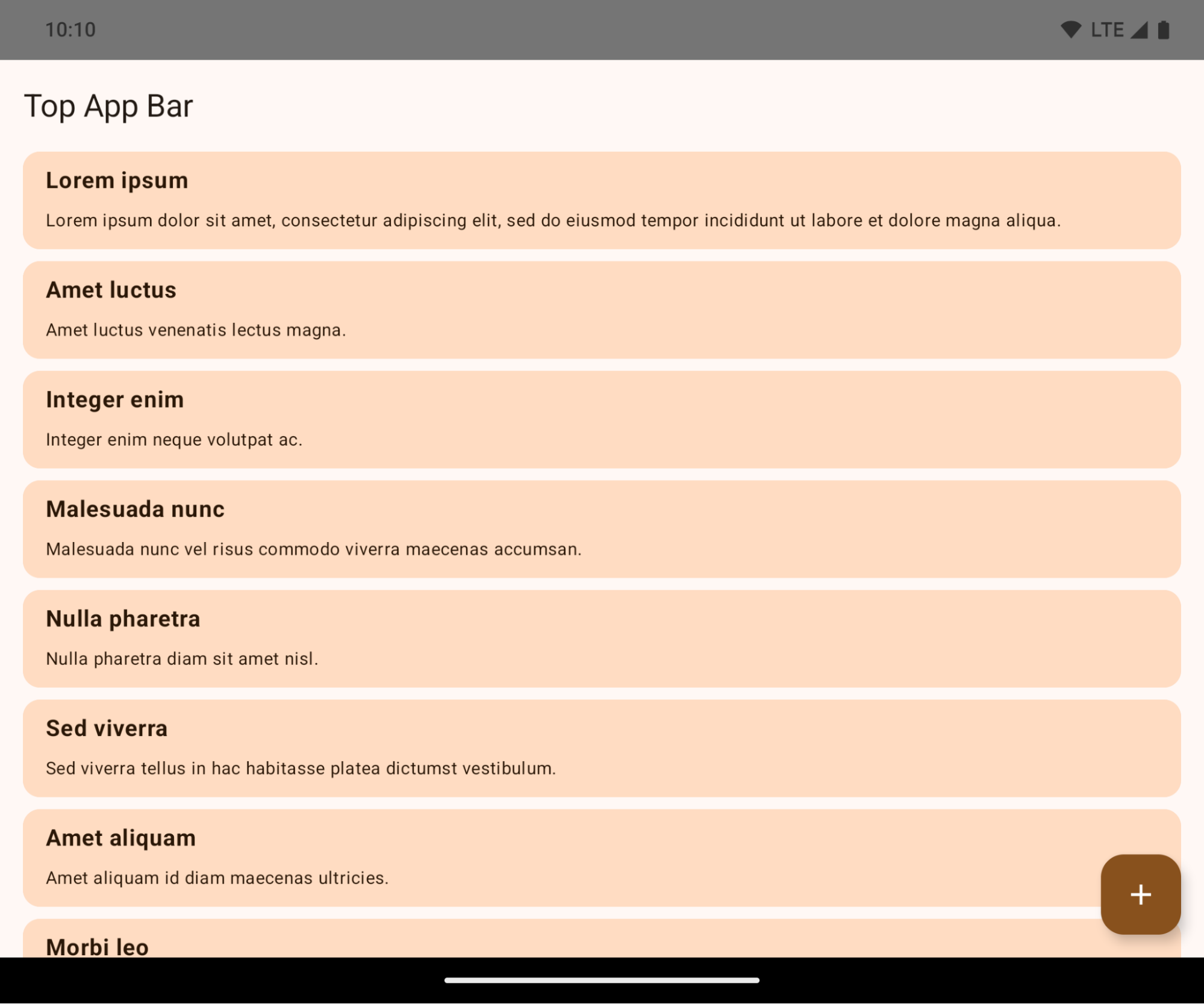
Si tratta di una modifica che comporta un'interruzione e che potrebbe influire negativamente sulla UI della tua app. Le modifiche riguardano le seguenti aree della UI:
- Barra di navigazione con handle per i gesti
- Trasparente per impostazione predefinita.
- L'offset inferiore è disattivato, quindi i contenuti vengono disegnati dietro la barra di navigazione di sistema, a meno che non vengano applicati gli inset.
setNavigationBarColoreR.attr#navigationBarColorsono deprecati e non influiscono sulla navigazione tramite gesti.setNavigationBarContrastEnforcedeR.attr#navigationBarContrastEnforcedcontinuano a non avere alcun effetto sulla navigazione tramite gesti.
- Navigazione con tre pulsanti
- Opacità impostata su 80% per impostazione predefinita, con il colore che potrebbe corrispondere allo sfondo della finestra.
- L'offset inferiore è disattivato, quindi i contenuti vengono disegnati dietro la barra di navigazione di sistema, a meno che non vengano applicati gli inset.
setNavigationBarColoreR.attr#navigationBarColorsono impostati in modo da corrispondere allo sfondo della finestra per impostazione predefinita. Lo sfondo della finestra deve essere un elemento disegnabile a colori per l'applicazione di questa impostazione predefinita. Questa API è deprecata, ma continua a influire sulla navigazione con tre pulsanti.setNavigationBarContrastEnforcedeR.attr#navigationBarContrastEnforcedsono impostati su true per impostazione predefinita, il che aggiunge uno sfondo opaco all'80% alla navigazione con tre pulsanti.
- Barra di stato
- Trasparente per impostazione predefinita.
- L'offset superiore è disattivato, quindi i contenuti vengono disegnati dietro la barra di stato, a meno che non vengano applicati gli inset.
setStatusBarColoreR.attr#statusBarColorsono deprecati e non hanno alcun effetto su Android 15.setStatusBarContrastEnforcedeR.attr#statusBarContrastEnforcedsono deprecati, ma hanno ancora un effetto su Android 15.
- Ritaglio display
layoutInDisplayCutoutModedelle finestre non mobili deve essereLAYOUT_IN_DISPLAY_CUTOUT_MODE_ALWAYS.SHORT_EDGES,NEVEReDEFAULTvengono interpretati comeALWAYSin modo che gli utenti non vedano una barra nera causata dal ritaglio display e che l'app appaia edge-to-edge.
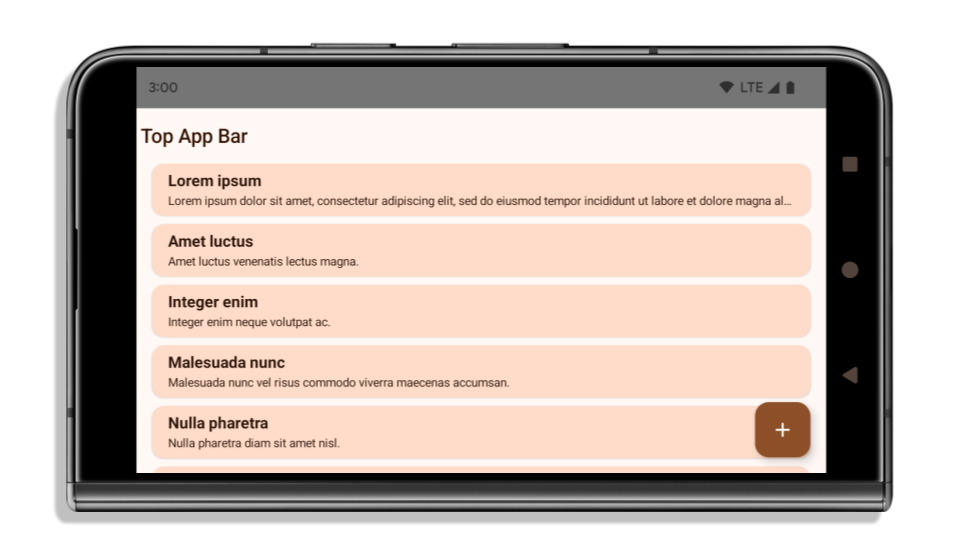
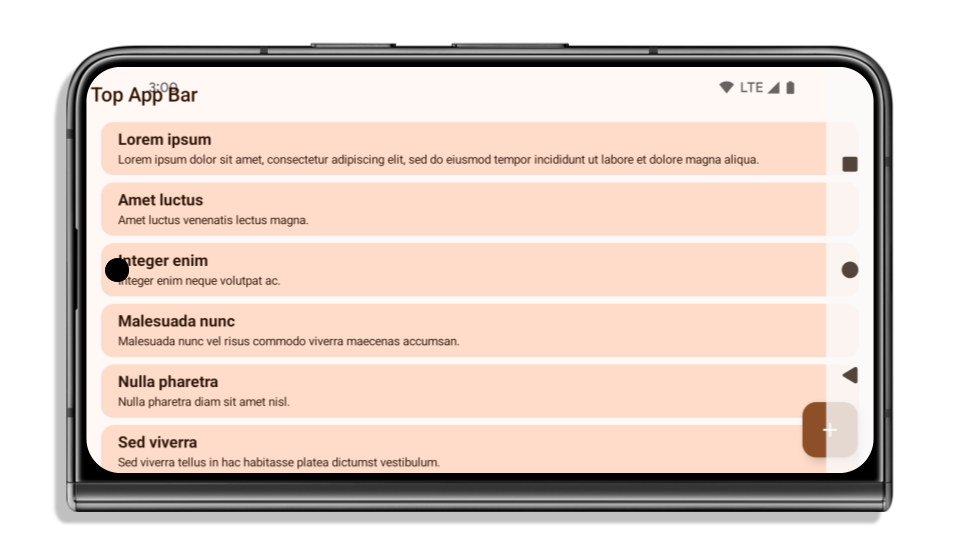
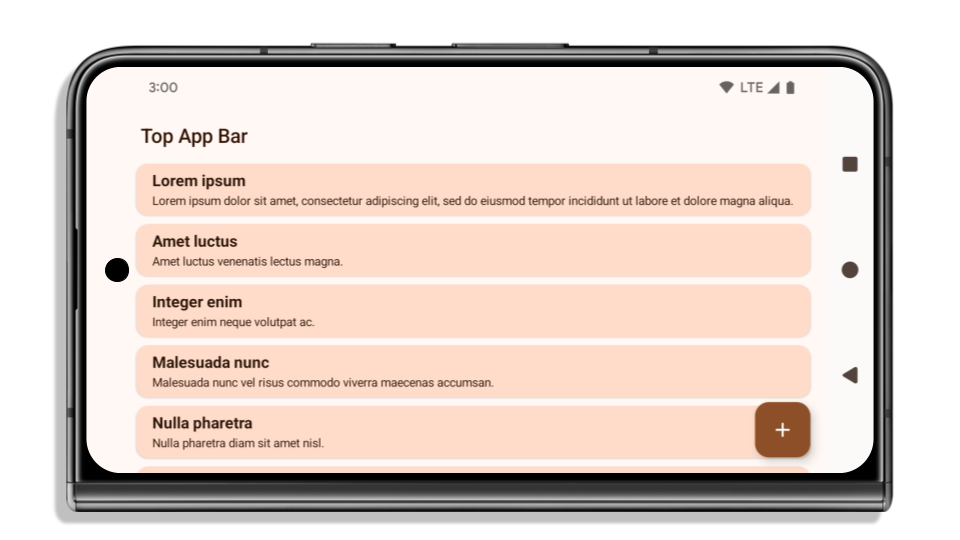
L'esempio seguente mostra un'app prima e dopo aver scelto come target Android 15 (livello API 35) e prima e dopo aver applicato gli inset. Questo esempio non è esaustivo e potrebbe apparire in modo diverso su Android Auto.
Cosa controllare se la tua app è già edge-to-edge
Se la tua app è già edge-to-edge e applica gli inset, non dovresti riscontrare problemi, tranne nei seguenti scenari. Tuttavia, anche se ritieni di non essere interessato, ti consigliamo di testare la tua app.
- Hai una finestra non mobile, ad esempio un'
Activityche utilizzaSHORT_EDGES,NEVERoDEFAULTanzichéLAYOUT_IN_DISPLAY_CUTOUT_MODE_ALWAYS. Se l'app si arresta in modo anomalo all'avvio, il problema potrebbe essere dovuto alla schermata iniziale. Puoi eseguire l'upgrade della dipendenza core splashscreen alla versione 1.2.0-alpha01 o successive oppure impostarewindow.attributes.layoutInDisplayCutoutMode = WindowManager.LayoutInDisplayCutoutMode.always. - Potrebbero esserci schermate con meno traffico con UI occlusa. Verifica che queste schermate meno visitate non abbiano UI occlusa. Le schermate con meno traffico includono:
- Schermate di onboarding o di accesso
- Pagine Impostazioni
Cosa controllare se la tua app non è ancora edge-to-edge
Se la tua app non è ancora edge-to-edge, è molto probabile che tu sia interessato. Oltre agli scenari per le app già edge-to-edge, devi considerare quanto segue:
- Se la tua app utilizza i componenti di Material 3 (
androidx.compose.material3) in Compose, comeTopAppBar,BottomAppBar, eNavigationBar, è probabile che questi componenti non siano interessati perché gestiscono automaticamente gli inset. - Se la tua app utilizza i componenti di Material 2 (
androidx.compose.material) in Compose, questi componenti non gestiscono automaticamente gli inset. Tuttavia, puoi accedere agli inset e applicarli manualmente. In androidx.compose.material 1.6.0 e versioni successive, utilizza il parametrowindowInsetsper applicare manualmente gli inset perBottomAppBar,TopAppBar,BottomNavigationeNavigationRail. Allo stesso modo, utilizza ilcontentWindowInsetsparametro perScaffold. - Se la tua app utilizza le visualizzazioni e i componenti Material
(
com.google.android.material), la maggior parte dei componenti Material basati sulle visualizzazioni, comeBottomNavigationView,BottomAppBar,NavigationRailViewoNavigationView, gestisce gli inset e non richiede ulteriori interventi. Tuttavia, devi aggiungereandroid:fitsSystemWindows="true"se utilizziAppBarLayout. - Per i composable personalizzati, applica gli inset manualmente come spaziatura interna. Se i tuoi
contenuti si trovano all'interno di un
Scaffold, puoi utilizzare gli inset utilizzando iScaffoldvalori di spaziatura interna. In caso contrario, applica la spaziatura interna utilizzando uno deiWindowInsets. - Se la tua app utilizza le visualizzazioni e
BottomSheet,SideSheeto container personalizzati, applica la spaziatura interna utilizzandoViewCompat.setOnApplyWindowInsetsListener. PerRecyclerView, applica la spaziatura interna utilizzando questo listener e aggiungi ancheclipToPadding="false".
Cosa controllare se la tua app deve offrire una protezione dello sfondo personalizzata
Se la tua app deve offrire una protezione dello sfondo personalizzata alla navigazione con tre pulsanti o
alla barra di stato, deve posizionare un composable o una visualizzazione dietro la barra di sistema
utilizzando WindowInsets.Type#tappableElement() per ottenere l'altezza della barra di navigazione con tre pulsanti
o WindowInsets.Type#statusBars.
Risorse aggiuntive per la modalità edge-to-edge
Per ulteriori considerazioni sull'applicazione degli inset, consulta le guide Visualizzazioni edge-to-edge e Compose edge-to-edge.
API deprecate
Le seguenti API sono deprecate, ma non disattivate:
R.attr#enforceStatusBarContrastR.attr#navigationBarColor(per la navigazione con tre pulsanti, con alfa 80%)Window#isStatusBarContrastEnforcedWindow#setNavigationBarColor(per la navigazione con tre pulsanti, con alfa 80%)Window#setStatusBarContrastEnforced
Le seguenti API sono deprecate e disattivate:
R.attr#navigationBarColor(per la navigazione tramite gesti)R.attr#navigationBarDividerColorR.attr#statusBarColorWindow#setDecorFitsSystemWindowsWindow#getNavigationBarColorWindow#getNavigationBarDividerColorWindow#getStatusBarColorWindow#setNavigationBarColor(per la navigazione tramite gesti)Window#setNavigationBarDividerColorWindow#setStatusBarColor
Configurazione stabile
Se la tua app ha come target Android 15 (livello API 35) o versioni successive, Configuration non
esclude più le barre di sistema. Se utilizzi le dimensioni dello schermo nella classe Configuration per il calcolo del layout, devi sostituirle con alternative migliori, come ViewGroup, WindowInsets o WindowMetricsCalculator appropriati, a seconda delle tue esigenze.
Configuration è disponibile dall'API 1. In genere viene ottenuto da
Activity.onConfigurationChanged. Fornisce informazioni come densità, orientamento e dimensioni delle finestre. Una caratteristica importante delle dimensioni della finestra
restituite da Configuration è che in precedenza escludeva le barre di sistema.
La dimensione della configurazione viene in genere utilizzata per la selezione delle risorse, ad esempio
/res/layout-h500dp, e questo è ancora un caso d'uso valido. Tuttavia, il suo utilizzo per
il calcolo del layout è sempre stato sconsigliato. In questo caso, ti consigliamo di allontanarti
immediatamente. Dovresti sostituire l'utilizzo di Configuration con qualcosa
di più adatto in base al tuo caso d'uso.
Se lo utilizzi per calcolare il layout, utilizza un ViewGroup appropriato, ad esempio
CoordinatorLayout o ConstraintLayout. Se lo utilizzi per determinare l'altezza
della barra di navigazione di sistema, utilizza WindowInsets. Se vuoi conoscere le dimensioni attuali
della finestra dell'app, utilizza computeCurrentWindowMetrics.
Il seguente elenco descrive i campi interessati da questa modifica:
- Le dimensioni
Configuration.screenWidthDpescreenHeightDpnon escludono più le barre di sistema. Configuration.smallestScreenWidthDpè interessato indirettamente dalle modifiche ascreenWidthDpescreenHeightDp.Configuration.orientationè interessato indirettamente dalle modifiche apportate ascreenWidthDpescreenHeightDpsui dispositivi quasi quadrati.Display.getSize(Point)è interessato indirettamente dalle modifiche apportate aConfiguration. Questa funzionalità è stata ritirata a partire dal livello API 30.Display.getMetrics()funziona già in questo modo dal livello API 33.
L'attributo elegantTextHeight ha come valore predefinito true
Per le app destinate ad Android 15 (livello API 35), l'attributo
elegantTextHeight TextView diventa true per impostazione predefinita, sostituendo il carattere compatto utilizzato per impostazione predefinita con alcuni script con metriche verticali grandi con uno molto più leggibile.
Il carattere compatto è stato introdotto per evitare interruzioni dei layout. Android 13 (livello API 33) impedisce molte di queste interruzioni consentendo al layout del testo di estendere l'altezza verticale utilizzando l'attributo fallbackLineSpacing.
In Android 15, il carattere compatto rimane nel sistema, quindi la tua app può impostare elegantTextHeight su false per ottenere lo stesso comportamento di prima, ma è improbabile che sia supportato nelle release future. Pertanto, se la tua app supporta i seguenti script: arabo, lao, birmano, tamil, gujarati, kannada, malayalam, oriya, telugu o thailandese, testa la tua app impostando elegantTextHeight su true.
 Comportamento di
 elegantTextHeight per le app che hanno come target Android 14 (livello API 34) e versioni precedenti.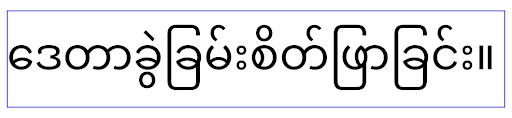
elegantTextHeight per le app destinate ad Android 15.Modifiche alla larghezza di TextView per forme di lettere complesse
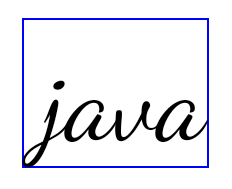
Nelle versioni precedenti di Android, alcuni caratteri corsivi o lingue con forme complesse potrebbero disegnare le lettere nell'area del carattere precedente o successivo.
In alcuni casi, queste lettere sono state tagliate all'inizio o alla fine.
A partire da Android 15, un TextView assegna una larghezza sufficiente per disegnare queste lettere e consente alle app di richiedere spaziature aggiuntive a sinistra per evitare il ritaglio.
Poiché questa modifica influisce sulla modalità di determinazione della larghezza da parte di TextView, per impostazione predefinita TextView allocate più larghezza se l'app ha come target Android 15 (livello API 35) o versioni successive. Puoi attivare o disattivare questo comportamento chiamando l'API setUseBoundsForWidth su TextView.
Poiché l'aggiunta di spaziatura interna a sinistra potrebbe causare un disallineamento dei layout esistenti, la spaziatura interna non viene aggiunta per impostazione predefinita anche per le app che hanno come target Android 15 o versioni successive.
Tuttavia, puoi aggiungere un ulteriore spazio per evitare il ritaglio chiamando
setShiftDrawingOffsetForStartOverhang.
Gli esempi riportati di seguito mostrano come queste modifiche possono migliorare il layout del testo per alcuni caratteri e lingue.

<TextView
    android:fontFamily="cursive"
    android:text="java" />
<TextView
    android:fontFamily="cursive"
    android:text="java"
    android:useBoundsForWidth="true"
    android:shiftDrawingOffsetForStartOverhang="true" />
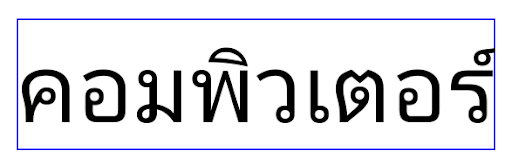
<TextView
    android:text="คอมพิวเตอร์" />
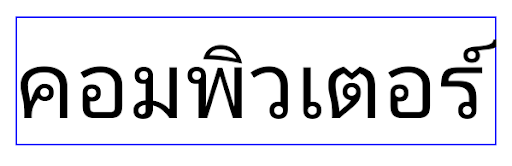
<TextView
    android:text="คอมพิวเตอร์"
    android:useBoundsForWidth="true"
    android:shiftDrawingOffsetForStartOverhang="true" />
Altezza della riga predefinita sensibile alle impostazioni internazionali per EditText
Nelle versioni precedenti di Android, il layout del testo allungava l'altezza del testo per raggiungere l'altezza della riga del carattere corrispondente alle impostazioni internazionali correnti. Ad esempio, se i contenuti erano in giapponese, l'altezza del testo è aumentata leggermente perché l'altezza della riga del carattere giapponese è leggermente superiore a quella di un carattere latino. Tuttavia, nonostante queste differenze nelle altezze delle righe, le dimensioni dell'elemento EditText erano uniformi, indipendentemente dall'impostazione internazionale utilizzata, come illustrato nell'immagine seguente:

EditText che possono contenere testo in inglese (en), giapponese (ja) e birmano (my). L'EditText è della stessa altezza, anche se queste lingue hanno altezze diverse.Per le app che hanno come target Android 15 (livello API 35), ora è stata riservata un'altezza minima della riga per EditText in modo che corrisponda al carattere di riferimento per le impostazioni internazionali specificate, come mostrato nell'immagine seguente:

EditText che possono contenere testo in inglese (en), giapponese (ja) e birmano (my). L'altezza del carattere EditText ora include lo spazio per l'altezza della riga predefinita per i caratteri di queste lingue.Se necessario, l'app può ripristinare il comportamento precedente specificando l'attributo useLocalePreferredLineHeightForMinimum su false e può impostare metriche verticali minime personalizzate utilizzando l'API setMinimumFontMetrics in Kotlin e Java.
Fotocamera e contenuti multimediali
Android 15 apporta le seguenti modifiche al comportamento della fotocamera e dei contenuti multimediali per le app che hanno come target Android 15 o versioni successive.
Restrizioni relative alla richiesta di focus audio
Per richiedere l'attenzione audio, le app che hanno come target Android 15 (livello API 35) devono essere l'app principale o eseguire un servizio in primo piano. Se un'app tenta di richiedere lo stato attivo quando non soddisfa uno di questi requisiti, la chiamata restituisce AUDIOFOCUS_REQUEST_FAILED.
Per scoprire di più sul controllo audio, consulta l'articolo Gestire il controllo audio.
Restrizioni non SDK aggiornate
Android 15 include elenchi aggiornati di interfacce non SDK con limitazioni basati sulla collaborazione con gli sviluppatori Android e sui test interni più recenti. Ove possibile, ci assicuriamo che siano disponibili alternative pubbliche prima di limitare le interfacce non SDK.
Se la tua app non ha come target Android 15, alcune di queste modifiche potrebbero non interessarti immediatamente. Tuttavia, anche se è possibile che la tua app acceda ad alcune interfacce non SDK a seconda del livello API target dell'app, l'utilizzo di qualsiasi metodo o campo non SDK comporta sempre un rischio elevato di interruzione dell'app.
Se non sai con certezza se la tua app utilizza interfacce non SDK, puoi testarla per scoprirlo. Se la tua app si basa su interfacce non SDK, devi iniziare a pianificare una migrazione ad alternative SDK. Tuttavia, comprendiamo che alcune app hanno casi d'uso validi per l'utilizzo di interfacce non SDK. Se non riesci a trovare un'alternativa all'utilizzo di un'interfaccia non SDK per una funzionalità della tua app, devi richiedere una nuova API pubblica.
Per scoprire di più sulle modifiche in questa release di Android, consulta Aggiornamenti alle limitazioni relative alle interfacce non SDK in Android 15. Per saperne di più sulle interfacce non SDK in generale, consulta Limitazioni relative alle interfacce non SDK.