

Giống như các bản phát hành trước, Android 15 có các thay đổi về hành vi có thể ảnh hưởng đến ứng dụng của bạn. Những thay đổi về hành vi sau đây chỉ tác động đến ứng dụng hướng đến Android 15 trở lên. Nếu ứng dụng của bạn hướng đến Android 15 trở lên, bạn nên điều chỉnh ứng dụng để hỗ trợ những hành vi này cho phù hợp (nếu cần).
Ngoài ra, hãy nhớ tham khảo danh sách thay đổi về hành vi ảnh hưởng đến tất cả ứng dụng
chạy trên Android 15 bất kể targetSdkVersion của ứng dụng.
Chức năng cốt lõi
Android 15 sửa đổi hoặc mở rộng nhiều chức năng cốt lõi của hệ thống Android.
Thay đổi đối với dịch vụ ở nền trước
Chúng tôi sẽ thực hiện những thay đổi sau đây đối với các dịch vụ trên nền trước trong Android 15.
- Hành vi hết thời gian chờ của dịch vụ đồng bộ hoá dữ liệu trên nền trước
- Loại dịch vụ trên nền trước mới để xử lý nội dung nghe nhìn
- Các hạn chế đối với bộ thu phát sóng
BOOT_COMPLETEDkhởi chạy dịch vụ trên nền trước - Các hạn chế khi khởi động dịch vụ trên nền trước trong khi ứng dụng có quyền
SYSTEM_ALERT_WINDOW
Hành vi hết thời gian chờ của dịch vụ đồng bộ hoá dữ liệu trên nền trước
Android 15 giới thiệu một hành vi hết thời gian chờ mới cho dataSync đối với các ứng dụng nhắm đến Android 15 (API cấp 35) trở lên. Hành vi này cũng áp dụng cho loại dịch vụ trên nền trước mediaProcessing mới.
Hệ thống cho phép các dịch vụ dataSync của ứng dụng chạy tổng cộng 6 giờ trong khoảng thời gian 24 giờ. Sau đó, hệ thống sẽ gọi phương thức Service.onTimeout(int, int) của dịch vụ đang chạy (được giới thiệu trong Android 15). Tại thời điểm này, dịch vụ có vài giây để gọi Service.stopSelf(). Khi Service.onTimeout() được gọi, dịch vụ này không còn được coi là dịch vụ trên nền trước. Nếu dịch vụ không gọi Service.stopSelf(), hệ thống sẽ gửi một ngoại lệ nội bộ. Ngoại lệ được ghi lại trong Logcat với thông báo sau:
Fatal Exception: android.app.RemoteServiceException: "A foreground service of
type dataSync did not stop within its timeout: [component name]"
Để tránh các vấn đề liên quan đến thay đổi về hành vi này, bạn có thể làm một hoặc nhiều việc sau:
- Yêu cầu dịch vụ triển khai phương thức
Service.onTimeout(int, int)mới. Khi ứng dụng của bạn nhận được lệnh gọi lại, hãy nhớ gọistopSelf()trong vài giây. (Nếu bạn không dừng ứng dụng ngay lập tức, hệ thống sẽ tạo lỗi.) - Đảm bảo các dịch vụ
dataSynccủa ứng dụng không chạy quá tổng cộng 6 giờ trong khoảng thời gian 24 giờ bất kỳ (trừ phi người dùng tương tác với ứng dụng, đặt lại bộ tính giờ). - Chỉ bắt đầu dịch vụ trên nền trước
dataSyncdo người dùng tương tác trực tiếp; vì ứng dụng của bạn đang ở nền trước khi dịch vụ bắt đầu, nên dịch vụ của bạn có đủ 6 giờ sau khi ứng dụng chuyển sang chế độ nền. - Thay vì sử dụng dịch vụ trên nền trước
dataSync, hãy sử dụng API thay thế.
Nếu các dịch vụ trên nền trước dataSync của ứng dụng đã chạy trong 6 giờ trong 24 giờ qua, thì bạn không thể bắt đầu một dịch vụ trên nền trước dataSync khác trừ phi người dùng đã đưa ứng dụng của bạn lên nền trước (điều này sẽ đặt lại bộ hẹn giờ). Nếu bạn cố gắng khởi động một dịch vụ trên nền trước dataSync khác, hệ thống sẽ gửi ForegroundServiceStartNotAllowedException kèm theo thông báo lỗi như "Đã hết thời gian giới hạn cho loại dịch vụ trên nền trước dataSync".
Thử nghiệm
Để kiểm thử hành vi của ứng dụng, bạn có thể bật thời gian chờ đồng bộ hoá dữ liệu ngay cả khi ứng dụng không nhắm đến Android 15 (miễn là ứng dụng đang chạy trên thiết bị Android 15). Để bật thời gian chờ, hãy chạy lệnh adb sau:
adb shell am compat enable FGS_INTRODUCE_TIME_LIMITS your-package-name
Bạn cũng có thể điều chỉnh khoảng thời gian chờ để dễ dàng kiểm thử cách ứng dụng của bạn hoạt động khi đạt đến giới hạn. Để đặt khoảng thời gian chờ mới, hãy chạy lệnh adb sau:
adb shell device_config put activity_manager data_sync_fgs_timeout_duration duration-in-milliseconds
Loại dịch vụ trên nền trước mới để xử lý nội dung nghe nhìn
Android 15 giới thiệu một loại dịch vụ trên nền trước mới, mediaProcessing. Loại dịch vụ này phù hợp với các thao tác như chuyển mã tệp phương tiện. Ví dụ: một ứng dụng đa phương tiện có thể tải tệp âm thanh xuống và cần chuyển đổi tệp đó sang một định dạng khác trước khi phát. Bạn có thể sử dụng dịch vụ trên nền trước mediaProcessing để đảm bảo quá trình chuyển đổi sẽ tiếp tục ngay cả khi ứng dụng đang chạy trong nền.
Hệ thống cho phép các dịch vụ mediaProcessing của ứng dụng chạy tổng cộng 6 giờ trong khoảng thời gian 24 giờ, sau đó hệ thống sẽ gọi phương thức Service.onTimeout(int, int) của dịch vụ đang chạy (được giới thiệu trong Android 15). Tại thời điểm này, dịch vụ có vài giây để gọi Service.stopSelf(). Nếu dịch vụ không gọi Service.stopSelf(), hệ thống sẽ gửi một ngoại lệ nội bộ. Ngoại lệ được ghi lại trong Logcat với thông báo sau:
Fatal Exception: android.app.RemoteServiceException: "A foreground service of
type mediaProcessing did not stop within its timeout: [component name]"
Để tránh trường hợp ngoại lệ này, bạn có thể làm theo một trong những cách sau:
- Yêu cầu dịch vụ của bạn triển khai phương thức
Service.onTimeout(int, int)mới. Khi ứng dụng của bạn nhận được lệnh gọi lại, hãy nhớ gọistopSelf()trong vòng vài giây. (Nếu bạn không dừng ứng dụng ngay lập tức, hệ thống sẽ tạo lỗi.) - Đảm bảo các dịch vụ
mediaProcessingcủa ứng dụng không chạy quá tổng cộng 6 giờ trong khoảng thời gian 24 giờ bất kỳ (trừ phi người dùng tương tác với ứng dụng, đặt lại bộ tính giờ). - Chỉ bắt đầu dịch vụ trên nền trước
mediaProcessingdo người dùng tương tác trực tiếp; vì ứng dụng của bạn đang ở nền trước khi dịch vụ bắt đầu, nên dịch vụ của bạn có đủ 6 giờ sau khi ứng dụng chuyển sang chế độ nền. - Thay vì dùng dịch vụ trên nền trước
mediaProcessing, hãy dùng một API thay thế, chẳng hạn như WorkManager.
Nếu các dịch vụ trên nền trước mediaProcessing của ứng dụng đã chạy được 6 giờ trong 24 ngày qua, thì bạn không thể bắt đầu một dịch vụ trên nền trước mediaProcessing khác trừ phi người dùng đã đưa ứng dụng của bạn lên nền trước (việc này đặt lại bộ tính giờ). Nếu bạn cố gắng bắt đầu một dịch vụ trên nền trước mediaProcessing khác, hệ thống sẽ gửi ForegroundServiceStartNotAllowedException kèm theo thông báo lỗi như "Hết thời gian giới hạn cho loại dịch vụ trên nền trước mediaProcessing".
Để biết thêm thông tin về loại dịch vụ mediaProcessing, hãy xem phần Thay đổi đối với loại dịch vụ trên nền trước cho Android 15: Xử lý nội dung nghe nhìn.
Thử nghiệm
Để kiểm thử hành vi của ứng dụng, bạn có thể bật thời gian chờ xử lý nội dung nghe nhìn ngay cả khi ứng dụng của bạn không nhắm đến Android 15 (miễn là ứng dụng đang chạy trên thiết bị Android 15). Để bật tính năng thời gian chờ, hãy chạy lệnh adb sau:
adb shell am compat enable FGS_INTRODUCE_TIME_LIMITS your-package-name
Bạn cũng có thể điều chỉnh khoảng thời gian chờ để dễ dàng kiểm thử cách ứng dụng của bạn hoạt động khi đạt đến giới hạn. Để đặt khoảng thời gian chờ mới, hãy chạy lệnh adb sau:
adb shell device_config put activity_manager media_processing_fgs_timeout_duration duration-in-milliseconds
Các hạn chế đối với bộ nhận thông báo truyền tin BOOT_COMPLETED khởi chạy dịch vụ trên nền trước
Có hạn chế mới đối với việc khởi chạy broadcast receiver BOOT_COMPLETED
các dịch vụ trên nền trước. Bộ thu BOOT_COMPLETED không được phép chạy các loại dịch vụ trên nền trước sau đây:
dataSynccameramediaPlaybackphoneCallmediaProjectionmicrophone(hạn chế này đã được áp dụng chomicrophonekể từ Android 14)
Nếu receiver BOOT_COMPLETED cố gắng chạy bất kỳ loại nền trước nào trong số đó
thì hệ thống sẽ gửi ForegroundServiceStartNotAllowedException.
Thử nghiệm
Để kiểm thử hành vi của ứng dụng, bạn có thể bật các hạn chế mới này ngay cả khi
ứng dụng không nhắm đến Android 15 (miễn là ứng dụng đó đang chạy trên Android 15
thiết bị). Chạy lệnh adb sau:
adb shell am compat enable FGS_BOOT_COMPLETED_RESTRICTIONS your-package-name
Để gửi thông báo BOOT_COMPLETED mà không cần khởi động lại thiết bị,
chạy lệnh adb sau:
adb shell am broadcast -a android.intent.action.BOOT_COMPLETED your-package-name
Các hạn chế về việc khởi động dịch vụ trên nền trước khi ứng dụng có quyền SYSTEM_ALERT_WINDOW
Trước đây, nếu có quyền SYSTEM_ALERT_WINDOW, ứng dụng có thể chạy một dịch vụ trên nền trước ngay cả khi ứng dụng đó đang chạy ở chế độ nền (như đã thảo luận trong phần các trường hợp miễn trừ khỏi các quy định hạn chế về việc bắt đầu ở chế độ nền).
Nếu một ứng dụng nhắm đến Android 15, thì trường hợp miễn trừ này hiện sẽ hẹp hơn. Ứng dụng hiện cần có quyền SYSTEM_ALERT_WINDOW và cũng có một cửa sổ lớp phủ hiển thị. Tức là trước tiên, ứng dụng cần khởi chạy cửa sổ TYPE_APPLICATION_OVERLAY và cửa sổ đó cần hiển thị trước khi bạn bắt đầu dịch vụ trên nền trước.
Nếu ứng dụng của bạn cố gắng bắt đầu một dịch vụ trên nền trước từ chế độ nền mà không đáp ứng các yêu cầu mới này (và không có một số trường hợp ngoại lệ khác), thì hệ thống sẽ gửi ForegroundServiceStartNotAllowedException.
Nếu ứng dụng của bạn khai báo quyền SYSTEM_ALERT_WINDOW và chạy các dịch vụ trên nền trước từ chế độ nền, thì ứng dụng đó có thể bị ảnh hưởng bởi thay đổi này. Nếu ứng dụng của bạn nhận được ForegroundServiceStartNotAllowedException, hãy kiểm tra thứ tự hoạt động của ứng dụng và đảm bảo ứng dụng đã có cửa sổ lớp phủ đang hoạt động trước khi ứng dụng đó cố gắng bắt đầu một dịch vụ trên nền trước từ chế độ nền. Bạn có thể kiểm tra xem cửa sổ lớp phủ của mình hiện có hiển thị hay không bằng cách gọi View.getWindowVisibility() hoặc bạn có thể ghi đè View.onWindowVisibilityChanged() để nhận thông báo bất cứ khi nào chế độ hiển thị thay đổi.
Thử nghiệm
Để kiểm thử hành vi của ứng dụng, bạn có thể bật các quy định hạn chế mới này ngay cả khi ứng dụng của bạn không nhắm đến Android 15 (miễn là ứng dụng đang chạy trên thiết bị Android 15). Để bật các hạn chế mới này khi khởi động dịch vụ trên nền trước từ chế độ nền, hãy chạy lệnh adb sau:
adb shell am compat enable FGS_SAW_RESTRICTIONS your-package-name
Thay đổi về thời điểm ứng dụng có thể sửa đổi trạng thái chung của chế độ Không làm phiền
Các ứng dụng nhắm đến Android 15 (API cấp 35) trở lên không thể thay đổi trạng thái hoặc chính sách chung của chế độ Không làm phiền (DND) trên thiết bị nữa (bằng cách sửa đổi chế độ cài đặt của người dùng hoặc tắt chế độ DND). Thay vào đó, ứng dụng phải đóng góp một AutomaticZenRule. Hệ thống sẽ kết hợp chính sách này vào một chính sách chung với lược đồ hiện có là chính sách hạn chế nhất sẽ thắng. Các lệnh gọi đến các API hiện có từng ảnh hưởng đến trạng thái toàn cục (setInterruptionFilter, setNotificationPolicy) sẽ dẫn đến việc tạo hoặc cập nhật một AutomaticZenRule ngầm ẩn. Lệnh gọi này được bật và tắt tuỳ thuộc vào chu kỳ gọi của các lệnh gọi API đó.
Xin lưu ý rằng thay đổi này chỉ ảnh hưởng đến hành vi có thể quan sát được nếu ứng dụng đang gọi setInterruptionFilter(INTERRUPTION_FILTER_ALL) và dự kiến lệnh gọi đó sẽ huỷ kích hoạt AutomaticZenRule mà chủ sở hữu của ứng dụng đã kích hoạt trước đó.
Thay đổi về API OpenJDK
Android 15 tiếp tục công cuộc làm mới các thư viện cốt lõi của Android để phù hợp với các tính năng trong bản phát hành LTS OpenJDK mới nhất.
Một số thay đổi này có thể ảnh hưởng đến khả năng tương thích của ứng dụng đối với những ứng dụng nhắm đến Android 15 (cấp độ API 35):
Các thay đổi đối với API định dạng chuỗi: Giờ đây, việc xác thực chỉ mục đối số, cờ, chiều rộng và độ chính xác sẽ nghiêm ngặt hơn khi sử dụng các API
String.format()vàFormatter.format()sau đây:String.format(String, Object[])String.format(Locale, String, Object[])Formatter.format(String, Object[])Formatter.format(Locale, String, Object[])
Ví dụ: ngoại lệ sau sẽ được gửi khi chỉ mục đối số là 0 (
%0trong chuỗi định dạng):IllegalFormatArgumentIndexException: Illegal format argument index = 0Trong trường hợp này, bạn có thể khắc phục vấn đề bằng cách sử dụng chỉ mục đối số là 1 (
%1trong chuỗi định dạng).Thay đổi loại thành phần của
Arrays.asList(...).toArray(): Khi sử dụngArrays.asList(...).toArray(), loại thành phần của mảng kết quả hiện làObjectchứ không phải loại thành phần của mảng cơ bản. Vì vậy, mã sau đây sẽ gửi mộtClassCastException:String[] elements = (String[]) Arrays.asList("one", "two").toArray();Trong trường hợp này, để giữ
Stringlàm loại thành phần trong mảng kết quả, bạn có thể sử dụngCollection.toArray(Object[])thay thế:String[] elements = Arrays.asList("two", "one").toArray(new String[0]);Thay đổi đối với cách xử lý mã ngôn ngữ: Khi sử dụng API
Locale, mã ngôn ngữ cho tiếng Do Thái, tiếng Yiddish và tiếng Indonesia sẽ không còn được chuyển đổi sang dạng lỗi thời (tiếng Do Thái:iw, tiếng Yiddish:jivà tiếng Indonesia:in). Khi chỉ định mã ngôn ngữ cho một trong các ngôn ngữ này, hãy sử dụng mã theo tiêu chuẩn ISO 639-1 (tiếng Do Thái:he, tiếng Yiddish:yivà tiếng Indonesia:id).Các thay đổi đối với chuỗi số nguyên ngẫu nhiên: Sau các thay đổi được thực hiện trong https://bugs.openjdk.org/browse/JDK-8301574, các phương thức
Random.ints()sau đây hiện trả về một chuỗi số khác với các phương thứcRandom.nextInt():Nhìn chung, thay đổi này sẽ không dẫn đến hành vi làm hỏng ứng dụng, nhưng mã của bạn không được mong đợi trình tự được tạo từ các phương thức
Random.ints()khớp vớiRandom.nextInt().
API SequencedCollection mới có thể ảnh hưởng đến khả năng tương thích của ứng dụng sau khi bạn cập nhật compileSdk trong cấu hình bản dựng của ứng dụng để sử dụng Android 15 (cấp độ API 35):
Xung đột với các hàm mở rộng
MutableList.removeFirst()vàMutableList.removeLast()trongkotlin-stdlibLoại
Listtrong Java được ánh xạ đến loạiMutableListtrong Kotlin. Vì các APIList.removeFirst()vàList.removeLast()đã được ra mắt trong Android 15 (cấp độ API 35), nên trình biên dịch Kotlin sẽ giải quyết các lệnh gọi hàm (ví dụ:list.removeFirst()) một cách tĩnh đến các APIListmới thay vì đến các hàm mở rộng trongkotlin-stdlib.Nếu một ứng dụng được biên dịch lại với
compileSdkđược đặt thành35vàminSdkđược đặt thành34trở xuống, rồi ứng dụng đó chạy trên Android 14 trở xuống, thì sẽ xảy ra lỗi thời gian chạy:java.lang.NoSuchMethodError: No virtual method removeFirst()Ljava/lang/Object; in class Ljava/util/ArrayList;Lựa chọn
NewApilint hiện có trong Trình bổ trợ Android cho Gradle có thể phát hiện những cách sử dụng API mới này../gradlew lintMainActivity.kt:41: Error: Call requires API level 35 (current min is 34): java.util.List#removeFirst [NewApi] list.removeFirst()Để khắc phục ngoại lệ thời gian chạy và lỗi lint, bạn có thể thay thế các lệnh gọi hàm
removeFirst()vàremoveLast()bằngremoveAt(0)vàremoveAt(list.lastIndex)tương ứng trong Kotlin. Nếu bạn đang sử dụng Android Studio Ladybug | 2024.1.3 trở lên, thì phiên bản này cũng cung cấp một lựa chọn sửa lỗi nhanh cho những lỗi này.Hãy cân nhắc việc xoá
@SuppressLint("NewApi")vàlintOptions { disable 'NewApi' }nếu bạn đã tắt lựa chọn lint.Xung đột với các phương thức khác trong Java
Các phương thức mới đã được thêm vào các loại hiện có, ví dụ:
ListvàDeque. Những phương thức mới này có thể không tương thích với các phương thức có cùng tên và kiểu đối số trong các giao diện và lớp khác. Trong trường hợp xảy ra xung đột chữ ký phương thức với sự không tương thích, trình biên dịchjavacsẽ xuất ra lỗi thời gian tạo. Ví dụ:Ví dụ về lỗi 1:
javac MyList.javaMyList.java:135: error: removeLast() in MyList cannot implement removeLast() in List public void removeLast() { ^ return type void is not compatible with Object where E is a type-variable: E extends Object declared in interface ListVí dụ về lỗi 2:
javac MyList.javaMyList.java:7: error: types Deque<Object> and List<Object> are incompatible; public class MyList implements List<Object>, Deque<Object> { both define reversed(), but with unrelated return types 1 errorVí dụ về lỗi 3:
javac MyList.javaMyList.java:43: error: types List<E#1> and MyInterface<E#2> are incompatible; public static class MyList implements List<Object>, MyInterface<Object> { class MyList inherits unrelated defaults for getFirst() from types List and MyInterface where E#1,E#2 are type-variables: E#1 extends Object declared in interface List E#2 extends Object declared in interface MyInterface 1 errorĐể khắc phục những lỗi bản dựng này, lớp triển khai các giao diện này phải ghi đè phương thức bằng một kiểu dữ liệu trả về tương thích. Ví dụ:
@Override
public Object getFirst() {
    return List.super.getFirst();
}
Bảo mật
Android 15 có những thay đổi giúp tăng cường bảo mật hệ thống để bảo vệ ứng dụng và người dùng khỏi các ứng dụng độc hại.
Các phiên bản TLS bị hạn chế
Android 15 hạn chế việc sử dụng TLS phiên bản 1.0 và 1.1. Các phiên bản này trước đây đã ngừng hoạt động trong Android, nhưng hiện không được phép sử dụng cho các ứng dụng nhắm đến Android 15.
Khởi chạy hoạt động trong nền một cách an toàn
Android 15 bảo vệ người dùng khỏi các ứng dụng độc hại và giúp họ kiểm soát thiết bị của mình tốt hơn bằng cách thêm những thay đổi ngăn các ứng dụng độc hại ở chế độ nền đưa các ứng dụng khác lên nền trước, nâng cao đặc quyền và lợi dụng hoạt động tương tác của người dùng. Hoạt động khởi chạy ở chế độ nền đã bị hạn chế kể từ Android 10 (API cấp 29).
Các thay đổi khác
- Thay đổi để theo mặc định,
PendingIntentngười tạo sẽ chặn hoạt động khởi chạy trong nền. Điều này giúp ngăn các ứng dụng vô tình tạo ra mộtPendingIntentmà đối tượng xấu có thể lợi dụng. - Không đưa ứng dụng lên nền trước, trừ phi người gửi
PendingIntentcho phép. Thay đổi này nhằm mục đích ngăn các ứng dụng độc hại lợi dụng khả năng bắt đầu các hoạt động ở chế độ nền. Theo mặc định, các ứng dụng không được phép đưa ngăn xếp tác vụ lên nền trước, trừ phi người tạo cho phép đặc quyền khởi chạy hoạt động ở chế độ nền hoặc người gửi có đặc quyền khởi chạy hoạt động ở chế độ nền. - Kiểm soát cách hoạt động hàng đầu của ngăn xếp tác vụ có thể hoàn thành tác vụ của mình. Nếu hoạt động hàng đầu hoàn tất một tác vụ, Android sẽ quay lại tác vụ hoạt động gần đây nhất. Ngoài ra, nếu một hoạt động không phải là hoạt động hàng đầu hoàn tất tác vụ của mình, thì Android sẽ quay lại màn hình chính; hệ thống sẽ không chặn quá trình hoàn tất của hoạt động không phải là hoạt động hàng đầu này.
- Ngăn chặn việc chạy các hoạt động tuỳ ý từ các ứng dụng khác vào tác vụ của riêng bạn. Thay đổi này ngăn các ứng dụng độc hại lừa đảo người dùng bằng cách tạo các hoạt động có vẻ như đến từ các ứng dụng khác.
- Chặn các cửa sổ không hiển thị được xem xét để khởi chạy hoạt động trong nền. Điều này giúp ngăn chặn các ứng dụng độc hại lợi dụng hoạt động khởi chạy ở chế độ nền để hiển thị nội dung không mong muốn hoặc độc hại cho người dùng.
Ý định an toàn hơn
Android 15 giới thiệu StrictMode cho các ý định.
Để xem nhật ký chi tiết về các lỗi vi phạm khi sử dụng Intent, hãy sử dụng phương thức sau:
Kotlin
fun onCreate() {
    StrictMode.setVmPolicy(VmPolicy.Builder()
        .detectUnsafeIntentLaunch()
        .build()
    )
}
Java
public void onCreate() {
    StrictMode.setVmPolicy(new VmPolicy.Builder()
            .detectUnsafeIntentLaunch()
            .build());
}
Trải nghiệm người dùng và giao diện người dùng hệ thống
Android 15 có một số thay đổi nhằm tạo ra trải nghiệm người dùng nhất quán và trực quan hơn.
Thay đổi về phần lồng ghép cửa sổ
Có hai thay đổi liên quan đến phần lồng ghép cửa sổ trong Android 15: chế độ tràn viền được thực thi theo mặc định và cũng có các thay đổi về cấu hình, chẳng hạn như cấu hình mặc định của các thanh hệ thống.
Thực thi chi tiết
Theo mặc định, các ứng dụng sẽ hiển thị tràn viền trên các thiết bị chạy Android 15 nếu ứng dụng đó nhắm đến Android 15 (cấp độ API 35).

Đây là một thay đổi mang tính đột phá có thể ảnh hưởng tiêu cực đến giao diện người dùng của ứng dụng. Những thay đổi này ảnh hưởng đến các khu vực sau trên giao diện người dùng:
- Thanh điều hướng bằng cử chỉ
- Trong suốt theo mặc định.
- Khoảng cách dưới cùng bị tắt để nội dung vẽ phía sau thanh điều hướng của hệ thống, trừ phi áp dụng phần lồng ghép.
setNavigationBarColorvàR.attr#navigationBarColorkhông được dùng nữa và không ảnh hưởng đến điều hướng bằng cử chỉ.setNavigationBarContrastEnforcedvàR.attr#navigationBarContrastEnforcedvẫn không ảnh hưởng đến điều hướng bằng cử chỉ.
- Thao tác bằng 3 nút
- Độ mờ được đặt thành 80% theo mặc định, với màu có thể khớp với nền cửa sổ.
- Khoảng cách dưới cùng bị vô hiệu hoá để nội dung nằm phía sau thanh điều hướng của hệ thống, trừ phi áp dụng phần lồng ghép.
setNavigationBarColorvàR.attr#navigationBarColorđược đặt để khớp với nền cửa sổ theo mặc định. Nền cửa sổ phải là một đối tượng có thể vẽ màu để áp dụng giá trị mặc định này. API này không được dùng nữa nhưng vẫn ảnh hưởng đến thao tác bằng 3 nút.setNavigationBarContrastEnforcedvàR.attr#navigationBarContrastEnforcedlà true theo mặc định, thêm nền mờ 80% trên thao tác bằng 3 nút.
- Thanh trạng thái
- Trong suốt theo mặc định.
- Khoảng cách trên cùng bị vô hiệu hoá để nội dung nằm phía sau thanh trạng thái, trừ phi áp dụng phần lồng ghép.
setStatusBarColorvàR.attr#statusBarColorkhông được dùng nữa và không ảnh hưởng đến Android 15.setStatusBarContrastEnforcedvàR.attr#statusBarContrastEnforcedkhông được dùng nữa nhưng vẫn ảnh hưởng đến Android 15.
- Vết cắt trên màn hình
layoutInDisplayCutoutModecủa các cửa sổ không nổi phải làLAYOUT_IN_DISPLAY_CUTOUT_MODE_ALWAYS.SHORT_EDGES,NEVERvàDEFAULTđược diễn giải làALWAYSđể người dùng không thấy thanh màu đen do vết cắt trên màn hình gây ra và hiển thị tràn viền.
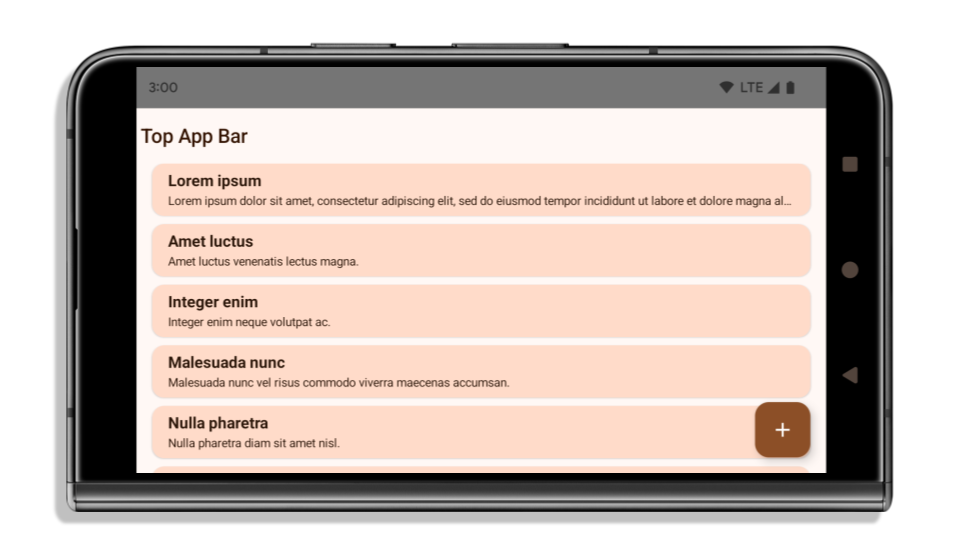
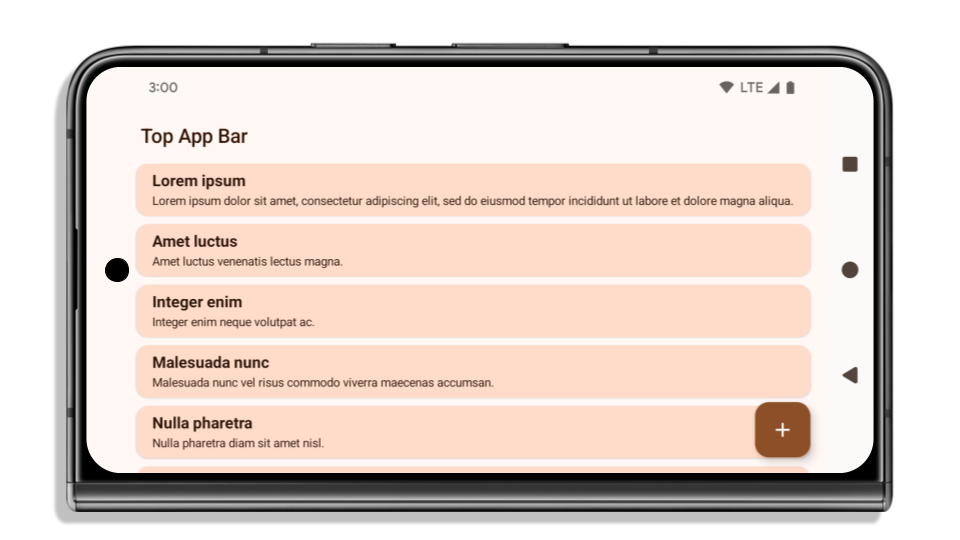
Ví dụ sau đây cho thấy một ứng dụng trước và sau khi nhắm đến Android 15 (cấp độ API 35), cũng như trước và sau khi áp dụng phần lồng ghép. Ví dụ này không đầy đủ, có thể xuất hiện khác trên Android Auto.

Những điều cần kiểm tra nếu ứng dụng của bạn đã hiển thị tràn viền
Nếu ứng dụng của bạn đã hiển thị tràn viền và áp dụng phần lồng ghép, thì bạn sẽ không bị ảnh hưởng nhiều, ngoại trừ trong các trường hợp sau. Tuy nhiên, ngay cả khi bạn nghĩ rằng mình không bị ảnh hưởng, bạn vẫn nên kiểm thử ứng dụng.
- Bạn có một cửa sổ không nổi, chẳng hạn như
Activitysử dụngSHORT_EDGES,NEVERhoặcDEFAULTthay vìLAYOUT_IN_DISPLAY_CUTOUT_MODE_ALWAYS. Nếu ứng dụng của bạn gặp sự cố khi khởi chạy, thì có thể là do màn hình chờ. Bạn có thể nâng cấp phần phụ thuộc màn hình chờ cốt lõi lên 1.2.0-alpha01 trở lên hoặc đặtwindow.attributes.layoutInDisplayCutoutMode = WindowManager.LayoutInDisplayCutoutMode.always. - Có thể có những màn hình có lưu lượng truy cập thấp hơn với giao diện người dùng bị che khuất. Xác minh rằng những màn hình ít được truy cập này không có giao diện người dùng bị che khuất. Các màn hình có lưu lượng truy cập thấp hơn bao gồm:
- Màn hình giới thiệu hoặc đăng nhập
- Trang cài đặt
Những điều cần kiểm tra nếu ứng dụng của bạn chưa hiển thị tràn viền
Nếu ứng dụng của bạn chưa hiển thị tràn viền, thì rất có thể bạn sẽ bị ảnh hưởng. Ngoài các trường hợp dành cho những ứng dụng đã hiển thị tràn viền, bạn nên cân nhắc những điều sau:
- Nếu ứng dụng của bạn sử dụng các thành phần Material 3 (
androidx.compose.material3) trong Compose, chẳng hạn nhưTopAppBar,BottomAppBar, vàNavigationBar, thì các thành phần này có khả năng không bị ảnh hưởng vì chúng tự động xử lý phần lồng ghép. - Nếu ứng dụng của bạn dùng các thành phần Material 2 (
androidx.compose.material) trong Compose, thì các thành phần này sẽ không tự động xử lý phần lồng ghép. Tuy nhiên, bạn có thể truy cập vào những phần lồng ghép này và áp dụng chúng theo cách thủ công. Trong androidx.compose.material 1.6.0 trở lên, hãy dùng tham sốwindowInsetsđể áp dụng phần lồng ghép theo cách thủ công choBottomAppBar,TopAppBar,BottomNavigation, vàNavigationRail. Tương tự, hãy dùng tham sốcontentWindowInsetschoScaffold. - Nếu ứng dụng của bạn dùng các khung hiển thị và thành phần Material
(
com.google.android.material), thì hầu hết các thành phần Material dựa trên khung hiển thị, chẳng hạn nhưBottomNavigationView,BottomAppBar,NavigationRailViewhoặcNavigationView, sẽ xử lý phần lồng ghép và không yêu cầu bạn phải làm gì thêm. Tuy nhiên, bạn cần thêmandroid:fitsSystemWindows="true"nếu sử dụngAppBarLayout. - Đối với các thành phần kết hợp tuỳ chỉnh, hãy áp dụng phần lồng ghép theo cách thủ công như khoảng đệm. Nếu nội dung của bạn nằm trong
Scaffold, bạn có thể sử dụng các giá trị khoảng đệmScaffoldđể sử dụng phần lồng ghép. Nếu không, hãy áp dụng khoảng đệm bằng một trong cácWindowInsets. - Nếu ứng dụng của bạn dùng các khung hiển thị và
BottomSheet,SideSheethoặc các vùng chứa tuỳ chỉnh, hãy áp dụng khoảng đệm bằngViewCompat.setOnApplyWindowInsetsListener. Đối vớiRecyclerView, hãy áp dụng khoảng đệm bằng trình nghe này, đồng thời thêmclipToPadding="false".
Những điều cần kiểm tra nếu ứng dụng của bạn phải cung cấp tính năng bảo vệ nền tuỳ chỉnh
Nếu ứng dụng của bạn phải cung cấp tính năng bảo vệ nền tuỳ chỉnh cho thao tác bằng 3 nút hoặc
thanh trạng thái, thì ứng dụng đó nên đặt một thành phần kết hợp hoặc khung hiển thị phía sau thanh hệ thống
bằng cách sử dụng WindowInsets.Type#tappableElement() để lấy chiều cao thanh điều hướng bằng 3 nút
hoặc WindowInsets.Type#statusBars.
Tài nguyên khác về chế độ tràn viền
Hãy xem hướng dẫn Khung hiển thị tràn viền và Compose tràn viền để biết thêm các yếu tố cần cân nhắc khi áp dụng phần lồng ghép.
API không dùng nữa
Các API sau đây không được dùng nữa nhưng không bị vô hiệu hoá:
R.attr#enforceStatusBarContrastR.attr#navigationBarColor(đối với thao tác bằng 3 nút, với alpha 80%)Window#isStatusBarContrastEnforcedWindow#setNavigationBarColor(đối với thao tác bằng 3 nút, với alpha 80%)Window#setStatusBarContrastEnforced
Các API sau đây không được dùng nữa và bị vô hiệu hoá:
R.attr#navigationBarColor(đối với điều hướng bằng cử chỉ)R.attr#navigationBarDividerColorR.attr#statusBarColorWindow#setDecorFitsSystemWindowsWindow#getNavigationBarColorWindow#getNavigationBarDividerColorWindow#getStatusBarColorWindow#setNavigationBarColor(đối với điều hướng bằng cử chỉ)Window#setNavigationBarDividerColorWindow#setStatusBarColor
Cấu hình ổn định
Nếu ứng dụng của bạn nhắm đến Android 15 (API cấp 35) trở lên, thì Configuration sẽ không còn loại trừ các thanh hệ thống nữa. Nếu sử dụng kích thước màn hình trong lớp Configuration để tính toán bố cục, bạn nên thay thế bằng các lựa chọn thay thế tốt hơn như ViewGroup, WindowInsets hoặc WindowMetricsCalculator thích hợp tuỳ theo nhu cầu của bạn.
Configuration đã có sẵn kể từ API 1. Thông tin này thường được lấy từ Activity.onConfigurationChanged. Nền tảng này cung cấp thông tin như mật độ, hướng và kích thước cửa sổ. Một đặc điểm quan trọng về kích thước cửa sổ được trả về từ Configuration là trước đây, kích thước này không bao gồm các thanh hệ thống.
Kích thước cấu hình thường được dùng để chọn tài nguyên, chẳng hạn như /res/layout-h500dp và đây vẫn là một trường hợp sử dụng hợp lệ. Tuy nhiên, bạn không nên dùng nó để tính toán bố cục. Nếu có, bạn nên di chuyển ra xa ngay bây giờ. Bạn nên thay thế việc sử dụng Configuration bằng một thành phần phù hợp hơn, tuỳ thuộc vào trường hợp sử dụng của bạn.
Nếu bạn dùng tham số này để tính toán bố cục, hãy dùng một ViewGroup thích hợp, chẳng hạn như CoordinatorLayout hoặc ConstraintLayout. Nếu bạn dùng phương thức này để xác định chiều cao của thanh điều hướng hệ thống, hãy dùng WindowInsets. Nếu bạn muốn biết kích thước hiện tại của cửa sổ ứng dụng, hãy dùng computeCurrentWindowMetrics.
Danh sách sau đây mô tả các trường chịu ảnh hưởng của thay đổi này:
- Kích thước
Configuration.screenWidthDpvàscreenHeightDpkhông còn loại trừ các thanh hệ thống nữa. Configuration.smallestScreenWidthDpchịu ảnh hưởng gián tiếp của các thay đổi đối vớiscreenWidthDpvàscreenHeightDp.Configuration.orientationchịu ảnh hưởng gián tiếp của các thay đổi đối vớiscreenWidthDpvàscreenHeightDptrên các thiết bị gần vuông.Display.getSize(Point)chịu ảnh hưởng gián tiếp của các thay đổi trongConfiguration. Thuộc tính này đã ngừng hoạt động kể từ cấp độ API 30.Display.getMetrics()đã hoạt động theo cách này kể từ cấp độ API 33.
Thuộc tính elegantTextHeight mặc định là true
Đối với các ứng dụng nhắm đến Android 15 (API cấp 35), thuộc tính elegantTextHeight TextView sẽ trở thành true theo mặc định, thay thế phông chữ thu gọn được sử dụng theo mặc định bằng một số tập lệnh có các chỉ số dọc lớn bằng một tập lệnh dễ đọc hơn nhiều.
Phông chữ nhỏ gọn được giới thiệu để ngăn các bố cục bị phá vỡ; Android 13 (API cấp 33) ngăn chặn nhiều sự cố này bằng cách cho phép bố cục văn bản kéo giãn chiều cao theo chiều dọc bằng cách sử dụng thuộc tính fallbackLineSpacing.
Trong Android 15, phông chữ thu gọn vẫn còn trong hệ thống, vì vậy, ứng dụng của bạn có thể đặt elegantTextHeight thành false để có cùng hành vi như trước, nhưng có thể sẽ không được hỗ trợ trong các bản phát hành sắp tới. Vì vậy, nếu ứng dụng của bạn hỗ trợ các tập lệnh sau: tiếng Ả Rập, tiếng Lào, tiếng Myanmar, tiếng Tamil, tiếng Gujarati, tiếng Kannada, tiếng Malayalam, tiếng Odia, tiếng Telugu hoặc tiếng Thái, hãy kiểm thử ứng dụng bằng cách đặt elegantTextHeight thành true.
elegantTextHeight của  đối với các ứng dụng nhắm đến Android 14 (API cấp 34) trở xuống.
elegantTextHeight hành vi cho các ứng dụng nhắm đến Android 15.Thay đổi về chiều rộng TextView đối với các hình dạng chữ phức tạp
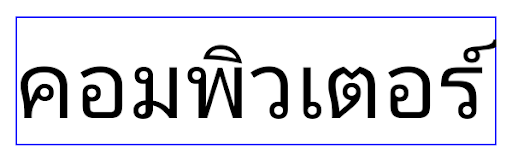
Trong các phiên bản Android trước, một số phông chữ hoặc ngôn ngữ viết tay có hình dạng phức tạp có thể vẽ các chữ cái trong vùng của ký tự trước hoặc sau.
Trong một số trường hợp, các chữ cái như vậy bị cắt ở vị trí đầu hoặc cuối.
Kể từ Android 15, TextView sẽ phân bổ chiều rộng để vẽ đủ không gian cho các chữ cái đó và cho phép ứng dụng yêu cầu khoảng đệm bổ sung ở bên trái để tránh bị cắt bớt.
Vì thay đổi này ảnh hưởng đến cách TextView quyết định chiều rộng, nên theo mặc định, TextView sẽ phân bổ nhiều chiều rộng hơn nếu ứng dụng nhắm đến Android 15 (API cấp 35) trở lên. Bạn có thể bật hoặc tắt hành vi này bằng cách gọi API setUseBoundsForWidth trên TextView.
Vì việc thêm khoảng đệm bên trái có thể khiến các bố cục hiện có bị lệch, nên khoảng đệm không được thêm theo mặc định ngay cả đối với các ứng dụng nhắm đến Android 15 trở lên.
Tuy nhiên, bạn có thể thêm khoảng đệm bổ sung để ngăn chặn việc cắt bớt bằng cách gọi setShiftDrawingOffsetForStartOverhang.
Các ví dụ sau đây cho thấy những thay đổi này có thể cải thiện bố cục văn bản cho một số phông chữ và ngôn ngữ.

<TextView
    android:fontFamily="cursive"
    android:text="java" />

<TextView
    android:fontFamily="cursive"
    android:text="java"
    android:useBoundsForWidth="true"
    android:shiftDrawingOffsetForStartOverhang="true" />

<TextView
    android:text="คอมพิวเตอร์" />
<TextView
    android:text="คอมพิวเตอร์"
    android:useBoundsForWidth="true"
    android:shiftDrawingOffsetForStartOverhang="true" />
Chiều cao dòng mặc định theo ngôn ngữ cho EditText
Trong các phiên bản Android trước, bố cục văn bản đã kéo giãn chiều cao của văn bản để đáp ứng chiều cao dòng của phông chữ khớp với ngôn ngữ hiện tại. Ví dụ: nếu nội dung bằng tiếng Nhật, thì chiều cao dòng của phông chữ tiếng Nhật sẽ lớn hơn một chút so với chiều cao dòng của phông chữ Latinh, do đó chiều cao của văn bản sẽ lớn hơn một chút. Tuy nhiên, mặc dù có sự khác biệt về chiều cao dòng, nhưng phần tử EditText được định cỡ đồng nhất, bất kể ngôn ngữ đang được sử dụng, như minh hoạ trong hình sau:

EditText có thể chứa văn bản bằng tiếng Anh (en), tiếng Nhật (ja) và tiếng Miến Điện (my). Chiều cao của EditText là như nhau, mặc dù các ngôn ngữ này có chiều cao dòng khác nhau.Đối với các ứng dụng nhắm đến Android 15 (API cấp 35), chiều cao dòng tối thiểu hiện được dành riêng cho EditText để khớp với phông chữ tham chiếu cho Ngôn ngữ được chỉ định, như minh hoạ trong hình sau:

EditText có thể chứa văn bản bằng tiếng Anh (en), tiếng Nhật (ja) và tiếng Miến Điện (my). Chiều cao của EditText hiện bao gồm khoảng trống để phù hợp với chiều cao dòng mặc định cho phông chữ của các ngôn ngữ này.Nếu cần, ứng dụng của bạn có thể khôi phục hành vi trước đó bằng cách chỉ định thuộc tính useLocalePreferredLineHeightForMinimum thành false và ứng dụng có thể đặt các chỉ số dọc tối thiểu tuỳ chỉnh bằng API setMinimumFontMetrics trong Kotlin và Java.
Camera và nội dung nghe nhìn
Android 15 thực hiện những thay đổi sau đối với hành vi của camera và nội dung nghe nhìn cho các ứng dụng nhắm đến Android 15 trở lên.
Quy định hạn chế đối với việc yêu cầu lấy quyền phát âm thanh
Các ứng dụng nhắm đến Android 15 (API cấp 35) phải là ứng dụng hàng đầu hoặc đang chạy một dịch vụ trên nền trước để yêu cầu quyền phát âm thanh. Nếu một ứng dụng cố gắng yêu cầu tiêu điểm khi không đáp ứng một trong các yêu cầu này, thì lệnh gọi sẽ trả về AUDIOFOCUS_REQUEST_FAILED.
Bạn có thể tìm hiểu thêm về quyền phát âm thanh tại phần Quản lý quyền phát âm thanh.
Các quy tắc hạn chế mới cập nhật đối với yếu tố ngoài SDK
Android 15 lập danh sách các giao diện không phải SDK bị hạn chế. Danh sách này được cập nhật thông qua việc cộng tác với nhà phát triển Android và quy trình kiểm thử nội bộ mới nhất. Bất cứ khi nào có thể, chúng tôi phải đảm bảo việc cung cấp các phương án thay thế công khai trước khi hạn chế giao diện không phải SDK.
Nếu ứng dụng của bạn không nhắm đến Android 15, thì một số thay đổi này có thể sẽ không ảnh hưởng ngay. Tuy nhiên, mặc dù ứng dụng của bạn có thể truy cập vào một số giao diện không phải SDK tuỳ thuộc vào cấp độ API mục tiêu của ứng dụng, nhưng việc sử dụng phương thức hoặc trường không phải SDK luôn có nguy cơ cao làm hỏng ứng dụng.
Nếu không chắc ứng dụng của mình có sử dụng giao diện không phải SDK hay không, bạn có thể kiểm thử ứng dụng để tìm hiểu. Nếu ứng dụng của bạn dựa vào giao diện không phải SDK, thì bạn nên bắt đầu lập kế hoạch di chuyển sang SDK làm giải pháp thay thế. Tuy nhiên, chúng tôi hiểu rằng vẫn có một số trường hợp sử dụng hợp lệ cho việc ứng dụng sử dụng giao diện không phải SDK. Nếu không tìm được giải pháp thay thế cho việc sử dụng giao diện không phải SDK đối với một tính năng trong ứng dụng, thì bạn nên yêu cầu một API công khai mới.
Để tìm hiểu thêm về những thay đổi trong bản phát hành Android này, hãy xem bài viết Thông tin cập nhật đối với những hạn chế về giao diện không phải SDK trong Android 15. Để tìm hiểu thêm về giao diện không phải SDK, hãy xem bài viết Các hạn chế đối với giao diện không phải SDK.