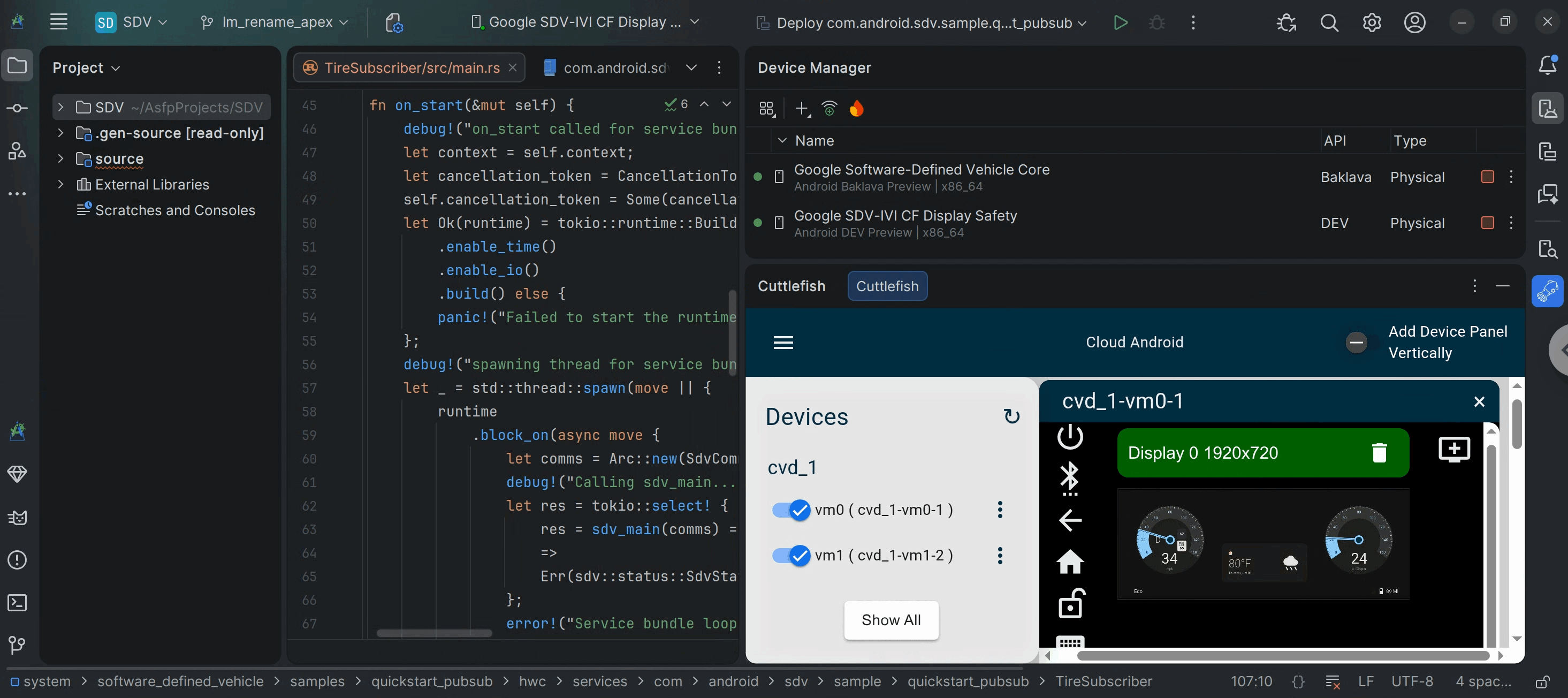
A project in Android Studio for Platform (ASfP) contains everything that defines your workspace for your AOSP codebase, from source code and assets to test code and Soong build configurations.
Built on the IntelliJ Workspace Model, ASfP constructs large platform projects
and restores your project model from cached snapshots on startup. Contents
inside the out/ directory and generated gen files are excluded from project
search scopes so that symbol and file navigation stays fast.
Project configuration (.asfp-project)
The .asfp-project YAML file, located in the root of your project directory,
controls the ASfP project configuration. This file defines which directories,
Soong modules, languages, and build flags are included in your workspace.
You can open your project configuration at any time using any of the following options:
- Select ASfP > Project > Open Config from the main menu.
- Double-click
.asfp-projectin the root of the Project tool window. - Click Open Config in the Soong tool window toolbar.
After editing .asfp-project, run a project sync for your changes to take
effect.
Shareable project templates (export and import)
Teams working on the same subsystem (such as SystemUI, Settings, SurfaceFlinger,
or Automotive) can share a standard .asfp-project configuration as a template:
Export to template: Right-click the
.asfp-projecteditor tab or select ASfP > Project > Export Config to Template to save a shareable template file.
Import from template: When creating a new project in the project setup wizard, select Import from template and choose the shared
.asfp-projectYAML file to prepopulate directories, modules, and build settings.
Configuration parameters
The .asfp-project file supports the following parameters:
repo
Required: Absolute path to your Android platform repository checkout root.
repo: /path/to/aosp
lunch
Required: The lunch target coupled with your project. Used for all Soong build, sync, and deploy actions.
lunch: aosp_cf_x86_64_phone-aosp_current-userdebug
directories
Optional: Directories to include in or exclude from your project (relative to
repo root). Symlinked directories and source roots are supported.
directories:
  include:
    -   frameworks/base
    -   packages/apps/Settings
  exclude:
    -   vendor
    -   out/soong
modules
Optional: Specific Soong modules to include in or exclude from your project.
Works in conjunction with directories. Both full and abridged module names are
supported.
modules:
  include:
    -   SystemUI
    -   frameworks/base/services/core/java:services
  exclude:
    -   UnusedModule
test_sources
Optional: Relative paths to mark as test source roots when ASfP's automatic test source heuristics need manual override.
test_sources:
  -   cts/tests/tests/example
  -   tests/mytests
other_languages
Optional: Java, Kotlin, and Android.bp support is enabled by default. Add
cpp for C and C++ or rust for Rust language support:
other_languages:
  -   cpp
  -   rust
build_config
Optional: Custom flags or environment variables passed to Soong build invocations triggered by the IDE (including syncs, gutter builds, and run configurations):
build_config:
  flags:
    -   -j64
  env:
    SOONG_PARTIAL_COMPILE: true
    SOONG_ALLOW_MISSING_DEPENDENCIES: true
Sync modes and Soong tool window
ASfP provides multiple ways to synchronize your IDE project with your AOSP checkout depending on your workflow needs. Access these actions from the ASfP > Sync menu or the Soong tool window:
- Sync Project: Analyzes your configured directories and modules and updates IDE indexing and dependencies.
- Partial Sync: Syncs only a targeted subset of modules or directories, saving time when working in a localized area of the tree.
- No-Build Sync: Refreshes IDE project structure and source roots without running a Soong build step—useful when you've added or moved source files or already built from the terminal.
- Sync and Full Build: Combines project synchronization with a full Soong build in a single step.
The Soong tool window (View > Tool Windows > Soong) displays real-time status indicators for each sync task node, quick-access build buttons, and Soong command execution.
In-editor Android.bp build, deployment, and navigation
ASfP provides integrated editor support for Android.bp files:
Build, run, and debug targets from the gutter
Open any Android.bp file in your project to build or launch targets from two
gutter icons:
- Build icon (all named modules): Appears next to
name:on every named module (cc_library_shared,java_library,rust_binary,android_app, and test targets) to build that Soong target (Build "<module>"). - Run or Debug icon (
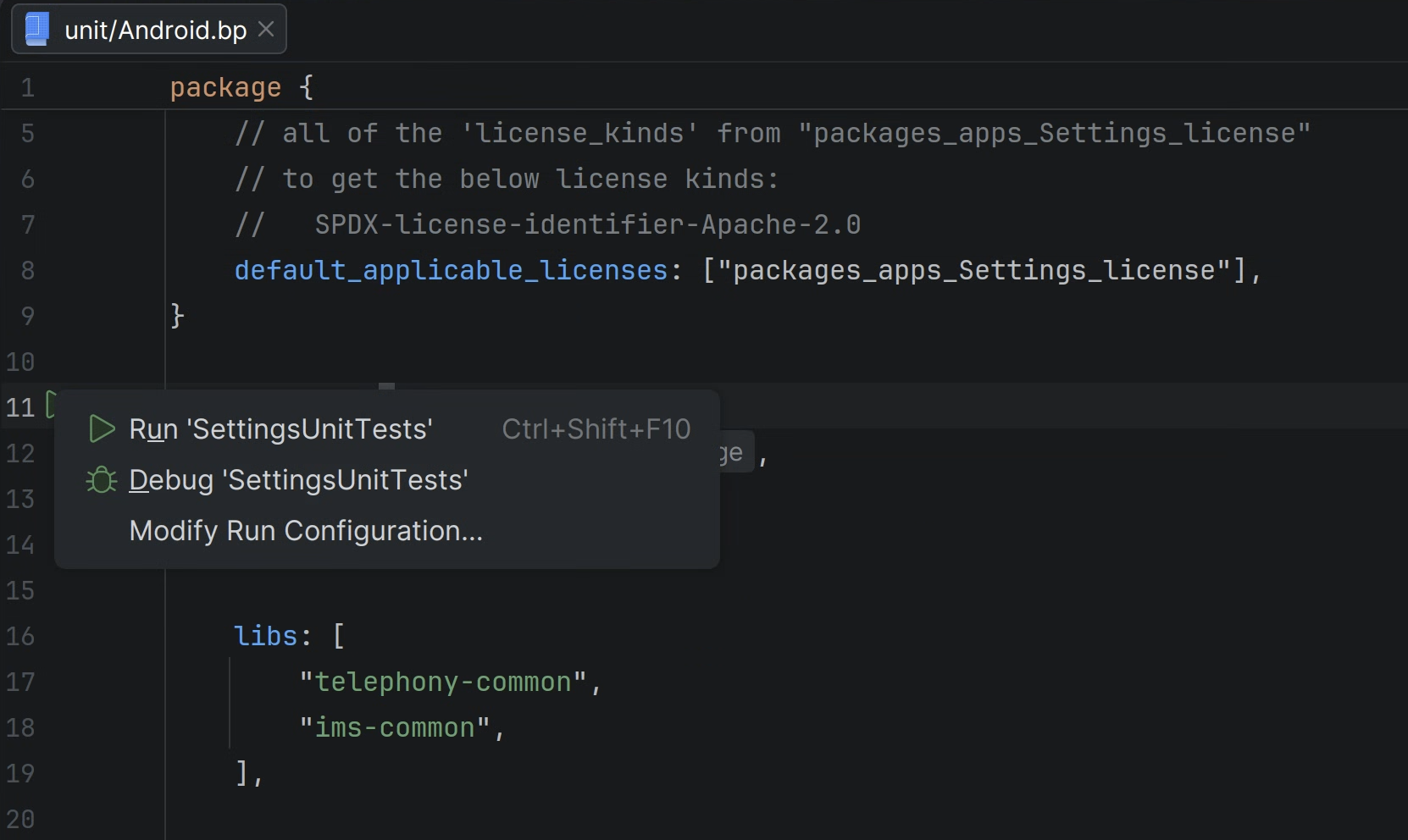
*_test,*_test_host, andandroid_app): Click Run next to a test module orandroid_appdeclaration to run or debug the module.android_testmodules debug throughatest, andcc_test*andrust_test*modules launch under built-in LLDB.
Contextual deploy and flash run configurations
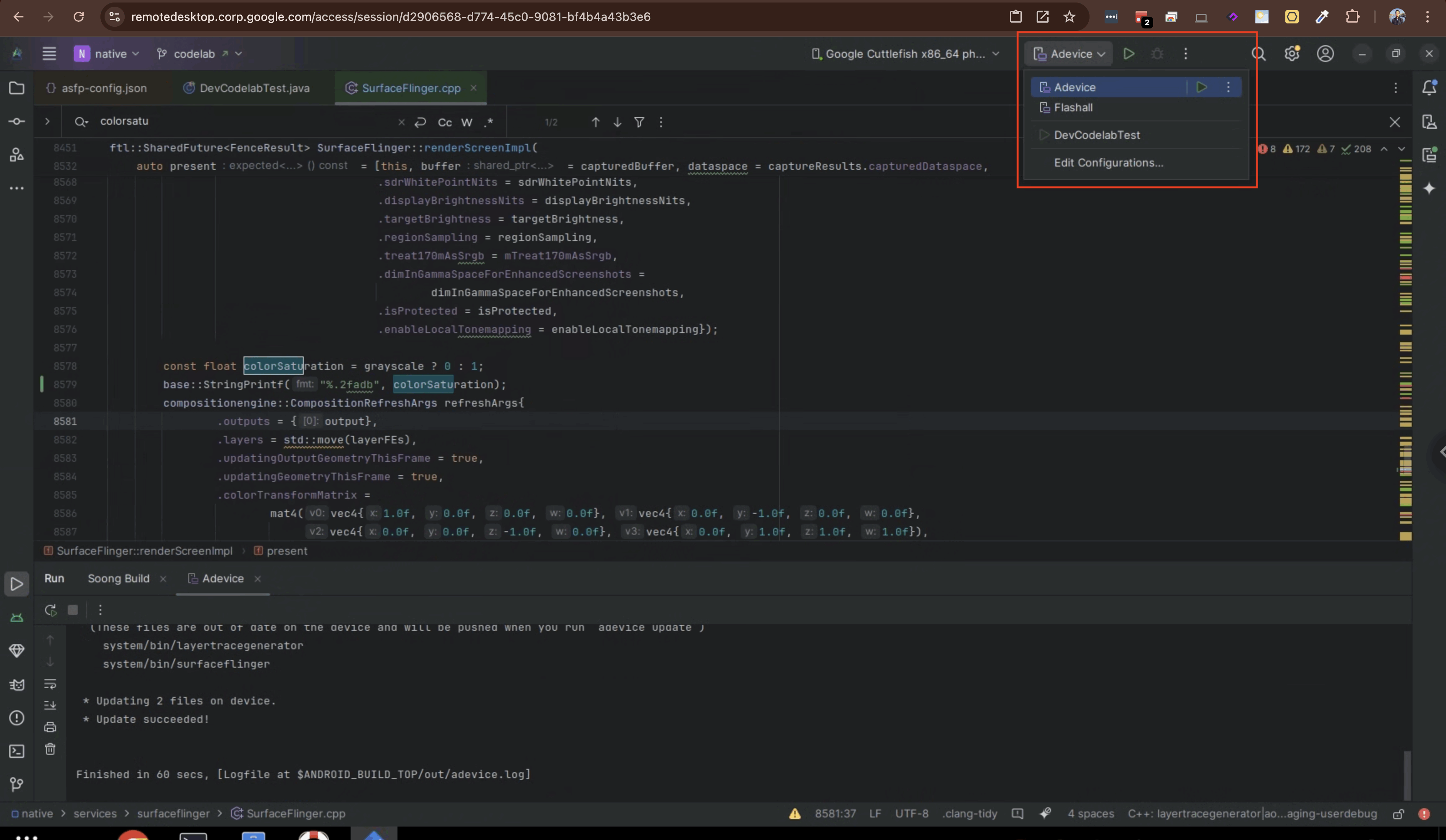
For deployable modules in Android.bp files, you can create and launch
contextual Soong Deploy run configurations from the gutter or right-click
context menu with the following features:
- Deployment methods: Deploy using
adb, custom shell scripts,adevice, orflashall. - Pre-run Soong build hooks: Build the target Soong module automatically before deploying to your connected device or Cuttlefish virtual device.
Jump between source code and Android.bp
From any source file or directory in the Project tool window, editor tab, or
editor context menu, right-click and select Open Corresponding Android.bp
File. ASfP locates and highlights the Android.bp module declaration that
compiles that file, resolving defaults blocks, wildcard srcs patterns, and
symlinks.

Android.bp editor intelligence and tooltip documentation
- Cross-file navigation and usage counts: Control-click any module
reference,
srcsfile, orsoong_config_module_typeto jump to its declaration. ClickableN Usagesinlay hints appear next to module names and sharedsrcstargets, and unreferenced library modules are visually dimmed. - Soong property documentation tooltips: Hold the pointer over any
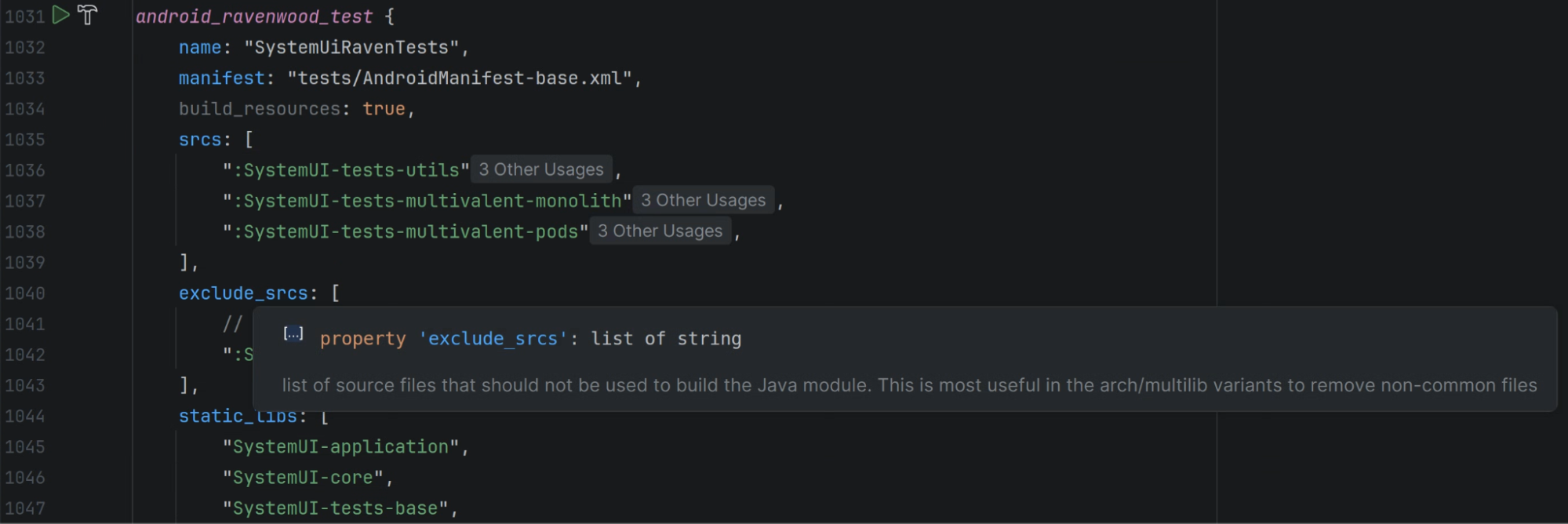
property in an
Android.bpfile—including architecture- or target-scoped properties undertarget,arch, andmultilib—to view its Soong type signature and documentation inline.
Cuttlefish virtual device management and multi-screen mirroring
ASfP includes a built-in Cuttlefish plugin for platform, Android Automotive OS (AAOS), and Software-Defined Vehicle (SDV) developers working with locally built Cuttlefish virtual devices:
- Multidevice setup in Device Manager: Create and manage multidevice
Cuttlefish virtual device setups in Device Manager using your local AOSP
checkout (
$ANDROID_BUILD_TOPand$ANDROID_PRODUCT_OUT). - Multi-screen display mirroring in the Cuttlefish tool window: Open View > Tool Windows > Cuttlefish for built-in Cuttlefish multi-screen display mirroring so you can view and interact with multiple automotive displays at once for AAOS and SDV workflows.