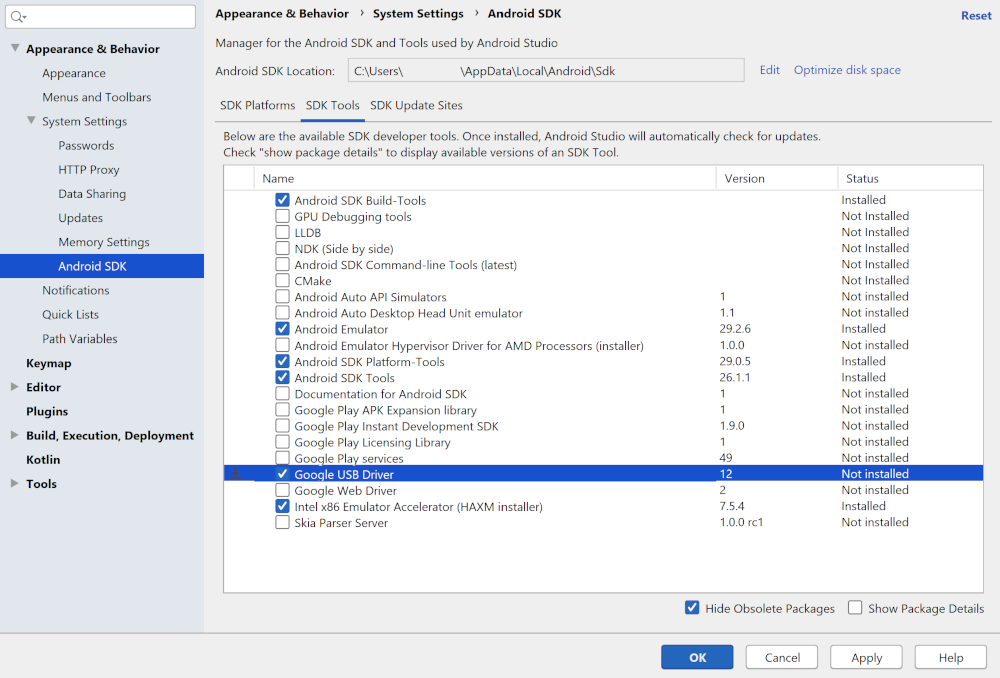
Download the Google USB driver
Before downloading, you must agree to the following terms and conditions.
Terms and Conditions
This is the Android Software Development Kit License Agreement
1. Introduction
1.1 The Android Software Development Kit (referred to in the License Agreement as the "SDK" and specifically including the Android system files, packaged APIs, and Google APIs add-ons) is licensed to you subject to the terms of the License Agreement. The License Agreement forms a legally binding contract between you and Google in relation to your use of the SDK.
1.2 "Android" means the Android software stack for devices, as made available under the Android Open Source Project, which is located at the following URL: https://source.android.com , as updated from time to time.
1.3 A "compatible implementation" means any Android device that (i) complies with the Android Compatibility Definition document, which can be found at the Android compatibility website (https://source.android.com/compatibility) and which may be updated from time to time; and (ii) successfully passes the Android Compatibility Test Suite (CTS).
1.4 "Google" means Google LLC, organized under the laws of the State of Delaware, USA, and operating under the laws of the USA with principal place of business at 1600 Amphitheatre Parkway, Mountain View, CA 94043, USA.
2. Accepting this License Agreement
2.1 In order to use the SDK, you must first agree to the License Agreement. You may not use the SDK if you do not accept the License Agreement.
2.2 By clicking to accept and/or using this SDK, you hereby agree to the terms of the License Agreement.
2.3 You may not use the SDK and may not accept the License Agreement if you are a person barred from receiving the SDK under the laws of the United States or other countries, including the country in which you are resident or from which you use the SDK.
2.4 If you are agreeing to be bound by the License Agreement on behalf of your employer or other entity, you represent and warrant that you have full legal authority to bind your employer or such entity to the License Agreement. If you do not have the requisite authority, you may not accept the License Agreement or use the SDK on behalf of your employer or other entity.
3. SDK License from Google
3.1 Subject to the terms of the License Agreement, Google grants you a limited, worldwide, royalty-free, non-assignable, non-exclusive, and non-sublicensable license to use the SDK solely to develop applications for compatible implementations of Android.
3.2 You may not use this SDK to develop applications for other platforms (including non-compatible implementations of Android) or to develop another SDK. You are of course free to develop applications for other platforms, including non-compatible implementations of Android, provided that this SDK is not used for that purpose.
3.3 You agree that Google or third parties own all legal right, title and interest in and to the SDK, including any Intellectual Property Rights that subsist in the SDK. "Intellectual Property Rights" means any and all rights under patent law, copyright law, trade secret law, trademark law, and any and all other proprietary rights. Google reserves all rights not expressly granted to you.
3.4 You may not use the SDK for any purpose not expressly permitted by the License Agreement. Except to the extent required by applicable third party licenses, you may not copy (except for backup purposes), modify, adapt, redistribute, decompile, reverse engineer, disassemble, or create derivative works of the SDK or any part of the SDK.
3.5 Use, reproduction and distribution of components of the SDK licensed under an open source software license are governed solely by the terms of that open source software license and not the License Agreement.
3.6 You agree that the form and nature of the SDK that Google provides may change without prior notice to you and that future versions of the SDK may be incompatible with applications developed on previous versions of the SDK. You agree that Google may stop (permanently or temporarily) providing the SDK (or any features within the SDK) to you or to users generally at Google's sole discretion, without prior notice to you.
3.7 Nothing in the License Agreement gives you a right to use any of Google's trade names, trademarks, service marks, logos, domain names, or other distinctive brand features.
3.8 You agree that you will not remove, obscure, or alter any proprietary rights notices (including copyright and trademark notices) that may be affixed to or contained within the SDK.
4. Use of the SDK by You
4.1 Google agrees that it obtains no right, title or interest from you (or your licensors) under the License Agreement in or to any software applications that you develop using the SDK, including any intellectual property rights that subsist in those applications.
4.2 You agree to use the SDK and write applications only for purposes that are permitted by (a) the License Agreement and (b) any applicable law, regulation or generally accepted practices or guidelines in the relevant jurisdictions (including any laws regarding the export of data or software to and from the United States or other relevant countries).
4.3 You agree that if you use the SDK to develop applications for general public users, you will protect the privacy and legal rights of those users. If the users provide you with user names, passwords, or other login information or personal information, you must make the users aware that the information will be available to your application, and you must provide legally adequate privacy notice and protection for those users. If your application stores personal or sensitive information provided by users, it must do so securely. If the user provides your application with Google Account information, your application may only use that information to access the user's Google Account when, and for the limited purposes for which, the user has given you permission to do so.
4.4 You agree that you will not engage in any activity with the SDK, including the development or distribution of an application, that interferes with, disrupts, damages, or accesses in an unauthorized manner the servers, networks, or other properties or services of any third party including, but not limited to, Google or any mobile communications carrier.
4.5 You agree that you are solely responsible for (and that Google has no responsibility to you or to any third party for) any data, content, or resources that you create, transmit or display through Android and/or applications for Android, and for the consequences of your actions (including any loss or damage which Google may suffer) by doing so.
4.6 You agree that you are solely responsible for (and that Google has no responsibility to you or to any third party for) any breach of your obligations under the License Agreement, any applicable third party contract or Terms of Service, or any applicable law or regulation, and for the consequences (including any loss or damage which Google or any third party may suffer) of any such breach.
5. Your Developer Credentials
5.1 You agree that you are responsible for maintaining the confidentiality of any developer credentials that may be issued to you by Google or which you may choose yourself and that you will be solely responsible for all applications that are developed under your developer credentials.
6.1 In order to continually innovate and improve the SDK, Google may collect certain usage statistics from the software including but not limited to a unique identifier, associated IP address, version number of the software, and information on which tools and/or services in the SDK are being used and how they are being used. Before any of this information is collected, the SDK will notify you and seek your consent. If you withhold consent, the information will not be collected.
6.2 The data collected is examined in the aggregate to improve the SDK and is maintained in accordance with Google's Privacy Policy, which is located at the following URL: https://policies.google.com/privacy
6.3 Anonymized and aggregated sets of the data may be shared with Google partners to improve the SDK.
7. Third Party Applications
7.1 If you use the SDK to run applications developed by a third party or that access data, content or resources provided by a third party, you agree that Google is not responsible for those applications, data, content, or resources. You understand that all data, content or resources which you may access through such third party applications are the sole responsibility of the person from which they originated and that Google is not liable for any loss or damage that you may experience as a result of the use or access of any of those third party applications, data, content, or resources.
7.2 You should be aware the data, content, and resources presented to you through such a third party application may be protected by intellectual property rights which are owned by the providers (or by other persons or companies on their behalf). You may not modify, rent, lease, loan, sell, distribute or create derivative works based on these data, content, or resources (either in whole or in part) unless you have been specifically given permission to do so by the relevant owners.
7.3 You acknowledge that your use of such third party applications, data, content, or resources may be subject to separate terms between you and the relevant third party. In that case, the License Agreement does not affect your legal relationship with these third parties.
8. Using Android APIs
8.1 Google Data APIs
8.1.1 If you use any API to retrieve data from Google, you acknowledge that the data may be protected by intellectual property rights which are owned by Google or those parties that provide the data (or by other persons or companies on their behalf). Your use of any such API may be subject to additional Terms of Service. You may not modify, rent, lease, loan, sell, distribute or create derivative works based on this data (either in whole or in part) unless allowed by the relevant Terms of Service.
8.1.2 If you use any API to retrieve a user's data from Google, you acknowledge and agree that you will retrieve data only with the user's explicit consent and only when, and for the limited purposes for which, the user has given you permission to do so. If you use the Android Recognition Service API, documented at the following URL: https://developer.android.com/reference/android/speech/RecognitionService, as updated from time to time, you acknowledge that the use of the API is subject to the Data Processing Addendum for Products where Google is a Data Processor, which is located at the following URL: https://privacy.google.com/businesses/gdprprocessorterms/, as updated from time to time. By clicking to accept, you hereby agree to the terms of the Data Processing Addendum for Products where Google is a Data Processor.
9. Terminating this License Agreement
9.1 The License Agreement will continue to apply until terminated by either you or Google as set out below.
9.2 If you want to terminate the License Agreement, you may do so by ceasing your use of the SDK and any relevant developer credentials.
9.3 Google may at any time, terminate the License Agreement with you if:
(A) you have breached any provision of the License Agreement; or
(B) Google is required to do so by law; or
(C) the partner with whom Google offered certain parts of SDK (such as APIs) to you has terminated its relationship with Google or ceased to offer certain parts of the SDK to you; or
(D) Google decides to no longer provide the SDK or certain parts of the SDK to users in the country in which you are resident or from which you use the service, or the provision of the SDK or certain SDK services to you by Google is, in Google's sole discretion, no longer commercially viable.
9.4 When the License Agreement comes to an end, all of the legal rights, obligations and liabilities that you and Google have benefited from, been subject to (or which have accrued over time whilst the License Agreement has been in force) or which are expressed to continue indefinitely, will be unaffected by this cessation, and the provisions of paragraph 14.7 will continue to apply to such rights, obligations and liabilities indefinitely.
10. DISCLAIMER OF WARRANTIES
10.1 YOU EXPRESSLY UNDERSTAND AND AGREE THAT YOUR USE OF THE SDK IS AT YOUR SOLE RISK AND THAT THE SDK IS PROVIDED "AS IS" AND "AS AVAILABLE" WITHOUT WARRANTY OF ANY KIND FROM GOOGLE.
10.2 YOUR USE OF THE SDK AND ANY MATERIAL DOWNLOADED OR OTHERWISE OBTAINED THROUGH THE USE OF THE SDK IS AT YOUR OWN DISCRETION AND RISK AND YOU ARE SOLELY RESPONSIBLE FOR ANY DAMAGE TO YOUR COMPUTER SYSTEM OR OTHER DEVICE OR LOSS OF DATA THAT RESULTS FROM SUCH USE.
10.3 GOOGLE FURTHER EXPRESSLY DISCLAIMS ALL WARRANTIES AND CONDITIONS OF ANY KIND, WHETHER EXPRESS OR IMPLIED, INCLUDING, BUT NOT LIMITED TO THE IMPLIED WARRANTIES AND CONDITIONS OF MERCHANTABILITY, FITNESS FOR A PARTICULAR PURPOSE AND NON-INFRINGEMENT.
11. LIMITATION OF LIABILITY
11.1 YOU EXPRESSLY UNDERSTAND AND AGREE THAT GOOGLE, ITS SUBSIDIARIES AND AFFILIATES, AND ITS LICENSORS WILL NOT BE LIABLE TO YOU UNDER ANY THEORY OF LIABILITY FOR ANY DIRECT, INDIRECT, INCIDENTAL, SPECIAL, CONSEQUENTIAL OR EXEMPLARY DAMAGES THAT MAY BE INCURRED BY YOU, INCLUDING ANY LOSS OF DATA, WHETHER OR NOT GOOGLE OR ITS REPRESENTATIVES HAVE BEEN ADVISED OF OR SHOULD HAVE BEEN AWARE OF THE POSSIBILITY OF ANY SUCH LOSSES ARISING.
12. Indemnification
12.1 To the maximum extent permitted by law, you agree to defend, indemnify and hold harmless Google, its affiliates and their respective directors, officers, employees and agents from and against any and all claims, actions, suits or proceedings, as well as any and all losses, liabilities, damages, costs and expenses (including reasonable attorneys fees) arising out of or accruing from (a) your use of the SDK, (b) any application you develop on the SDK that infringes any copyright, trademark, trade secret, trade dress, patent or other intellectual property right of any person or defames any person or violates their rights of publicity or privacy, and (c) any non-compliance by you with the License Agreement.
13. Changes to the License Agreement
13.1 Google may make changes to the License Agreement as it distributes new versions of the SDK. When these changes are made, Google will make a new version of the License Agreement available on the website where the SDK is made available.
14. General Legal Terms
14.1 The License Agreement constitutes the whole legal agreement between you and Google and governs your use of the SDK (excluding any services which Google may provide to you under a separate written agreement), and completely replaces any prior agreements between you and Google in relation to the SDK.
14.2 You agree that if Google does not exercise or enforce any legal right or remedy which is contained in the License Agreement (or which Google has the benefit of under any applicable law), this will not be taken to be a formal waiver of Google's rights and that those rights or remedies will still be available to Google.
14.3 If any court of law, having the jurisdiction to decide on this matter, rules that any provision of the License Agreement is invalid, then that provision will be removed from the License Agreement without affecting the rest of the License Agreement. The remaining provisions of the License Agreement will continue to be valid and enforceable.
14.4 You acknowledge and agree that each member of the group of companies of which Google is the parent will be third party beneficiaries to the License Agreement and that such other companies will be entitled to directly enforce, and rely upon, any provision of the License Agreement that confers a benefit on (or rights in favor of) them. Other than this, no other person or company will be third party beneficiaries to the License Agreement.
14.5 EXPORT RESTRICTIONS. THE SDK IS SUBJECT TO UNITED STATES EXPORT LAWS AND REGULATIONS. YOU MUST COMPLY WITH ALL DOMESTIC AND INTERNATIONAL EXPORT LAWS AND REGULATIONS THAT APPLY TO THE SDK. THESE LAWS INCLUDE RESTRICTIONS ON DESTINATIONS, END USERS AND END USE.
14.6 The rights granted in the License Agreement may not be assigned or transferred by either you or Google without the prior written approval of the other party. Neither you nor Google will be permitted to delegate their responsibilities or obligations under the License Agreement without the prior written approval of the other party.
14.7 The License Agreement, and your relationship with Google under the License Agreement, will be governed by the laws of the State of California without regard to its conflict of laws provisions. You and Google agree to submit to the exclusive jurisdiction of the courts located within the county of Santa Clara, California to resolve any legal matter arising from the License Agreement. Notwithstanding this, you agree that Google will still be allowed to apply for injunctive remedies (or an equivalent type of urgent legal relief) in any jurisdiction.
April 28, 2026